
Screen guide · Web app
Petpooja
Connect the school's Petpooja Payroll account, bring staff punch-in and punch-out into Staff Attendance, and match each Petpooja employee to a staff user.
यह पेज अंग्रेज़ी में है। कुछ समझ न आए तो ।
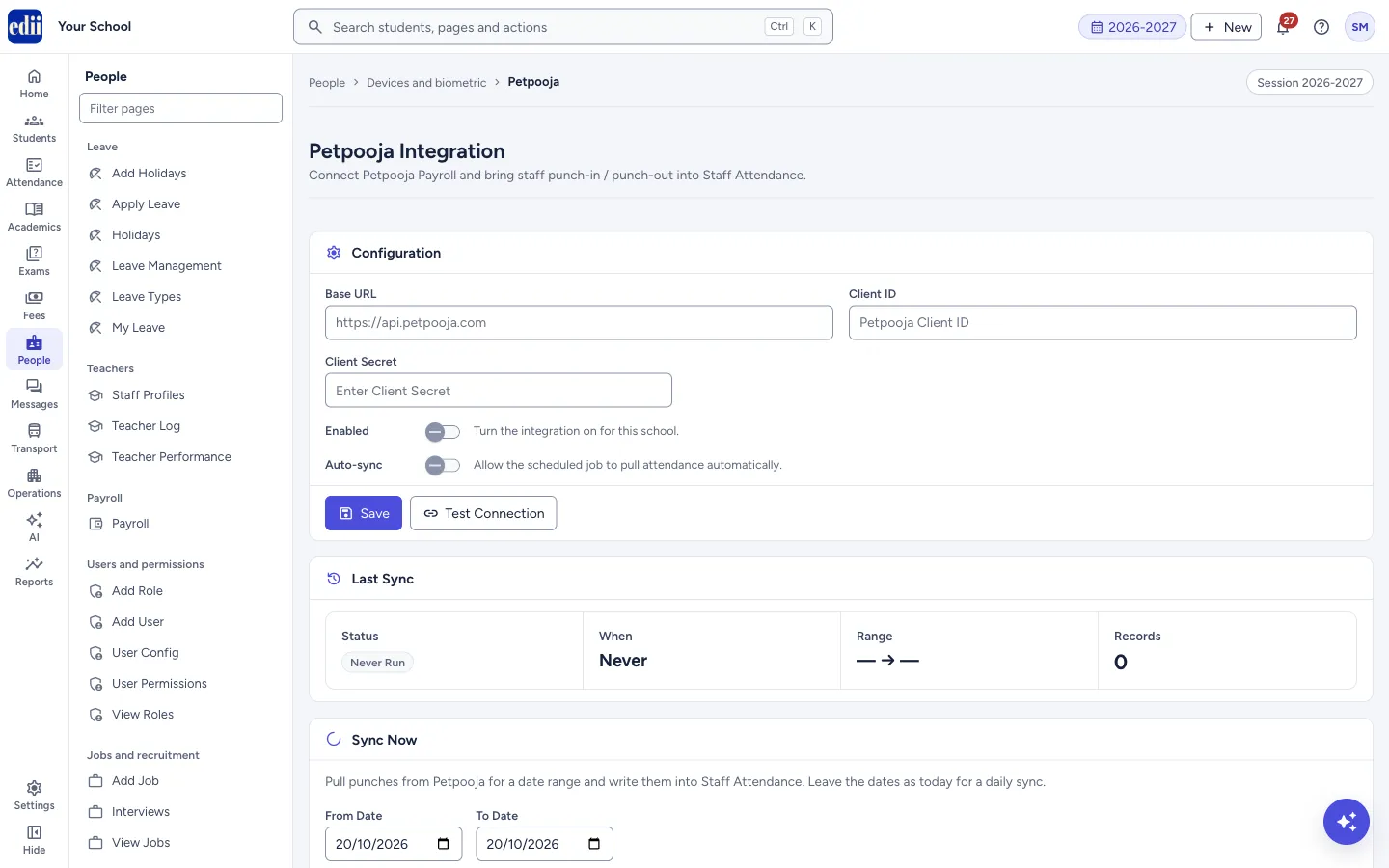
The page is headed Petpooja Integration. If your school records staff punches in Petpooja Payroll, this page pulls those punches into Staff Attendance.
It has four boxes: Configuration (the connection details and two switches), Last Sync (what the latest sync did), Sync Now (pull punches for a date range) and Employee Mapping (match Petpooja employees with EDII staff users so the punches go to the right person).
Who uses it and when
Section titled “Who uses it and when”The administrator, when the school starts using Petpooja for staff attendance, and when new staff join.
Before you start
Section titled “Before you start”- You need the Base URL, Client ID and Client Secret that Petpooja gave your school.
- The staff members must already exist as EDII users (see Add User).
Where to find it
Section titled “Where to find it”- In school.edii.in: People › Devices and biometric › Petpooja
- Or press Ctrl K (⌘ K on a Mac) and type Petpooja.
- Address:
school.edii.in/view/petpooja-integration - Who can see it: Staff whose role includes Leave access. If it is missing from your menu, ask your school admin.
 Open a bigger pictureतस्वीर बड़ी करें
Step by step
Section titled “Step by step”1. Enter the connection details
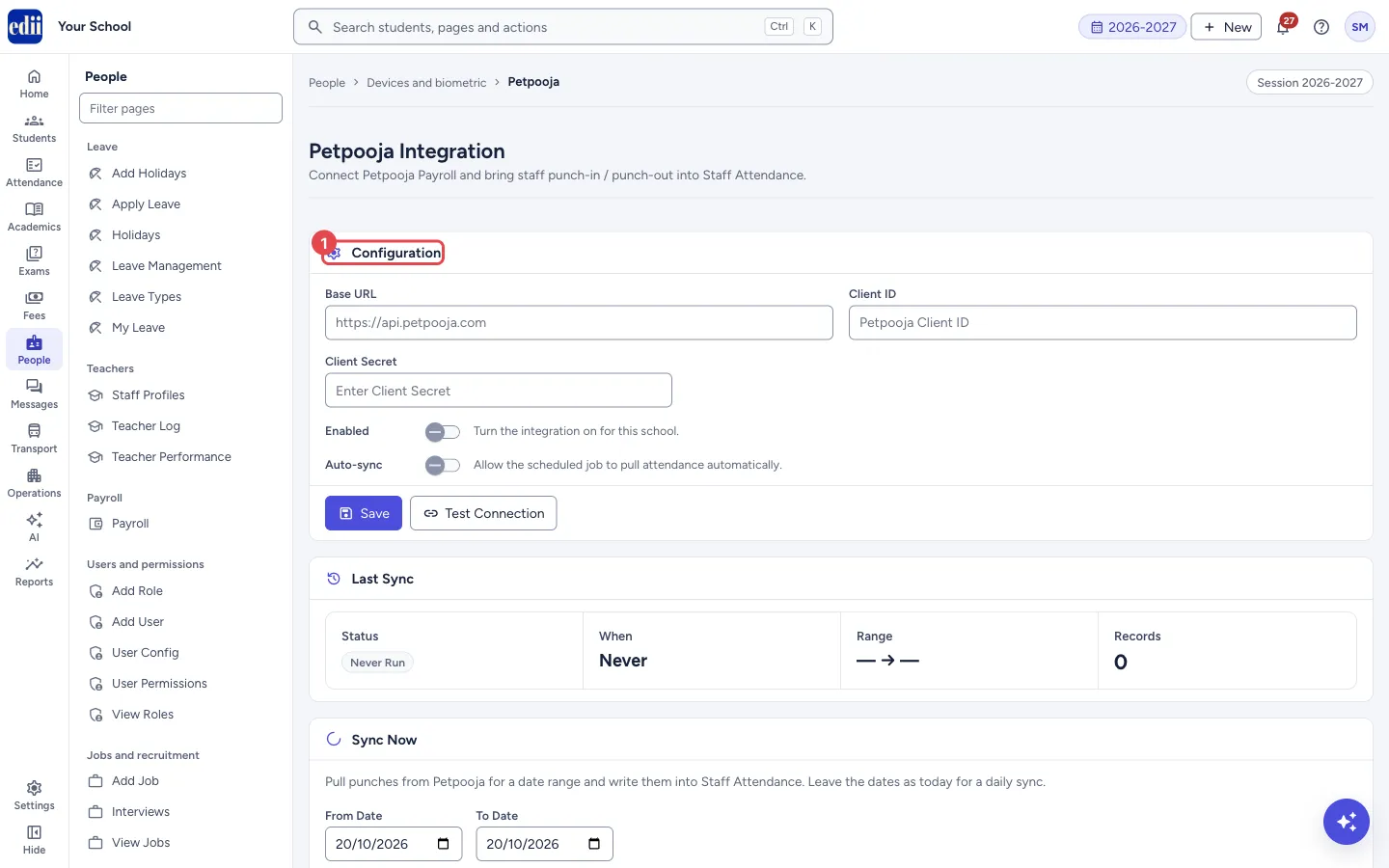
Section titled “1. Enter the connection details”In Configuration fill the Base URL (for example https://api.petpooja.com), the Client ID and the Client Secret. Once a secret is saved, the box shows that it is saved and a note says to type a new one only to replace it; leave it blank to keep the saved one.
Switch Enabled on (Turn the integration on for this school.). Switch Auto-sync on only if you want the scheduled job to pull attendance automatically (Allow the scheduled job to pull attendance automatically.). Select Save. You see Petpooja configuration saved.
 Open a bigger pictureतस्वीर बड़ी करें
2. Test the connection
Section titled “2. Test the connection”Select Test Connection. A line shows Connected or Not Connected, with a message.
3. Match the employees first
Section titled “3. Match the employees first”In Employee Mapping select Load Employees. The table shows each Petpooja employee (Emp ID and Petpooja Name), a list of staff users, a Status (Mapped or Unmapped) and a Remove button for saved matches. With nothing to show, it says No employees found. Run a sync first or check your configuration.
Choose the right staff user for each employee and select Save Mappings (Saved N mapping(s)). Auto-map (shown after the list is loaded) tries to match employees by itself and tells you Auto-mapped N employee(s) and how many are still unmapped. Check its result before relying on it.
4. Pull the punches
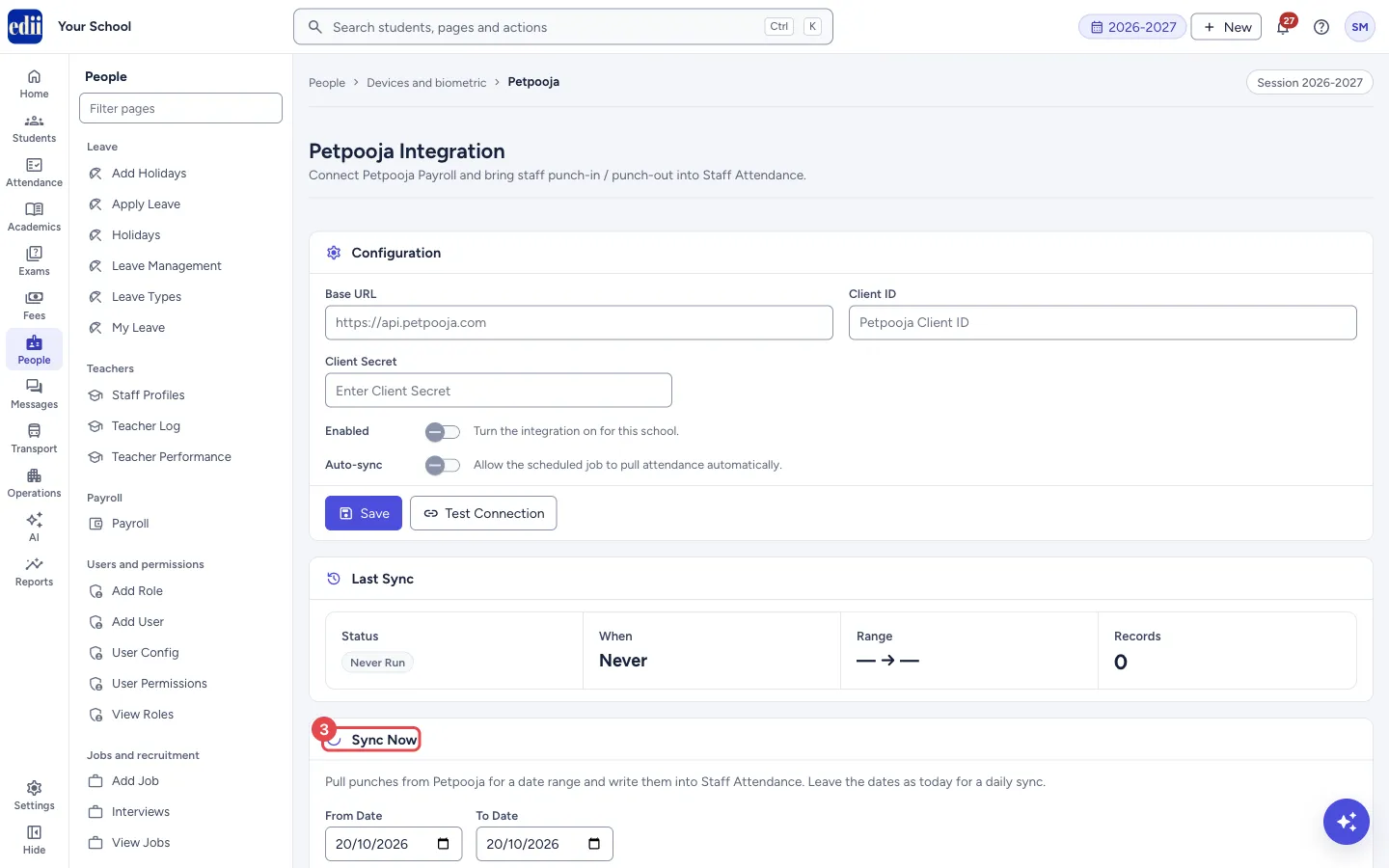
Section titled “4. Pull the punches”In Sync Now, choose a From Date and To Date. Both start as today, which is right for a daily sync. Select Sync Now. You see Synced N employees, M punches (adding how many are unmapped). A Sync Result box then shows the date range and the counts: Employees, Punches Written, Staff Rows and Unmapped, with the names of the unmapped employees.
 Open a bigger pictureतस्वीर बड़ी करें
5. Check Last Sync
Section titled “5. Check Last Sync”Last Sync shows the Status (success, an error or Never run), When, the Range of dates and the number of Records. A message and a list of unmapped employees (name (employee ID)) can appear under it.
Fields and filters
Section titled “Fields and filters”| Field | What it is | Notes |
|---|---|---|
| Base URL | The address of the Petpooja service. | From Petpooja. |
| Client ID | Your school’s Petpooja client ID. | From Petpooja. |
| Client Secret | Your school’s Petpooja secret. | Leave blank to keep the saved one. |
| Enabled | Turns the integration on for this school. | Off to start with. |
| Auto-sync | Lets the scheduled job pull attendance without you. | Off to start with. |
| From Date, To Date | The days to pull punches for. | Both start as today. |
Buttons
Section titled “Buttons”| Button | What it does | What happens next |
|---|---|---|
| Save | Saves the connection details and the two switches. | Petpooja configuration saved. |
| Test Connection | Checks the connection to Petpooja. | Connected or Not Connected. |
| Sync Now | Pulls the punches of the chosen dates from Petpooja and writes them into Staff Attendance for the mapped employees. | Sync Complete! with the numbers, and a Sync Result box. |
| Load Employees | Lists the Petpooja employees with their saved matches. Changes nothing. | The mapping table appears. |
| Auto-map | Matches employees automatically where it can and saves those matches. | Auto-mapped N employee(s), and how many are still unmapped. |
| Save Mappings | Saves the staff user chosen for each employee. Rows left on – Not mapped – are not saved. | Saved N mapping(s). |
| Remove | Deletes the saved match of that employee. | The employee shows as Unmapped. |
After you save
Section titled “After you save”- Mapped employees’ punch-in and punch-out show on Staff Attendance for the dates synced.
- Employees that are not matched to a staff user are listed as unmapped and their punches are not written.
Good to know
Section titled “Good to know”- Sync writes attendance to Staff Attendance, so choose the dates carefully. Only mapped employees are written.
- The saved client secret is never shown again; the box only shows that one is saved.
Messages you may see
Section titled “Messages you may see”| Message | What it means | What to do |
|---|---|---|
| Petpooja configuration saved | The connection details were saved. | Select Test Connection. |
| Unable to load Petpooja configuration | The saved details could not be loaded. | Reload the page. |
| Unable to save configuration | The details could not be saved. | Check the details and try again. |
| Connection failed | EDII could not connect to Petpooja. | Check the Base URL, Client ID and Client Secret. |
| Sync failed | The punches could not be pulled. | Check the connection, the dates and try again. |
| Unable to load employees | The employee list could not be loaded. | Check the configuration and try again. |
| Bad/Slow Internet Connection, Please check your internet connection | A request did not reach EDII. | Check the internet and try again. |
- Match all employees before the first sync so that no punch is left unmapped.
- After a sync, look at the unmapped names in the Sync Result and map them, then sync those dates again.
Did this page help?क्या इस पेज से मदद मिली?
Thanks! Glad it helped.धन्यवाद! अच्छा लगा कि काम बन गया।
Sorry about that. Ask in your own words, or write to us.माफ़ कीजिए। अपने शब्दों में पूछें, या हमें लिखें।