
Screen guide · Web app
Item Catalog
The list of everything the school keeps in stock, where you add, change or delete an item, set its minimum and maximum stock levels, and choose which items can be sold to students.
यह पेज अंग्रेज़ी में है। कुछ समझ न आए तो ।
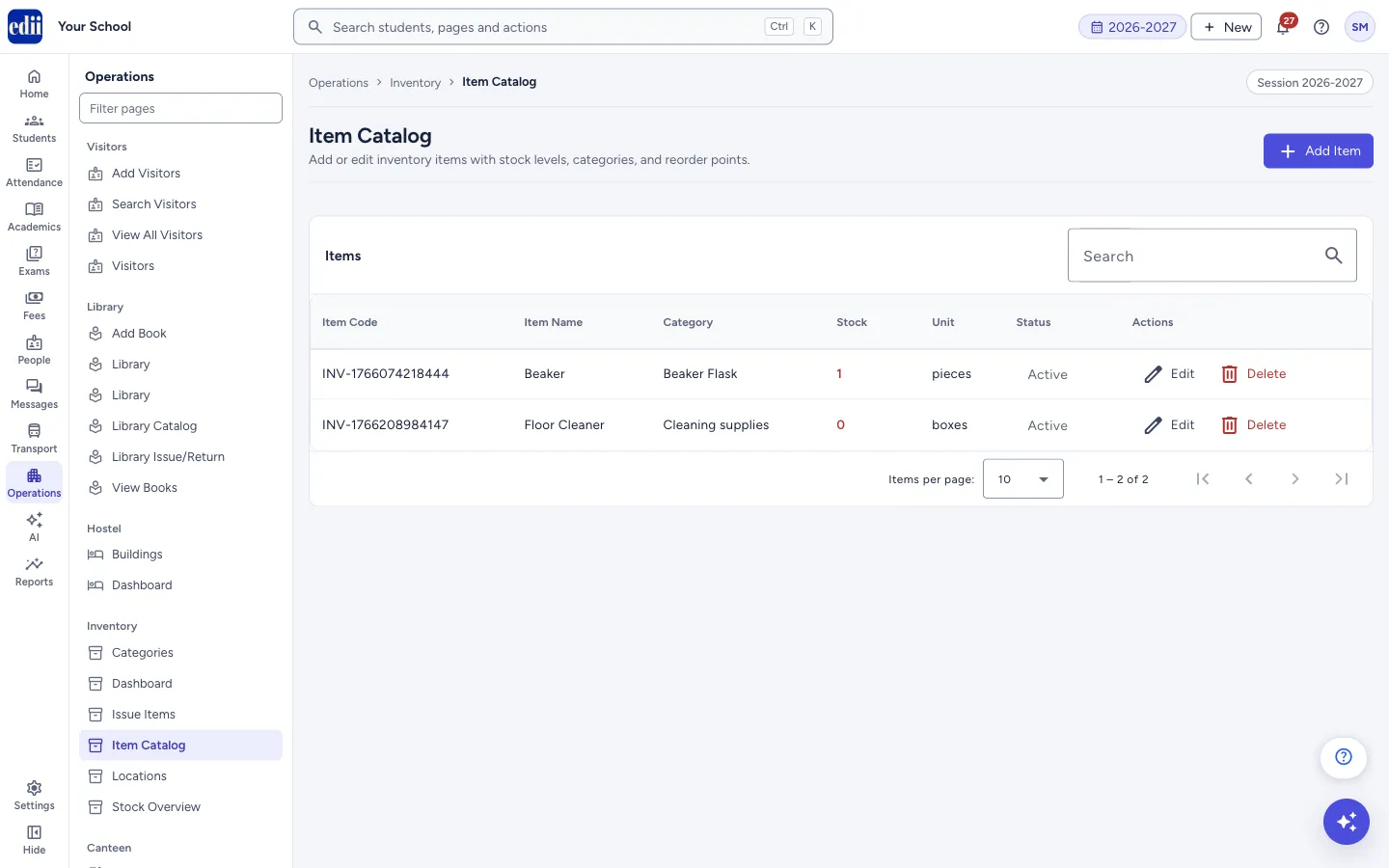
Item Catalog shows each inventory item with its Item Code, Item Name, Category, Stock, Unit and Status. Use Add Item for a new item. Edit and Delete are on every row.
Each item has stock levels: Current Stock, Min Stock Level, Max Stock Level and Reorder Point. The minimum level is what the Inventory Dashboard and Stock Overview use to tell you that stock is low.
An item can also be sold to students, for example a tie, a belt or a diary. Switch on Sell to students and enter a Selling price (₹). The item then shows on Sell accessories, and each sale there lowers its stock.
Who uses it and when
Section titled “Who uses it and when”The store keeper adds an item when something new comes into the school store, and edits it to correct names, units or levels.
The store keeper or the office switches on Sell to students for the items the school sells to students.
Before you start
Section titled “Before you start”- These pages appear in the Operations menu only when your school uses the Inventory module.
- Add the item’s category in Categories first. A category is required. Add Locations too if you want to record where the item is kept.
Where to find it
Section titled “Where to find it”- In school.edii.in: Operations › Inventory › Item Catalog
- Or press Ctrl K (⌘ K on a Mac) and type Item Catalog.
- Address:
school.edii.in/inventory/items - Who can see it: Shown only when your school uses Hostel and Inventory and Canteen and Health Records and Tracking in EDII. If it is missing from your menu, ask your school admin.
 Open a bigger pictureतस्वीर बड़ी करें
Step by step
Section titled “Step by step”1. Find an item
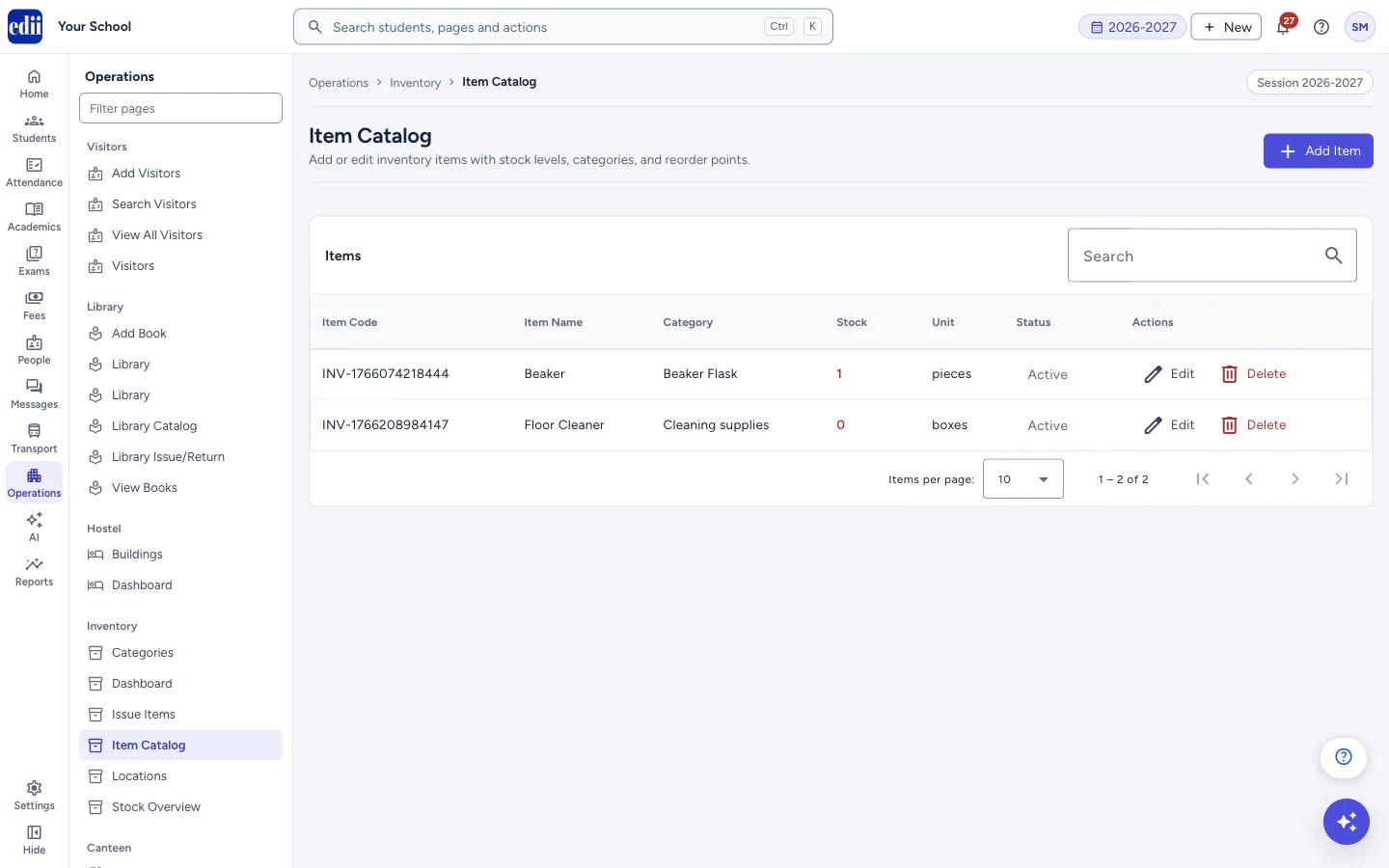
Section titled “1. Find an item”Type in Search to narrow the list. Select Item Code, Item Name, Category or Stock in the heading to sort. Use Items per page at the bottom to show 10, 25, 50 or 100 rows. A stock number at or below the item’s minimum level is shown in red.
 Open a bigger pictureतस्वीर बड़ी करें
2. Start a new item
Section titled “2. Start a new item”Select Add Item. The list is replaced by the Add New Item form.
3. Fill the form
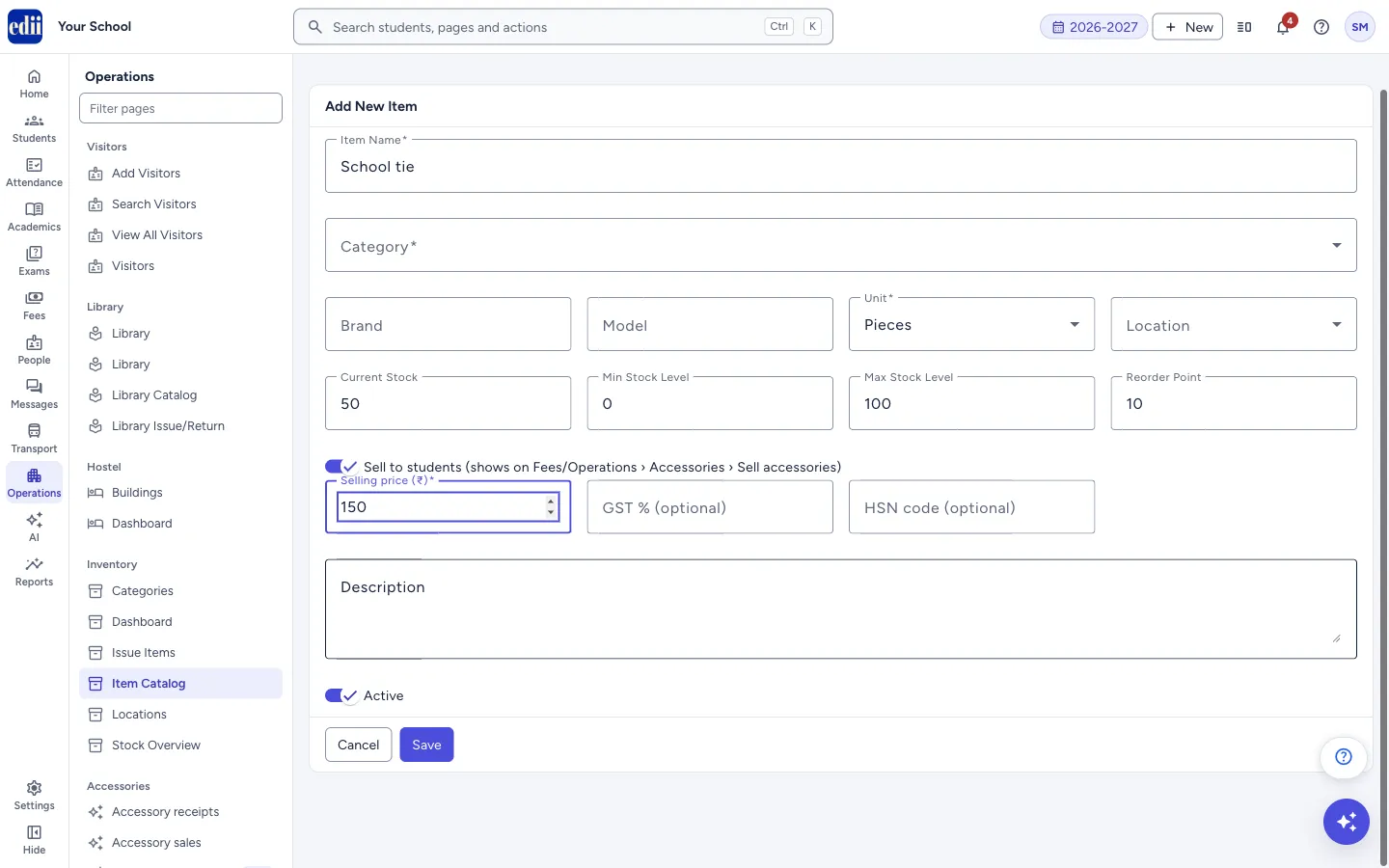
Section titled “3. Fill the form”Type the Item Name and choose the Category. Choose the Unit (Pieces, Sets, Pairs, Boxes, Packets, Kilograms, Liters or Meters). Fill Brand, Model, Location and Description if you want to.
Enter Current Stock, Min Stock Level, Max Stock Level and Reorder Point. Keep Active on for items you use.
4. Sell the item to students (optional)
Section titled “4. Sell the item to students (optional)”Switch on Sell to students (shows on Fees/Operations › Accessories › Sell accessories). Three more boxes appear: Selling price (₹), GST % (optional) and HSN code (optional).
Type the Selling price (₹), the price for one unit that the student pays. It is required while Sell to students is on and must be more than ₹0. If it is empty you see Enter the selling price to sell this item to students under the box. GST % and HSN code can be left empty.
If you switch Sell to students off again, the price is not needed to save the item.
 Open a bigger pictureतस्वीर बड़ी करें
5. Save
Section titled “5. Save”Select Save. The message Item added successfully appears and the item is in the list with an item code made by EDII.
6. Edit or delete an item
Section titled “6. Edit or delete an item”Select Edit on the row, change the form and select Update. The message Item updated successfully appears. If you do not change Current Stock, the item keeps the stock it has now, even if some were sold while the form was open.
Select Delete to remove an item. A box called Delete item? asks Are you sure you want to delete this item?. Select Delete to confirm.
Fields and filters
Section titled “Fields and filters”| Field | What it is | Notes |
|---|---|---|
| Item Name | The name of the item. | Required. Error: Item name is required. |
| Category | The category the item belongs to. | Required. Error: Category is required. A sub-category is shown as Parent > Sub-category. |
| Brand, Model | Optional details to tell similar items apart. | Optional. |
| Unit | How the item is counted. | Required. Pieces, Sets, Pairs, Boxes, Packets, Kilograms, Liters or Meters. Starts as Pieces. |
| Location | Where the item is kept. | Optional. The choices come from Locations. None leaves it blank. |
| Current Stock | How many are in stock now. | A number. Starts at 0. |
| Min Stock Level | The level at or below which the item counts as low stock. | A number. Starts at 0. |
| Max Stock Level | The most you want to hold. | A number. Starts at 100. |
| Reorder Point | The level at which you plan to order more. | A number. Starts at 10. |
| Sell to students | Offers the item on Sell accessories, where the office sells it to a student with a receipt. | Off unless switched on. Sell accessories is under Operations › Accessories, or under Fees › Accessories when the school has Show Accessories inside Fees on in Settings. |
| Selling price (₹) | The price for one unit that the student pays. | Shown only while Sell to students is on, and then required (marked with *). Must be more than ₹0. Errors: Enter the selling price to sell this item to students, The selling price must be more than ₹0. |
| GST % (optional) | The item’s GST rate, if you want to keep it with the item. | Optional. Shown only while Sell to students is on. From 0 to 28. |
| HSN code (optional) | The item’s HSN code, if you want to keep it with the item. | Optional. Shown only while Sell to students is on. Up to 8 characters. |
| Description | A note about the item. | Optional. |
| Active | Whether the item is in use. | On by default. Only active items with stock above 0 can be chosen in Issue Items or sold on Sell accessories. |
Buttons
Section titled “Buttons”| Button | What it does | What happens next |
|---|---|---|
| Add Item | Opens the form for a new item. | The Add New Item form opens. |
| Save / Update | Saves a new item, or your change to an existing item. | A message appears and the list opens again. |
| Edit | Opens the item in the form. | The Edit Item form opens. |
| Delete | Removes the item after you confirm. | The message Item deleted successfully appears and the item leaves the list. |
| Cancel | Closes the form without saving. | You are back at the list. |
Columns
Section titled “Columns”| Column | Meaning |
|---|---|
| Item Code | A code EDII gives the item when it is added. |
| Item Name | The name you typed. |
| Category | The item’s category. |
| Stock | Current stock. Shown in red when it is at or below the minimum level. Each sale on Sell accessories lowers it. |
| Unit | The unit chosen for the item. |
| Status | Active or Inactive. |
After you save
Section titled “After you save”- The new or changed item shows in the list. It also shows in Stock Overview, and an active item with stock can be issued in Issue Items.
- An active item with Sell to students on, a selling price and stock above 0 shows on Sell accessories.
Good to know
Section titled “Good to know”- To add or remove stock after the item exists, use Stock Overview. It lets you note a reason and a reference number such as a purchase order or invoice.
- An item is offered on Sell accessories only when it is Active, Sell to students is on, it has a selling price and its stock is above 0. When its stock reaches 0 it drops off that list.
- Each sale on Sell accessories lowers the item’s stock by the quantity sold. Cancelling an accessory receipt puts the items back in stock.
- Saving an edit does not reset the stock. If you leave Current Stock as it was, the item keeps its stock as it is now, including any sales made while the form was open.
- If the list is empty the page says No items found.
Messages you may see
Section titled “Messages you may see”| Message | What it means | What to do |
|---|---|---|
| Please fill all required fields | Item Name, Category or Unit is empty. | Fill the three required fields and save again. |
| Enter a selling price to sell this item to students | Sell to students is on but Selling price (₹) is empty or not more than ₹0. | Type a price above ₹0, or switch Sell to students off. |
| GST % must be between 0 and 28 | The GST rate typed is below 0 or above 28. | Type a rate from 0 to 28, or leave the box empty. |
| Stock changed while the item was being edited. Reload the item and try again. | You changed Current Stock, but the stock changed after you opened the form, for example by a sale on Sell accessories. Nothing was saved. | Select Cancel, open the item again with Edit to see the stock now, and make your change again. |
| Item added successfully | The item is saved. | None needed. |
| Item updated successfully | Your change is saved. | None needed. |
| Item deleted successfully | The item is removed. | None needed. |
| Error adding item | The item could not be saved. | Check your internet connection and try again. |
| Error updating item | The change could not be saved. | Check your internet connection and try again. |
| Error deleting item | The item could not be deleted. | Check your internet connection and try again. |
Stuck? Try this
Section titled “Stuck? Try this”| Problem | Likely cause | What to do |
|---|---|---|
| An item does not appear in the Item list of Issue Items. | Only active items with stock above 0 are offered there. | Check that the item is Active and add stock in Stock Overview. |
| An item does not appear on Sell accessories. | Sell to students is off, the item is not Active, it has no selling price, or its stock is 0. | Select Edit, switch on Sell to students, enter the Selling price (₹) and keep Active on. Add stock in Stock Overview. |
| I cannot find the right category in the form. | The category has not been added yet. | Add it in Categories, then come back. |
Did this page help?क्या इस पेज से मदद मिली?
Thanks! Glad it helped.धन्यवाद! अच्छा लगा कि काम बन गया।
Sorry about that. Ask in your own words, or write to us.माफ़ कीजिए। अपने शब्दों में पूछें, या हमें लिखें।