
Screen guide · Web app
Menu Items
Add and change the items the canteen sells, with price, days available, vegetarian marking and allergen information.
यह पेज अंग्रेज़ी में है। कुछ समझ न आए तो ।
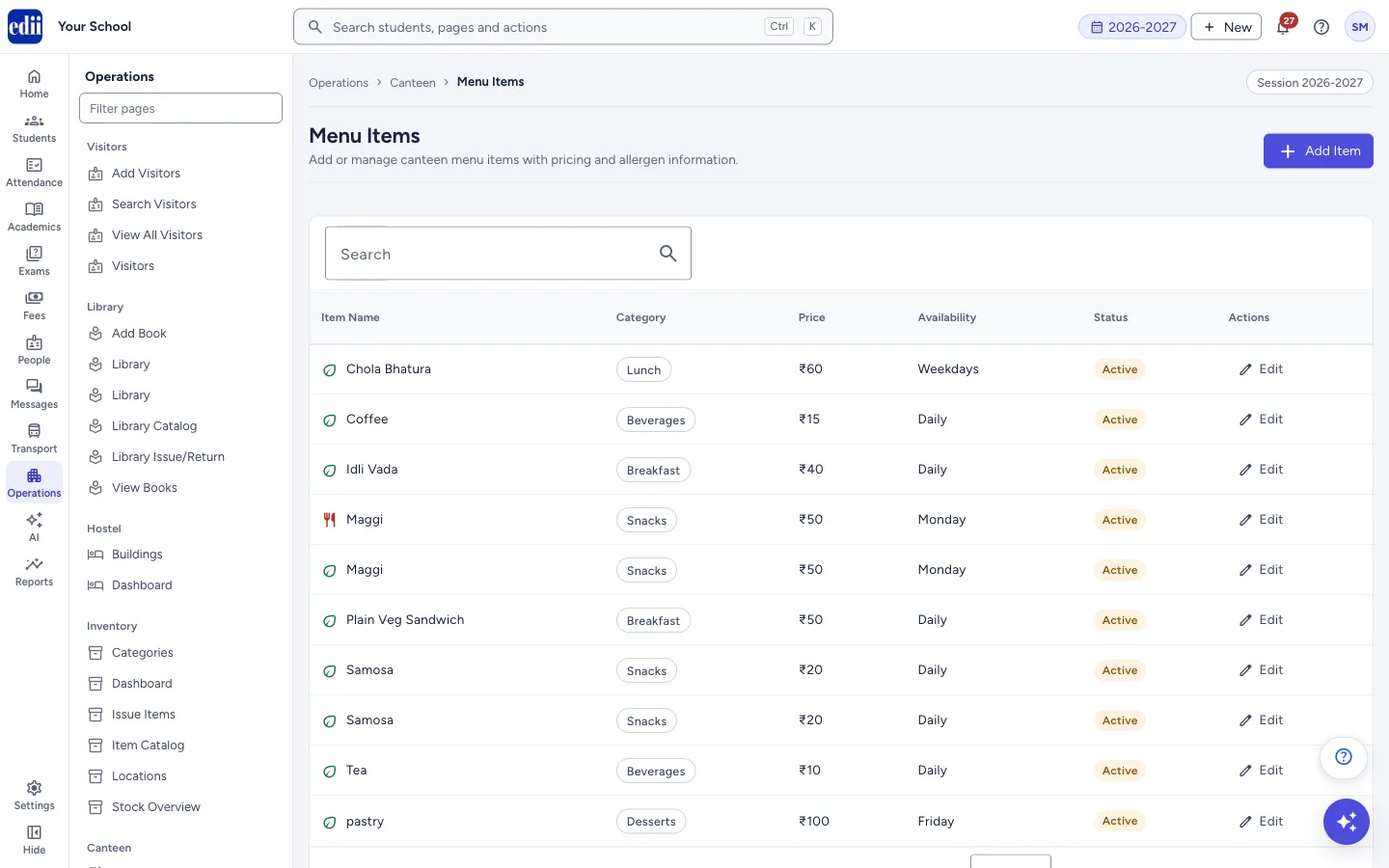
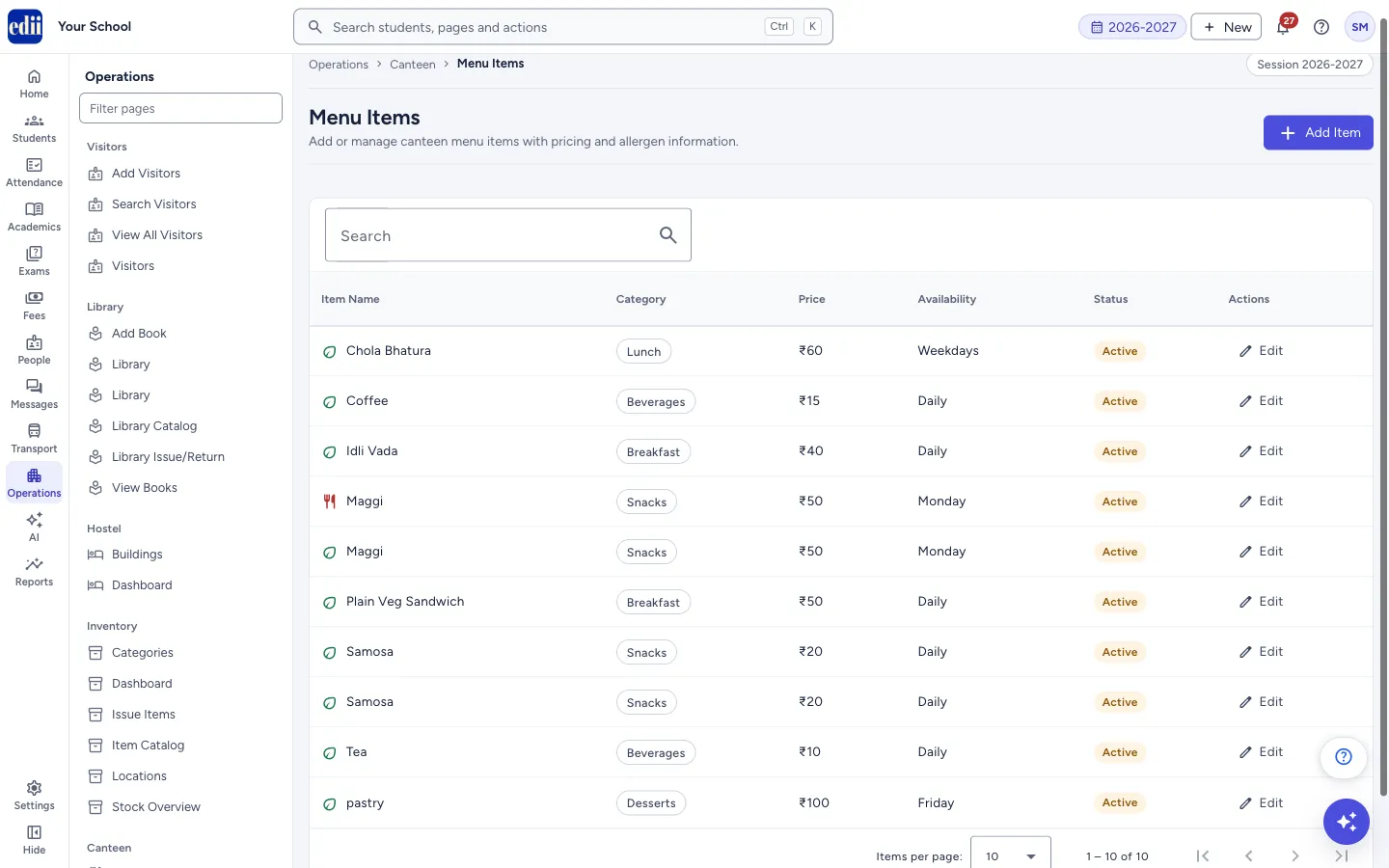
Menu Items lists everything on the canteen menu with its Item Name, Category, Price, Availability and Status. A green leaf next to the name means the item is vegetarian; a fork and knife means it is not.
Use Add Item to put a new item on the menu and Edit to change one. Items on this menu are what you can choose when you take an order in Orders.
Who uses it and when
Section titled “Who uses it and when”The canteen in-charge sets up the menu at the start of the term and updates prices or new items as they change.
Before you start
Section titled “Before you start”- These pages appear in the Operations menu only when your school uses the Canteen module.
Where to find it
Section titled “Where to find it”- In school.edii.in: Operations › Canteen › Menu Items
- Or press Ctrl K (⌘ K on a Mac) and type Menu Items.
- Address:
school.edii.in/canteen/menu - Who can see it: Shown only when your school uses Hostel and Inventory and Canteen and Health Records and Tracking in EDII. If it is missing from your menu, ask your school admin.
 Open a bigger pictureतस्वीर बड़ी करें
Step by step
Section titled “Step by step”1. Look at the menu
Section titled “1. Look at the menu”The table lists all items. Type in Search to find one. Select Item Name, Category, Price, Availability or Status in the heading to sort. Use Items per page at the bottom to show 10, 25 or 50 rows.
 Open a bigger pictureतस्वीर बड़ी करें
2. Add an item
Section titled “2. Add an item”Select Add Item. The form Add Menu Item opens above the list. Fill Item Name, Category and Price. These three are required.
Choose when the item is Availability: Daily, Weekdays, Weekends, or one day from Monday to Saturday. Add Preparation Time (mins) and Description if you want to.
3. Add food details
Section titled “3. Add food details”Keep Vegetarian on for vegetarian items and switch it off for others. Write Allergens separated by commas, for example nuts, dairy. Write Nutrition Info in a short line, for example 250 cal.
4. Save
Section titled “4. Save”Select Save Item. The message Menu item saved successfully appears, the form closes and the item is in the list. Select Cancel (the same button at the top right) to close the form without saving.
5. Change an item
Section titled “5. Change an item”Select Edit on the row. The form opens as Edit Menu Item with the values filled in. Change what you need and select Update Item. The message Menu item updated successfully appears.
Fields and filters
Section titled “Fields and filters”| Field | What it is | Notes |
|---|---|---|
| Item Name | The name shown on the menu and at the counter. | Required. |
| Category | The meal group of the item. | Required. Breakfast, Lunch, Snacks, Beverages, Desserts, Healthy, Combo or Special. |
| Price | The price in rupees. | Required. Must not be 0 or empty. |
| Availability | On which days the item is sold. | Daily, Weekdays, Weekends, Monday, Tuesday, Wednesday, Thursday, Friday or Saturday. Starts as Daily. |
| Preparation Time (mins) | How long the item takes to make. | Optional. |
| Description | A short note about the item. | Optional. |
| Vegetarian | Marks the item as vegetarian. | On by default. |
| Allergens | Foods in the item that can cause allergy. | Optional. Separate several with commas. |
| Nutrition Info | Calories and similar facts. | Optional. For example 250 cal, 15g protein, 30g carbs, 10g fat, 5g fiber. |
Buttons
Section titled “Buttons”| Button | What it does | What happens next |
|---|---|---|
| Add Item | Opens the form for a new item. While the form is open the same button says Cancel. | The form opens or closes. |
| Save Item / Update Item | Saves the form. | A message appears, the form closes and the list is loaded again. |
| Edit | Opens the item in the form. | The Edit Menu Item form opens. |
Columns
Section titled “Columns”| Column | Meaning |
|---|---|
| Item Name | The name, with the vegetarian or non-vegetarian icon. |
| Category | The category. |
| Price | The price in rupees. |
| Availability | The days the item is sold. |
| Status | The item’s current status, for example Active. |
Good to know
Section titled “Good to know”- There is no Delete button, and the form has no field for Status.
- Only items whose status is Active can be chosen when you take an order in Orders.
- If the list is empty the page says No menu items found.
Messages you may see
Section titled “Messages you may see”| Message | What it means | What to do |
|---|---|---|
| Please fill required fields | Item Name, Category or Price is empty. | Fill all three and save again. |
| Menu item saved successfully | The new item is on the menu. | None needed. |
| Menu item updated successfully | Your change is saved. | None needed. |
| Error saving menu item | The item could not be saved. | Check your internet connection and try again. |
Stuck? Try this
Section titled “Stuck? Try this”| Problem | Likely cause | What to do |
|---|---|---|
| An item is on the menu but I cannot choose it in Orders. | Orders offers only items whose status is Active. | Look at the Status column on this page. Only items shown as Active are offered in Orders. |
Did this page help?क्या इस पेज से मदद मिली?
Thanks! Glad it helped.धन्यवाद! अच्छा लगा कि काम बन गया।
Sorry about that. Ask in your own words, or write to us.माफ़ कीजिए। अपने शब्दों में पूछें, या हमें लिखें।