
Screen guide · Web app
Issue Items
Give inventory items to a student, teacher, staff member, department or class, and see every issue made so far.
यह पेज अंग्रेज़ी में है। कुछ समझ न आए तो ।
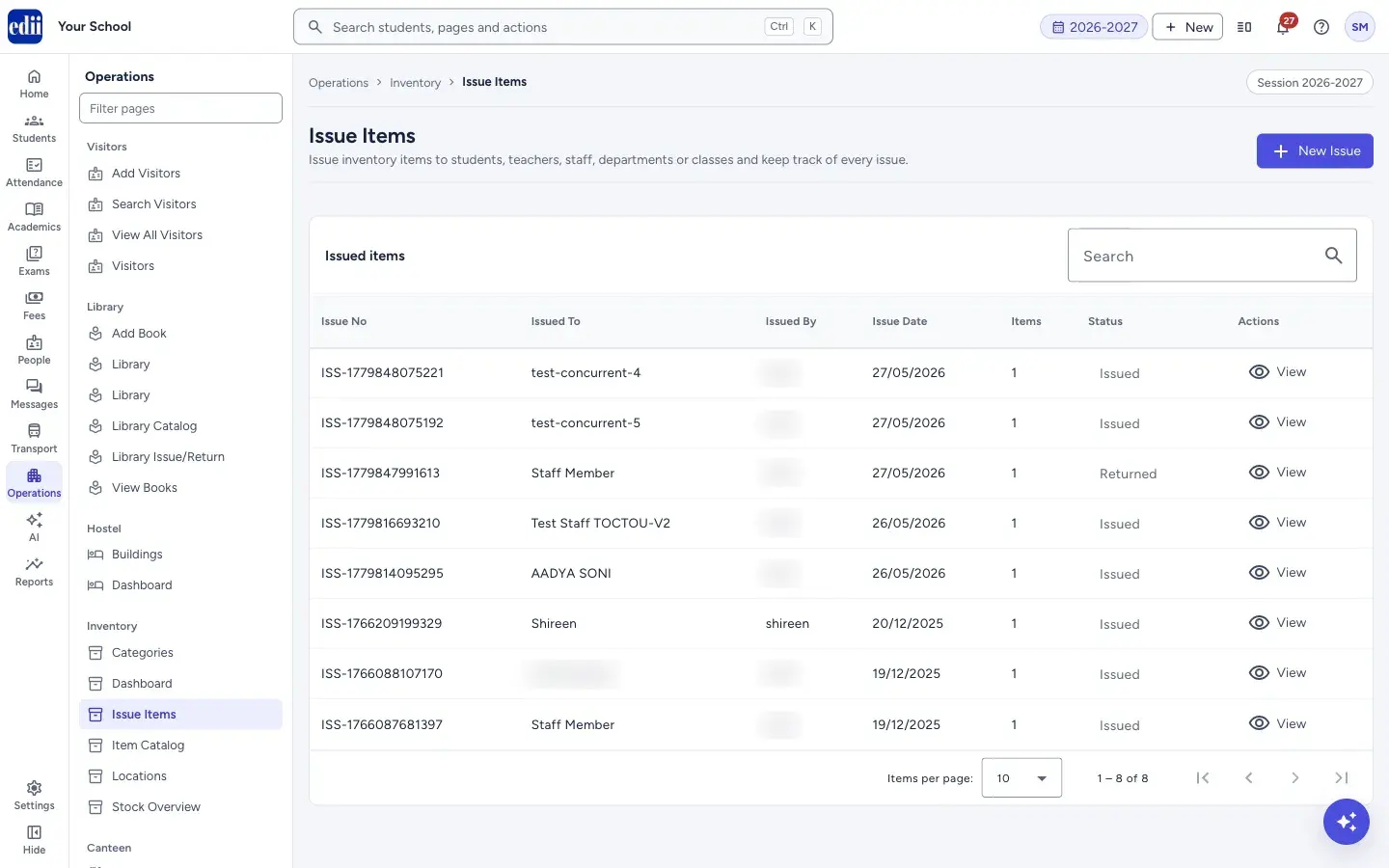
Issue Items has two parts. The list Issued items shows every issue with its Issue No, Issued To, Issued By, Issue Date, number of Items and Status. The form New Issue (opened with New Issue) records a new one.
One issue can contain several items. Each issue gets its own issue number. Select View on a row to see the full details of that issue.
Who uses it and when
Section titled “Who uses it and when”The store keeper uses it whenever an item leaves the store, for example a lab coat for a student or markers for a class.
Before you start
Section titled “Before you start”- These pages appear in the Operations menu only when your school uses the Inventory module.
- The item must exist in Item Catalog, be Active and have stock above 0. Only such items are offered in the form.
Where to find it
Section titled “Where to find it”- In school.edii.in: Operations › Inventory › Issue Items
- Or press Ctrl K (⌘ K on a Mac) and type Issue Items.
- Address:
school.edii.in/inventory/issue - Who can see it: Shown only when your school uses Hostel and Inventory and Canteen and Health Records and Tracking in EDII. If it is missing from your menu, ask your school admin.
 Open a bigger pictureतस्वीर बड़ी करें
Step by step
Section titled “Step by step”1. Open the new issue form
Section titled “1. Open the new issue form”Select New Issue at the top right. The list is replaced by the New issue form with one empty item row.
2. Choose who gets the items
Section titled “2. Choose who gets the items”In Issue To choose Student, Teacher, Staff, Department or Class. For Teacher, Staff, Department or Class, type the name in Recipient Name.
For a Student, type at least two letters of the name, EDII ID or roll number in Search Student. Up to 8 matching students are listed with class, roll number and father’s name. Select the right one. The student’s name, class and ID then show with a Clear button in case you picked the wrong child.
3. Add the details
Section titled “3. Add the details”Fill Department/Class, Purpose, Expected Return Date and Remarks if you need them. All four are optional.
4. Choose the items and quantity
Section titled “4. Choose the items and quantity”In Items to Issue, choose an Item. Each choice shows the item name and its current stock, for example Beaker (Stock: 1). Enter the Quantity (at least 1) and an item Remarks if needed.
Select Add Item to add another row, and Delete on a row to remove it. The first row cannot be deleted.
5. Issue
Section titled “5. Issue”Select Issue Items. The message Items issued successfully appears, the form closes and the new issue is at the top of the list. Select Cancel to leave without issuing.
6. See the details of an issue
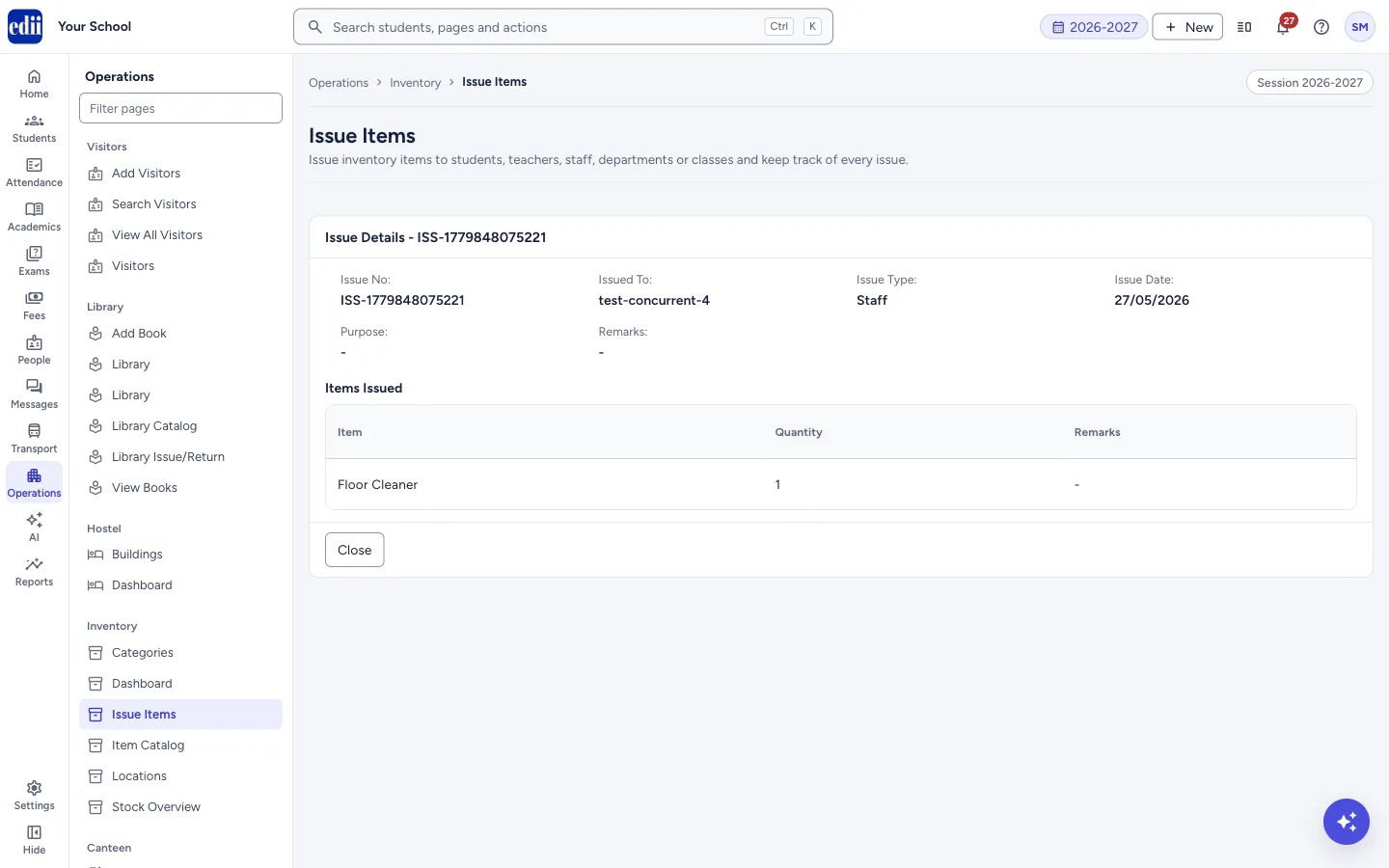
Section titled “6. See the details of an issue”On the list, select View on a row. The page shows Issue Details with the issue number, who it was issued to, the issue type, the date, the class (for a student), the purpose, remarks and expected return date, and a table Items Issued with Item, Quantity and Remarks. Select Close to go back to the list.
 Open a bigger pictureतस्वीर बड़ी करें
Fields and filters
Section titled “Fields and filters”| Field | What it is | Notes |
|---|---|---|
| Issue To | The kind of person or group receiving the items. | Student, Teacher, Staff, Department or Class. Starts as Student. Changing it clears the person you chose. |
| Recipient Name | The name of the teacher, staff member, department or class. | Required for every type except Student. Error: Recipient name is required. |
| Search Student | Finds the student by name, EDII ID or roll number. | Required for the Student type. Type at least 2 characters. |
| Department/Class | Department or class of the person. | Optional. |
| Purpose | Why the items are issued. | Optional. |
| Expected Return Date | When the items should come back. | Optional. Pick from the calendar. |
| Remarks | Any note for the whole issue. | Optional. |
| Item | The item to issue, with its stock shown. | Required on every row. |
| Quantity | How many to issue. | Required, at least 1. |
Buttons
Section titled “Buttons”| Button | What it does | What happens next |
|---|---|---|
| New Issue | Opens the issue form. | The New issue form opens. |
| Add Item | Adds another item row to the issue. | A new empty row appears. |
| Issue Items | Saves the issue. | The list opens again with the new issue. |
| View | Opens one issue in full. | The Issue Details page opens. |
| Search | Filters the list of issues as you type. | Only matching rows stay. |
Columns
Section titled “Columns”| Column | Meaning |
|---|---|
| Issue No | The number EDII gave the issue, starting with ISS-. |
| Issued To | The name of the person, department or class. |
| Issued By | The staff user who recorded the issue. |
| Issue Date | The date, shown as day/month/year. |
| Items | How many different items are in the issue. |
| Status | Issued or Returned. |
Good to know
Section titled “Good to know”- This page does not have a button to mark an issue as returned. The Status column only shows the status.
- If nothing has been issued yet the list says No issued items found.
- Students are searched in the school’s student list. If the list has not finished loading, wait a moment and type again.
Messages you may see
Section titled “Messages you may see”| Message | What it means | What to do |
|---|---|---|
| Please fill all required fields and add at least one item | The recipient, an item or a quantity is missing. | Check Recipient Name, and that every row has an Item and a Quantity. |
| Please select a student | The type is Student but no student was picked from the list. | Search and select the student. |
| Items issued successfully | The issue is saved. | None needed. |
| Error issuing items | The issue could not be saved. | Check your internet connection and try again. |
Stuck? Try this
Section titled “Stuck? Try this”| Problem | Likely cause | What to do |
|---|---|---|
| The Item list is empty or my item is missing. | Only active items with stock above 0 are listed. | Add stock in Stock Overview or make the item Active in Item Catalog. |
| No student appears when I search. | Fewer than 2 characters were typed, or the student list has not loaded. | Type at least 2 characters, or wait a moment and try again. |
Did this page help?क्या इस पेज से मदद मिली?
Thanks! Glad it helped.धन्यवाद! अच्छा लगा कि काम बन गया।
Sorry about that. Ask in your own words, or write to us.माफ़ कीजिए। अपने शब्दों में पूछें, या हमें लिखें।