
Screen guide · Web app
My Dashboard
A page for the signed-in staff member: their profile and details, their leave applications, the permissions they have for classes and subjects, and shortcuts to apply for leave and open payroll.
यह पेज अंग्रेज़ी में है। कुछ समझ न आए तो ।
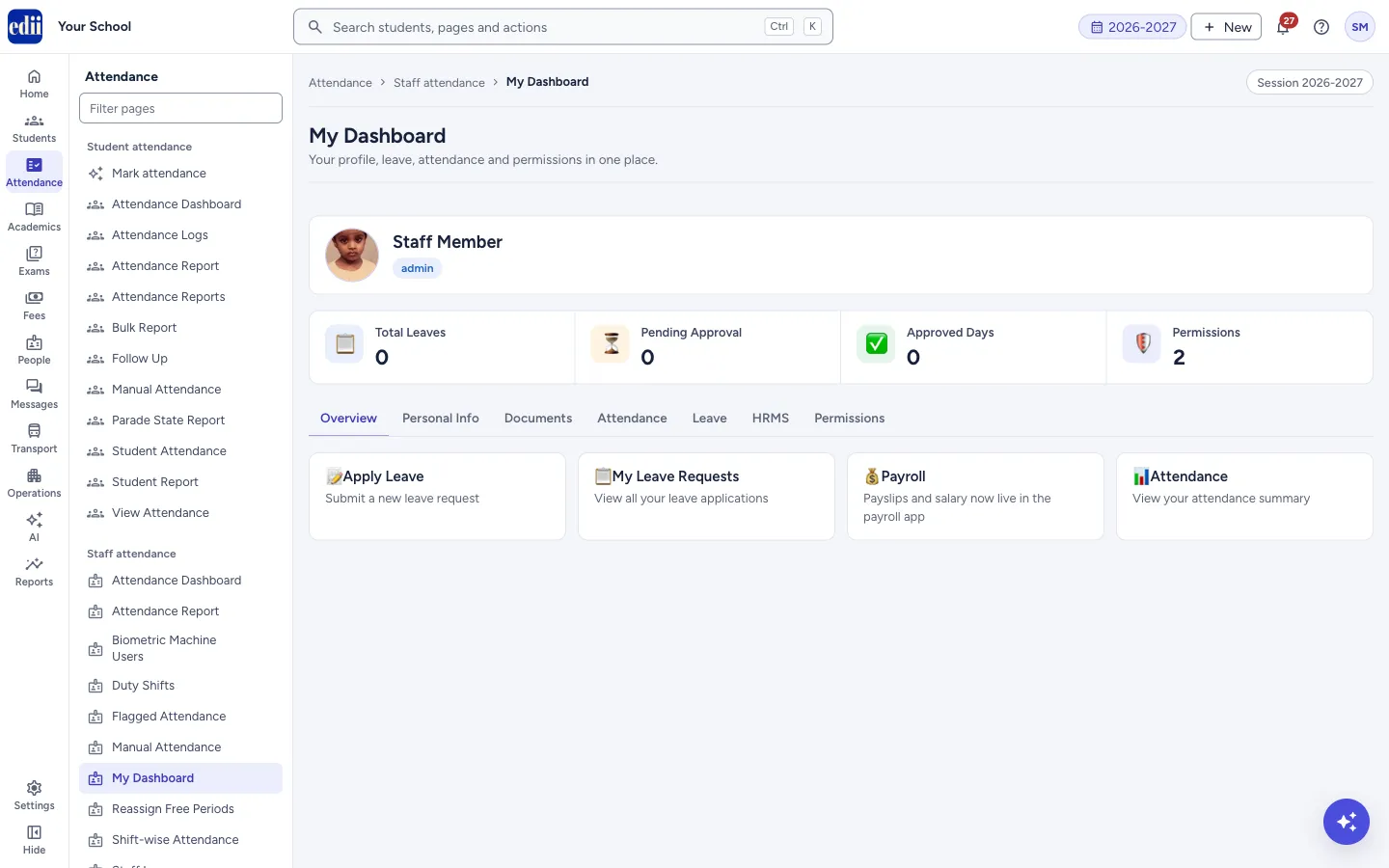
My Dashboard shows the person who is signed in, not the whole school. At the top are the name, the role and, when set, the designation and department, with the photo if one was added.
Four boxes count Total Leaves, Pending Approval, Approved Days and Permissions. Under them are seven tabs: Overview, Personal Info, Documents, Attendance, Leave, HRMS and Permissions.
The screen only reads. You cannot change your profile here.
Who uses it and when
Section titled “Who uses it and when”Every staff member, to look at their own details and leave, or to go quickly to Apply Leave.
Before you start
Section titled “Before you start”- The HR module must be on for your school.
Where to find it
Section titled “Where to find it”- In school.edii.in: Attendance › Staff attendance › My Dashboard
- Or press Ctrl K (⌘ K on a Mac) and type My Dashboard.
- Address:
school.edii.in/view/my-dashboard - Who can see it: Staff whose role includes Messages or Leave or Meetings access. Shown only when your school uses HR and Calendar in EDII. If it is missing from your menu, ask your school admin.
 Open a bigger pictureतस्वीर बड़ी करें
Step by step
Section titled “Step by step”1. Start on Overview
Section titled “1. Start on Overview”Overview has four shortcut cards: Apply Leave (submit a new leave request), My Leave Requests (view all your leave applications), Payroll (payslips and salary are in the payroll app) and Attendance (opens the staff attendance dashboard).
2. Read your details
Section titled “2. Read your details”Personal Info lists your Name, User ID, Email, Phone, Date of Birth, Gender, Blood Group, Nationality, Religion, Aadhaar No, PAN No, Date of Joining, Date of Exit, Department, Designation, Employee Type, Class, Section, Subjects, addresses, qualifications, previous experience and bank details. A detail that was not entered shows N/A.
3. Documents and Attendance tabs
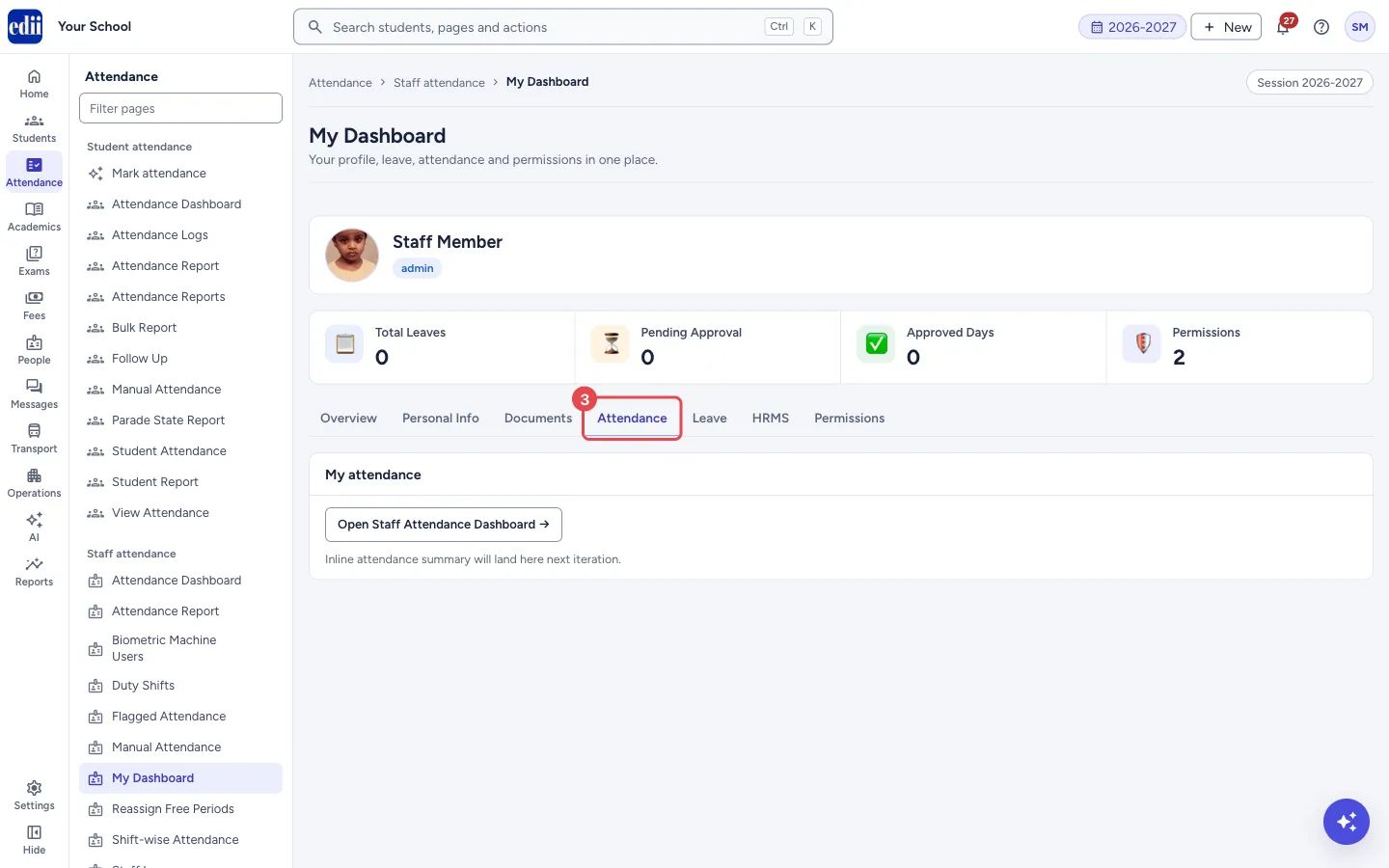
Section titled “3. Documents and Attendance tabs”Documents shows a note that the place for uploading documents (Aadhaar, PAN, appointment letter) is coming later. Attendance has a button, Open Staff Attendance Dashboard →, and the note Inline attendance summary will land here next iteration. Neither tab shows your own documents or attendance yet.
 Open a bigger pictureतस्वीर बड़ी करें
4. See your leave
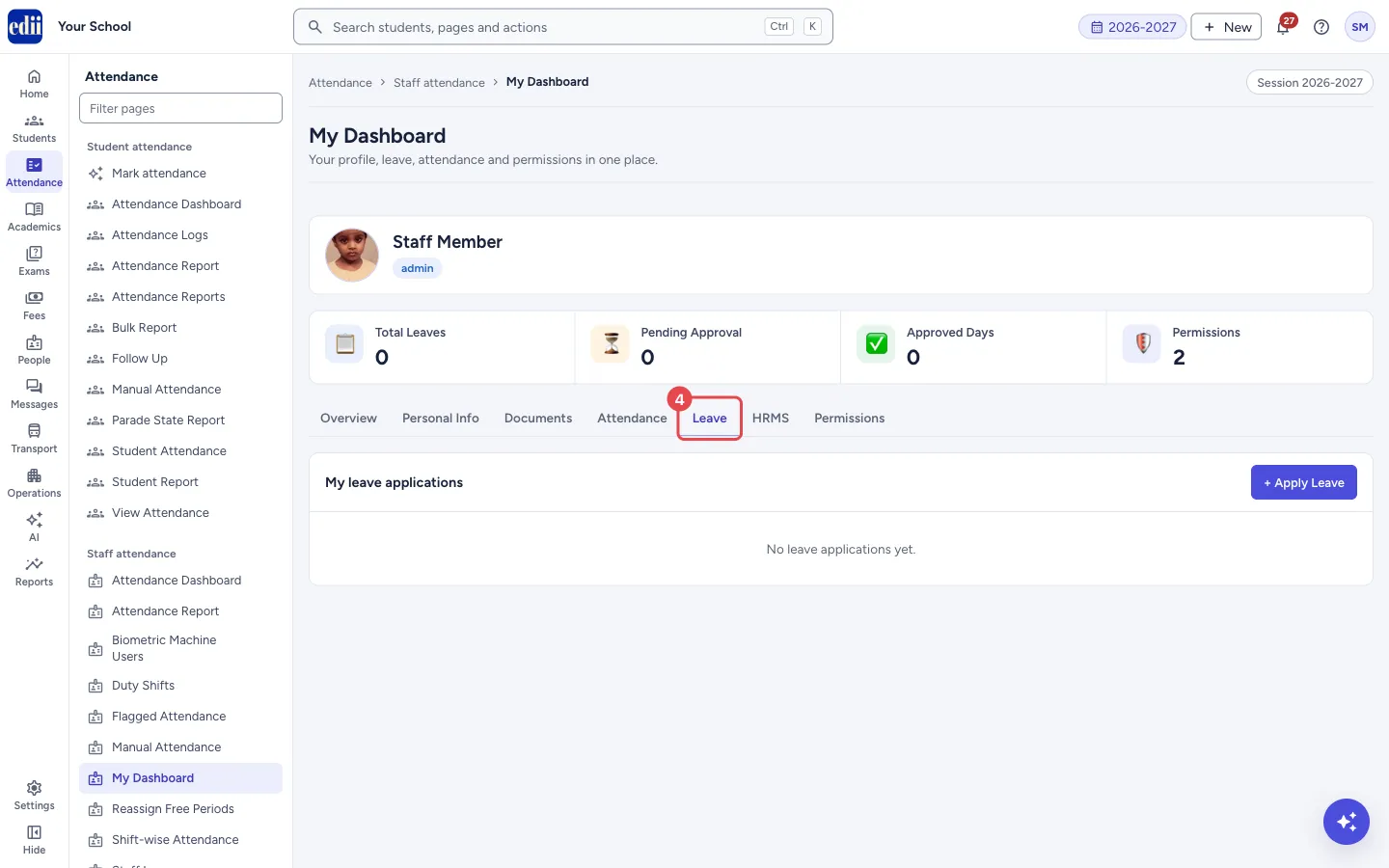
Section titled “4. See your leave”Leave lists your leave applications with From, To, Type, Days, Status (Pending, Approved or Rejected) and Reason. It says No leave applications yet. when there are none. + Apply Leave opens the leave form.
 Open a bigger pictureतस्वीर बड़ी करें
5. HRMS and Permissions
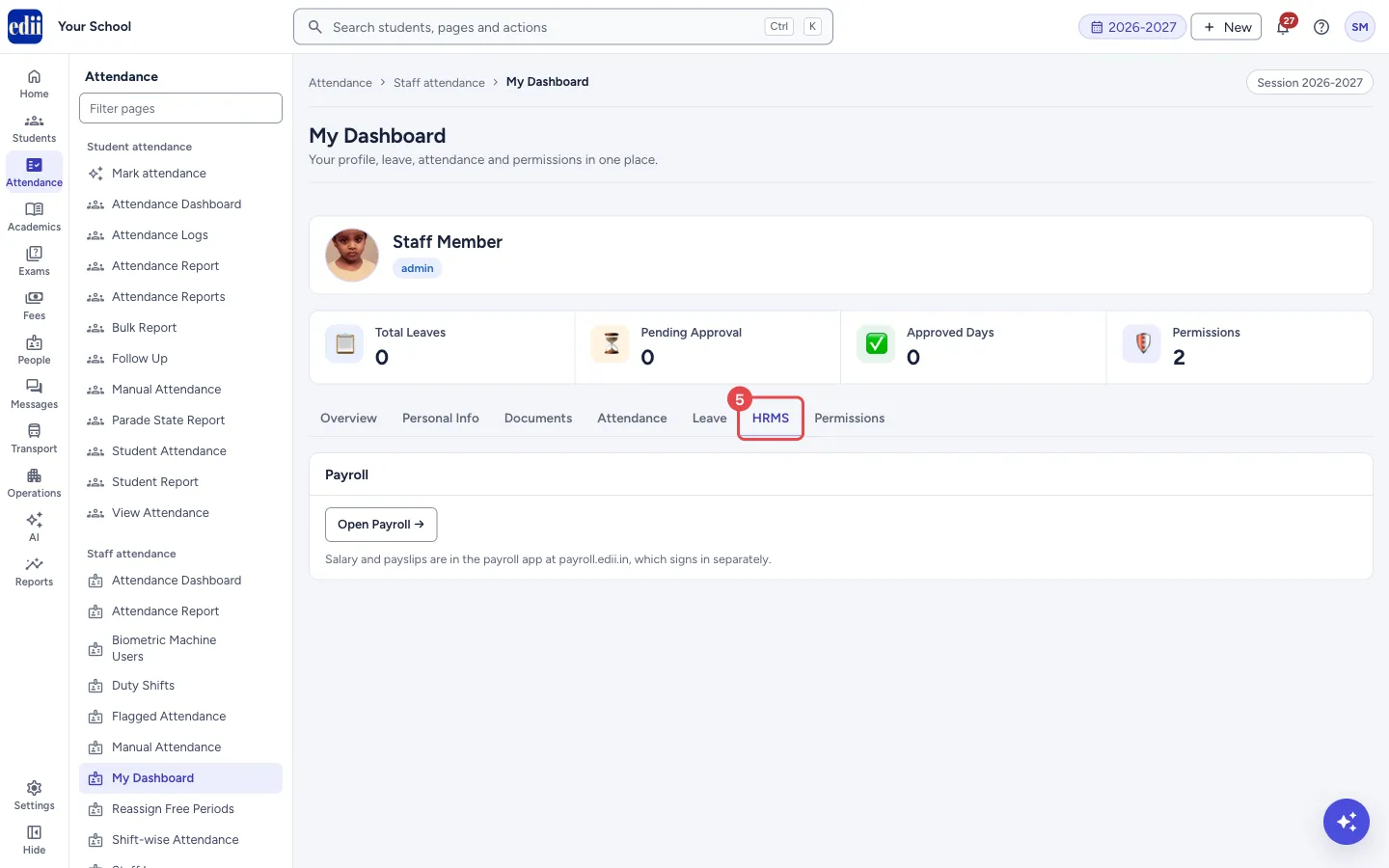
Section titled “5. HRMS and Permissions”HRMS has the button Open Payroll → and the note that salary and payslips are in the payroll app, which signs in separately. Permissions lists the classes, sections and subjects you have access to, in the columns Class, Section and Subject. With none set it says No specific permissions set (full access by default for some roles).
 Open a bigger pictureतस्वीर बड़ी करें
Buttons
Section titled “Buttons”| Button | What it does | What happens next |
|---|---|---|
| + Apply Leave | Opens the leave application form. | You leave this page. |
| Open Staff Attendance Dashboard → | Opens the school’s staff attendance dashboard. | Shows teachers of the whole school, not only you. |
| Open Payroll → | Opens the payroll area. | Payroll signs in separately. |
Columns
Section titled “Columns”| Column | Meaning |
|---|---|
| Leave: From, To, Type, Days, Status, Reason | One row for each of your leave applications. |
| Permissions: Class, Section, Subject | A class, section and subject you have access to; a dash means any. |
Messages you may see
Section titled “Messages you may see”| Message | What it means | What to do |
|---|---|---|
| Could not load profile. Please try again. | Your profile could not be loaded. | Open the page again. |
| Network Issue, Please Try Again. | No connection to the server. | Check the internet connection. |
Did this page help?क्या इस पेज से मदद मिली?
Thanks! Glad it helped.धन्यवाद! अच्छा लगा कि काम बन गया।
Sorry about that. Ask in your own words, or write to us.माफ़ कीजिए। अपने शब्दों में पूछें, या हमें लिखें।