
Screen guide · Web app
Banner
Add, edit, view and delete the banners shown on the school's website, each with a picture, a position, a short description and a link.
यह पेज अंग्रेज़ी में है। कुछ समझ न आए तो ।
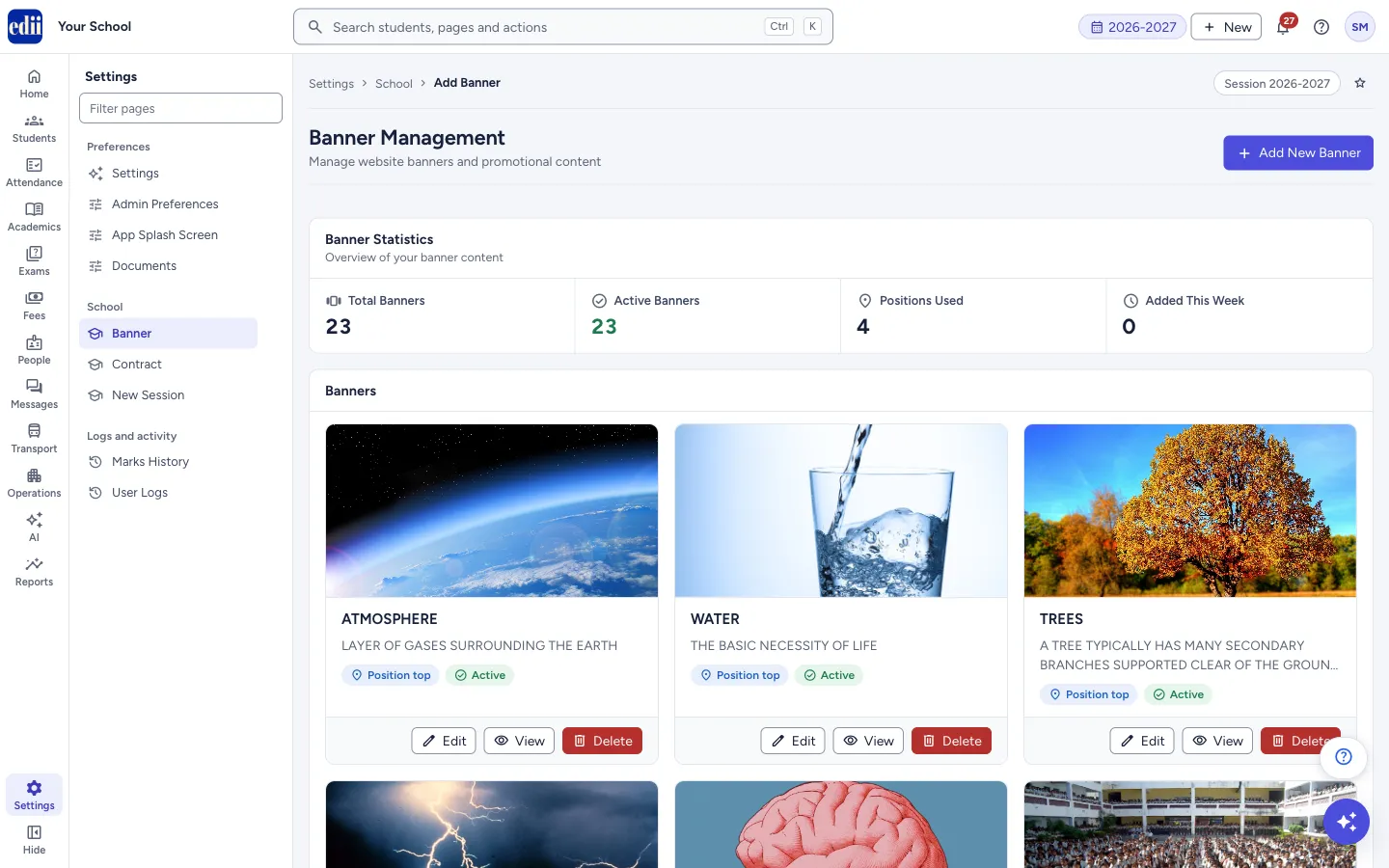
Banner (headed Banner Management) manages the website banners and promotional content of the school. Each banner has a name, a picture, a position (TOP, CENTER 1, CENTER 2 or BOTTOM), a description, a short description and a link.
The page shows Banner Statistics (Total Banners, Active Banners, Positions Used, Added This Week) and below them a card for each banner with its picture, name, short description, position and status (Active or Inactive). Each card has Edit, View and Delete.
Banners are shown to visitors of the school’s website. Check a new banner on the website after you save it.
Who uses it and when
Section titled “Who uses it and when”The office or the social media in-charge uses it for events and campaigns.
Before you start
Section titled “Before you start”- Prepare a clear picture of the right shape. The page does not tell you a size, so check how it looks on the website after you add it.
Where to find it
Section titled “Where to find it”- In school.edii.in: Settings › School › Banner
- Or press Ctrl K (⌘ K on a Mac) and type Banner.
- Address:
school.edii.in/add/banner - Who can see it: Staff whose role includes Users or Admin pages or Events access. Shown only when your school uses User and Social Media in EDII. If it is missing from your menu, ask your school admin.
 Open a bigger pictureतस्वीर बड़ी करें
Step by step
Section titled “Step by step”1. See the banners
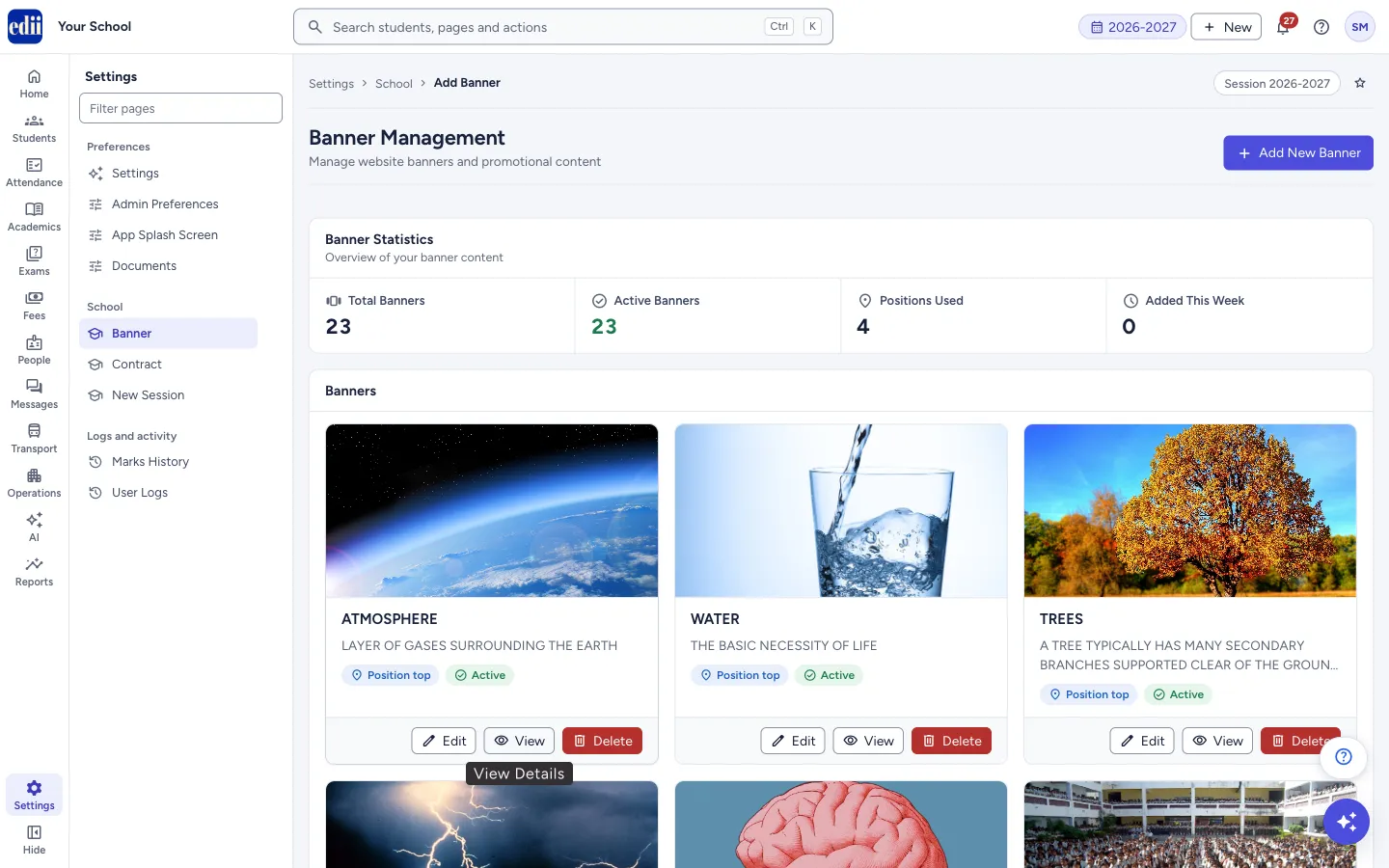
Section titled “1. See the banners”The cards show every banner of the school. If there are none, the page says No Banners Found and offers Create First Banner.
 Open a bigger pictureतस्वीर बड़ी करें
2. Add a banner
Section titled “2. Add a banner”Select Add New Banner. A form opens. Fill Name, choose Upload Image (a picture is required), choose the Position, and fill Description, Short Description and URL. Select Submit. You see Uploading Images/Files.. and then Banner added successfully.
3. Edit a banner
Section titled “3. Edit a banner”Select Edit on a card. The form opens with the saved details and the picture. Change the name, position, descriptions or link, and select Submit (Details updated successfully). The edit form does not change the picture; to use a new picture, add a new banner and delete the old one.
4. Open a banner’s link
Section titled “4. Open a banner’s link”Select View on a card to open the banner’s link in a new tab. If the banner has no link, you see No URL associated with this banner.
5. Delete a banner
Section titled “5. Delete a banner”Select Delete on a card. EDII asks Delete banner? and This banner will be permanently deleted. This action cannot be undone. Select Delete to confirm. You see Banner deleted.
Fields and filters
Section titled “Fields and filters”| Field | What it is | Notes |
|---|---|---|
| Name | The banner’s title. | Shown on the card. |
| Image | The banner picture. | Required when adding. Error: Please select an image. |
| Position | Where the banner sits. | TOP, CENTER 1, CENTER 2 or BOTTOM. |
| Description, Short Description | The longer and shorter text of the banner. | The short description shows on the card. |
| URL | The web address the banner leads to. | Opens when you select View. |
Buttons
Section titled “Buttons”| Button | What it does | What happens next |
|---|---|---|
| Add New Banner | Opens the form for a new banner. | A form opens. |
| Submit | Saves a new or changed banner. | Banner added successfully or Details updated successfully, and the list refreshes. |
| Edit | Opens the banner’s details for change. | A form opens. |
| View | Opens the banner’s link. | The link opens in a new tab. |
| Delete | Removes the banner for good. | Banner deleted. |
After you save
Section titled “After you save”- The banner shows in the list at once and on the school website in its position.
Good to know
Section titled “Good to know”- A picture is needed when adding a banner.
- Deleting a banner cannot be undone.
- The Edit form does not change the picture.
Messages you may see
Section titled “Messages you may see”| Message | What it means | What to do |
|---|---|---|
| Please select an image. | No picture was chosen. | Choose a picture and submit again. |
| Banner added successfully | The banner was saved. | Check it on the website. |
| Details updated successfully | The change was saved. | Nothing to do. |
| No URL associated with this banner | The banner has no link. | Edit the banner and add a URL. |
| Bad/Slow Internet Connection, Please check your internet connection | The request failed. | Check the connection and try again. |
- Remove banners of old campaigns so that the website looks current.
- Give each banner a clear name so that you can find it later.
Stuck? Try this
Section titled “Stuck? Try this”| Problem | Likely cause | What to do |
|---|---|---|
| A banner looks cropped on the website. | The picture’s shape does not fit the banner space. | Add the banner again with a wider picture and delete the old one. |
Did this page help?क्या इस पेज से मदद मिली?
Thanks! Glad it helped.धन्यवाद! अच्छा लगा कि काम बन गया।
Sorry about that. Ask in your own words, or write to us.माफ़ कीजिए। अपने शब्दों में पूछें, या हमें लिखें।