
Screen guide · Web app
Issue Certificate
A form to issue one certificate to a student: pick or type the student, choose the certificate type and template, fill the details and issuer, preview it and issue it.
यह पेज अंग्रेज़ी में है। कुछ समझ न आए तो ।
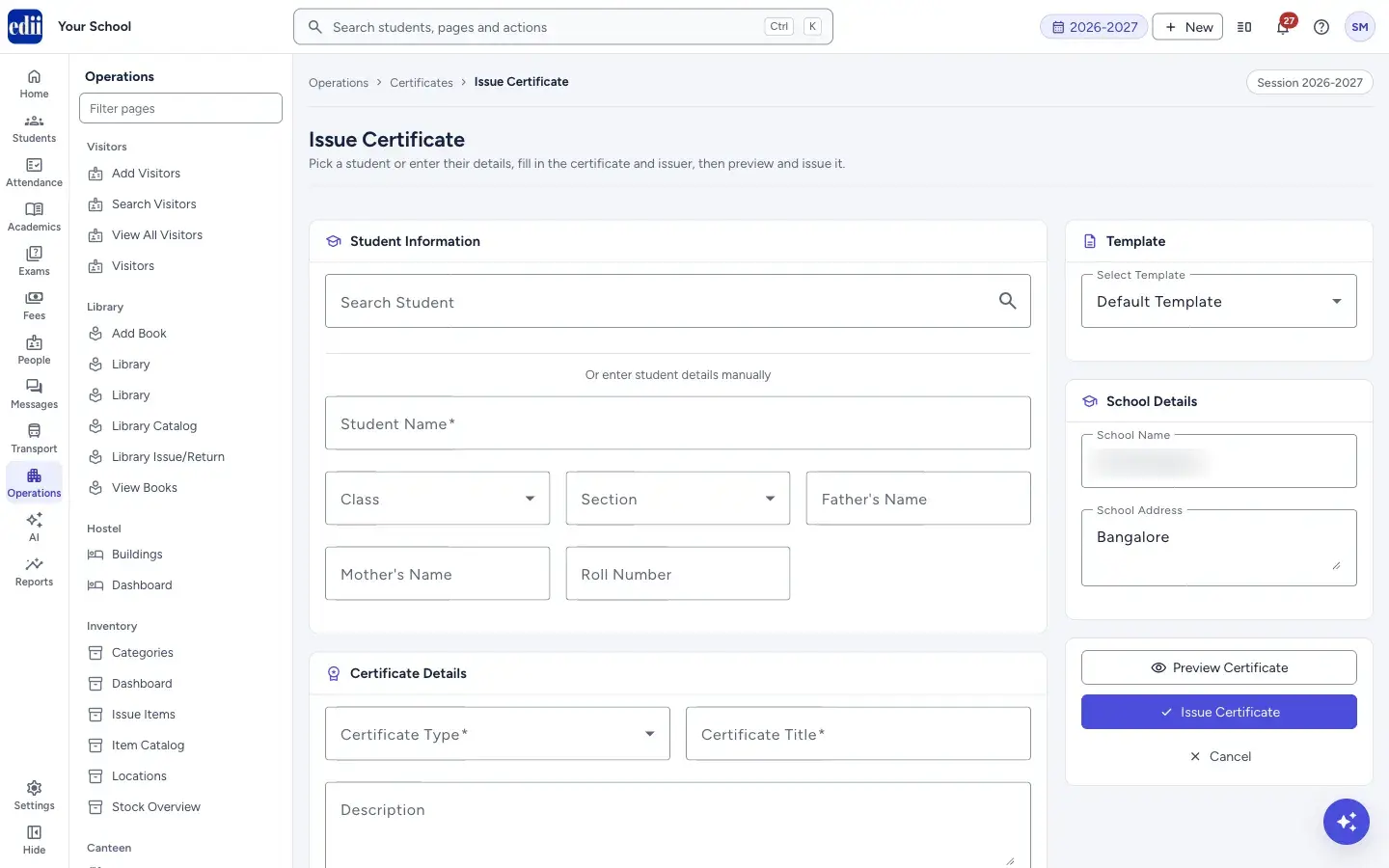
Issue Certificate gives one certificate to one student. The form has the boxes Student Information, Certificate Details and Issuer Details on the left, and Template, School Details and the buttons on the right.
You can pick a student from the school’s list or type the student’s details yourself, for a person who is not on the list. The issuer details and the school address are filled in for you from Issuer & Signatures; you can change them for this certificate.
Select Preview Certificate to see the certificate first, then Issue Certificate to save it. After it is saved, EDII opens View Certificates.
The page is shown only when the school has the Certificates module switched on.
Who uses it and when
Section titled “Who uses it and when”The school office or the class teacher, when a student has earned a certificate such as merit, participation, achievement, sports, attendance or character.
Before you start
Section titled “Before you start”- Set the issuer and the signatures once in Issuer & Signatures. They are then filled in each time.
Where to find it
Section titled “Where to find it”- In school.edii.in: Operations › Certificates › Issue Certificate
- Or press Ctrl K (⌘ K on a Mac) and type Issue Certificate.
- Address:
school.edii.in/certificate/issue - Who can see it: Shown only when your school uses Certificates in EDII. If it is missing from your menu, ask your school admin.
 Open a bigger pictureतस्वीर बड़ी करें
Step by step
Section titled “Step by step”1. Pick the student
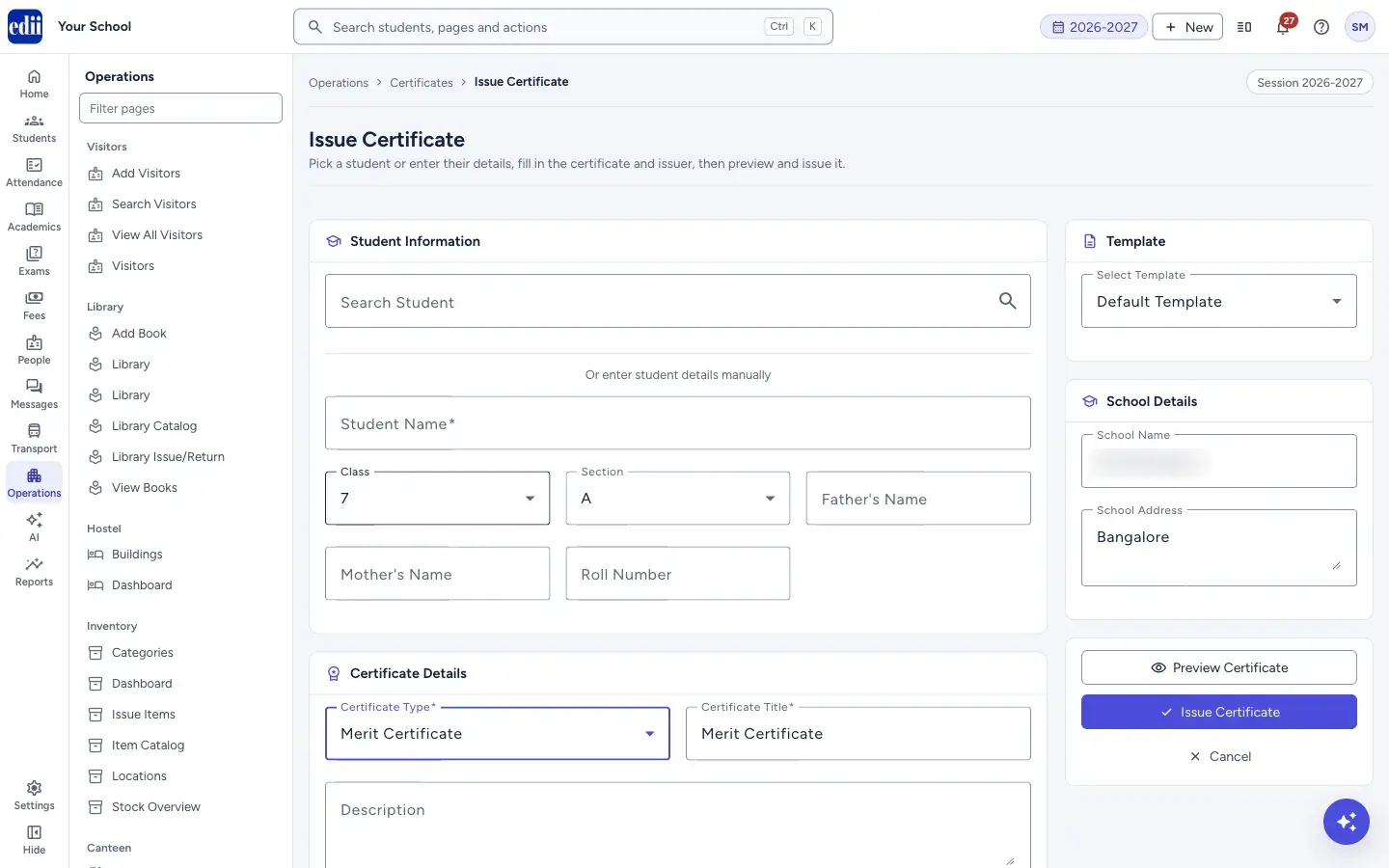
Section titled “1. Pick the student”In Student Information, type at least 2 letters of the name, ID or roll number in Search Student. Up to 5 matches are shown with class, section, roll number and father’s name; select the right one. The name, class, section, father’s, mother’s name and roll number are filled in, and a Clear button lets you pick someone else.
Or type the details yourself under Or enter student details manually: Student Name (required), Class, Section, Father’s Name, Mother’s Name and Roll Number.
 Open a bigger pictureतस्वीर बड़ी करें
2. Choose the certificate type and title
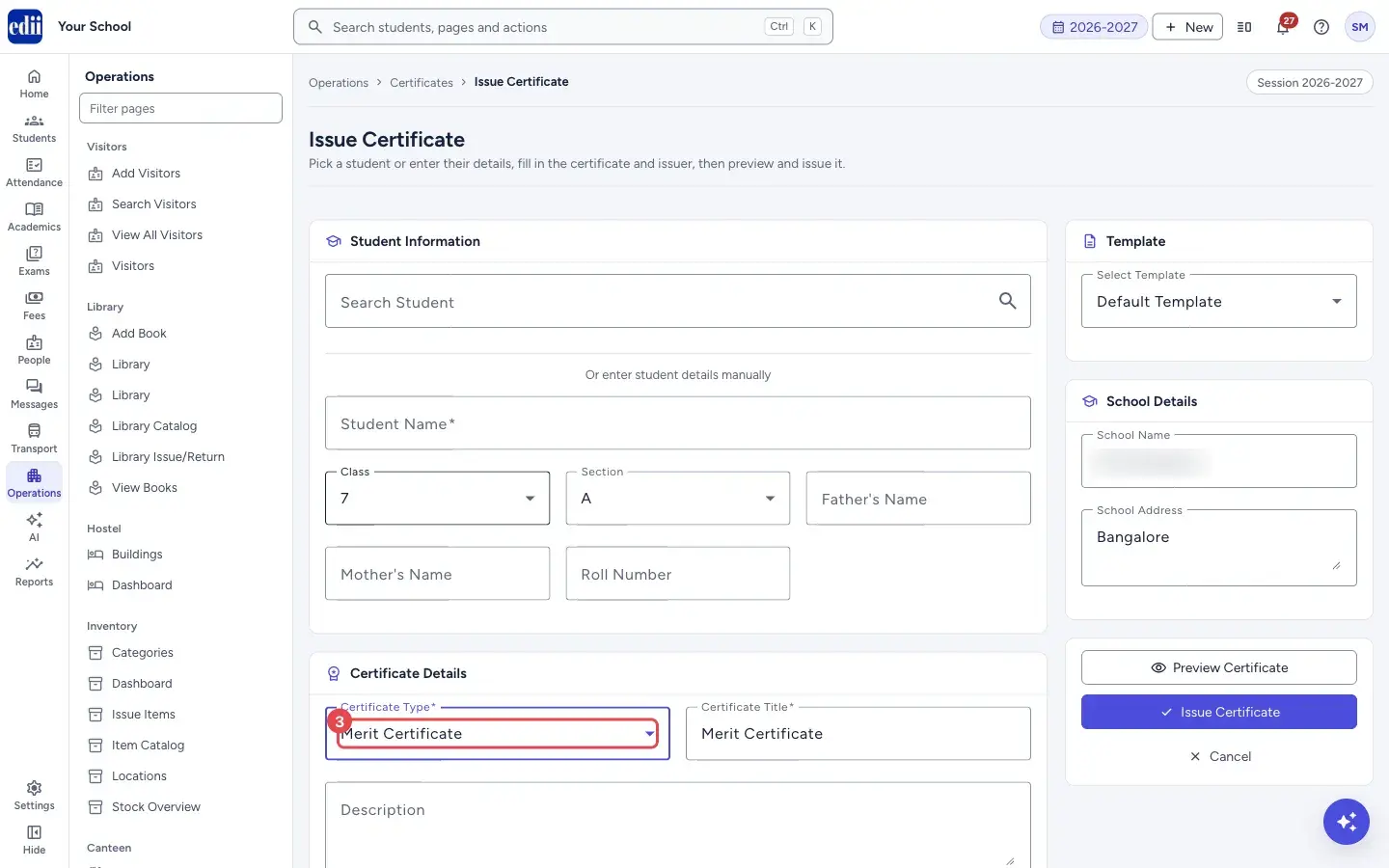
Section titled “2. Choose the certificate type and title”In Certificate Details, open Certificate Type and choose a type, for example Merit Certificate. The Certificate Title is filled with the name of the type; change it if you want, for example 1st Place - Singing competition. Both are required.
 Open a bigger pictureतस्वीर बड़ी करें
3. Add the description and dates
Section titled “3. Add the description and dates”Fill the Description (a message on the certificate) and the Achievement/Reason (for example First place in Science Exhibition) if you want. Issue Date starts as today and is required. Valid Until (Optional) is for a certificate that expires.
4. Check the issuer
Section titled “4. Check the issuer”In Issuer Details the boxes Issued By, Designation, Principal Name and Remarks are filled from the saved issuer. While you type, saved names are suggested; choosing one fills the related boxes and the signatures.
5. Choose the template and check the school details
Section titled “5. Choose the template and check the school details”Under Template, Select Template starts as Default Template. Choose another one if you want; Template selected shows. Under School Details, check the School Name and School Address.
6. Preview and issue
Section titled “6. Preview and issue”Select Preview Certificate. A window shows the certificate; nothing is saved. If a required box is empty, EDII shows Please fill in required fields.
Select Issue Certificate. While it saves the button reads Issuing…. EDII shows Certificate issued successfully! and opens View Certificates. Cancel goes back to the Certificate Dashboard.
Fields and filters
Section titled “Fields and filters”| Field | What it is | Notes |
|---|---|---|
| Search Student | Finds a student from the school’s list. | Type at least 2 characters. |
| Student Name | The name printed on the certificate. | Required. |
| Class, Section, Father’s Name, Mother’s Name, Roll Number | Details printed on some certificates. | Optional. |
| Certificate Type | The kind of certificate. | Required. |
| Certificate Title | The title of the certificate. | Required. Filled from the type. |
| Description | A message on the certificate. | Optional. |
| Achievement/Reason | What the student did. | Optional. |
| Issue Date | The date on the certificate. | Required. Starts as today. |
| Valid Until (Optional) | The last day the certificate is valid. | Optional. |
| Issued By, Designation, Principal Name, Remarks | Who issues the certificate. | Optional. Filled from Issuer & Signatures. |
| Select Template | The design. | Default Template unless you choose another. |
| School Name, School Address | Printed at the top of the certificate. | Optional. Filled for you. |
Buttons
Section titled “Buttons”| Button | What it does | What happens next |
|---|---|---|
| Clear | Removes the chosen student so you can pick or type another. | The student boxes are empty. |
| Preview Certificate | Shows the certificate in a window. | A preview window opens. Nothing is saved. |
| Issue Certificate | Saves and issues the certificate. | Certificate issued successfully! and View Certificates opens. |
| Cancel | Leaves the form. | The Certificate Dashboard opens. |
After you save
Section titled “After you save”- The certificate is in View Certificates, where you can view and print it. The issuer details you used are saved so they are suggested next time.
Good to know
Section titled “Good to know”- Student Name, Certificate Type, Certificate Title and Issue Date are required.
- The issue date is saved as the calendar day you picked.
Messages you may see
Section titled “Messages you may see”| Message | What it means | What to do |
|---|---|---|
| Please fill in required fields | You selected Preview with a required box empty. | Fill Student Name, Certificate Type and Certificate Title. |
| Please fill in all required fields | You selected Issue with a required box empty. | Fill the boxes marked with a star. |
| Certificate issued successfully! | The certificate was saved. | Nothing to do. |
| Failed to issue certificate | The certificate could not be saved. | Check the internet and try again. |
- Pick the student from the list when you can. The class, section and roll number are then correct.
Stuck? Try this
Section titled “Stuck? Try this”| Problem | Likely cause | What to do |
|---|---|---|
| No student is shown when I search | Fewer than 2 characters were typed, or the school’s student list was not loaded. | Type more of the name, or type the student’s details yourself. |
Did this page help?क्या इस पेज से मदद मिली?
Thanks! Glad it helped.धन्यवाद! अच्छा लगा कि काम बन गया।
Sorry about that. Ask in your own words, or write to us.माफ़ कीजिए। अपने शब्दों में पूछें, या हमें लिखें।