
Screen guide · Web app
Add Fee Rule
Create a discount rule that applies on its own to students who have a special category, or to students by their position among brothers and sisters.
यह पेज अंग्रेज़ी में है। कुछ समझ न आए तो ।
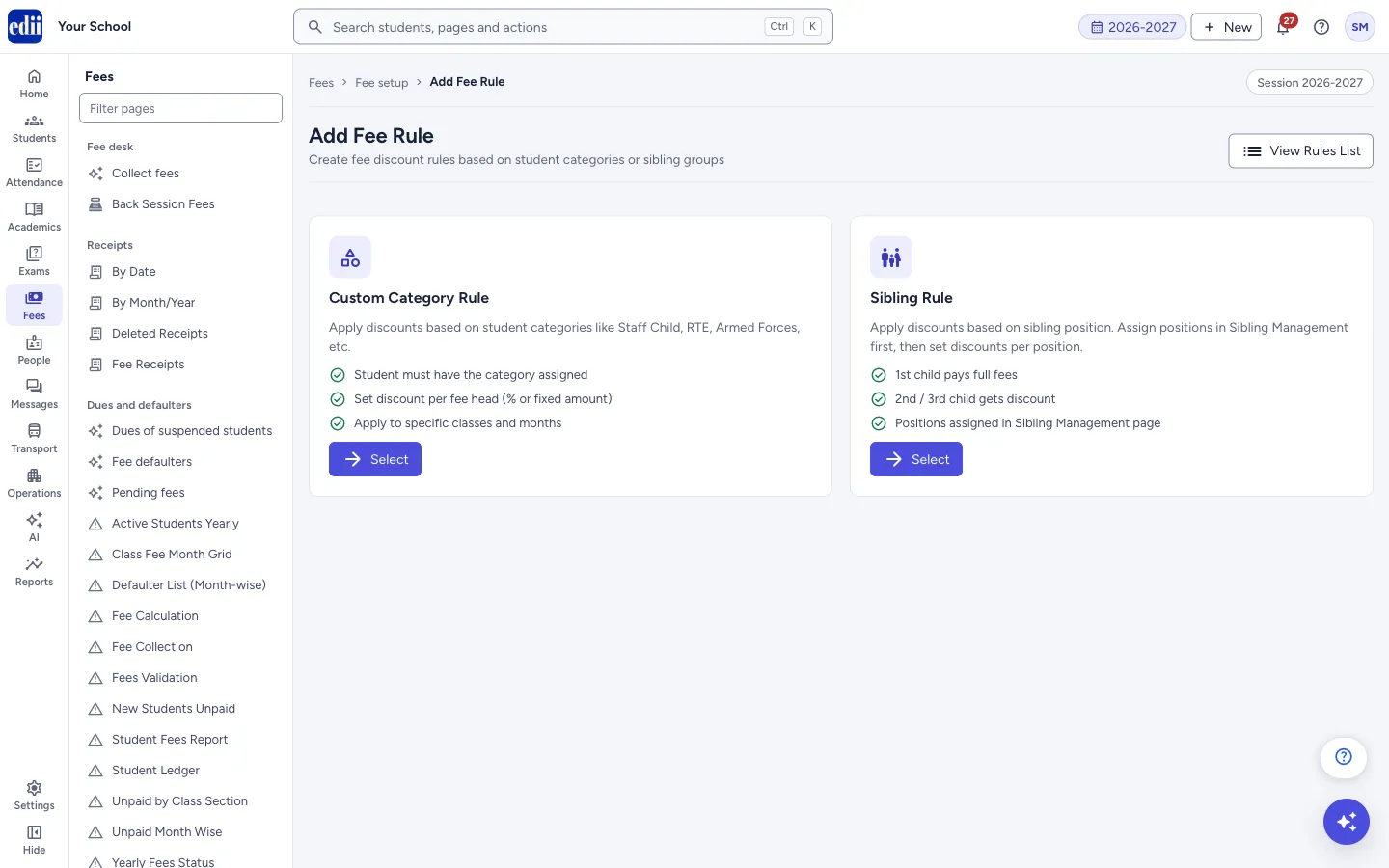
Add Fee Rule sets up a discount that is not given student by student. You write the rule once, and it covers the students who match it. The page first asks which kind of rule you want, then shows the form for that kind.
Custom Category Rule is for students who have a category assigned, such as Staff Child, RTE or Armed Forces. The student must have that category. Sibling Rule is for the second, third and later child in a family. The positions are assigned first in Sibling Management; the first child pays full fees.
In both kinds you choose, for each fee head, a discount as a percentage or as a rupee amount. Fees you do not list stay at their normal amount.
Who uses it and when
Section titled “Who uses it and when”The accounts office uses it when the school offers a concession by category or by sibling position.
Before you start
Section titled “Before you start”- The fee heads must already exist in Fees Master for the classes you want. The list of fee heads on this page comes from there.
- For a category rule, the categories must exist and students must have them assigned.
- For a sibling rule, assign sibling positions in Sibling Management first.
Where to find it
Section titled “Where to find it”- In school.edii.in: Fees › Fee setup › Add Fee Rule
- Or press Ctrl K (⌘ K on a Mac) and type Add Fee Rule.
- Address:
school.edii.in/add/add-fee-rule-discount - Who can see it: Staff whose role includes Fees access. Shown only when your school uses Finance in EDII. If it is missing from your menu, ask your school admin.
 Open a bigger pictureतस्वीर बड़ी करें
Step by step
Section titled “Step by step”1. Choose the kind of rule
Section titled “1. Choose the kind of rule”Select Custom Category Rule or Sibling Rule. The form for that kind opens. Select Back at the top of the form to choose again; this clears what you entered.
2. Name the rule and set its priority
Section titled “2. Name the rule and set its priority”Type a Rule Name, for example Staff Child Discount. Type the Priority, a number from 1 up. The box shows 1 = highest.
3. Choose the categories or sibling positions
Section titled “3. Choose the categories or sibling positions”In a category rule, Categories lists the school’s categories. If you choose more than one, EDII shows Combo rule: student must have ALL selected categories.
In a sibling rule, Sibling Position lists Sibling 1 to Sibling 20, with the hint 1st child pays full fees. Create rules for 2nd/3rd children.
4. Choose the classes, sections and months
Section titled “4. Choose the classes, sections and months”Tick Select Class and Select Months; both are required. Select Section is optional. In each list, Select All ticks everything.
Choose the class first: the fee heads in the next step are loaded for the classes you choose.
5. Add the fee overrides
Section titled “5. Add the fee overrides”Select Add Fee Override. Pick a Fee Head, choose % or Rs., and type the Discount % or Discount Rs.. A line such as Rs.5000 → Rs.4500 shows the amount before and after. A fee head can be used only once in a rule.
Add one line for each fee head that should be discounted. Use Remove to take a line away. At least one line is required.
6. Add the rule
Section titled “6. Add the rule”Select Add Fee Rule. When it is saved you see Fee Rule: <name> created successfully and View/Edit Fee Rules opens.
Fields and filters
Section titled “Fields and filters”| Field | What it is | Notes |
|---|---|---|
| Rule Name | The name of the rule. | Required. |
| Priority | A number that ranks the rule. 1 is the highest. | Required. Whole number, 1 or more. Starts as 1. |
| Categories / Sibling Position | Who the rule is for: the special categories (category rule) or the sibling positions (sibling rule). | Required. You can choose more than one. |
| Select Class | The classes the rule applies to. | Required. Choosing the class loads the fee heads. |
| Select Section | The sections the rule applies to. | Optional. |
| Select Months | The months the rule applies to. | Required. |
| Fee Head | The fee that gets the discount. The list shows each name with its amount, for example Tuition Fee (Rs.5000). | Required in each line. A fee head already used in another line is greyed out. |
| % / Rs. | Whether the discount is a percentage of the fee or a fixed rupee amount. | Starts as %. |
| Discount % / Discount Rs. | The size of the discount. | Required. A number, 0 or more. The line next to it shows the new amount: for %, the fee less that percentage, rounded; for Rs., the fee less that amount, never below 0. |
Buttons
Section titled “Buttons”| Button | What it does | What happens next |
|---|---|---|
| View Rules List | Opens View/Edit Fee Rules. | Whatever you entered here is not saved. |
| Select (on each rule kind) | Opens the form for that kind of rule. | The form shows. |
| Back | Returns to the choice of rule kind. | The form is cleared. |
| Add Fee Override | Adds one line for a fee head. | A new line shows. The button is disabled until the class has fee heads. |
| Remove | Takes a fee override line away. | The line disappears. |
| Add Fee Rule | Saves the rule. | Fee Rule: <name> created successfully shows and View/Edit Fee Rules opens. The button stays disabled while there is no fee override line. |
After you save
Section titled “After you save”- The rule is saved for the open session and View/Edit Fee Rules opens, where you can see it.
Good to know
Section titled “Good to know”- A rule for the same categories cannot be added twice for the same class. EDII asks you to edit the existing rule or choose different classes.
- When the school has locked fees in Preferences, a new rule cannot be added.
- Fee heads you do not list in the overrides stay at their normal amount.
- The page uses the fee heads that exist for the class you chose. If the class has none, you see No fee heads found for selected class. Please check fee master.
Messages you may see
Section titled “Messages you may see”| Message | What it means | What to do |
|---|---|---|
| Please add at least one fee override | The rule has no fee override line. | Select Add Fee Override and fill the line. |
| Fee Rule: <name> created successfully | The rule was saved. | Check it in View/Edit Fee Rules. |
| Select a class first to load fee heads. | No class is chosen yet, so there are no fee heads to pick. | Choose the class. |
| No fee heads found for selected class. Please check fee master. | The chosen class has no fee head. | Add fee heads in Add Fee Head or check Fees Master. |
| A fee rule for the selected categories already exists for class <classes>. Please edit the existing rule or choose different classes. | A rule for these categories already covers the class. | Change that rule in View/Edit Fee Rules, or choose other classes. |
| Fees Is Locked, Please Ask the admin to unlock | The school has locked fees. | Ask the school admin to unlock fees in Preferences. |
| Bad/Slow Internet Connection | The request did not reach EDII. | Check the internet. Open View/Edit Fee Rules to see whether the rule was saved before you try again. |
- Use a combo rule when a student must have two categories to qualify.
- Give a narrow rule a smaller priority number (higher priority) than a broad one.
Stuck? Try this
Section titled “Stuck? Try this”| Problem | Likely cause | What to do |
|---|---|---|
| Add Fee Override does nothing | No class is chosen yet, or the chosen class has no fee heads. | Choose the class first, and check that the fee heads exist in Fees Master. |
| A student did not get the discount | The student does not have the category or sibling position, the class or month is not in the rule, or the fee head is not in the overrides. | Check the student’s category or sibling position, then check the rule in View/Edit Fee Rules. |
Did this page help?क्या इस पेज से मदद मिली?
Thanks! Glad it helped.धन्यवाद! अच्छा लगा कि काम बन गया।
Sorry about that. Ask in your own words, or write to us.माफ़ कीजिए। अपने शब्दों में पूछें, या हमें लिखें।