
Screen guide · Web app
Documents
Keep the school's and students' documents in one place: upload files with a name and type, search and filter them, view their details, download the files and delete a document.
यह पेज अंग्रेज़ी में है। कुछ समझ न आए तो ।
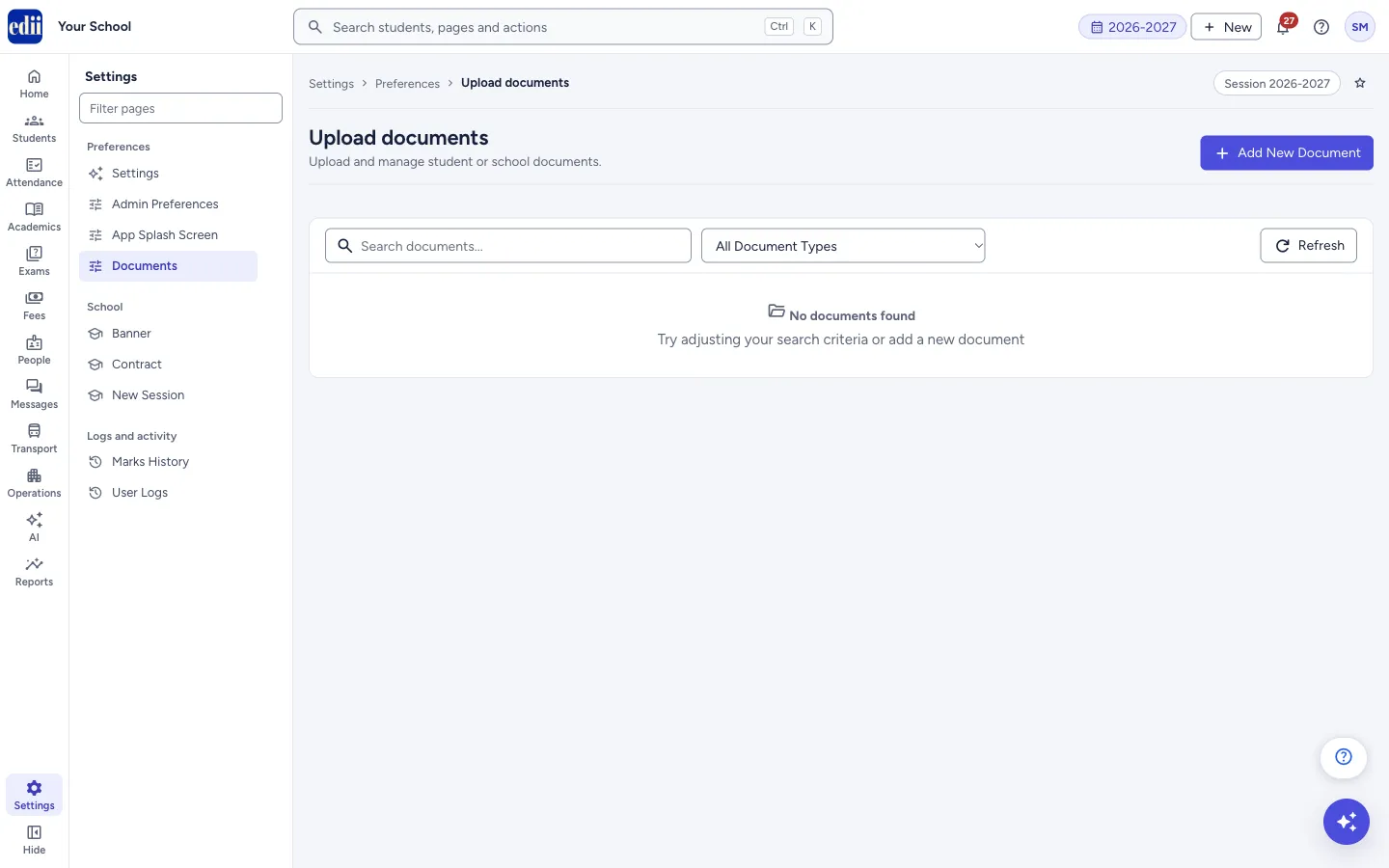
Documents (headed Upload documents) is a store for the school’s papers, for example an affiliation letter, certificates, fee receipts or student records. Each document has a name, a type, an optional description and one or more files.
The list shows each document’s name, Type, Description, the number of files (Attachments), the Created Date and two buttons: view and delete. Use Search documents… and the document type list to find one, and Refresh to reload the list.
Who uses it and when
Section titled “Who uses it and when”The administrator or the office uses it to keep papers ready for inspections and audits.
Before you start
Section titled “Before you start”- Have the files ready on your computer: pictures, PDF, Word, Excel or text files.
Where to find it
Section titled “Where to find it”- In school.edii.in: Settings › Preferences › Documents
- Or press Ctrl K (⌘ K on a Mac) and type Documents.
- Address:
school.edii.in/view/documents - Who can see it: Everyone who can sign in to school.edii.in. If it is missing from your menu, ask your school admin.
 Open a bigger pictureतस्वीर बड़ी करें
Step by step
Section titled “Step by step”1. Find a document
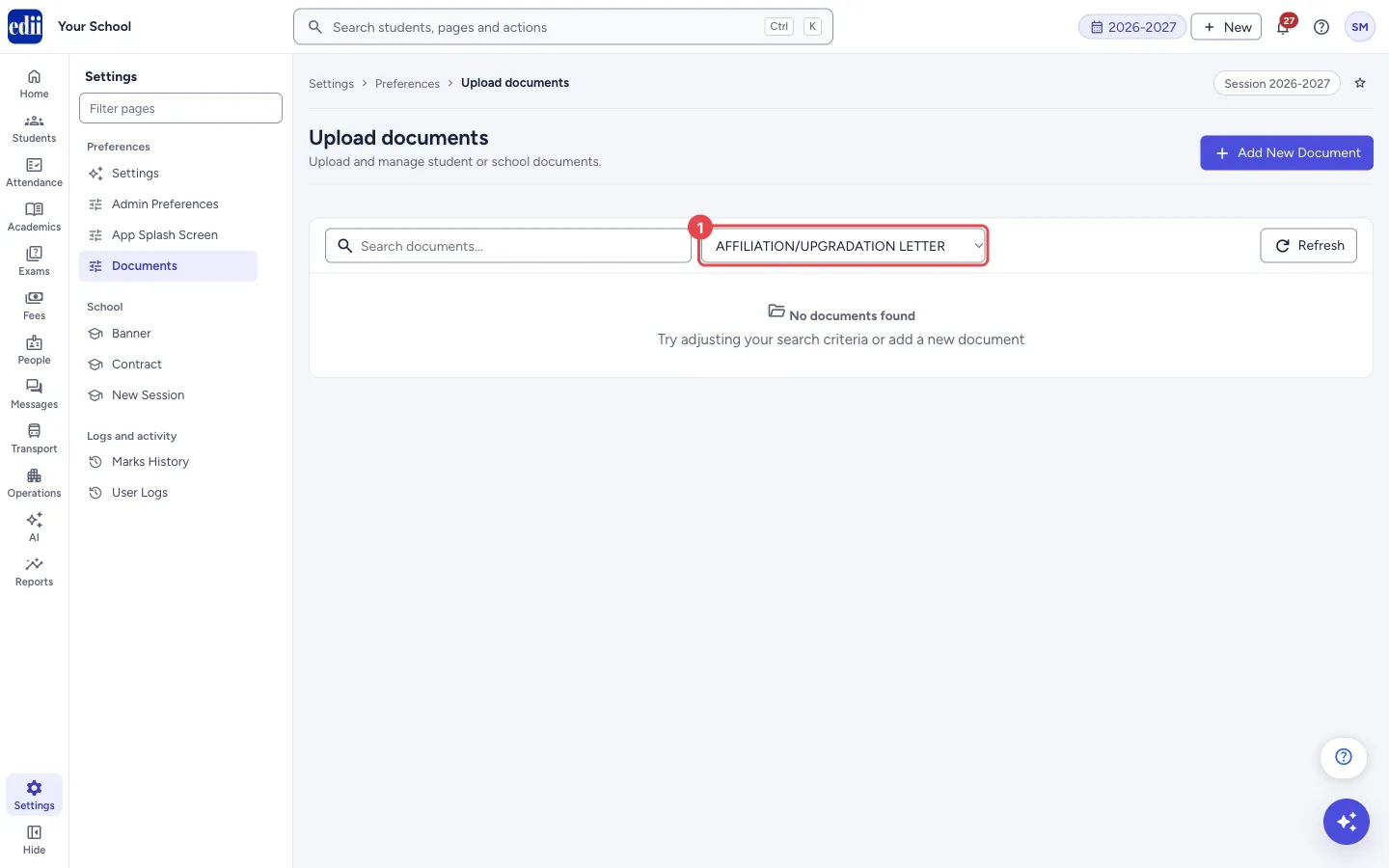
Section titled “1. Find a document”Type in Search documents… to filter the list. Open the document type list to show only one type; the first choice is All Document Types. The list includes types such as Student Records, Fee Receipts, Transfer Certificate, Character Certificate, Admission Form, ID Card, Report Card, Medical Certificate, Sports Certificate, Bonafide Certificate, Birth Certificate, Leaving Certificate and Other, plus any type your school has already added.
If nothing fits, the page says No documents found and Try adjusting your search criteria or add a new document.
 Open a bigger pictureतस्वीर बड़ी करें
2. Add a document
Section titled “2. Add a document”Select Add New Document. In the window fill Document Name and choose the Document Type. If the type is Other, type your own in Custom Document Type. Add a Description if you like. Under Attachments, choose one or more files (pictures, PDF, Word, Excel or text). Each chosen file shows its name and size with a button to remove it.
Select Upload & Save. The button stays off until the name, the type and at least one file are given. While it works the window says Uploading files, please wait… and then Document added successfully. A new custom type is added to the type list.
3. View and download
Section titled “3. View and download”Select the eye button on a row. The View Document window shows the name, type, description, who created it and when, and each file as Attachment 1, Attachment 2 and so on, each with a Download button.
4. Delete a document
Section titled “4. Delete a document”Select the bin button on a row. EDII asks Are you sure you want to delete this document? Select Delete to confirm. You see Document deleted successfully.
Fields and filters
Section titled “Fields and filters”| Field | What it is | Notes |
|---|---|---|
| Document Name | The title of the document. | Required. |
| Document Type | The kind of document. | Required. Choose Other to type your own. |
| Custom Document Type | Your own type name. | Shown and required when the type is Other. |
| Description | A short note about the document. | Optional. |
| Attachments | The files of the document. | Required, one or more. Pictures, PDF, Word, Excel or text files. |
Buttons
Section titled “Buttons”| Button | What it does | What happens next |
|---|---|---|
| Add New Document | Opens the upload window. | A window opens. |
| Upload & Save | Uploads the files and saves the document. | Document added successfully and the list refreshes. |
| Refresh | Loads the list again. | The list updates. |
| View (eye) | Opens the document’s details and files. | The View Document window opens. |
| Delete (bin) | Removes the document after you confirm. | Document deleted successfully. |
Columns
Section titled “Columns”| Column | Meaning |
|---|---|
| Document Name | The title you gave. |
| Type | The document type. |
| Description | Your note, or a dash if none. |
| Attachments | How many files the document has. |
| Created Date | When the document was added. |
After you save
Section titled “After you save”- The document appears in the list with its files, and can be downloaded by anyone who can open this page.
Good to know
Section titled “Good to know”- A name, a type and at least one file are required.
- Deleting a document cannot be undone.
Messages you may see
Section titled “Messages you may see”| Message | What it means | What to do |
|---|---|---|
| Please fill all required fields and select at least one file | The name, type or file is missing. | Fill them and choose a file. |
| Please enter custom document type | The type is Other but no custom type was typed. | Type the type name. |
| Document added successfully | The document was saved. | Nothing to do. |
| Failed to upload files | The files could not be uploaded. | Check the connection and try again. |
| Failed to add document | The document could not be saved. | Try again. |
| Failed to load documents | The list could not load. | Select Refresh. |
| Document deleted successfully | The document was removed. | Nothing to do. |
- Put the year in the document name, for example Affiliation letter 2026.
- Scan papers clearly before you upload them.
Stuck? Try this
Section titled “Stuck? Try this”| Problem | Likely cause | What to do |
|---|---|---|
| A document I added is not in the list. | A document type or search word is limiting the list. | Choose All Document Types and clear the search box. |
Did this page help?क्या इस पेज से मदद मिली?
Thanks! Glad it helped.धन्यवाद! अच्छा लगा कि काम बन गया।
Sorry about that. Ask in your own words, or write to us.माफ़ कीजिए। अपने शब्दों में पूछें, या हमें लिखें।