
Screen guide · Web app
Change Log
A searchable list of what is new in school.edii.in: each version with its new features, improvements, fixes and how-to notes.
यह पेज अंग्रेज़ी में है। कुछ समझ न आए तो ।
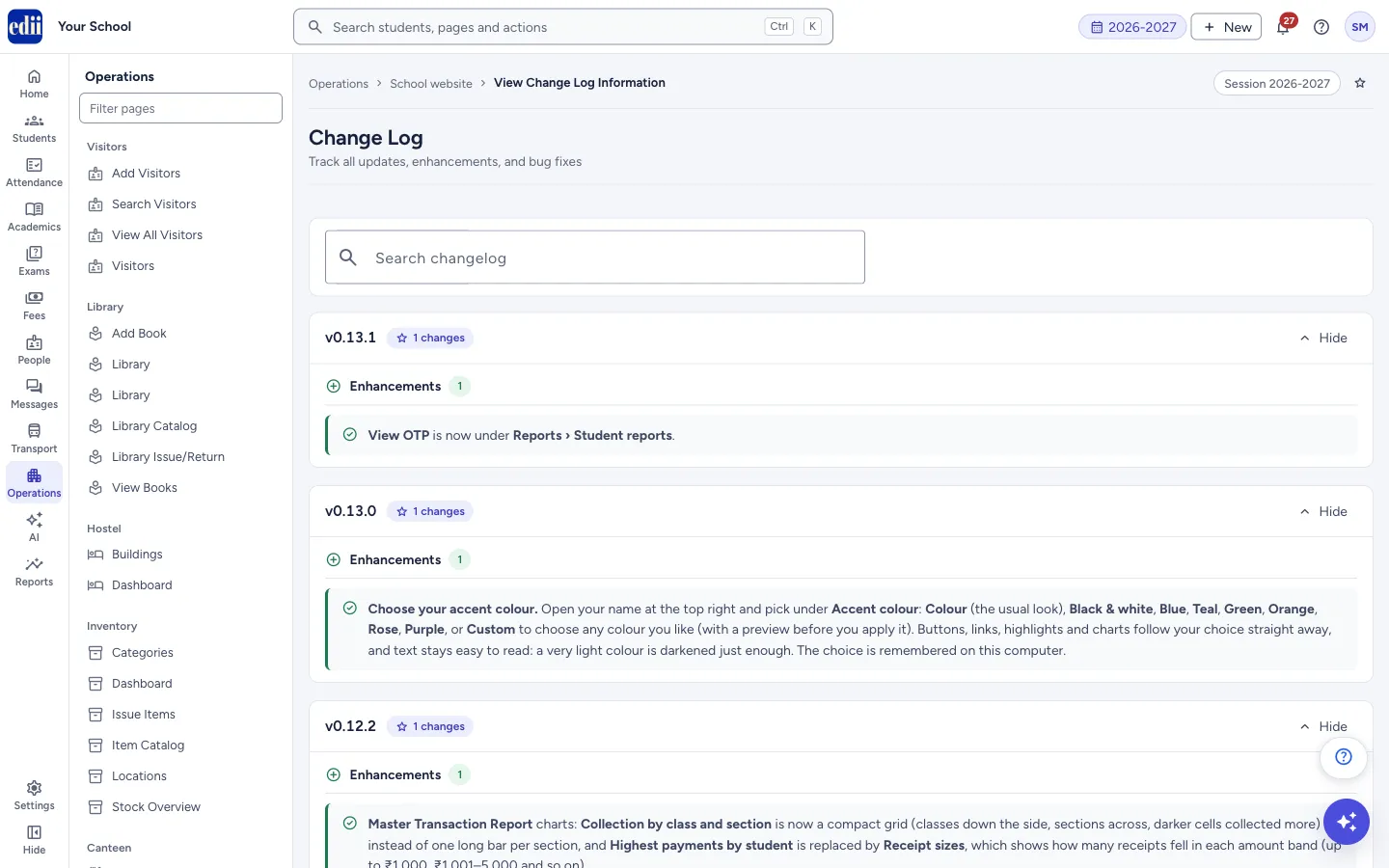
Change Log lists the updates made to school.edii.in itself, newest version first. It is not a log of changes to your own school’s public website or data. Each version is a box with the version number (for example v0.12.1) and a count of its changes.
Inside a version, changes are grouped under Enhancements (new things and improvements), Bug Fixes and How to Use (short notes on using a new feature). The three newest versions are open when the page loads; the rest are closed.
Who uses it and when
Section titled “Who uses it and when”Anyone who wants to know what changed: office staff when a screen looks different, or an administrator before telling the team about a new feature.
Where to find it
Section titled “Where to find it”- In school.edii.in: Operations › School website › Change Log
- Or press Ctrl K (⌘ K on a Mac) and type Change Log.
- Address:
school.edii.in/view/change-log - Who can see it: Shown to staff with Admin pages access. It is also shown to staff with Support access when your school uses the Support feature. If it is missing from your menu, ask your school admin.
 Open a bigger pictureतस्वीर बड़ी करें
Step by step
Section titled “Step by step”1. Read the newest versions
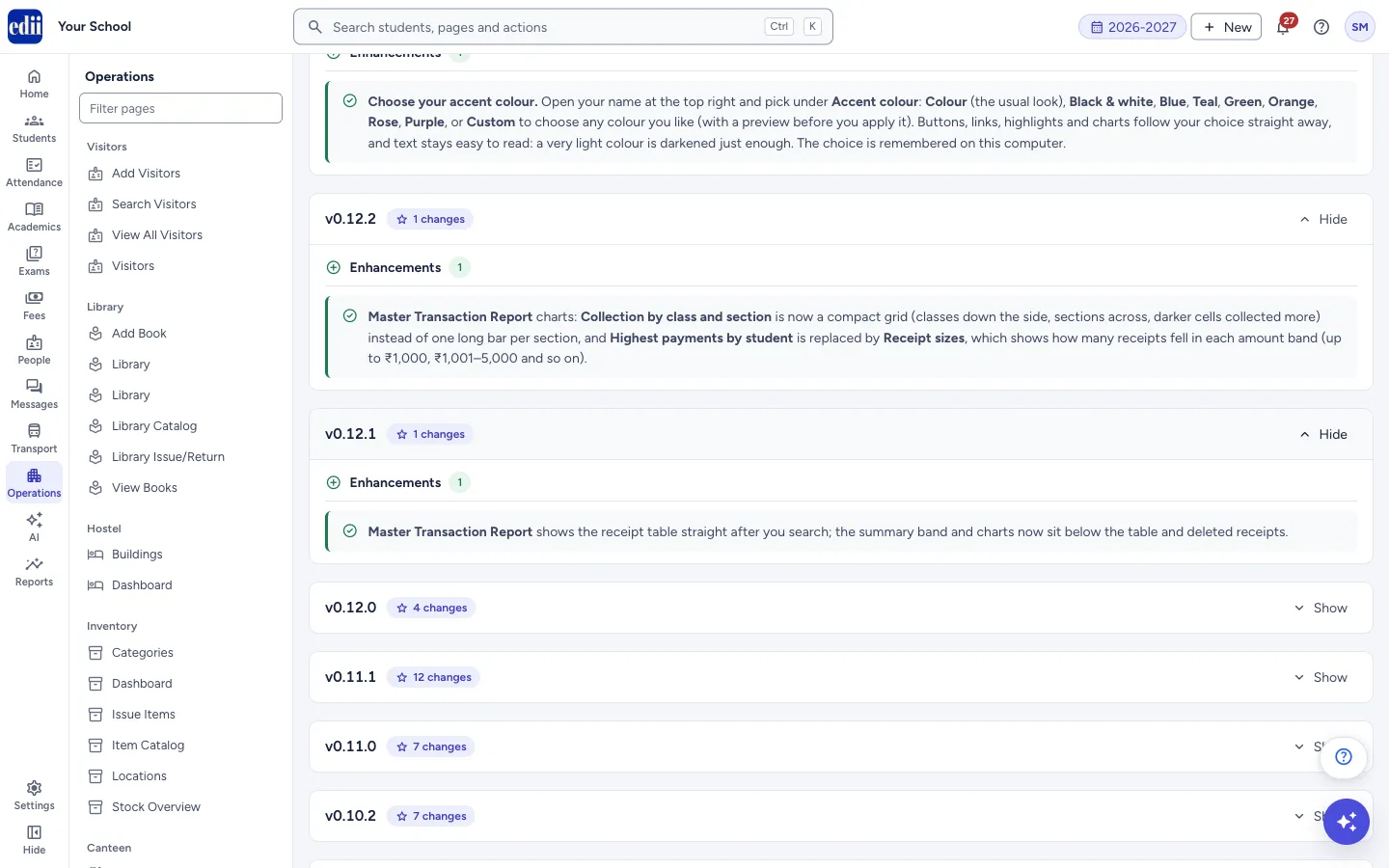
Section titled “1. Read the newest versions”Scroll down. The newest three versions are already open. The number next to the version, such as 1 changes, is how many items it contains.
 Open a bigger pictureतस्वीर बड़ी करें
2. Open or close a version
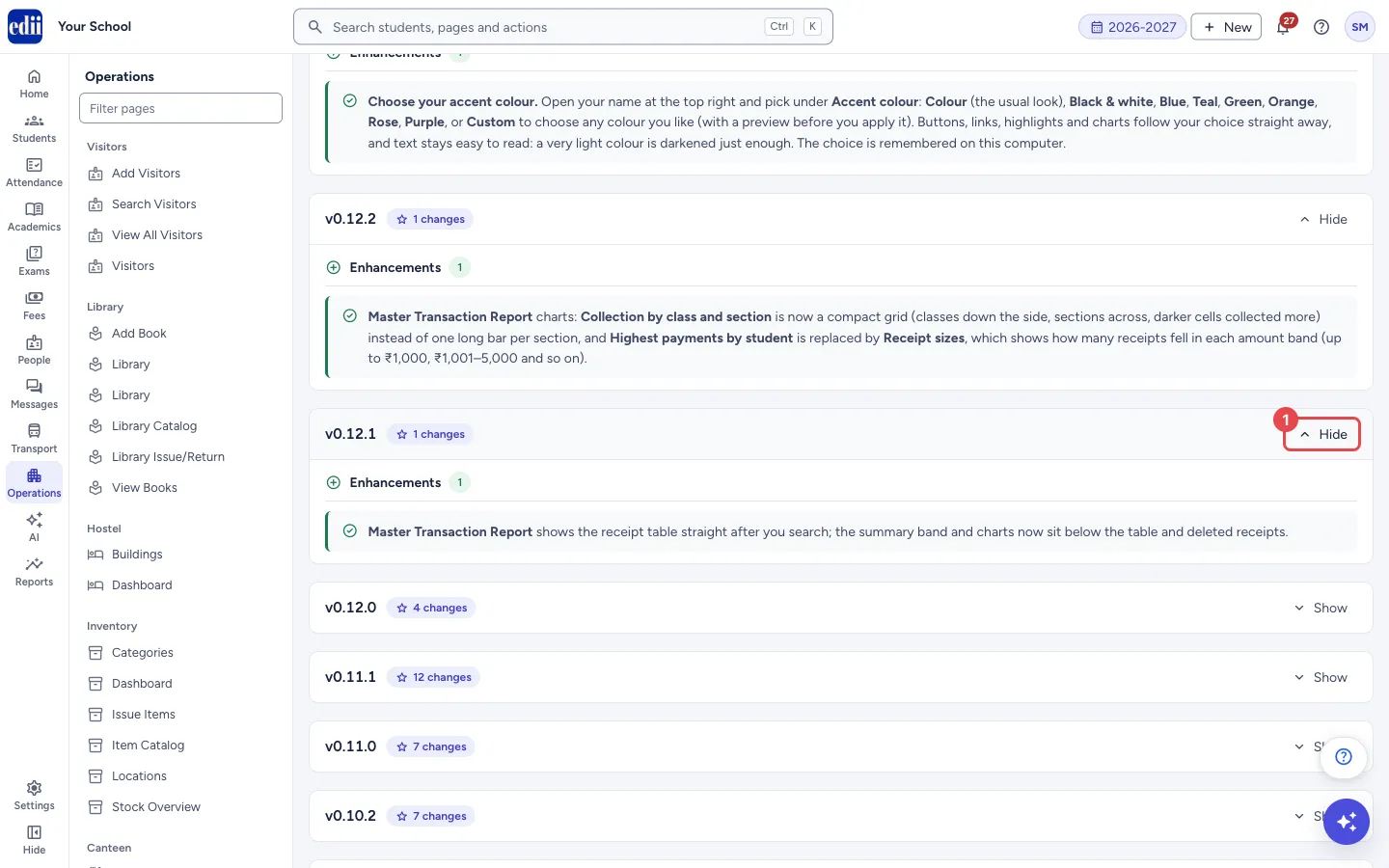
Section titled “2. Open or close a version”Select Show to open a version, or Hide to close it. Selecting anywhere on the version’s title bar does the same.
 Open a bigger pictureतस्वीर बड़ी करें
3. Search the log
Section titled “3. Search the log”Type a word in Search changelog (the box says Search by version or feature…). The list keeps only the versions that have the word in their number or in any change. When nothing matches, the page says No versions found matching your search.
Fields and filters
Section titled “Fields and filters”| Field | What it is | Notes |
|---|---|---|
| Search changelog | Finds versions by version number or by a word in any change. | Not case sensitive. Clear the box to see all versions again. |
Buttons
Section titled “Buttons”| Button | What it does | What happens next |
|---|---|---|
| Show / Hide | Opens or closes the changes of one version. | The list of changes appears or folds away. |
Good to know
Section titled “Good to know”- The page only shows information. You cannot change anything on it.
- If the log cannot be loaded, the message Failed to load changelog appears and the list stays empty.
Messages you may see
Section titled “Messages you may see”| Message | What it means | What to do |
|---|---|---|
| Failed to load changelog | The page could not read the list of updates. | Open the page again. If it keeps failing, check your internet connection. |
| No versions found matching your search. | No version has the word you typed. | Try a shorter or different word, or clear the box. |
- Search for the name of a screen, for example Master Transaction Report, to see when it last changed.
Did this page help?क्या इस पेज से मदद मिली?
Thanks! Glad it helped.धन्यवाद! अच्छा लगा कि काम बन गया।
Sorry about that. Ask in your own words, or write to us.माफ़ कीजिए। अपने शब्दों में पूछें, या हमें लिखें।