
Screen guide · Web app
Flagged Attendance
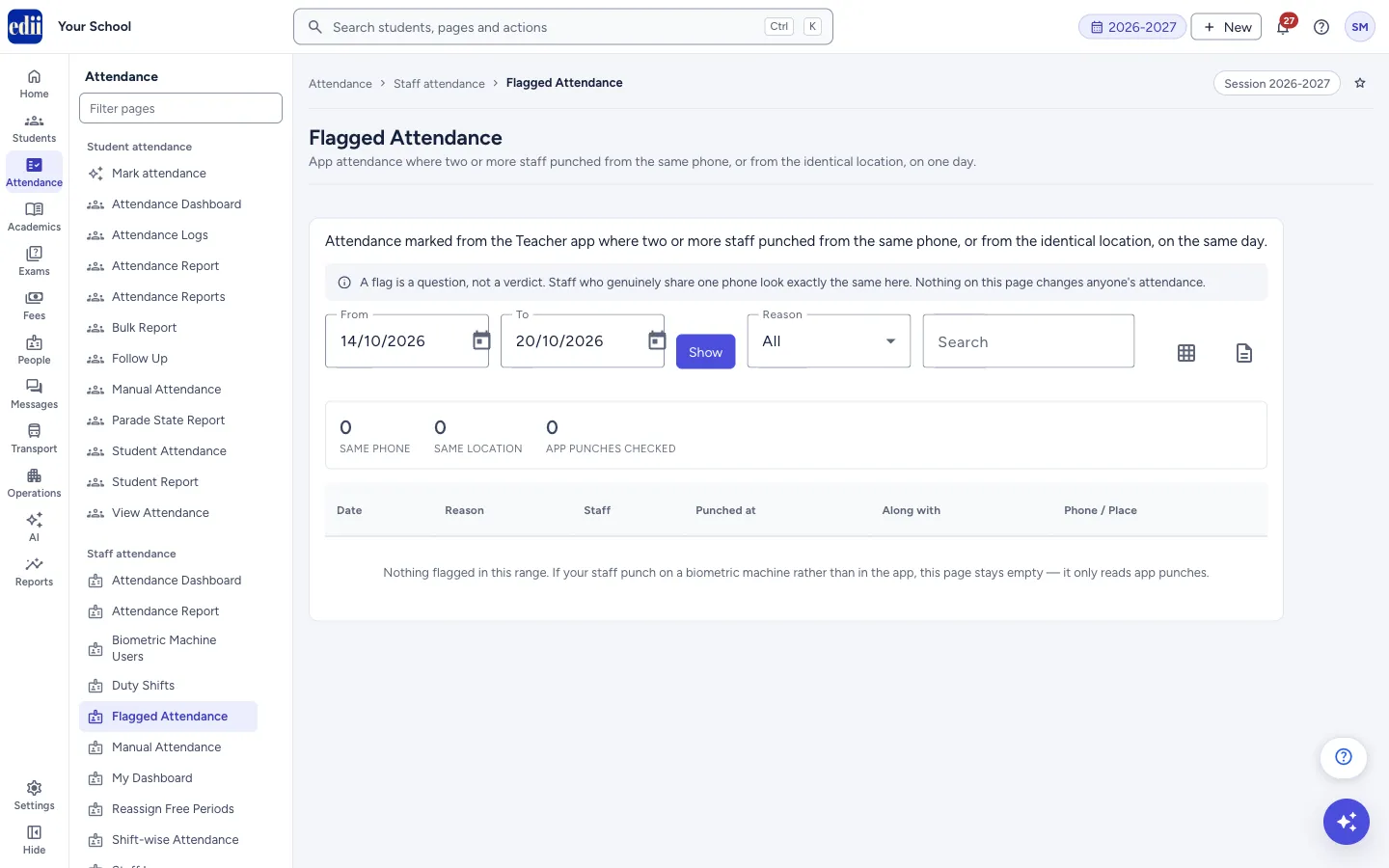
Lists days on which two or more staff marked app attendance from the same phone or from the identical location, so the office can ask about it.
यह पेज अंग्रेज़ी में है। कुछ समझ न आए तो ।
Staff can mark their attendance in the Teacher app. Flagged Attendance reads those app punches and flags a day when two or more staff punched from the same phone, or from the same location (the identical map position).
A flag is a question, not a verdict. The screen says so itself: staff who genuinely share one phone look exactly the same here. Nothing on this page changes anyone’s attendance.
Punches on a biometric machine are not read here. If your staff do not use the app, the page stays empty.
Who uses it and when
Section titled “Who uses it and when”The principal or the HR in-charge, weekly or when staff attendance from the app looks wrong.
Before you start
Section titled “Before you start”- Staff must mark attendance in the Teacher app. The check needs the punches of the dates you choose.
Where to find it
Section titled “Where to find it”- In school.edii.in: Attendance › Staff attendance › Flagged Attendance
- Or press Ctrl K (⌘ K on a Mac) and type Flagged Attendance.
- Address:
school.edii.in/view/flagged-attendance - Who can see it: Staff whose role includes Messages or Leave or Meetings or Students or Attendance access. Shown only when your school uses HR and Calendar and Student in EDII. If it is missing from your menu, ask your school admin.
 Open a bigger pictureतस्वीर बड़ी करें
Step by step
Section titled “Step by step”1. Choose the dates
Section titled “1. Choose the dates”From and To start as the last 7 days (today and the six days before). Pick other dates from the calendars if you need to.
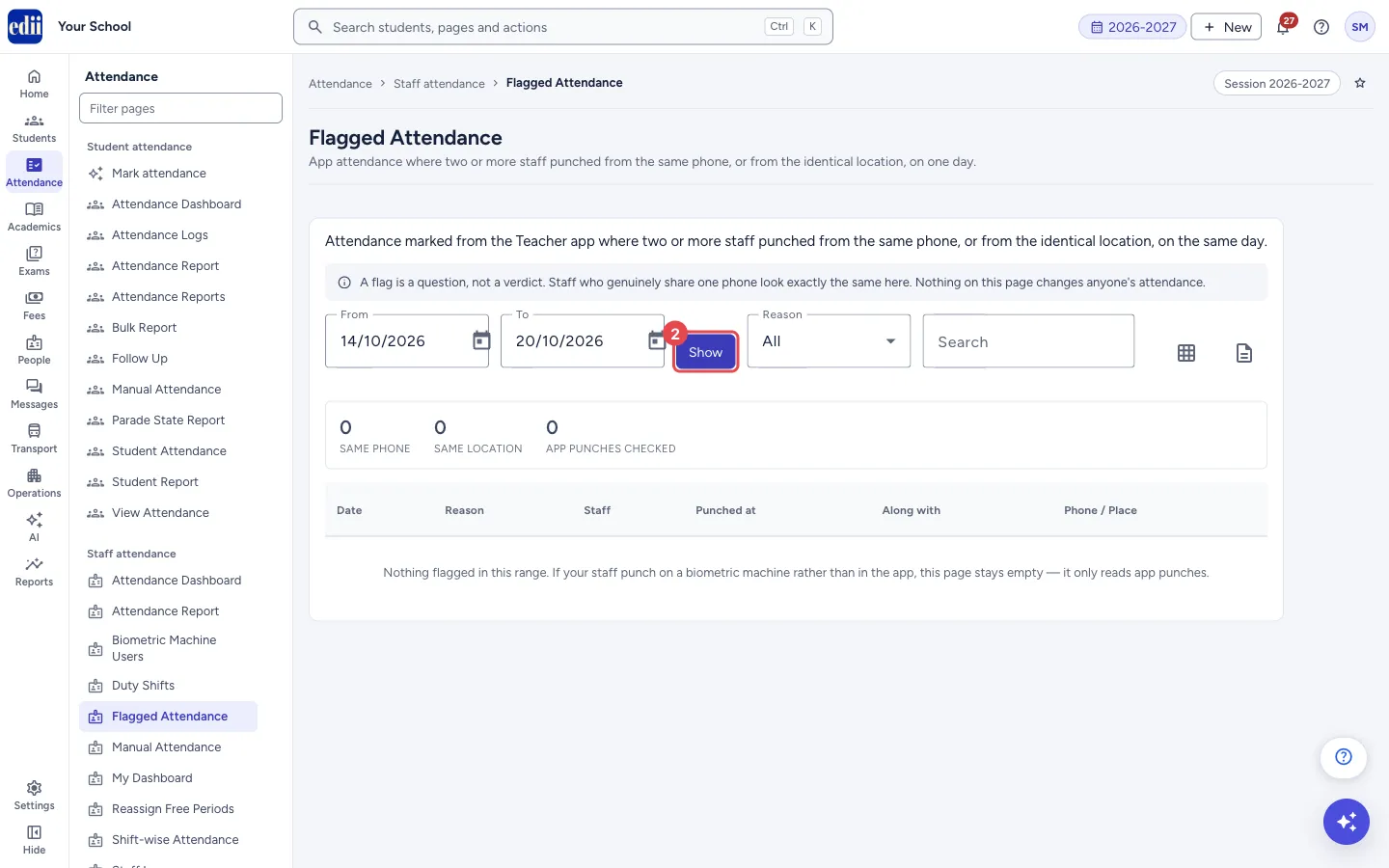
2. Select Show
Section titled “2. Select Show”Select Show. The page also loads when you open it. Three counts appear: Same phone, Same location and App punches checked. A line under them says how many of the app punches could be checked against the phone they came from.
 Open a bigger pictureतस्वीर बड़ी करें
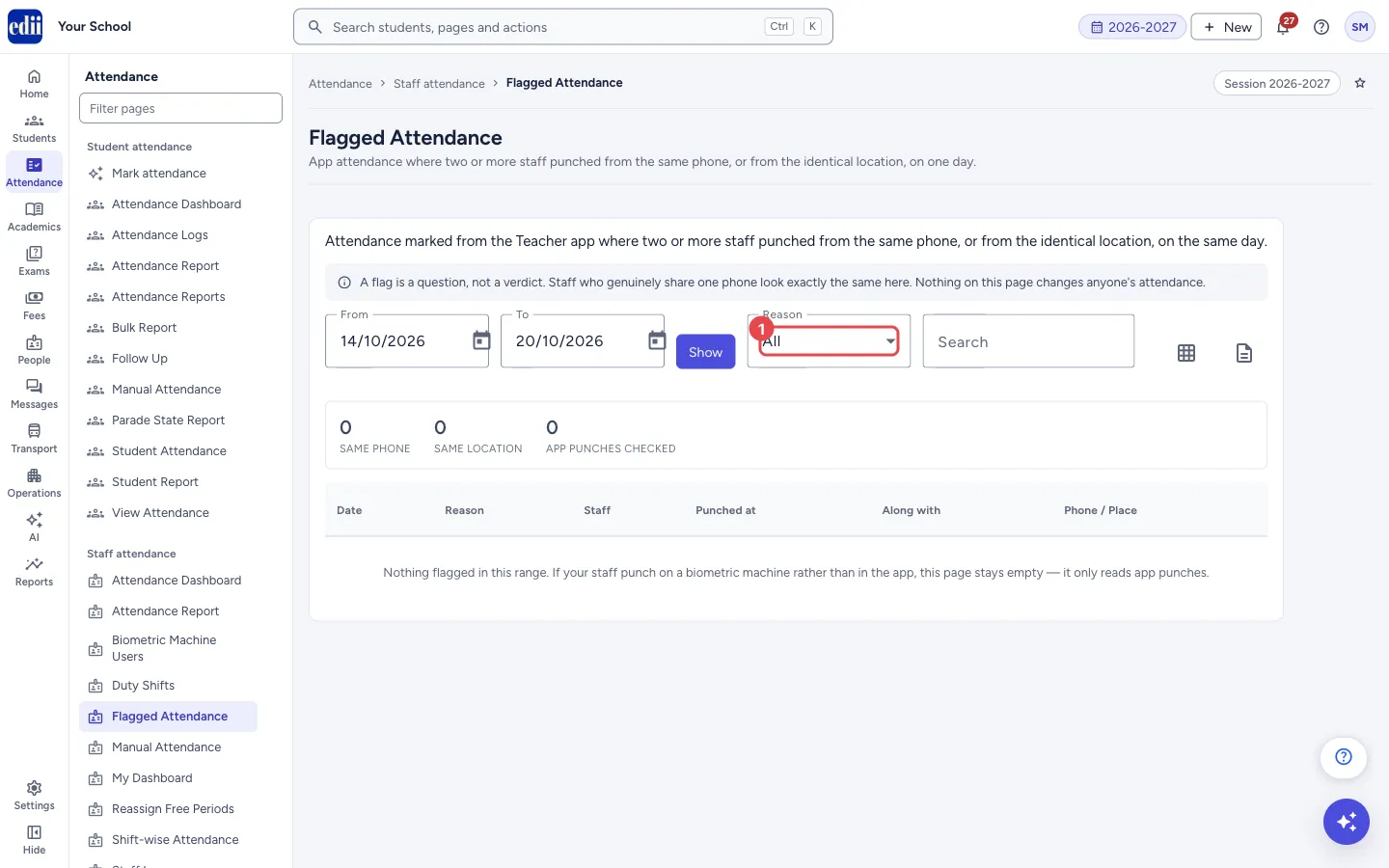
3. Filter the list
Section titled “3. Filter the list”Use Reason to show All, Same phone or Same location, and Search to find a staff name. These filters work on the list already shown.
 Open a bigger pictureतस्वीर बड़ी करें
4. Read each row
Section titled “4. Read each row”Each flag gives one row for every staff member in it: the Date, the Reason, the Staff member (with staff ID), the times Punched at, who they punched Along with, and the Phone / Place that was shared. You can read a row on its own, because it names the others in the group.
5. Export
Section titled “5. Export”The two buttons at the right of the filters download the table: the grid icon as an Excel file and the page icon as a CSV file, both named FlaggedStaffAttendance.
Fields and filters
Section titled “Fields and filters”| Field | What it is | Notes |
|---|---|---|
| From, To | The first and last day to check. | Both required. Starts as the last 7 days. |
| Reason | Filters the rows: All, Same phone, Same location. | Works on the rows already loaded. |
| Search | Finds a staff member by name, including the names in Along with. | Placeholder: Staff name. |
Buttons
Section titled “Buttons”| Button | What it does | What happens next |
|---|---|---|
| Show | Loads the flags for the dates. | The counts and the table update. |
| Export to Excel / Export to CSV | Downloads the table as it is shown. | File FlaggedStaffAttendance. |
Columns
Section titled “Columns”| Column | Meaning |
|---|---|
| Date | The day of the flag. |
| Reason | Same phone or Same location. |
| Staff | The staff member and staff ID. |
| Punched at | The times this staff member punched on that day. |
| Along with | The other staff in the same flag. |
| Phone / Place | For Same phone, the phone (or the first part of its app installation ID when the phone name is not known). For Same location, the place name or its map position. |
Good to know
Section titled “Good to know”- The same phone check needs the phone’s ID, which only newer app versions send. Punches from older app versions can be checked by location only. The line under the counts tells you how many punches could be checked, for example All 40 app punches in this range could be checked against the phone they came from.
- An empty result on old punches may therefore mean “not checked”, not “nothing found”.
- The page never changes attendance and never blocks a punch.
Messages you may see
Section titled “Messages you may see”| Message | What it means | What to do |
|---|---|---|
| Please select a date range | A date is empty. | Choose both dates. |
| Nothing flagged in this range. If your staff punch on a biometric machine rather than in the app, this page stays empty — it only reads app punches. | No flags were found for the dates. | Widen the dates if you expected a flag. |
| Network Issue, Please Try Again. | The data could not be loaded. | Check the internet connection and select Show. |
- Talk to the staff before taking any action. Two teachers who share a phone at home will appear here every day.
Did this page help?क्या इस पेज से मदद मिली?
Thanks! Glad it helped.धन्यवाद! अच्छा लगा कि काम बन गया।
Sorry about that. Ask in your own words, or write to us.माफ़ कीजिए। अपने शब्दों में पूछें, या हमें लिखें।