
Screen guide · Web app
New Session
Prepare a new academic session by copying the school's setup from one session to another: classes and sections, fee heads, subjects, test schedules, and bus stops and routes.
यह पेज अंग्रेज़ी में है। कुछ समझ न आए तो ।
New Session (headed Prepare New Session) copies setup data from one session to another so that you do not enter it again at the start of a year. You choose the Source Session (Copy From) and the Target Session (Copy To), load a summary, tick what to copy and select Start Migration.
Five kinds of data can be copied: Class/Section, Fee Heads, Subjects, Test/Exam Schedules and Bus Stops & Routes. Student marks are not copied, and the exam types and report card settings are kept at school level, so they are not copied either.
The copy adds data to the target session. Records that are already there are skipped, not overwritten.
Who uses it and when
Section titled “Who uses it and when”The administrator uses it once at the end of a session, before the next session starts.
Before you start
Section titled “Before you start”- Check that the setup of the source session is complete and correct, because that is what gets copied.
- Decide how far to move the dates of the test schedules. The usual choice is one year.
Where to find it
Section titled “Where to find it”- In school.edii.in: Settings › School › New Session
- Or press Ctrl K (⌘ K on a Mac) and type New Session.
- Address:
school.edii.in/add/new-session - Who can see it: Everyone who can sign in to school.edii.in. If it is missing from your menu, ask your school admin.
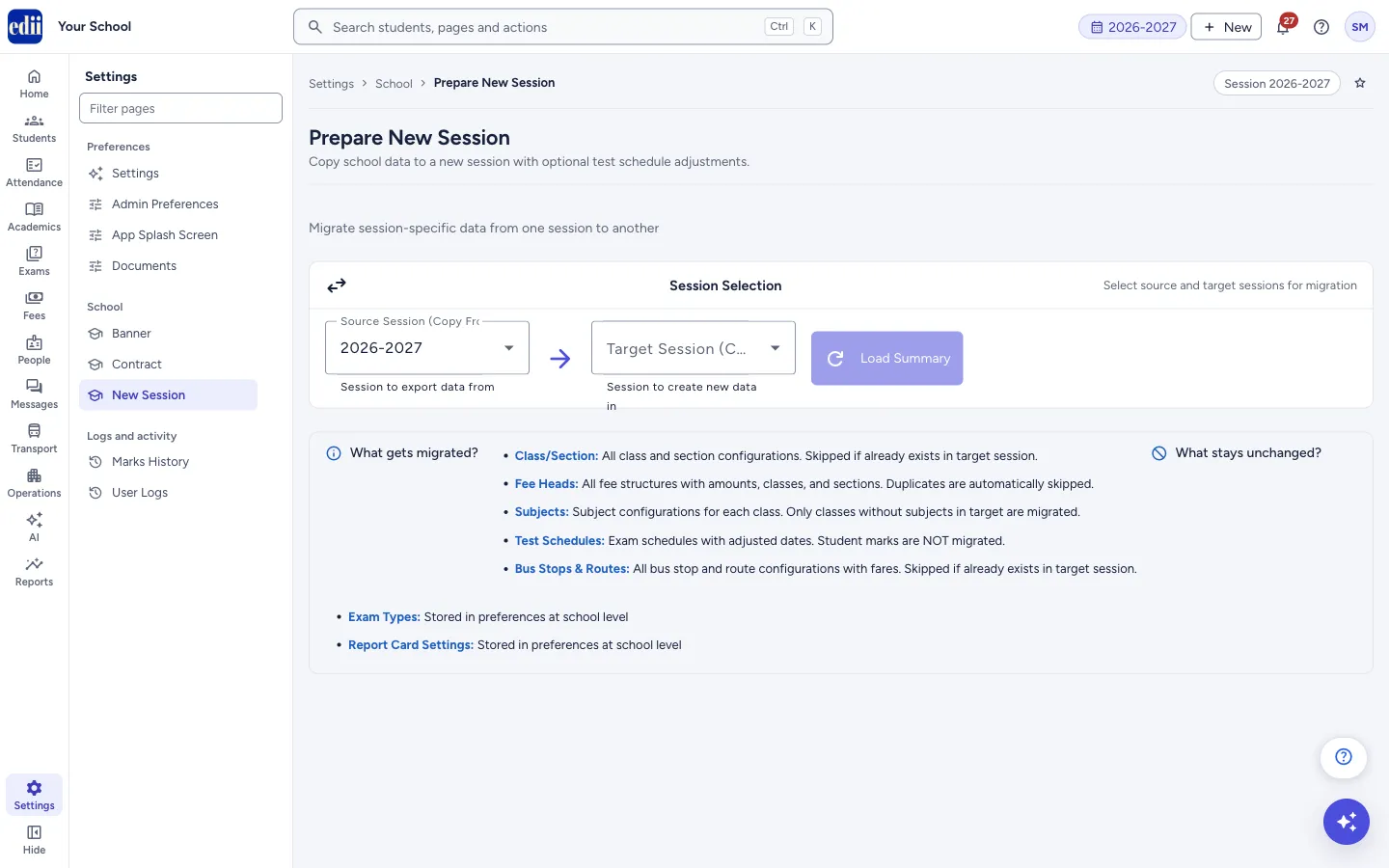 Open a bigger pictureतस्वीर बड़ी करें
Step by step
Section titled “Step by step”1. Choose the sessions
Section titled “1. Choose the sessions”Open Source Session (Copy From); it starts as the current session. Open Target Session (Copy To) and choose the new session. The target cannot be the same as the source. Select Load Summary; it stays off until both are chosen.
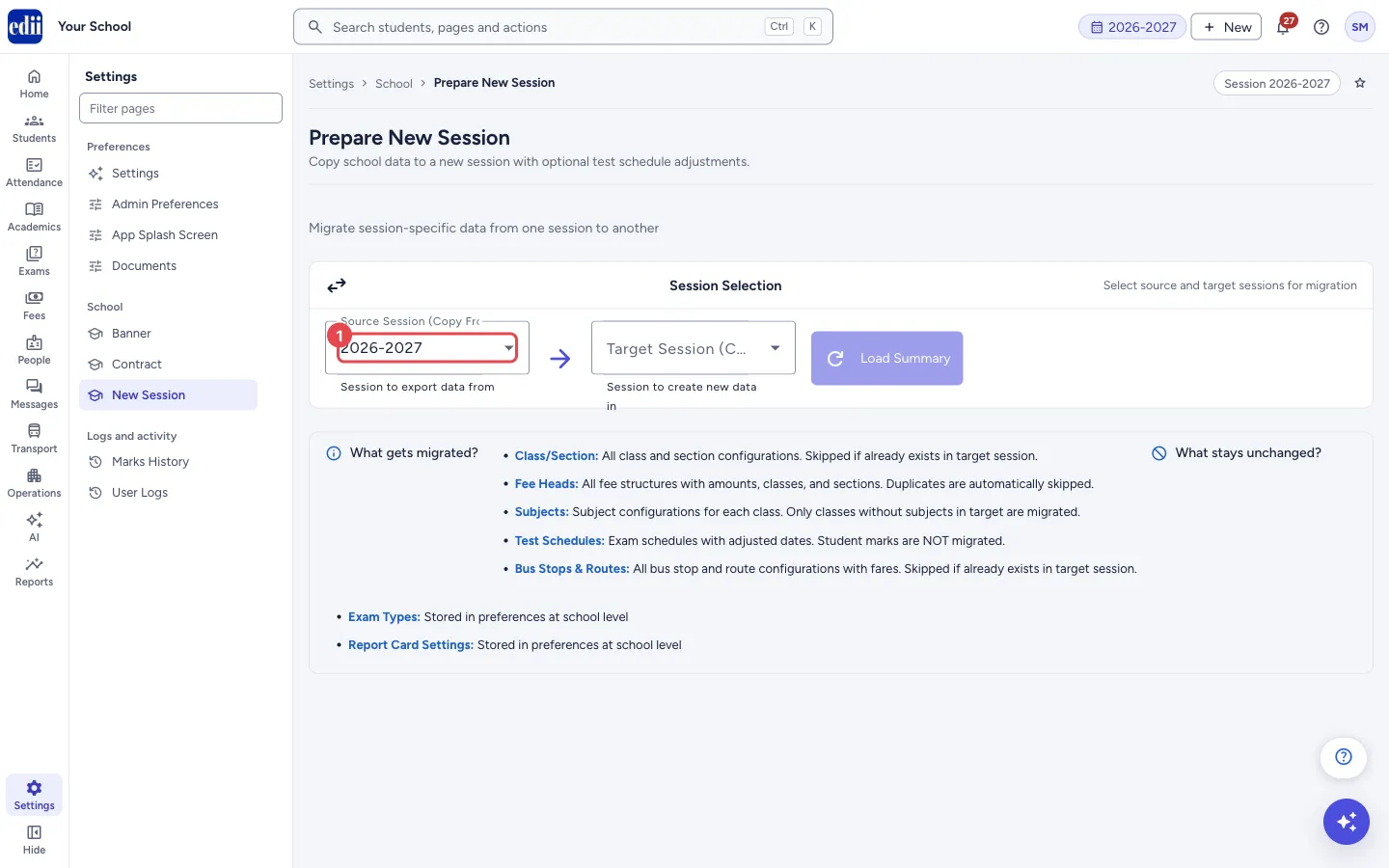 Open a bigger pictureतस्वीर बड़ी करें
2. Choose what to copy
Section titled “2. Choose what to copy”A card for each kind of data shows what it is and three counts: In Source, In Target and Pending. Tick the cards you want to copy. A card with nothing pending cannot be ticked.
3. Set the date offset for tests
Section titled “3. Set the date offset for tests”In Date Offset for Test Schedules, enter an Offset Value and choose the Unit (Years or Days). It starts at 1 year. The page shows the total, where a year counts as 365 days, and says All test dates will be shifted forward by … days when migrated.
4. Start the migration
Section titled “4. Start the migration”Select Start Migration. It stays off until at least one ticked card has something pending. While it runs the button says Migrating…. Each card then shows whether it was Exported (with the number exported and skipped) or failed, and Migration Results lists a line for each. Select Run Again to start another copy.
Fields and filters
Section titled “Fields and filters”| Field | What it is | Notes |
|---|---|---|
| Source Session (Copy From) | The session to copy data from. | Starts as the current session. |
| Target Session (Copy To) | The session to create the data in. | Cannot be the same as the source session. |
| Items to copy | Class/Section, Fee Heads, Subjects, Test/Exam Schedules, Bus Stops & Routes. | Tick the ones you want. |
| Offset Value, Unit | How far test dates are moved forward. | Years or Days. A year is counted as 365 days. |
Buttons
Section titled “Buttons”| Button | What it does | What happens next |
|---|---|---|
| Load Summary | Counts what is in each session and what is pending. | The cards show. |
| Start Migration | Copies the ticked items to the target session. | A result shows for each item. |
| Run Again | Resets the page after a migration so that you can copy again. | The page is ready for another run. |
After you save
Section titled “After you save”- The target session now has copies of the chosen setup. You can check them in the fee, class, subject, exam and transport pages after you switch to the target session.
Good to know
Section titled “Good to know”- Class/Section: all class and section setup is copied; those already in the target are skipped.
- Fee Heads: fee structures with amounts, classes and sections are copied; duplicates are skipped.
- Subjects: only classes that have no subjects in the target are copied.
- Test/Exam Schedules: exam schedules are copied with their dates moved by the offset. Student marks are not copied.
- Bus Stops & Routes: stops and routes with fares are copied; those already in the target are skipped.
- Exam Types and Report Card Settings are kept in the school’s preferences, so they are not part of the copy.
Messages you may see
Section titled “Messages you may see”| Message | What it means | What to do |
|---|---|---|
| Migration completed successfully! N item(s) processed. | Every ticked item was copied. | Check the target session. |
| Migration partially completed. N succeeded, M failed. | Some items were copied and some failed. | See the result of each item and run again for the failed ones. |
| Migration failed for all items. | Nothing was copied. | Check the connection and try again. |
| Error loading migration summary. Please try again. | The counts could not be loaded. | Select Load Summary again. |
| Exported N item(s), skipped M | N records were copied and M already existed. | Nothing to do. |
- Run the migration before admissions open for the new session, so that classes and fees are ready.
- Check the fee heads in the target session before collecting any fees.
Stuck? Try this
Section titled “Stuck? Try this”| Problem | Likely cause | What to do |
|---|---|---|
| A card cannot be ticked. | Nothing is pending for it: everything is already in the target session. | Nothing to copy. Check the target session. |
| The new session is not in the Target list. | The list shows only sessions the school has. | Check the session list in Admin Preferences (School Info). |
Did this page help?क्या इस पेज से मदद मिली?
Thanks! Glad it helped.धन्यवाद! अच्छा लगा कि काम बन गया।
Sorry about that. Ask in your own words, or write to us.माफ़ कीजिए। अपने शब्दों में पूछें, या हमें लिखें।