
Screen guide · Web app
View Feedback
The inbox of inquiries and feedback that people send to your school from the school website and the app, headed Feedback & Inquiry Management, where you read each one, reply and set its status.
यह पेज अंग्रेज़ी में है। कुछ समझ न आए तो ।
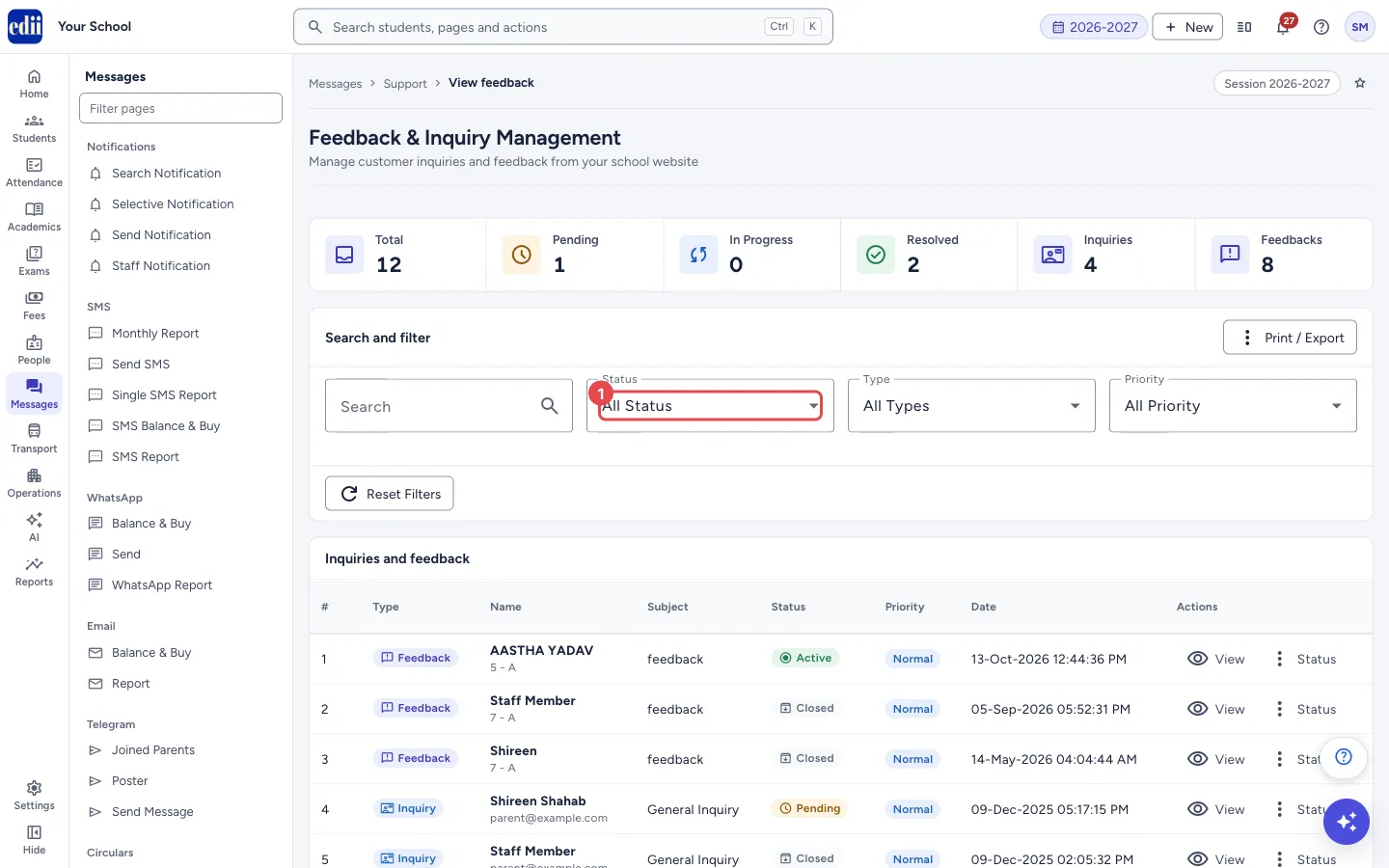
Feedback & Inquiry Management lists the messages sent to your school: Inquiry messages (for example from the school website’s contact form) and Feedback messages (for example from the parent app). This is a different page from Add Feedback, which sends the school’s own opinion to EDII.
The top row shows six counts: Total, Pending, In Progress, Resolved, Inquiries and Feedbacks. Select a count to filter the list by it, or Total to clear the filters. Under Search and filter are Search, Status, Type and Priority. The table below is headed Inquiries and feedback.
Select View on a row to open Inquiry details beside the table. There you read the message, write a reply and change the status.
Who uses it and when
Section titled “Who uses it and when”The school office reads and answers what parents and visitors send, and keeps the status up to date so that nothing stays unanswered.
Before you start
Section titled “Before you start”- Messages appear here only when someone has sent them from the school’s website or the app.
Where to find it
Section titled “Where to find it”- In school.edii.in: Messages › Support › View Feedback
- Or press Ctrl K (⌘ K on a Mac) and type View Feedback.
- Address:
school.edii.in/view/view-feedback - Who can see it: Staff whose role includes Support access. Shown only when your school uses Support in EDII. If it is missing from your menu, ask your school admin.
Step by step
Section titled “Step by step”1. Filter the list
Section titled “1. Filter the list”Choose Status (All Status, Pending, In Progress, Resolved, Closed, Active), Type (All Types, Inquiries, Feedbacks) and Priority (All Priority, Low, Normal, High, Urgent). Type in Search to look for a name, email or part of the message. Select Reset Filters to clear all the filters.
 Open a bigger pictureतस्वीर बड़ी करें
2. Read a message
Section titled “2. Read a message”Select View on the row, or select the row. Inquiry details opens with Contact Information (name, class and section when it is a student, email and phone when given), Inquiry Details (ID, Category, Priority, Received) and the Message. Select Close to shut the panel.
3. Write a reply
Section titled “3. Write a reply”In Send Reply, type in Your Reply. If the person gave an email address, the box Send email to that address is ticked, and your reply is also sent to them by email. Untick it to save the reply on this page only. Without an email address, the box is disabled and shows Send email to N/A.
Select Send Reply. The button reads Sending… while it works. The reply appears under Conversation History with your name, the time and, when an email went, Email sent.
4. Set the status
Section titled “4. Set the status”In the panel, under Quick Actions, select In Progress, Resolved or Close. On a row, select Status and choose Mark as Pending, Mark as In Progress, Mark as Resolved or Mark as Closed. The choice that matches the current status is greyed out.
5. Print or export
Section titled “5. Print or export”Select Print / Export and choose Print, Export Excel or Export CSV.
Fields and filters
Section titled “Fields and filters”| Field | What it is | Notes |
|---|---|---|
| Search | Narrows the list to rows that match what you type. | Placeholder: Search by name, email, message… |
| Status | Shows only messages with that status. | All Status, Pending, In Progress, Resolved, Closed, Active. |
| Type | Shows only inquiries or only feedback. | All Types, Inquiries, Feedbacks. |
| Priority | Shows only messages with that priority. | All Priority, Low, Normal, High, Urgent. |
| Your Reply | The text of your answer. | Required before Send Reply works. |
| Send email to | Also emails the reply to the person’s address. | Ticked to begin with when there is an email address. Disabled when there is none. |
| Items per page | How many rows show on one page. | 10, 25, 50 or 100. Starts at 10. |
Buttons
Section titled “Buttons”| Button | What it does | What happens next |
|---|---|---|
| View | Opens Inquiry details for the row. | The panel shows the message, any earlier replies and the reply box. |
| Status | Opens a menu to mark the row Pending, In Progress, Resolved or Closed. | EDII saves the status and updates the counts at the top. |
| Send Reply | Saves your reply and, if ticked, emails it. | The reply is added to Conversation History and the message moves to In Progress. |
| Reset Filters | Clears Status, Type and Priority. | The whole list shows again. |
| Print / Export | Prints the list or saves it as Excel or CSV. | The print window opens, or a file is saved. |
Columns
Section titled “Columns”| Column | Meaning |
|---|---|
| # | The row number. |
| Type | Inquiry or Feedback. |
| Name | Who sent it. A student shows the class and section; others show their email. Anonymous when no name was given. |
| Subject | What the message is about. |
| Status | Pending, In Progress, Resolved, Closed or Active. |
| Priority | Low, Normal, High or Urgent. |
| Date | When the message was received. |
| Actions | View and Status. |
Good to know
Section titled “Good to know”- A reply cannot be empty. If you try, EDII shows the warning Please enter a reply message.
- Sending a reply moves the message to In Progress. Mark it Resolved or Closed yourself when it is done.
- The counts at the top are worked out from the list as loaded, and they change when you set a status.
Messages you may see
Section titled “Messages you may see”| Message | What it means | What to do |
|---|---|---|
| Please enter a reply message | You selected Send Reply with an empty box. | Type the reply first. |
| Network Issue, Please Try Again. | The request did not go through. | Check the internet and try again. |
- Work through Pending first: select the Pending count at the top.
- Mark a message Resolved once the person has what they asked for, so the counts stay useful.
Stuck? Try this
Section titled “Stuck? Try this”| Problem | Likely cause | What to do |
|---|---|---|
| The list is empty. | No one has sent a message yet, or the filters hide them. | Select Reset Filters. |
| Send email to is greyed out. | The person did not give an email address. | The reply is saved on this page only. Call the person if you need to reach them. |
Did this page help?क्या इस पेज से मदद मिली?
Thanks! Glad it helped.धन्यवाद! अच्छा लगा कि काम बन गया।
Sorry about that. Ask in your own words, or write to us.माफ़ कीजिए। अपने शब्दों में पूछें, या हमें लिखें।