
Screen guide · Web app
Live Training Sessions
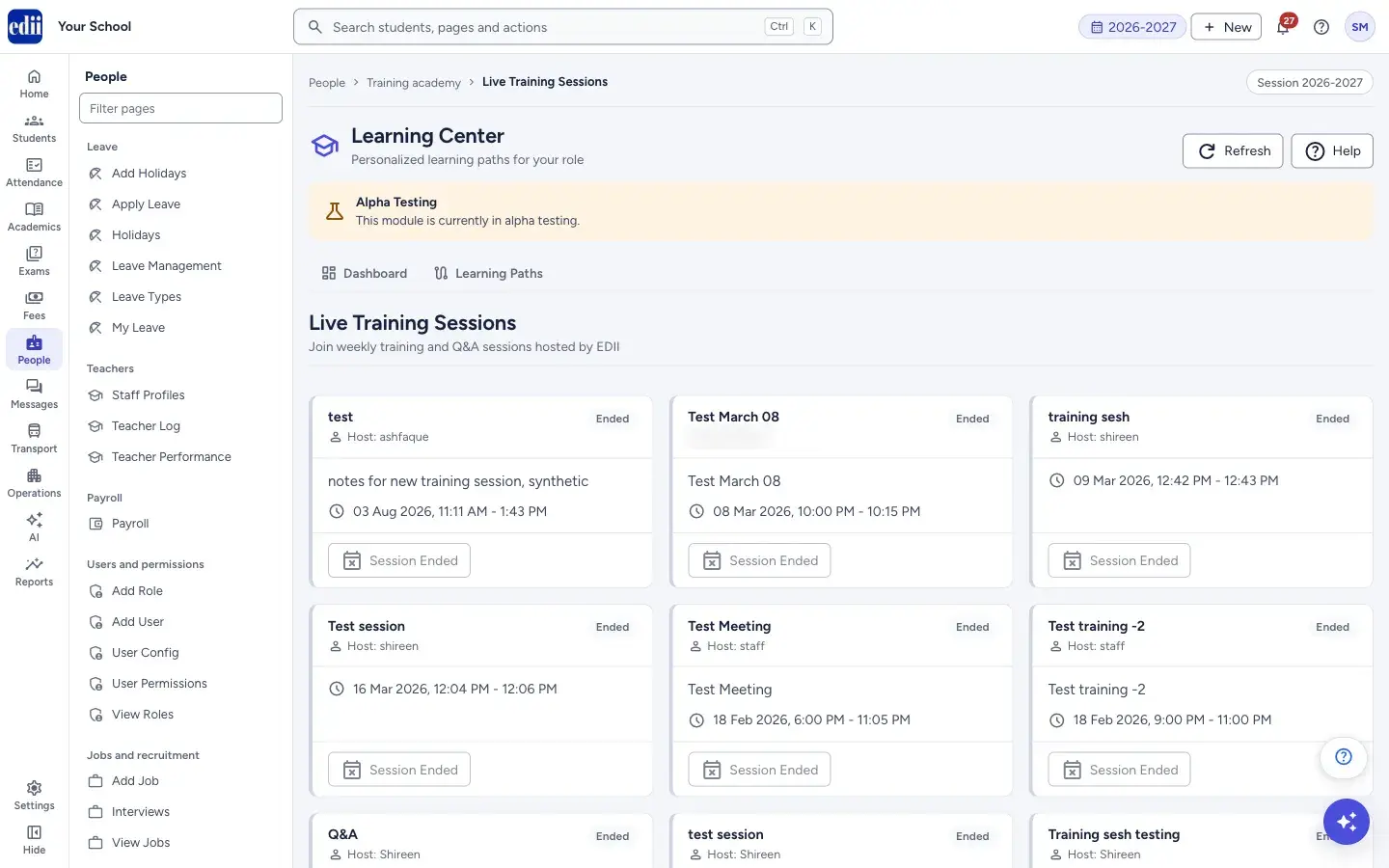
The list of live training and question-and-answer sessions hosted by EDII, with a button to join the ones that are on.
यह पेज अंग्रेज़ी में है। कुछ समझ न आए तो ।
Live Training Sessions lists the live training sessions that EDII has scheduled. Each session is a card with its name, the Host, notes (if any), the date and time, and a status: Upcoming, LIVE NOW or Ended.
The list refreshes by itself every 30 seconds, so a session that has just started shows LIVE NOW without you reloading the page. The Learning Center is in alpha testing, as the notice on the page says.
Who uses it and when
Section titled “Who uses it and when”Teachers, office staff and administrators who want to learn EDII from a trainer or ask questions live.
Where to find it
Section titled “Where to find it”- In school.edii.in: People › Training academy › Live Training Sessions
- Or press Ctrl K (⌘ K on a Mac) and type Live Training Sessions.
- Address:
school.edii.in/learning-center/live-training - Who can see it: Shown only when your school uses Training Academy in EDII. If it is missing from your menu, ask your school admin.
 Open a bigger pictureतस्वीर बड़ी करें
Step by step
Section titled “Step by step”1. Look at the sessions
Section titled “1. Look at the sessions”Read the cards. A card for a live session is marked LIVE NOW. When there is nothing scheduled, the page says No Training Sessions and There are no training sessions scheduled at this time. Check back later!
 Open a bigger pictureतस्वीर बड़ी करें
2. Join a session
Section titled “2. Join a session”When a session can be joined, the card has a Join Session button. Select it. The button says Joining… and a large window opens inside the page with the live video meeting. You join as a participant; you are not the host. When you leave, the window closes and the list is refreshed.
3. Sessions you cannot join
Section titled “3. Sessions you cannot join”An Upcoming session shows a disabled button Starts Soon. An Ended session shows a disabled button Session Ended.
4. Refresh
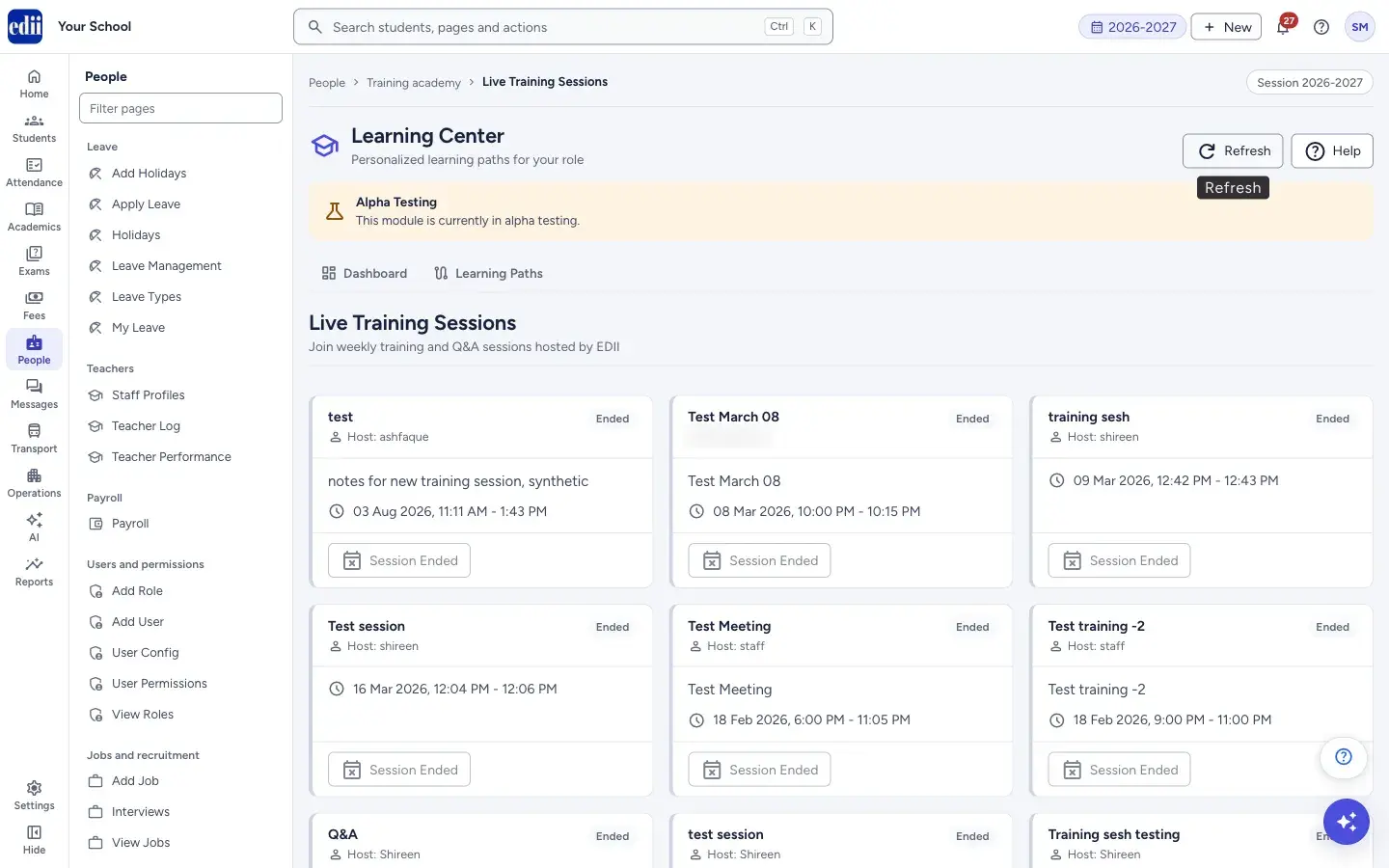
Section titled “4. Refresh”Select Refresh at the top of the Learning Center to load the list again.
Buttons
Section titled “Buttons”| Button | What it does | What happens next |
|---|---|---|
| Join Session | Opens the live meeting of that session in a window on the page. | The meeting window opens. |
| Starts Soon | Shown, disabled, for a session that has not started yet. | Nothing. Come back when it is LIVE NOW. |
| Session Ended | Shown, disabled, for a session that is over. | Nothing. |
| Refresh | Loads the list again. | The list updates. |
Good to know
Section titled “Good to know”- The Join Session button shows only for a session that can be joined; for the others you see Starts Soon or Session Ended.
- Sessions are created and started by EDII’s trainers, not by schools.
Messages you may see
Section titled “Messages you may see”| Message | What it means | What to do |
|---|---|---|
| No Training Sessions | No session is scheduled. | Check back later. |
| Failed to load training sessions | The list could not be loaded. | Check the internet and select Refresh. |
| Failed to join training session | The request to join did not reach EDII. | Check the internet and select Join Session again. |
- Come back a few minutes after the start time. The Join Session button shows once the session can be joined.
- Use headphones in a noisy office.
Did this page help?क्या इस पेज से मदद मिली?
Thanks! Glad it helped.धन्यवाद! अच्छा लगा कि काम बन गया।
Sorry about that. Ask in your own words, or write to us.माफ़ कीजिए। अपने शब्दों में पूछें, या हमें लिखें।