
Screen guide · Web app
WhatsApp Send
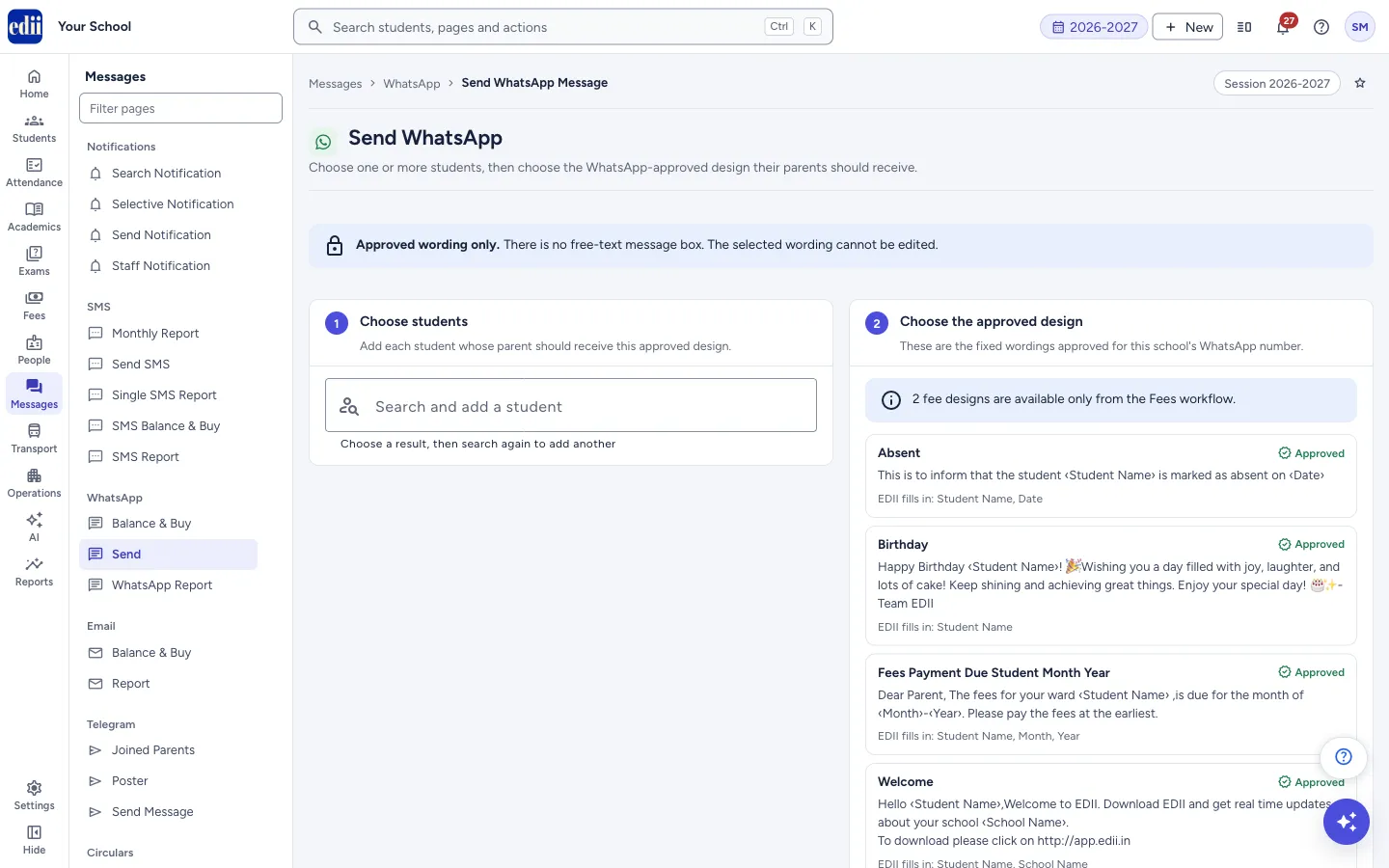
Send an approved WhatsApp message design to the parents of one or more students you choose. The page is headed Send WhatsApp.
यह पेज अंग्रेज़ी में है। कुछ समझ न आए तो ।
Send WhatsApp sends a WhatsApp message to the parents of the students you choose. WhatsApp allows school messages only in wording that it has approved, so there is no free-text message box. You choose a ready, approved design, and EDII fills in each student’s own details.
The page has three steps: Choose students, Choose the approved design, and Check each personalized message. The bar at the bottom shows how many students are chosen and which design, and holds the Send approved design button.
Each message goes to the parent mobile number saved for that student, and it is counted against the school’s WhatsApp balance (see WhatsApp Balance & Buy).
Who uses it and when
Section titled “Who uses it and when”The school office uses it for a short, one-off message to the parents of a few students, in a wording that WhatsApp has approved.
Before you start
Section titled “Before you start”- WhatsApp must be switched on for the school. If it is not, a banner says WhatsApp is not switched on for this school. and the send button stays grey. The school administrator can switch it on from the banner or in Preferences.
- Each student should have a parent mobile number saved. Some designs also need other details of the student.
- If no design shows, the page says No WhatsApp wording is approved for this school’s number yet. Contact EDII.
Where to find it
Section titled “Where to find it”- In school.edii.in: Messages › WhatsApp › Send
- Or press Ctrl K (⌘ K on a Mac) and type Send.
- Address:
school.edii.in/view/whatsapp-send - Who can see it: Staff whose role includes Messages access. Shown only when your school uses Messages in EDII. If it is missing from your menu, ask your school admin.
 Open a bigger pictureतस्वीर बड़ी करें
Step by step
Section titled “Step by step”1. Choose the students
Section titled “1. Choose the students”In Choose students, type in Search and add a student: a name, student ID, class or admission number. Click a result to add it, then search again to add another. Each chosen student shows with the class, section, admission number and Parent mobile ending in the last four digits of the saved number. Use the cross on a student to remove, or Clear all.
2. Choose the approved design
Section titled “2. Choose the approved design”In Choose the approved design, select one of the designs. Each shows its name, an Approved mark, its wording, and either EDII fills in: with the details it fills, or The same fixed wording goes to everyone. The wording cannot be edited.
Fee designs are not offered here. The page says how many are available only from the Fees workflow.
3. Check each message
Section titled “3. Check each message”When you have chosen a design and at least one student, Check each personalized message shows a phone-style preview of the message for one student, headed Previewing with the student’s name. Use the arrows, or select another student in the list, to see each student’s message. Check every student before you send.
If a student is missing a detail the design needs, a yellow box says N selected student is missing required details and names the student and the missing detail. Fix the student’s record, or remove the student.
4. Send
Section titled “4. Send”Select Send approved design (it reads Send approved design to N students when you chose more than one). A box asks Send WhatsApp to N students? and says that the approved wording goes to the parent mobile saved for each student, that EDII fills each student’s details separately, and that it cannot be edited or taken back. Select Send WhatsApp to go ahead, or Not yet to stop.
EDII queues the messages and shows how many were queued, for example Queued for 3 students. Open the WhatsApp Report to follow them.
Fields and filters
Section titled “Fields and filters”| Field | What it is | Notes |
|---|---|---|
| Search and add a student | Finds a student to add. | Type a name, student ID, class or admission number. Choose a result, then search again to add another. |
| Approved design | The wording that is sent. | Choose one. It cannot be edited. |
Buttons
Section titled “Buttons”| Button | What it does | What happens next |
|---|---|---|
| Clear all | Removes every chosen student. | The list is empty. |
| Check again | Checks again whether WhatsApp is switched on. | Shown when that could not be checked. |
| Try again | Loads the student list or the designs again. | The list or the designs show if the loading works. |
| Send approved design | Sends the chosen design to the chosen students’ parents. | A confirmation box opens first. Then the messages are queued. |
After you save
Section titled “After you save”- The messages are queued and go out to the saved parent mobile numbers shortly. They show in the WhatsApp Report, with a status of Sent, Not sent, Blocked or In progress.
- Students whose message was queued are taken off the list. Any that were not queued stay on it, so you can try again after fixing the problem.
Good to know
Section titled “Good to know”- There is no free-text message. Only the approved designs can be sent.
- A message cannot be edited or taken back once you confirm.
- If the same design was queued for a student a short time ago, EDII does not queue it twice and says so.
- The send button stays grey until WhatsApp is on, at least one student is chosen, a design is chosen, and no chosen student is missing a required detail. The reason shows next to the button.
Messages you may see
Section titled “Messages you may see”| Message | What it means | What to do |
|---|---|---|
| Choose at least one student. | No student is chosen yet. | Add a student. |
| Choose the approved WhatsApp design to send. | No design is chosen yet. | Select a design. |
| This exact WhatsApp design was already queued for N students recently. | The same design was queued for these students a short time ago, so nothing new was queued. | Check the WhatsApp Report before sending again. |
| Could not reach N students. | Some messages could not be queued. | Open the WhatsApp Report for details. |
| Could not prepare the approved design for N students. | A required detail is missing for these students. | Fix their details and send again. |
| The result could not be confirmed. Check the WhatsApp Report before sending again. | The connection broke while sending, so EDII cannot tell what was queued. | Open the WhatsApp Report first, so you do not send twice. |
| The approved designs could not be loaded. | The list of designs did not load. | Select Try again. |
- Preview a few students before you send to many.
Stuck? Try this
Section titled “Stuck? Try this”| Problem | Likely cause | What to do |
|---|---|---|
| The send button is grey. | WhatsApp is off, no student or design is chosen, or a student is missing a detail. | Read the line next to the button; it says which. |
| A student is not found in the search. | The student list is still loading, or the student is not in the school. | Wait for the list to load, or select Try again if it says it is not available. |
Did this page help?क्या इस पेज से मदद मिली?
Thanks! Glad it helped.धन्यवाद! अच्छा लगा कि काम बन गया।
Sorry about that. Ask in your own words, or write to us.माफ़ कीजिए। अपने शब्दों में पूछें, या हमें लिखें।