
Screen guide · Web app
Discount Master
A report of the students who have a discount in the open session, with their discount, total fee, fees paid and concession remark; filter by class, section and gender.
यह पेज अंग्रेज़ी में है। कुछ समझ न आए तो ।
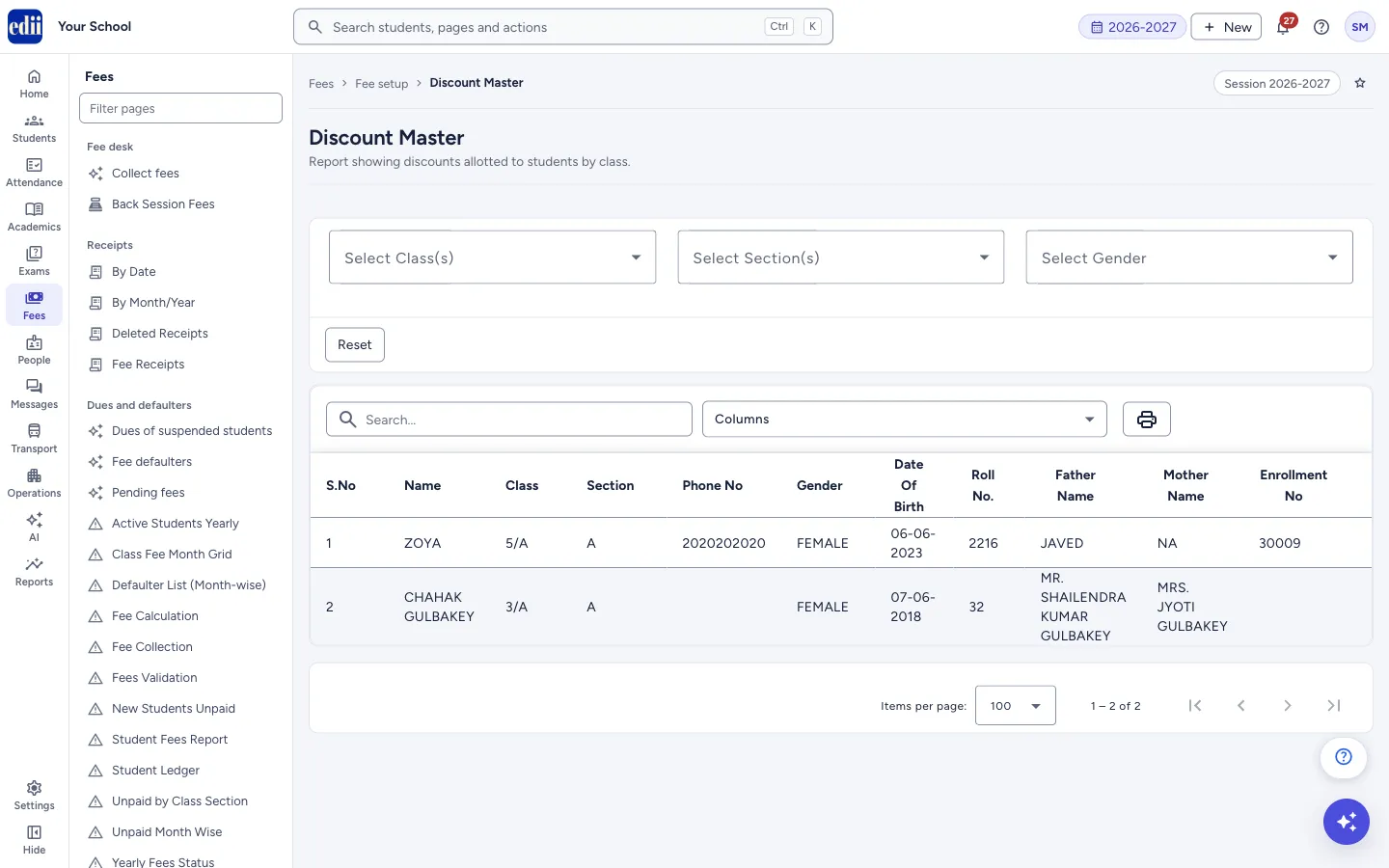
Discount Master (menu name Discount Heads) lists the students who have a discount in the session that is open in EDII. For each student it shows the usual details (name, class, section, phone number, gender, date of birth, roll number, parents’ names, enrollment number) and four fee columns: Discount, Total Fee, Paid Fees and Concession Remark.
The list loads by itself when you open the page, and EDII shows All Discounts Fetched!. Use Select Class(s), Select Section(s) and Select Gender to narrow it. The list changes as soon as you choose; there is no Search button.
Who uses it and when
Section titled “Who uses it and when”The accounts office and the principal use it to review the concessions given, and how much of the fee those students have paid.
Before you start
Section titled “Before you start”- Discounts must have been given to students in the open session. Check the session at the top right of the page.
Where to find it
Section titled “Where to find it”- In school.edii.in: Fees › Fee setup › Discount Heads
- Or press Ctrl K (⌘ K on a Mac) and type Discount Heads.
- Address:
school.edii.in/view/discount-head - Who can see it: Staff whose role includes Fees or Reports access. Shown only when your school uses Finance and Report in EDII. If it is missing from your menu, ask your school admin.
 Open a bigger pictureतस्वीर बड़ी करें
Step by step
Section titled “Step by step”1. Narrow the list
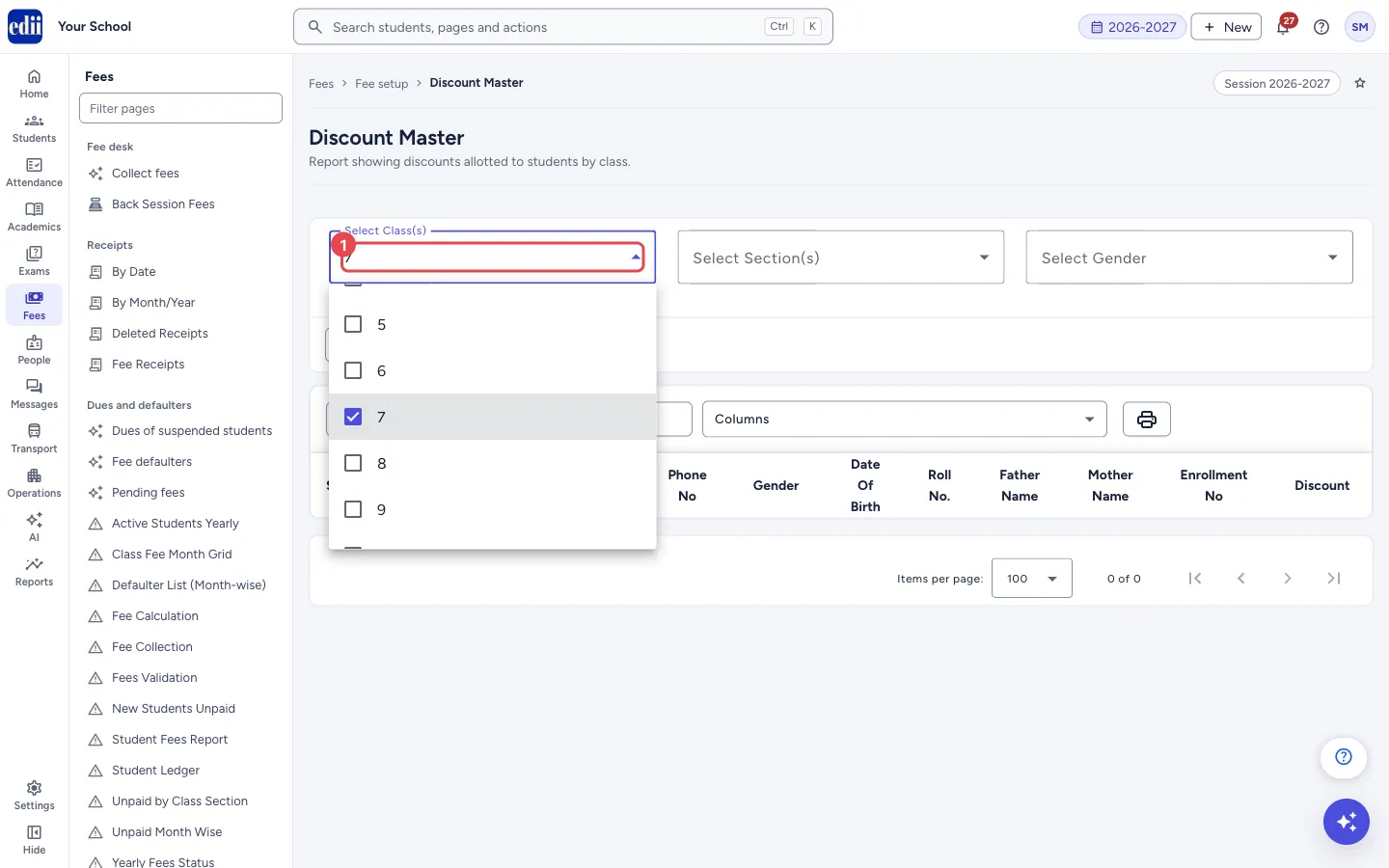
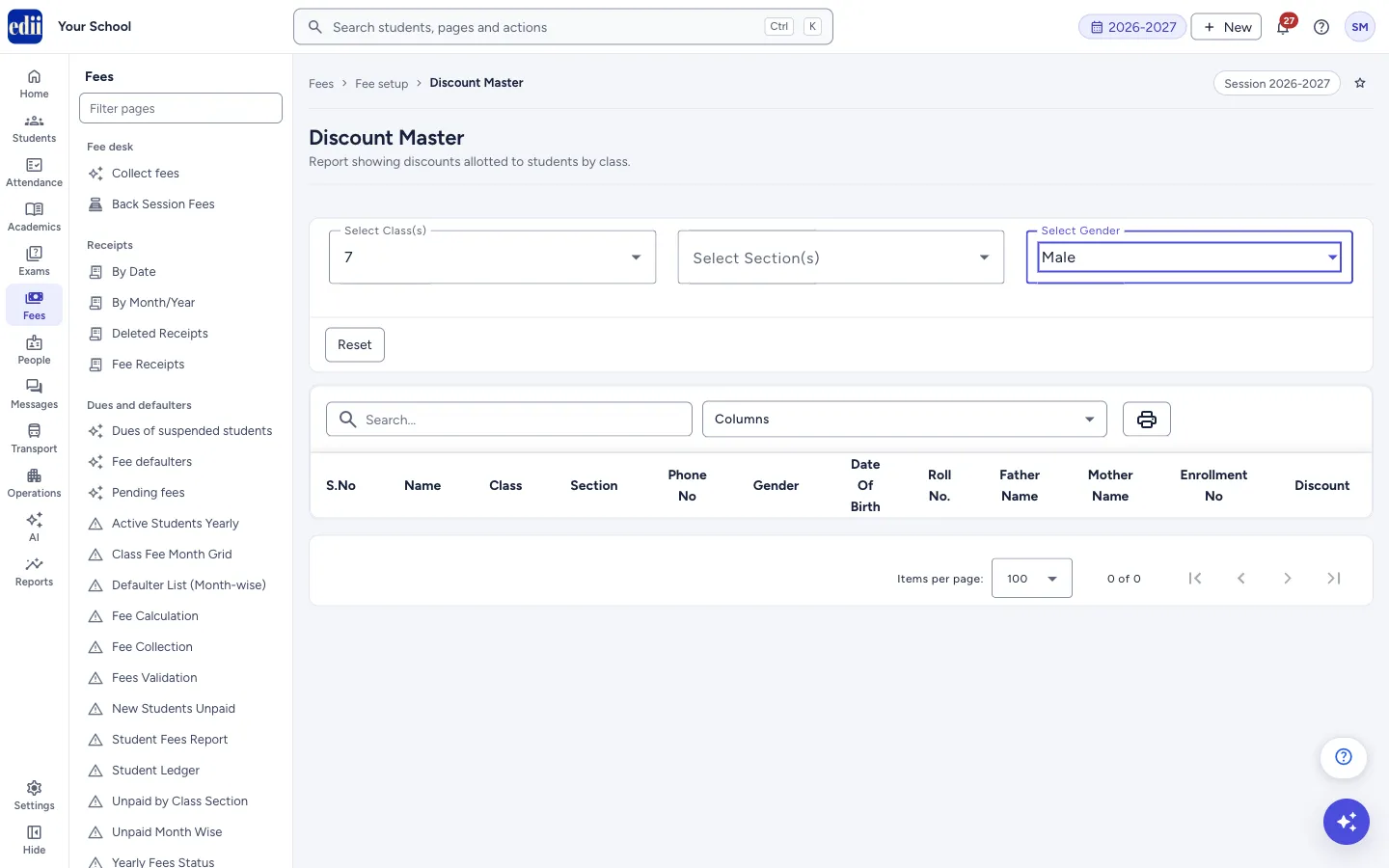
Section titled “1. Narrow the list”Open Select Class(s) and tick one or more classes. Select Section(s) and Select Gender work the same way. In each list, Select All ticks everything. Only the students who match all your choices stay in the list.
 Open a bigger pictureतस्वीर बड़ी करें
2. Find a student
Section titled “2. Find a student”Type in Search… to keep only the rows that contain what you typed. Select a column heading to sort by it.
3. Choose the columns
Section titled “3. Choose the columns”Open Columns and tick the columns you want. Select All ticks every column. EDII remembers your choice for this page on this computer. The report has many columns, so if the Discount columns are not in view, scroll the table to the right or untick columns you do not need.
 Open a bigger pictureतस्वीर बड़ी करें
4. Print or download
Section titled “4. Print or download”Select the print button to open the menu: Print prints the table with the report date, the school name and the school logo, and Download Excel File, Download Text File and Download CSV File save the table to your computer. At the bottom you can choose to see 100, 200, 300, 400, 500 or 1000 rows on a page.
Buttons
Section titled “Buttons”| Button | What it does | What happens next |
|---|---|---|
| Reset | Clears the class, section and gender choices. | The table becomes empty (0 of 0). Open the page again to load the full list. |
| Print button | Opens a menu with Print and the three download choices. | Print opens the print window. Each download saves a file. |
Columns
Section titled “Columns”| Column | Meaning |
|---|---|
| S.No | The serial number of the row. |
| Name, Class, Section | The student. Class is shown as class/section, for example 5/A. |
| Phone No, Gender, Date Of Birth, Roll No., Father Name, Mother Name, Enrollment No | Details of the student as saved in the student record. |
| Discount | Each discount of the student: the name, and the amount in brackets. |
| Total Fee | The total fee payable by the student, as worked out by EDII. |
| Paid Fees | The total the student has paid. |
| Concession Remark | The comment saved with the discount of the student, if there is one. |
Good to know
Section titled “Good to know”- The page only reads data.
- The filters work on the list that was loaded when the page opened. Choosing a class, section or gender does not ask EDII for new data.
- Only the discounts of the session open in EDII are listed.
Messages you may see
Section titled “Messages you may see”| Message | What it means | What to do |
|---|---|---|
| All Discounts Fetched! | The list was loaded. | Nothing to do. |
| Network Issue, Please Try Again. | The list could not be loaded. | Check the internet and open the page again. |
- Download the CSV file if you want to total the discounts or compare them with the fees paid in Excel.
Stuck? Try this
Section titled “Stuck? Try this”| Problem | Likely cause | What to do |
|---|---|---|
| The table is empty after I chose a class | No student of that class (and section and gender) has a discount in the open session. | Choose Select All in the lists, or check the session at the top right. |
| The table is empty after Reset | Reset clears the choices and the table together. | Open the page again from the menu to load the list. |
Did this page help?क्या इस पेज से मदद मिली?
Thanks! Glad it helped.धन्यवाद! अच्छा लगा कि काम बन गया।
Sorry about that. Ask in your own words, or write to us.माफ़ कीजिए। अपने शब्दों में पूछें, या हमें लिखें।