
Screen guide · Web app
Contests & Voting
Run a contest such as dance, photo or singing: add the entries, choose who can vote, open and close voting, announce the winners and share the result.
यह पेज अंग्रेज़ी में है। कुछ समझ न आए तो ।
Contests & Voting is where the school runs contests in which students vote. A contest has entries (each with photos, one video or a YouTube link, and the students who took part), an audience that can vote, and a voting window. Every student gets one vote, and the system enforces that.
Each contest moves through four statuses: Draft, Open, Closed and Announced. The buttons on a contest depend on its status. Students vote in the EDII app; this page is where staff set the contest up and see the result.
When you publish a contest and when you announce winners, students can get a notification in the app. This is not an SMS and uses no SMS credits.
Who uses it and when
Section titled “Who uses it and when”The office or a teacher in charge of activities uses it for annual-day and house contests, photo contests and talent shows.
Where to find it
Section titled “Where to find it”- In school.edii.in: Messages › Circulars › Contests & Voting
- Or press Ctrl K (⌘ K on a Mac) and type Contests & Voting.
- Address:
school.edii.in/view/voting - Who can see it: Staff whose role includes Messages or Events access. Shown only when your school uses Messages and Social Media in EDII. If it is missing from your menu, ask your school admin.
 Open a bigger pictureतस्वीर बड़ी करें
Step by step
Section titled “Step by step”1. Find a contest
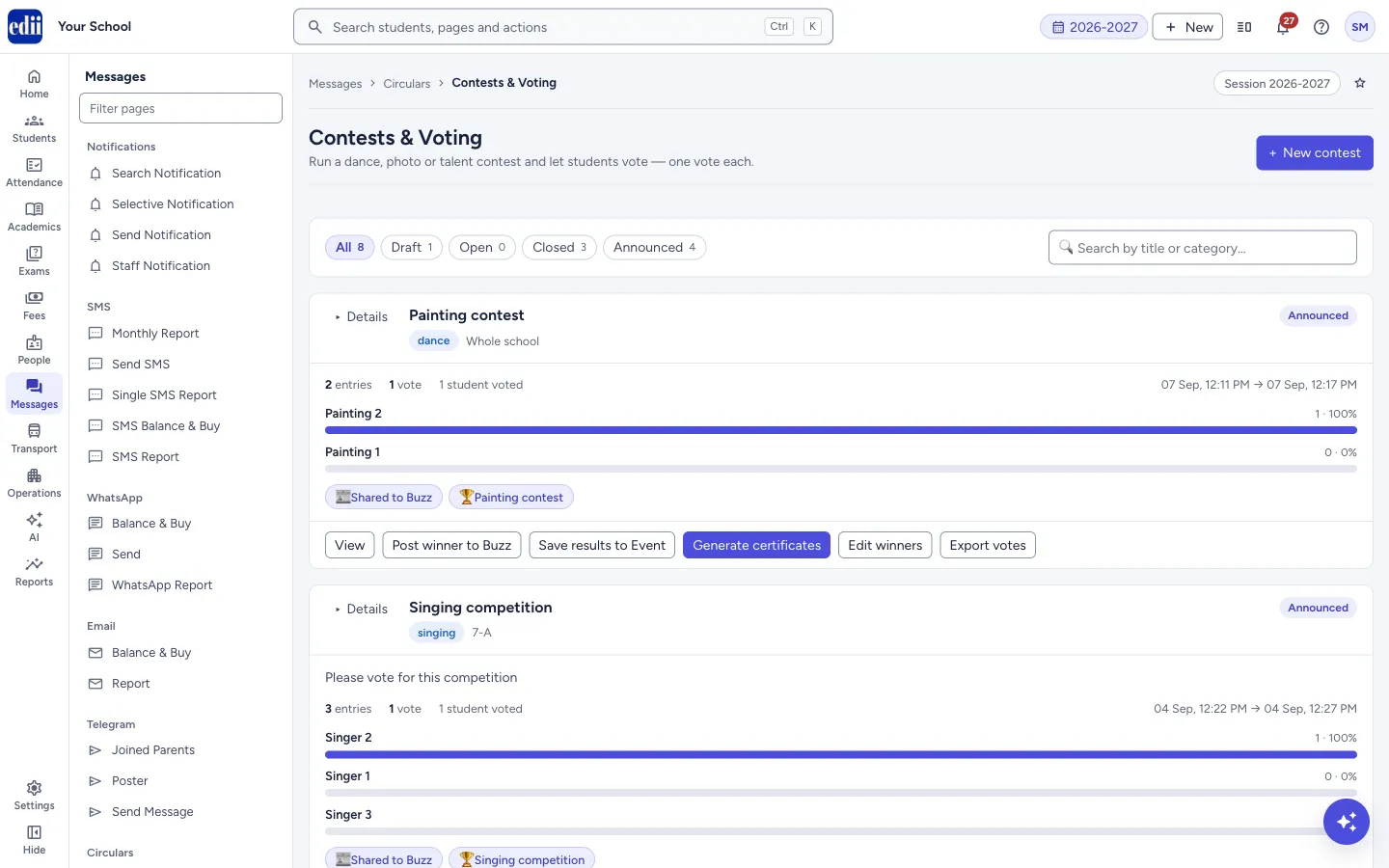
Section titled “1. Find a contest”The buttons under the title filter by status: All, Draft, Open, Closed and Announced, each with its count. Search by title or category… finds a contest by its name or category.
Each contest card shows the title, category, audience (Whole school or the classes), status, the number of entries and votes, how many students voted, the voting window and a bar for each entry.
2. Create a contest
Section titled “2. Create a contest”Select New contest. The window has four parts. 1 Details: the Contest title (required), a Description, and a Category (dance, photo, singing, art or other; for other you type your own).
2 Entries: select + Add entry for each entry (2 to 30). Give each a title and a caption, then choose Photos (up to 10), Video (one) or YouTube (paste the link), and add the students in the entry under Students in this entry. Tag the students so certificates can be made later.
3 Who can vote: Whole school or Specific classes with sections; empty sections mean every section of the classes.
4 Voting window & rules: set Voting opens and Voting closes, and tick the rules you want: whether students may change their vote, whether a tagged student may vote for their own entry, whether live counts and final counts are shown to students, and whether students are notified when voting opens and when the result is announced.
3. Save as a draft or publish
Section titled “3. Save as a draft or publish”Save draft keeps the contest unpublished; a draft can be saved without a closing time. Publish opens it: a box asks Publish this contest? and says that students in the audience will be able to vote and will get a notification, and that the audience and the opening time cannot be changed after this. A draft needs a closing time and at least 2 entries that are still in the running before it can be published.
On a draft’s card you can Edit, Publish or Delete.
4. Watch the voting and close it
Section titled “4. Watch the voting and close it”While a contest is Open, its card has View, Edit, Share to Buzz, Close voting and Delete. Share to Buzz posts the contest to the Buzz feed for the same classes, with a link back so students can vote. Close voting asks Close voting? and then no more votes are accepted.
5. See the detail
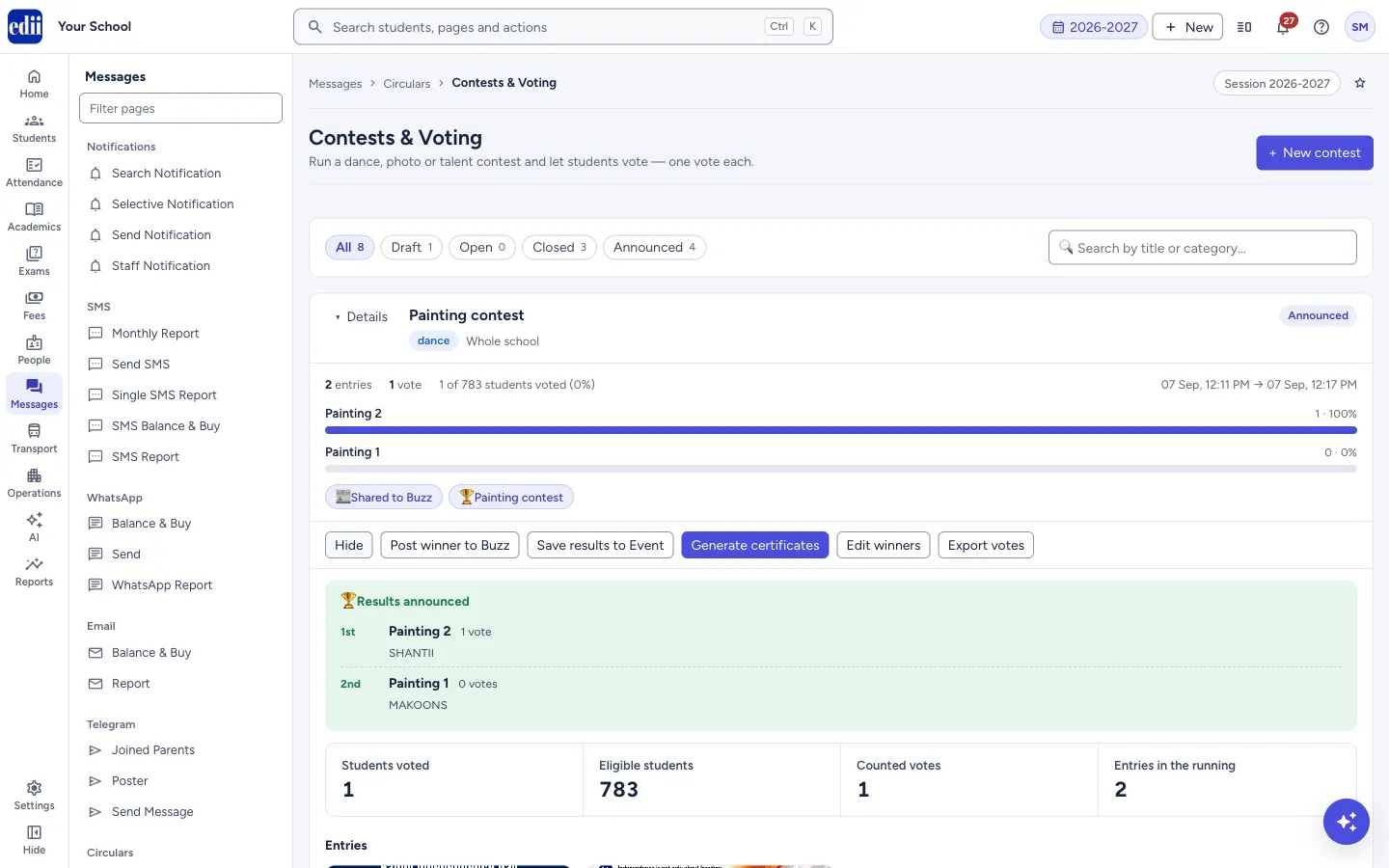
Section titled “5. See the detail”Select Details or View to open a contest. You see the results banner when winners are announced, the totals Students voted, Eligible students, Counted votes and Entries in the running, each entry with its photo or video, caption, students and votes, and Participation by class (class, section and voters). Export votes (CSV) saves the votes.
 Open a bigger pictureतस्वीर बड़ी करें
6. Announce the winners
Section titled “6. Announce the winners”On a Closed contest select Announce winner. The window Announce winners lists the entries by votes. Choose the entry for each place (1st, 2nd, 3rd); you must choose at least the first. If there is a tie the system does not choose for you: you pick. You can add an Announcement message (optional). Select Announce winners; you see Winners announced.
On an Announced contest you can Edit winners, Post winner to Buzz, Save results to Event (records the winners and participants against an event competition, so that certificates can be made) and, for a contest linked to an event, Generate certificates, which opens the Event Detail page. Export votes saves the votes as a CSV file.
Fields and filters
Section titled “Fields and filters”| Field | What it is | Notes |
|---|---|---|
| Contest title | The name of the contest. | Required, up to 200 characters. |
| Category | The kind of contest. | dance, photo, singing, art or other. |
| Entries | What students vote on. | 2 to 30 entries. Each needs photos (up to 10), one video or a YouTube link. |
| Who can vote | The students who can vote. | Whole school or specific classes. Cannot be changed once voting is open. |
| Voting opens / Voting closes | The voting window. | Closing time is needed to publish and must be after the opening time. The opening time cannot be changed once voting is open. |
| Rules | Tick boxes for changing votes, voting for your own entry, showing counts and notifications. | Every student gets one vote; this cannot be changed. |
| Announcement message (optional) | A note that goes with the winners. | Shown in the results banner. |
Buttons
Section titled “Buttons”| Button | What it does | What happens next |
|---|---|---|
| New contest | Opens the window to create a contest. | New contest window. |
| Save draft / Publish / Save changes | Saves a draft, publishes, or saves changes to a running contest. | Draft saved., Contest published. or Contest saved. |
| Edit | Opens the contest in the same window. On a running contest only the title, description, closing time, rules and entries can change; an entry with votes can only be withdrawn. | The window opens with the contest’s details. |
| Publish (on a card) | Opens a draft for voting after a confirmation box. | Contest published. |
| Close voting | Stops voting after a confirmation box. | Voting closed. |
| Announce winner / Edit winners | Chooses the winners. | Winners announced. |
| Share to Buzz / Post winner to Buzz | Posts to the Buzz feed for the contest’s classes. | Contest shared to Buzz. or Winners posted to Buzz. |
| Save results to Event | Records the winners and participants against an event competition. | Results saved to the event. Open the event to generate certificates. |
| Export votes | Downloads the votes as a CSV file. | A message says how many votes were exported. |
| Delete | Deletes a draft or open contest after a confirmation box. | Contest deleted. Votes already cast are kept for the record but nobody can see the contest again. |
Columns
Section titled “Columns”| Column | Meaning |
|---|---|
| Class, Section, Voters | In Participation by class: how many students of each class and section have voted. |
After you save
Section titled “After you save”- A published contest shows as Open (or Opens in … if the opening time is later). Students in the audience see it in the app and, if the notify rule is on, get a notification.
Good to know
Section titled “Good to know”- One vote per student. This is enforced by the system.
- Who is notified: when you publish, students in the contest’s audience get an app notification if Notify students when voting opens is ticked. When you announce, they get one if Notify students when the result is announced is ticked. Neither is an SMS.
- A contest needs at least 2 entries that are still in the running, and at most 30 entries.
- An entry that already has votes cannot be removed or have its photos changed; withdraw it instead.
- Once voting is open, the audience, the category and the opening time cannot be changed.
- When two entries are tied the system does not choose a winner: you choose.
- The same entry cannot win two places, and a 3rd place needs a 2nd.
Messages you may see
Section titled “Messages you may see”| Message | What it means | What to do |
|---|---|---|
| Please set the date and time when voting closes | You tried to publish a contest with no closing time. | Edit the contest and set Voting closes. |
| A contest needs at least 2 entries that are still in the running | Fewer than 2 entries are active. | Add entries or put a withdrawn one back. |
| The closing time must be after the opening time | The window is the wrong way round. | Fix the two times. |
| Entry N needs at least one photo or video, or a YouTube link. | An entry has no media. | Add photos, a video or a YouTube link. |
| Pick at least one class, or share the contest with the whole school | Specific classes is chosen with no class. | Pick a class or choose Whole school. |
| Please choose at least the first position | No winner is chosen. | Choose the 1st place. |
| Please choose a 2nd place before a 3rd | 3rd place is chosen without 2nd. | Choose the 2nd place first. |
| The same entry cannot win two positions | One entry is chosen twice. | Choose a different entry. |
| Tag students on the winning entries first — there is nobody to record as a winner. | The winning entries have no students tagged, so Save results to Event has nothing to record. | Edit the contest and add the students to the entries. |
| Network Issue, Please Try Again. | The request did not finish. | Check the internet and try again. |
- Tag the students on every entry. That is what lets you save results to an event and make certificates later.
- Set the closing time a little after the day the contest ends, so that late voters are not shut out.
Stuck? Try this
Section titled “Stuck? Try this”| Problem | Likely cause | What to do |
|---|---|---|
| The Eligible students figure shows a dash | The class list could not be read just now. | Open the contest again in a moment. |
| Generate certificates is missing | The contest is not linked to an event. | Use Save results to Event, then make the certificates from the event. |
| I cannot change the audience of a contest | Voting is already open. | Make a new contest if the audience must be different. |
Did this page help?क्या इस पेज से मदद मिली?
Thanks! Glad it helped.धन्यवाद! अच्छा लगा कि काम बन गया।
Sorry about that. Ask in your own words, or write to us.माफ़ कीजिए। अपने शब्दों में पूछें, या हमें लिखें।