
Screen guide · Web app
Old Dashboard
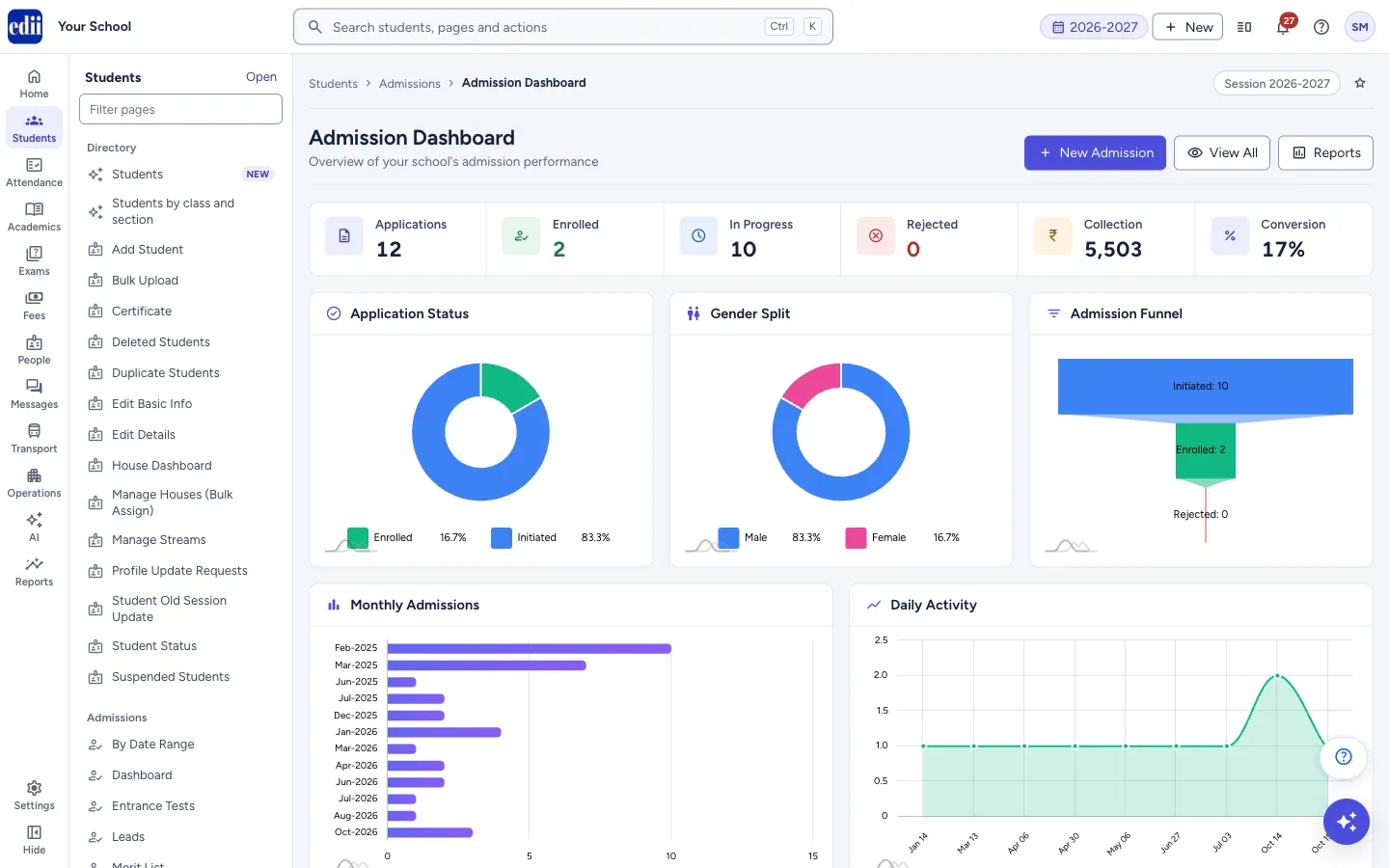
A picture of the admissions registered on the entrance form for the current session: counts, fee collected and charts. The menu calls it Old Dashboard and the page is headed Admission Dashboard. It goes with New Admission, View Applications and By Date Range, and is shown when your role has Admission access and the Admissions module is on; the Admissions Dashboard is for online applications.
यह पेज अंग्रेज़ी में है। कुछ समझ न आए तो ।
Admission Dashboard (in the menu, Old Dashboard) gives an overview of your school’s admission performance for the current session. Six cards at the top show Applications, Enrolled, In Progress, Rejected, Collection and Conversion.
Below the cards are charts: Application Status, Gender Split, Admission Funnel, Monthly Admissions, Daily Activity, Class Distribution, Top Classes and Transport Mode. At the bottom, Recent Admissions lists the last 5 applicants.
Do not confuse it with Dashboard in the same menu, the first page of the Admissions tabs. That one follows each online application through its stages and seats; this one counts the entrance-form admissions.
Who uses it and when
Section titled “Who uses it and when”The principal and admission head look at it during admission season to see how many forms were taken, how many children are enrolled and which classes are filling.
Before you start
Section titled “Before you start”- Applicants must be registered on New Admission. With none registered, every chart shows No Data.
Where to find it
Section titled “Where to find it”- In school.edii.in: Students › Admissions › Old Dashboard
- Or press Ctrl K (⌘ K on a Mac) and type Old Dashboard.
- Address:
school.edii.in/view/admission-dashboard - Who can see it: Needs Admission access for your role, and the Admissions module switched on for the school. If it is missing from your menu, ask your school admin.
 Open a bigger pictureतस्वीर बड़ी करें
Step by step
Section titled “Step by step”1. Read the six cards
Section titled “1. Read the six cards”Applications is the number of forms purchased. Enrolled and In Progress are applicants whose status is enrolled or initiated. Rejected counts rejected applicants. Collection is the admission fee collected, in rupees. Conversion is Enrolled divided by (Enrolled plus In Progress), shown as a percentage rounded to a whole number.
2. Read the charts
Section titled “2. Read the charts”Application Status and Admission Funnel show Enrolled, Initiated and Rejected. Gender Split shows Male, Female and Other. Monthly Admissions shows up to the last 12 months, Daily Activity the last 20 days that had admissions. Class Distribution shows up to the 10 busiest classes and Top Classes the top 5 classes with the rest grouped as others. Transport Mode counts the recent admissions by how the child travels; a blank is shown as Not Specified.
Hover over a bar or slice to see its number.
3. Check Recent Admissions
Section titled “3. Check Recent Admissions”The table lists the latest 5 applicants with Name, Class, Gender, Date and Status. The table is not shown when there are no admissions.
4. Go to another page
Section titled “4. Go to another page”Use New Admission to register an applicant, View All to open all applicants, and Reports to open the admission report by date range.
Buttons
Section titled “Buttons”| Button | What it does | What happens next |
|---|---|---|
| New Admission | Opens the entrance form to register an applicant. | The New Admission page opens. |
| View All | Opens the list of all registered applicants. | The View Admissions page opens. |
| Reports | Opens the admission report by date range. | The Admission Report page opens. |
Columns
Section titled “Columns”| Column | Meaning |
|---|---|
| Name | Applicant’s name. |
| Class | Class applied for. |
| Gender | Gender as entered. |
| Date | Date of admission. |
| Status | Enrolled, Initiated, or Pending when no other status is recorded. |
Good to know
Section titled “Good to know”- The page only reads data. Nothing is saved or sent.
- It shows the school’s current session (the session chosen at the top of the app).
- Conversion leaves out rejected applicants: it compares Enrolled with Enrolled plus In Progress.
Messages you may see
Section titled “Messages you may see”| Message | What it means | What to do |
|---|---|---|
| No Data | That chart has nothing to show yet. | Register applicants on New Admission. |
- Watch the Admission Funnel to see how many applicants have joined and how many are still in progress.
Stuck? Try this
Section titled “Stuck? Try this”| Problem | Likely cause | What to do |
|---|---|---|
| The charts are empty | No applicant has been registered for this session, or the session at the top of the app is not the one you expect. | Check the session at the top of the app, then register applicants on New Admission. |
| The numbers do not match the Admissions Dashboard | The two dashboards read different records: entrance-form admissions here, online applications and enquiries there. | Use the dashboard that matches the way your school takes admissions. |
Did this page help?क्या इस पेज से मदद मिली?
Thanks! Glad it helped.धन्यवाद! अच्छा लगा कि काम बन गया।
Sorry about that. Ask in your own words, or write to us.माफ़ कीजिए। अपने शब्दों में पूछें, या हमें लिखें।