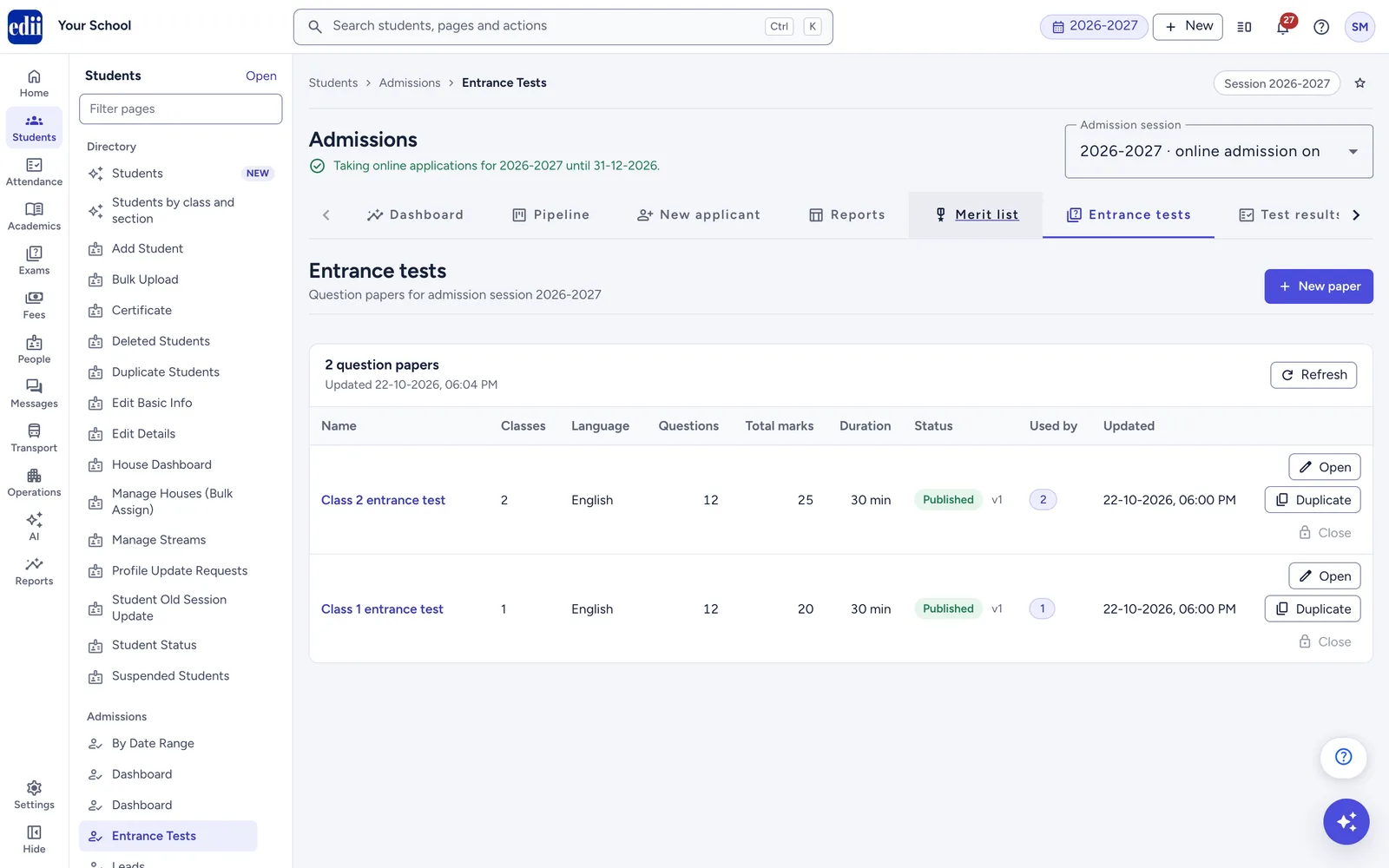
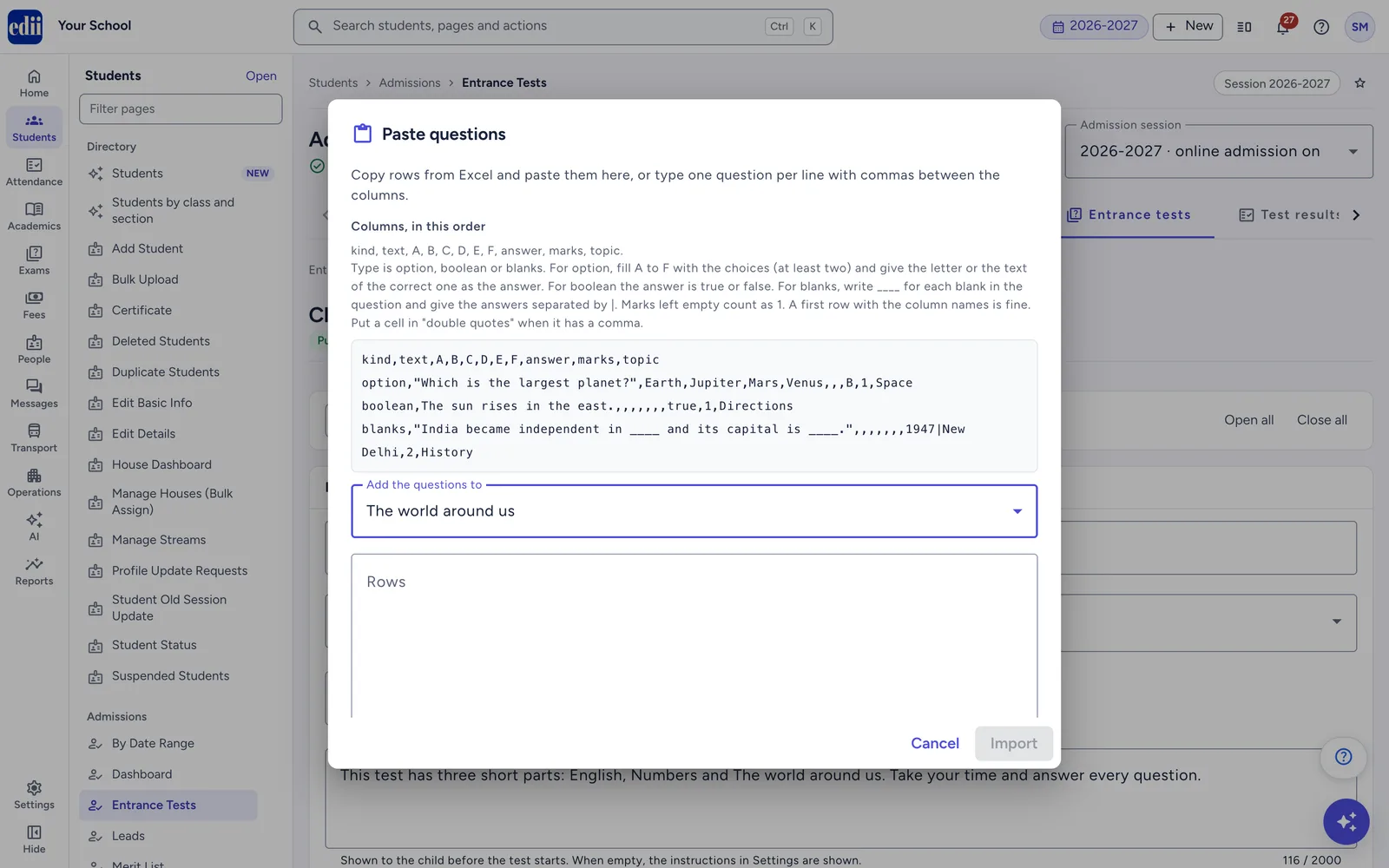
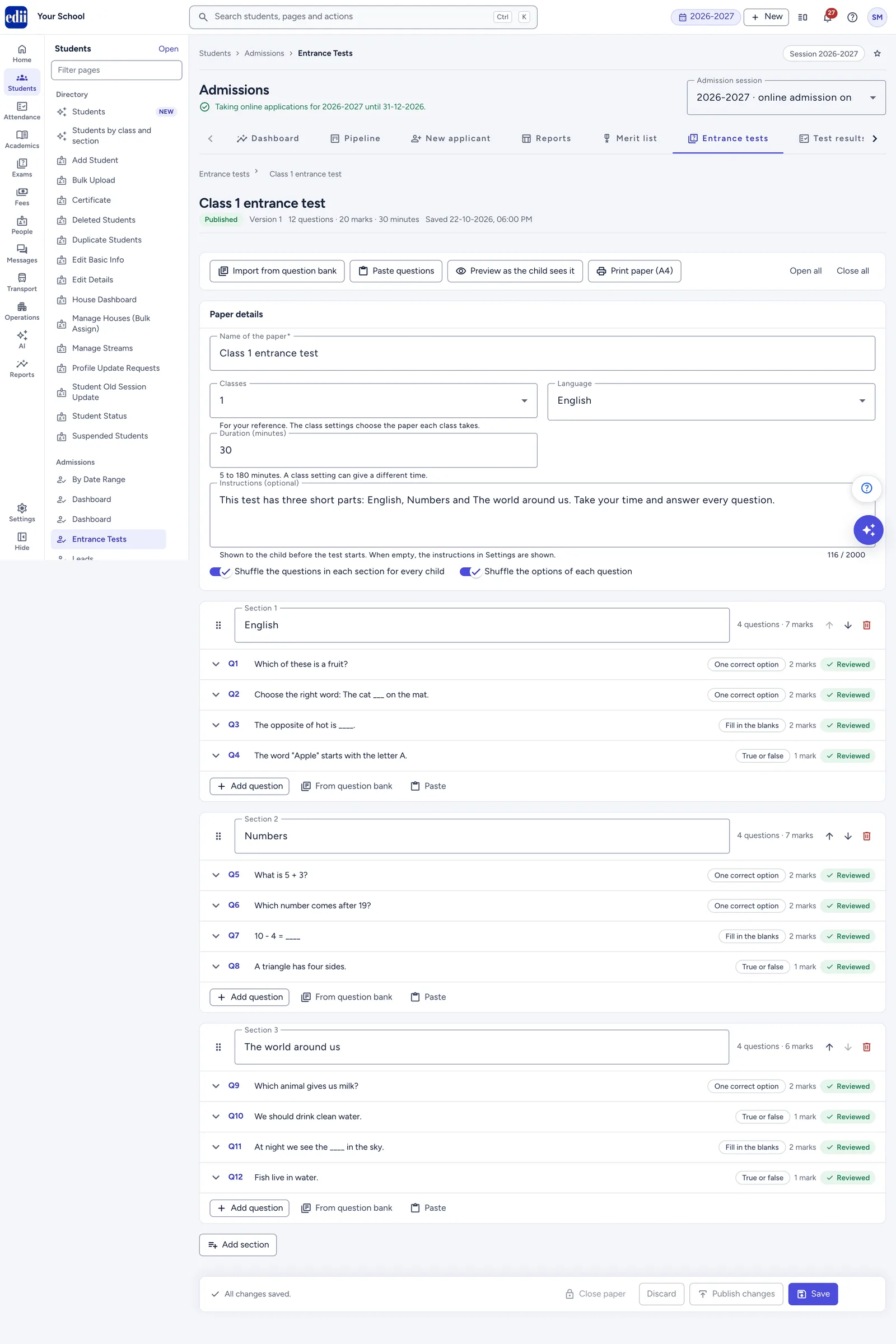
EDII Admissions runs your whole admission season inside EDII, your school operating system. You set it up once for each admission session, and it works for you every day after that. Families apply on your school's page at admission.edii.in, in the EDII app or at your front desk, and every enquiry and application reaches your admission team in one place.
What it gives your school and your families:
One place for every application. Applications from the website, the EDII app and the front desk all land in one list, the Pipeline, by stage, for one admission session. Staff record walk-in, phone and visitor families on the New applicant page.
Sign-in with a WhatsApp code. Families sign in with their mobile number and a code sent on WhatsApp. There is no password to forget. The same number opens their applications on the website and in the app.
Forms, documents and fees online. Families fill in your own form at any hour, upload the documents you ask for and, if you choose, pay the form fee online. Their answers save as they go.
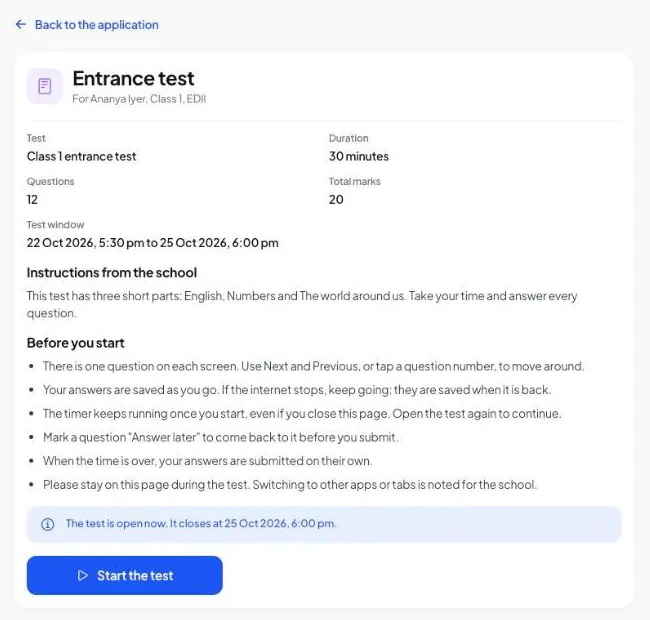
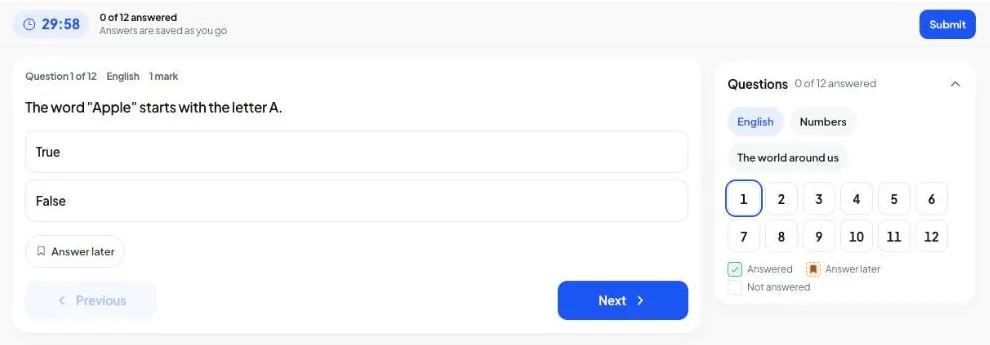
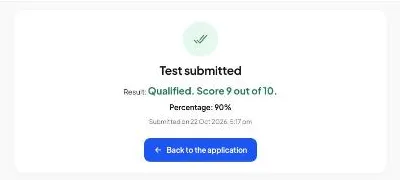
Online entrance tests. If you choose, children take your test on a phone or a computer, and EDII marks every answer straight away.
Offers and admission into EDII. You offer seats with a reply-by date, and families accept online. When you admit a child, EDII creates the student record from the application, with its details and documents. There is no typing twice.
Everyone kept informed. EDII sends families updates by WhatsApp, email and app notification at the steps you choose. Staff you choose get alerts, a daily follow-up list and a weekly seats summary.
How this guide is organised:
How admissions flow shows the whole journey, for the school and for the family.
Quick start gives the shortest path, for a school and for a family.
Part 1, For schools covers everything the admission team does in school.edii.in: setting up, the daily work, and online entrance tests.
Part 2, For parents covers what families do on admission.edii.in and in the EDII app, including the entrance test.
Reference holds the stages, messages, limits, answers to common questions and a troubleshooting list.
Every admission follows the same path, whether the family starts on the website, in the EDII app or at your front desk. Here is the journey from the day the school opens admissions to the day a child is admitted.
The school opens admissions.
School: chooses the admission session, sets up classes, fees, the form, documents and messages in Admissions › Settings, and switches online admission on. See Set up online admissions.
Family: finds the school listed on admission.edii.in and in the EDII app while it is taking applications.
The family finds the school and gets in touch.
Family: reads the school's admission page, then applies, sends a question, or asks to be told when a class opens. A family can also visit or phone the school. See Find the school.
School: records walk-in and phone families on New applicant, as an enquiry or a full application. Every enquiry and application appears in the Pipeline. See Add a walk-in application or an enquiry.
The family applies.
Family: signs in with a mobile number and a WhatsApp code, fills in the form, uploads the documents, accepts the school's consent and submits. If the school asks, the family pays the form fee online as the last step. See Apply on admission.edii.in or Apply in the app.
School: the application reaches the Applied stage and gets its application number. The family gets "Application received", and the staff you chose get "New admission application".
The school checks the application.
School: verifies documents or asks for them again, records fees paid at the office, follows up with the family, and corrects details when the family asks. See The application page.
Family: tracks the application, uploads what the school asks for and asks for corrections. See Track your application.
The school selects.
School: meets the child at an interview, test or interaction, runs the online entrance test if it uses one, and ranks children on a merit list. See Online entrance tests.
Family: attends the interaction, takes the online entrance test in the EDII app or on admission.edii.in, and sees the result and the child's merit list position when the school shares them. See Take the entrance test.
The school offers a seat.
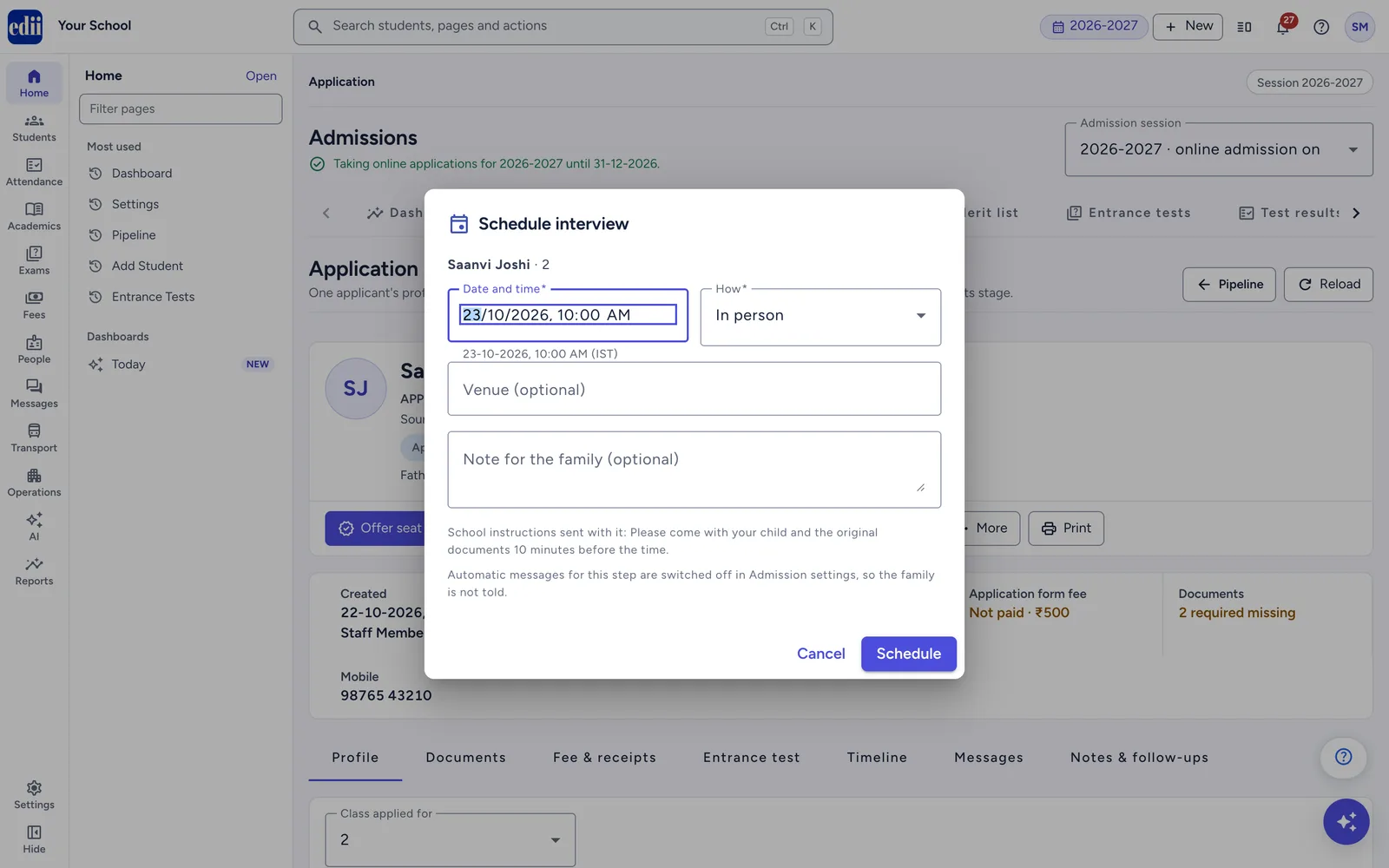
School: presses Offer seat with a date to accept by, or moves the application to Waitlisted or Not selected. See Offer a seat.
Family: accepts or declines the seat before the reply-by date, and pays the admission fee if the school collects it online. See Reply to a seat offer.
The school admits the child.
School: presses Admit. EDII creates the student record from the application, in the class and section you choose. See Admit with the Admit wizard.
Family: gets "Admission confirmed", and the family's mobile number can now sign in to the EDII app.
You can take your first online application within an hour of starting. Everything for staff is in school.edii.in under Students › Admissions. Families apply on admission.edii.in or in the EDII app.
Choose the admission session. Open Admissions and pick next year in the Admission session drop-down at the top right. Admissions keeps its own session, so the running year is not touched. See Choose the admission session first.
Start the settings. Go to Admissions › Settings. If you ran admissions here before, press Copy from another session to start from last year. The dates move forward by a year, and online admission comes over switched off. See Copy settings to the next session.
Add your classes. On Admissions › Settings › Classes, pick your classes in the Add classes list and press Add, or press Add all classes. For each class set Status, Seats (0 means no limit), Form fee, Admission fee, the age rule (Age as on, Min. age (years), Max. age (years)) and Documents. See Tab 3: Classes.
Set fees and numbers. On Fees & numbers, choose Online payment (only once EDII has set it up for your school), Form fee must be paid before submitting, and Collect the admission fee in Admissions after a seat is offered. Check the Application number pattern and the Admission receipt number pattern. See Tab 2: Fees & numbers.
Check the form. On Application form, add or remove fields. Tick where each field shows: Web, App, Office. See Tab 4: Application form.
Decide how you select. On Selection, switch on Interview, test or interaction if you meet families. If you rank applicants, switch on Merit list and press Add criterion for each criterion. Then set the Time limits. See Tab 5: Selection.
Choose messages and staff. On Messages & staff, tick which messages families get and on which channel. Add the people who should hear about new applications under Staff to notify, each with an Email for summaries. Read the Consent tab. See Tab 7: Messages & staff and Tab 8: Consent.
Open admission. On Online admission, set Applications open from and Applications close on, keep Admission website and Parent app on, and fill in Information for families. Paste your map link and press Save location. Switch online admission on when every checklist line is ticked, then press Save settings. See Go live: switch online admission on.
Share your link. Your school's page is admission.edii.in/<school code>. Open it yourself to see what families see, then share it. The line under the Admissions heading now reads "Taking online applications for until ." While your opening date is still ahead, it reads "Online applications for open on ." See Share the links families use.
Take one applicant to admission. New applications appear in the Pipeline. Open one, check Documents and Fee & receipts, then press Offer seat. Once the family accepts, press Admit, choose the section and student ID, and press Admit student. See Receive and process applications.
You can apply from your phone, with no password. Use the same mobile number every time: it is how EDII finds your applications.
Find the school. Open the link the school shared, search for the school on admission.edii.in, or open the EDII app and tap Admissions. See Find the school or Find a school in the EDII app.
Sign in. Type your mobile number and enter the 6-digit code that comes on WhatsApp. The first time, also type your name and accept EDII's account consent. See Sign in with your mobile number.
Choose the class and the child. Check that your child's date of birth falls inside the "Born between" dates for the class.
Fill in the form, upload the documents and submit. Your answers save as you go. On Review and submit, accept the school's declaration and submit. If the school asks for the form fee online, you pay it as the last step. Keep the application number.
Track your application. Use Track my application on the school's page, or My applications in the app. The Next step card tells you what the school needs, such as a document. See Track your application.
Take the entrance test, if the class has one. When the test window opens, tap Take the entrance test on the application. See Take the entrance test.
Reply to the seat offer. Accept or decline before the reply-by date, and pay the admission fee if the school asks for it online. The school then admits your child. See Reply to a seat offer.
This chapter takes your admission team through Admissions in school.edii.in: who can use it, where it is, and every tab of Admissions › Settings. When you finish, families can apply on your school's admission page and in the EDII app, and every application reaches your staff in one place.
What a person can do in Admissions depends on their role. Your school administrator sets this under People › Users and permissions › Add Role. Choose an application from Add Application (for example Admission, Lead or Student), then tick what the role may do. Each application has four ticks: View, Edit, Delete and Create. The Admissions screens hide what a role cannot do.
What the person needs to do
Ticks the role needs
Open the Dashboard, Reports, Merit list and Settings
Admission › View
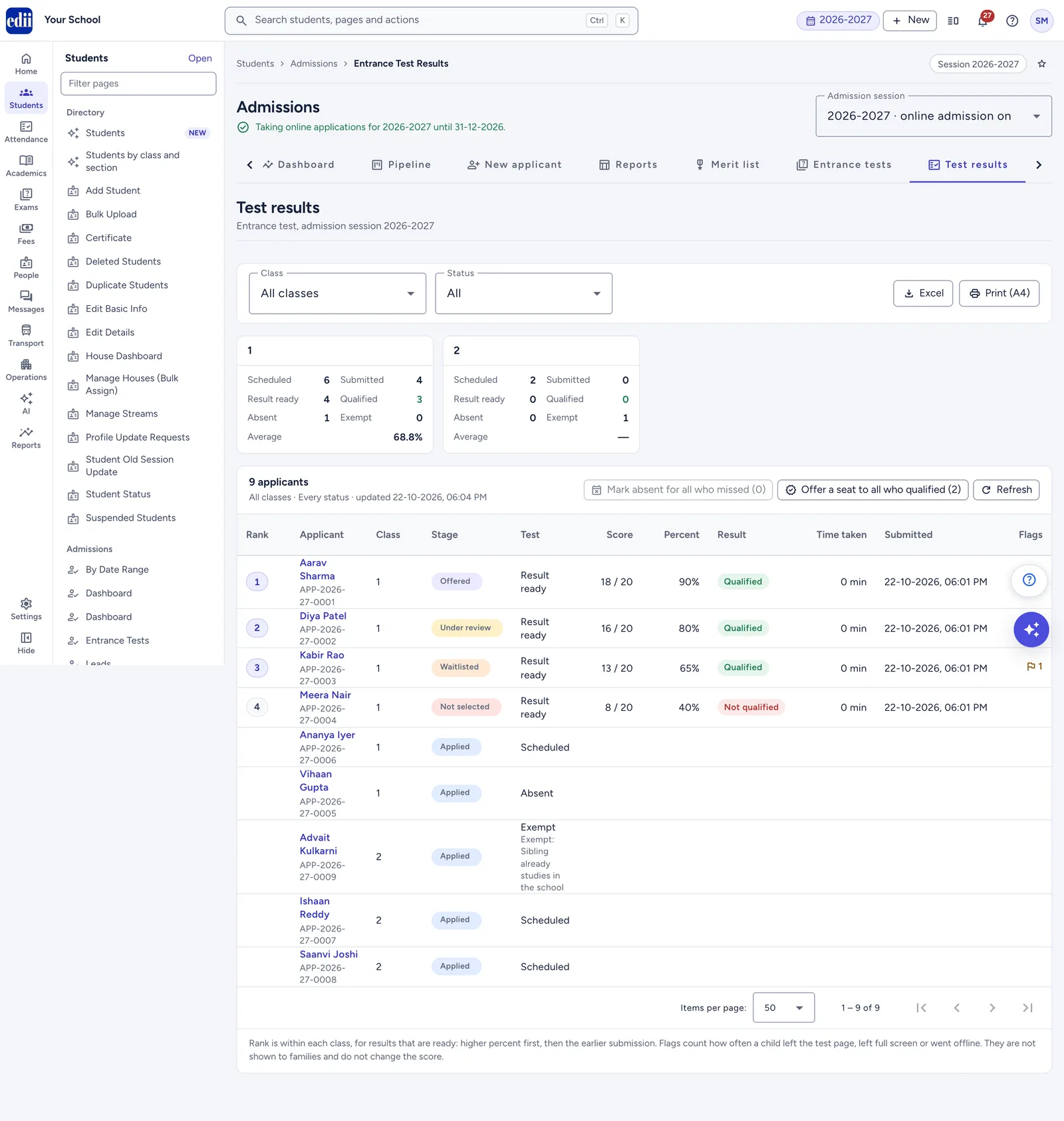
Open Entrance tests and Test results, and see papers and results
Admission › View
Open the Pipeline and the applications
Admission › View, or Lead › View (enquiries only)
Change the admission settings, including the entrance test settings, and save the school location
Admission › Edit
Copy settings from another session
Admission › Create
Record an enquiry at the school office
Admission › Create, or Lead › Create
Enter a full application at the school office
Admission › Create, with Walk-in applications switched on in Settings
Work on applications at every stage: documents, fees, offers
Admission › Edit
Use Assign, Move stage and Send message on many applications at once
Admission › Edit, or Lead › Edit (enquiries only)
Ask many families for documents at once
Admission › Edit
Make, publish, duplicate and close question papers; schedule tests, reset, mark absent, exempt and correct the answer key
Admission › Edit
Offer seats from Test results
Admission › Edit, and the right to change applications at that stage
Publish the merit list
Admission › Edit
Admit a child, which creates the student record
Admission › Edit and Student › Create
Fill in the form from a former student's old record
Student › View
Work only on enquiries
Lead, without Admission (see below)
Your school's admin and super admin roles already have every right.
Some staff only answer calls and follow up with interested families. Give their role Lead access and no Admission access. Such a role works on enquiries only:
The Pipeline shows only enquiries. Under the title they see "your role works with enquiries, so only enquiries are listed". The Stage filter and the row of stage buttons are hidden for them.
With Lead › Create they can add enquiries on New applicant. With Lead › Edit they can work on an enquiry: change its details, log follow-ups, add notes, assign it, upload documents and send messages.
They can turn an enquiry into an application or withdraw it.
They cannot open the dashboard, reports, merit list or settings. They cannot offer seats, record fees or admit.
They do not see the entrance test at all.
If a role has neither Admission nor Lead access, Admissions shows: "Your role does not have access to Admissions. Ask your school administrator to give your role Admission or Lead access."
A status line that tells you, at a glance, whether families can apply right now (table below). Unless you are live, the line also has an Open settings link.
The Admission session picker, at the top right.
A row of tabs: Dashboard, Pipeline, New applicant, Reports, Merit list, Entrance tests, Test results and Settings. You see only the tabs your role may open. Entrance tests and Test results appear only while the online entrance test is switched on for the session.
Each page also has an About this page button. It opens a short summary of the page, with links to related pages.
Status line (for session 2027-2028)
Colour
What it means
"Online admission for 2027-2028 is switched off, so families cannot apply from the website or the parent app."
Grey
Online admission is off.
"Online admission for 2027-2028 is on, but both the website and the parent app are switched off."
Amber
Switch on at least one of them.
"Online admission for 2027-2028 is on, but the dates it is open are not set."
Amber
Set the opening and closing dates.
"Online applications for 2027-2028 open on 01-11-2026."
Amber
Everything is ready. Families can apply from that date.
"Online applications for 2027-2028 closed on 31-01-2027."
Amber
The closing date has passed.
"Taking online applications for 2027-2028 until 31-01-2027."
Green
You are live. Families can apply today.
Whatever this line says, your office can still record enquiries. It can also save full walk-in applications while Walk-in applications is on in Admissions › Settings › Online admission.
Everything in Admissions belongs to the session chosen in Admission session. Check it before you change anything. It is separate from the session switcher you use in the rest of EDII.
Sessions are written like "2027-2028".
The list shows every session that already has admission settings, plus your current session and the next one, newest first.
A session that is taking applications shows "· online admission on" after its name.
When you open Admissions, it picks the session you last used in this browser. Otherwise it picks the latest session with online admission on, or else the session after your current one.
If you switch session while a page has unsaved changes, you are asked first: "Discard unsaved changes?"
Every application belongs to one session. If you open an application from another session, you see: "Applications belong to one admission session. This page is showing 2027-2028; if the application is for another session, choose it at the top of the page."
Dates are DD-MM-YYYY. Every date box also has a calendar button. You can type dates loosely: "5/7/2027", "05.07.2027" and "05072027" all become "05-07-2027".
Times are India time (IST), for example "13-10-2026, 04:05 PM".
Money uses Indian grouping, for example "₹1,25,000".
Mobile numbers are 10 digits starting with 6, 7, 8 or 9. A pasted "+91" or leading "0" is removed.
Open Students › Admissions › Settings, or the Settings tab on any Admissions page. The page is called Admission settings. Under the title you see "Settings for 2027-2028" and a badge, Online admission on or Online admission off.
The settings have eight tabs: Online admission, Fees & numbers, Classes, Application form, Selection, Entrance test, Messages & staff and Consent.
Everything you change on these tabs is saved together, with Save settings in the bar at the bottom of the page. The only exception is the school location, which has its own Save location button.
The bar says "You have unsaved changes." or "All changes saved.".
Discard puts everything back to how it was last saved. You are asked first: "Discard your changes?"
If you leave the page with unsaved changes, you are asked: "Discard unsaved changes?", with Stay on this page and Discard changes.
If your role can only view settings, you see "Your role can view these settings but not change them." and every control is greyed out.
The tabs are described below in the order they appear on screen. Online admission, the first tab, is the one you switch on last. A good order to work in is:
Classes: classes, seats, fees, age rules and documents.
Fees & numbers: online payment and number formats.
Application form: the questions families answer.
Selection: interview, merit points and time limits.
Entrance test: only if you run an online test.
Messages & staff: what families are told, and who on your staff is alerted.
Consent: the text parents agree to.
Online admission: dates, channels and information for families. Press Save settings.
Switch online admission on, and press Save settings again (see Go live).
This tab decides when and where families can apply.
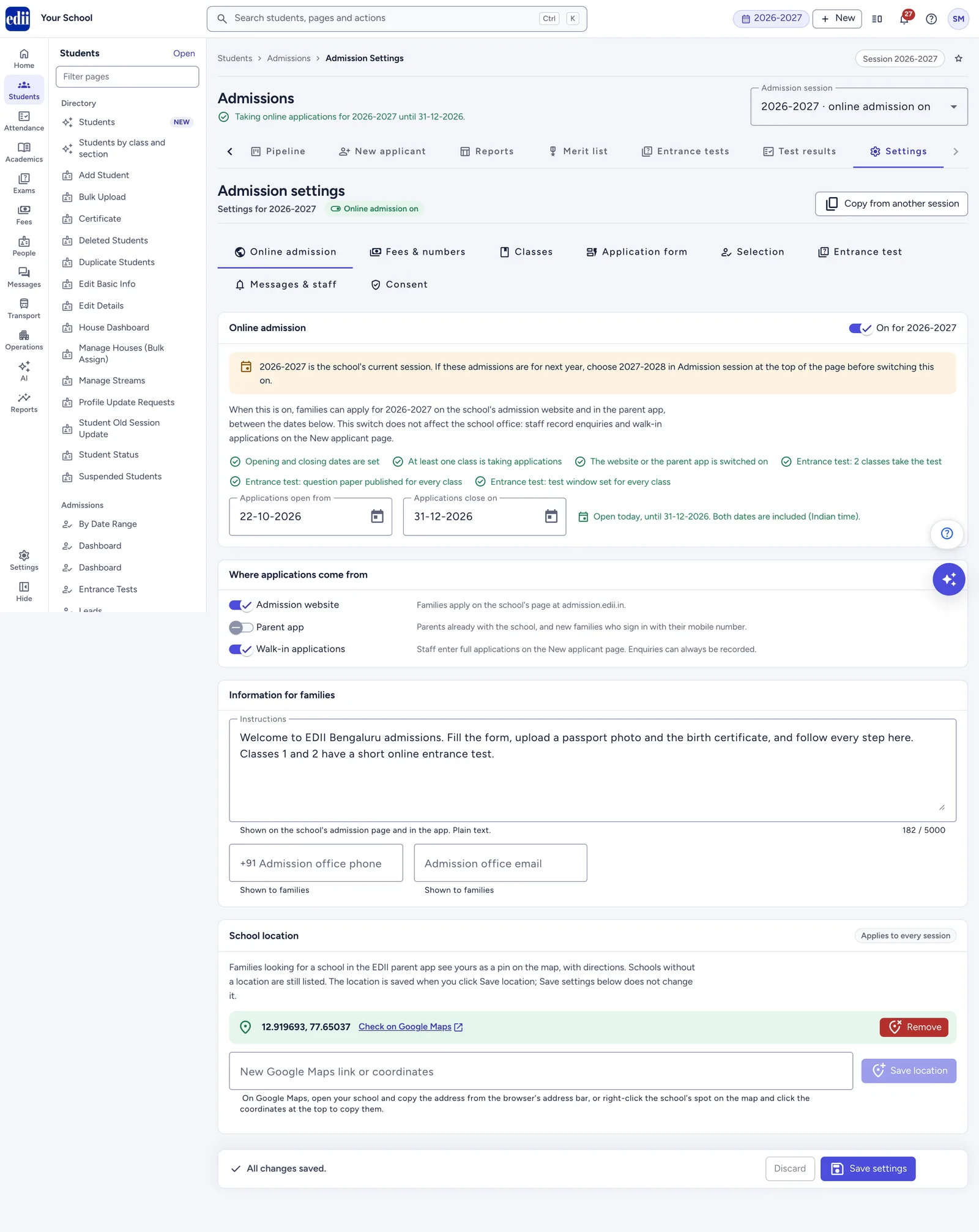
The Online admission switch. At the top is the box Online admission with the switch On for 2027-2028 / Off for 2027-2028. Leave it off until the other tabs are ready. The box explains: "When this is on, families can apply for 2027-2028 on the school's admission website and in the parent app, between the dates below. This switch does not affect the school office: staff record enquiries and walk-in applications on the New applicant page."
If the session you picked is your running year, you also see a warning: "2026-2027 is the school's current session. If these admissions are for next year, choose 2027-2028 in Admission session at the top of the page before switching this on."
Under the text is a checklist. It ticks itself as you finish each part. You will use it when you go live.
The dates.
In Applications open from, type the first day families can apply, as DD-MM-YYYY, or pick it from the calendar.
In Applications close on, type the last day.
Read the line under the dates. It says, for example, "Opens on 01-11-2026." or "Open today, until 31-01-2027.", followed by "Both dates are included (Indian time)."
Where applications come from. Three switches decide the ways in. All three start on.
Switch
What it says on screen
What it controls
Admission website
"Families apply on the school's page at admission.edii.in."
Online applications on your page at admission.edii.in/<school code>.
Parent app
"Parents already with the school, and new families who sign in with their mobile number."
Applications in the EDII app.
Walk-in applications
"Staff enter full applications on the New applicant page. Enquiries can always be recorded."
Whether staff can enter a full application at the office, or turn an enquiry into an application. When it is off, New applicant offers enquiries only.
Information for families. This is what families read before they apply.
Instructions: up to 5,000 characters of plain text. "Shown on the school's admission page and in the app." On the website, a blank line starts a new paragraph.
Admission office phone: a 10-digit mobile number starting with 6, 7, 8 or 9. "+91" is already in front of the box. A landline number is not accepted.
Admission office email.
Families see the phone and email as "Admission desk" on your admission page and as "Admission office" in the app, with Call and Email buttons.
School location. The last box on this tab puts your school on the app's map. It is saved separately, with its own button. See Put your school on the app map.
school.edii.in/admissions/settings
The Online admission tab: the switch, the dates, the ways families can apply and what they read first.
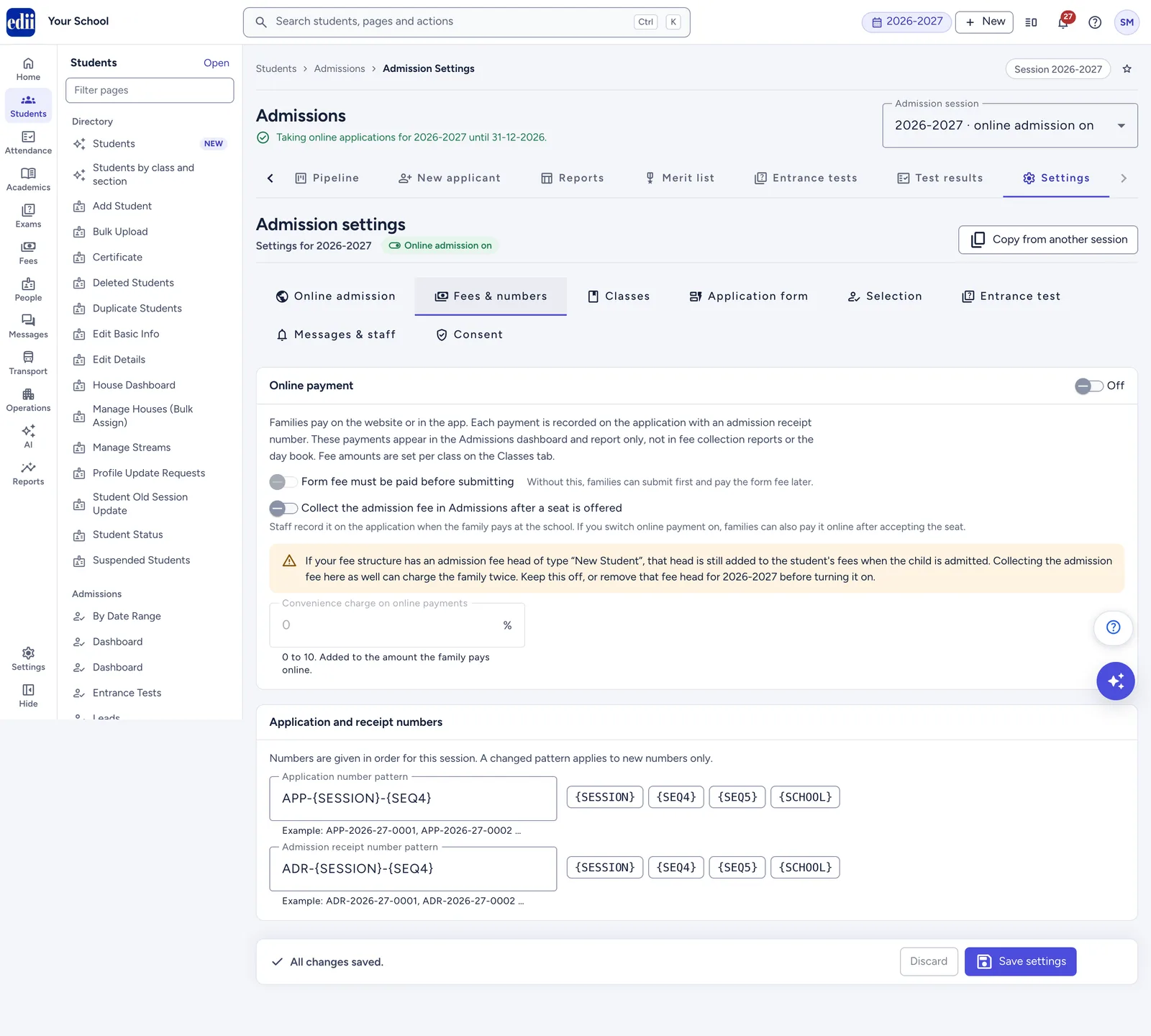
The box Online payment has an On / Off switch. The box explains: "Families pay on the website or in the app. Each payment is recorded on the application with an admission receipt number."
If online payment is not set up for your school yet, the switch is greyed out and you see: "Online payment is not set up for admissions yet, so it cannot be switched on. Families can still pay at the school office, and staff record those payments on the application. Contact EDII to set up online payment."
Two more switches decide which fees go through Admissions.
Form fee must be paid before submitting. This needs online payment on. Turning online payment off turns this off too.
Your settings
What happens to the form fee
Online payment off
Families submit the form without paying online. They pay at the school, and staff record it on the application with Record payment.
Online payment on, Form fee must be paid before submitting off
Families submit first. The form fee is not paid online: they pay at the school office, and staff record it.
Both on
Paying is the last step of the form. The button reads, for example, Submit and pay ₹500. The application reaches you as soon as the payment goes through.
Collect the admission fee in Admissions after a seat is offered.
Switch
What happens to the admission fee
Off
Admissions does not collect the admission fee. The application shows only the form fee. After admission, the fee is charged through the school's regular fees.
On
Staff record the admission fee on the application when the family pays at the school. With online payment on, families can also pay it online, after they accept the seat.
Convenience charge on online payments. You can add a percentage, from 0 to 10, in steps of 0.1. It needs online payment on. It is "Added to the amount the family pays online." Families see it as "Online payment charge", for example "Fee ₹500 + online payment charge ₹10 = ₹510". Payments made at the school have no charge.
An online payment must be between ₹1 and ₹5,00,000, including the convenience charge.
Every application gets a number, and every payment gets a receipt number. "Numbers are given in order for this session. A changed pattern applies to new numbers only."
Application number pattern: for example APP-{SESSION}-{SEQ4}, which gives APP-2027-28-0001, APP-2027-28-0002 and so on.
Admission receipt number pattern: for example ADR-{SESSION}-{SEQ4}, which gives ADR-2027-28-0001.
These two patterns are what a new school starts with. Under each box, an example shows the numbers your pattern will give.
To build a pattern, type letters, digits, -, / or _, and click a button to add a running part:
Button
What it adds
{SESSION}
The admission session, for example 2027-28
{SEQ4}
A running number with 4 digits, for example 0001
{SEQ5}
A running number with 5 digits, for example 00001
{SCHOOL}
Your school code in capitals
Rules for a pattern:
At most 40 characters.
Exactly one {SEQ4} or {SEQ5}. {SESSION} and {SCHOOL} at most once each.
It cannot start with MIG, ONLINE or OFFLINE. These are kept for applications from the earlier admission register.
The application and receipt patterns must be different.
school.edii.in/admissions/settings
Fees & numbers: how families pay, and how applications and receipts are numbered.
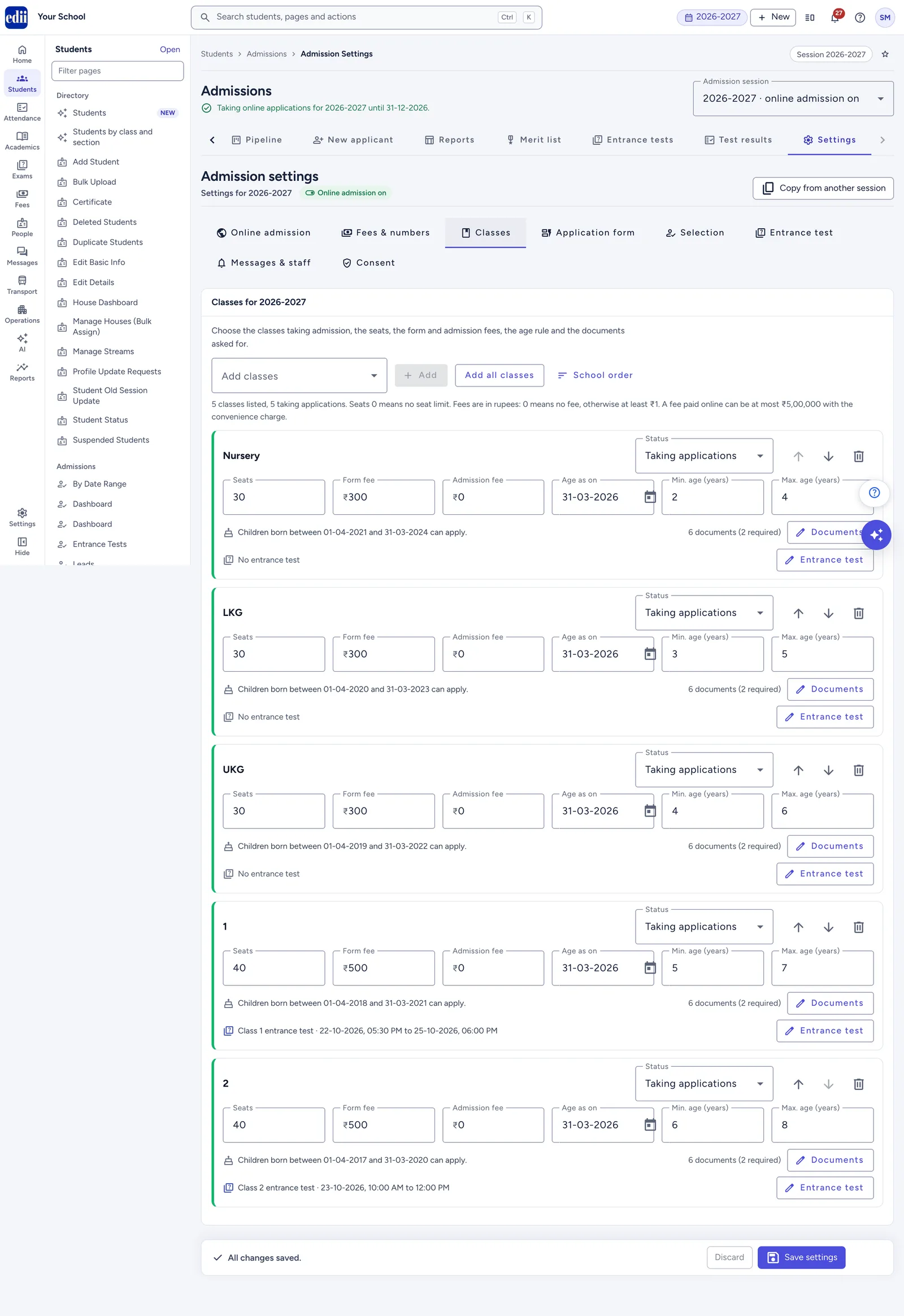
This tab lists the classes taking admission this session. For each class you set the seats, fees, age rule, documents and, if you use it, the entrance test.
Open the Add classes list and tick the classes from your school's class list. Then click Add.
Or click Add all classes to list every class of the school at once.
Click School order to sort the cards into your school's own class order. You can also move a card up or down.
You can list up to 60 classes. A line on the tab counts them, for example "12 classes listed, 10 taking applications. Seats 0 means no seat limit. Fees are in rupees: 0 means no fee, otherwise at least ₹1. A fee paid online can be at most ₹5,00,000 with the convenience charge."
A new class starts as Taking applications, with no seat limit, no fees, no age rule and the six standard documents.
Taking applications, Notify me only or Closed (see the next table).
Seats
0 to 5,000. 0 means no limit.
Form fee
In rupees. 0 means no form fee; otherwise at least ₹1. Up to ₹10,00,000.
Admission fee
In rupees. 0 means no admission fee; otherwise at least ₹1. Up to ₹1,00,00,000.
Age as on
The date age is counted on, as DD-MM-YYYY.
Min. age (years) and Max. age (years)
Whole years from 0 to 25. Leave one empty for no limit on that side.
Documents
Opens the list of documents for this class (see below).
Entrance test
Shown only while the online entrance test is switched on. Opens the test settings for this class.
What each status means to families
Status
At the school office
On admission.edii.in
In the EDII app
Taking applications
Staff can enter enquiries and applications.
Shown as "Open", with Apply for the class.
Shown as "Open", with Apply for the class.
Notify me only
Staff can enter enquiries and applications. A full application shows the warning "Nursery is not taking applications in Admission settings." but can still be saved.
Shown as "Not open yet", with Notify me for the class.
Shown as "Opening soon", with Tell me when it opens.
Closed
Staff can still enter an application. It shows the warning "Nursery is not taking applications in Admission settings."
Shown as "Closed". No button.
Shown as "Closed". No button.
Notify me only is useful for a class you will open later in the season. While your online admission is open, families can sign in and ask to be told when the class opens. This saves an enquiry in your Pipeline. When you later change the class to Taking applications and press Save settings while online admission is open and today is inside your dates, each of those families is told once, by the Class opened message. If you open the class before your opening date, no one is told, then or later. Families who sent a question on your enquiry form, and enquiries your staff entered, are never told this way.
Seats. Seats are a guide. They never stop an application or an offer. Families see how many seats are left: the seats you set minus the seats already offered or admitted. When you offer more seats than you set, EDII warns you, but the offer still goes through.
Age rule. Age is counted in completed years and months on the Age as on date. The card shows the rule in plain words, for example "Children born between 01-04-2022 and 31-03-2024 can apply."
Example: with Age as on 31-03-2027, Min. age 3 and Max. age 4, children born between 01-04-2022 and 31-03-2024 can apply. A maximum of 4 years lets in a child who is 4 years and 11 months old on that date.
Families cannot apply online for a child outside the rule, not even with Notify me. They see the reason, for example "Not eligible for Nursery: children born between 01-04-2022 and 31-03-2024 can apply. Age on 31-03-2027: 5 years 2 months."
Staff are only warned on New applicant, and can still save.
Admit does not check the age.
If you give a minimum or maximum without the date, the card says: "The age rule is incomplete: give whole years and the date the age is counted on."
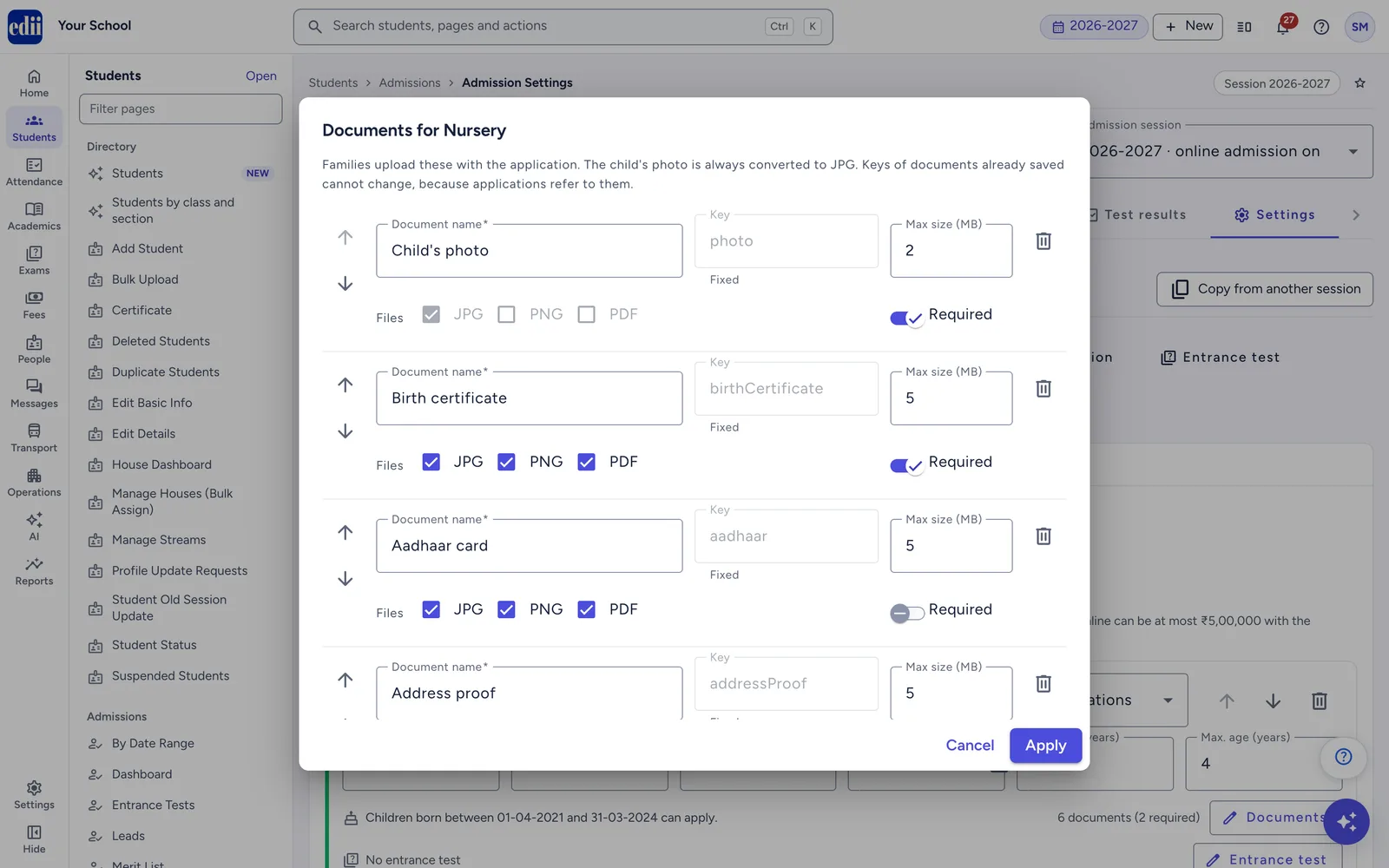
Click Documents on a class card. The dialog Documents for Nursery (with your class name) opens. "Families upload these with the application. The child's photo is always converted to JPG."
Check the list. Each row has Document name, Max size (MB) (up to 10), Files (JPG, PNG, PDF) and a Required switch.
Click Add a document to add your own. A new document takes JPG, PNG or PDF, up to 5 MB.
Click Add the standard documents to bring back any standard document you removed.
Use the arrows to change the order, or remove a row.
To give every class the same list, tick Use this list for every class.
Click Apply. Then press Save settings on the page: Apply alone does not save.
A new class starts with the six standard documents (see Files and uploads): the child's photo and the birth certificate, both required, and the Aadhaar card, address proof, last report card and transfer certificate, all optional.
A class can ask for up to 20 documents. Families must upload every Required document before they can submit. Each document also has a Key, made from its name; once saved, it is "Fixed", because applications refer to it.
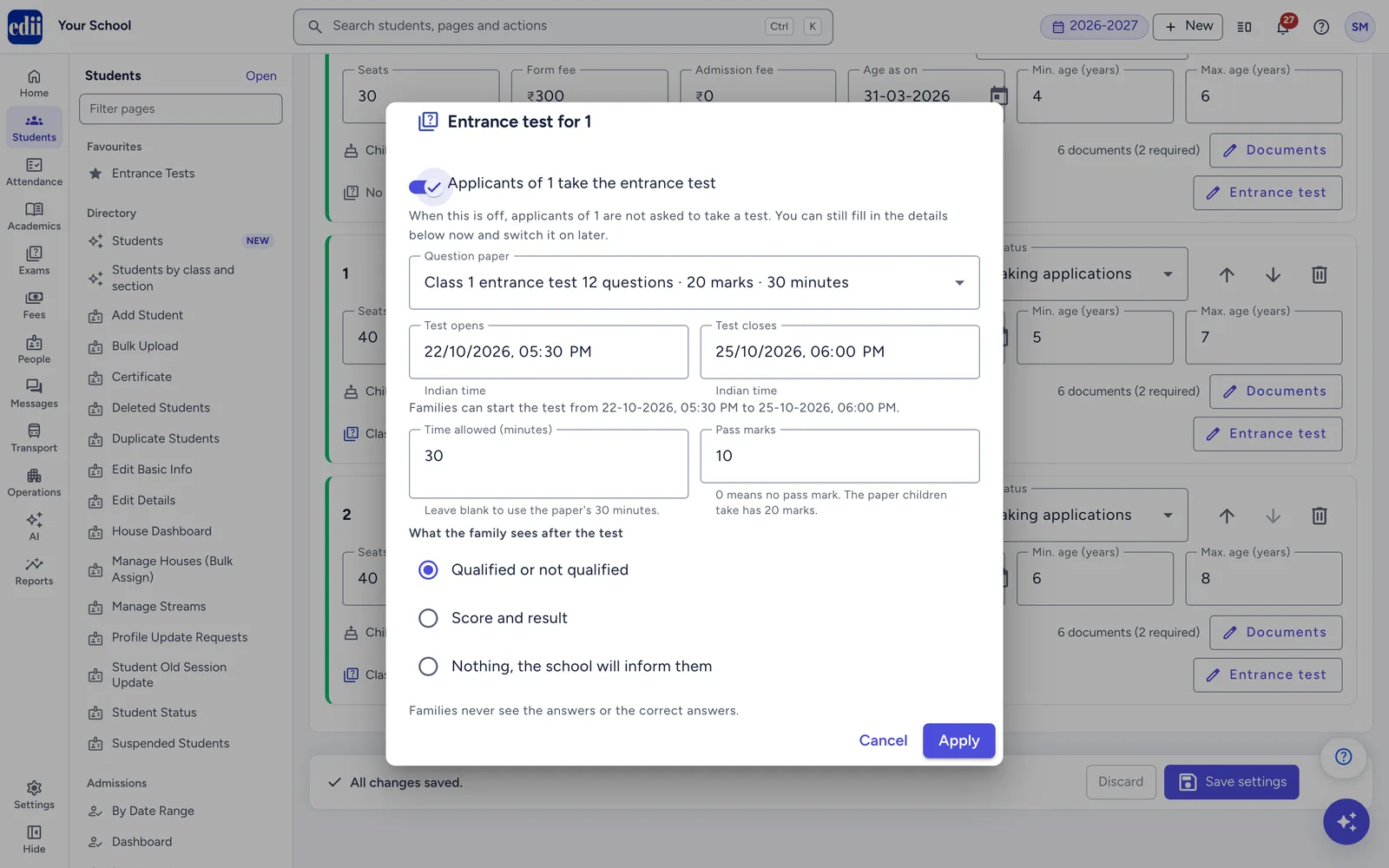
While the online entrance test is switched on (Tab 6), each class card has an Entrance test button. There you switch on Applicants of Nursery take the entrance test (with your class name), then choose the question paper, the test window, the time allowed, the pass marks and what families see after the test. See Step 3: Set the test for a class.
Click the delete icon on the card (its tip reads Remove class). You are asked "Remove Nursery?" (with your class name): "Nursery will no longer take applications in this session once you save. Applications already made for it are kept."
school.edii.in/admissions/settings
Each class has its own card: status, seats, fees, age rule and documents.
school.edii.in/admissions/settings
Choose the documents families upload for a class, their file types and size limits.
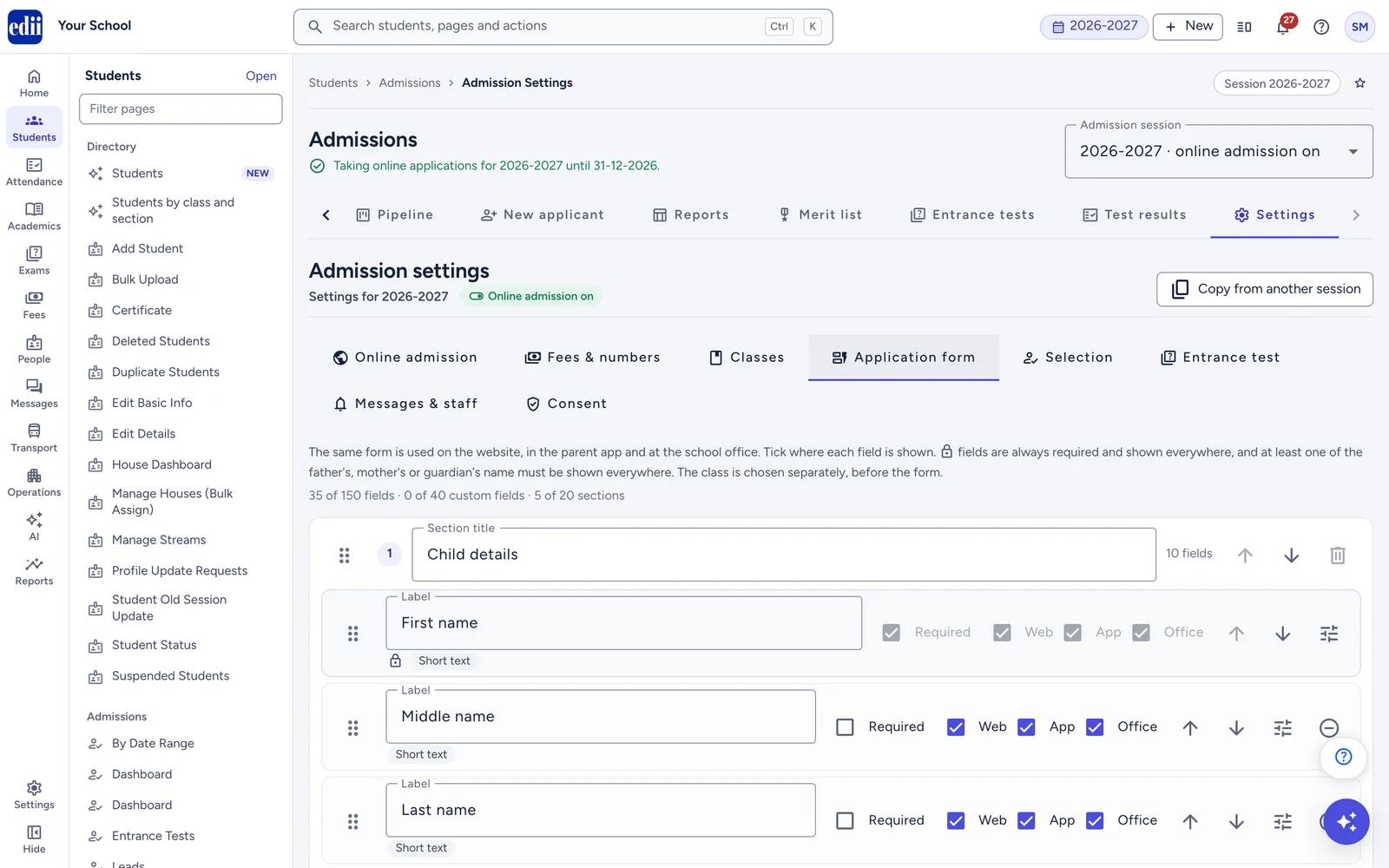
This tab is your admission form. "The same form is used on the website, in the parent app and at the school office. Tick where each field is shown." The class is chosen separately, before the form.
A new school starts with five sections:
Section
Fields
Child details
First name*, Middle name, Last name, Date of birth*, Gender*, Blood group, Category, Religion, Nationality, Aadhaar number
Parents and guardian
Father's name, mobile number, email, occupation and qualification; the same five for the mother; Guardian's name, Guardian's relation to the child, Guardian's mobile number
Address
Address*, City, State, PIN code, Needs school transport
Previous school
Previous school, Previous board, Last class attended, Result of last class
Contact
Mobile number for updates*, Alternate mobile number, Email
* = required.
Every answer is checked the same way on the website, in the app and at the office. The rules for each kind of answer are in Form field rules.
Four fields have a lock icon. They are "Always required and shown everywhere": the child's first name, date of birth, gender and Mobile number for updates. At least one of the father's, mother's or guardian's name must also be shown everywhere.
The type, for example Short text or Drop-down list.
Required: tick if the field must be filled in.
Web, App and Office: tick where the field is shown (the website, the EDII app, the school office). Every field must be shown in at least one place.
Arrows to move it, and a drag handle.
A settings button that opens more choices: Help text shown under the field (up to 300 characters), Options, one per line for lists, Maximum characters (1 to 2,000) and Move to section.
Changes to options apply to new answers only. The gender options cannot be changed. Once a custom field is saved, its type of answer cannot change (a Drop-down list can become Choice buttons and back). To ask in another way, add a new custom field with a different name.
To remove a field, click its remove icon: Take off the form for a standard field, Delete field for a custom field. You can add a standard field back later with Add a standard field. Locked fields have no remove icon.
Add a standard field lists the ready-made fields not yet on your form, grouped as Child, Father, Mother, Guardian, Address, Previous school and Contact. Pick one and click Add. Examples: Caste, Mother tongue, PEN (Permanent Education Number), Father's annual income (Rs), Transfer certificate number.
Custom field adds a question of your own.
To add a custom field:
Click Custom field in the section where it belongs. The dialog Add a custom field opens.
In Field name shown to families, type the question, up to 80 characters.
Choose the Type of answer: Short text, Long text, Number, Date (DD-MM-YYYY), Drop-down list, Choice buttons, Tick box (yes/no), Mobile number, Email, Aadhaar number, PAN or PIN code.
For a list or choice buttons, type the options in Options, one per line (up to 50 options).
Add Help text (optional) if families need a hint.
Under Show on, keep Website, Parent app and School office ticked, or untick where it should not appear.
Switch on Families must fill this in if the answer is required.
Click Add field.
Each custom field also gets a Key starting "custom.". It is "Fixed once saved".
Drag sections, or use the arrows, to reorder them.
Click Add a section for a new one.
Remove a section with the remove button. A section that holds a locked field cannot be removed: "This section has fields that must stay on the form. Move them first."
Your form can have up to 20 sections, 150 fields and 40 custom fields. The counts show at the top of the tab.
school.edii.in/admissions/settings
The application form builder: one form for the website, the app and the office.
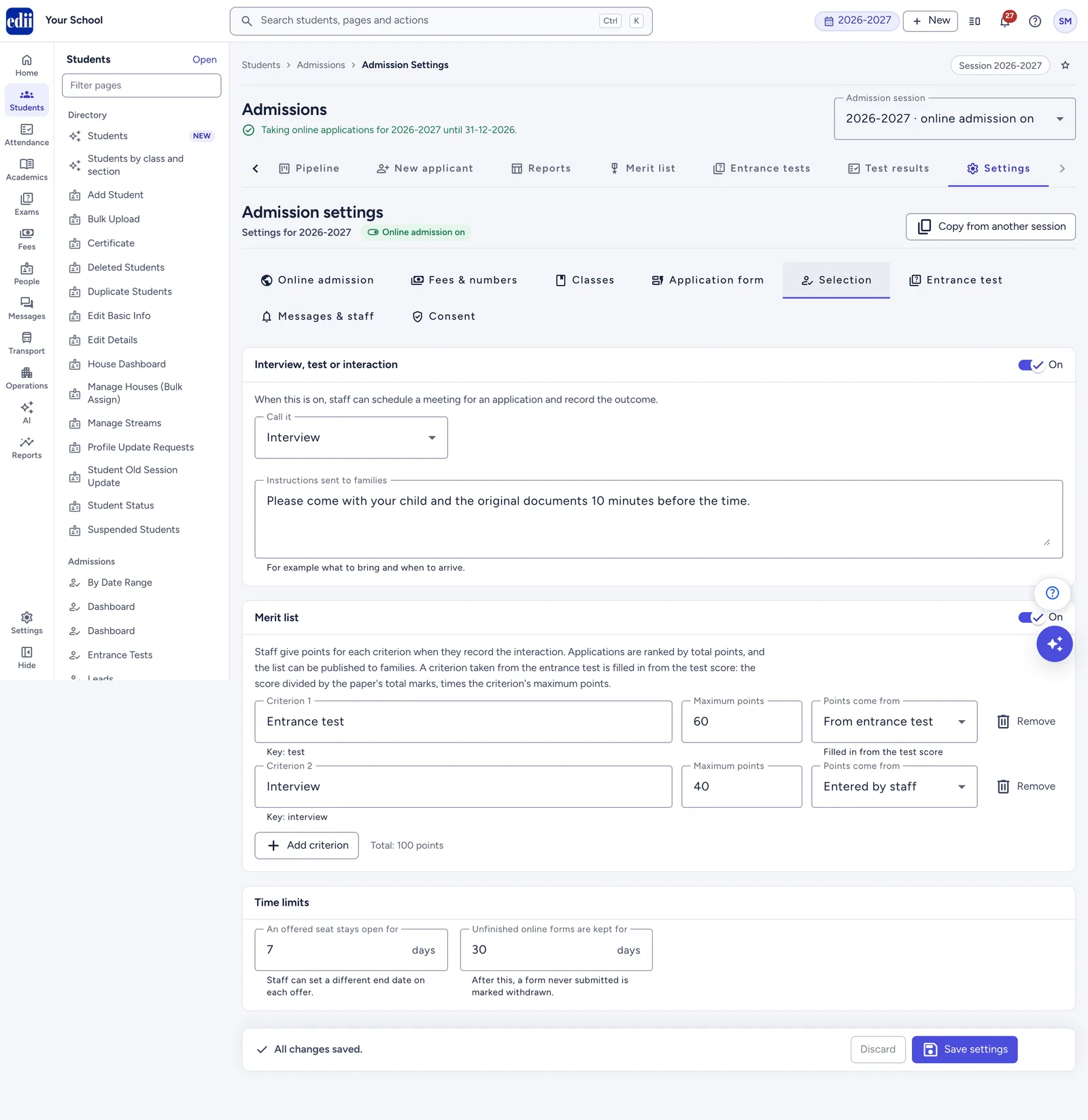
Switch the box Interview, test or interactionOn if you meet the child or family before deciding. "When this is on, staff can schedule a meeting for an application and record the outcome." This guide calls it an interaction, whatever word you choose.
Call it: Interview, Test or Interaction. This word is used on the application's buttons, such as Schedule interview.
Instructions sent to families: up to 2,000 characters.
This is separate from the online entrance test on the next tab. Switching one on or off does not change the other, and you can use both for the same applicants.
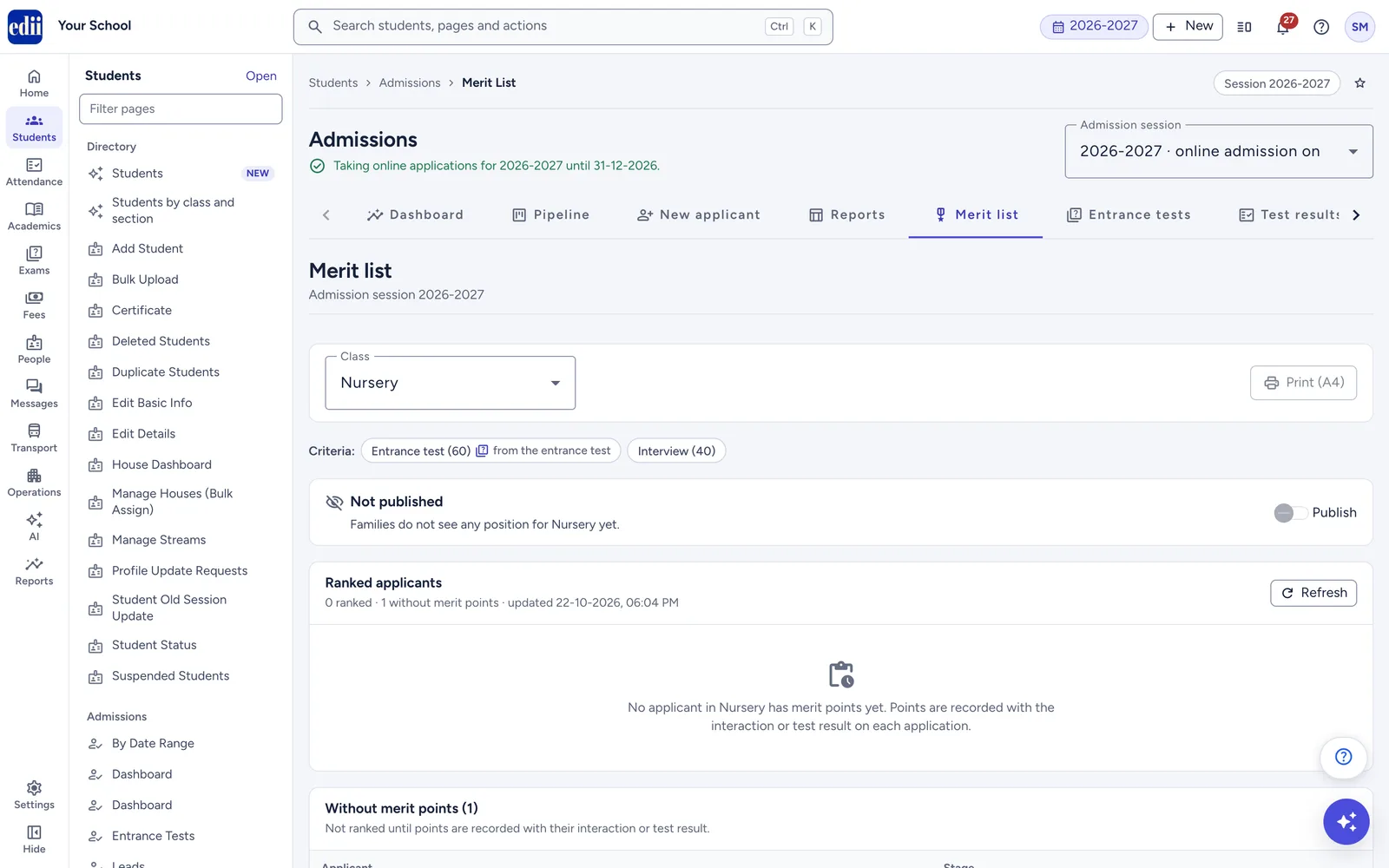
Switch the box Merit listOn to rank applicants by points. "Staff give points for each criterion when they record the interaction. Applications are ranked by total points, and the list can be published to families."
Click Add criterion. A new criterion has 10 points.
Type its name in Criterion 1, for example "Interaction".
Set Maximum points, from 1 to 1,000.
Repeat for each criterion, up to 20. The total shows as, for example, "Total: 30 points".
While the entrance test is on, choose for each criterion where Points come from: Entered by staff or From entrance test. Only one criterion can come from the test. How its points are worked out is in Merit points from the test.
With the merit list on, you need at least one criterion. When you publish a class's merit list, each family sees only their own child's position, never the full list. See The Merit list page.
To remove a criterion, click Remove. For a saved criterion EDII asks first: "Points already given for this criterion stay with those applications but no longer count in the merit list."
The offer ends at 11:59 PM, India time, on the last day. "Staff can set a different end date on each offer."
Unfinished online forms are kept for
1 to 180 days
30 days
"After this, a form never submitted is marked withdrawn."
What happens, all in India time:
Unfinished forms. After the days you set, counted from when the family started the form, a form that was never submitted is withdrawn, shortly after midnight. A form whose form fee is paid is never withdrawn this way. Nor is a form where the family started an online payment in the last 8 days.
Seat offers. An offer not accepted by its end date is withdrawn shortly after midnight. An accepted offer, or one whose admission fee is paid, never runs out.
Reminders. With the Reminders row on (Tab 7), families are reminded and told:
a family that started a form but did not submit it gets a reminder at 10:00 AM, about 2 days and again about 7 days after starting, if it verified its mobile number with the WhatsApp code;
a family that has not accepted an offer gets one reminder at 10:05 AM when the offer ends within 2 days;
the family is told when its unfinished form or its seat offer has expired.
Both form reminders must go before the form expires. If Unfinished online forms are kept for is 7 days or fewer, the second reminder never goes. If it is 2 days or fewer, the first one does not go either.
Use this tab only if children take an online test as part of admission. The box Online entrance test has the switch On for 2027-2028 / Off for 2027-2028.
"When this is off, nothing about the test is shown to staff or families, and admissions work as they do now." The interview, test or interaction on the Selection tab is separate and does not change.
When it is on, the tab also has Instructions shown before the test starts and the box Classes that take the test. How to fill them in is in Step 1: Switch on the entrance test.
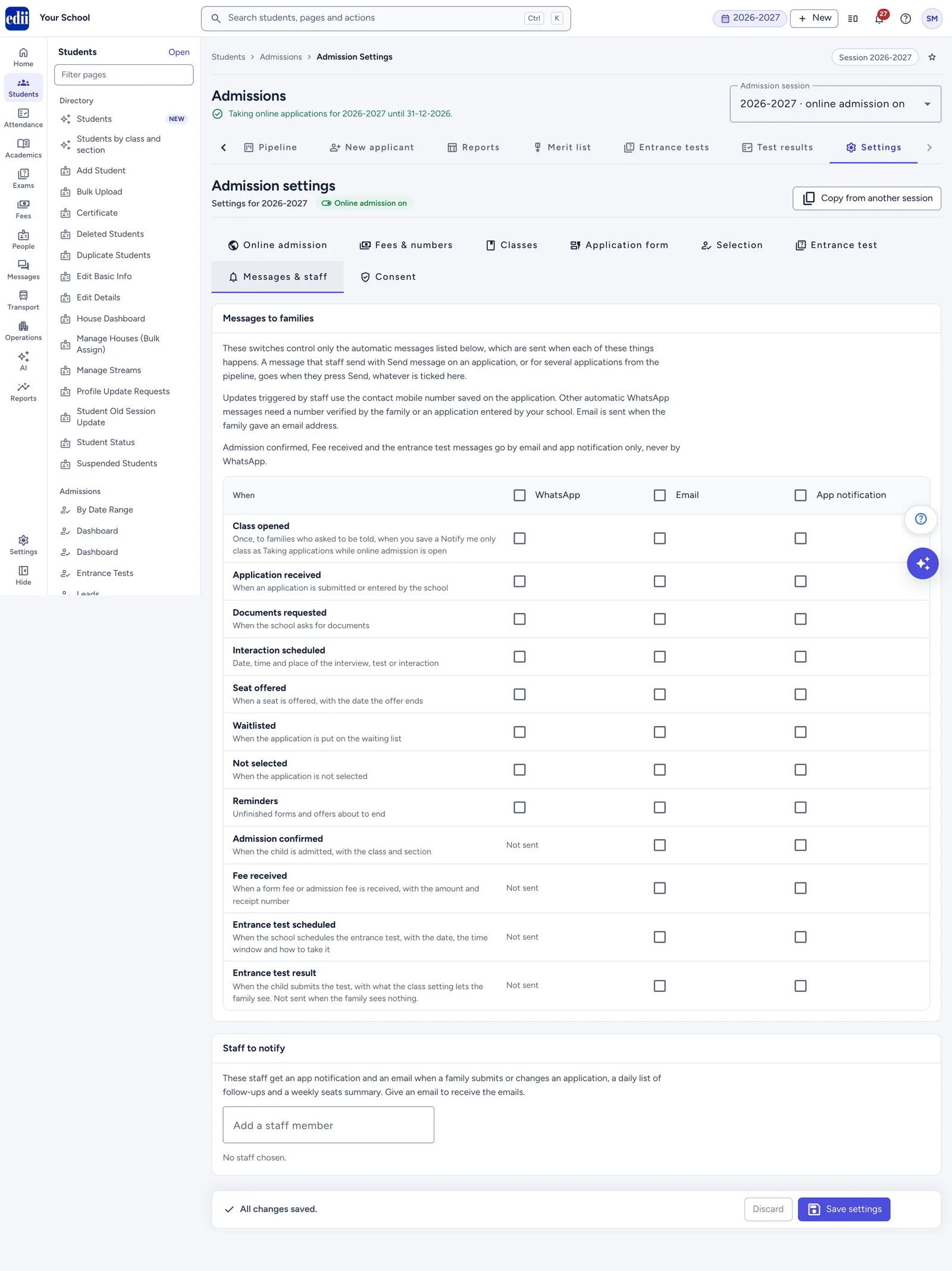
The box Messages to families has a table. Each row is an event. Each column is a channel: WhatsApp, Email and App notification. Tick a box to send that message on that channel. The tick box in a column heading turns that channel on or off for every row.
"These switches control only the automatic messages listed below, which are sent when each of these things happens." A message that staff write with Send message goes when they press Send, whatever is ticked here.
For a new school, every row starts ticked on every channel it can use. One Reminders row covers all four reminder and expiry messages. The Entrance test scheduled and Entrance test result rows show only while the entrance test is on. Admission confirmed, Fee received and the two entrance test rows show "Not sent by WhatsApp".
If WhatsApp is not switched on for your school, you see: "WhatsApp messages are not switched on for your school, so no WhatsApp message is sent even where it is ticked. Email and app notifications still go out. Contact EDII to switch WhatsApp on."
"These staff get an app notification and an email when a family submits or changes an application, a daily list of follow-ups and a weekly seats summary. Give an email to receive the emails."
Click in Add a staff member and type a name. Pick the person from the list.
In Email for summaries, type the email they should get these emails on.
Repeat for each person, up to 20. Click Remove to take someone off.
Each alert they get, and when, is listed in What your staff receive. The daily and weekly summaries go only while online admission is switched on for the session.
school.edii.in/admissions/settings
Messages & staff: choose what families are told, and which staff get alerts and summaries.
The box Parent or guardian consent holds the text families agree to when they submit an application. "The version agreed to is kept with each application", with the parent's name and the time. The printed application form shows it too.
Consent text: up to 5,000 characters.
Version: a short name for this wording, up to 40 letters, digits, dots, dashes or underscores.
New version: click it after you change the text. It fills in a version such as "2026-10-v1", or the next number in the same month, such as "2026-10-v2".
If you change the text without a new version, you see: "You changed the text. Give it a new version so families' agreement to the new wording is recorded." Once you save a new version, families must accept the new wording before they submit. A family that is filling in the form at that moment sees "The consent text has changed. Please read it again and accept it."
EDII's starting text reads:
"I am the parent or legal guardian of this child. I agree that the school may collect and use the details and documents I give in this application, including my child's date of birth, photograph and identity documents, to process this admission application and to contact me about it. Aadhaar details are optional. The school is responsible for this information; EDII stores and processes it for the school. I can ask the school to correct these details, and I can delete my applicant account at any time."
Press Save settings. EDII checks everything first.
If all is well: "Admission settings for 2027-2028 saved."
If something needs fixing, a red box at the top says, for example, "Please fix 3 problems before saving." It has one button per tab, such as Classes (2), that takes you to the problem. Tabs with problems show a count.
Problems you may meet:
Message
What to do
"Set the opening and closing dates before switching online admission on"
Fill in both dates on Online admission.
"Open at least one class before switching online admission on"
Set at least one class to Taking applications.
"The closing date is before the opening date"
Correct the dates.
"Contact phone must be a 10-digit mobile number"
Use a mobile number in Admission office phone.
"Turn on online payment to ask for the form fee before submission"
Switch on Online payment, or switch off Form fee must be paid before submitting.
"Online payment is not set up for admissions yet. Turn off online payment to save these settings."
Switch online payment off, and contact EDII to set it up.
"Application and receipt numbers need different patterns"
Change one of the number patterns.
"Nursery: the form fee must be at least ₹1 (or 0 for no form fee)"
Enter 0 or at least ₹1.
"Nursery: the form fee is more than ₹5,00,000, so it cannot be paid online"
Lower the fee, or collect it at the school.
"Nursery: give the date the age is counted on (DD-MM-YYYY)"
Fill in Age as on, or clear the minimum and maximum age.
"Class Nursery has 3 applications this session. Close the class instead of removing it."
Add the class back (or click Discard), then set its Status to Closed.
"Add at least one merit criterion"
Add a criterion, or switch the merit list off.
"These settings were changed by someone else. Please reload them and try again."
Someone saved after you opened the page. Reload, then make your change again.
When the other tabs are ready, open the Online admission tab.
Check the dates in Applications open from and Applications close on.
Check that Admission website, Parent app, or both, are on.
Read the checklist in the Online admission box. Every line should be ticked:
"Opening and closing dates are set"
"At least one class is taking applications"
"The website or the parent app is switched on"
While the entrance test is on, also the lines for the test, for example "Entrance test: question paper published for every class" and "Entrance test: test window set for every class".
Turn the switch to On for 2027-2028.
Press Save settings.
Check the status line in the header. On a day inside your dates it turns green: "Taking online applications for 2027-2028 until 31-01-2027."
Families can apply online only when all of these are true:
Must be true
Where you set it
Online admission is on for the session
Online admission tab
The way the family is using is on: Admission website or Parent app
Online admission tab
Today (India time) is on or between the opening and closing dates
In the EDII app, families can look for schools on a map, find the ones near them, and get directions. Your school appears as a pin once you save its location. "Schools without a location are still listed."
The location belongs to your school, not to one session. The box shows the badge Applies to every session. It is saved with its own button, Save location; Save settings does not change it. You need Admission › Edit to change it.
Open Admissions › Settings, tab Online admission, and scroll to School location.
Open Google Maps in another tab and find your school.
Copy the link from the browser's address bar. Or right-click your school's spot on the map and click the coordinates at the top to copy them.
Paste it into Google Maps link or coordinates. Coordinates look like "28.613939, 77.209021".
Read the line under the box. "Found" with the coordinates means EDII understood it. Click Check on Google Maps to make sure the pin is on your school.
Click Save location, or press Enter. You see "School location saved."
If your location is already saved in another part of EDII, the box offers it: "Saved in your Website settings" or "Saved in Preferences › School Information (also used for staff attendance)", with Use this location. Clicking Use this location saves it straight away.
Warnings and problems you may see:
Message
What to do
"This link gives the centre of the map view, not a pin. Check on Google Maps that it points at the school."
Open the school itself on Google Maps and copy that link instead.
"These coordinates are rough. Use a link to the school itself, or coordinates with at least 4 decimal places, so the pin lands on the school."
Copy more exact coordinates.
"This place is outside India. Check that the latitude (the first number) comes first."
Swap the two numbers.
"Short links such as maps.app.goo.gl cannot be read here."
Open the short link, then copy the full address from the browser's address bar, or paste the coordinates.
"This is a directions link."
Open the school itself on Google Maps and copy that link, or paste the coordinates.
"No location found."
Paste a Google Maps link to the school, or its coordinates.
To change the location, paste a new link in New Google Maps link or coordinates and click Save location. To take your school off the map, click Remove, then Remove location. "Families still find your school in the list in the parent app, but not on the map."
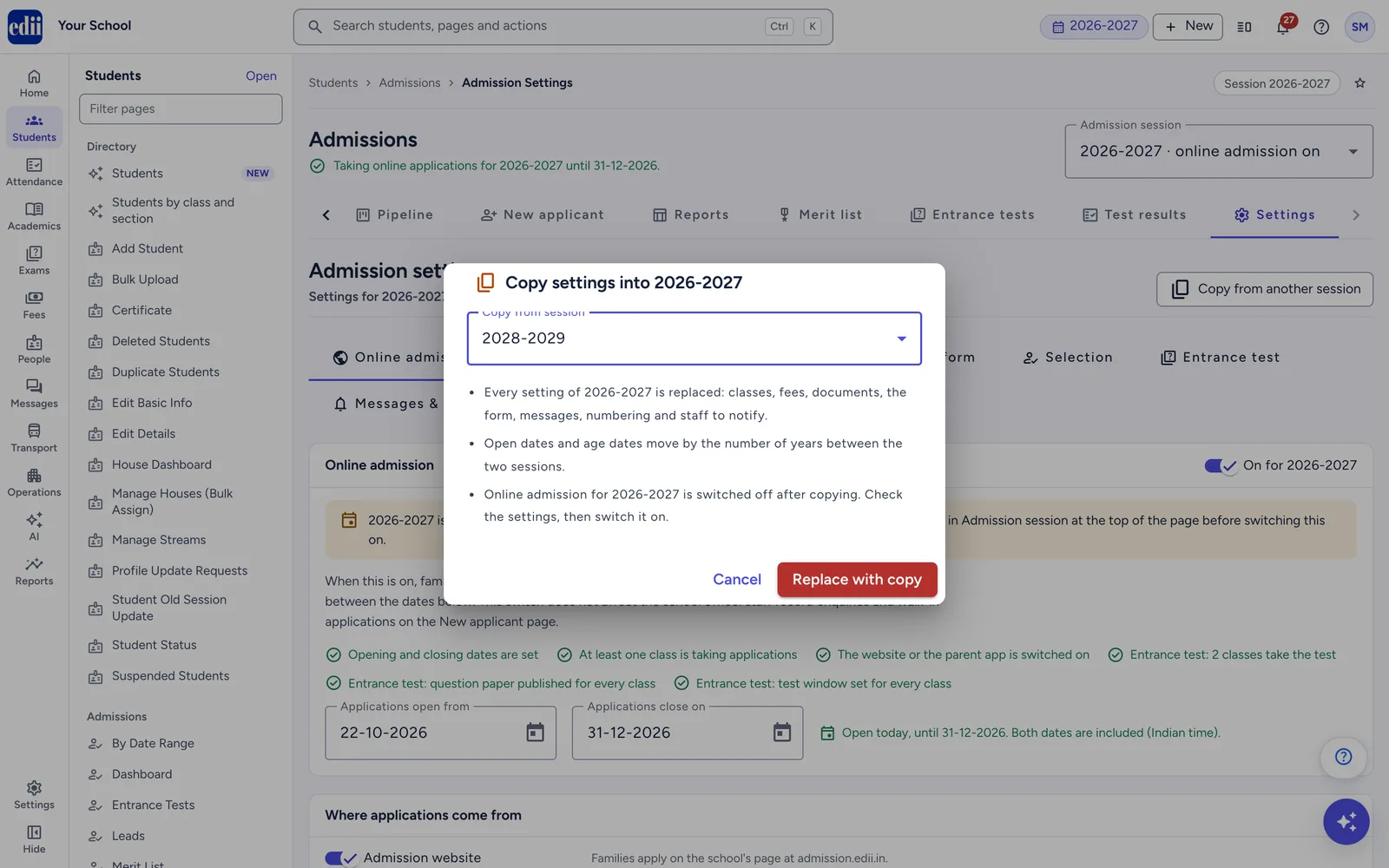
Next year, you do not have to start again. Copy this year's settings into the new session and change only what is different. You need Admission › Create.
In Admission session, at the top of the page, choose the new session, for example 2028-2029.
Open Settings and click Copy from another session.
In the dialog Copy settings into 2028-2029, choose the session to copy from in Copy from session.
Read the points in the dialog, then click Replace with copy.
You see "Settings copied from 2027-2028. Check them before switching online admission on." The copy is saved straight away.
Go through each tab. Change the dates, fees, seats and anything new.
When you are ready, switch online admission on and press Save settings.
What the copy does:
Part
After the copy
Classes, fees, documents, the form, messages, number patterns, staff to notify
Copied. "Every setting of 2028-2029 is replaced."
Opening and closing dates, and each class's Age as on date
Moved forward by the number of years between the two sessions.
Online admission
Off. "Check the settings, then switch it on."
Entrance test
Comes over switched off. Each class keeps its other test details, but not its question paper, its test window or the switch that makes the class take the test. Set these again for the new session.
School location
Unchanged. It applies to every session.
Applications
Never copied. Each session keeps its own.
school.edii.in/admissions/settings
Copy another session's settings into this one, then check each tab before going live.
Once you are live, tell families where to apply. There are two ways in: your school's admission page and the EDII app. Families use the same mobile number on both, so they can start on one and follow up on the other.
Your page is admission.edii.in/<school code>. Your school code is your school's short code in EDII, in small letters and digits. A code typed in capitals still works. If you are not sure of your code, ask EDII.
Link
What families do there
admission.edii.in/<school code>
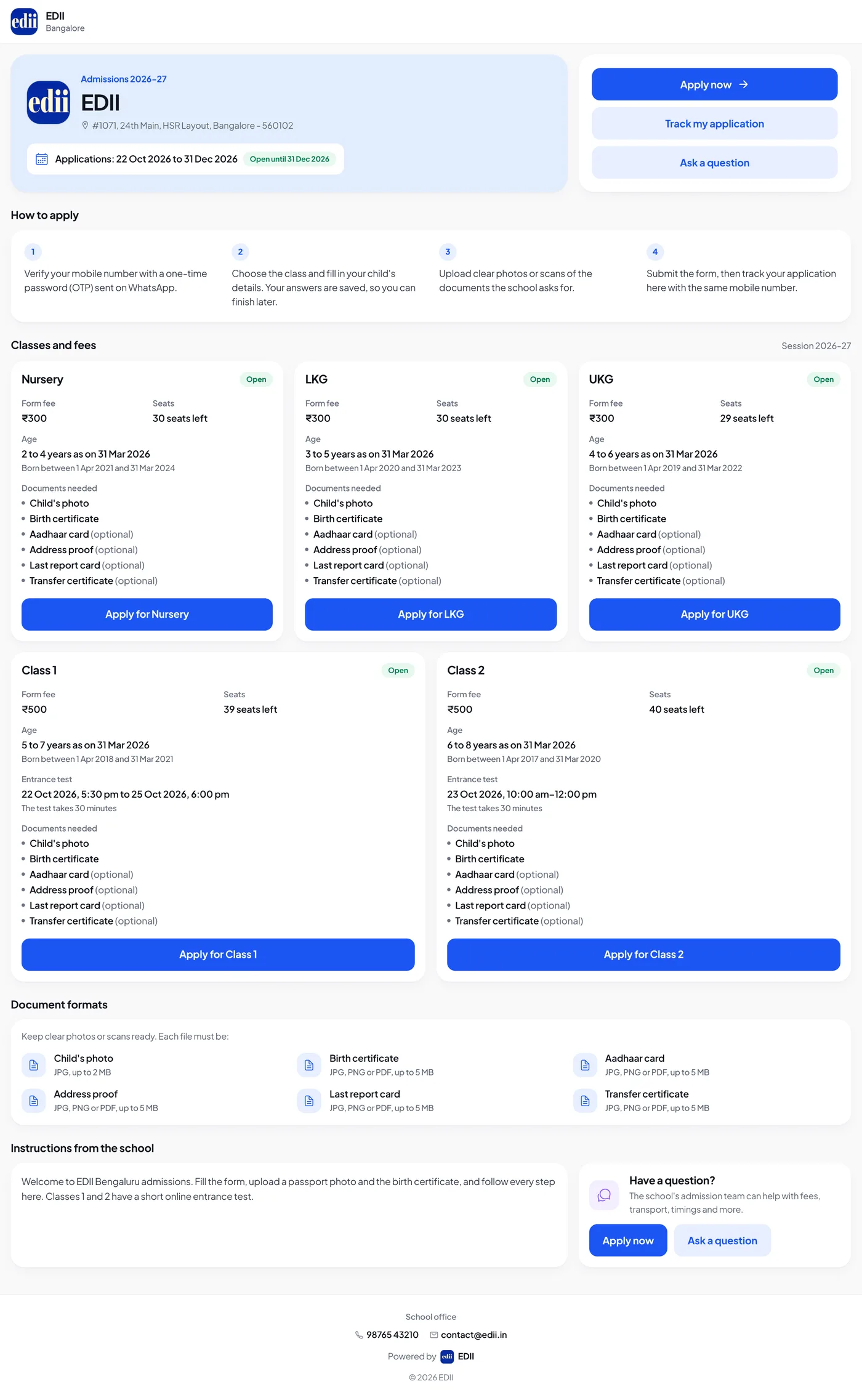
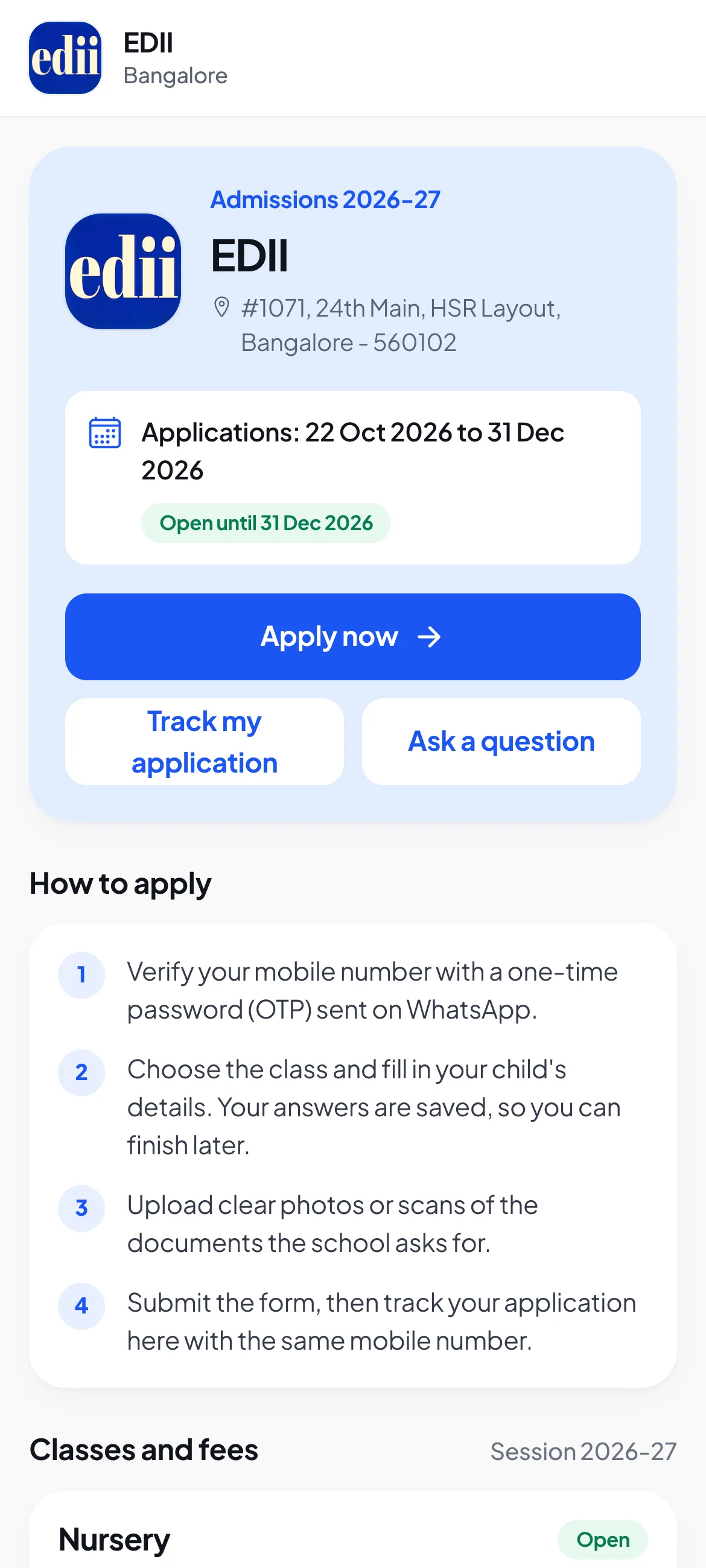
Read your dates, classes, fees, seats left, age rules, documents and instructions, then click Apply now, Track my application or Ask a question.
admission.edii.in/<school code>/apply
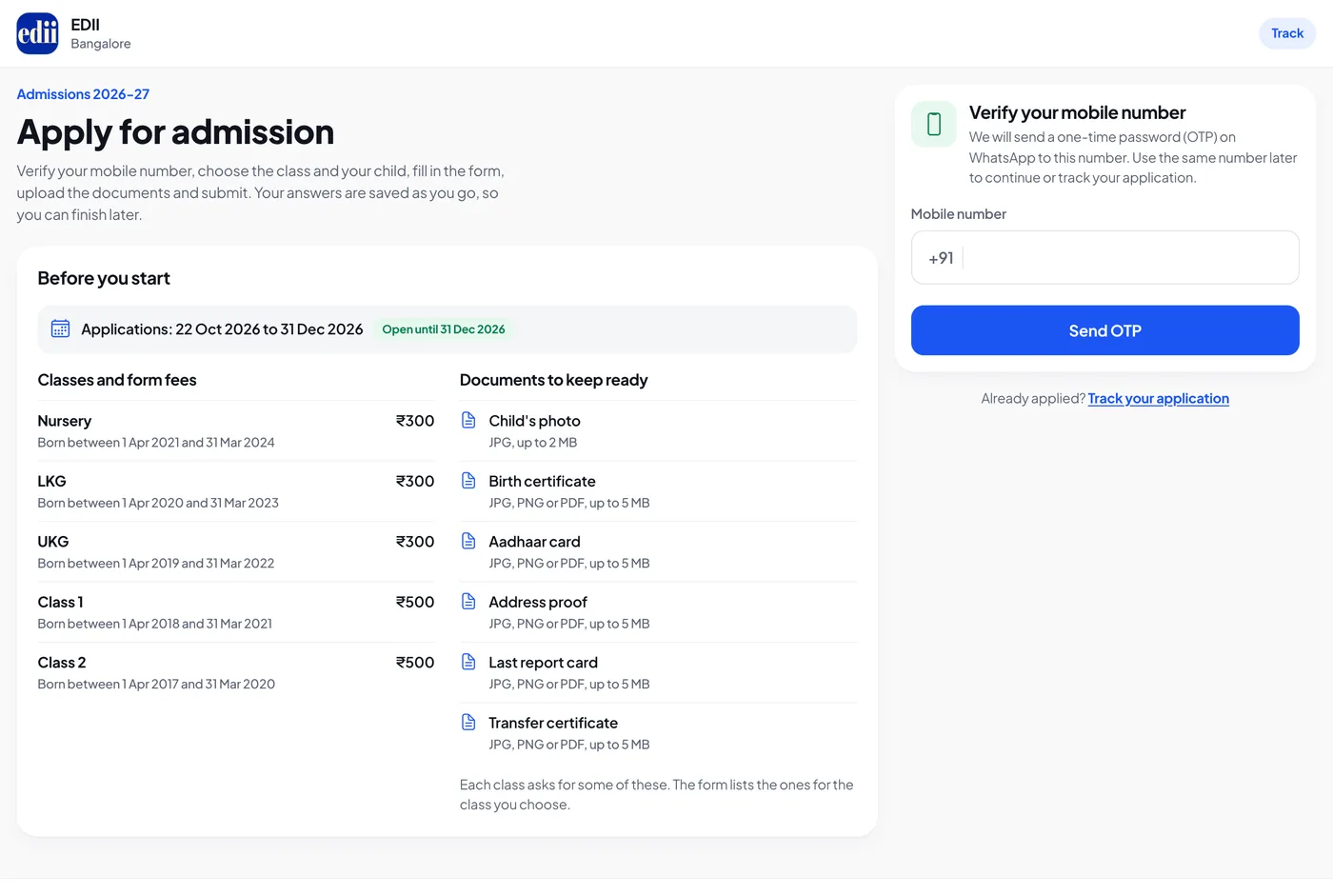
Sign in with their mobile number and start or continue an application.
The same, with the class already chosen. Use the class name as it appears in your settings.
admission.edii.in/<school code>/track
Follow their applications: status, documents, seat offers and fees.
admission.edii.in/<school code>/enquire
Send your admission team a question, without signing in.
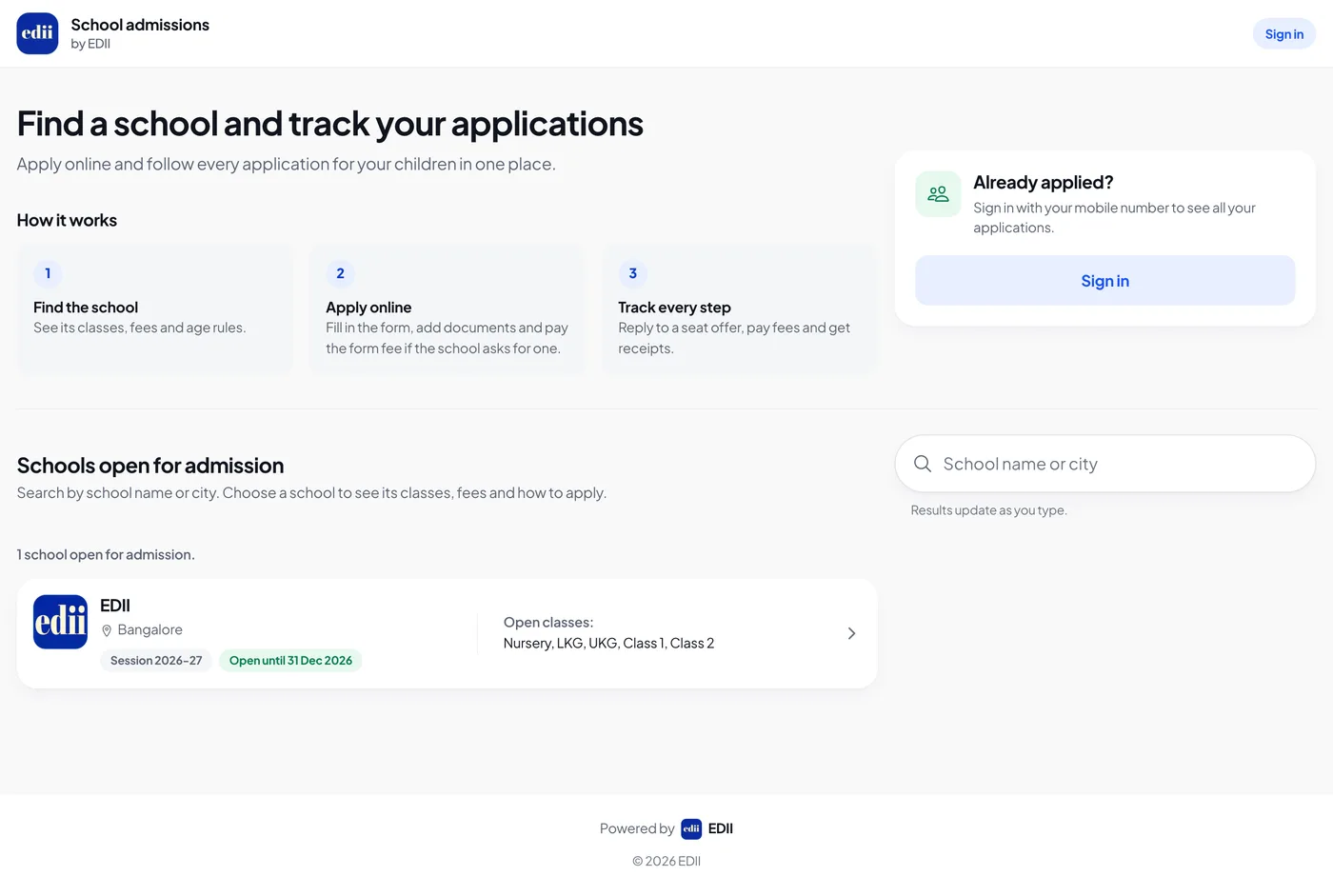
Families can also search for your school by name, school code or city on admission.edii.in itself, under "Schools open for admission". Your school is listed there only while you are taking applications on the website.
What families see on your page:
Your settings today
What your page shows
Online admission on, Admission website on, today inside your dates
Your full page, with Apply now for the classes taking applications.
Outside your dates, with online admission and the website on
"Online admission is not open for this school". Families can still send a question, and see "Already applied? Track your application".
Online admission off, or Admission website off
"Online admission is not open for this school". There is no question form. Families can still track applications they already made.
Most emails EDII sends families also link to their tracking page, through the View application button. Part 2 walks through the page as families see it: see Apply on admission.edii.in.
admission.edii.in/yourschool
Your school's admission page at admission.edii.in, the link you share with families.
Families find your school in the app's Admissions section:
New families open the EDII app and tap the Admissions tab on the first screen. They can browse without signing in. They sign in with their mobile number and a WhatsApp code only when they apply or track.
Parents already at an EDII school see an Admissions tab in the bottom bar, and an Admissions row in Profile: "Apply for a sibling and track applications". These show while schools are taking applications in the app. Your school shows first for your own parents, under "Your school".
Your school appears in the app's list only while all of these are true: online admission is on, Parent app is on, and today is inside your dates. Each school shows its open classes and "Apply by" with your closing date. Tapping it opens your school's page, with your classes, fees, documents and an Apply for button for each open class. See Find a school in the EDII app.
Every enquiry and application for your school lands in one place, whether the family applied on the admission website, in the EDII app or at your office counter. This chapter walks you through the daily work: reading the numbers, moving applications forward, checking documents and fees, and turning an offered seat into an admitted student.
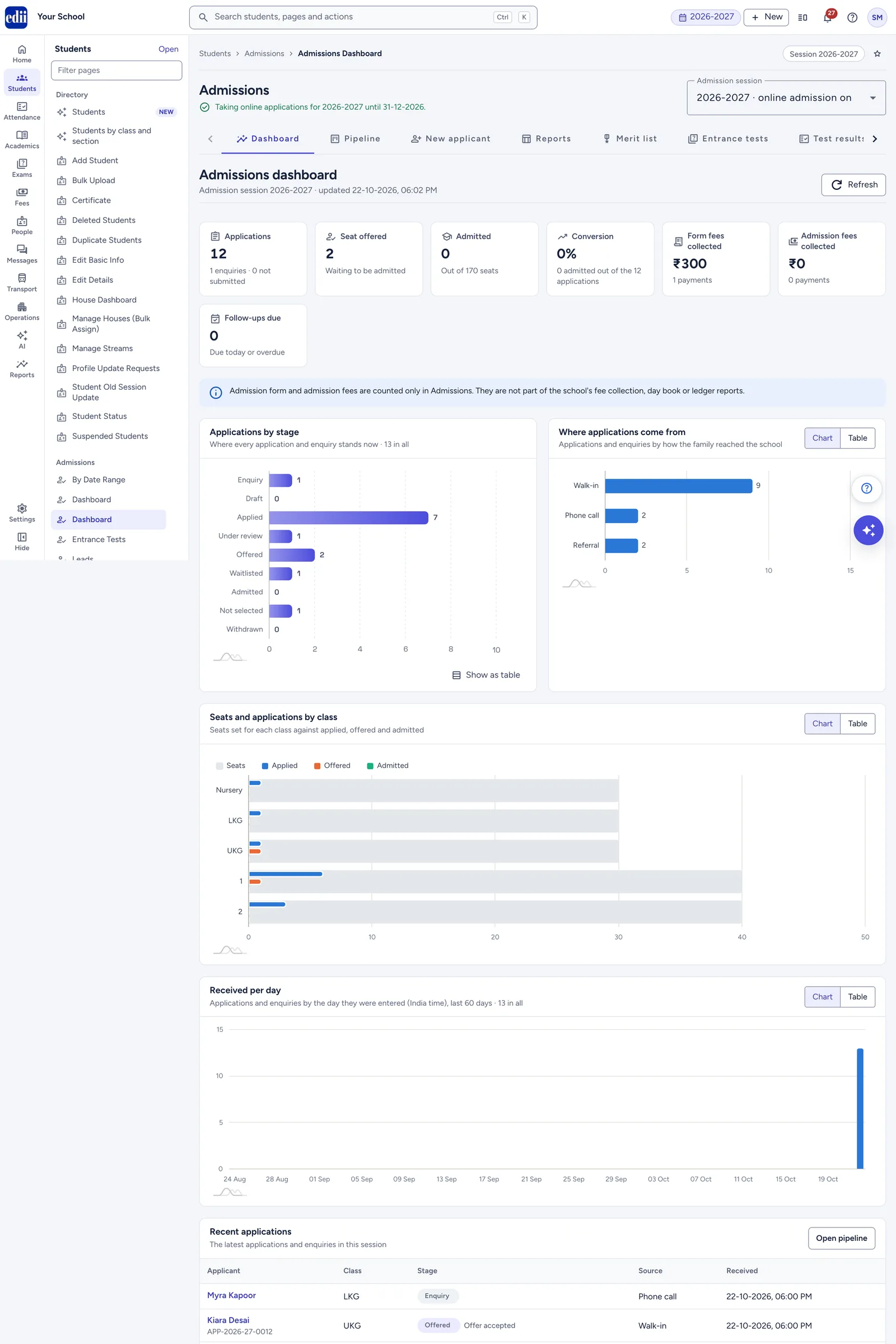
The Dashboard tells you in one look how many families have applied, how many seats you have offered and filled, how much fee you have collected, and which follow-ups are due today.
Open Admissions › Dashboard. The page is called "Admissions dashboard" and shows "Admission session 2027-2028 · updated ". Press Refresh for the latest numbers.
school.edii.in/admissions/dashboard
The Dashboard shows the whole admission session on one page.
Click a card to open the Pipeline with the matching filter. Card links work only if your role can open the Pipeline.
Card
The number
The line under it
Clicking opens
Applications
Applications at Applied, Under review, Offered, Waitlisted, Admitted, Not selected and Withdrawn. Enquiries and unsubmitted forms are not counted.
" enquiries · not submitted"
The Pipeline, filtered to those seven stages
Seat offered
Applications at Offered
"Waiting to be admitted"
The Pipeline, stage Offered
Admitted
Children admitted
"Out of seats", or "Seats are not set for any class"
The Pipeline, stage Admitted
Conversion
Admitted as a percentage of Applications, to one decimal
" admitted out of the applications"
—
Form fees collected
Total form fees paid
" payments"
—
Admission fees collected
Total admission fees paid
" payments"
—
Follow-ups due
Open follow-ups due today or already overdue
"Due today or overdue"
The Pipeline table, sorted by Next follow-up
The fee cards count paid fees only. Waived fees are not counted. The amount is the fee itself, without any online convenience charge. This money is counted only in Admissions, not in your school's fee collection, day book or ledger reports.
To read the exact numbers, use the Chart / Table switch on Where applications come from, Seats and applications by class and Received per day. Applications by stage has a Show as table button instead.
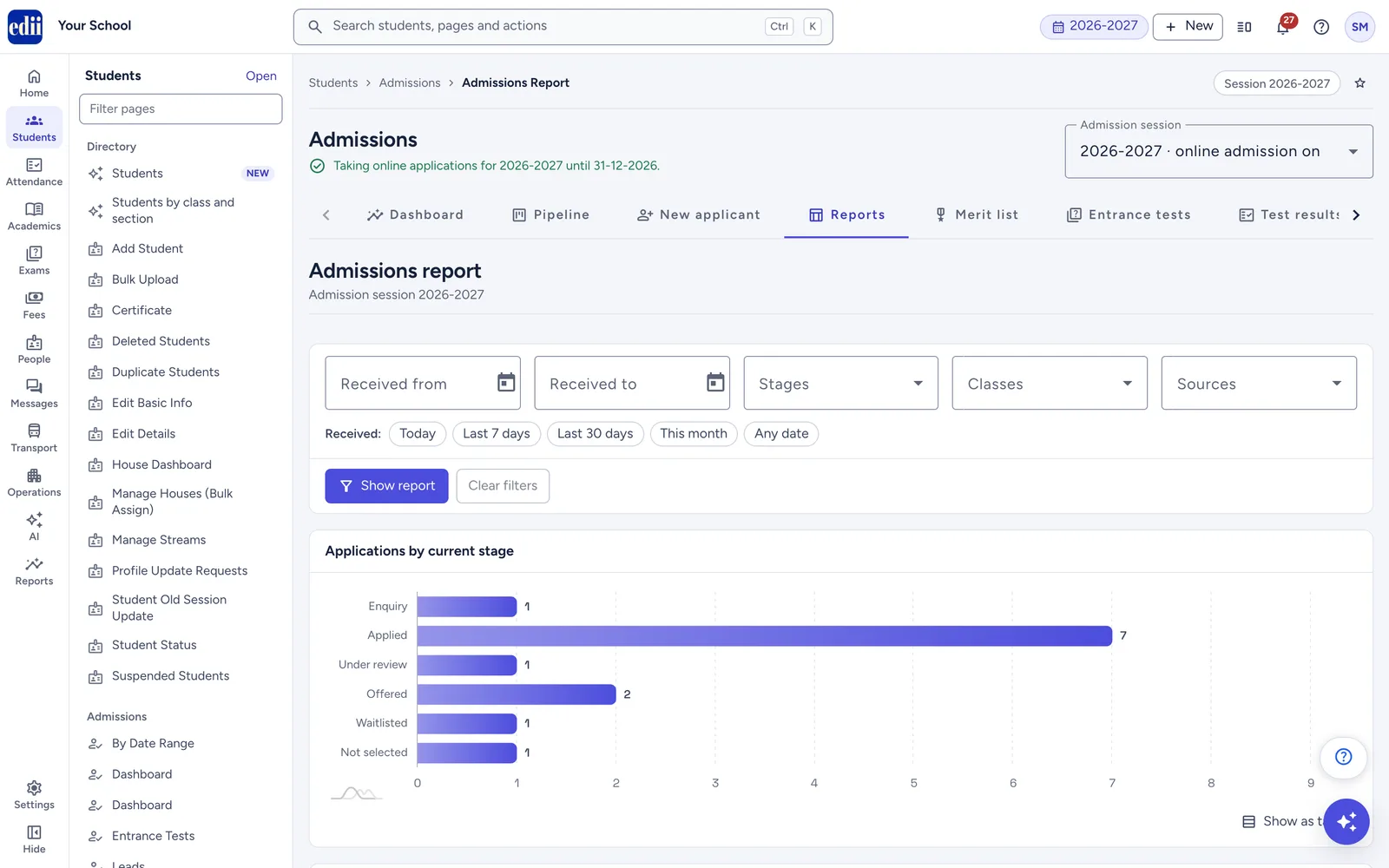
Applications by stage: where every application and enquiry stands now. Click a bar to open the Pipeline for that stage.
Where applications come from: how families reached you. You set "Walk-in", "Phone call", "Visitor", "Referral" or "Other" when you enter a family. EDII sets "Website" and "Parent app" for online applications. Switch to Table and click a source to open the Pipeline for it.
Seats and applications by class: seats against applications for each class. Switch to Table and click a class name to open the Pipeline for that class.
Received per day: applications and enquiries by the day they were entered (India time), for the last 60 days.
Recent applications: the newest applications and enquiries, with Open pipeline. Click a name to open that application.
How to read Seats and applications by class:
Column
What it counts
Seats
The seats you set for the class in Settings. 0 means no limit.
Applied
Applications for the class that were ever submitted
Offered
Seats offered, including children already admitted
Admitted
Children admitted
Seats left
Seats minus children admitted. "Over by " when you admitted more than the seats. "Not set" when the class has no seat limit.
When nothing has come in yet, the page says "No applications or enquiries for 2027-2028 yet" with buttons New applicant and Admission settings.
The Pipeline is your working list. It shows every enquiry and application of the admission session, so nothing slips through. You can see them as a board of stage columns or as a table, and act on up to 200 at once.
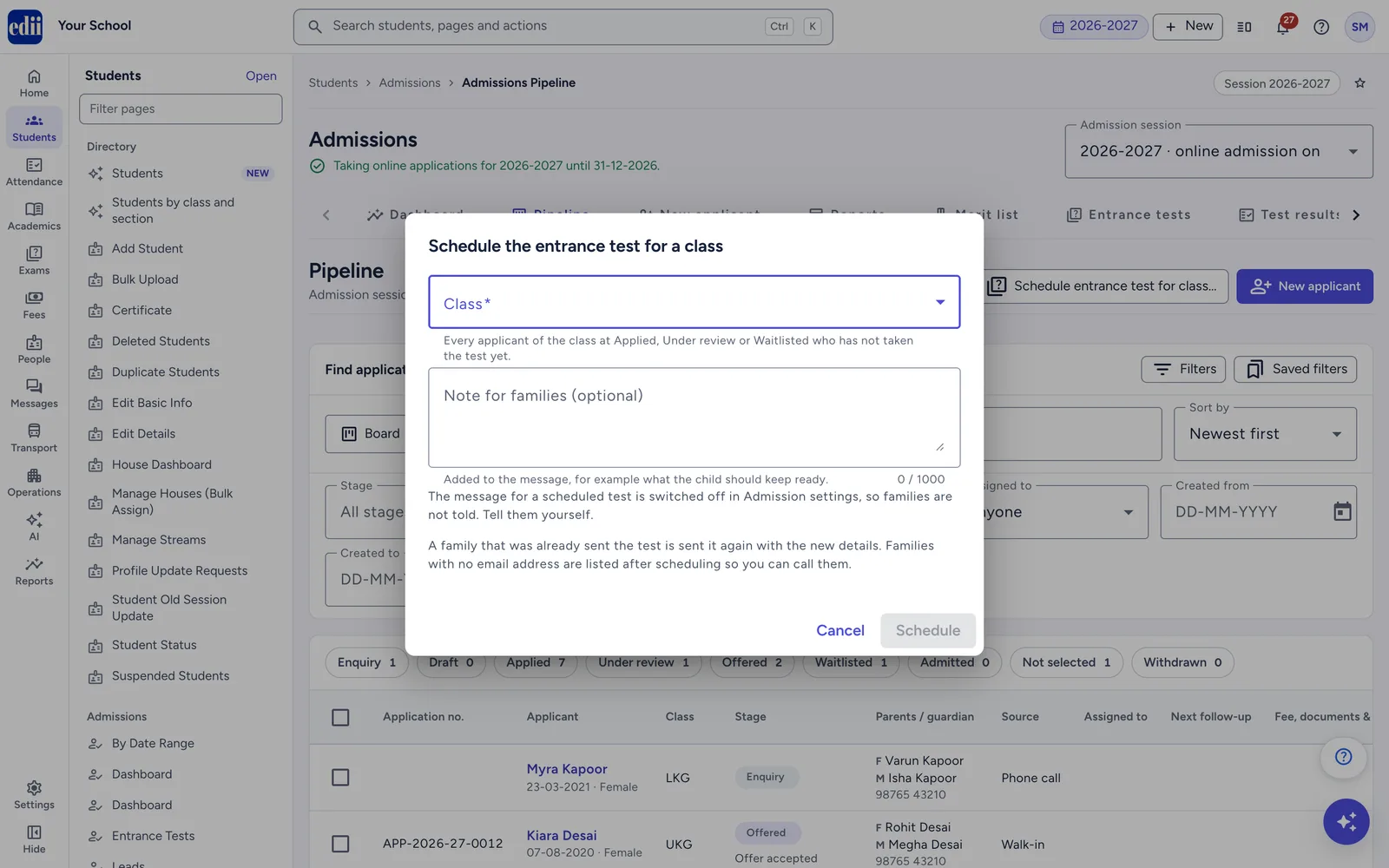
Open Admissions › Pipeline. The page head has Refresh and New applicant. While the entrance test is on, it also has Schedule entrance test for class….
Every application is in exactly one stage. The board shows one column per stage, in this order: Enquiry, Draft, Applied, Under review, Offered, Waitlisted, Admitted, Not selected and Withdrawn. What each stage means, how an application gets there, what the family sees and what you can do next are in Stages.
A second line under the stage chip, the status detail, tells you more, for example "Documents pending" or "Offer accepted". The same words appear in the report column Status detail. Every status detail is listed in Status details.
Search: type a name, a phone number or an application number ("Name, phone or application no."). It searches the child's name, the father's, mother's and guardian's names, and the application number. A phone number needs at least 4 digits. The list updates a moment after you stop typing.
Show as: Board or Table.
Sort by: "Newest first", "Oldest first", "Name (A to Z)", "Class" (in the order of your classes in Admission settings) or "Next follow-up".
Filters (the button shows how many filter groups you are using):
Stage, Class and Source: pick one or more. In table view, each class and source shows its count.
Assigned to: "Anyone", "Not assigned", or a staff member.
Created from and Created to: dates in DD-MM-YYYY.
Form fee: "Any", "Paid" or "Not paid".
Documents: "Any", "Pending" or "All verified".
Clear all removes every filter and the search.
There is no filter for the entrance test status. To find children by test status, use Test results.
The Pipeline remembers your view, filters, sort and page size in this browser. When you come back from an application, you land on the same table page.
Save a set of filters you use often:
Set the filters and sort you want.
Open Saved filters and choose Save current filters….
Type a Name (up to 40 characters) and press Save.
Your saved filters are listed under Saved filters. Click one to apply it. You can keep up to 10, in this browser only. Saving under a name you already used replaces that set. To remove one, choose Delete a saved filter.
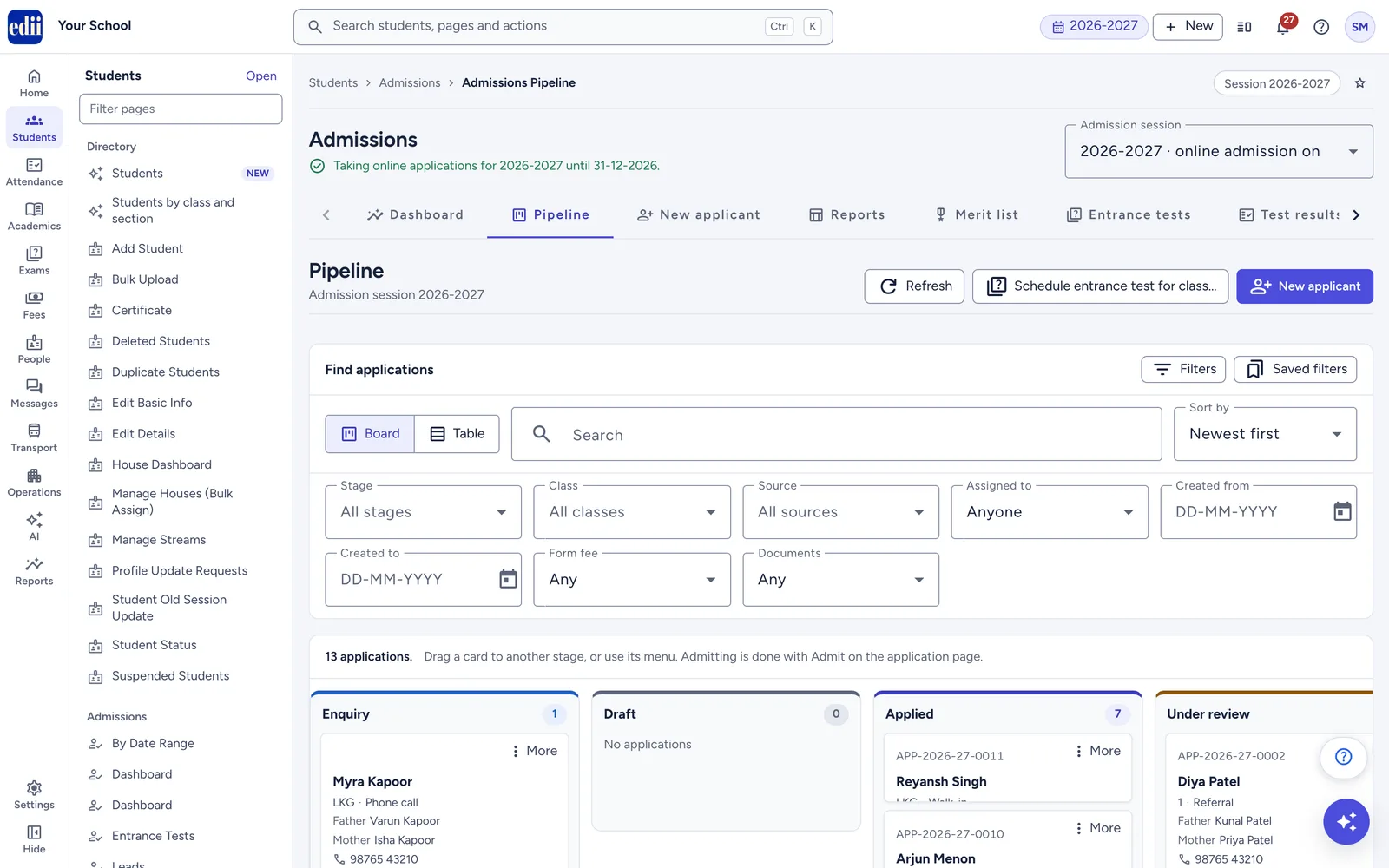
The board gives you a quick picture of the flow. Each stage is a column with its count. A column loads 25 cards at a time. Press Show more for the next 25.
school.edii.in/admissions/pipeline
The board shows one column per stage; drag a card to move it.
Each card shows:
the application number, and the tag "Earlier system" for applications brought over from the old admission register;
the priority tag ("Hot", "Warm" or "Cold");
the child's name (click it to open the application);
" · ", the parents' names and the phone number;
the status detail;
flags at the bottom: "Follow-up due" in red (or the next follow-up time), "Fee paid", "Documents pending", "Test: " while the entrance test is on, and the initials of the staff member it is assigned to.
Click a card to open the application. The More (⋮) menu on a card offers Open application, Move to for each move allowed, and, on an Offered card, Admit (on the application page).
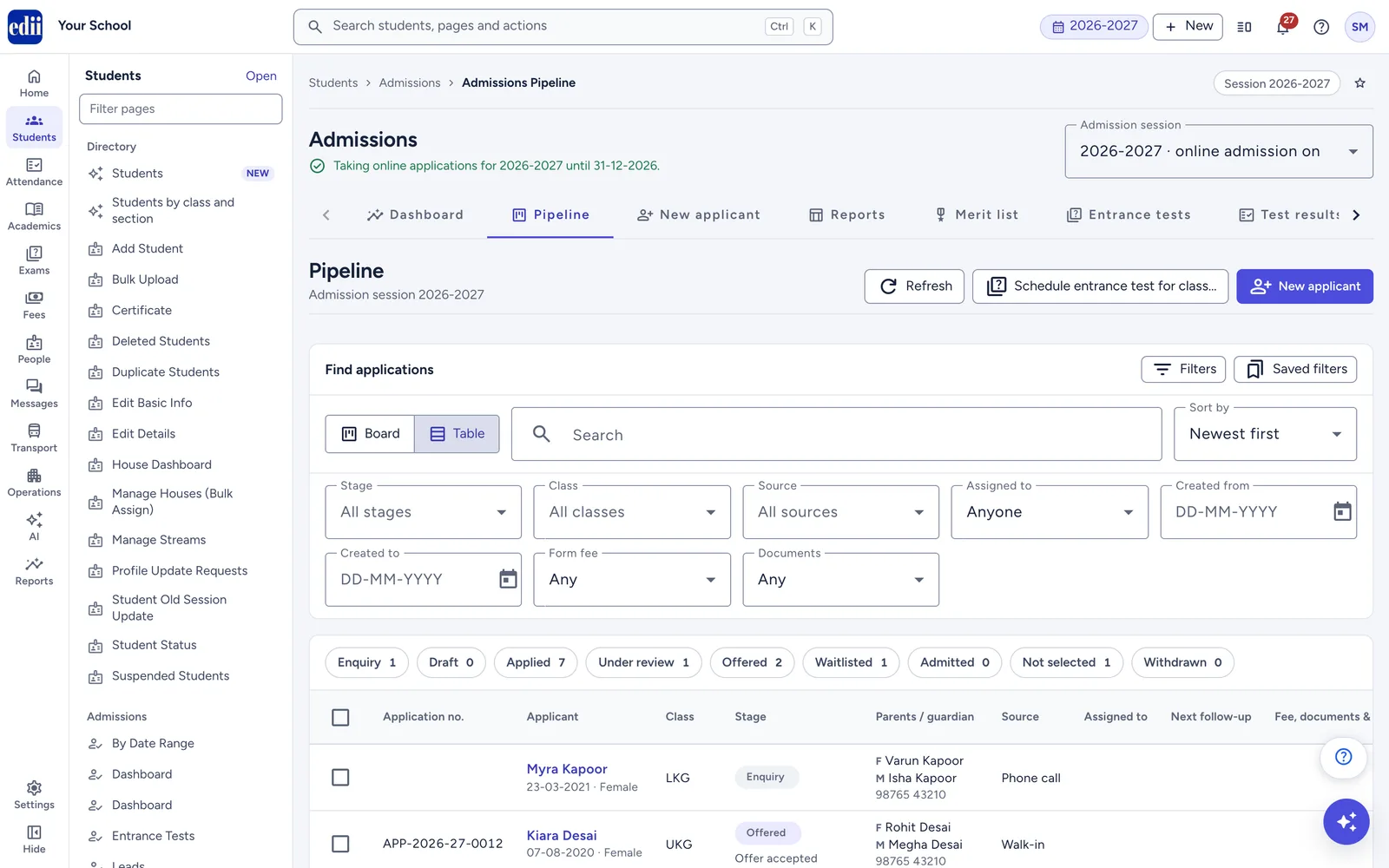
The table suits checking details and working through a long list.
A row of stage buttons sits above the table. Each shows its count. Press one to add or remove that stage from the Stage filter.
Columns: "Application no.", "Applicant" (with date of birth and gender), "Class", "Stage", "Parents / guardian", "Source", "Assigned to" (with the priority), "Next follow-up" ("(due)" in red when due), "Fee & documents" ("Fee, documents & test" while the entrance test is on) and "Created".
Click a row to open the application.
Show 25, 50, 100 or 200 rows per page (50 unless you change it).
school.edii.in/admissions/pipeline
The table view: tick rows to act on many applications at once.
Bulk actions save time when several families need the same step, such as an assignment, a stage change or a reminder.
Switch to Table.
Tick the rows you want. The tick box in the header ticks the whole page. You can tick rows on several pages, up to 200 at a time.
Choose an action in the bar: Assign, Move stage, Request documents, Send message, or Schedule entrance test (while the entrance test is on).
Check the dialog. It lists the rows that will be skipped and why, for example "Already at Offered" or "Your role cannot change applications at the Applied stage".
Press the button, for example Move 12 applications or Send to 12 families.
Read the results: " done", " skipped" and " not done", with one line per application. Press Done.
Rows that were skipped or not done stay ticked, so you can try again. Changing the filters, the search or the view clears the ticks.
Action
What you choose
Assign
Assign to (a staff member) and Priority ("Keep each application's priority", "Hot", "Warm", "Cold" or "No priority")
Move stage
Move to lists only stages at least one ticked row can move to, as " ( of can move)". A reason and an internal note, as on the board. Admitted is never listed.
Request documents
Tick the Documents to ask for and add a Message to the family (optional). Only documents set up for each application's class are asked for. Files already verified or still waiting to be checked are left alone.
Send message
Send by "Email", "Parent app notification" or "WhatsApp (stage update)", then your Message (up to 1000 characters)
When a family visits, phones or walks in, enter them straight away so they appear in the Pipeline and nobody forgets to call back. You can record a quick enquiry, or a full application with an application number.
The family is only asking, or you have few details
The family is ready to apply and you have the form details
You need
The mobile number, the class, and the child's or a parent's name
Every required field (marked *)
Application number
No
Yes, given when you save
Is the family told?
No
Yes: "Application received", on the channels switched on in Settings
Available when
Always
Walk-in applications is on in Admissions › Settings › Online admission, and your role has Admission › Create
You can turn an enquiry into an application later with Mark as applied (see Turn an enquiry into an application). If the family will apply online themselves, note that an office enquiry holding the child's name and date of birth stops them starting an online application for that child, until you withdraw it.
New applicant needs at least one class in Admissions › Settings › Classes. Until then the page says "No classes are set up for admissions in 2027-2028, so an applicant cannot be entered yet." with a link to add classes.
Open Admissions › New applicant, or press New applicant on the Pipeline.
If the child studied at your school before, use Former student of the school? (see below) to fill in the details.
Choose Class applying for.
Under Enter as, choose Enquiry or Full application.
Choose How the family reached the school: "Walk-in", "Phone call", "Visitor", "Referral" or "Other".
Fill in the form. It is your school's own application form, as set in Admissions › Settings › Application form, with the fields shown at the office. Required fields have a *.
Press Save enquiry or Save application.
If EDII finds a possible duplicate, the "This applicant may already be entered" dialog opens (see The duplicate warning).
You see "Enquiry saved for ." or "Application saved for ." The new application opens, ready for documents and fees.
school.edii.in/admissions/new
New applicant records a walk-in family as an enquiry or a full application.
When you choose the class, chips show its status ("Taking applications", "Notify-me only" or "Closed"), the seats, the "Form fee ₹", the "Admission fee ₹" and its age rule.
These warnings do not stop you saving:
" is not taking applications in Admission settings." when you enter a full application for a class that is not taking applications.
"Outside the age rule for : children born between … can apply. You can still save it." when the date of birth is outside the class's age rule.
Clear empties the form. If you have typed anything, it asks "Clear the form?" first.
If saving does not work:
You see
What to do
"Choose the class the child is applying for."
Pick a class in Class applying for.
"Please fix field(s) before saving."
Correct the fields marked in red. The rules are in Form field rules.
" is needed for an enquiry"
Enter the family's mobile number.
"Enter the child's or a parent's name for an enquiry"
Enter the child's first name or a parent's name.
"Enter the father's, mother's or guardian's name"
A full application needs at least one of these names.
"This applicant was already being saved. Find them in the pipeline in a moment."
Do not save again. Open the Pipeline and search for the child.
The child's first name, date of birth, gender and the contact mobile are always required for a full application, as is one parent's or the guardian's name.
If the child studied at your school before, you can copy the details from the old student record. Your role needs Student › View.
In Former student of the school?, choose Search by: "Aadhaar number", "Enrollment number", "Student ID", "Samagra ID" or "PEN".
Type the number and press Find.
The "Former student found" dialog shows the old record: the last class and session, the parents' names, date of birth and other details. It may show the tag "Transfer certificate issued".
It lists which fields of your form will be filled. It may also say "The application will be for , the class after the last one recorded."
Press Fill the form. You see "The form is filled from the former student's record. Check it before saving."
"The student's old record is not changed." Anything already typed in those fields is replaced, so check the form before you save.
EDII checks for the same child before saving, so one child does not end up with two applications.
EDII warns you when an application in the same admission session has:
the same child's Aadhaar number; or
the same child's name and date of birth; or
the same first name and date of birth; or
the same child's name together with a shared phone number or the same parent's name.
Withdrawn applications are not checked. Up to 10 matches are shown, closest first.
What to do:
Read each match: name, stage, application number, class, date of birth, parents, phone, and when and how it was entered.
Press Open to look at a match in a new tab.
Then choose one path:
Same child? Press Go back and check and work on the existing application.
Different child? Pick a quick reason ("Twin or sibling with similar details", "A different child of the same family" or "Applying again for another class"), or type one in Reason for saving another application. Then press Save as a new application.
Your reason is kept in the application's timeline for staff.
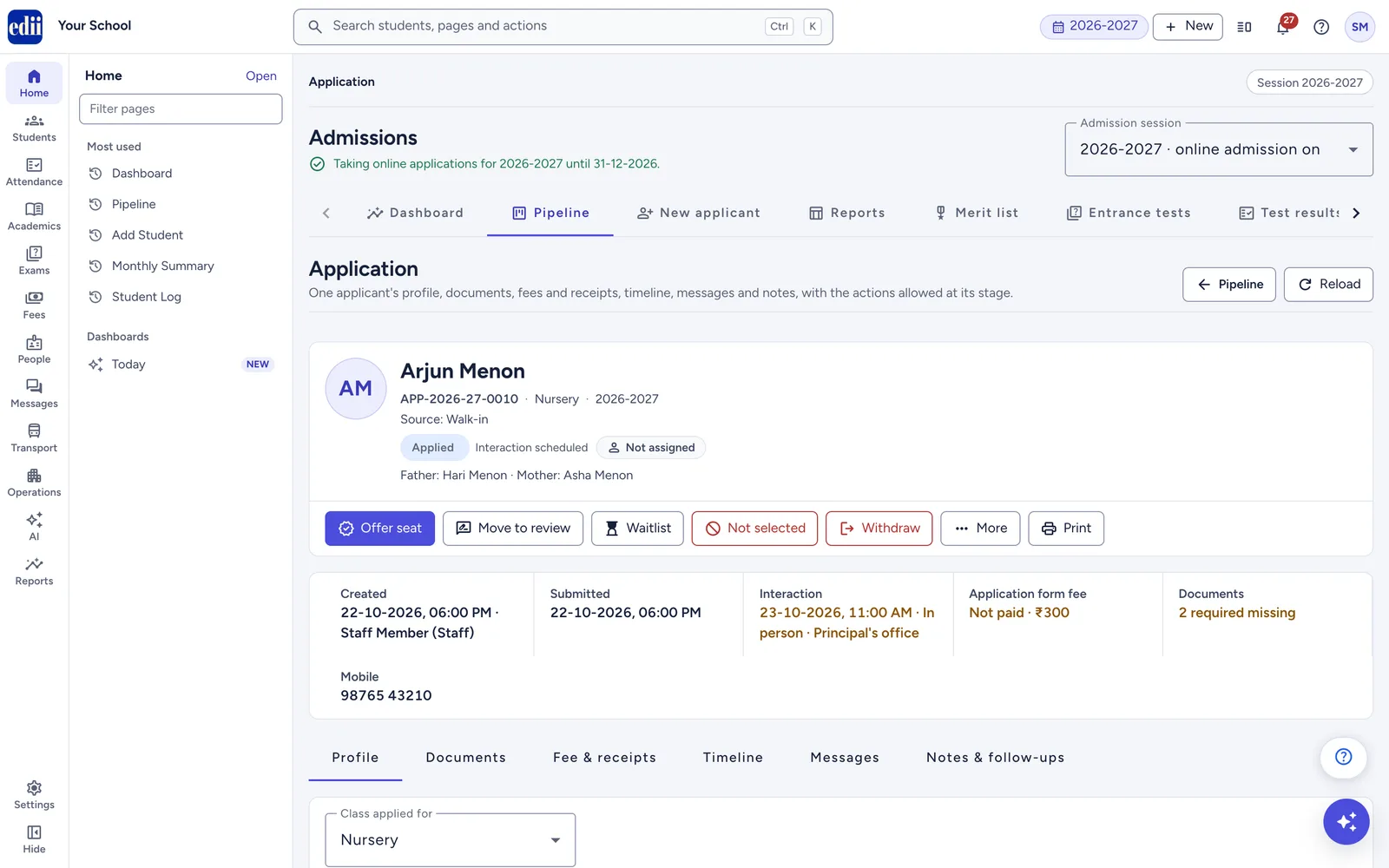
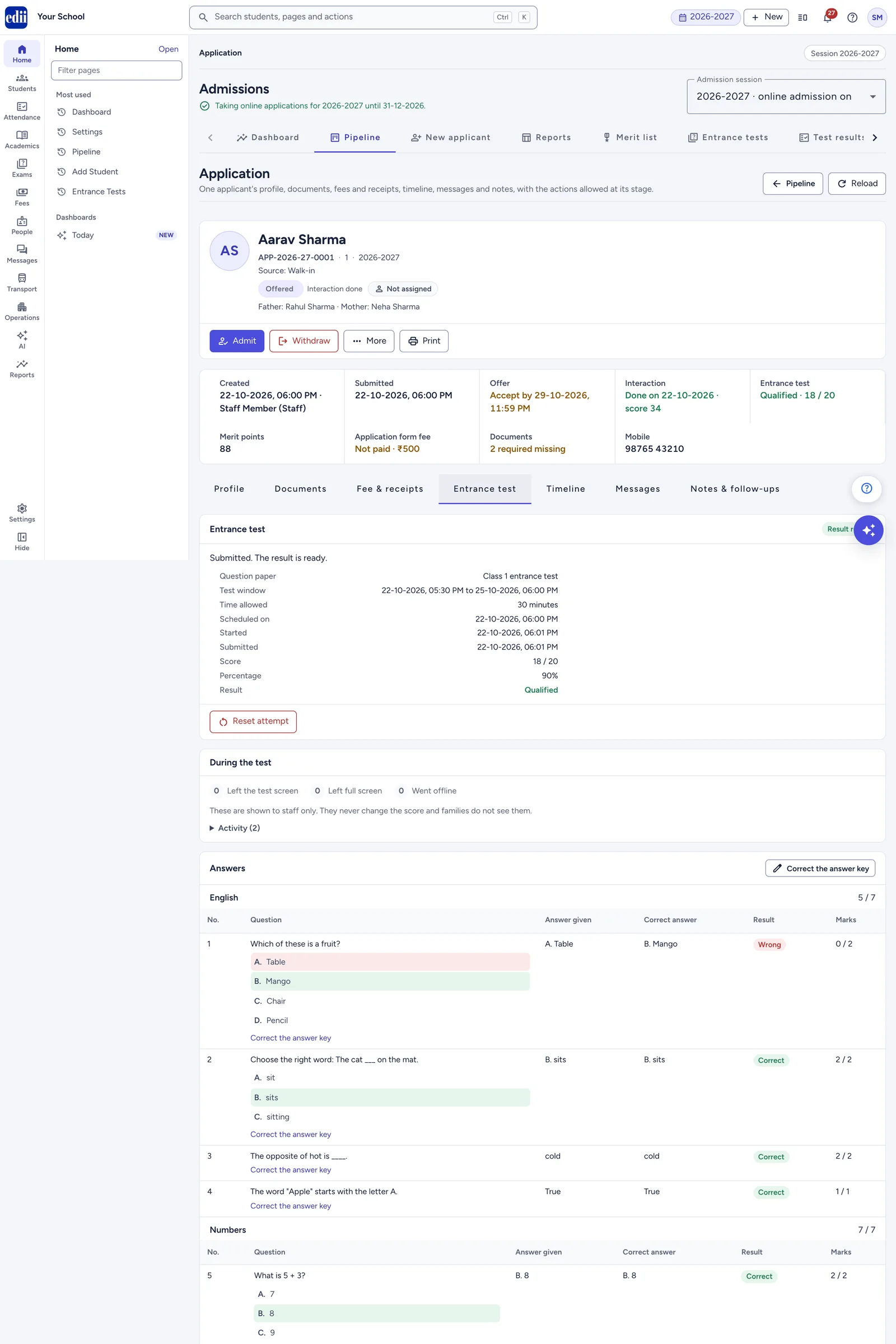
The application page holds everything about one child: the form, documents, fees, interactions, messages, notes and the full history. Every action allowed at the current stage is on this one page.
Open an application from a Pipeline card or row, from Recent applications on the Dashboard, or by searching in the Pipeline. The page head has Pipeline (back to the list) and Reload.
school.edii.in/admissions/application
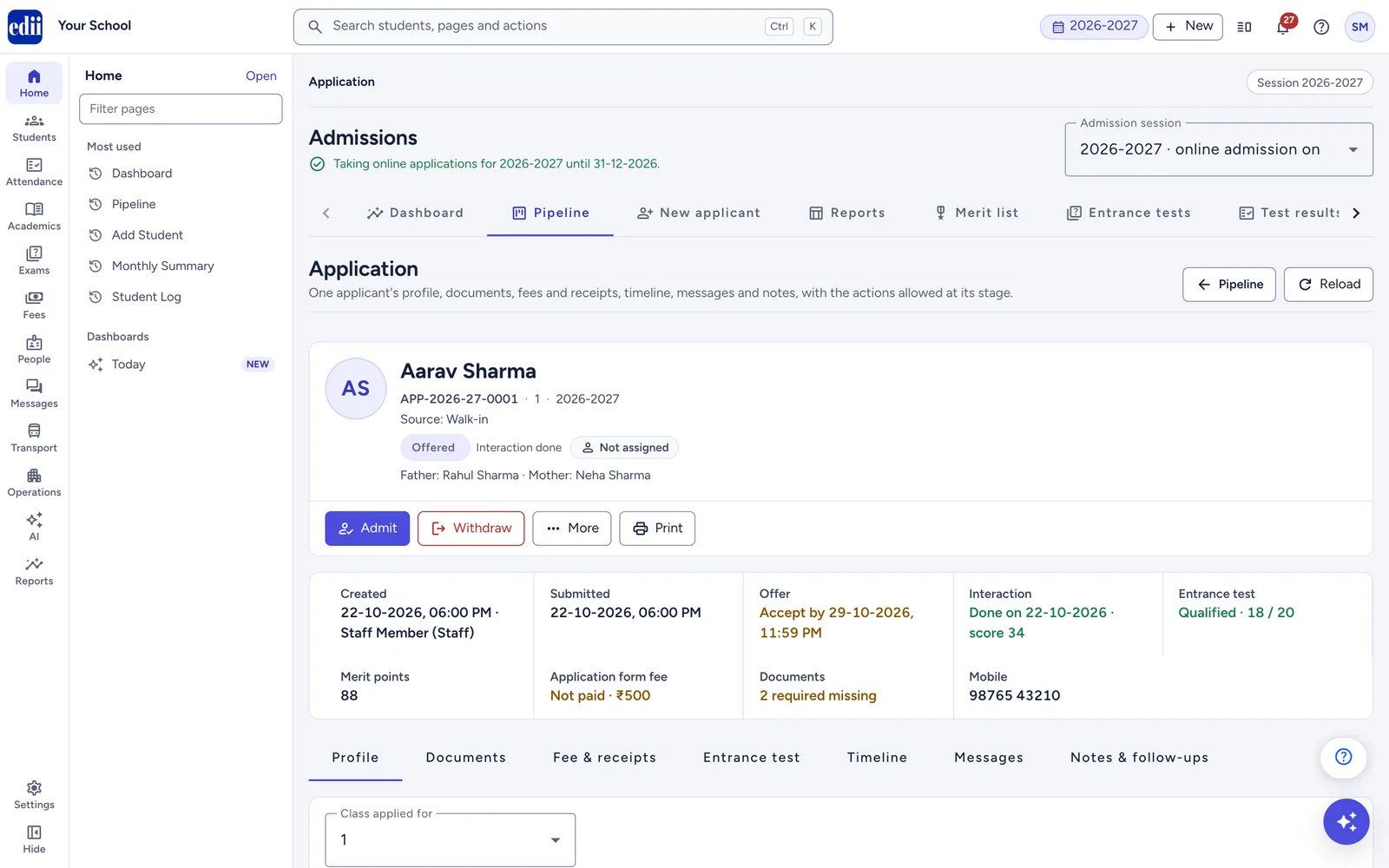
The application page with its action bar, key facts and tabs.
The action bar shows only the steps allowed for this application at its stage, and only if your role can change it. The buttons wait while a change is being saved.
Moves it to Under review at once. No dialog, no message.
Offer seat
Applied, Under review, Waitlisted
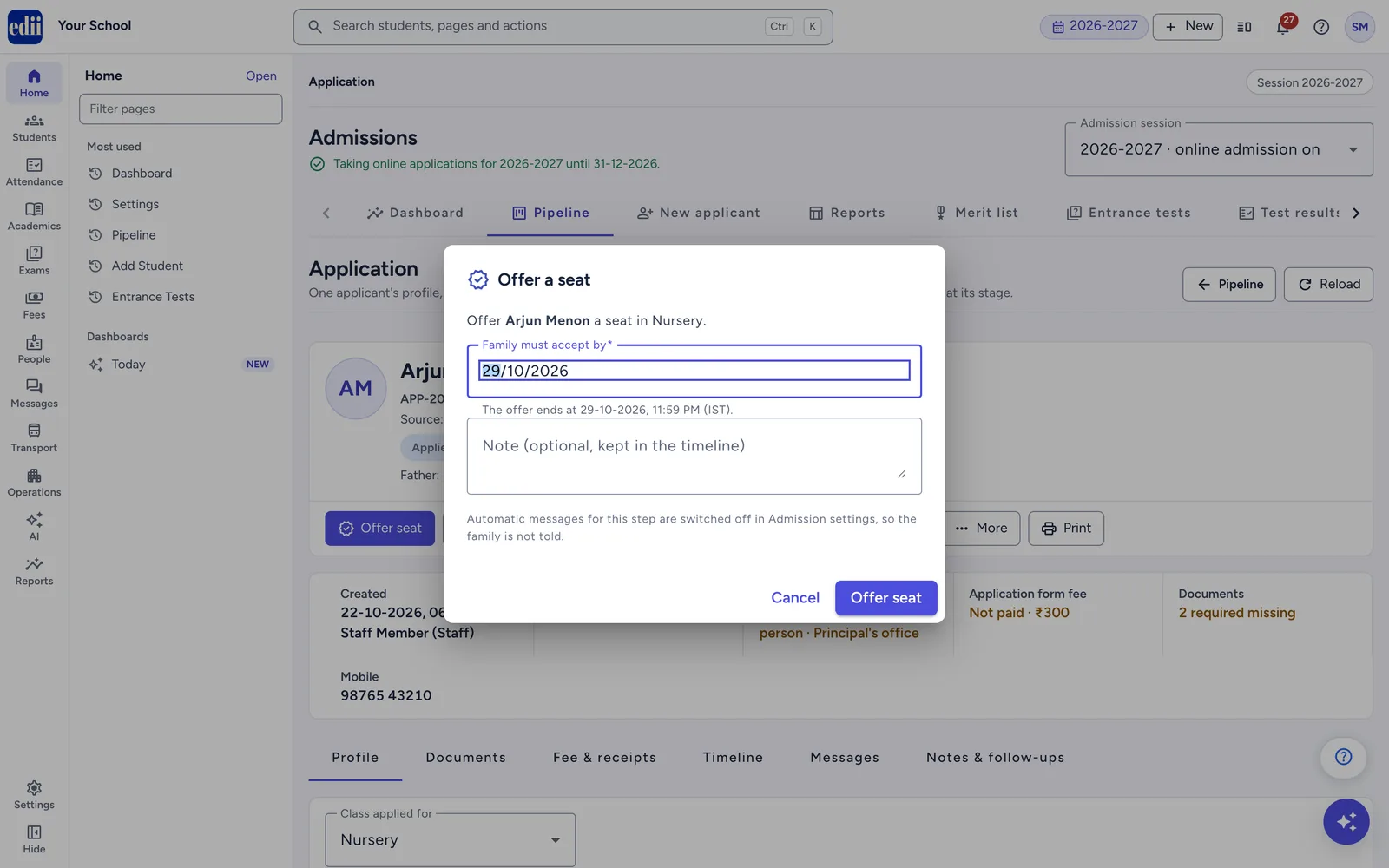
Offers a seat with an accept-by date
Waitlist
Applied, Under review
Puts the child on the waitlist
Not selected
Applied, Under review, Waitlisted
Closes the application with a reason
Withdraw
Enquiry, Applied, Under review, Waitlisted, Offered
Stops the application with a reason
Re-open
Not selected, Withdrawn
Brings it back to Under review
Admit
Offered
Opens the Admit wizard. Shown only if your role can admit.
If you could admit but your role lacks Student › Create, you see: "Admitting needs Student create permission as well. Ask your school administrator, or someone with that permission, to admit this applicant."
The More menu (not shown once admitted):
Item
Shown when
Schedule interview (or test, or interaction)
Admissions › Settings › Selection has the interview, test or interaction on, at Applied, Under review or Waitlisted
Record result and merit points, or Record interview result
The interview or the merit list is on, at Applied, Under review, Offered or Waitlisted
Record fee payment
A fee is still to be recorded, from Draft to Waitlisted
Request documents
The class has documents set up, from Draft to Waitlisted
Schedule entrance test, Exempt from test
When the online entrance test allows it
Assign / set priority, Log follow-up, Send message
Always
The word "interview" follows what you chose in Admissions › Settings › Selection › Call it: "Interview", "Test" or "Interaction".
The Print menu: Application form (A4), Entrance test hall ticket (A4) (while the test is scheduled or running) and Receipt: for each paid fee. See Print from the application.
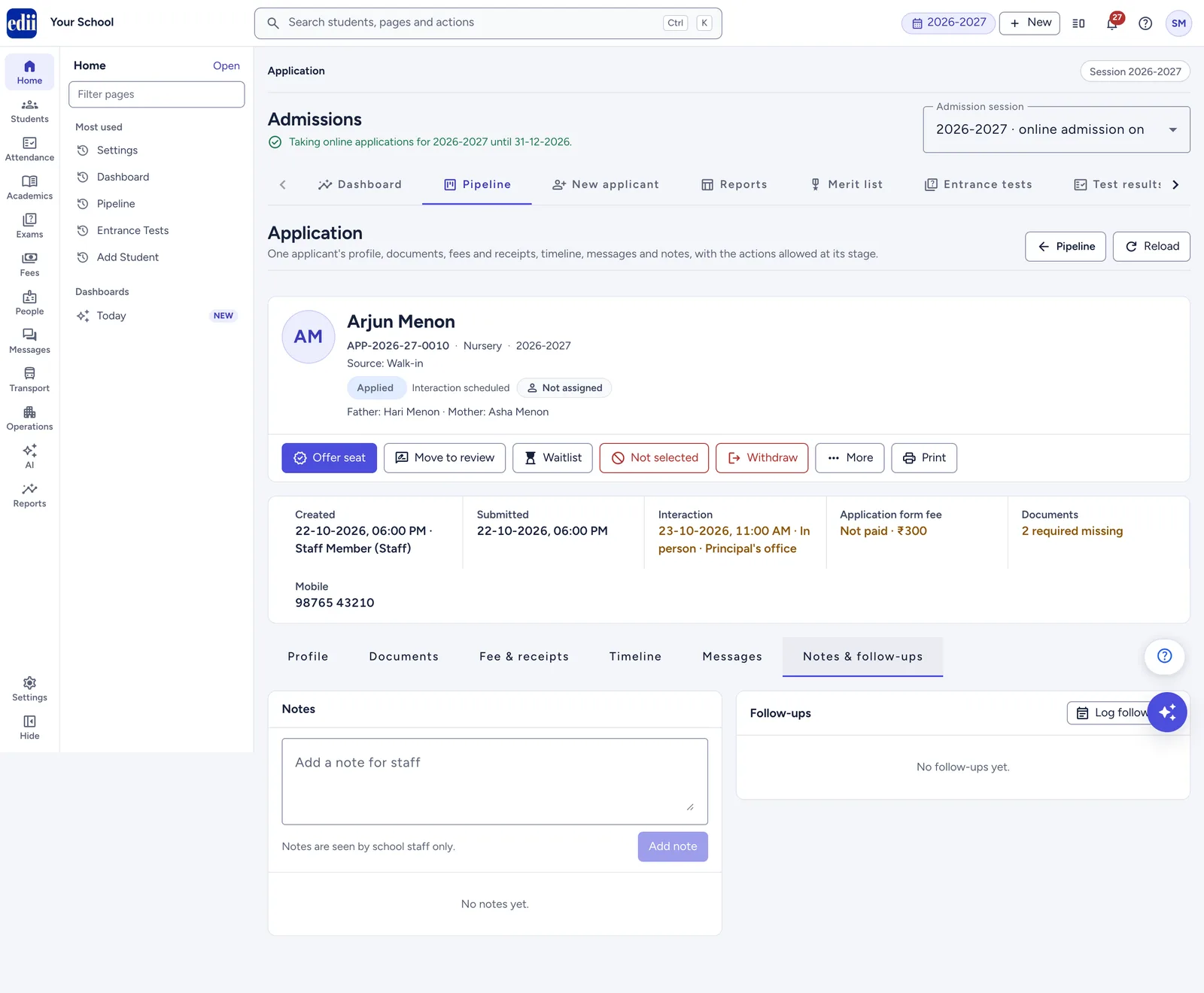
Staff notes and follow-ups. The badge counts open follow-ups. See Follow up and assign.
The Timeline is the full history of the application, newest first. It records stage changes ("Stage: Applied → Under review"), documents, fees, messages, assignments, follow-ups, interactions, merit points and the admission. Each entry shows the time, who did it, and any reason or note. Entries marked "Staff only" are never shown to the family. Reasons for Not selected and Withdrawn are never shown to the family either.
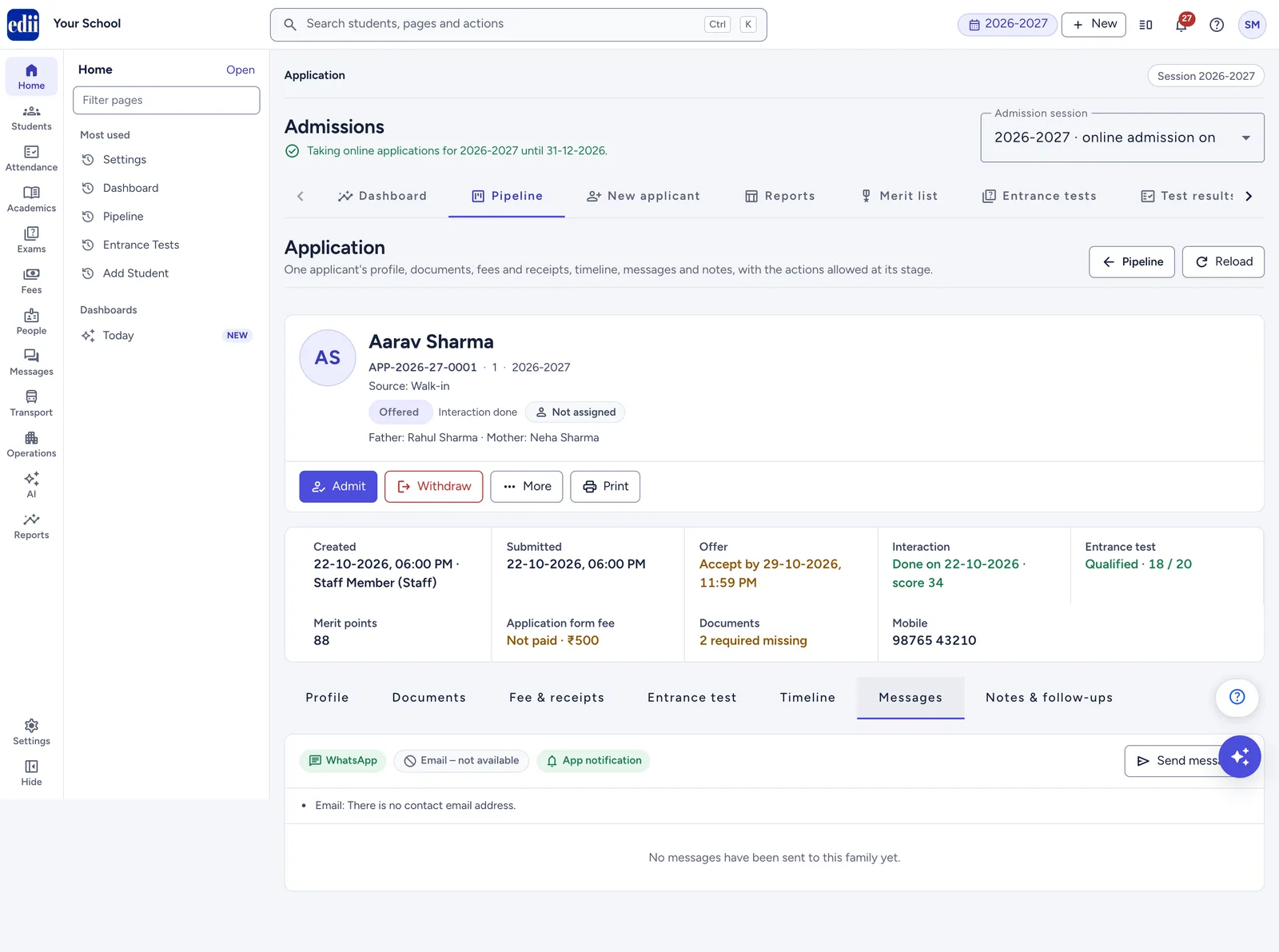
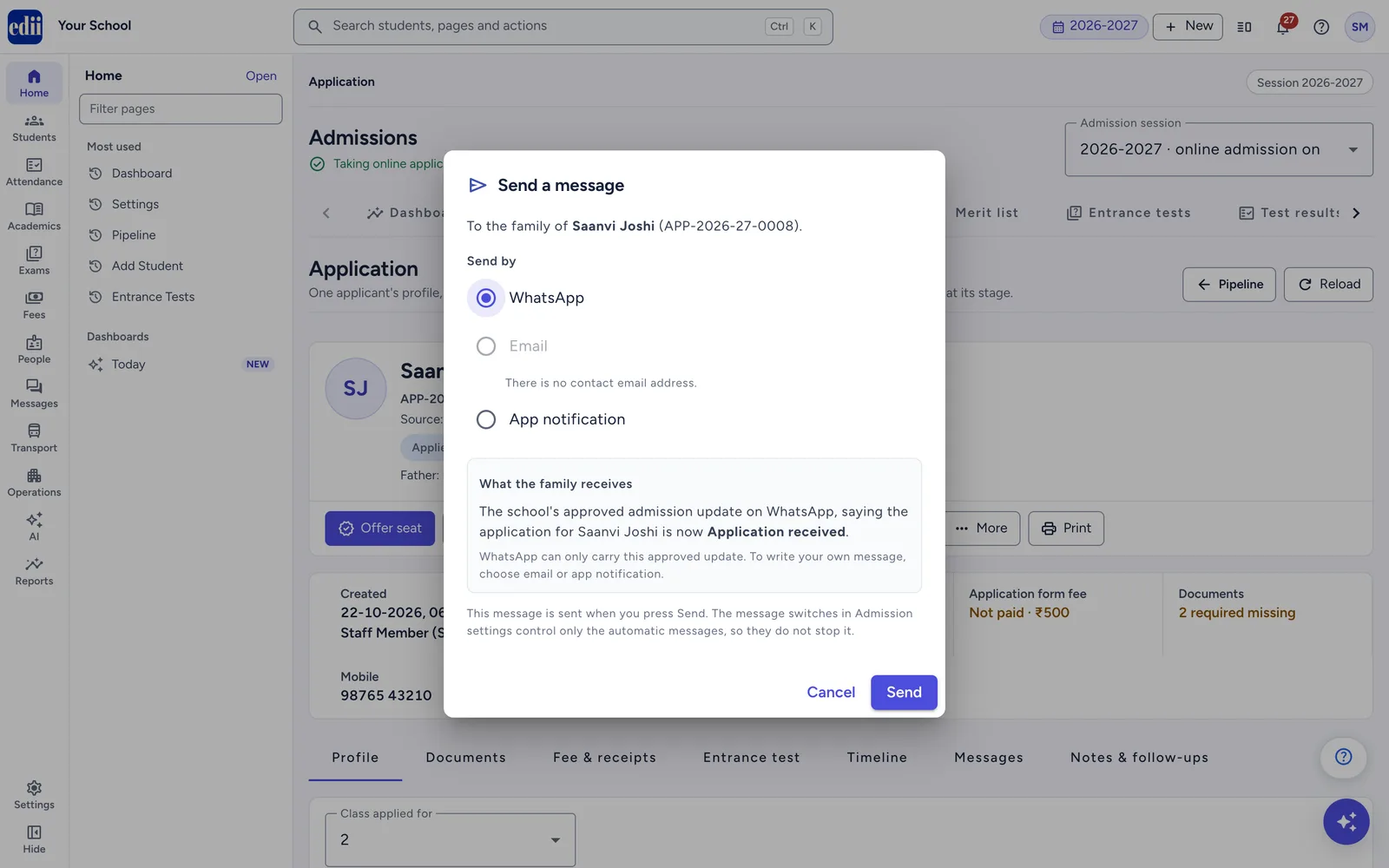
Many steps send the family a message on their own. Each one goes only on the channels switched on for it in Admissions › Settings › Messages & staff. WhatsApp goes only when WhatsApp is on for your school. Email goes only when the family gave an email address. An app notification reaches families who use the EDII app. Every dialog tells you who will be told before you confirm.
The Profile tab shows your school's form as the office sees it. You can correct any detail until the child is admitted.
Open the Profile tab.
Change the details.
Press Save changes. You see "Details saved".
Discard changes puts the form back as it was. If anything is wrong, you see "Please correct the highlighted details." and the fields are marked.
Class applied for changes the class. After a change you see "Fees and documents follow the new class after you save." A fee already paid does not change.
Mobile number for updates can be corrected here, but read the note below first.
An enquiry or an unsubmitted form can be saved before it is complete: "This is an enquiry, so details can be saved before they are complete."
From Applied onwards, every required field must stay filled.
After admission, the Profile is read only. Aadhaar numbers are shown masked, as "XXXX-XXXX-9012".
At Offered, a note lists answers the student record has no place for: "These details stay on the application when the student is admitted (the student record has no place for them): ."
Checking documents online saves the family a trip and keeps every file with the application. You can verify a file, refuse it with a reason, ask the family for it again, or upload a paper copy yourself.
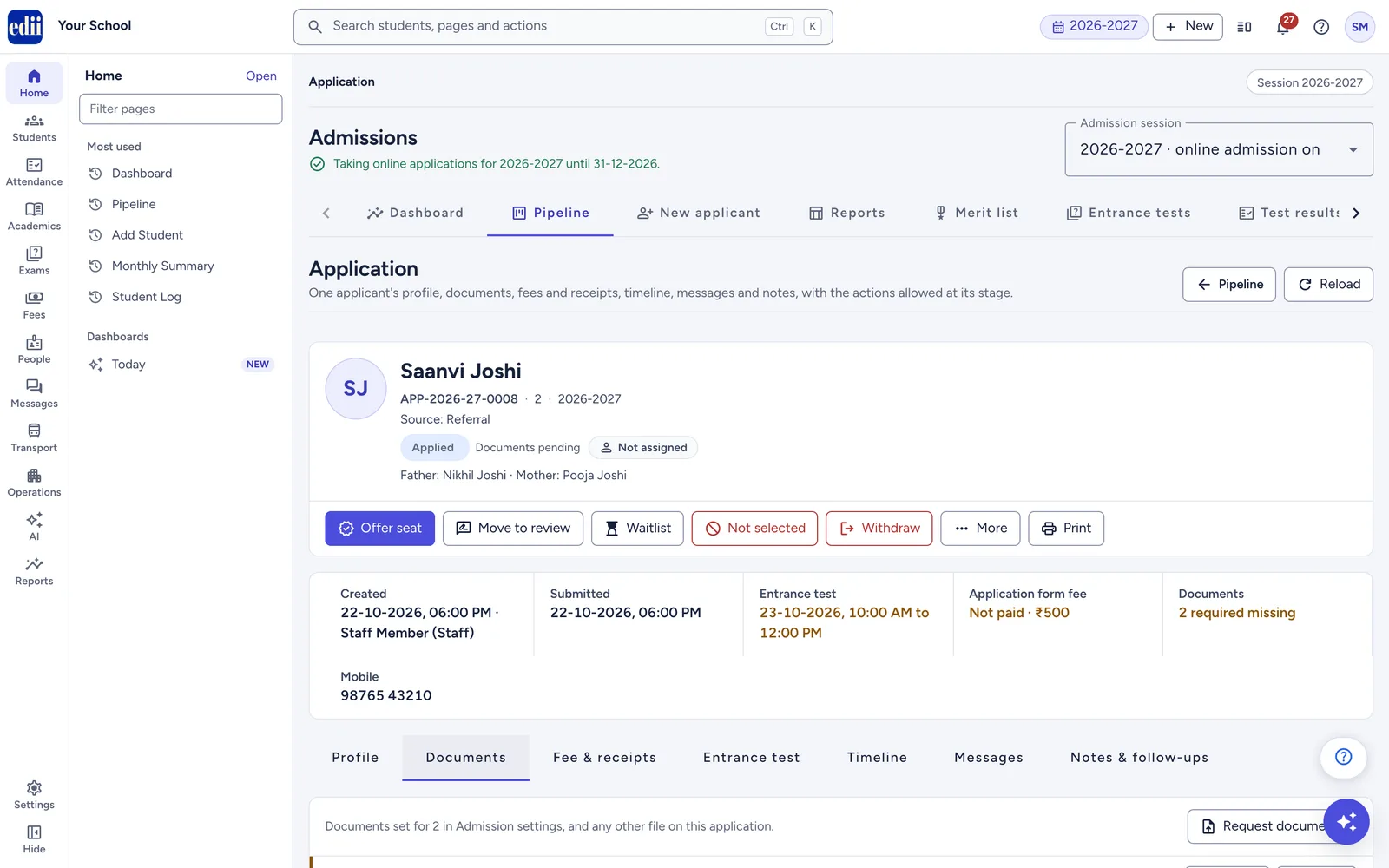
Open the Documents tab. It lists every document set for the class in Admissions › Settings › Classes, plus any other file on the application. The tab badge counts files waiting to be checked.
school.edii.in/admissions/application
The Documents tab shows each document's status and the buttons to check it.
Each document shows:
its name, and "Required" when the class needs it;
its status: "Not uploaded", "Requested from family", "Waiting to be checked", "Verified" or "Not accepted", plus "Asked to upload again" when you asked again;
the file rule, for example "JPG, PNG, PDF · up to 5 MB";
the file link (its name or View file), with size, upload time and who uploaded it;
"Verified by on " or "Not accepted: ";
Earlier files that were replaced or not accepted.
File links expire after a few minutes for privacy. Clicking an old link renews it.
Verify a document:
Click the file link and check the file.
Press Verify. You see " verified".
When every uploaded file is verified, every Required document has a verified file, and nothing you asked for is missing, the status detail changes to "Documents verified". Marking a file not accepted takes "Documents verified" away again.
Refuse a document and ask again:
Press Do not accept.
In What is wrong with it, pick a quick reason or type your own (up to 300 characters). Quick reasons: "Not clear or unreadable", "Wrong document", "Name or details do not match", "Cut off or incomplete", "Expired".
Press Do not accept. You see " marked as not accepted".
EDII asks "Ask the family to upload it again?". Press Ask again to send your note to the family, or Not now.
After Ask again, you see "The family has been asked to upload again".
The family sees the file as not accepted, with your remark. Marking a file not accepted sends no message on its own. Ask again sends "Documents requested".
Ask the family for documents:
Press Request documents on the Documents tab or in More. On one document, Ask family does the same with that document ticked.
Tick the documents to ask for. Required documents that are missing or not accepted are ticked for you. Verified documents are not listed.
Add a Message to the family (optional), for example "the birth certificate photo is not clear" (up to 300 characters).
Press Request documents. You see "Documents requested".
The status detail becomes "Documents pending", unless it shows "Offer accepted" or "Correction requested", which stay. It clears when the family uploads the last document you asked for. If you are in Staff to notify, you get "Documents uploaded" when a family uploads a document after submitting.
Upload a document for the family:
If the family hands in a paper copy or sends it to you, upload it yourself.
Press Upload (or Replace) on the document.
Choose the file. It must match the class rule, for example " must be at most 5 MB".
You see " uploaded". Then check it and press Verify.
The child's photo is turned into a JPG for you. Replacing a verified file asks "Replace the verified file?" first, because the new file must be checked again.
What the family sees:
You see
On admission.edii.in
In the EDII app
Requested from family
"The school asked for this"
"The school asked for this"
Asked to upload again
"The school asked for this again"
"The school asked for this again"
Not accepted
"Not accepted", with "School's note: "
"Not accepted by the school", with your remark
Waiting to be checked
"Uploaded, waiting for the school to check"
"Uploaded"
Verified
"Checked by the school"
"Checked by the school"
After submitting, a family can upload only the documents you asked for, and only until you verify them. Once you verify a document, the family can no longer replace it.
Buttons on the Documents tab work at every stage except Admitted. Ask family and Request documents work from Draft to Waitlisted.
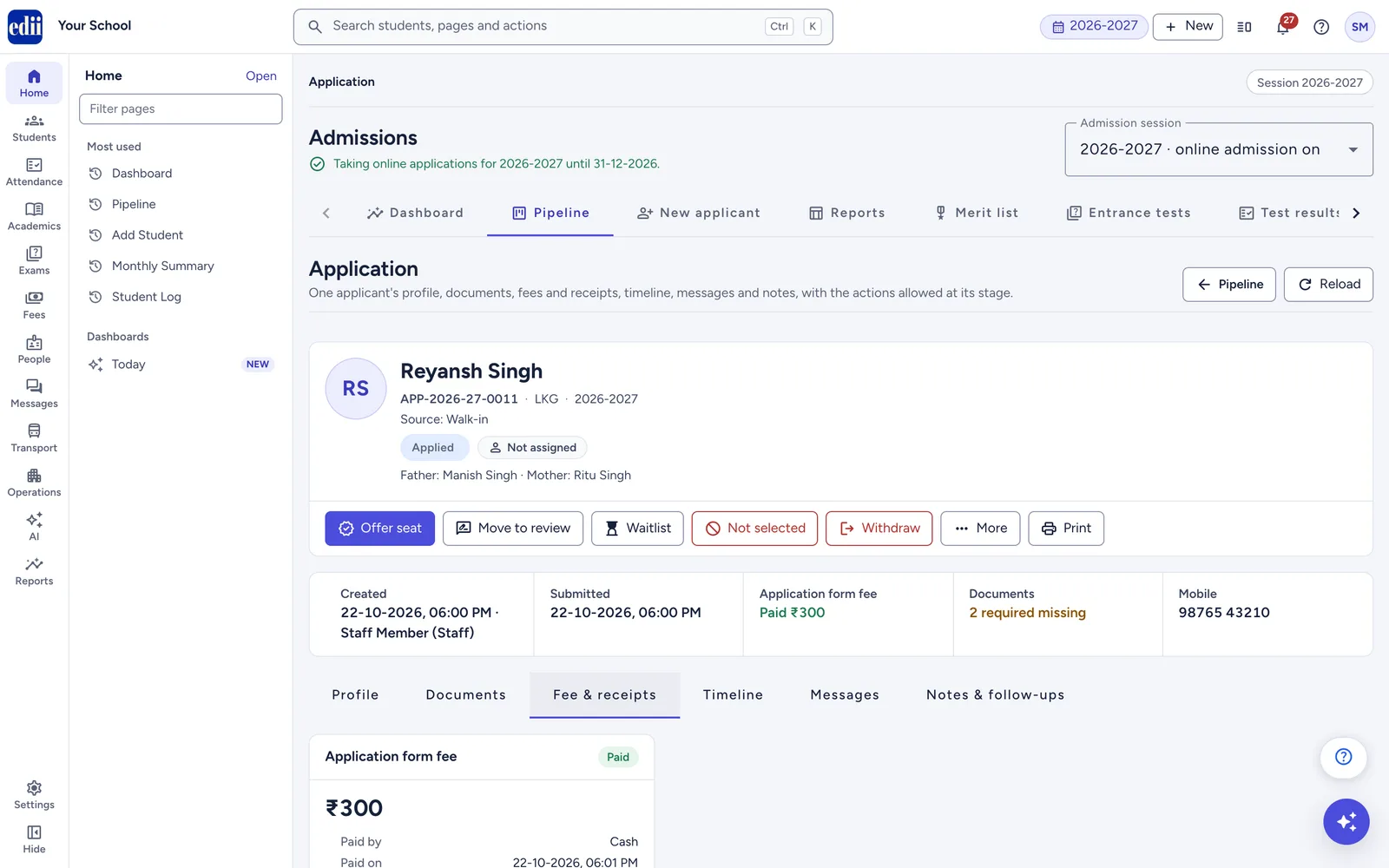
The Fee & receipts tab shows what the family owes and what they paid, with receipts you can print at any time.
school.edii.in/admissions/application
The Fee & receipts tab shows what is due and what is paid. Record a payment made at the counter from here.
What the tab shows:
An Application form fee card, always.
An Admission fee card, when Admissions › Settings › Fees & numbers › Collect the admission fee in Admissions after a seat is offered is on. Otherwise: "The admission fee is not collected in Admissions for this session. After admission it is charged through the school's regular fees."
On each card: a badge ("Paid", "Not paid", "Waived" or "No fee set"), the amount, and rows such as "Needed to submit", "Paid by" (Online, Cash, UPI, Cheque, Waived, "Paid in the earlier admission system"), "Paid on", "Receipt no.", "Payment reference" and "Convenience charge".
Buttons Record payment and Print receipt.
"Admission payments appear in the Admissions dashboard and report. They are not part of the school's fee collection reports."
When families pay online:
If your school takes payments online, families can pay on the admission website or in the EDII app:
the form fee, before they submit, when Form fee must be paid before submitting is on;
the admission fee, after they accept the seat, when you collect the admission fee in Admissions.
An online payment shows on the card with "Paid by Online", a receipt number and the payment reference. The family gets "Fee received" with the amount and receipt number. If you are in Staff to notify, you get "Admission payment received". Online payments are recorded as soon as the family's screen confirms them; a check every 30 minutes records any payment the screen missed.
Record a payment made at the school:
Press Record payment on the fee card, or choose Record fee payment in More.
Choose the Fee: "Application form fee" or "Admission fee". Only fees still to record are listed.
Under How it was paid, choose Cash, UPI, Cheque or Waive the fee.
Check Amount received (₹). It is filled with what is owed.
Fill in the reference:
Cash: Reference (optional).
UPI: UPI transaction ID (required).
Cheque: Cheque number and bank (required).
Press the button, for example Record ₹500 (Cash).
You see "Payment recorded · receipt ". If printing is on, EDII asks "Print the receipt?". Press Print receipt or Not now.
You can record fees from Draft to Waitlisted. If the family has finished a draft form and agreed to the consent, recording or waiving the form fee submits it for them.
"A receipt number is issued when you save. This payment shows in the admission reports, not in the school's fee collection." The family gets "Fee received" by email and app notification.
Waive a fee:
In Record fee payment, choose Waive the fee.
Type the Reason for waiving (required).
Press Waive fee.
A waived fee gets no receipt number, and the family gets no message. The card shows "Waived".
Press Record payment. The box says "Balance to record: ₹ (₹ due, ₹ paid online)".
Record at least the balance in cash, UPI or cheque.
The fee is then paid, and the receipt shows both payments.
Other payment notices:
Paid twice online: "Paid twice online — refund ₹ (Razorpay payment , ) from the Razorpay dashboard." The second payment is not counted. Refund it to the family.
Payment after withdrawal: if a payment arrives after the application was withdrawn, staff in Staff to notify are told. Contact the family to refund it, or re-open the application.
Print a receipt:
Press Print receipt on a paid fee, or choose Print › Receipt: . You can reprint at any time. The receipt is one A4 page with a "Parent copy" and a "School copy". It shows the receipt number, date, application number, class, child, parent, payment mode and reference, and the amount in words, for example "Rupees One Thousand Two Hundred Fifty and Fifty Paise Only".
A scheduled meeting tells the family exactly when and where to come. Recording the result keeps your decision and merit points with the application.
Your school must switch this on in Admissions › Settings › Selection. What it is called ("Interview", "Test" or "Interaction") also comes from there. This is separate from the online entrance test.
school.edii.in/admissions/application
Schedule an interview and the family is told the date, time and place.
Schedule it (at Applied, Under review or Waitlisted):
Choose More › Schedule interview.
Set Date and time. It must be in the future and within a year. The hint shows it in IST.
Choose How: "In person", "Online" or "Phone".
Fill Venue (optional), or Meeting link (optional) for an online meeting.
Add a Note for the family (optional) (up to 500 characters).
Press Schedule. You see "Scheduled".
The family gets "Interaction scheduled" with the date, time, mode, venue and your note. On the tracking page they see the card "Interaction with the school". The status detail becomes "Interaction scheduled", unless it shows "Documents pending" or "Correction requested", which stay.
Record the result (at Applied, Under review, Offered or Waitlisted):
Choose More › Record interview result. When the merit list is on, it is Record result and merit points.
Enter a Score (optional) of 0 or more.
Enter Merit points for each criterion, "
Check the Total merit points.
Add Remarks (optional).
Press Save result. You see "Result saved".
You need a score, a remark or at least one merit point. "Results and merit points are for staff. Families see their merit list position only after you publish the merit list." No message goes to the family. The status detail becomes "Interaction done", unless it shows "Documents pending", "Offer accepted" or "Correction requested", which stay.
If the class's merit list is published, points cannot be changed: "Unpublish the merit list for class before changing points". See The Merit list page.
Assigning an application and logging follow-ups make sure every family gets a call back, and that the right person makes it.
school.edii.in/admissions/application
Notes and follow-ups keep the office's work with the application.
Assign a staff member and set the priority:
Choose More › Assign / set priority.
In Assigned to, choose a staff member, or "Not assigned". "The staff member follows up with this family."
Choose a Priority: "Hot", "Warm", "Cold" or "Not set".
Press Save. You see "Assignment saved".
Log a follow-up:
Choose More › Log follow-up, or press Log follow-up on the Notes & follow-ups tab.
Choose the Type: "Phone call", "WhatsApp", "Visit" or "Note".
Write What happened, for example "spoke to the mother, she will visit on Saturday".
Set Next follow-up (optional) if you need to call again. Leave it empty when nothing more is needed.
Press Save. You see "Follow-up saved".
On the Notes & follow-ups tab, open follow-ups come first, soonest due first. Each shows "Due " or "Overdue since ". Press Mark done when it is finished.
The Pipeline's red "Follow-up due" flag and the Dashboard's Follow-ups due card use the next follow-up time. Sort the Pipeline by Next follow-up to work through them in order.
Add a note for staff: type in Add a note for staff (up to 2000 characters) and press Add note. "Notes are seen by school staff only."
The Messages tab shows every message sent to the family and lets you send a new one.
At the top, chips show which channels can reach this family: "WhatsApp", "Email" and "App notification". A channel that cannot be used shows "– not available" with the reason, for example "There is no contact email address." or "The family has not signed in to the parent app for this application."
The table lists "When", "Channel", "Message", "To" and "Status" ("Sent", "Queued", "Delivered", "Read", "Failed" or "Not sent"). Message names include "Application received", "Documents requested", "Seat offered", "Payment received" and "Message from the school".
school.edii.in/admissions/application
The Messages tab shows which channels can reach this family, why one cannot, and every message sent.
Send a message:
Press Send message on the Messages tab, or choose More › Send message.
Under Send by, choose a channel. Channels that cannot reach the family are greyed out with the reason.
For email or app notification, type your Message. Email takes up to 1000 characters. An app notification takes up to 300.
Press Send. You see "Message sent".
"The email is sent in your school's name." A WhatsApp message can only be the school's approved admission update, "saying the application for is now ". To write your own words, choose email or app notification.
If no channel works, you see: "No channel can reach this family yet. Add a contact email, or wait until the family verifies their mobile number or signs in to the parent app."
school.edii.in/admissions/application
Send a message to one family by email, app notification or the WhatsApp stage update.
Families cannot change a form after they submit it. Instead, they ask you to correct it, and you make the change. This keeps the submitted application safe while still fixing mistakes.
A family can ask for a correction from their tracking page or the EDII app while the application is Applied, Under review, Offered or Waitlisted. Staff in Staff to notify get "Family asked for a correction".
The application shows a banner: "The family asked for a correction on ." with the family's note. The status detail is "Correction requested".
Read the family's note.
Make the change on the Profile tab and press Save changes. If a document needs replacing, use Request documents instead.
Press Correction done.
Add a Note for the family (optional), for example what you changed (up to 2000 characters).
Press Correction done. You see "Correction request closed".
The family sees your note on their tracking page as "Update from the school". No message is sent. If the family had already accepted a seat offer, the status detail shows "Offer accepted" again.
Offering a seat tells the family the good news and gives them a clear date to accept by.
school.edii.in/admissions/application
Choose the date the family must accept by, then press Offer seat.
Press Offer seat (at Applied, Under review or Waitlisted).
Check Family must accept by. It starts at today plus the days set in Admissions › Settings › Selection › An offered seat stays open for. You can choose today or a later date, up to 180 days ahead. The hint says "The offer ends at , 11:59 PM (IST)."
Add a Note (optional, kept in the timeline). It is also added to the email and the app notification. WhatsApp sends only the standard update.
Read who will be told.
Press Offer seat. You see "Seat offered".
The family gets "Seat offered" with the accept-by date. On their tracking page they see a countdown and the buttons to accept or decline (see Reply to a seat offer).
Seats never block an offer. If you offer more seats than the class has, EDII shows a warning, for example "Class 1 now has 42 offers and admissions for 40 seats".
What happens next:
The family…
What you see
Accepts
Status detail "Offer accepted". Staff to notify get "Seat offer accepted". If you collect the admission fee in Admissions and take payments online, the family can now pay it online.
Declines
The application moves to Withdrawn with "Offer declined". Staff to notify get "Seat offer declined".
Does not answer
When less than two days are left, EDII sends the family one reminder. Shortly after midnight at the end of the accept-by date, EDII moves the application to Withdrawn with "Offer expired".
An offer that was accepted, or whose admission fee is paid, never expires. Reminders and automatic expiry follow the rules in Tab 5: Selection.
Give a Waitlist position (optional), a whole number from 1. "1 is offered a seat first when one becomes free."
Add a Reason (optional).
Press Waitlist. You see "Added to the waitlist".
The family gets "Waitlisted". Families never see the position. EDII does not offer seats from the waitlist on its own. When a seat frees up, press Offer seat on the child you choose.
Not selected:
Press Not selected.
Pick a quick reason ("Seats are full", "Age criteria not met", "Required documents not provided", "Did not attend the interaction") or type your own. A reason is required.
Press Not selected. You see "Marked as not selected".
The family gets "Not selected". Your reason is never shown to them.
Withdraw an application when the family no longer wants admission, or when it was entered twice. "It can be re-opened later."
Press Withdraw.
Pick a quick reason ("Family withdrew", "Joined another school", "No response from the family", "Duplicate application") or type your own. A reason is required.
Add an Internal note (optional) for staff if you like.
Press Withdraw. You see "Application withdrawn".
Nothing is sent to the family.
Re-open an application that was Not selected or Withdrawn, for example when a seat becomes available.
Press Re-open.
Type a reason. A reason is required.
Add an Internal note (optional) for staff if you like.
Press Re-open. You see "Application re-opened".
"The application goes back to Under review." Nothing is sent to the family. Only an application that was once submitted can be re-opened. A withdrawn enquiry or unsubmitted online form cannot.
The Print menu prints A4 pages for the family's file:
Application form (A4): your school's header, the child's photo (or "Paste a recent passport-size photograph"), every office section of the form, the fees, a documents table, the consent line and signature spaces ("Signature of parent / guardian", "Date", "Signature of admission office"). Use it for walk-in families to check and sign.
Entrance test hall ticket (A4): while the test is scheduled or running. See Hall tickets.
If you rank applicants by points (switched on in Tab 5: Selection), the Merit list page ranks the applicants of one class by their total merit points, and lets you show each family their own child's position.
Open Admissions › Merit list. The page shows "Admission session ".
Choose the Class. The page remembers the last class in this browser.
Check the ranking. The criteria show as chips, for example "Interaction (10)"; a criterion that takes its points from the entrance test is marked "from the entrance test".
Turn on Publish and confirm. The dialog says "Publish the merit list for ?" and "Families of the ranked applicants in will see their own child's position on their tracking page. They will not see the full list or other children's names."
You see "Families of ranked applicants in can now see their child's position." No message is sent to families when you publish.
Without merit points lists applicants who are "Not ranked until points are recorded with their interaction or test result."
Not selected and Withdrawn applications are left off the list.
Print (A4) prints the class list, marked "Published to families" or "Not published to families".
Publish is greyed out while no applicant in the class has merit points yet.
To hide the list again, turn off Publish and press Hide from families. "Families will no longer see their child's position for on their tracking page."
If merit points are switched off in Settings, the page says "Merit points are switched off for this admission session, so no new points are recorded at interactions or tests." with Set merit criteria in Settings.
school.edii.in/admissions/merit-list
The Merit list ranks a class by total points, with the entrance test column filled in by EDII.
Admitting turns an offered application into a student in your school's records, with no retyping. The family's mobile number can then sign in to the EDII app.
You can admit only at Offered, and your role needs Admission › Edit and Student › Create. Press Admit on the application page.
The wizard does not insist that the family accepted the offer, paid the fees or that you verified the documents. Check these yourself first:
Has the family accepted the seat, or told you they will take it?
Are the fees you collect in Admissions paid?
Are the documents verified, including a JPG photo?
Is everything on the Profile tab correct and saved?
If you collect the admission fee in Admissions, has your fee office dealt with the "New Student" fee head? Otherwise the family could be charged twice. See Tab 2: Fees & numbers.
Choose the Section. Sections your role cannot add students to say "(no permission)".
Check the Student ID (required). It is "Suggested by your school's admission number rule." or is the "Next number from the school's student ID counter." If you change it, Use suggested ID puts the suggestion back.
Check the Admission form no. It is the "Next number from the school's admission form counter."
Check the Enrolment no. It is the "Same as the student ID unless you change it."
The last step asks "Create this student?" and shows the student, class and section, session, student ID, admission form number, enrolment number, date of admission and mobile for the parent app.
If warnings are listed, tick I have checked these points.
Read: "The student is added to – for , the class fees apply as for any new student, and the family's mobile number can sign in to the parent app. This cannot be undone from Admissions."
Press Admit student.
When it is done, you see " is now a student." with the class, section, session, student ID and EDII ID, and a toast " is now a student". Press Open student profile to see the record, or Back to application.
The date of admission is today (India time).
After admitting:
The application moves to Admitted. The banner reads "Admitted on as student ID in – by ."
The family gets "Admission confirmed" with the class and section, by email and app notification.
The application becomes read only. Its documents and answers stay with it.
If the wizard shows "This applicant cannot be admitted yet", it lists the reasons. "Close this window, sort these out (most are on the Profile tab), then choose Admit again."
You see
What to do
"Only an application with an offered seat can be admitted"
Offer the seat first. If the offer expired, Re-open and Offer seat again.
"The application has no class"
Choose Class applied for on the Profile tab and save.
"The child's first name is missing"
Add it on the Profile tab and save.
"The child's date of birth is missing or not a valid date"
Correct it on the Profile tab and save.
"The student record needs the father's name: add it to the application first"
Add the father's name on the Profile tab, even if the mother's or guardian's name is given. Press Save changes, then Admit again.
"The contact mobile number is missing or not valid"
Correct the contact mobile on the Profile tab and save.
"Classes and sections are not set up for session <2027-28>. Set them up before admitting."
Use Copy classes and sections from in the wizard. This needs permission to create users, so ask your school administrator if needed.
"Class is not set up for session <2027-28>" or "Section is not set up for session <2027-28>"
Ask your school administrator to add the class or sections for that session in the school's class settings.
" has no sections in ."
"Add the sections for this class and session in the school's class settings, then admit again."
"Your role cannot add students to ." or "You need permission to add students to class - to admit"
Choose a section you have permission for, or ask someone with Student › Create to admit.
"The child's photo must be a JPG image. Upload it again as JPG before admitting."
On the Documents tab, press Replace on "Child's photo" and upload it again. The page turns it into a JPG.
"The child's photo was replaced after it was uploaded." or "The child's photo could not be found."
Upload the photo again on the Documents tab.
"That number was just used for another student. A new one is suggested below."
Someone used the number at the same time. Check the new suggestion and press Next.
"This applicant is already being admitted by . Please wait a minute and reload."
A colleague is admitting this child. Wait a minute and press Reload.
If the admission is not confirmed:
If you see "The server did not confirm the admission. Check whether the student was created before trying again.", press Check now. It tells you "The admission is still being processed. Check again in a moment." or "The student was not created. You can try again."
If the student was created but the application did not move:
The application shows "The student was created (EDII ID , student ID ) but this application was not marked admitted." and "Choose Mark as admitted to finish. No second student is created."
The Admissions report lists the session's applications with their stage and fee details. Use it for management meetings, fee reconciliation and follow-up lists.
Open Admissions › Reports. The page is called "Admissions report" and runs once on opening, with no filters.
school.edii.in/admissions/reports
The Admissions report with filters, totals and the Excel and print buttons.
Run a report:
Set Received from and Received to (DD-MM-YYYY), or press a quick range: Today, Last 7 days, Last 30 days, This month or Any date. A quick range runs the report at once.
Choose Stages, Classes and Sources if you need them.
Press Show report. Clear filters starts again.
The header shows " applications" and a summary of your filters with the time it was made, for example "Received 01-10-2026 to 22-10-2026 · Stage: Applied, Offered · 1 · Source: Walk-in · generated ".
What the report shows:
An Applications by current stage chart.
Totals cards: "Applications", "Form fees paid", "Form fees collected", "Admission fees paid", "Admission fees collected", then one card for each stage. "Admission form and admission fees here are not part of the school's fee collection, day book or ledger reports."
A table with one row per application. It includes the application number, the child's and parents' names, phone and email, date of birth and gender, class, stage and status detail, source, assigned staff and priority, next follow-up, documents pending, both fees (amount, paid, mode, receipt number and date), interaction score, merit points, offer end date, and, once admitted, the student ID, section, EDII ID and admission date. Answers to your school's own form questions are not in the report. You can see them on each application's Profile tab. The waitlist position and the reason for Not selected or Withdrawn are not in the report either; see them in each application's key facts.
Click a column header to sort. Click an application number to open that application. Rows without a number show Open.
Show 25, 50, 100 or 200 rows per page.
Choose the columns: press Columns to show or hide columns (" of shown"). At least one must stay. Your choice is remembered in this browser. Show all columns brings them all back.
Download or print:
Excel downloads a file named like "admissions-report-2027-28-22-10-2026.xlsx", with the columns you are showing, in the same order, and the totals.
Print (A4) prints the table with your school's name, the filter summary and the totals. With more than 7 columns it prints in landscape.
If the report does not load, you see "Could not load the report. Please try again." with Try again.
Run your admission entrance test online, at a time you choose, with no papers to print and no answer sheets to check. You build the question paper once, families take the test in the EDII app or on admission.edii.in, and EDII marks every answer straight away so you can rank children, offer seats and add merit points the same day.
Switch the entrance test on for the admission session
Admissions › Settings › Entrance test
2
Make a question paper, review every question and publish it
Admissions › Entrance tests
3
For each class, choose the paper, the test window, the time allowed, the pass marks and what families see
Admissions › Settings › Classes, the Entrance test button on the class card
4
Schedule the test for the applicants
Admissions › Pipeline › Schedule entrance test for class…
5
Families take the test on a phone or a computer
The EDII app or admission.edii.in
6
Read marks, ranks and flags, mark absentees and offer seats
Admissions › Test results
7
Add the test points to your merit list and publish it
Admissions › Merit list
Everything in this chapter works on one admission session: the one chosen in Admission session at the top right of every Admissions page. Check it before you start. Admissions are usually for next year, so it is often not the session the rest of EDII is showing.
Making papers, scheduling and fixing tests needs Admission › Edit; seeing papers and results needs Admission › View. See Who can use Admissions.
Switch the test on once for the admission session. Two new pages, Entrance tests and Test results, then appear in the Admissions tab bar.
Open Admissions › Settings.
Open the Entrance test tab.
Turn on Online entrance test. It now reads On for 2027-2028 (your session).
Optional: in Instructions shown before the test starts, write what every child should read before starting, for example "Keep a pencil and rough paper ready." Plain text, up to 2000 characters. "Used when the question paper has no instructions of its own": a paper's own instructions are shown instead when it has them.
Press Save settings.
The box Classes that take the test helps you with the next steps. Until a class takes the test it says "No class takes the entrance test yet." and lists the four steps of this chapter: save these settings with the test on, make and publish a question paper in Entrance tests, choose the paper and dates for a class on the Classes tab, then schedule the test from the Pipeline. After that it shows one line per class, with the class, the paper and the test window. Its buttons take you to the next steps: Go to Classes (Change in Classes once a class takes the test) and Open Entrance tests. If you have unsaved changes, it shows "Save these settings first, then open Entrance tests." and a Save settings button instead.
school.edii.in/admissions/settings
Switch the entrance test on for the admission session on the Entrance test tab of Settings.
A question paper holds your sections and questions. One paper can serve one class, or several classes can share it. Children always take the last version you published, so you can keep improving a paper without disturbing a test that is running.
A new paper starts with one section, "Section 1". Sections let you group questions, for example "English", "Maths" and "General knowledge". Children see them as tabs on the test screen, and you see a score for each section.
Type the section's title in its title box (up to 80 characters).
Add section adds another one. A paper can have at most 10 sections.
Use Move up and Move down, or drag a section, to change the order.
Delete section removes the section and its questions when you save. An empty section goes without asking.
Under a section, press Add question and choose the kind of question.
Kind
Menu label
How the child answers
What you set
Multiple choice
One correct option
Picks one option
2 to 6 options, lettered A to F. Click the circle next to the correct one. A new question starts with four empty options, A to D. Use Add option for more.
True or false
True or false
Picks True or False
Correct answer: True or False.
Fill in the blanks
Fill in the blanks
Types one answer in each box
Write ____ in the question where each blank goes. Then fill in one Answer for blank for each blank (1 to 3). Use Add blank for more.
Every question also has:
Marks: 0.5 to 100, in steps of 0.5. A new question gets 1 mark.
Topic (optional): up to 80 characters, for your own sorting.
Question: the question text, up to 2000 characters.
An option can have up to 500 characters. A blank's answer can have up to 100 characters. There is no negative marking: a wrong or unanswered question gets 0.
Each question shows a header line: its number ("Q3"), the start of its text, its kind, its marks, a picture icon when it has a picture, "Needs a fix" when something is missing, and "Reviewed" or "Not reviewed". Click the header to open or close the question. Open all and Close all in the tools box do this for every question.
At the foot of each question you can Move up, Move down, Duplicate or Delete question. A paper can have at most 200 questions.
Each question, and each option, can have one picture. Pictures help with maps, shapes, counting objects and "what is this" questions for young children.
Save the paper first. A picture needs a saved question.
Open the question and press Add picture.
Choose a JPG or PNG file of up to 2 MB.
Use Change picture or Remove picture to change it later. For a picture on an option, save your changes to the question first. An option needs text, a picture, or both.
If your school already has multiple-choice questions in its EDII question bank, you can bring them into the paper instead of typing them again.
Press Import from question bank in the tools box, or From question bank under a section.
Type the Class and the Subject exactly as they are written in your question bank, for example "6" and "Maths". Add a Topic (optional) to narrow the list.
Choose the section in Add the questions to.
Press Show questions.
Tick the questions you want. You can add up to 100 at a time, or as many as the paper still has room for. Tick all and Clear help.
Press Import with the number of questions, for example Import 25 questions.
Only questions with one correct option can be imported.
Pictures are not imported. Such a question shows "Picture not imported". Add the picture yourself if the question needs it.
A question that cannot be imported shows the reason, for example "Only one-answer (MCQ) questions can be imported" or "The answer does not match any option".
No questions found? Check the spelling of the class and subject, or leave the topic empty.
The import adds questions to the saved paper. If you have unsaved changes, EDII asks "Save the paper first?". Press Save and continue.
You can type many questions in Excel and paste them in one go.
In Excel, make one row per question with these columns, in this order: kind, text, A, B, C, D, E, F, answer, marks, topic.
Copy the rows.
Press Paste questions in the tools box, or Paste under a section.
Choose the section in Add the questions to, then paste into Rows.
Read the live check under the box: how many rows were read, how many are ready to add and how many have a problem. Each problem is listed under its row number, with the reason, for example "The answer must be true or false."
Press Import.
Open each pasted question, check it, and tick Reviewed.
Column
What to put in it
kind
option, boolean or blanks. EDII also understands mcq, choice, true/false, truefalse, tf, blank, fill and "fill in the blanks".
text
The question. For blanks, write ____ where each blank goes.
A to F
The options of an option question, at least two. Leave them empty for the other kinds.
answer
option: the letter or the text of the correct option. boolean: true or false (t, yes, y, 1 and f, no, n, 0 also work). blanks: see below.
marks
0.5 to 100, in steps of 0.5. Empty means 1.
topic
Optional, up to 80 characters.
For a blanks question, put the answers in the answer column in the order of the blanks, separated by a straight bar, for example 1947|New Delhi. Give 1 to 3 answers.
The paste box shows this example, which you can copy as a starting point:
kind,text,A,B,C,D,E,F,answer,marks,topic
option,"Which is the largest planet?",Earth,Jupiter,Mars,Venus,,,B,1,Space
boolean,The sun rises in the east.,,,,,,,true,1,Directions
blanks,"India became independent in ____ and its capital is ____.",,,,,,,1947|New Delhi,2,History
More rules:
A first row with the column names is fine.
If you type the rows by hand with commas, put a cell in "double quotes" when it has a comma inside.
Paste at most 200 KB of text at a time. If the paper does not have room for all the rows, EDII tells you how many more it can take.
EDII checks the rows again when you import. Rows it cannot add are listed under "Rows not imported", with the reason.
school.edii.in/admissions/tests
Paste questions: the dialog shows the column order and an example. Paste rows from Excel and it checks each one before you import.
Press Preview as the child sees it in the tools box. You see the paper the way a child sees it: the instructions, Start the test, one question at a time, and Previous and Next.
The preview shows the paper as it is on your screen now, even before you save.
Answers are hidden and nothing you choose is saved.
When the paper shuffles, each child gets a different order. The preview shows one example.
A paper can be published only when every question is marked as reviewed. This makes sure a teacher has read each question and its answer at least once.
Open a question and read it with its answer.
Tick Reviewed: the question and its answer are correct.
Save.
The save bar shows how many questions are not reviewed yet, for example "3 not reviewed". Questions you import or paste always arrive not reviewed.
Press Save. If something is missing, the page lists it ("Fix these 2 problems before saving") and marks each question that needs a fix.
Press Publish. (After the first time the button reads Publish changes.)
Read the check:
No questions yet: "Add at least one question, then publish the paper." (From the papers list the check is titled "Add questions first".)
Some questions not reviewed: "Mark every question as reviewed first". Press Show the first one to jump to it.
All good: "Publish Class 6 entrance test?" The first time it says that all the questions are reviewed and that children can take the paper once a class uses it and the test is scheduled. Later it says "This publishes your changes as version 2. Tests that have already started keep the version they started with."
Press Publish. You see "Version 1 is published." (or the next number).
Publishing uses the saved paper. If you have unsaved changes, EDII offers Save and continue first.
If someone else saved the same paper while you were working, EDII says "This paper was changed by someone else". Choose Reload the paper to see their version (your changes on the page are lost), or Keep my changes.
school.edii.in/admissions/tests
The paper editor: each question shows its kind, marks and answer, and the Reviewed tick that must be on before you publish.
Admissions › Entrance tests lists the session's papers, open papers first. For each paper you see its Name, Classes, Language, Questions, Total marks, Duration, Status ("Draft", "Published" or "Closed", with its version, for example "v3"), Used by (the classes that take it) and when it was Updated.
Open opens the paper in the editor.
Publish appears for drafts and for papers with unpublished changes.
Duplicate saves a copy named "Copy of …" as a new draft, with all questions, answers, pictures and review ticks, and opens it. Use it to make next class's paper from this one.
Close stops a paper for good. A closed paper cannot be changed and no new test can start on it. Tests already running finish normally. You cannot close a paper while a class uses it: choose another paper for that class in Settings first.
A session can have at most 30 question papers, closed ones included. All paper limits are in Entrance test limits.
school.edii.in/admissions/tests
The Entrance tests page lists every question paper of the session with its status and the classes that use it.
Write fill-in-the-blank questions that mark fairly#
EDII marks blanks on its own, the moment the child submits. It compares each typed answer with the one answer you gave for that blank. It cannot guess what the child meant. So write every blank so that only one answer can be right.
One exact answer per blank. You can give only one correct answer for each blank. There is no list of other accepted answers, no synonyms and no allowance for spelling mistakes. If two answers could both be right, make it a multiple-choice question instead.
Ask for one word or one number. Short answers leave little room for a different but correct wording.
Say how to write it. Add a hint in the question, for example "(write the number in figures)" or "(one word)".
Avoid words with more than one common spelling, such as names that families write in different ways.
Make the blanks and the answers match. The child gets one answer box for each answer you add, whatever your question text shows. EDII does not count the ____ in your text for you. If the question has two ____, add exactly two answers.
Keep to three blanks or fewer. A question can have 1 to 3 blanks. Each blank is worth an equal share of the marks. For example, a 3-mark question with 3 blanks gives 2 marks when 2 blanks are right.
Preview and print. Use Preview as the child sees it and Print paper (A4) › With the answer key before you publish.
What EDII forgives, and what it does not:
Your answer
The child types
Marked as
New Delhi
new delhi
Correct: capital letters do not matter
New Delhi
New Delhi.
Correct: extra spaces and a full stop at the end do not matter
Ganga
"Ganga"
Correct: quotes or brackets around the whole answer do not matter
1000
1,000
Correct: numbers are compared by their value
0.5
.5 or 1/2
Correct: numbers are compared by their value
New Delhi
Delhi
Wrong: a different answer
photosynthesis
fotosynthesis
Wrong: spelling mistakes are not forgiven
EDII also treats curly and straight quotes, and the different kinds of dash, as the same.
Each class can have its own paper, its own dates, its own time and its own pass mark. Several classes can share one paper.
Open Admissions › Settings and the Classes tab.
On the class card, press Entrance test. While the test is on, the card shows a short summary, for example "No entrance test", "No question paper chosen", "Test window not set", or the paper and its window. A draft paper shows "(not published yet)".
In the dialog Entrance test for Class 6, turn on the switch. It now reads "Applicants of Class 6 take the entrance test".
Fill in the fields (table below).
Press Apply.
Press Save settings on the page. Apply alone does not save.
Field
What to enter
Question paper
One of the session's published papers. Each shows its questions, marks and minutes. If none is listed: "No published question paper yet. Make one in Entrance tests and publish it, then come back."
Test opens and Test closes
The date and time (Indian time) between which families can start the test. The window can be at most 31 days long, and must fall between the year before the admission session and its last year (for 2027-2028: 2026 to 2028).
Time allowed (minutes)
5 to 180. Leave it blank to use the paper's duration.
Pass marks
0 or more, in steps of 0.5. 0 means no pass mark. Keep it at or below the paper's total marks, or the class cannot be scheduled.
What the family sees after the test
Qualified or not qualified, Score and result, or Nothing, the school will inform them.
The dialog reminds you: "Families never see the answers or the correct answers."
What families see after the test, for each choice:
Your choice
With a pass mark
With no pass mark
Qualified or not qualified
"Qualified" or "Not qualified"
"Submitted. The school will inform you."
Score and result
"Qualified" or "Not qualified", with the score, for example "Score 18 out of 20."
The score only, for example "Score 18 out of 20."
Nothing, the school will inform them
"Submitted. The school will inform you."
"Submitted. The school will inform you."
The dialog warns you, without stopping you, when the paper is not published yet, when it is closed, when it has changes that are not published (children get the published version), when the pass marks are more than the paper's total, or when the window has already ended.
school.edii.in/admissions/settings
For each class, choose the paper, the test window, the time allowed, the pass marks and what families see after the test.
Once a class takes the test, families see it on your admission page before they apply. On admission.edii.in the class shows the test window and how long the test takes. In the EDII app it shows "Entrance test on" and the date.
Scheduling tells every family when and how to take the test, and puts the test on their application. You can schedule a whole class at once, or only the applications you choose.
In Schedule the entrance test for a class, choose the Class. It schedules "Every applicant of the class at Applied, Under review or Waitlisted who has not taken the test yet."
Check the line under The test: the window, the minutes and the pass marks.
Optional: add a Note for families (optional), for example what the child should keep ready (up to 1000 characters). It is added to the message.
Press Schedule for Class 6.
A class with more than 1,000 applications at these stages cannot be scheduled in one go. You see "Class 6 has more than 1000 applications to schedule. Please choose them in groups of 200." Schedule them from the Pipeline table instead, 200 at a time (see below).
school.edii.in/admissions/pipeline
Schedule the test for every applicant of a class in one go from the Pipeline.
Press Schedule entrance test in the bar that appears.
The dialog Schedule the entrance test says how many will be scheduled, and lists the ones that will be skipped with the reason.
Add a note if you like, then press Schedule for with the number of applicants, for example Schedule for 12 applicants.
You can also schedule one child from the application page: open the Entrance test tab and press Schedule entrance test, or use More › Schedule entrance test.
Families get the Entrance test scheduled message by email (when they gave an email address) and by app notification (when they use the EDII app). It is never sent on WhatsApp. The message gives the date, the time window and the time allowed, and says to open the application and press Take the entrance test when the test opens. Your note is added as "Message from the school". The dialog shows who will be told. If the message is switched off in Admissions › Settings › Messages & staff, it says "The message for a scheduled test is switched off in Admission settings, so families are not told. Tell them yourself."
After scheduling: call the families with no email#
The result shows how many were scheduled, and groups the others by reason. A box These families have no email: call them lists each such child with the application number and the mobile number. "The test is scheduled for them. Families who use the parent app also get a notification, and the test shows on their application when they sign in."
Scheduling the same class again is safe. Children who are already scheduled with the same details are skipped as "Already scheduled". New applicants are scheduled.
If you changed the window, the time allowed, the pass marks or what families see, scheduling again updates each child's test ("Schedule updated") and sends the family the message again with the new details. If you chose a different paper for the class, tests not yet started on the old paper are cancelled and the children are scheduled on the new one.
A hall ticket shows the child's name and photo box, application number, class, date of birth, the test window, the time allowed, where to take the test and how. To print one, open the application's Entrance test tab and press Hall ticket, or use Print › Entrance test hall ticket (A4). It is available while the test is scheduled or being taken.
Families can open their own hall ticket on their application too: on admission.edii.in they can print it, and in the EDII app they can share it. See The hall ticket.
While the test is on, a card or row on the Pipeline shows "Test:" and the status once the child has been scheduled. In the table view the column is called Fee, documents & test. The application page shows "Test scheduled" or "Test done" beside the stage.
Children who are not scheduled yet show no test line on the Pipeline. To find them, open Test results and choose Status › Not scheduled.
Status
Meaning
Scheduled
Scheduled; the child has not started yet
Taking the test
The child has started and the time is running
Submitted
The answers are in; the result is being worked out
The test is switched on for the right admission session, and the settings are saved.
The paper is published, every question is reviewed, and the papers list shows no Changes not published badge on it.
A second teacher has checked the answers on the With the answer key print.
Each class is set: paper chosen, Test opens and Test closes, Time allowed (minutes), Pass marks and What the family sees after the test, and Save settings pressed.
The checklist on the Online admission tab shows the entrance test lines ticked.
Every applicant is scheduled, including late applicants (schedule the class again; those already scheduled are skipped).
Families with no email have been called, using the list shown after scheduling.
The mobile number on each application is right. Families sign in with the mobile number on the application to see the test.
Families know to start early. A child who starts late gets less time, because the test always ends when the window closes.
Merit points are ready, if you want them: a merit criterion that takes its points From entrance test, and the class's merit list not published yet (otherwise the test points wait).
Messages are on, if you want them: Admissions › Settings › Messages & staff › Entrance test scheduled and Entrance test result.
Hall tickets are printed for families who will need them.
Families take the test on a phone or a computer, in the EDII app or on admission.edii.in. They sign in with the mobile number on the application. On the website they get a one-time code on WhatsApp. In the EDII app, a parent who already uses the app is usually signed in straight away; others get the same WhatsApp code.
They open the application: on the website, the school's tracking page on admission.edii.in (the link on the hall ticket); in the app, Admissions › My applications, or the notification.
On the Entrance test card they press Take the entrance test when the window opens, then Start the test.
They answer one question per screen, and press Submit when done. After submitting, answers cannot be changed.
Every screen the family sees, with its messages, is described in Take the entrance test. Use it when a family calls you on the day.
When the child presses Start the test, not when the window opens.
Whose clock
EDII's clock. A wrong clock on the phone or computer changes nothing.
When the time ends
At whichever comes first: the start time plus the time allowed, or the moment the window closes. A child who starts late gets less time.
Closing the page or the app
The time keeps running. The child can open the test again and continue with the saved answers.
The last minutes
On the website the timer turns amber in the last 5 minutes and red in the last minute. The app also changes the timer's look at 5 minutes.
Time over
The answers are submitted on their own, without asking.
The website shows the child how much time is left before they start, for example "Start by 10:15 am to have the full time." or "If you start now, you will have 30 minutes."
Every answer is saved as the child gives it, and a dropped connection does not lose answers already given. A test can be continued on another device, and copying question text is blocked inside the test.
When the clock reaches zero, the test submits the saved answers on its own. EDII accepts answers for one extra minute after the time ends, to cover a slow connection. After that, only the answers already saved count.
If the child simply closed the page, EDII still submits the saved answers: it checks every 5 minutes for tests whose time is over. Such a test shows "Submitted when the time was over" in Test results, and "The answers were submitted automatically when the time ran out." on the application.
The result screen, and the test card on the application, show only what the class setting allows (see Step 3): "Qualified", "Not qualified", the score, or "Submitted. The school will inform you." Families never see the answers, the correct answers or the flags.
Unless the class is set to Nothing, the school will inform them, families also get the Entrance test result message by email and app notification, for example "Entrance test result: Qualified". With no pass mark, the message is headed "Entrance test received" and gives no result (with Score and result, it still gives the score). With Nothing, the school will inform them, no result message is sent.
Open Test results and press Refresh. Statuses move from "Scheduled" to "Taking the test" to "Result ready". Marking is immediate, so the score and rank appear as soon as a child submits.
The Flags column counts how often a child left the test page, left full screen or went offline. Flags are for staff only. They never change the score, and families never see them. Treat a high count as a reason to look closer, not as proof of copying.
A child who never started the test before the window closed is marked Absent automatically, every night at about 12:20 AM (India time). Families are not sent a message. The family's application shows "The test window ended before the test was taken. Please contact the school."
You do not have to wait for the night. On Test results, press Mark absent for all who missed (see below).
The child's place in the class. The top three are highlighted.
Applicant
Name and application number. Click to open the application's Entrance test tab.
Class, Stage
The class applied for and the application's stage.
Test
The status, with notes such as "Submitted when the time was over", "Exempt:" and the reason, or the badge Test points waiting.
Score
For example "18 / 20".
Percent
The score as a percentage.
Result
Qualified (green), Not qualified (red) or No pass mark.
Time taken
Minutes from start to submit.
Submitted
When the answers went in.
Flags
How often the child left the page, left full screen or went offline. Point at the number to see the details.
Click a column header to sort by it. Rank is worked out within each class, for results that are ready: the higher percentage comes first, and for equal percentages, the earlier submission.
Excel downloads every applicant that matches the filters, in the order shown, with the start and submit times (India time), the flag counts and a "Summary by class". The file is named like "entrance-test-results-2027-28-05-11-2026.xlsx".
Print (A4) prints the summary and the table on landscape A4 pages.
Use this after a window has closed, so you do not have to wait for the night.
Choose the class in Class, and All in Status.
Press Mark absent for all who missed. The number in brackets is how many children it will mark.
The dialog says how many children were scheduled, did not start and have a window that has ended. It lists the children it skips under Skipped, for example a child whose window is still open, with the date it ends.
Optional: add a Note (optional, kept with the test).
Press Mark with the number, for example Mark 4 absent.
Families are not sent a message. "If a child should take the test after all, use Reset attempt on the Entrance test tab of their application."
Use this to offer seats in one go to every child in the list who passed and whose result is ready.
Choose the class in Class, and All in Status.
Press Offer a seat to all who qualified. The number in brackets is how many children it will offer.
Set Family must accept by. It starts at today plus the offer days from Settings. The dialog shows when each offer ends (India time).
Optional: add a Note (optional, kept in the timeline).
Press Offer with the number, for example Offer 12 seats.
Each child gets a real seat offer, the same as Offer seat on the application. The family gets the Seat offered message on the channels switched on in Settings. Children already offered or admitted are skipped, and so are applications your role cannot change.
Both bulk actions work on at most 200 children per run, a few at a time, and show a line per child at the end: done, skipped with the reason, or not done. If there are more than 200, run it again for the rest.
Open an application and its Entrance test tab (or click the child's row in Test results). This is where you see everything about one child's test and fix problems.
school.edii.in/admissions/application
The Entrance test tab shows one child's status, score, activity during the test and every answer next to the correct one.
The status and a sentence, for example "Scheduled. The test opens on 05-11-2026, 10:00 AM." or "Submitted. The result is ready." The status is one of "Not scheduled", "Scheduled", "Taking the test", "Submitted", "Result ready", "Absent", "Exempt" or "Cancelled".
Details: "Question paper", "Test window", "Time allowed", "Scheduled on", "Started", "Submitted", "Time taken", "Score" (for example "12.5 / 20"), "Percentage" and "Result" ("Qualified", "Not qualified" or "No pass mark"). For an exempt child: the reason, who exempted and when.
During the test: the counts "Left the test screen", "Left full screen" and "Went offline", and an Activity list with the time of each event, such as "Started the test", "Came back to the test", "Back online" and "Submitted". These are for staff only.
Earlier attempts: each reset, with its reason, who did it, when, and the score at that time.
Answers: one table per section with "No.", "Question" (with any picture and the options), "Answer given", "Correct answer", "Result" and "Marks". The result is "Correct", "Partly correct", "Wrong", "Not answered" or "Could not be marked".
If a question could not be marked with the answer key, the tab says how many were counted 0, and asks you to correct the answer key to mark the test again.
The buttons appear only when the action is allowed for this child.
Button
When to use it
What happens
Schedule entrance test
The child is not scheduled yet, was marked absent, or the class has a new test window (for other changes, schedule again from the Pipeline)
Asks for an optional Note for the family (optional), then schedules and tells the family by email and app notification. If the family has no email: "This family has no email address. Call them to tell them about the test."
Hall ticket
The test is scheduled or being taken
Prints the A4 hall ticket.
Reset attempt
The child had a real problem: a lost connection, a broken device, or the wrong child took the test
The answers and the result are cleared and the test goes back to Scheduled. The old attempt is kept under Earlier attempts. The child can take it again within the window. A reason is required.
Mark absent
The window has started and the child will not take the test
The child is marked absent. A note is required. The family is not sent a message.
Exempt from test
The child should not take the test, for example a sibling or a quota admission
A test already scheduled is cancelled. The test points on the merit list stay empty. A reason is required. The family no longer sees the test and never sees the reason.
Remove exemption
You exempted the child by mistake
The child needs the test again. Schedule it after removing the exemption.
Add test points
The class's merit list was published when this child's test was marked
Adds the test points to the merit list, after you unpublish it. See When test points wait.
The quick reasons offered are:
Reset attempt: "Connection problem during the test", "Device problem during the test", "Wrong child took the test".
Mark absent: "Did not take the test in the window", "Family said the child will not take it".
Exempt from test: "Sibling already studies here", "Admitted under a quota", "Medical reason", "Took the test in another session".
Found a wrong answer after children took the test? Correct it once, and EDII marks every test that has that question again.
Open the question in the paper editor and press Correct the answer key at its foot, or press Correct the answer key in the Answers table of a child's application.
Read the question and "Answer on the paper now".
Choose the right answer: the Correct option, True or False under Correct answer, or the Answer for blank boxes.
Press Correct and mark again.
EDII shows "The answer key is corrected." and how many results were marked again.
What it changes:
The paper, every published version that holds the question, and every test that has the question.
Results already worked out are marked again, so scores, results and ranks update.
Test points on the merit list update too. If the class's merit list is published, the new points wait until you add them (see When test points wait).
Families are not sent a new message. Where the class shows them a result, they see the new one the next time they open the application.
Before you can correct an answer, the paper must have no unsaved and no unpublished changes. Publish or discard them first. A closed paper with unpublished changes cannot be corrected here.
If you rank applicants on a merit list, the test score can become merit points by itself. You do not type them.
To set it up, give one merit criterion Points come from › From entrance test on the Selection tab, and press Save settings (see Merit list criteria). For example, add Criterion 1 "Entrance test" with Maximum points 50. Other criteria stay Entered by staff.
Points = the test score ÷ the paper's total marks × the criterion's maximum points.
For example, a child who scores 36 out of 40 on a criterion worth 50 points gets 36 ÷ 40 × 50 = 45 points. The points are added when the test is marked, for applications at Applied, Under review, Offered, Waitlisted or Admitted.
When staff record other points with More › Record result and merit points, the test criterion is greyed out and shows "From the entrance test". It cannot be typed in. An exempt child gets no test points.
On Admissions › Merit list, the test criterion's column is marked as coming from the entrance test. Publishing works as described in The Merit list page.
While a class's merit list is published, its points are locked. A test marked after you published (or marked again after a reset or an answer key correction) cannot add its points. Such children show the badge Test points waiting on the Merit list and in Test results. The Merit list also says how many applicants are waiting, and the child's Entrance test tab says "The test points are not in the merit list yet."
To add the waiting points:
On Merit list, choose the class and turn off Publish ("Hide from families").
Open each marked application's Entrance test tab and press Add test points.
Turn Publish on again.
Messages families get about the test (Entrance test scheduled, Entrance test result, and Seat offered after a bulk offer) are listed in Messages families get. No message is sent when a child is marked absent, exempted, reset or marked again after an answer key correction, or when you publish the merit list.
You can apply to a school, upload documents, pay the form fee and follow every step of the admission on admission.edii.in, from your phone and without a password. This chapter walks you through it in order, from finding the school to accepting a seat.
Keep these ready. They make the form quick to finish.
A mobile number with WhatsApp. Your one-time password (OTP) comes on WhatsApp, not by SMS. Use the same number every time: it is how the website finds your applications.
Your child's details exactly as on the birth certificate: first name, last name, date of birth and gender.
Clear photos or scans of the documents the school asks for. A recent passport-style photo of the child is usually one of them.
An email address (optional, but useful). Some updates, such as payment receipts, the entrance test date and the admission confirmation, come only by email and in the EDII app, never on WhatsApp.
UPI, a debit or credit card, or net banking, if the school asks for a form fee online.
There are two ways to reach the school's admission page.
From the school's link. Many schools share a link such as admission.edii.in followed by the school's code. Tap it and the school's page opens straight away.
By searching:
Open admission.edii.in.
Under Schools open for admission, type at least 2 letters of the school's name or your city in the box marked School name or city. The school's code works too. The results update as you type.
Each school card shows its name, city, the session (for example Session 2027-28), how long applications stay open, and Open classes:.
Tap the school's card to open its admission page.
The card's chip tells you how much time is left:
Chip
What it means
Open until 31 Jan 2027 (green)
Applications are open until that date.
Closes in 3 days (amber)
7 days or fewer are left.
Closes tomorrow / Last day to apply (amber)
Apply today if you can.
If nothing matches, you see No school found with Show all schools. Check the spelling, or search by your city.
admission.edii.in
Search by school name or city, then tap the school's card.
The school's page tells you everything before you apply: the dates, the classes, the fees, the age rule, the documents and any entrance test. Read it once from top to bottom.
Admissions 2027-28 and the school's name and address.
Admission for session, only when the school takes applications for more than one session. Tap the session you are applying for.
Applications: with the dates, for example "1 Nov 2026 to 31 Jan 2027", and a chip from the table above. Outside the admission dates the page says Online admission is not open for this school (see If admissions are closed).
Three buttons:
Apply now (only when at least one class is open).
Track my application (always).
Ask a question (only when the school takes enquiries).
How to apply lists the steps for this school. The payment step appears only when the school takes the form fee online.
On a phone, each class is a card. Here is how to read it.
On the card
What it tells you
Status chip
Open: you can apply now. Not open yet: you can ask to be told when it opens (Notify me). Closed: no applications for this class.
Form fee
The fee to apply, for example ₹500. No fee means the school has not set a form fee. Under it, Admission fee shows the fee you pay if you get a seat.
Seats
For example 12 seats left, 1 seat left, All seats filled or No limit. Shown only when the school sets seat limits.
Age
The age rule, for example "3 to 4 years as on 31 Mar 2027", and under it the dates of birth that fit, for example "Born between 1 Apr 2022 and 31 Mar 2024". No age limit means any age can apply.
Entrance test
Only for classes with an online test: the test window, for example "5 Nov 2026, 10:00 am–11:00 am", and "The test takes 45 minutes". The school will share the date means it is not set yet.
Documents needed
Each document the class asks for. Optional ones say (optional). None means no documents.
Button
Apply for Class 1 for an open class, or Notify me for Class 1 for a class that is not open yet.
There is no password. You prove your number with a one-time password (OTP) sent on WhatsApp. The same number then opens all your applications, at every school, on any device.
Tap Apply now or Apply for a class. The sign-in shows first.
Under Mobile number, type your 10-digit number. "+91" is already in front of the box.
Tap Send OTP.
Open WhatsApp. You get a 6-digit OTP.
Come back, type it in the OTP box and tap Verify and continue.
First time only. If this number has no admissions account yet, a red message says "Please read and accept the consent to continue". This is normal. The same screen now shows:
Parent or guardian name: type your full name.
EDII's account consent in a box. It explains that EDII keeps your number, your name and the children you add, and shares an application only with the school you send it to.
The tick box I am the child's parent or guardian and I agree to the above.
Fill in your name, tick the box and tap Verify and continue again. You do not need a new OTP.
You are signed in. A first-time account sees "Your mobile number is verified."
OTP rules
Rule
Detail
Valid for
10 minutes
Wrong tries
3 wrong tries end the OTP. Ask for a new one.
Resend
Resend OTP works after 30 seconds. Until then it shows a countdown, for example Resend OTP in 0:25.
Per hour
At most 5 OTPs to one number in an hour.
Wrong number?
Tap Change number.
If the OTP does not work
Message
What to do
"Incorrect code. 2 attempts left."
Check the 6 digits on WhatsApp and type them again.
"This code has expired. Please ask for a new one."
Tap Resend OTP.
"Too many incorrect attempts. Please ask for a new code."
Tap Resend OTP.
"Please wait 25 seconds before asking for another code"
Wait for the countdown, then resend.
"Too many verification codes requested for this number. Please try again after an hour."
Wait an hour.
"Too many attempts for this mobile number. Please try again after an hour."
Too many wrong OTPs were typed for this number. Wait an hour.
"We could not send the code to this number … Please check the number is correct …"
Check the number and that it has WhatsApp, then try again. The message may mention a username and password, but there is no username or password for admissions. If it still fails, call the school.
"We could not send the verification code, please try again"
You stay signed in on that phone or computer while you keep using it. If you do not open the website for several days (at most a week), you are asked to verify your number again. If the sign-in ends while you are filling the form, an amber note asks you to verify your number again. The answers you had not saved yet stay on the page and are saved once you sign in.
admission.edii.in/yourschool/apply
Sign in with your mobile number. EDII sends a one-time password (OTP) on WhatsApp; a first-time number also accepts the account consent.
On a computer or a wide tablet, a Before you start panel sits beside the page. Once you pick a class it shows that class's form fee, admission fee, age rule, seats and Documents to upload, each with its file types and size. Until then it shows Documents to keep ready (and, on the sign-in screen, Classes and form fees too).
If you have applied to this school before, Your applications at this school comes first. Tap Continue to finish a form you started, or View to see one you already sent.
Tap a child you saved before. Each shows the name and "Born" date and gender.
Or tap Another child ("Add a child who is not listed") and fill in First name, Last name, Date of birth and Gender. The hint says: "Enter the child's details exactly as on the birth certificate."
A child you add here is saved to your account for next time. You can save up to 10 children.
Then tap Start application. For a class that is not open yet, the button reads Notify me when applications open (see If admissions are closed).
Under the form, "Age rule for Nursery: born between …" reminds you of the rule. If the date of birth is outside it, an amber warning appears. If you still tap Start application, the school's rule decides and a red message explains, for example: "Not eligible for Nursery: children born between 01-04-2023 and 31-03-2024 can apply. Age on 31-03-2027: 4 years 2 months." No application is created.
Check the date of birth, or choose the class that fits.
You cannot make two applications for the same child at the same school for the same session.
You see
What it means
What to do
You have already started an application for this child
You have an unfinished form.
Tap Continue the application.
This child already has an application at this school
An application or enquiry for this child is already with the school, made online or at the school office.
Tap View the application to see where it stands. If it shows Enquiry received, call the school: it can complete the application for you, or close the enquiry so you can apply online.
"An application for this child is already with the school. Please contact the school."
The earlier application was made with a different mobile number.
The form is the school's own. It is split into steps, one section per screen. The usual sections are Child details, Parents and guardian, Address, Previous school and Contact, but your school may use different ones. After the sections come Documents (when the class asks for any) and Review and submit. If the school takes the form fee online, a last step, Pay form fee, opens after you submit.
On a phone, the top shows "Step 2 of 5", the next step's name and a progress bar.
Each answer is saved when you leave a box, change a choice or move to another step. The top of the form shows where things stand:
You see
What it means
Saved as you go
Nothing has changed yet.
Saving…
Your answers are being saved.
All changes saved
Everything is saved.
Not saved, with Retry and the reason
Something did not save. Fix the answer or tap Retry.
At the bottom of each step, tap Save and continue to check the step and move on, or Back to go to the previous step. The note there says it plainly: you can close the page and finish later with the same mobile number.
The child's name, date of birth and gender come from the child you chose.
The contact mobile number (usually labelled Mobile number for updates) is the number you verified. It has a lock icon and cannot be changed here.
If you applied before with this number, or a child of yours already studies at an EDII school with this number on the school's record, some family details such as parents' names, phone numbers and address may already be filled in. Check them. Aadhaar and PAN are never copied.
Required fields carry a "*". The child's first name, date of birth, gender and contact mobile number are always needed, whatever the form shows. At least one of the father's, mother's or guardian's name is needed: "Enter the father's, mother's or guardian's name."
A field with a problem shows a red message once you leave it, such as "Enter a valid 6-digit PIN code." Any help text from the school shows under the field. The rule for each kind of answer (mobile number, Aadhaar, PAN, PIN code, email, dates, text and numbers) is in Form field rules.
The card reads "Photo (saved as JPG) · up to 2 MB" and asks for "A recent passport-style photo of the child, face clearly visible."
Any photo from your phone works, including iPhone (HEIC) and PNG photos. The website turns it into a JPG for you, keeps the photo the right way up and makes it smaller (at most 1600 pixels on the long side).
Use JPG, PNG or PDF, as the card allows. Each document has its own size limit (up to 10 MB), set by the school. The usual documents are listed in Files and uploads.
When JPG is allowed, a photo that is too large is made smaller automatically.
A PDF is never made smaller. If a PDF is too large, scan it again at a lower quality, or take a clear photo of the document instead.
The website reads what the file really is, not its name. Renaming a file does not change its type.
If an upload fails
Message
What to do
"This file is larger than 5 MB. Please choose a smaller file."
Choose a smaller file, or a photo instead of a PDF.
"Please choose a JPG, PNG or PDF file."
The file is of a type this document does not take.
"Please choose a photo (JPG or PNG)."
The child's photo must be a photo, not a PDF.
"The selected file is empty. Please choose another file."
Choose the file again.
"This photo format cannot be opened here. Please choose a JPG or PNG photo."
Save the photo as JPG or take a new one.
"The upload is taking too long. Check your connection and try again."
Move to a stronger signal and try again.
"Upload failed. Check your connection and try again."
Review and submit shows your whole application once more. Take a minute here: "You cannot change the form after you submit it; if something needs changing later, contact the school."
Complete these before you submit. If this box appears, it lists every problem, for example a missing answer or "Upload birth certificate.". Tap Fix next to each one. It opens the right step.
Check every section. Each section card shows your answers. Missing marks a required answer that is empty. "Left blank:" lists optional answers you skipped. Tap Edit to change a section.
Check the documents. The Documents card shows each file, or Not uploaded (required).
Read the fee note, when there is a form fee:
Paid online: "The form fee of ₹500 is paid online in the next step (UPI, card or net banking). Your application is sent to the school once the payment goes through."
Not paid online: "This school charges a form fee of ₹500. The school will tell you how to pay it."
Declaration. Read the school's consent text. Check your name under Parent or guardian name. Tick I am the child's parent or guardian. The details and documents I have given are correct, and I agree to the above.
Tap Submit application, or Submit and pay ₹500 when the form fee is paid online.
If online admission closes before you submit, you see "Online admission for this school is closed now. Please contact the school."
Some schools ask for the form fee online before the application is sent. If yours does, tapping Submit and pay opens the Pay form fee step. Your answers and documents are already saved.
Check the amount under Pay the form fee. If the school adds an online payment charge, the line under it shows the fee, the charge and the total, for example "Fee ₹500 + online payment charge ₹10 = ₹510". On a computer or tablet, a Payment summary with the child, class and session also shows beside it.
Tap Pay ₹… (the total). The secure payment page opens.
Pay by UPI, debit or credit card, or net banking. If one try fails inside the payment page, you can try again there.
When the payment goes through, you see Payment successful and "Sending your application to the school…". Your application is submitted on its own.
If something looks wrong
You see
What it means
What to do
Payment received, confirmation pending, with a Payment ID
Your payment went through, but the bank has not confirmed it yet. This usually takes a few minutes.
Do not pay again. Tap Check again later, or Track my application. Note the Payment ID.
Checking your payment
A payment was started on this device a few minutes ago, often when a UPI app took over the screen.
Wait. The Pay button comes back after 15 minutes only if no payment arrived.
"Payment cancelled."
You closed the payment page. Nothing was taken.
Tap Pay again when ready.
"Payment was not completed: …"
The bank or UPI app stopped the payment.
Try again, or use another way to pay.
"Payment received. Tick the declaration and submit to send your application."
Your payment is recorded, but the declaration tick was lost, for example after the page reloaded.
Tick the declaration and submit again. The fee is already paid.
"We received a payment for this fee that is less than the amount due. The school will contact you about the balance."
You see Application submitted: "Thank you. … has received your application. Keep the application number for your records."
Application number, with Copy. Note it down or take a screenshot.
The child, the class and session, and, when you paid, the form fee with its date and receipt number.
What happens next:
The school reviews your application and documents.
The school keeps you informed at each step, for example if it asks for a document or offers a seat.
You can check the status any time on the tracking page with the same mobile number.
Buttons: Track this application, Apply for another child and Back to the school.
You also get an Application received message from the school, on WhatsApp, by email or in the EDII app, depending on the school's settings and whether you gave an email.
The tracking page shows where your application stands, what the school needs from you, your seat offer, your fees and receipts, and every update with its date.
Your applications lists every application at this school. Open ones come first, newest first. Each row shows the child's name and status, the class and session, "Application no." and the next step. A row asking you to act has an alert icon. A seat offer also shows "Reply to the seat offer by …" with the date and time.
Applications made with the same number at other schools sit under Other schools. Tap Show all to see them.
Tap a row to open the application. All applications takes you back.
If you see "No applications to yet" after signing in, you signed in with a different number from the one on the application. Sign out and use that number, or contact the school.
To see every child and every school in one place, open admission.edii.in and tap Sign in. Your family shows one card per child with each application. From there you can also Add a child, Edit a saved child, or tap Apply to a school.
admission.edii.in/yourschool/track
Your applications at this school, with the next step for each.
The top of an application shows the child's name, the class and session, a status chip and one sentence that explains it. Below are Application number, Submitted on, Last updated, and after admission Admitted on and Section.
Each status, with the sentence the page shows under it, is listed in Stages. A second line under the chip may add detail, such as Documents pending, Entrance test scheduled or Offer accepted; these are listed in Status details.
When there is nothing for you to do, the list row shows a calm line instead, such as "No action needed now", "The school will contact you", "The school will confirm the admission", "Please pay the admission fee at the school", "The school will contact you about the balance of the admission fee" or "The school is reviewing your correction request".
After you submit, the school may ask for a document, or for a clearer copy. An amber note says "The school has asked for a document. Please upload it below." You also get a Documents requested message.
Each document in the Documents card shows its name, a status, the file you uploaded with its size and date, any School's note, and View.
Status
What it means
The school asked for this
Please upload it.
The school asked for this again
The school wants a new copy. Read the school's note first.
Not accepted
The school could not accept this file. Read the note.
Required, not uploaded
A required document is missing.
Uploaded, waiting for the school to check
Done. The school will check it.
Checked by the school
Accepted.
Optional
Not needed unless you want to add it.
To upload, tap Upload under the document and choose the file. The same file rules apply as on the form (see Upload the documents).
You can upload only a document the school has asked for, while the application is open, and until the school checks it.
There is no Take photo button here. Take the photo with your camera first, then choose it.
If the card says "Please give this document to the school office.", it cannot be uploaded online. Take it to the school.
Fees and receipts lists the form fee and the admission fee when one is due or paid.
A paid fee shows Paid (or Waived) with Receipt number, Paid on, Payment mode ("Paid online", "Cash at the school", "UPI at the school", "Cheque" or "Paid earlier"), and for online payments the Payment ID and any Online payment charge. You also get a Payment received message by email and in the EDII app.
An unpaid fee shows Not paid and either a pay button or a note:
Note
What it means
Pay ₹… online button
You can pay this fee online now. The total and any online payment charge show above the button.
"You pay the form fee when you submit the application form."
The form fee is paid at the end of the form, not here.
"Please pay the form fee at the school office."
The school takes the form fee at its office.
"The admission fee is paid only after the school offers a seat."
Nothing to pay yet.
"You can pay the admission fee after you accept the seat."
Accept the seat first. If you try to pay before, you see "Accept the seat offer before paying the admission fee".
"Please pay the admission fee at the school office."
Pay at the school.
Paying here works the same way as the form fee: tap the button, pay, and the page updates with "Payment received. Thank you." If you see "Your payment has reached the payment gateway (payment ID …). It can take a few minutes to show here. Please do not pay again.", wait and tap Check again.
When the school offers a seat, the status turns to Seat offered and you get a Seat offered message with the date to reply by. The Seat offer card shows:
A countdown, for example "2 days 5 hours left". It turns amber when less than a day is left.
Reply by with the date and time.
"Accept to keep the seat for your child. If you do not reply in time, the seat may be offered to another child."
To accept:
Tap Accept the seat.
Check the message "You are accepting the seat for … in Class 1. The school will then confirm the admission."
Tap Accept the seat again. You see "You have accepted the seat."
The card then says "You accepted this seat on …". If the school collects the admission fee online, the next step becomes Pay the admission fee.
To decline:
Tap Decline.
Choose a Reason: "We have chosen another school", "The fees are too high for us", "The school is too far from our home", "We are moving to another city" or "Other reason".
Add anything else in Anything else the school should know (optional) (up to 400 characters).
Tap Decline the seat, read "The school may give this seat to another child. You cannot undo this." and tap Decline the seat again.
If the school wants to meet your child and family, you get an Interaction scheduled message and the card Interaction with the school appears: "The school has set a time to meet your child and family."
When: the date and time.
How and Where, when the school gives them.
School's note, for example what to bring.
After the meeting, the card says "The interaction took place on …. The school will let you know the next step."
Some classes have an online entrance test. When the school schedules it, you get an Entrance test scheduled email and app notification, and an Entrance test card appears on the application, with Hall ticket and, when the window opens, Take the entrance test. Everything about the test, on the website and in the app, is in Take the entrance test.
If the school publishes a merit list, the card Merit list shows your child's own position, for example "… is at position 4 on the merit list the school has published for Class 1." You see only your own child's position.
After you submit, you cannot edit the form yourself. If something is wrong, ask the school to correct it.
Under Need to change something?, tap Ask for a correction.
In What needs to be corrected, write what is wrong and what it should be (5 to 400 characters). For example: "Father's mobile number should be 98765 43210."
Tap Send to the school. You see "Your request has been sent to the school."
A note on the application then says "You asked the school to correct your application. The school will check it and update it." You can ask for one correction at a time, while the application is received, under review, waitlisted or offered a seat. You can still upload documents the school asks for meanwhile. When the school has made the change, its note shows as "Update from the school".
If you no longer want a seat, you can stop the application.
Under Need to change something?, tap Withdraw this application.
Choose a reason: "We have chosen another school", "We applied by mistake", "The school is too far from our home", "We are moving to another city" or "Other reason". Add a few words if you like.
Tap Withdraw application, read "The school will stop working on this application. You cannot undo this." and tap Withdraw.
You see "Your application has been withdrawn."
While a seat offer is waiting for your reply, use Decline on the offer instead.
An admitted child's application cannot be withdrawn here. Contact the school.
You can also withdraw a form you have not submitted yet.
The school's page says Online admission is not open for this school. You see the same outside the school's admission dates, before it opens or after it closes.
If the school takes enquiries, the form Ask the school a question is right there. You do not need to sign in.
If not, the page shows the School office phone and email. Please call or write to the school.
Already applied? Track your application still works.
A class marked Not open yet lets you register your interest.
On the school's page, tap Notify me for Class 1.
Sign in, choose the child, and tap Notify me when applications open.
You see "The school will let you know": the school has noted your interest.
When the school opens that class, it can send you an Admission open message. Your interest is then turned into the application when you start the form for that class. Keep an eye on the school's page too.
Notify me is offered only while the school is taking online applications and the class is marked Not open yet.
The child must fit the class's age rule, even for Notify me.
Fill in Your name, Mobile number ("The school will call or message you on this number.") and Class you are asking about.
Add Email (optional) and Your question (optional), up to 1000 characters.
Tap Send enquiry.
You see Enquiry sent, with Send another enquiry if you have more to ask. The school's admission team calls or messages you. You do not get a message from the website for an enquiry. You can send up to 3 enquiries a day from one mobile number.
The school decides which messages go out and how. WhatsApp messages come only when the school uses WhatsApp. Emails come only when you gave an email address in the form. App notifications come when you use the EDII app with the same number. Every message you may get is listed in Messages families get.
You do not get a message when you send an enquiry, accept or decline a seat, withdraw, or ask for a correction. The tracking page shows these straight away. The school may also send you a message of its own about your application.
Tap Account at the top of the tracking page or the home page. The menu shows "Signed in with" your number (partly hidden) and:
All my applications (on the tracking page): every application, every child, every school. On the home page you are already on this list.
Sign out: signs you out in this browser. Your applications stay.
Delete my account: asks "Delete your admissions account?" first. Your sign-in, saved children and contact details are removed, and unfinished forms are withdrawn. Applications you already submitted stay with the schools; contact a school to withdraw one. You cannot undo this. What happens to each part of your account is in Delete your admissions account.
The website has some limits to keep it safe and fair, for example 3 enquiries a day from one number. Most reset after an hour or the next day. They are listed in Limits families may meet. If the connection drops, you may see "Could not reach the admissions server. Check your internet connection and try again." Check your signal and tap Try again.
Families can find a school, apply, pay and follow every application in the EDII app, without a trip to the school office. This chapter walks through the app screen by screen, shows how a child takes the online entrance test in the app or on admission.edii.in, and ends with what happens to the family's details.
Anyone can browse schools in the app. You do not need a school login or a code to look.
Open the EDII app. A phone with no school login opens on two tabs at the bottom: Sign in and Admissions.
Tap Admissions. The screen title is Admissions.
Browse the schools as a list or on a map.
The app asks for your mobile number only when you tap Apply, or when you tap Track your application.
Already applied somewhere? Scroll below the list to Already applied? and tap Track your application ("Sign in with the mobile number you applied with"). Use the number you gave on the form.
The list shows the schools taking applications in the app today.
Search box: type a school name or a city ("Search by school name or city"). Results update as you type. Tap the (x) to clear it.
List and Map: switch between the list and the map.
Headings:
Your school or Your schools: the schools of your enrolled children (EDII parents only). They come first.
Other schools: every other school.
Results after a search, or Open now without one, when you have no school of your own.
Each school row shows the logo, the name, the city, the open classes (for example "Class 1, Class 2, Class 3, Class 4 and 2 more") and Apply by 31 Mar 2027, the last day of the admission window.
Pull down on the list to check again.
You see
It means
"No schools match" your search, with Show all schools
Nothing matches the name or city you typed. Check the spelling, or search by city.
"No schools are open for admission"
No school takes applications in the app right now. Pull down to check again later.
"Could not load the schools. Please try again." with Retry
The list could not load. The app tries again by itself when the phone is back online.
If your school is not in the list, it is not taking applications in the app today. Try the school's own admission link, send an enquiry, or contact the school.
The map shows the same schools as pins on a street map.
Tap Map. The map loads the first time. Going back to List keeps it.
Tap a pin to open its card. Tap the map again to close it.
On the card, tap Apply (or View school when no class is open) to open the school's page.
Tap Directions to open your phone's maps app with the school as the destination.
Pins. A dot is one school. A number means several schools sit close together. Tap it to see "3 schools here" (for example), then pick a school. All 3 schools here takes you back to the group.
Pin card. It shows the logo, the name, the city, the distance (after Near me), the open classes, Apply by and the date, and the buttons Directions and Apply.
Show everything. Tap the expand button (four arrows, above the Near me button) to fit every pin on the screen.
Near me. Tap the locate button to see the schools around you.
Your phone asks for location permission only when you tap Near me.
The map moves to show you, as a blue dot, with the three nearest schools.
Distances then show on cards, for example "450 m away", "2.4 km away" or "12 km away".
Near me itself sends nothing to EDII. The map uses your position only on this phone.
Directions. An iPhone opens Apple Maps. Android phones open Google Maps directions.
Message
What to do
"Location is off for EDII. To see schools near you, allow location for EDII in your phone settings."
Allow location for EDII in your phone settings, then tap Near me again.
"Could not find your location. Check that location is on, then try again."
Switch on location on the phone and try again.
"1 school isn't on the map yet." with See the list
That school has not added its location. It is still in the list, and you can apply from there.
"You're offline. Streets will show again when you're back online."
Tap a school to open its page. The title is Admission. Read it before you apply: it tells you the dates, fees, age rules and documents.
School card. The name, the address, and up to three buttons: Call, Email and Directions. Each shows only when the school has set it.
Facts card.
"Admissions 2027-28", with "Open 1 Nov 2026 to 31 Mar 2027". When the school set only a closing date, it reads "Open Until 31 Mar 2027".
Form fee is paid online: "You pay it in the app when you submit the application." This shows only when the school takes the form fee online.
Admission office: the phone (+91) and email of the admission desk, with Call and Email.
From the school. The school's own instructions.
Classes. One card per class:
The class name and a chip: Open, Opening soon (you can ask to be told when it opens) or Closed.
"Form fee ₹500 · Admission fee ₹25,000". Each shows only when it is above zero.
The age rule: "Born between 1 Apr 2022 and 31 Mar 2024", or "Born on or before 31 Mar 2024".
Seats: "12 seats left", "1 seat left" or "All seats are taken". Nothing shows when the school set no seat limit.
"Entrance test on 3 Nov 2026", or "This class has an entrance test" when no date is set yet.
Documents needed (6): tap to unfold the list. Each row shows the document, "(optional)" where it applies, and the rule, for example "JPG, PNG or PDF, up to 5 MB".
The button Apply for Class 1 for an open class, or Tell me when it opens (with a bell) for a class opening soon.
You see
It means
"No classes listed yet"
The school has not listed its classes for online admission. Check again later.
"Online admission is not open for this school right now."
The school is not taking applications in the app today. If it takes enquiries, a form to ask the school follows. Otherwise the line adds "Please contact the school."
"This school could not be found."
The school is no longer listed. Go back to the list.
When a school is not taking applications but takes enquiries, its page shows Ask the school. You do not need to sign in.
Fill in Your name, Mobile number (+91), Class (for example "Nursery or Class 6"), and if you like Email (optional) and Your question (optional).
Tap Send enquiry.
You see Enquiry sent: "The school will contact you on +91" and your number.
The school's admission team gets your enquiry and contacts you. EDII sends you no message for an enquiry. The app fills in your name from your admissions account, and an EDII parent's mobile number from the school app, when it has them.
Message
Fix
"Enter your name"
Type your name.
"Enter a 10-digit mobile number starting with 6, 7, 8 or 9"
You prove your mobile number once with a 6-digit code on WhatsApp. There is no password.
When you tap Apply for Class 1 without being signed in, the app opens Apply for admission: "Apply to a school". Under it: "Your child's details are shared only with the schools you apply to."
Type your number in Mobile number (the +91 is already there). You can paste "+91 98765 43210"; the app keeps the 10 digits.
Tap Send code. The code comes on WhatsApp.
You see "Code sent on WhatsApp to +91" and your number, partly hidden. Type the code in 6-digit code.
Tap Continue.
New to EDII Admissions only: the app shows Before you continue, with EDII's account consent text. Type your name in Parent or guardian's full name (2 to 80 characters), tick I am a parent or legal guardian and I agree., and tap Agree and continue. You do not need a new code.
You are signed in. The app takes you back to the class you chose, on Choose your child.
Change goes back to the number and clears the code.
Resend code appears after the countdown ("Resend code in 0:30").
A family that already has an account signs in with the code alone. There is no consent step.
You stay signed in on this phone for 30 days, renewed each time you use it.
The code follows the same rules as on the website: it works for 10 minutes, allows 3 wrong tries, and you can ask for a new one after 30 seconds, up to 5 an hour. See Sign-in with the WhatsApp code.
Message
What to do
"Enter a 10-digit mobile number starting with 6, 7, 8 or 9"
Check the number.
"Incorrect code. 2 attempts left."
Check the code on WhatsApp and type it again.
"Too many incorrect attempts. Please ask for a new code."
Tap Resend code.
"This code has expired. Please ask for a new one."
Tap Resend code.
"Please wait 25 seconds before asking for another code"
Wait, then try again.
"Too many verification codes requested for this number. Please try again after an hour."
Wait an hour.
"We could not send the verification code, please try again"
Check that the number uses WhatsApp, then try again.
The title is Choose your child. The top card names the school, the class and the session ("Class 1 · 2027-28"), and the age rule: "Children born between 1 Apr 2022 and 31 Mar 2024 can apply."
Under Who is this application for?, pick a saved child. Each row shows the name and "Born 5 Apr 2021 · Female".
No saved child yet? The form Add a child opens by itself. Fill in First name, Last name, Date of birth and Gender (Male, Female or Other), then tap Save child. Use Add another child for more.
Tap Start application. The application form opens.
A child outside the age range shows "Not in the age range for Class 1" and cannot be picked.
Edit on a row changes that child's details.
Your saved children stay on your account. You use them again for every school. You can save up to 10 children.
You see
It means
Already started: "There is already an application for Asha in Class 1 at this school. Open it to continue."
You started this one before. Tap Open application to carry on.
"An application for this child is already with the school. Please contact the school."
The school already holds an application for this child, made at the office or with another number. Call the school.
"Not eligible for Class 1: children born between 01-04-2022 and 31-03-2024 can apply. Age on 31-03-2027: 5 years 2 months." (the class name is shown as the school wrote it)
The date of birth is outside the class's age rule. Tap Other classes to pick another class.
"The age rule for Class 1 is incomplete. Please contact the school."
The school has not finished setting the age rule. Call the school.
"This class is not open for online admission right now." with See classes
The title is Application form. You fill in one section at a time. The top card shows "Step 2 of 5 · Parents and guardian" and a progress bar.
Fill in the fields of the section.
Tap Next. The app checks the section and moves on.
On the last section, tap Continue to documents (or Review application when the class asks for no documents).
Every answer saves on its own. The line at the top says Saving…, then Saved. A field saves when you leave it, or as soon as you pick a choice or a date. "Your answers are saved as you go. You can finish later."
Usual sections. Each school sets its own form. The standard one has the sections Child details, Parents and guardian, Address, Previous school and Contact (the fields are listed in Tab 4: Application form).
A star (*) marks a required field.
The child's first name, date of birth, gender and Mobile number for updates are always needed.
Mobile number for updates starts with the number you signed in with. Keep it. If you change it to another number, the reminders about an unsent form stop, and on WhatsApp the new number gets only the updates the school sends by its own action, such as a seat offer. You still follow the application with the number you signed in with.
You need at least one of the father's, mother's or guardian's name.
Dates open a calendar. The date of birth cannot be after today.
The title is Documents. The top card counts what is done: "1 of 2 required documents uploaded".
Tap Upload next to a document.
Choose Take a photo, Choose from gallery or Choose a file (PDF). The menu offers only what that document accepts.
Wait for "Preparing the file…", "Uploading… 45%" and "Checking the file…". The toast "Birth certificate uploaded." confirms it.
Tap Continue to review.
View opens the file. Replace sends a new one.
You may continue with documents missing: "You can continue now and upload the remaining document before you submit." Required documents must be in before you submit.
When a document takes JPG, your phone saves the photo as a JPG before it is sent. This also removes the photo's location data.
Each school sets its own list of documents per class. The usual ones are in Files and uploads.
Message
What to do
"This file is larger than 5 MB. Choose a smaller file."
Take a new photo, or choose a smaller file.
"Upload a JPG, PNG or PDF file"
Choose a file of the right type.
"Allow EDII to use the camera and photos in your phone settings, then try again."
Allow the camera and photos for EDII in your phone settings.
Upload not finished: "The file was sent but not yet added to the application. Try again to add it, without sending the file again."
Tap Try again.
"You are offline. Connect to the internet and try again."
The title is Review and submit. You see your whole form, section by section, and your documents.
Check every section. Tap Edit to change one. Its button then reads Save and review and brings you back.
Fix anything the red banner lists, for example "2 things to fix before you submit. Tap a highlighted detail to change it."
Read the Declaration. This is the school's own consent text.
Check your name in Parent or guardian's full name.
Tick I am the child's parent or legal guardian, the details above are correct, and I agree.
Tap Submit application, or Submit and pay ₹510 when the form fee is paid online.
When it is sent, you see Application sent: "Asha's application for Class 1 · 2027-28 has reached" the school, with the Application number. "Keep this number for your records. Every update from the school appears under My applications." Tap View application or Done.
The Fee part shows the Application form fee, and "Paying online adds a convenience fee of ₹10." when the school adds one.
Aadhaar shows only as XXXX-XXXX-1234 here.
"After you submit, the details can only be changed by the school."
You see
It means
"Online admission is closed for this school right now, so this application cannot be sent. Please contact the school."
The window closed before you submitted. Call the school.
"Please complete these before submitting:" and a list
Something required is missing. The missing fields and documents are highlighted.
The declaration text changes and the tick clears
The school updated its declaration. Read it again and tick again.
"You are offline. Connect to the internet and try again."
Reconnect, then submit.
Step 6: Pay the form fee (only when the school asks)#
Some schools need the form fee before they accept an application. The app then opens the payment right after Submit and pay.
Check the amount. The screen shows the fee, any convenience fee, and the total: "You see the exact total, including any charges, before you pay."
Tap Pay ₹510.
Check Confirm payment ("Application form fee. Total payable: ₹510.00.") and tap Pay ₹510.00.
Pay in the Razorpay checkout, by UPI, card or net banking.
You see Payment received, with the Receipt number and Paid on. Your application goes to the school.
"Payments are processed by Razorpay. EDII does not see or keep your card or UPI details."
Closing the checkout shows "Payment cancelled." Tap Pay ₹510 again when you are ready.
A class marked Opening soon is not open yet. You can still register your interest.
On the school's page, tap Tell me when it opens.
Sign in if asked, and pick your child on Choose your child. The age rule still applies.
Tap Tell me when it opens. The toast says "The school will let you know when admission opens."
This sends the school an enquiry, not an application. It shows as Enquiry received in My applications. When the school opens the class, you can get the Admission open message by email, app notification or WhatsApp. When you then apply for that class, your enquiry becomes the application.
When you open Admissions with your school login, the app links your admissions account from your child's school record. You do not type a code and you see no consent step.
The app asks you to Confirm your number instead ("Admission updates go to the number you confirm here. You only need to do this once on this phone.") when:
your child's school record has no valid 10-digit mobile number;
the same number is on more than 6 children;
you already made an admissions account with this number using the WhatsApp code;
your child is at a learning-only EDII Learn school.
The app fills in your number. Tap Send code and follow Step 1.
Tap Apply for Class 1 (the button names the class).
On Choose your child, read the banner: "Applying for a brother or sister of Asha? Add them as a new child. Children already studying at an EDII school are not listed here."
Tap Add a child, fill in the new child's details and tap Save child.
Tap Start application.
Family details filled in for you. When the application starts, EDII fills in the family fields you left blank:
first from your enrolled child's latest school record: the father's and mother's name, mobile, occupation and qualification, the annual income, the guardian's name, relation and mobile, the email, the alternate mobile, and the address with PIN code;
then, for anything still blank, from your most recent earlier application.
The History of the application then says, for example, "Family details copied from the enrolled child's school record".
Aadhaar and PAN are never copied. You type them yourself.
Placeholder entries such as "NA" or "-" are not copied.
Only fields on this school's form are filled. Nothing you typed is replaced.
The record is used only while it still holds your number.
The new child's own name, date of birth and gender come from Choose your child.
Parents with a school login:My applications is your admissions home. Open it from Profile › Admissions, from the Home card's View all, or from the My applications row on the Admissions tab.
Families who signed in with the WhatsApp code: the Admissions tab shows My applications at the top. It opens your admissions home, titled Admissions:
"Hello" and your name, with your number partly hidden. Tap it to open My account.
Your applications: the three most recently updated, with View all when you have more.
Menu: My applications, Schools open for admission and Turn on notifications ("Know when a school updates your application").
Sign out and Delete my account.
"Already a parent at an EDII school? Sign in to the school app".
The title is My applications. It lists every application of your family, at every school.
In progress: Enquiry received, Not submitted yet, Application received, Under review, Seat offered, Waitlisted. Seat offers come first.
Past applications: Admitted, Not selected, Withdrawn.
Each row shows the school, "Asha · Class 1 · 2027-28", the stage, the next step, and for an unanswered offer "Reply by 29 Oct, 11:59 PM". What each stage means is in Stages.
Under More: Apply to a school and My admissions account ("Children, sign out, delete account").
Tap an application to open it. The title is Application. The cards appear in this order. Each card shows only when it applies.
Summary. The school, the child, "Class 1 · Session 2027-28", the stage and "No. APP-2027-28-0001". A short note may follow, for example "The school is waiting for documents from you." or "The entrance test is scheduled."
Next step. A banner says "Next step:" and what to do, with one button.
Next step
Button
What it does
"Complete and submit the form"
Continue
Opens the form.
"Submit the application" or "Pay the form fee to submit the application"
Review
Opens Review and submit.
"Upload the documents the school asked for"
Upload
Goes to Documents.
"Accept or decline the seat offer"
Respond
Goes to the seat offer.
"Pay the admission fee"
Pay
Starts the payment.
"Attend the scheduled interaction"
Details
Goes to Interaction.
"Take the entrance test"
Take the entrance test
Opens the test.
"Continue the entrance test"
Continue the test
Opens the running test.
"Entrance test on 05-Nov-2026"
Details
Goes to the Entrance test card.
When there is nothing to do, you see a plain line instead, such as "No action needed now", "The school will contact you" or "The school will confirm the admission".
Admitted. Once the school admits your child: "Admission confirmed in section B on 5 Apr 2027. The school will share the next steps with you."
Finish your application (forms not yet sent). Three rows: Application form, Documents and Review and submit.
Apply (an enquiry, for example after Tell me when it opens). The row School admission page ("See open classes and apply") opens the school's page, so you can apply once the class is open.
Seat offer. "A seat is offered in Class 1", with "Respond by 29 Oct 2026, 11:59 PM".
Tap Accept seat. The pop-up Accept this seat? says who gets the seat, and whether you pay the admission fee next. Add a Message to the school (optional) if you like, then tap Accept seat.
Or tap Decline. Decline this seat? warns: "The school may offer the seat to another child. This cannot be undone." Write a reason in Why are you declining? (required), then tap Decline seat.
Admission fee. After you accept, and only if the school collects it in the app: "Pay online to confirm the seat", with Pay ₹25,500. It works like the form fee. When the school does not collect it in the app, you see "Please pay the admission fee at the school".
Interaction. The date and time, the mode and place (for example "Interview · Main building") and the school's note.
Merit list position. "Published by the school", with your child's rank only, for example "#4". It shows only after the school publishes its merit list.
Documents (after you submit). Each document with its status: "Checked by the school", "Uploaded", "Not accepted by the school", "The school asked for this", "The school asked for this again", "Required, not uploaded" or "Optional, not uploaded". The school's remark shows in quotes. After you submit, you can upload only what the school asks for, until the school checks it.
History. Every update from the school, newest first, with the date and time.
Payments. Each fee paid: Application form fee or Admission fee, the receipt number, how it was paid ("Paid online", "Paid in cash", "Paid by UPI", "Paid by cheque", "Waived by the school"), the date and the amount.
Application details.See what you sent unfolds the whole form you submitted.
Need a change?
Ask the school to correct details ("Tell the school what is wrong"). You cannot edit a sent form. Type what is wrong in What should be corrected? (required) and tap Send to school. The school makes the change. You can have one request open at a time.
Withdraw this application. You must give a reason in Why are you withdrawing? (required). "To apply again you would start a new application. This cannot be undone." A seat offer is declined instead.
Give up this seat, after you have accepted, while the school still allows it. Write why in Why are you declining? (required) and tap Decline seat.
Message
What to do
"You are offline. These details may be out of date."
Reconnect. The page refreshes by itself.
"Could not load this application" with Try again
Tap Try again.
"Application not available"
The application is not on this account. Check that you signed in with the number you applied with.
"A payment is already open. Finish or close it first."
Finish or close the other payment.
The school chooses which messages reach you, and by which channel. Every message you may get is listed in Messages families get. EDII sends no message when you accept, decline or withdraw, or when you ask for a correction. The app shows the change straight away.
Some schools ask children to take a short online test before they decide. Your child takes it on a phone or a computer, in the EDII app or on admission.edii.in. Both work the same way.
The school's page shows the test for the class: "Entrance test on 3 Nov 2026".
After you apply, the school schedules the test for your child.
You get Entrance test scheduled by email and app notification, never by WhatsApp. It says when to take it, the time window and how long it takes: "Take it in the EDII app or on admission.edii.in."
Your application now shows "Entrance test on 05-Nov-2026" as the next step, and an Entrance test card.
The card sits on the application page. It follows EDII's clock, not your phone's clock, and updates every 30 seconds while the page is open.
In the EDII app:
When
The card says
Buttons
Scheduled, not open yet
Entrance test scheduled: "Entrance test on 3 Nov 2026, 10:00 AM–11:00 AM. Duration 45 minutes."
Hall ticket
Open now
The entrance test is open: "Take it before 3 Nov 2026, 11:00 AM. Duration 45 minutes."
Take the entrance test, Hall ticket
Started
The entrance test has started: "30 minutes left."
Continue the test, Hall ticket
Time over, being submitted
Time is over: "Your saved answers are being submitted. Pull down to refresh."
none
Submitted
Qualified, Not qualified or Submitted. The school will inform you., with "Submitted on" the date and time
none
Window missed
Entrance test not taken: "The test window ended before the test was taken. Please contact the school."
none
On admission.edii.in (the school's tracking page, after you sign in):
When
The card says
Buttons
Scheduled, no date yet
"The school has scheduled an entrance test and will share the date and time."
none
Not open yet
"Entrance test on 5 Nov 2026, 10:00 am–11:00 am." with the duration
Hall ticket
Open now
"The entrance test is open now. It closes at 11:00 am.", with "Start by 10:15 am to have the full time." or "If you start now, you will have 30 minutes."
Take the entrance test, Hall ticket
Started
"The entrance test has started. Your answers are saved as you go." with the time left
Continue the test
Time over
"Time is over, your answers were submitted."
none
Submitted
The result line, for example "Submitted. The school will inform you.", with "Submitted on" the date and time
none
Window missed
"The test window ended before the test was taken. Please contact the school."
none
There is no card when the class has no test, when the school excused your child from it, or when the school cancelled it.
admission.edii.in/yourschool/track
When the window opens, the Entrance test card on the application shows Take the entrance test, the closing time and the hall ticket.
The hall ticket has everything your child needs on the day.
In the app, tap Hall ticket on the card, on the waiting screen or on the instructions screen. A sheet opens with:
Child, Application number, Class, School, Date and time, Duration;
Where: "In the EDII app or on admission.edii.in";
"Open the application and press Take the entrance test when the test opens.";
the link to the school's admission page on admission.edii.in, and a Share button to send it, for example to a family member's phone.
The app's hall ticket is not printed. Share it, or print it from the website.
On admission.edii.in, tap Hall ticket (and Hide the hall ticket to close it). It shows Child's name, Application number, Class, Test date, Test window, Duration, Where ("Online, in the EDII app or on the admissions website") and Link, with four notes:
"Take the test on a phone or computer with a working internet connection."
"Open the link or the EDII app, sign in with the mobile number of the application, and press "Take the entrance test" when the test opens."
"The timer starts when you press Start and does not stop, even if the connection drops. Your answers are saved as you go."
"Finish the test before the test window closes."
Tap Print the hall ticket to print it on its own page. The website shows the hall ticket before the test only, once the school has set both ends of the window. The school can also print an A4 hall ticket for you.
admission.edii.in/yourschool/track
The hall ticket lists the test window, the duration and how to take the test, and prints on its own page.
The school sets a test window: a start and an end, at most 31 days apart. All times are India time, whatever the phone's time zone.
Your child can start any time inside the window.
Once started, the test runs for its duration, for example 45 minutes.
The test ends at whichever comes first: the duration, or the end of the window.
Before the window: the app shows "The test opens on 3 Nov 2026, 10:00 AM." and "Come back to this page when the test opens." If this page is open and the test opens within the next 6 hours, the page reloads by itself at the opening time. Otherwise, come back and pull down to refresh. On the website, Start the test switches on by itself.
After the window, not started: "The test window ended before the test was taken. Please contact the school." EDII sends no message about this. The school decides what happens next, and can set a new window.
Tap Take the entrance test, in the Next step banner or on the Entrance test card.
On admission.edii.in:
Open the school's page on admission.edii.in and tap Track my application, or open the link on the hall ticket.
Sign in with the mobile number of the application and the WhatsApp code.
Open the application and tap Take the entrance test.
If you open the test page itself while signed out, you see "Sign in with your mobile number to take the entrance test." After you sign in, you go straight back to the test.
The test page first shows the instructions. The timer does not start yet.
In the EDII app you see the paper's name, "Open until" and the closing time, the duration ("The timer starts when you press Start"), the number of questions and marks, From the school (the school's instructions), and Before you start:
"Choose one answer for each question. For a blank, type the missing word."
"Every answer is saved as you give it."
"The time keeps running even if you leave the app. Stay in the app until you submit."
"If the internet drops, keep answering. Your answers are saved when you are back online."
"When the time is over, your saved answers are submitted."
Tap Start the test. It is greyed out while the phone is offline.
On admission.edii.in you see Entrance test, "For Asha, Class 1" and the school, the facts Test, Duration, Questions, Total marks and Test window, Instructions from the school, and Before you start:
"There is one question on each screen. Use Next and Previous, or tap a question number, to move around."
"Your answers are saved as you go. If the internet stops, keep going: they are saved when it is back."
"The timer keeps running once you start, even if you close this page. Open the test again to continue."
"Mark a question "Answer later" to come back to it before you submit."
"When the time is over, your answers are submitted on their own."
"Please stay on this page during the test. Switching to other apps or tabs is noted for the school."
Tap Start the test. The page switches to full screen where the browser allows it. If it cannot, the test still runs. Leaving full screen is noted for the school.
admission.edii.in/yourschool/test
Before the timer starts, the test page lists the facts of the test and the rules.
Each screen shows one question: "Question 3 of 20", its marks ("1 mark", "2 marks") and, when the paper has sections, the section name. A question may have a picture.
Ways to answer:
Choose one option, lettered A, B, C. In the app, tap a chosen option again to clear it.
True or False.
Fill in the blanks: one box per blank (Blank 1 to Blank 3; on the website a single blank is labelled Your answer). Up to 100 characters each.
Moving around:
Previous and Next move one question at a time.
Answer later marks a question to come back to. It then reads Marked for later in the app. Tap it again to remove the mark.
Clear answer removes your answer.
The question grid shows every question. Tap a number to jump to it. In the app, tap All questions to open it (Hide closes it); the key is Answered, For later and Not answered. On the website it is the Questions panel; the key is Answered, Answer later and Not answered.
In the app, the test opens on the first question not yet answered.
The timer sits at the top, for example "45:00". In the app it changes colour at 5 minutes left. On the website it turns amber in the last 5 minutes and red in the last minute.
admission.edii.in/yourschool/test
On admission.edii.in the child sees one question at a time, the clock, how many questions are answered and whether the answers are saved.
Once you press Start the test, the timer runs on EDII's clock. Nothing pauses it: not leaving the app, not closing the page, not losing the connection.
To come back, open the application again and tap Continue the test. The test opens with every saved answer.
Leaving from inside the test asks first: Leave the test? "Your saved answers stay and the time keeps running." Tap Stay (website: Stay in the test) or Leave. In the app, Leave sends any answers not yet saved first.
On another phone or computer, you can continue the same test. The first screen then stops saving:
App: "This test was continued on another device. Reloading."
Website: "This test was continued in another window or on another device, so answers given here are not saved. Open it again to carry on with the saved answers." Tap Open the test again.
Answer later marks stay only on the phone or browser tab where you made them.
Tap Submit test in the app, or Submit (top bar) or Submit the test (last question) on the website.
Read the check. In the app: "You answered 18 of 20 questions. 2 questions are not answered. You cannot change your answers after you submit." On the website it also counts the questions marked to answer later.
Tap Submit, or Keep answering to go back.
Answers not yet saved are saved first, then the test is submitted. You can submit only once.
The school chooses what families see after the test. Answers are marked straight away.
What the school shows
Pass mark set
No pass mark
Qualified or not qualified (the usual choice)
Qualified or Not qualified
"Submitted. The school will inform you."
Score and result
Qualified or Not qualified, with the score, for example 18 out of 20 (90%)
The score, for example 18 out of 20 (90%)
Nothing
"Submitted. The school will inform you."
"Submitted. The school will inform you."
App wording: the headline, then "Score 18 out of 20 (90%)" when the school shows scores, and "Submitted on" the date and time. With a Qualified or Not qualified result it adds "The school will tell you the next step." Tap Back to the application.
Website wording: "Result: Qualified" (or "Result: Not qualified"), or "Score 18 out of 20." with "Percentage: 90%". Then "Submitted on" and Back to the application.
The same result shows on the Entrance test card, and the summary note reads "The entrance test is done. The school will share the result."
You get Entrance test result by email and app notification, unless the school shows nothing.
Families never see the answers or the correct answers.
admission.edii.in/yourschool/test
After the test, families see only what the school chose to show: the result, the score, or a note that the school will inform them.
Each application goes only to the school you send it to. Other schools never see it.
The school sees what you send it:
the form, the documents and the declaration, with your name and the time you agreed;
the payments and receipts for its own fees;
the entrance test answers and score, and a record of when the test screen was left, full screen was left or the connection dropped.
The school does not see:
your card or UPI details. "Payments are processed by Razorpay. EDII does not see or keep your card or UPI details."
your location from Near me. Near me keeps it on your phone. (For parents signed in to the school app, see the note under The map, Near me and Directions.)
Families do not see what the school keeps for its staff: staff notes and follow-ups, who handles the application and its priority, the message log, interview scores and remarks, merit points, the waitlist position, the reason for Not selected or Withdrawn, the reason a child was excused from the test, and the test score when the school does not show it. Once the school publishes its merit list, each family sees only their own child's position.
The school's declaration, which you accept at submit, explains who is responsible. The standard text is shown in Tab 8: Consent. A school can replace this text with its own. When it does, you see the school's text.
On the standard form, Aadhaar is optional. A school can make it required on its own form.
Once saved, the app shows it only as XXXX-XXXX-1234: on the form, on Review and submit, and in See what you sent.
On the form, the box stays empty with "On file" and "Saved as XXXX-XXXX-1234. Type the full number only to change it." Leave it empty to keep the saved number.
Aadhaar and PAN are never copied into a brother's or sister's application, or into any new application.
Open My applications › My admissions account, or tap your name on the admissions home. The title is My account.
Your details: your mobile number (partly hidden), how you signed in ("Linked to your school app login" or "Signed in with a WhatsApp code"), your name and your email when set.
Children at EDII schools ("From your school app"): your enrolled children, for EDII parents.
Saved children, with Add. Tap a child to edit. "Save a child's details once and use them for every application."
Sign out and Delete my account.
The mobile number, name and email cannot be changed in the app.
Open My account (or the admissions home) and tap Delete my account.
Read Delete your admissions account?: "Your sign-in, saved children and contact details will be removed from EDII. Applications you have already sent stay with those schools; contact a school to withdraw one. This cannot be undone."
Tap Delete account. You see "Your admissions account has been deleted."
On admission.edii.in, use Account › Delete my account.
What happens to
After you delete
Your mobile number, name, email and saved children
Removed from EDII.
Your sign-in
Ended on every phone and browser. Notifications to your admissions sign-in stop. Schools can still send email or WhatsApp updates about applications you already sent, and EDII parents still get them in the school app.
Forms you have not sent
Withdrawn quietly. No reminders follow.
Applications you have sent
Stay with those schools, unchanged.
Enquiries
Stay with the school, no longer linked to your account.
Every application and enquiry is in exactly one stage. Staff and families use different words for some stages, so this table puts them side by side. On the website the family also sees one plain sentence under the stage; it is quoted here. In the EDII app, My applications lists Enquiry received, Not submitted yet, Application received, Under review, Seat offered and Waitlisted under In progress, and Admitted, Not selected and Withdrawn under Past applications.
Stage (what staff see)
What the family sees
What it means
How it gets here
What staff can do next
Enquiry
"Enquiry received". "The school has your enquiry and will contact you."
A family asked about admission. There is no form and no application number yet.
An enquiry from the website or the app, a "Notify me" request, or an enquiry you saved. If the family later starts the online form for the same class, the enquiry becomes the form.
Mark as applied, once the required details are filled in (needs Walk-in applications on), or Withdraw
Draft
"Not submitted yet". "This application has not been submitted yet. Complete the form and submit it to apply."
The family started the online form but has not submitted it. Reminders go about 2 and 7 days after it was started. A draft never submitted is withdrawn after the days you set (30 by default).
The family
No stage move: only the family can submit a draft. But if the family has finished the form and agreed to the consent, recording or waiving the form fee submits it for them. You can still correct details, record the form fee or ask for documents.
Applied
"Application received". "The school has received your application."
A complete application with an application number
The family submitted, the form fee was paid on a finished form (online, or recorded or waived by you), you saved a full application, or you chose Mark as applied
Move to review, Offer seat, Waitlist, Not selected, Withdraw, plus the More menu
Under review
"Under review". "The school is reviewing your application."
You are looking at it. Families are not told about this move.
You
Offer seat, Waitlist, Not selected, Withdraw
Offered
"Seat offered". "The school has offered your child a seat. Please accept or decline it before the offer ends." After accepting: "You have accepted the seat. The school will confirm the admission." Once the time is over: "The time to accept this seat offer has ended. Please contact the school."
You offered a seat. The family can accept or decline before the date you set. The key facts show "Accept by " or "Accepted on ".
You
Admit, Withdraw
Waitlisted
"Waitlisted". "Your child is on the waiting list. The school will contact you if a seat becomes available."
Waiting for a seat to free up. Families never see the waitlist position.
You
Offer seat, Not selected, Withdraw
Admitted
"Admitted". "Your child has been admitted to . Welcome!"
The student record is created. This is final. The child is now a student for the admission session.
The Admit wizard only
Nothing more in Admissions. Open student profile from the banner.
Not selected
"Not selected". "The school could not offer a seat this time. Please contact the school if you have any questions."
You did not select the child.
You
Re-open (needs a reason)
Withdrawn
"Withdrawn", with one of: "You declined the seat offer.", "The seat offer ended before it was accepted.", "This application was not submitted in time, so it has expired.", "This application has been withdrawn."
The family withdrew or declined, the offer or the online form ran out of time, or you withdrew it.
The family, you, or EDII on its own
Re-open (needs a reason; only for an application that was once submitted)
A short detail line sits beside or under the stage. Staff and families see nearly the same words. Staff see them on the Pipeline, on the application and in the report column Status detail.
Staff see
Families see on the website
When it appears
Documents pending
Documents pending
You asked for documents and the family has not uploaded them all yet.
Documents verified
Documents verified
Every uploaded file is verified, every required document has a verified file, and nothing you asked for is missing.
Interaction scheduled
Interaction scheduled
You scheduled an interview, test or interaction.
Interaction done
Interaction done
You recorded its result.
Test scheduled
Entrance test scheduled
You scheduled the online entrance test. Staff see it as its own tag beside the stage.
Test done
Entrance test done
The child submitted the test, or it was submitted when time ran out. Staff see it as its own tag beside the stage.
Offer accepted
Offer accepted
The family accepted the seat.
Offer declined
Offer declined
The family declined the seat. The application is now Withdrawn.
Offer expired
Offer expired
The offer ended before it was accepted. The application is now Withdrawn.
Draft expired
Draft expired
The online form was never submitted in time. The application is now Withdrawn.
Correction requested
Correction requested
The family asked you to correct something. It stays until you press Correction done.
Converted (student not linked)
—
Brought over from the earlier admission register.
You may also see "New", "Contacted", "Interested", "Visited" or "Negotiation" on enquiries brought over from the older Leads page. Nothing in Admissions sets these.
Families hear from you automatically at each important step. You choose which of these messages go out, and on which channel, on Admissions › Settings › Messages & staff (see Tab 7: Messages & staff).
"When an application is submitted or entered by the school": the family submits, paying the form fee submits the form, or staff save a full application or press Mark as applied
WhatsApp, email, app
Documents requested
"Documents requested"
"When the school asks for documents", for one family or many, and when you press Ask again after not accepting a file
WhatsApp, email, app
Interaction scheduled
"Interaction scheduled"
"Date, time and place of the interview, test or interaction", when you schedule it
WhatsApp, email, app
Seat offered
"Seat offered"
"When a seat is offered, with the date the offer ends": with Offer seat, by dragging a card, with Move stage, or with Offer a seat to all who qualified
WhatsApp, email, app
Waitlisted
"Application waitlisted"
"When the application is put on the waiting list"
WhatsApp, email, app
Not selected
"Application update"
"When the application is not selected"
WhatsApp, email, app
Reminders ("Unfinished forms and offers about to end")
"Application not submitted yet"
At 10:00 AM, once the unfinished form is more than 2 days old, and again once it is more than 7 days old
WhatsApp, email, app
"Seat offer waiting for you"
At 10:05 AM, once, when an offer that is not accepted or paid ends within the next 2 days
WhatsApp, email, app
"Application draft expired"
Just after midnight, when an unfinished form is withdrawn
WhatsApp, email, app
"Seat offer expired"
Just after midnight, when an offer ends unanswered
WhatsApp, email, app
Class opened
"Admission open"
"Once, to families who asked to be told, when you save a Notify me only class as Taking applications while online admission is open"
WhatsApp, email, app
Admission confirmed
"Admission confirmed"
"When the child is admitted, with the class and section"
Email, app
Fee received
"Payment received"
"When a form fee or admission fee is received, with the amount and receipt number": paid online, or recorded by staff in cash, UPI or cheque. Not for a waived fee.
Email, app
Entrance test scheduled
"Entrance test scheduled"
"When the school schedules the entrance test, with the date, the time window and how to take it", or schedules it again with new details
Email, app
Entrance test result
"Entrance test result: Qualified", "Entrance test result: Not qualified" or "Entrance test received"
"When the child submits the test, with what the class setting lets the family see. Not sent when the family sees nothing." Also when the time runs out.
Email, app
For a new school, every row starts ticked on every channel it can use. The Class opened row starts off when your settings were first saved before this row existed.
You can switch each row off, channel by channel. The one Reminders row covers all four reminder and expiry messages.
The two entrance test rows show in Settings only while the entrance test is on.
Message from the school: a message staff send with Send message goes when they press Send, whatever is ticked in Settings. On WhatsApp it can only be the standard stage update; by email or app notification it carries your own words.
Reminders and expiry messages go only while online admission is switched on for the session (see Tab 5: Selection).
Email goes only when the application has an email address. It is sent in your school's name. Most emails have a View application button that opens the family's tracking page. The Admission open email has Continue the application instead, and the Admission confirmed email has no button.
App notification reaches families who use the EDII app and have signed in to it for this application.
WhatsApp comes in the school's name and can only carry EDII's standard admission wording. Admission confirmed, Fee received and the entrance test messages never go by WhatsApp.
A WhatsApp message goes only when all of these hold:
WhatsApp is switched on for your school. If it is not, Settings says "WhatsApp messages are not switched on for your school, so no WhatsApp message is sent even where it is ticked." Contact EDII to switch it on.
The application has the child's first name.
Mobile number for updates is a valid 10-digit mobile number.
The family verified that number with the WhatsApp code, or your school entered the application, or a staff action caused the message (for example offering a seat or asking for documents). "Updates triggered by staff use the contact mobile number saved on the application. Other automatic WhatsApp messages need a number verified by the family or an application entered by your school."
So seat-offer reminders, expiry notices and Class opened go by WhatsApp only to numbers the family verified or your school entered. Email and the app still go. The "form not submitted" reminders are stricter: they go only when the family verified the number, and then on every ticked channel.
The heading is both the email heading and the app notification title. <child> is the child's full name.
Message
Heading
App notification text
WhatsApp status line
Application received
"Application received"
"We have received 's application for class . Application number ."
Standard welcome message
Documents requested
"Documents requested"
" has asked for documents for 's application: ."
"Documents requested"
Interaction scheduled
"Interaction scheduled"
"An interaction for is scheduled on at ."
"Interaction scheduled on "
Seat offered
"Seat offered"
" has offered a seat to in class . Please accept by ."
"Seat offered - please accept by "
Waitlisted
"Application waitlisted"
"'s application at is on the waiting list."
"Waitlisted"
Not selected
"Application update"
"'s application at was not selected."
"Not selected"
Form not submitted
"Application not submitted yet"
"'s application to is not submitted yet. Please complete and submit it."
"Form not submitted - please complete it"
Seat offer waiting
"Seat offer waiting for you"
"Please respond to the seat offer for by ."
"Seat offered - please accept by "
Draft expired
"Application draft expired"
"'s application to was not submitted in time and has expired."
"Draft expired"
Seat offer expired
"Seat offer expired"
"The seat offer for at has expired."
"Seat offer expired"
Class opened
"Admission open"
"Admission for class at is now open. Continue 's application in the EDII app or on admission.edii.in."
"Admission open for class - continue in the EDII app or on admission.edii.in"
Admission confirmed
"Admission confirmed"
" has been admitted to , class -. Welcome!"
Not sent
Fee received
"Payment received"
"Payment of Rs received for the
Not sent
Entrance test scheduled
"Entrance test scheduled"
" has scheduled the entrance test for on . Take it in the EDII app or on admission.edii.in."
Not sent
Entrance test result
"Entrance test result: Qualified", "Entrance test result: Not qualified" or "Entrance test received"
" has qualified in the entrance test at ." (or "did not qualify", or " has received the entrance test of ."), plus the score when you show it
Not sent
When you add a note while asking for documents, scheduling an interaction, offering a seat or scheduling the test, the email adds "Message from the school: " and the app notification ends with it.
Everyone in Staff to notify (up to 20 people) gets an app notification and, when you give their Email for summaries, an email. You cannot switch these off, except by removing the person.
Alert
When
"New admission application"
A family submits an application, or a form fee payment submits it
"New admission enquiry"
An enquiry arrives from the website or the app, or a family asks to be told when a class opens
"Seat offer accepted" / "Seat offer declined"
The family answers a seat offer
"Application withdrawn by the family"
A family withdraws a submitted application (not an unfinished form)
"Family asked for a correction"
A family asks you to correct their form, with their note
"Admission payment received"
A family pays online, with the amount and receipt number
"Documents uploaded"
A family uploads a document after submitting
"Admissions today"
Every day at 9:00 AM (India time): new applications and enquiries, follow-ups due, offers ending in 2 days, documents to check. Not sent on a day when every number is 0.
"Admissions this week"
Every Monday at 9:05 AM: applications and seats by class, and fees collected. Not sent while the session has no applications or enquiries.
Staff to notify are also told when a payment arrives for an application that was already withdrawn, so that someone refunds it or re-opens the application. The daily and weekly summaries run only while online admission is switched on for the session.
Families can apply from Applications open from to Applications close on. Both days are included.
You, on Admissions › Settings › Online admission
Seat offer
Ends at 11:59 PM on the last day. Default 7 days after the offer; you can set 1 to 60 days in An offered seat stays open for. With Offer seat you can pick another date, up to 180 days ahead.
You, on Admissions › Settings › Selection, or per offer
Offer not answered
Withdrawn at about 12:10 AM the night after the last day, with "Offer expired". An offer "accept by 29-Oct" is withdrawn at about 12:10 AM on 30-Oct. An accepted offer, or one whose admission fee is paid, never expires.
Automatic
Unfinished online form
Kept for 30 days by default; you can set 1 to 180 days in Unfinished online forms are kept for. Counted from when the family started it. Withdrawn at about 12:10 AM once that time has passed, with "Draft expired". Never withdrawn when the form fee is paid, or when a payment was started in the last 8 days.
You, on Admissions › Settings › Selection
Form reminders
Checked every day at 10:00 AM. The first goes once the form is more than 2 days old, the second once it is more than 7 days old. Each goes once. Only for forms whose mobile number the family verified.
Automatic (the Reminders row)
Offer reminder
Checked every day at 10:05 AM. Goes once, when an offer that is not accepted or paid ends within the next 2 days.
Automatic (the Reminders row)
Entrance test absent
Every day at about 12:20 AM, a scheduled test never started before its window ended is marked absent.
Automatic
Staff summaries
Daily at 9:00 AM; weekly on Monday at 9:05 AM.
Automatic (needs Staff to notify)
Online payments
Recorded as soon as the family's screen confirms them. A check every 30 minutes records any payment the screen missed.
Automatic
Reminders, automatic withdrawals and summaries run only while online admission is on for the session, and leave out applications from the earlier admission register and applications entered before online admission was first switched on for the session.
The six standard documents a new class starts with:
Document
Required
Files
Size limit
Child's photo
Yes
JPG only
2 MB
Birth certificate
Yes
JPG, PNG, PDF
5 MB
Aadhaar card
No
JPG, PNG, PDF
5 MB
Address proof
No
JPG, PNG, PDF
5 MB
Last report card
No
JPG, PNG, PDF
5 MB
Transfer certificate
No
JPG, PNG, PDF
5 MB
What
Rule
Child's photo
Any common phone photo (including iPhone HEIC and PNG) is turned into a JPG automatically. A PDF cannot be used.
Your own documents
Up to 20 documents per class in all, the standard ones included; JPG, PNG and/or PDF; any size limit up to 10 MB. A new document starts at JPG, PNG or PDF, up to 5 MB.
File check
The file type is read from the file itself, not its name. Empty files are refused.
Large files
Photos are made smaller automatically when JPG is allowed. A PDF is never made smaller.
After submitting
Families can upload only documents you asked for, until you verify them
Question paper pictures
JPG or PNG, up to 2 MB, one per question and one per option
Families say they cannot find our school online. What should we check?#
Look at the line under the Admissions heading. It must be green: "Taking online applications for until ." Families can apply only when online admission is on, the channel they use (Admission website or Parent app) is on, today is inside your dates, and at least one class is Taking applications. On the website, families can search by school name, school code or city. See Go live: switch online admission on.
Can we accept applications at the office while online admission is off?#
Yes. Admissions › New applicant always records enquiries. Full applications at the office need Walk-in applications switched on in Admissions › Settings › Online admission. That switch does not affect families applying online.
How do we open next year without disturbing this year?#
Pick next year in Admission session at the top of any Admissions page. Settings, applications and numbers belong to that session only. If you choose the school's running session, the Online admission tab reminds you to choose next year first.
A family cannot start a second application for the same child at your school in the same session; they are sent to the one they started. When staff enter an applicant, Admissions shows "This applicant may already be entered" with the matches. To save anyway, give a reason and press Save as a new application. See The duplicate warning.
A family found a mistake after submitting. Can they fix it?#
Families cannot change a submitted form. They press Ask for a correction and tell you what is wrong. You see the banner "The family asked for a correction on ." Make the change on the Profile tab (or ask for a new document), then press Correction done. Your note shows to the family as "Update from the school". See Handle a correction request.
There is no way to change the end date of an offer that is already made. To give more time: Withdraw the application, Re-open it, then use Offer seat with a new Family must accept by date. The family gets a new "Seat offered" message. They do not get a second offer reminder.
Do we have to wait for the family to accept before we admit?#
Admissions lets you admit any application at Offered. It does not check that the offer was accepted, the fees are paid or the documents are verified. Check these yourself on the application before you press Admit. See Before you admit.
The student record needs the father's name, even though the application form accepts a mother's or guardian's name instead. Add the father's name on the Profile tab, press Save changes, then press Admit again.
Do admission fees show in our fee collection reports?#
No. Form fees and admission fees collected in Admissions show only in the Admissions dashboard, report and receipts. They are not part of the school's fee collection, day book or ledger reports.
How does a family pay if we do not take payments online?#
They pay at the school. Open the application, go to Fee & receipts, press Record payment, choose Cash, UPI or Cheque, and save. A receipt number is given. You can then press Print receipt. See Collect and record fees.
A family paid less than the fee online. What now?#
No. WhatsApp can only carry the standard admission update, which tells the family the current stage. To write your own words, use Send message and choose Email or App notification.
Everyone in Staff to notify gets "New admission application" as an app notification, and as an email when you gave their Email for summaries. They also get the daily "Admissions today" summary at 9:00 AM and the Monday "Admissions this week" summary.
Families who asked to be told when a class opens did not get the "Admission open" message. Why?#
The message goes only when you save a class that was Notify me only as Taking applications, while online admission is on and today is inside your dates. It goes once, only to families who signed in and pressed Notify me when applications open on the website or Tell me when it opens in the app. Families who used the plain enquiry form, and enquiries your staff entered, are not told. If you opened the class before your opening date, nobody is told later, so call them. Also check that the Class opened row is ticked.
Yes. Seats never block an offer. After the offer you see a warning such as "Class now has offers and admissions for seats". Families see seats left as the seats minus the seats offered and admitted.
No. Families cannot apply online for a child outside the age range. Staff only see a warning on New applicant, such as "Outside the age rule for : … You can still save it." Admit does not check age.
Can a staff member who works on leads use Admissions?#
A role with Lead access but no Admission access works on enquiries only. It can enter, assign, follow up and message enquiries, and mark them as applied. It cannot open settings, offer seats, record fees, admit or use the entrance test. See Enquiry-only access (Lead).
Nothing. Families never see staff assignment, priority, follow-ups, notes, the message log, interview scores and remarks, merit points, the waitlist position, or the reason for Not selected or Withdrawn. Once you publish the merit list, each family sees only their own child's position.
What happens to an application when a family deletes their account?#
Submitted applications stay with you unchanged. Unfinished forms are withdrawn quietly, with no message. Enquiries stay with you, no longer linked to the family.
Do the interview instructions in Settings reach families?#
Not today. The Instructions sent to families box on Admissions › Settings › Selection, which the schedule dialog shows as "School instructions sent with it", is saved but is not added to the message or shown to families. Put what families need, such as what to bring and when to arrive, in Note for the family (optional) each time you schedule.
No. You sign in with your mobile number. EDII sends a 6-digit code (OTP) to that number on WhatsApp. If you already use the EDII app for a child at an EDII school, the app usually signs you in to Admissions without a code.
Check that the number has WhatsApp and is typed correctly. Wait 30 seconds, then press Resend OTP on the website or Resend code in the app. You can ask for up to 5 codes an hour. The code always comes on WhatsApp, never by SMS.
Why am I asked for my name and a tick the first time?#
The first time a number is used, you create an admissions account. Enter your name, read the text, tick the box and press Verify and continue again with the same code (in the app, Agree and continue).
Yes. Your answers are saved as you go. Come back with the same mobile number and press Continue. Finish before the school's time limit: an unfinished form is closed after 30 days unless the school set another number of days. You may get reminders after 2 days and after 7 days.
Each class lists its documents on the school's page under "Documents needed". Most schools ask for the child's photo and birth certificate, and may ask for an Aadhaar card, address proof, the last report card or a transfer certificate. Clear phone photos are fine. The child's photo is turned into a JPG for you.
I made a mistake after submitting. How do I fix it?#
You cannot change the form after you submit it. Open the application and choose Ask for a correction (website) or Ask the school to correct details (app). Say what is wrong and what it should be. The school makes the change.
How do I know what is happening with my application?#
Open Track my application on the school's page, or My applications in the app. Each application shows its stage, the next step and a history of every update. The school also sends you messages by WhatsApp, email or app notification.
The seat offer shows the last date, for example "Reply by ", and a countdown. The offer ends at 11:59 PM on that day. If you do not reply in time, the seat may be offered to another child.
Only after you accept the seat. If the school takes it online, you see Pay the admission fee on your application. Otherwise you see "Please pay the admission fee at the school".
I paid, but the application still shows the fee as not paid. Should I pay again?#
No, please do not pay again. Payments can take a few minutes to confirm. Press Check again after a few minutes. A payment that went through is recorded automatically, usually within half an hour. Keep the Payment ID shown on the screen.
Why is the amount I pay online more than the fee?#
Some schools add a small convenience charge to online payments. The pay screen shows the fee and the charge separately before you pay.
I applied at the school office. Can I see it online?#
Yes. Sign in with the mobile number you gave the school. Applications the school entered under that number appear in your list of applications. Its history starts with "Added by the school", and shows "Added to your account" from the moment it joined your account, on the website and in the app. If you do not see it, please contact the school.
Yes. Add each child once (up to 10). Each child can have one application per school for each session. Every application, at every school, shows in one list.
My child already studies at an EDII school. How do I apply for a brother or sister?#
Open Admissions in the EDII app, or Profile › Admissions. Add the brother or sister as a new child. The family details on the form are filled in from your enrolled child's school record. Check them before you submit. See For parents already using EDII.
The site says my child is not eligible. What does that mean?#
Each class has an age rule, shown as a date-of-birth range, for example "Born between 1 Apr 2022 and 31 Mar 2024". Check that the date of birth matches the birth certificate. If it does and you still want the school to consider your child, please contact the school.
On the standard form Aadhaar is optional, though a school may ask for it. Once saved, Aadhaar numbers are shown to you masked, like XXXX-XXXX-1234. They are never copied into a new application.
When the school schedules it, the school usually tells you by email and app notification, with the date and time. The test also shows on your application. Open your application and press Take the entrance test when the window opens, then Start the test. The timer starts when you press Start and keeps running even if you close the page. Answers save as you go, and the test is submitted on its own when time is over. See Take the entrance test.
The internet dropped during the test. Have I lost my answers?#
No. Keep answering; your answers are saved when the connection is back. The timer keeps running all the time. If you closed the page, open the test again straight away with Continue the test.
You never see the answers or the answer key. Depending on the school, you see "Qualified" or "Not qualified", the score, or "Submitted. The school will inform you."
For a class that is not open yet, Notify me when applications open on the website (or Notify me for and the class name on the school's page), or Tell me when it opens in the app, tells the school you are interested. When the school opens the class, you get an "Admission open" message, and you can continue the application.
To decline a seat offer, press Decline on the seat offer and give a reason. To stop any other application, choose Withdraw this application. You cannot undo either.
Your sign-in, saved children and contact details are removed. Forms you have not submitted are withdrawn. Applications you already submitted stay with the schools; contact a school to withdraw one. If you also use the EDII app for a school, that school login is not affected. See Delete your admissions account.
Removing a class is refused: "Class has applications this session. Close the class instead of removing it."
Set the class Status to Closed instead.
Copy from another session is refused
Switch online admission off for the session you are copying into, then copy.
Full application is greyed out on New applicant
Walk-in applications is off in Settings, or your role can record enquiries only.
An application link opens with "Applications belong to one admission session…"
Choose that application's session in Admission session at the top of the page.
A family cannot apply online: the site says the child already has an application, or "An application for this child is already with the school. Please contact the school."
Search the Pipeline for the child's name. An application or enquiry with the same name and date of birth (one your office entered, or one made with another mobile number) blocks a second one. Work on that one, or Withdraw an office enquiry so the family can apply. See Turn an enquiry into an application.
A card cannot be dragged to Admitted
Admitting is done only with Admit on the application page, at the Offered stage.
Admit is missing, or says "Admitting needs Student create permission as well."
Your role needs Admission › Edit and Student › Create. Ask your administrator.
Open the application's Messages tab. Check: WhatsApp is on for your school; the child's first name is filled in; Mobile number for updates is valid; the message row is ticked in Settings; the message goes by WhatsApp at all (Admission confirmed, Fee received and the entrance test messages never do). Reminders need a number the family verified. See How each channel reaches the family.
A family got no email
The application has no email address ("There is no contact email address."). Add it on the Profile tab.
App notification shows "– not available"
"The family has not signed in to the parent app for this application." Use email or WhatsApp instead.
No "Admissions today" summary
Check Staff to notify has the person with an Email for summaries, and that online admission is on. The summary is skipped on days when every number is 0.
Reminders or automatic withdrawals did not happen
They run only while online admission is on, and skip applications entered before it was first switched on and those from the earlier register. Follow these families up yourself.
Entrance tests and Test results tabs are missing
Switch on Online entrance test in Admissions › Settings › Entrance test and save.
The Entrance test tab shows a 1 and the banner "The test points are not in the merit list yet."
The class merit list is published. Switch off Publish for that class on Merit list, press Add test points on the application's Entrance test tab, then publish again.
Merit points cannot be changed: "Unpublish the merit list for class before changing points"
Switch off Publish for that class on Merit list, change the points, publish again.
Print buttons are greyed out: "Printing is not enabled…"
Printing is switched on per school by EDII. Contact EDII.
The report says "Only the first of applications are listed."
Narrow the dates, stages, classes or sources. The totals still count all of them.
The number has WhatsApp and is typed correctly. Wait 30 seconds and resend. After 5 codes in an hour, wait an hour. Other code messages are in Sign in with your mobile number.
"Please read and accept the consent to continue"
This is a new account. Enter your name, tick the box and verify again with the same code.
"No applications to yet" after signing in
You signed in with a different number from the one on the application. Sign out and use that number, or contact the school.
"You were signed out. Please verify your mobile number again…"
Sign in again. On the website you stay signed in for up to 7 days.
The school is not in the list
The school is not taking applications on that channel today. Try the school's own link, send an enquiry, or contact the school.
"Not eligible for : children born between … can apply."
Check the child's date of birth against the birth certificate. Choose another class or contact the school.
"You have already started an application for this child"
Press Continue the application to open the one you started.
"An application for this child is already with the school. Please contact the school."
The school already holds an application for this child under another number. Contact the school.
Submit is blocked: "Complete these before you submit"
Press Fix next to each item. Upload every document marked Required.
"The consent text has changed. Please read it again and accept it."
The school updated its declaration. Read it, tick the box again and submit.
"Online admission for this school is closed now. Please contact the school."
The window or the class closed before you submitted. Contact the school.
"This file is larger than MB…" or a file type message
Choose a smaller file, or a JPG, PNG or PDF as the document allows. Phone photos are shrunk automatically when JPG is allowed.
Payment taken but the fee shows not paid
Do not pay again. Press Check again after a few minutes. It is recorded automatically, usually within half an hour.
"Accept the seat offer before paying the admission fee"
Accept the seat first, then pay.
"This offer has expired. Please contact the school."
The reply-by time has passed. Contact the school.
"The test opens on "
The window has not opened yet. Come back then; the button switches on by itself.
"The test window ended before the test was taken. Please contact the school."
The child did not start within the window. Contact the school; it can reset or reschedule.
"This test was continued in another window or on another device…"
Close the other window. Press Open the test again to carry on with the saved answers.
No Admissions tab in the EDII app
On a phone with no school login, the first screen always has an Admissions tab. For a parent signed in to a school, the Admissions tab and Profile › Admissions show only while at least one school is taking applications in the app.
The app asks for a WhatsApp code though I am signed in to the school app
This happens when your number is shared by several children in school records, when the school's record has no valid mobile number, or when you first applied with a WhatsApp code. Confirm your number once. See No second code, usually.
This guide follows how Admissions works today. Where an older help page or planning note says something else, trust this guide.
Interview instructions. Older pages say the instructions on Admissions › Settings › Selection are sent to families. They are not, and no family page shows them; use the note when you schedule.
Consent. The hint on the Consent tab says families agree to your text when they create an account and again when they submit. In fact a new account accepts EDII's own account consent at sign-in, and your school's text is shown only on Review and submit, at every submission.
Seats left. Older pages count seats left as seats minus admitted. Families see seats minus the seats offered and admitted.
Convenience charge. The limit is 10 % of the fee.
Admissions report. An older help page lists waitlist position and reason columns. The report does not include them; see them on each application's key facts.
Merit list. Not selected and Withdrawn applications are left off the list, the entrance test criterion fills itself, and points are locked while the list is published.
Entrance test. Older Settings and Pipeline pages do not mention it. It has its own Entrance test tab in Settings, after Selection. Merit points are set on the Selection tab; there is no separate "Merit list" tab in Settings. The test for each class is set with the Entrance test button on each class card, not in a table column. The readiness checklist is on the Online admission tab.
Entrance test on the Pipeline. There is no filter for the test status. The status shows as "Test:" on cards and rows, and as "Test scheduled" or "Test done" beside the stage.
Entrance test results.Offer a seat to all who qualified makes a real seat offer with a Family must accept by date. Printing a paper uses a menu with Question paper and With the answer key. The result label in Test results is Qualified.
Code that cannot be sent. When WhatsApp cannot deliver the code, the message also tells the family to sign in with a username and password. Families have no username or password for admissions. Ask them to check that the number has WhatsApp and try again.
Enquiry link when no class is open. The apply page still shows "Send an enquiry to the school", even if you take no enquiries. The enquiry page then says enquiries are off.
Parent app. Older pages describe the old "Admission" tab with featured schools, newsletter and ratings. The new Admissions tab replaces it whenever any school takes applications in the app.