
Screen guide · Web app
Student Fees Report
A wide table that breaks every student's fees down by fee head and month: actual fee, discount, final fee, paid and balance, with a total for each student.
यह पेज अंग्रेज़ी में है। कुछ समझ न आए तो ।
Student Fees Report shows, for the classes and sections you choose, one row for each student. Across the page there is one group of columns for every fee head and month, for example Tuition Fee for a month. Each group has five columns: Actual Fee, Discount, Final Fee, Paid and Balance. The last group, Total, adds up all the groups of that student.
Use it when you need to see exactly which fee head of which month a student has or has not paid. The report only reads data. Nothing is saved and nothing is sent to parents.
Who uses it and when
Section titled “Who uses it and when”The accountant, to check the fee heads of a class or to answer a parent’s question about one fee head.
Before you start
Section titled “Before you start”- Fees must be set up for the classes in the session.
Where to find it
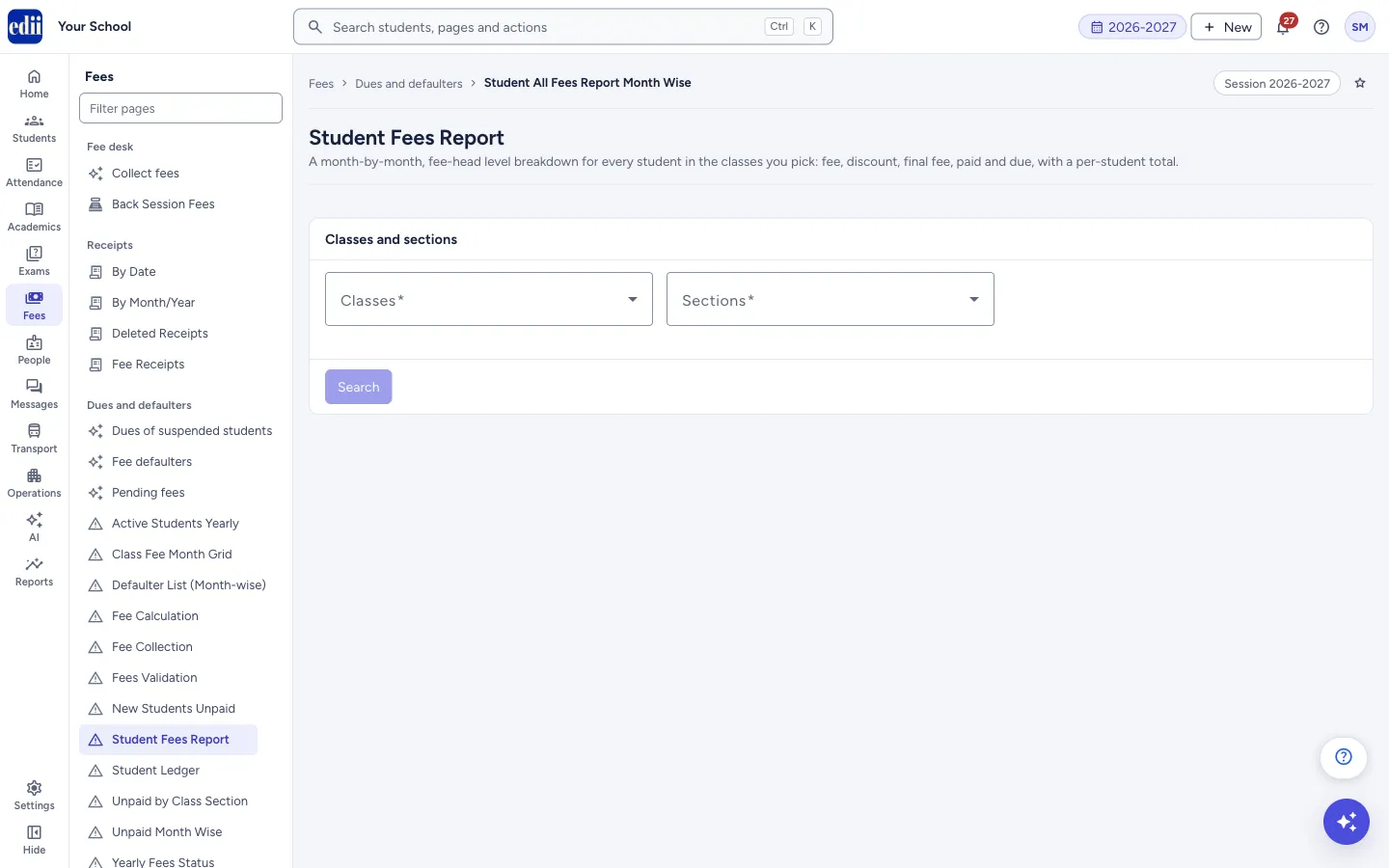
Section titled “Where to find it”- In school.edii.in: Fees › Dues and defaulters › Student Fees Report
- Or press Ctrl K (⌘ K on a Mac) and type Student Fees Report.
- Address:
school.edii.in/view/student-fees-report - Who can see it: Staff whose role includes Fees or Reports access. Shown only when your school uses Finance and Report in EDII. If it is missing from your menu, ask your school admin.
 Open a bigger pictureतस्वीर बड़ी करें
Step by step
Section titled “Step by step”1. Choose the classes
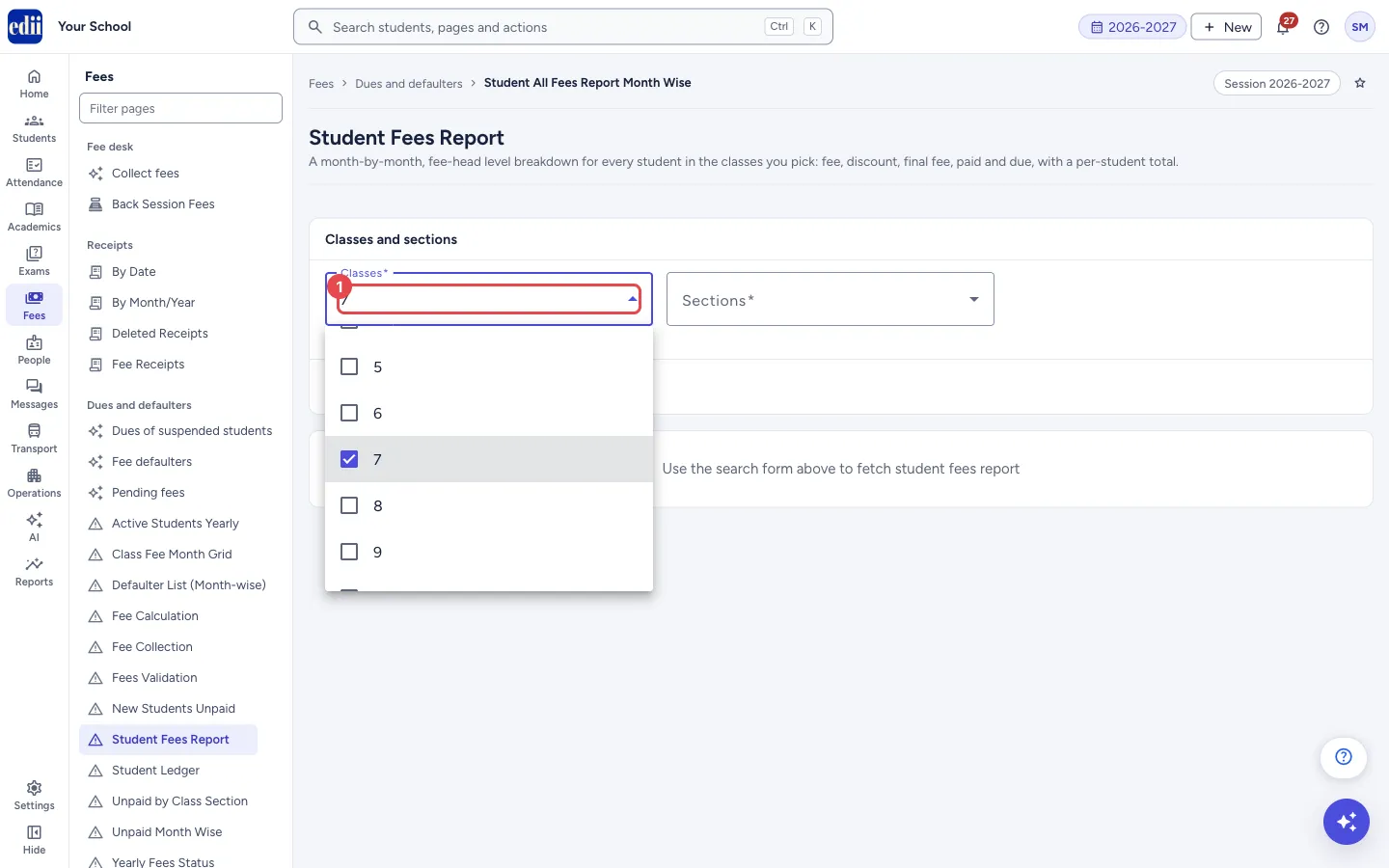
Section titled “1. Choose the classes”Open Classes and tick one or more classes. It is required.
 Open a bigger pictureतस्वीर बड़ी करें
2. Choose the sections
Section titled “2. Choose the sections”Open Sections and tick one or more sections. It is required. Search stays greyed out until at least one class and one section are chosen.
3. Search
Section titled “3. Search”Select Search. When the report is ready the message Fees report fetched successfully shows and the table appears with the line Showing N of M students under it. A big class can take a little while.
If the report could not read the fees of some students, the warning Partial report appears, and those rows show 0 (see Messages). Run the report again before using it.
4. Read the table
Section titled “4. Read the table”The first four columns are Class Name/Section, Enrollment Code, Reference/Admission no and Student Name. After them come the fee head and month groups, each with its five columns, then Total.
In the Balance columns, an amount above 0 is shown in red and a balance of 0 in green. Scroll to the right to see all the columns.
5. Search, print or download
Section titled “5. Search, print or download”Type in Search by name or admission no to narrow the rows. It matches the student’s name, admission number or class. Print / Export has Print, Excel File and CSV File. Select Clear (shown after a report is loaded) to empty the class and section choices and the table.
Fields and filters
Section titled “Fields and filters”| Field | What it is | Notes |
|---|---|---|
| Classes | The classes to include. | Required. You can tick more than one. |
| Sections | The sections to include. | Required. You can tick more than one. |
| Search by name or admission no | Narrows the rows already on screen. | Matches name, admission number or class. Shown after the report has loaded. |
Buttons
Section titled “Buttons”| Button | What it does | What happens next |
|---|---|---|
| Search | Builds the report for the classes and sections you chose. | The table appears. Nothing is saved or sent. |
| Clear | Empties the class and section choices and the table. | Nothing is saved or deleted. Choose again to run another report. |
| Print / Export | Prints the table or downloads it as an Excel or CSV file. | Print opens the print window. Excel and CSV save a file. |
Columns
Section titled “Columns”| Column | Meaning |
|---|---|
| Class Name/Section | The student’s class and section. |
| Enrollment Code | The student’s enrollment number. |
| Reference/Admission no | The student’s admission number. |
| Student Name | The student’s name. |
| Actual Fee | The amount of the fee head for the month. |
| Discount | The discount on that fee head for the month. |
| Final Fee | Actual Fee minus Discount. |
| Paid | What has been paid on that fee head: Final Fee minus Balance, never below 0. |
| Balance | What is still unpaid on that fee head. Red above 0, green at 0. |
| Total (group) | The same five figures added up over all the fee heads and months of the student. |
After you save
Section titled “After you save”- This screen only reads data. Nothing is saved, and nothing is sent to parents.
Good to know
Section titled “Good to know”- A group of columns is made for every fee head and month found for the chosen students; a student without that fee head shows 0 in it.
- The report has no total row for the class. The Total columns are per student.
Messages you may see
Section titled “Messages you may see”| Message | What it means | What to do |
|---|---|---|
| Please select at least one class and one section | The class or the section is empty. | Choose at least one of each. |
| Fees report fetched successfully | The report is ready. | Nothing to do. |
| Fees could not be read for … student(s). Those rows show 0 and are excluded from the totals — please re-run before using this report. | The fees of some students could not be read, so their rows show 0 (shown under the title Partial report). | Run the report again. Do not rely on rows that show 0 until it has run in full. |
| Error fetching fees report | The request did not go through. | Check the internet and select Search again. |
| Invalid data format received | The report came back in a form the screen cannot show. | Select Search again. If it keeps happening, tell your school administrator. |
| No student fees data found | No student matches the classes and sections you chose. The screen adds: Try adjusting your search criteria. | Choose other classes or sections. |
- Pick one class at a time for a table that is easier to read.
- Download the Excel file to filter and total the fee heads.
Stuck? Try this
Section titled “Stuck? Try this”| Problem | Likely cause | What to do |
|---|---|---|
| The Search button is grey | A class or a section is not chosen. | Choose at least one class and one section. |
| The table is very wide | Every fee head and month has its own group of five columns. | Scroll to the right, or download the Excel file. |
Did this page help?क्या इस पेज से मदद मिली?
Thanks! Glad it helped.धन्यवाद! अच्छा लगा कि काम बन गया।
Sorry about that. Ask in your own words, or write to us.माफ़ कीजिए। अपने शब्दों में पूछें, या हमें लिखें।