
Screen guide · Web app
Matrix COSEC
Connect a Matrix COSEC biometric device, bring its entry and exit punches into Staff Attendance, and match each device ID to the right staff member.
यह पेज अंग्रेज़ी में है। कुछ समझ न आए तो ।
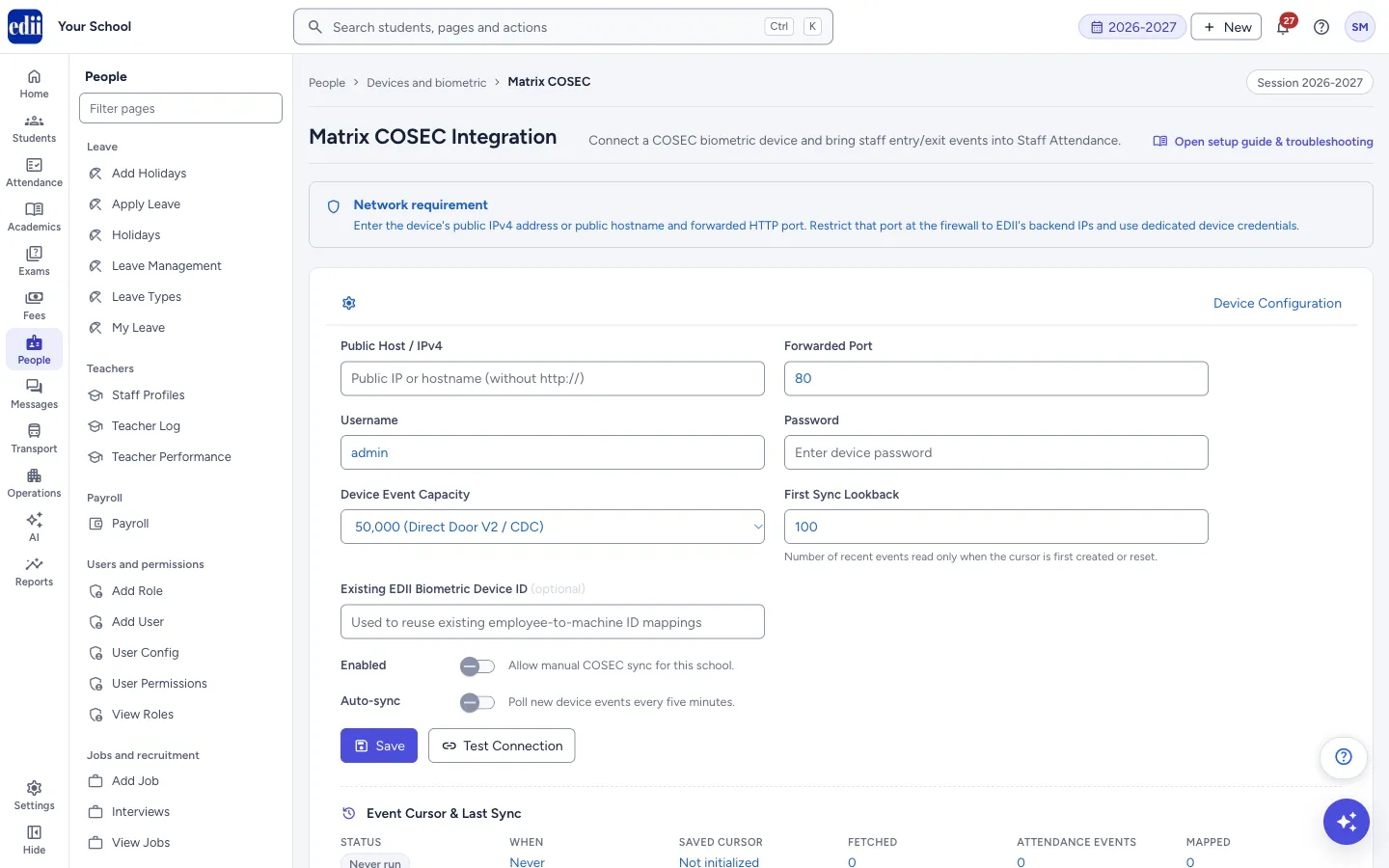
The page is headed Matrix COSEC Integration. A COSEC device records every punch as a numbered event. EDII reads these events, keeps them, and turns the allowed entry and exit punches of identified staff into Staff Attendance.
The page has three working parts: Device Configuration (with Event Cursor & Last Sync), Sync Attendance and Employee Mapping. At the bottom, a long guide called COSEC Setup, Operations & Troubleshooting Guide explains the setup in detail; select Open setup guide & troubleshooting at the top to jump to it.
This page changes your school’s staff attendance, so work through it in order and check the result with one known staff member before you switch the integration on for everyone.
Who uses it and when
Section titled “Who uses it and when”The school administrator, together with whoever looks after the school’s network and the biometric device, when a COSEC device is first set up or replaced, and later to match new staff.
Before you start
Section titled “Before you start”- The device must be powered on, connected to the internet and show the correct local date and time.
- The device must be reachable from outside the school: a public IPv4 address or public hostname, with a router port forwarded to the device’s HTTP port. Restrict that port at the firewall to EDII’s backend addresses and use a dedicated device user. A private address such as 192.168.x.x or 10.x.x.x cannot be used.
- You need the device’s username and password and its event capacity (ask the Matrix vendor if unsure).
- The staff members must already exist as EDII users.
Where to find it
Section titled “Where to find it”- In school.edii.in: People › Devices and biometric › Matrix COSEC
- Or press Ctrl K (⌘ K on a Mac) and type Matrix COSEC.
- Address:
school.edii.in/view/cosec-integration - Who can see it: Staff whose role includes Leave access. If it is missing from your menu, ask your school admin.
 Open a bigger pictureतस्वीर बड़ी करें
Step by step
Section titled “Step by step”1. Enter the device details and save
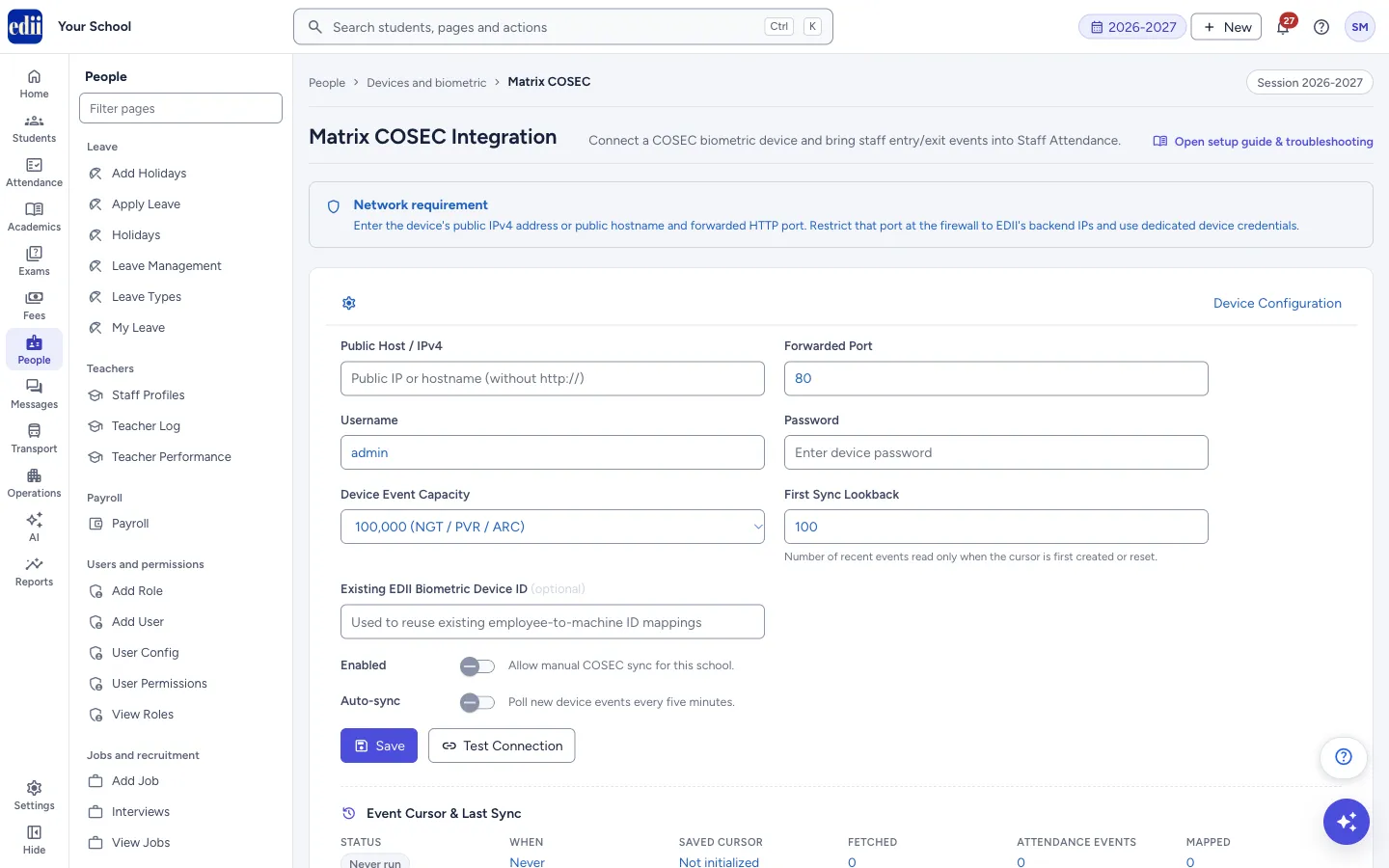
Section titled “1. Enter the device details and save”Fill Public Host / IPv4 (an address or hostname without http://), Forwarded Port, Username and Password. Choose the Device Event Capacity: 50,000 (Direct Door V2 / CDC), 100,000 (NGT / PVR / ARC) or 500,000 (ARGO / FMX / Wireless). Set the First Sync Lookback (1 to 5,000 events) and, if you want to reuse existing machine ID mappings, the Existing EDII Biometric Device ID (optional).
Select Save. If the host, port or username is empty you see Enter the public host, port and username. When saved you see COSEC configuration saved. If the host, port or capacity changed, it adds The device or event capacity changed, so its event cursor was reset.
 Open a bigger pictureतस्वीर बड़ी करें
2. Test the connection
Section titled “2. Test the connection”Select Test Connection. A badge shows Connected or Not connected with a message. A test only logs in and reads the device’s current event position: it does not download attendance, change the device, move the saved position, create mappings or write attendance.
3. Turn the integration on
Section titled “3. Turn the integration on”Switch Enabled on (Allow manual COSEC sync for this school.) and select Save. Sync New Events works only while Enabled is on.
Switch Auto-sync on only after manual syncs and mappings are checked. It reads new events every five minutes, and only for schools where both Enabled and Auto-sync are on.
4. Run a sync
Section titled “4. Run a sync”In Sync Attendance select Sync New Events. EDII fetches the new events, keeps all of them, and writes attendance only for allowed events of mapped staff. You see Fetched N event(s); M attendance event(s) mapped and a summary of Fetched, Allowed Events, Mapped, Unmapped IDs and Remaining. If Remaining is more than zero, run it again; each run handles a limited batch and continues from where it stopped.
5. Read the last sync box
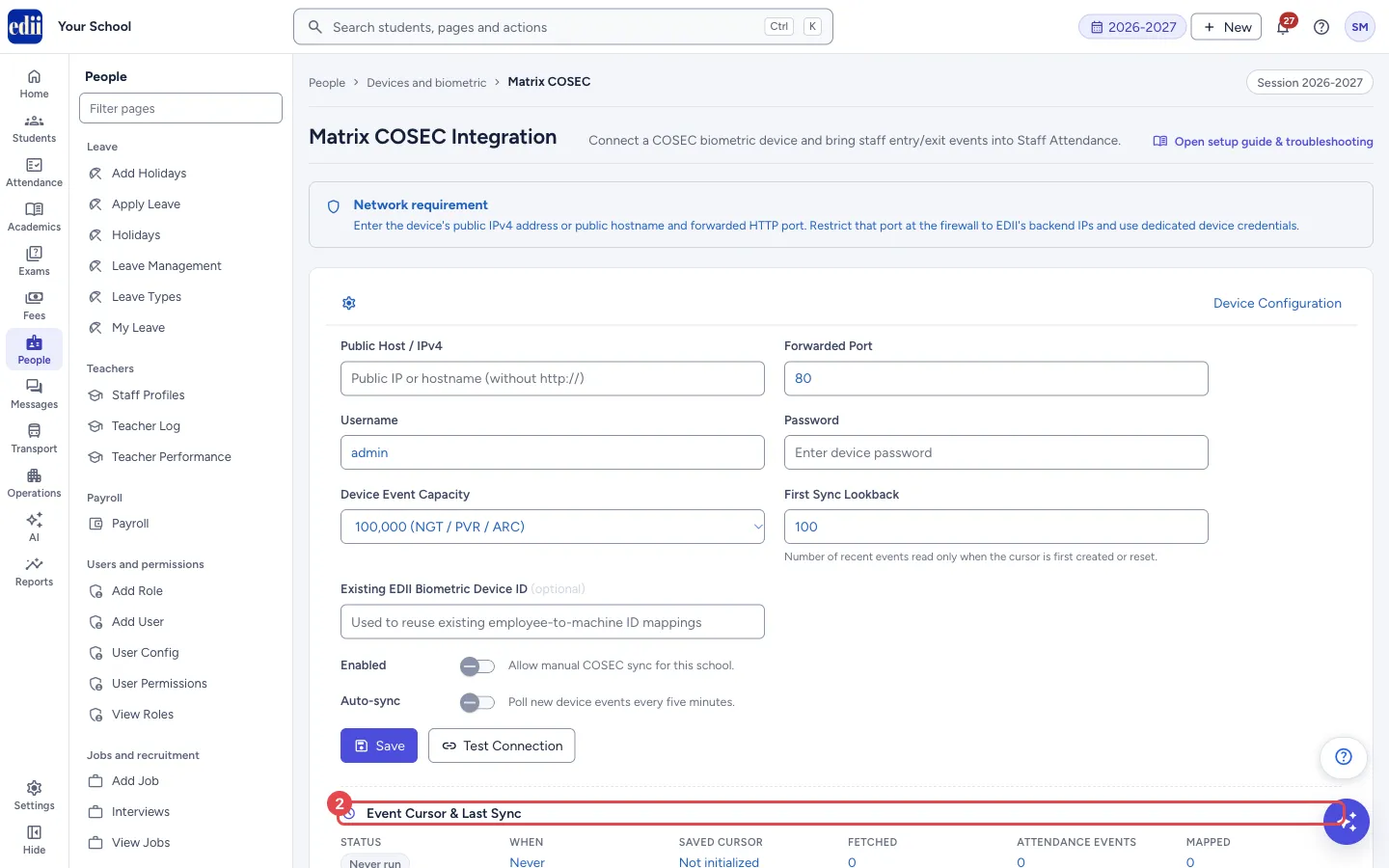
Section titled “5. Read the last sync box”Event Cursor & Last Sync shows the Status (success, an error, or Never run), When, Saved Cursor (the last device event safely stored, or Not initialized), Fetched, Attendance Events and Mapped. A message and a list of Reference numbers that are not yet matched appear under it.
 Open a bigger pictureतस्वीर बड़ी करें
6. Match device IDs to staff
Section titled “6. Match device IDs to staff”In Employee Mapping select Load Reference IDs. Each device reference number appears with a list of staff, a status (Mapped or Unmapped) and a Remove button for saved mappings. If the table says No reference IDs found. Run a COSEC sync first., run a sync first.
Choose the right EDII Staff User for each reference number (check the identity on the device, never guess from punch times) and select Save Mappings. You see Saved N mapping(s). Auto-map matches only by an existing biometric machine ID mapping or by a reference number that is exactly a staff User ID, and shows Auto-mapped N reference ID(s); M remain.
Fields and filters
Section titled “Fields and filters”| Field | What it is | Notes |
|---|---|---|
| Public Host / IPv4 | The public address or hostname of the device. | Required. No http://, no path, no private address. Changing it resets the saved position. |
| Forwarded Port | The port your router forwards to the device. | Required. 1 to 65535. Changing it resets the saved position. |
| Username | A device user for the integration. | Required. |
| Password | The device password. | Leave blank to keep the saved password. The saved password is never shown. |
| Device Event Capacity | The size of the device’s event log, by device family. | Changing it resets the saved position. Do not change it to fetch more events. |
| First Sync Lookback | How many recent events to read the first time, or after a reset. | 1 to 5,000. It is a number of events, not a date range. |
| Existing EDII Biometric Device ID (optional) | An existing EDII machine whose employee numbering is reused for Auto-map. | Leave blank for a new device. |
| Enabled | Allows manual sync for this school. | Turning it off does not delete anything. |
| Auto-sync | Reads new events every five minutes. | Needs Enabled on as well. |
Buttons
Section titled “Buttons”| Button | What it does | What happens next |
|---|---|---|
| Open setup guide & troubleshooting | Scrolls to the guide at the bottom of the page. | The guide opens in the page. |
| Save | Saves the device details and the two switches. | COSEC configuration saved. |
| Test Connection | Checks that EDII can log in to the device. Changes nothing. | Connected or Not connected, with a message. |
| Sync New Events | Reads new device events and writes staff attendance for the allowed, mapped ones. Available only when Enabled is on. | Sync Complete! with the numbers fetched and mapped. |
| Reset Cursor | Forgets the saved position, so that the next sync reads again from the First Sync Lookback. Events already kept stay safe. After you confirm the question Reset the COSEC event cursor? The next sync will replay the configured initial lookback. Existing retained events remain safe. | COSEC cursor reset. |
| Load Reference IDs | Lists the device reference numbers seen, with their saved mappings. Changes nothing. | The mapping table appears. |
| Auto-map | Matches reference numbers automatically, in the careful way described above, and saves those matches. | Auto-mapped N reference ID(s); M remain. |
| Save Mappings | Saves the staff chosen for each reference number. Events already kept for that number are then turned into attendance, including for earlier dates. A corrected mapping removes the attendance from the old staff member and builds it for the new one. | Saved N mapping(s). |
| Remove | Deletes the saved match of that reference number. | Mapping removed. |
After you save
Section titled “After you save”- Entry and exit punches of mapped staff show on Staff Attendance. The earliest entry of the day is the in-time and the latest exit is the out-time; if there is no direction, the first and last allowed punch are used; a single punch gives an in-time only.
- Punches of reference numbers not yet mapped are kept. They become attendance when you save a mapping.
Good to know
Section titled “Good to know”- Only user-allowed events of identified people mark attendance. Denied access, alarms, system and visitor events, and events with reference ID 0, do not.
- The device’s own date and time are used, treated as IST. Keep the device clock correct.
- Syncing again does not duplicate attendance, because each run continues after the last stored event.
- One reference number can have only one active staff match for a device.
- Do not make a test mapping to a random staff member: saving a mapping immediately creates attendance for earlier dates.
- A public biometric port is a sensitive door. Forward only the required port, allow only EDII’s addresses, use a dedicated device user, and never send the saved password to anyone.
Messages you may see
Section titled “Messages you may see”| Message | What it means | What to do |
|---|---|---|
| Enter the public host, port and username | One of the three required boxes is empty. | Fill them and save. |
| COSEC configuration saved. | The details were saved. | Select Test Connection. |
| Select at least one staff user to map | Save Mappings was used with no staff chosen. | Choose a staff member for at least one reference number. |
| Unable to complete the COSEC request | EDII could not complete the action. The reason may be shown instead. | Check the details and the network, then try again. |
| Bad/Slow Internet Connection, Please check your internet connection | The request did not reach EDII. | Check the internet and try again. |
- First test with one known staff member: ask them to punch in and out, run a sync, map their reference number and check the time in Staff Attendance.
- Check each day that the last sync is recent and the status is success.
Stuck? Try this
Section titled “Stuck? Try this”| Problem | Likely cause | What to do |
|---|---|---|
| Test Connection fails, though the port looks open | An open port only shows that something answered. The forwarding rule may point to another service, EDII may not be allowed through the firewall, or the username or password is wrong. | Check the forwarding target and the firewall allowance, and test the username and password on the device itself. |
| Attendance Events are more than zero but Mapped is zero | The punches are valid but their reference numbers are not matched to staff. | Load Reference IDs, match each number and select Save Mappings. |
| A staff member has an in-time but no out-time | Only one allowed punch exists, the exit punch was denied, or the exit has not synced yet. | Run Sync New Events again and check the exit on the device with the same reference ID. |
Did this page help?क्या इस पेज से मदद मिली?
Thanks! Glad it helped.धन्यवाद! अच्छा लगा कि काम बन गया।
Sorry about that. Ask in your own words, or write to us.माफ़ कीजिए। अपने शब्दों में पूछें, या हमें लिखें।