
Screen guide · Web app
Admin Preferences
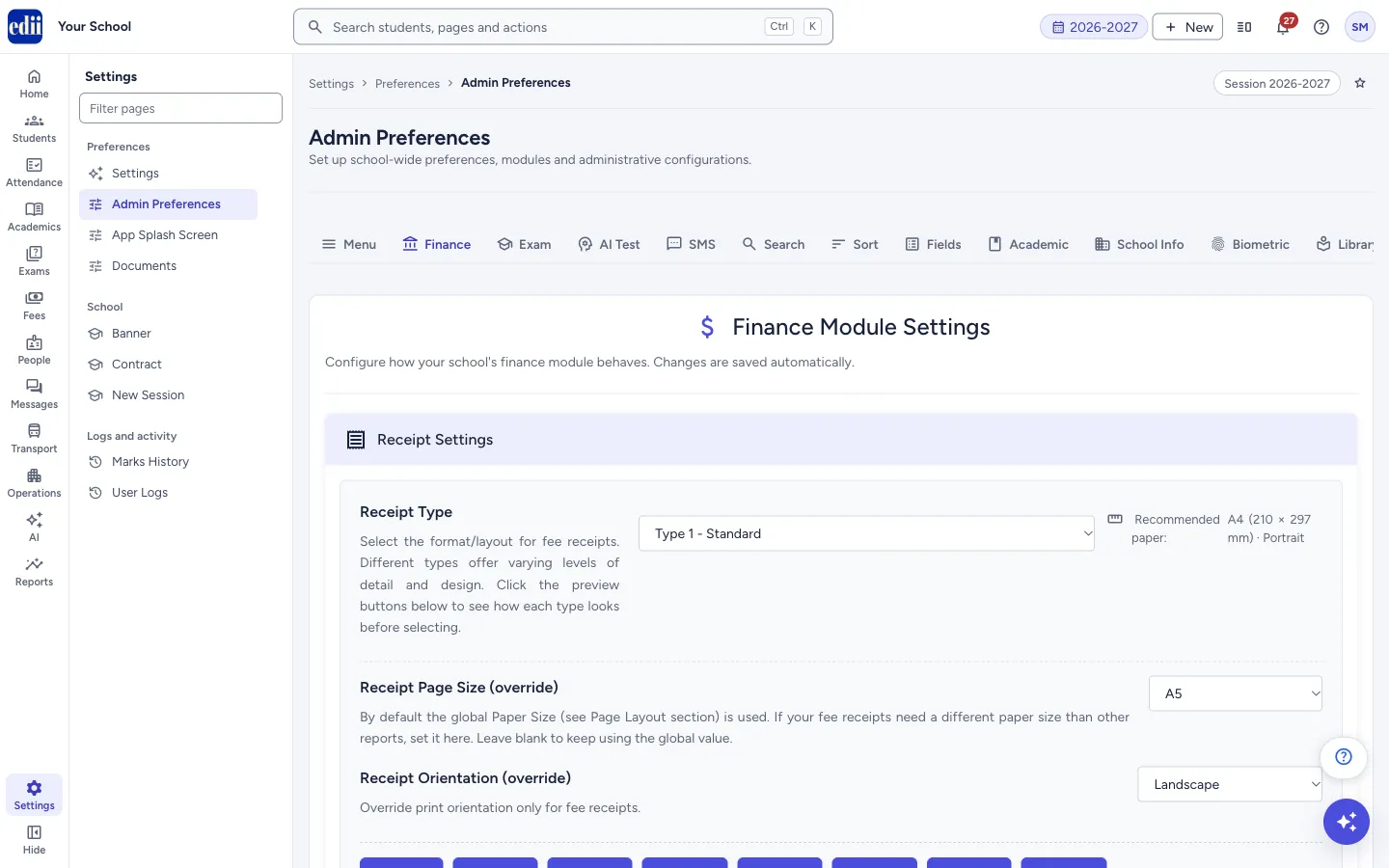
The full list of school-wide preferences in thirteen tabs: menu and print options, receipts and fee rules, exam marks windows, AI tests, SMS, search, sort, Add Student fields, classes and counters, school details, biometric machines, library fine and general options.
यह पेज अंग्रेज़ी में है। कुछ समझ न आए तो ।
Admin Preferences holds the settings that change how EDII works for the whole school. It has thirteen tabs: Menu, Finance, Exam, AI Test, SMS, Search, Sort, Fields, Academic, School Info, Biometric, Library and General. The page opens on Finance. On a narrow screen, scroll the tab row sideways to reach the last tabs.
Some settings save the moment you change them (most switches and single boxes). Others have their own button, for example Save Sort Order or SAVE SCHOOL INFORMATION. Each tab says which it is. The shorter Settings page has the most common settings of this page, saved one at a time.
Every change here applies to the whole school and to every user. Make changes on purpose, and agree them with the principal.
Who uses it and when
Section titled “Who uses it and when”The school administrator uses it at set-up and at the start of each session.
Before you start
Section titled “Before you start”- Only administrators can open this page. Others see You do not have permission to access this page and go back to the home page.
- Have ready the receipt style, exam types, class list and the school’s official details.
Where to find it
Section titled “Where to find it”- In school.edii.in: Settings › Preferences › Admin Preferences
- Or press Ctrl K (⌘ K on a Mac) and type Admin Preferences.
- Address:
school.edii.in/view/preferences - Who can see it: Staff whose role includes Users or Admin pages access. Shown only when your school uses User in EDII. If it is missing from your menu, ask your school admin.
 Open a bigger pictureतस्वीर बड़ी करें
Step by step
Section titled “Step by step”1. Menu tab: modules, logo, signature, print and timeouts
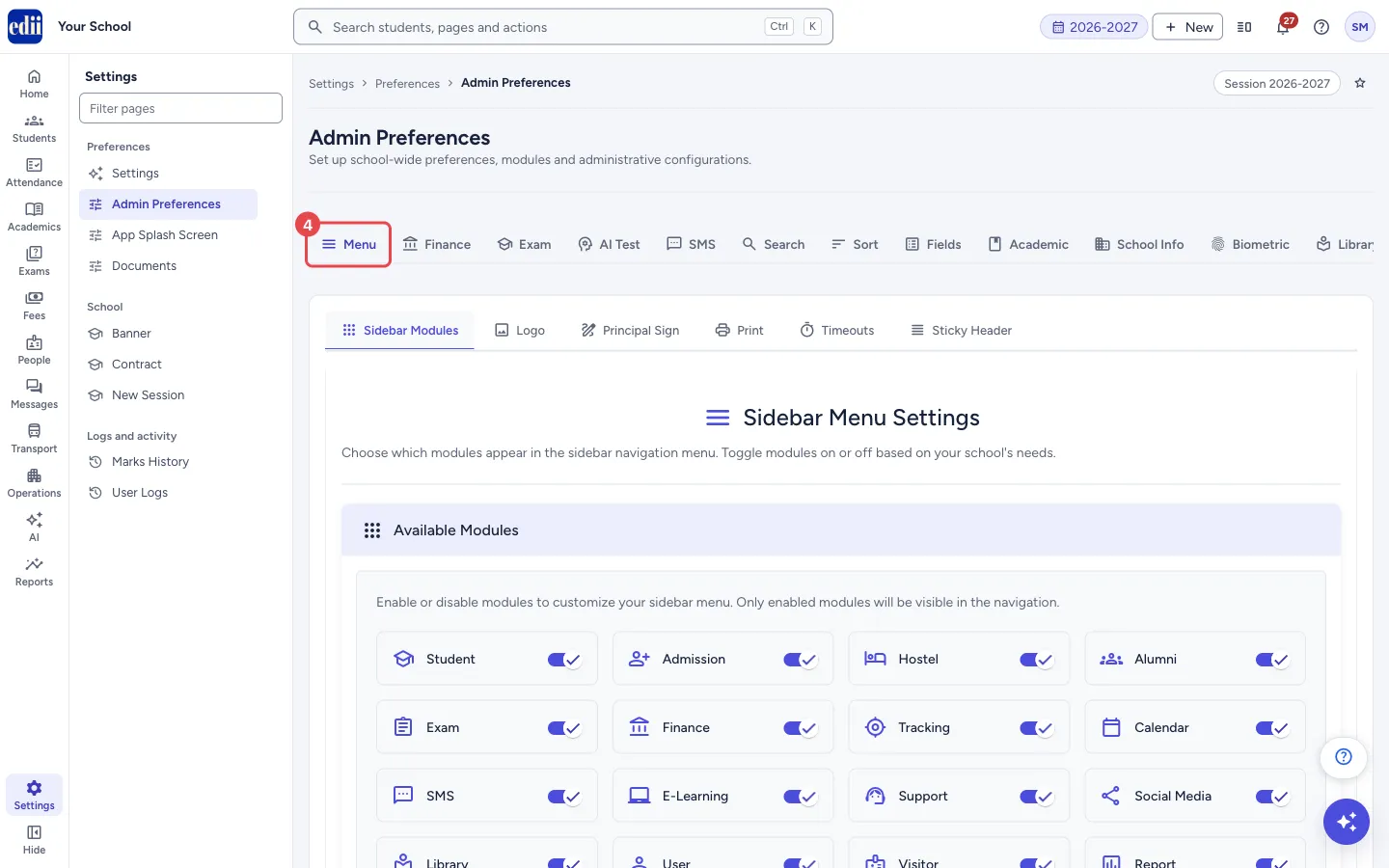
Section titled “1. Menu tab: modules, logo, signature, print and timeouts”The Menu tab has six parts across the top: Sidebar Modules, Logo, Principal Sign, Print, Timeouts and Sticky Header.
Sidebar Modules has a switch for each module: Student, Admission, Hostel, Alumni, Exam, Finance, Tracking, Calendar, SMS, E-Learning, Support, Social Media, Library, User, Visitor, Report, HR Module, Dashboard, Certificates, Events, Canteen, Inventory, School Website, Complaint Management, Health Records, Meeting, EDII AI, Training Academy, House and Report Master. A module that is off is hidden from the menu.
Logo is where you upload the school logo (Add Image: Capture from Camera or Upload from Device); it is used on reports, receipts and documents. Principal Sign keeps the signature and its caption (for example Principal, Director) used on ID cards, report cards and other documents: Save Caption, Upload Signature (up to 5 MB, a transparent PNG works best), or draw it and select Use Drawn Signature; Remove Signature deletes it.
Print sets Data Case Transformation (No Transformation, UPPERCASE or lowercase), the default Print Orientation and Paper Size, Enable Watermark, Dual Logo on TC, and the Report Font Size and Character Limit for Fields. Timeouts sets how long success and error messages stay on screen, and the Online Status Duration, Away Status Duration and Offline Timeout in minutes (the offline timeout logs a user out after no activity). Sticky Header chooses Sticky or Non-Sticky table headers. The Custom Font Size for reports is kept in your own browser only.
 Open a bigger pictureतस्वीर बड़ी करें
2. Finance tab: receipts and fee rules
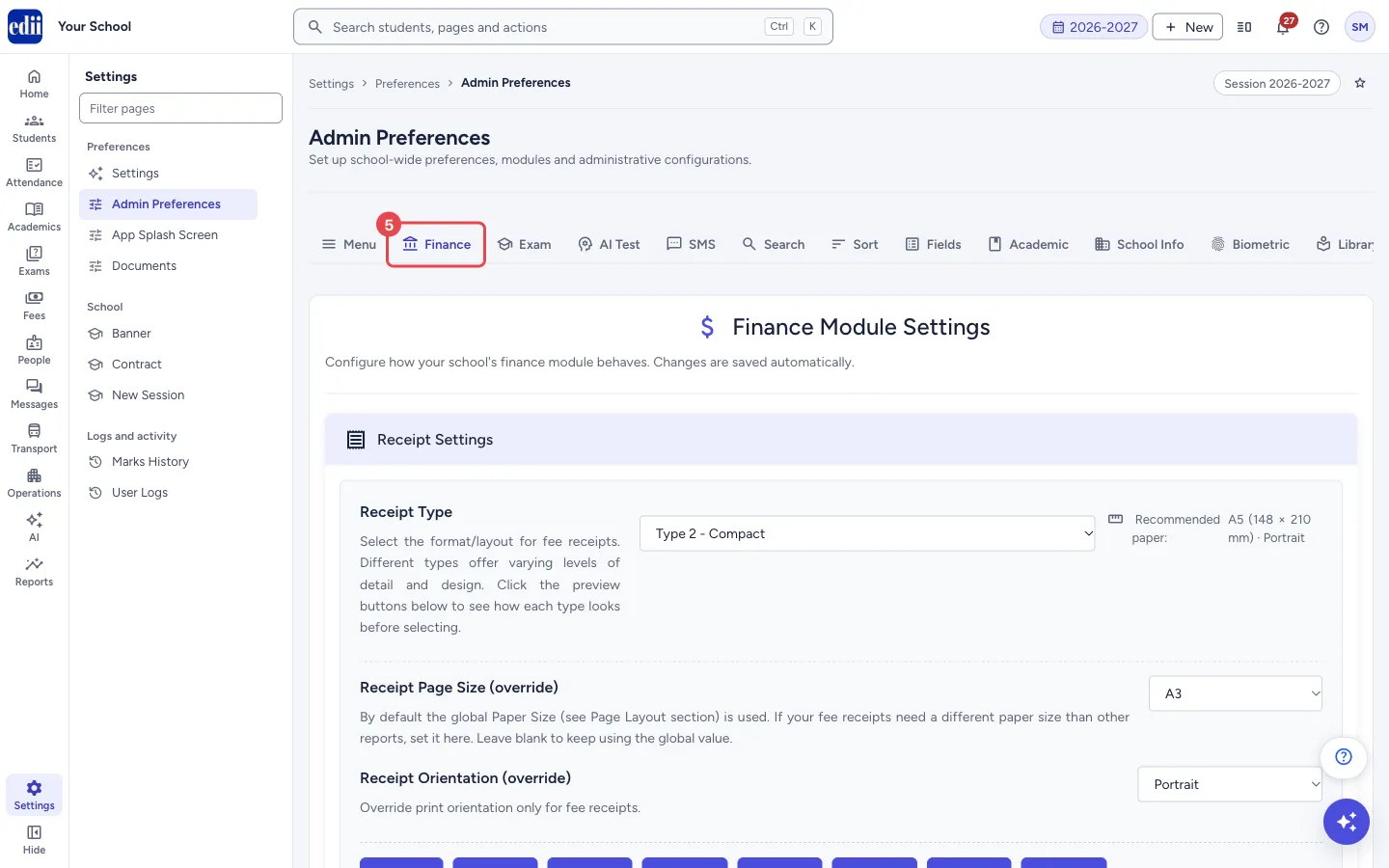
Section titled “2. Finance tab: receipts and fee rules”The tab says Changes are saved automatically. Receipt Type lets you pick Type 1 - Standard to Type 8 - Tabular Slip (4 students per A4 page); a recommended paper size shows next to it and the Type 1 to Type 8 buttons preview each design. Receipt Page Size (override) and Receipt Orientation (override) change the paper only for fee receipts; leave them on Use global to follow the Print settings. Number of Receipt Copies sets how many copies print, and Print Each Receipt on New Page puts each copy on its own page.
Fee Collection Settings: Require Old Fees to be Paid First blocks collecting new fees from a student who has earlier dues. Lock Fees Module stops anyone adding, editing or deleting fee structures and discounts; fee collection still works. Bypass Session Filter in Finance shows fee data of all sessions instead of the current one. Allow Future Payment Date lets the cashier date a payment after today, and Future Payment Days Allowed sets how many days ahead (1 to 30). Report Settings: Exclude Suspended Students from Reports hides suspended students from the Student Master Report.
 Open a bigger pictureतस्वीर बड़ी करें
3. Exam tab: report cards in the app and the marks editing window
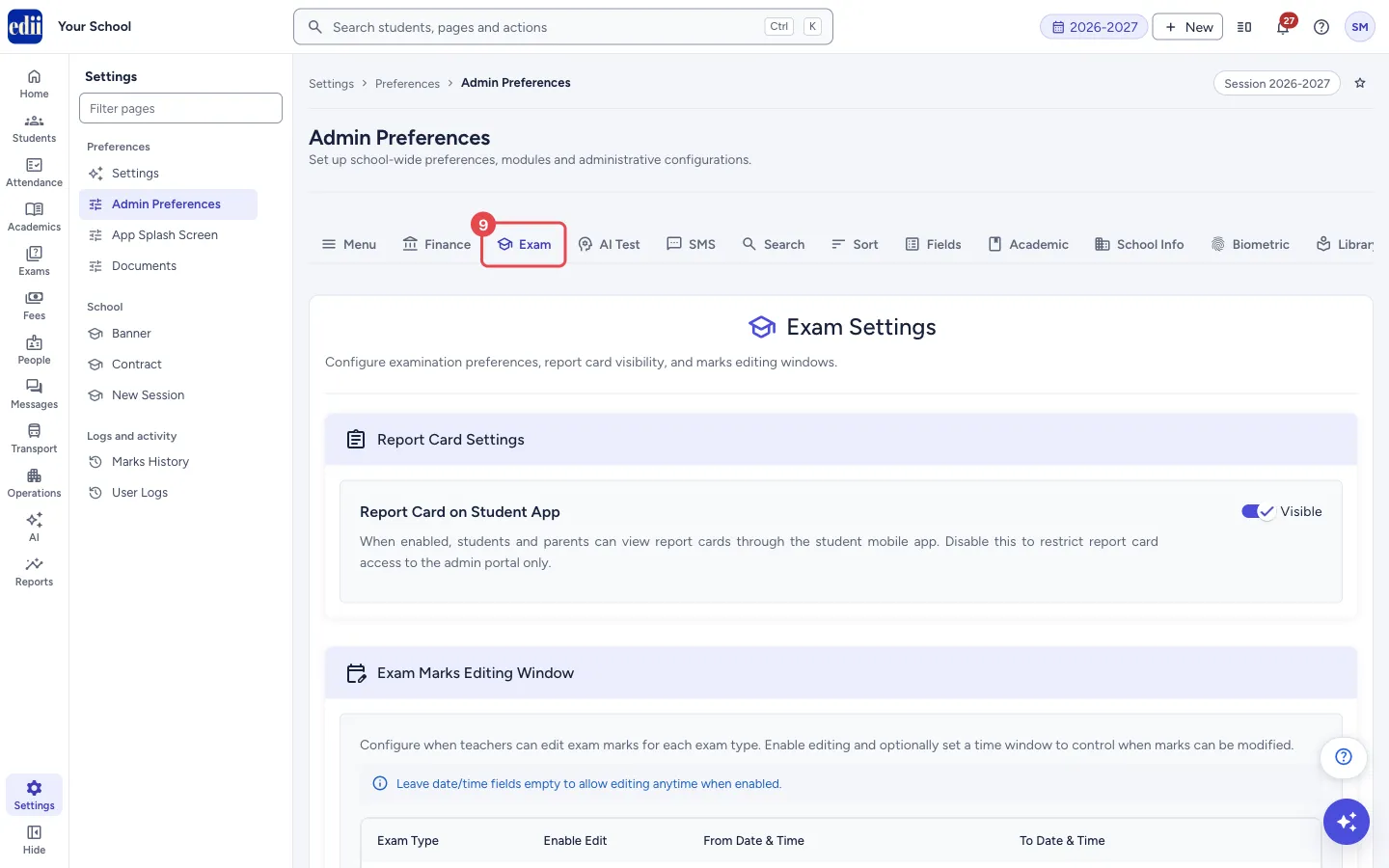
Section titled “3. Exam tab: report cards in the app and the marks editing window”Report Card on Student App decides whether students and parents can see report cards in the student app; off keeps them in the admin portal only.
Exam Marks Editing Window lists each exam type with Enable Edit and a From Date & Time and To Date & Time. With editing enabled, teachers can change marks for that exam type. If you leave the dates empty, they can edit at any time. If no exam types exist, the tab says No exam types configured. Please add exam types in School Academic Details first.
 Open a bigger pictureतस्वीर बड़ी करें
4. AI Test tab: blocked topics and automatic practice tests
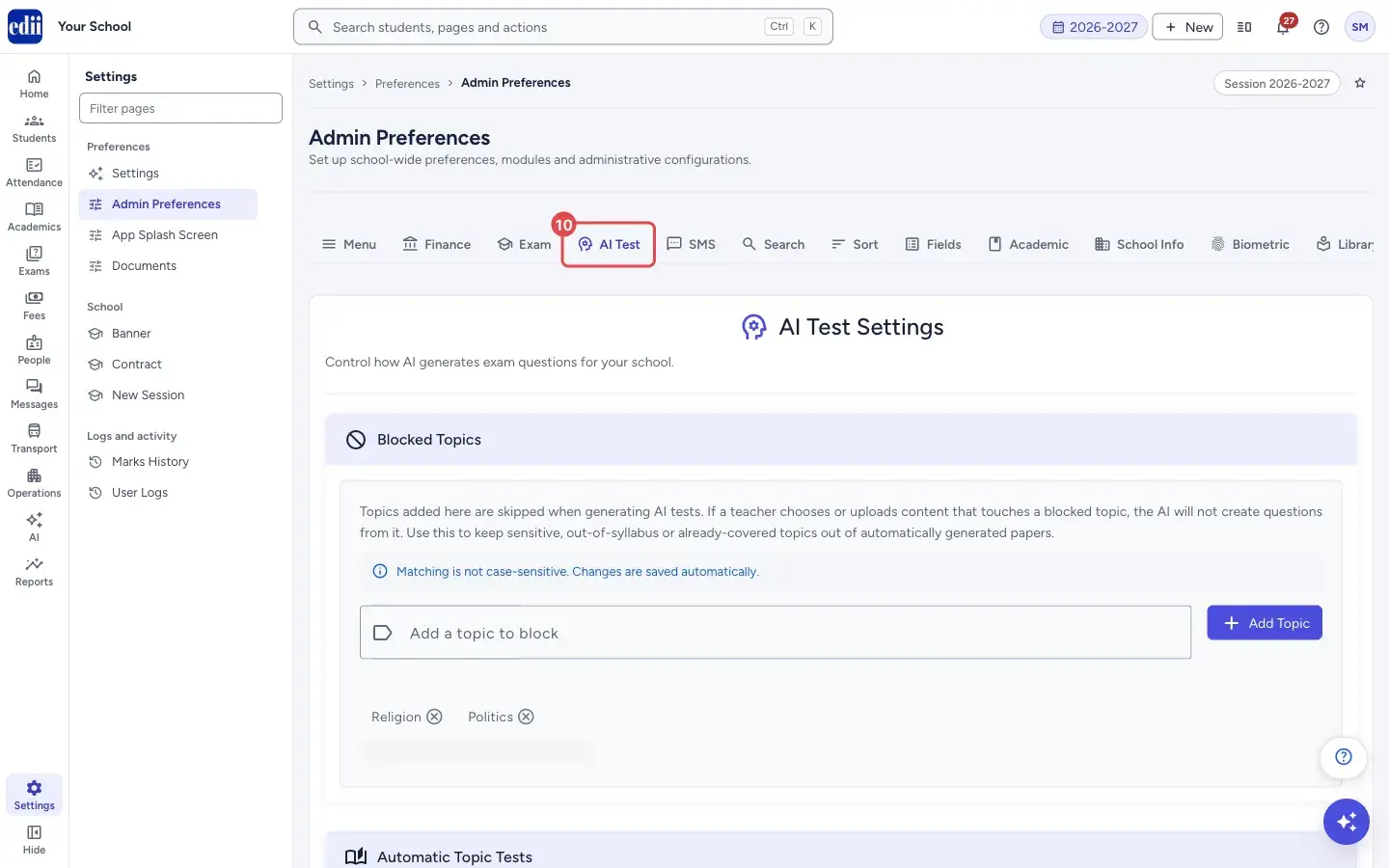
Section titled “4. AI Test tab: blocked topics and automatic practice tests”Blocked Topics: type a topic in Add a topic to block and select Add Topic. The AI skips blocked topics when making tests, even if a teacher chooses or uploads content that touches them. Matching is not case-sensitive and changes save automatically. Select the cross on a topic to unblock it.
Automatic Topic Tests: when switched on, marking a topic as completed in the Teaching Plan makes a short AI practice test for that class and section. Students see it in the app as a Practice Test, and its marks do not count toward report cards. It is off by default. Choose the Board, Difficulty, Questions per test, Days available and Question types (at least one) and select Save Auto-Test Settings.
 Open a bigger pictureतस्वीर बड़ी करें
5. SMS, Search, Sort and Fields tabs
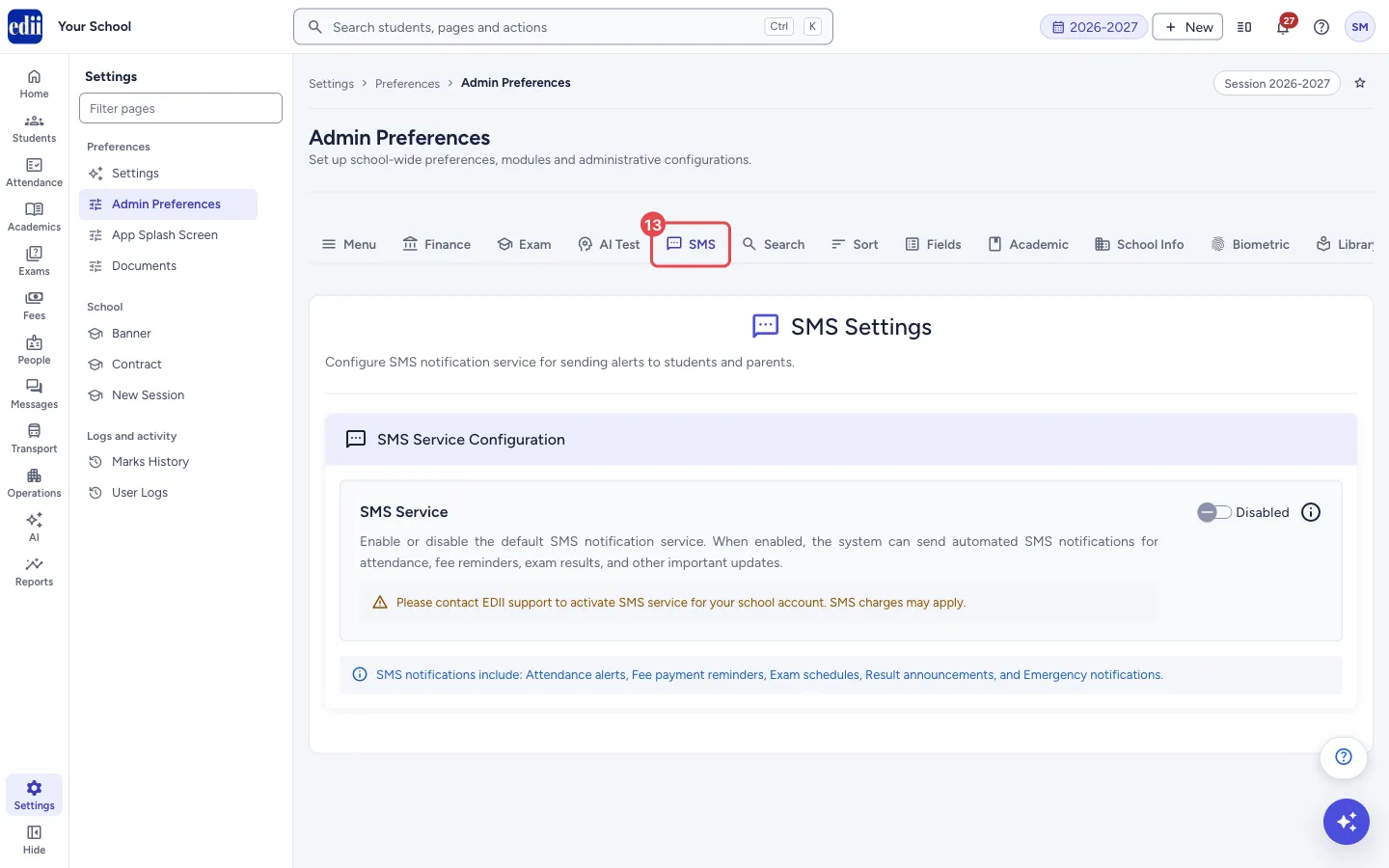
Section titled “5. SMS, Search, Sort and Fields tabs”SMS: SMS Service shows whether the school’s SMS service is on. The tab says to contact EDII support to activate SMS service for your school, and that SMS charges may apply. When SMS is on, EDII can send attendance alerts, fee payment reminders, exam schedules, result announcements and emergency notifications.
Search has a switch for each field staff can use to search students: Name, Class, Section, Enrollment No., Father’s Name, Phone Number, ID, Roll Number and EDII ID. More fields give more choice but may slow search a little in a big school.
Sort sets the order of students in every list (attendance, marks, report cards, rosters). Use Add a field to build the order, move fields up or down, remove one with the cross, then select Save Sort Order (Sort order saved.) or Reset to Default (Sort order reset to default.). With no custom order the list uses Class, Section, Roll No, Name.
Fields decides what the Add Student screen shows. For each field choose Show and Mandatory. Student Name, Class and Section are always shown and always mandatory. Turning a field off also removes it from the mandatory list. Select Save Add Student Fields (Add Student fields saved.) or Reset to Default. Existing students are not changed.
 Open a bigger pictureतस्वीर बड़ी करें
6. Academic tab: classes, exam types, school hours, timetable and counters
Section titled “6. Academic tab: classes, exam types, school hours, timetable and counters”Class & Section Management: type a Class Name and Section Name and select Add Class & Section. Exam Type Management: type each exam name and press Enter, then select Save Exam Types. House Management has a link to the House Management page.
School Hours: Starts at and Ends at set the school day the dashboard uses to show how far through the day it is. They do not change attendance, timetables or bells. Leave them blank for 7:00 AM to 3:00 PM. The day must end after it starts. Timetable Settings: Periods Per Day (1 to 15) is how many periods a new timetable starts with; existing timetables do not change.
Counter Settings shows the Current Form No., Current Student ID and Current Admission Form ID. You can set each counter (Set Counter), let EDII fix a counter from the highest existing number (Auto-Fix, for Admission Form Number or Student ID (Enrollment Number)), and switch on Skip Enrollment Number Check, which allows duplicate numbers and should be used with care. Auto-Generate Student ID makes IDs like A-1402-2026 (letter, number, year); add the Letter/Prefix, Start From and Digits for each class under Class-wise Configuration. Roll Number Management gives sequential roll numbers from 1 to a class and section with Generate Roll Numbers.
7. School Info tab: the school’s official details
Section titled “7. School Info tab: the school’s official details”School Information is the school’s profile for reports, certificates, official documents and the footer of every email. It has parts for Identity & Contact, Address & Location, Registration & Codes, Academic & Session and Infrastructure. How your emails sign off shows what parents see at the bottom of fee receipts, reminders and messages, and what is still missing.
Fill the details and select SAVE SCHOOL INFORMATION (School Information Updated). The Latitude and Longitude are used for staff attendance from the Teacher app; a button can fill them from your current position. PAN and TAN are checked for format.
At the end is the Data Reset section, marked DANGER ZONE, for administrators only. It shows a Preview of how many records would be deleted, and needs an OTP sent to the school email and a typed confirmation. The page says everything is archived first and can be restored. Do not use it without guidance from EDII.
8. Biometric, Library and General tabs
Section titled “8. Biometric, Library and General tabs”Biometric: Attendance from Teacher App lets staff punch in and out from the Teacher app. Off removes the punch buttons and refuses any punch; biometric machines keep working. Allowed Distance from School (1 to 10,000 metres) is how close to the campus coordinates a staff member must be to punch. Add Biometric Machine: enter the Machine ID, choose the Vendor (Mantra or eSSL), give an optional Name and select Add Machine. Registered Machines lists each machine as Online or Offline, with a delete button.
Library: Fine Per Day (₹) (0 to 1000) is the charge for each day a book is kept past its due date. It changes the fine shown on books that are already overdue, but not fines already charged on returned books.
General: Page after sign-in (for every staff user), the Website Font Size in pixels (kept in your own browser only), and switches for WhatsApp Notifications, Fee Payment Messages, Student/Parent App Notifications and Teacher App Notifications. Student Photo Editing lets students and parents change the photo from the app. Auto-tag Students in Buzz Photos matches faces in Buzz photos to student profile photos; it is off by default and the page warns to switch it on only if the school holds parental consent. Details Students Can Ask To Correct chooses which details a student or parent may send a correction for from the app; the request goes to Students › Update Requests › Profile Update Requests and only an admin can approve it. Untick everything to switch it off.
Fields and filters
Section titled “Fields and filters”| Field | What it is | Notes |
|---|---|---|
| Sidebar Modules | A switch for each part of EDII. | Off hides the module’s pages from the menu for everyone. |
| Receipt Type, Receipt Page Size, Receipt Orientation | The look of fee receipts and their paper. | Type 1 to Type 8. The size and orientation can override the Print settings for receipts only. |
| Number of Receipt Copies | How many copies of each receipt print. | For example 1 for the student only, 2 for student and office, 3 with accounts. |
| Future Payment Days Allowed | How many days after today a payment may be dated. | 1 to 30. Error: Future payment days must be a whole number between 1 and 30. |
| Exam Type, Enable Edit, From and To | When teachers may edit marks for an exam type. | Empty dates mean any time while editing is enabled. |
| Blocked Topics | Topics the AI must not use in tests. | Not case-sensitive. A topic already added shows That topic is already blocked. |
| Automatic Topic Tests: Board, Difficulty, Questions per test, Days available, Question types | How automatic practice tests are made. | At least one question type. Off by default. |
| Add Student Fields: Show, Mandatory | What the Add Student form shows and requires. | Student Name, Class and Section are always on and required. |
| School Hours: Starts at, Ends at | The school day shown on the dashboard. | Blank means 7:00 AM to 3:00 PM. |
| Periods Per Day | Periods a new timetable starts with. | 1 to 15. Error: Periods per day must be a whole number between 1 and 15. |
| Allowed Distance from School | How near to the school a staff punch from the app must be. | 1 to 10,000 metres. |
| Fine Per Day (₹) | The library fine for each overdue day. | 0 to 1000. Error: Fine per day must be a number between 0 and 1000. |
| Machine ID, Vendor, Name | A biometric machine to register. | Machine ID and Vendor are required. Error: Please enter a Machine ID and select a Vendor (Mantra / eSSL). |
Buttons
Section titled “Buttons”| Button | What it does | What happens next |
|---|---|---|
| Save Auto-Test Settings | Saves the automatic practice test settings. | AI test preferences saved. |
| Save Sort Order / Reset to Default | Saves or resets the order of students in lists. | Sort order saved. / Sort order reset to default. |
| Save Add Student Fields / Reset to Default | Saves or resets the Add Student form rules. | Add Student fields saved. / Add Student fields reset to default. |
| Add Class & Section | Adds a class and section to the school. | School Information Updated. |
| Save Exam Types | Saves the list of exam types. | Preferences Saved. |
| Set Counter / Auto-Fix | Sets or repairs the ID and form counters. | The counter shows the new value. |
| SAVE SCHOOL INFORMATION | Saves the School Info tab. | School Information Updated. |
| Add Machine | Registers a biometric machine. | Biometric machine “…” added and it shows in Registered Machines. |
After you save
Section titled “After you save”- Changes take effect for every user the next time they open the affected screen. Module switches change the menu straight away; others may need a page refresh.
- Counters, classes and school details are used on new admissions, receipts and printed documents.
Good to know
Section titled “Good to know”- Only administrators can open this page.
- Student Name, Class and Section are always shown and mandatory on Add Student.
- Do not change counters casually. They decide the next student ID and form numbers.
- Skip Enrollment Number Check can give two students the same ID.
- Lock Fees Module stops changes to fee structures and discounts, but not fee collection.
- Data Reset needs an OTP sent to the school email and a typed confirmation.
Messages you may see
Section titled “Messages you may see”| Message | What it means | What to do |
|---|---|---|
| You do not have permission to access this page | Your login is not an administrator. | Ask the administrator. |
| Preferences Saved | The change was saved. | Nothing to do. |
| School Information Updated | The change was saved. | Nothing to do. |
| This menu setting was applied locally but could not be saved to the server. | A module switch changed on your screen but did not save. | Check the connection and switch it again. |
| Network Issue, Please Try Again. | A request failed. | Check the connection and try again. |
| The setting could not be saved | The server refused the change. | Try again, or ask EDII support. |
| PAN must be 5 letters, then 4 digits, then 1 letter. Example: AAAAA0000A | The PAN is in the wrong form. | Correct the PAN. |
| TAN must be 4 letters, then 5 digits, then 1 letter. Example: AAAA00000A | The TAN is in the wrong form. | Correct the TAN. |
| Select at least one question type | Automatic Topic Tests needs a question type. | Tick at least one. |
| The school day must end after it starts | The school hours are the wrong way round. | Set an end time after the start time. |
| Please fill all fields: Class, Letter, and Start From | The Auto-Generate Student ID row is incomplete. | Fill all three. |
| Please set proper value of session, Example: 2023-2024 | The current session is not in the right form. | Use the form 2026-2027. |
| Max Logo Size is 5 MB, If you need to upload a Big file contact us | The logo file is too big. | Use a smaller image. |
| Max Signature Size is 5 MB | The signature file is too big. | Use a smaller image. |
- Change one setting at a time and check the screen it affects.
- Set the Exam Marks Editing Window before exams so that teachers cannot change marks later.
- Switch off modules the school does not use to keep the menu short.
Stuck? Try this
Section titled “Stuck? Try this”| Problem | Likely cause | What to do |
|---|---|---|
| A menu item has gone. | Its module was switched off. | Switch it on in Menu › Sidebar Modules, or on the Settings page. |
| Teachers cannot edit marks. | The editing window for that exam type is closed or editing is not enabled. | Open the window in the Exam tab. |
| Receipts print on the wrong paper. | A page size or orientation override is set. | Change it in the Finance tab. |
| Exam Type is empty when making an exam. | No exam types are saved. | Add them in the Academic tab and select Save Exam Types. |
Did this page help?क्या इस पेज से मदद मिली?
Thanks! Glad it helped.धन्यवाद! अच्छा लगा कि काम बन गया।
Sorry about that. Ask in your own words, or write to us.माफ़ कीजिए। अपने शब्दों में पूछें, या हमें लिखें।