
Screen guide · Web app
All Events
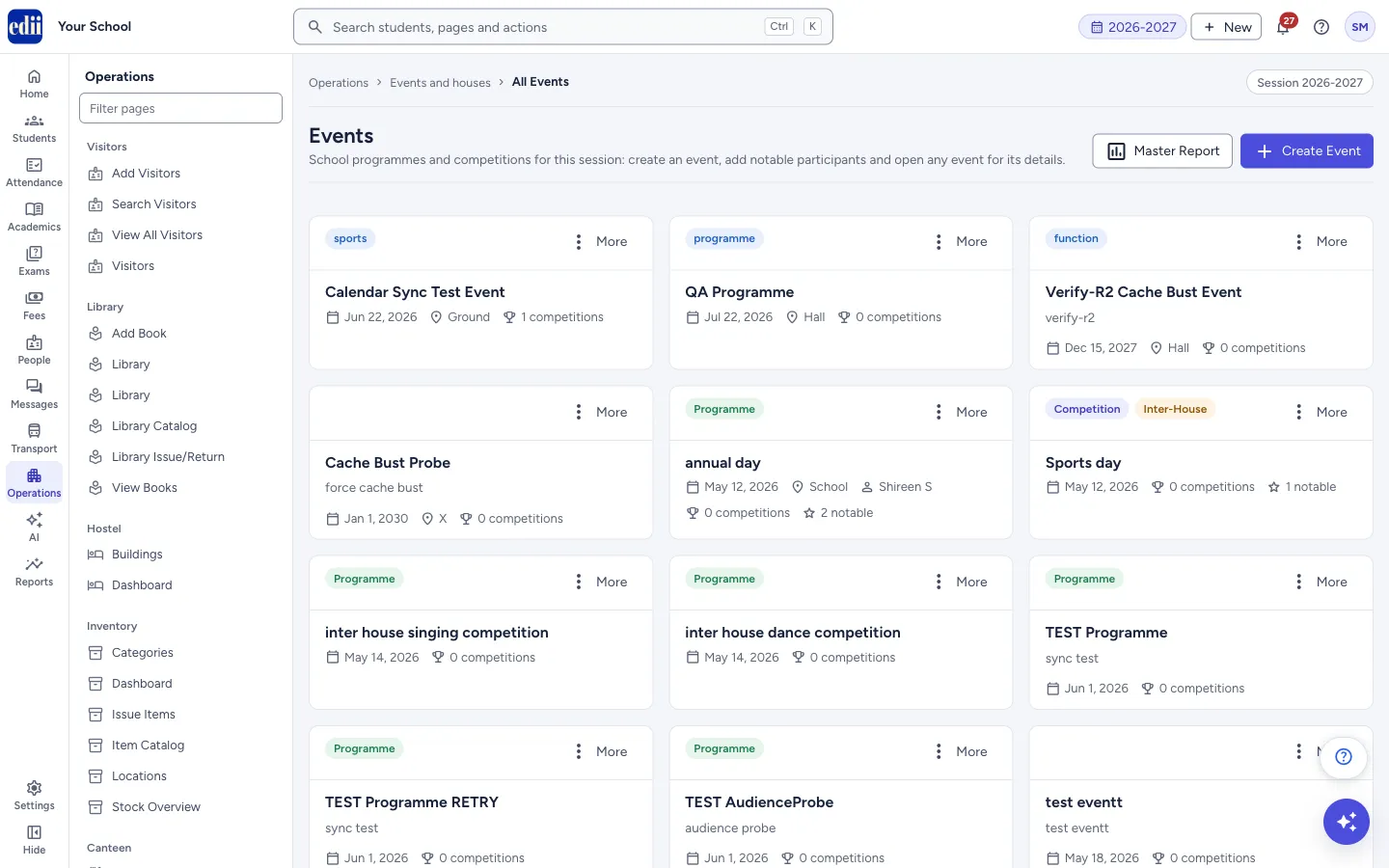
The list of the session's programmes and competitions as cards, with a form to create an event, a Master Report and a menu to open or delete each event.
यह पेज अंग्रेज़ी में है। कुछ समझ न आए तो ।
All Events (the page heading is Events) shows every event of the session as a card: its category (Programme or Competition), name, description, date, venue, the number of competitions and the number of notable participants.
Select a card to open the event. The More menu on a card has View Details and Delete. Master Report at the top opens the report of all events. Create Event opens a form on the same page.
Who uses it and when
Section titled “Who uses it and when”The activities or sports coordinator, class teachers and the office, when a school programme or a house competition is planned or finished.
Where to find it
Section titled “Where to find it”- In school.edii.in: Operations › Events and houses › All Events
- Or press Ctrl K (⌘ K on a Mac) and type All Events.
- Address:
school.edii.in/event-management/list - Who can see it: Everyone who can sign in to school.edii.in. If it is missing from your menu, ask your school admin.
 Open a bigger pictureतस्वीर बड़ी करें
Step by step
Section titled “Step by step”1. Look at the events
Section titled “1. Look at the events”The cards load by themselves. If there are none, EDII shows No events found. Create your first event!. Some older events show only a type such as sports or function instead of the category.
2. Start a new event
Section titled “2. Start a new event”Select Create Event. A Create New Event box opens above the cards, and the button changes to Cancel. Type the Event Name and choose the Category: Programme or Competition.
3. Fill the rest for a Programme
Section titled “3. Fill the rest for a Programme”For a Programme, choose the Responsible Staff / Coordinator (several can be chosen; if the list of staff is not available you type names separated by commas). Choose the Class(es) organising / participating, Section(s) and Stream(s).
4. Fill the rest for a Competition
Section titled “4. Fill the rest for a Competition”For a Competition, choose the Scope: Inter-House, Intra-class or Stage Competition. Choose the classes, sections and streams, the House(s) participating, the Winning House (leave Not declared yet if the result is not known) and the Coordinator(s).
5. Add the dates, venue and notable participants
Section titled “5. Add the dates, venue and notable participants”Fill Occasion / event name detail (optional) (for example Sports Day or Annual Day), Start Date, End Date, Venue and Description.
Under Notable Participants, type at least 2 characters of a student’s name or ID in Search a student to add (name or ID) and select the student, or select Auto-suggest from scope to add the students of the chosen classes, sections and houses, or Add row to type one yourself. Each row has Student name, Class, Section, House and Achievement (for example State-level winner) and a Delete button.
6. Save the event
Section titled “6. Save the event”Select Create Event at the bottom of the form. EDII shows Event created successfully and the new card appears. Cancel closes the form without saving.
7. Open or delete an event
Section titled “7. Open or delete an event”Select the card, or open More and choose View Details, to see the event. Choose Delete in More to remove it: EDII asks Are you sure you want to delete the event name; select Delete to confirm. EDII then shows Event deleted.
Fields and filters
Section titled “Fields and filters”| Field | What it is | Notes |
|---|---|---|
| Event Name | The name of the event. | Required. |
| Category | Programme or Competition. | Required. |
| Responsible Staff / Coordinator | The staff in charge of a Programme. | Optional. Several can be chosen. |
| Scope | Inter-House, Intra-class or Stage Competition. | Required for a Competition. |
| Class(es), Section(s), Stream(s) | The groups that organise or take part. | Optional. Several can be chosen. |
| House(s) participating | The houses in a Competition. | Optional. |
| Winning House | The house that won. | Optional; Not declared yet by default. |
| Coordinator(s) | The staff coordinating a Competition. | Optional. |
| Occasion / event name detail (optional) | A short label such as Sports Day. | Optional. |
| Start Date, End Date, Venue, Description | When and where, and a note. | Optional. |
| Notable Participants | Students worth mentioning, with their achievement. | Optional. Empty rows are dropped when you save. |
Buttons
Section titled “Buttons”| Button | What it does | What happens next |
|---|---|---|
| Master Report | Opens the report of all events. | The master report opens. |
| Create Event / Cancel | Opens or closes the create form. | The form shows or hides. |
| Auto-suggest from scope | Adds the students of the chosen classes, sections and houses as notable participants. You can edit them. | Added N suggested participants. Edit names/achievements before saving. |
| Add row | Adds an empty notable participant row. | A row appears. |
| More | Menu on a card: View Details, Delete. | The event opens, or the delete box. |
After you save
Section titled “After you save”- The new event is in the list and is counted on the Dashboard. Open the event to add competitions and winners.
Messages you may see
Section titled “Messages you may see”| Message | What it means | What to do |
|---|---|---|
| Please enter event name | The name is empty. | Type the event name. |
| Please choose a category — Programme or Competition | No category is chosen. | Choose one. |
| Please choose the competition scope | A Competition needs a scope. | Choose Inter-House, Intra-class or Stage Competition. |
| Event created successfully | The event was saved. | Nothing to do. |
| Event deleted | The event was removed. | Nothing to do. |
| Student already added as a notable participant | That student is already in the rows. | Choose someone else. |
| Select at least a class, section, or house above so we know who to suggest. | Auto-suggest needs a class, section or house first. | Choose them in the form, then try again. |
| Error loading events | The cards could not be loaded. | Open the page again. |
- Choose the classes and houses first, then use Auto-suggest from scope and delete the students who did not take part.
Did this page help?क्या इस पेज से मदद मिली?
Thanks! Glad it helped.धन्यवाद! अच्छा लगा कि काम बन गया।
Sorry about that. Ask in your own words, or write to us.माफ़ कीजिए। अपने शब्दों में पूछें, या हमें लिखें।