
Screen guide · Web app
View Jobs
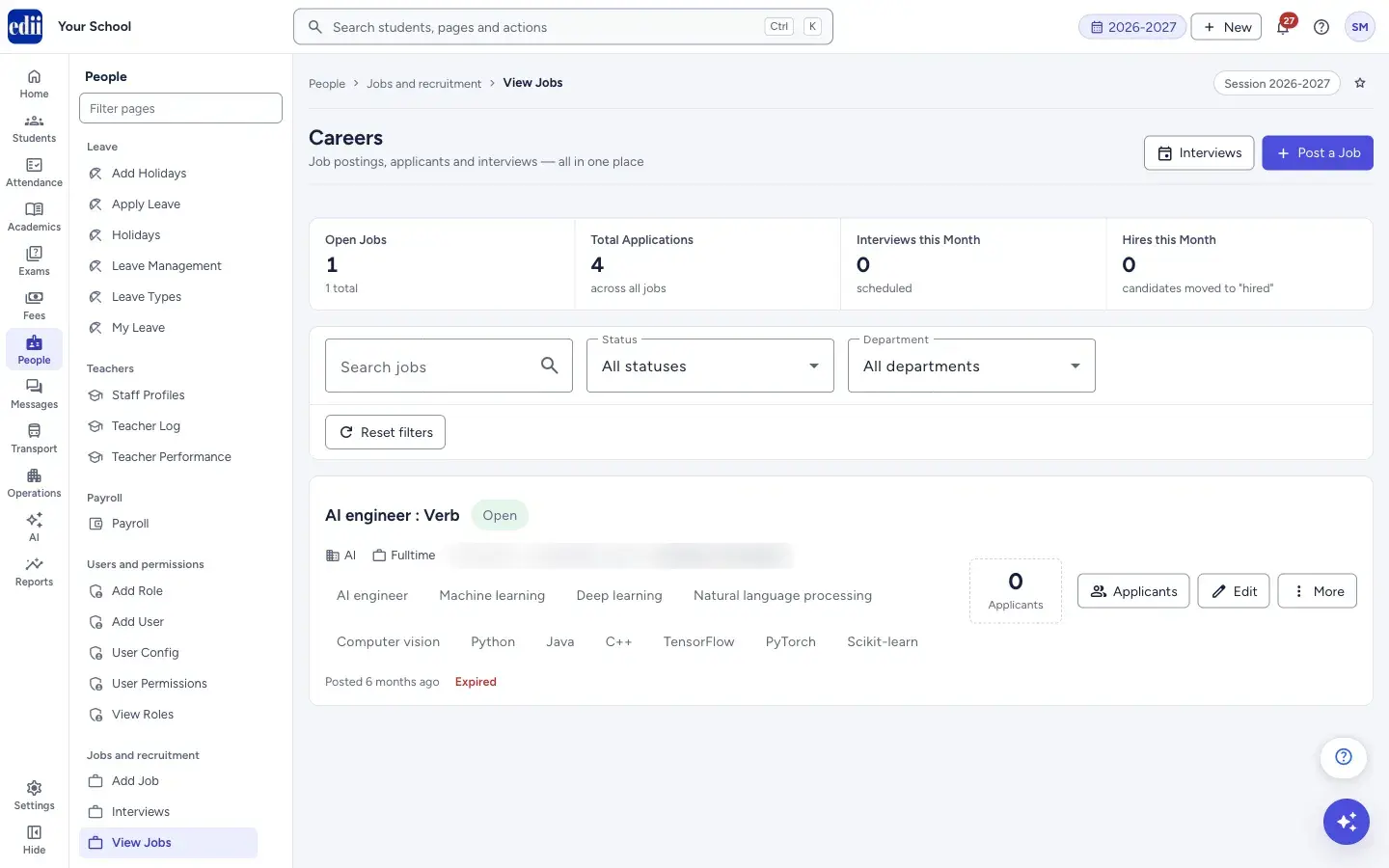
The Careers page: all the school's job postings with their status and applicants, and the place to post, edit, pause, close or delete a job.
यह पेज अंग्रेज़ी में है। कुछ समझ न आए तो ।
View Jobs opens a page headed Careers. At the top, four counters show Open Jobs (with the total number of jobs), Total Applications (across all jobs), Interviews this Month (scheduled) and Hires this Month (candidates moved to “hired”).
Below them is one card for each job. A card shows the title and its status (Open, Paused, Closed or Draft), the department, employment type, work mode, place, the salary range (or Salary not disclosed), the tags, when it was posted, and how long is left before it expires (Expired, Last day or N days left). On the right are the number of applicants and the buttons Applicants, Edit and More.
Who uses it and when
Section titled “Who uses it and when”The principal or the person who handles recruitment, to follow every opening and its applicants.
Where to find it
Section titled “Where to find it”- In school.edii.in: People › Jobs and recruitment › View Jobs
- Or press Ctrl K (⌘ K on a Mac) and type View Jobs.
- Address:
school.edii.in/view/view-jobs - Who can see it: Staff whose role includes Messages or Leave or Meetings access. Shown only when your school uses HR and Calendar in EDII. If it is missing from your menu, ask your school admin.
 Open a bigger pictureतस्वीर बड़ी करें
Step by step
Section titled “Step by step”1. Find a job
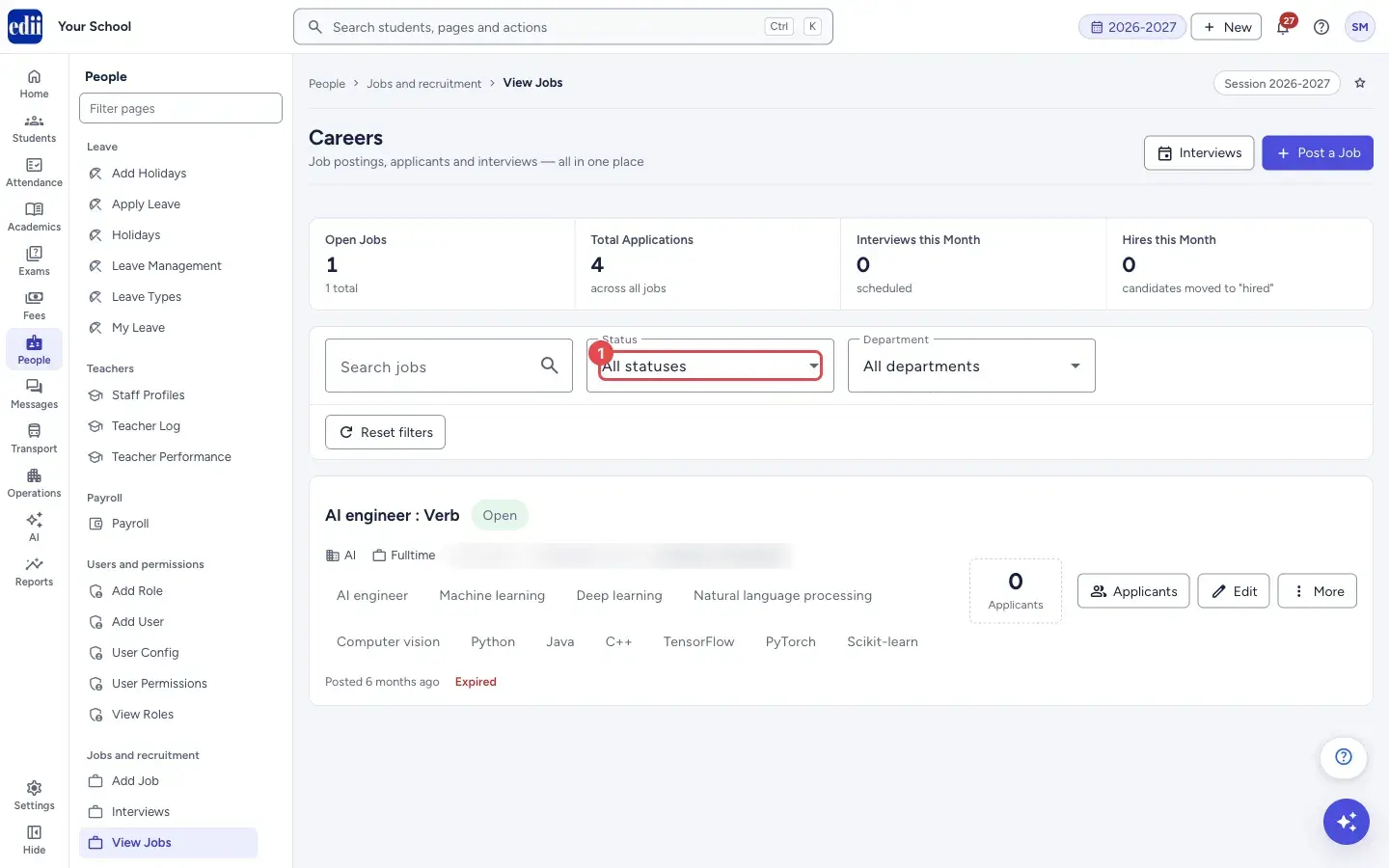
Section titled “1. Find a job”Type in Search jobs to look in the title, department, city and tags. Use Status (All statuses, Open, Paused, Closed, Draft) and Department (built from the departments of your jobs) to narrow the list. Reset filters clears all three.
 Open a bigger pictureतस्वीर बड़ी करें
2. Post a new job
Section titled “2. Post a new job”Select Post a Job at the top. The Add Job form opens. When there are no jobs yet, the page shows Get started by posting your first job opening. with the same button.
3. See the applicants
Section titled “3. See the applicants”Select Applicants on a job (or the applicant count). The applicants of that job open.
4. Edit a job
Section titled “4. Edit a job”Select Edit, or the job title. The job opens in an edit form.
5. Change the status or delete
Section titled “5. Change the status or delete”Select More. The menu has Mark as Open, Mark as Paused, Mark as Closed, Mark as Draft (the job’s current status is greyed out) and Delete.
A status change is saved at once and you see Status: followed by the new status. Delete asks Delete job? with the text This will close “<job>” and remove it from the job board. Existing applications stay on file. Select Delete to confirm; you see Job deleted.
6. Go to the interviews
Section titled “6. Go to the interviews”Select Interviews at the top to see the interviews planned for applicants of all jobs.
Buttons
Section titled “Buttons”| Button | What it does | What happens next |
|---|---|---|
| Interviews | Opens the Interviews page. | Interviews opens. |
| Post a Job | Opens the Add Job form. | Add Job opens. |
| Reset filters | Clears the search, status and department filters. | All jobs show again. |
| Applicants | Opens the applicants of that job. | The applicants page of that job opens. |
| Edit | Opens the job to change it. | The edit form opens. |
| More › Mark as … | Changes the status of the job to Open, Paused, Closed or Draft. | Status: and the new status. The counters refresh. |
| More › Delete | Closes the job and removes it from the job board after you confirm. Applications that were already received stay on file. | Job deleted and the list refreshes. |
Good to know
Section titled “Good to know”- A job that has passed its expiry date shows Expired even when its status is still Open. Change the status yourself if you want it closed.
- Status changes and Delete take effect on the careers portal as soon as you confirm them.
Messages you may see
Section titled “Messages you may see”| Message | What it means | What to do |
|---|---|---|
| No jobs match your filters | Nothing fits the search, status and department you chose. | Select Reset Filters. |
| Network error | The jobs or the change did not reach EDII. | Check the internet and try again. |
- Mark a job Closed or Paused instead of deleting it if you may open it again.
- A job saved as Draft is not shown to candidates. When it is ready, use More › Mark as Open.
Did this page help?क्या इस पेज से मदद मिली?
Thanks! Glad it helped.धन्यवाद! अच्छा लगा कि काम बन गया।
Sorry about that. Ask in your own words, or write to us.माफ़ कीजिए। अपने शब्दों में पूछें, या हमें लिखें।