
Screen guide · Web app
Profile Update Requests
The requests that parents or students send from the Student/Parent app to correct their details, where an admin can approve or reject them.
यह पेज अंग्रेज़ी में है। कुछ समझ न आए तो ।
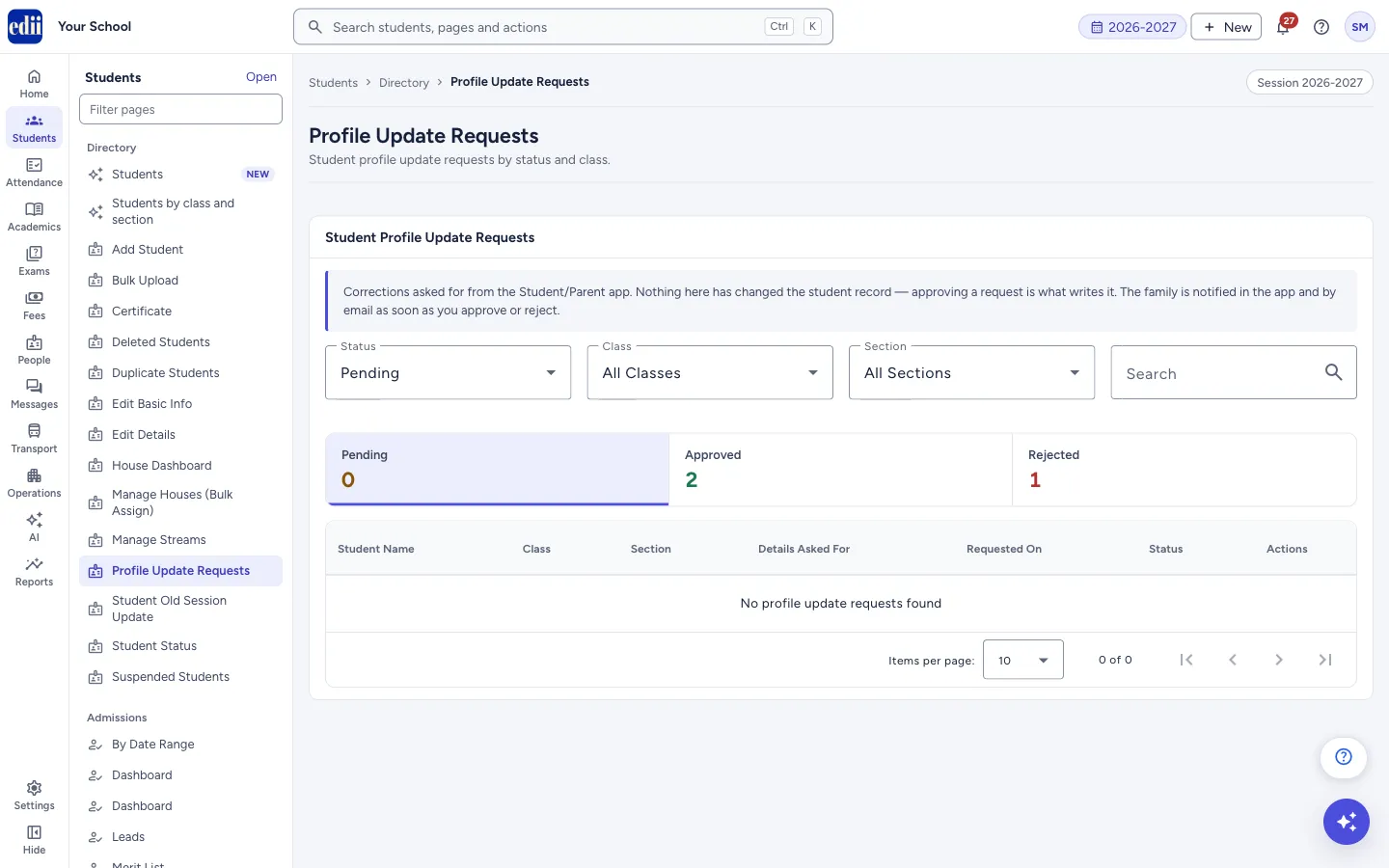
Profile Update Requests lists the corrections that families ask for from the Student/Parent app, for example a new phone number or address. Nothing in the list has changed the student’s record yet: a change is written only when you approve the request.
As soon as you approve or reject a request, the family is told in the app and by email. Everyone with student access can see the requests, but only an admin can approve or reject; others see the message You can see these requests, but only an admin can approve or reject them.
Who uses it and when
Section titled “Who uses it and when”The school office or an admin checks it regularly, so that parents’ corrections reach the student records.
Before you start
Section titled “Before you start”- Families send requests from the Student/Parent app, so the list stays empty until they do.
Where to find it
Section titled “Where to find it”- In school.edii.in: Students › Directory › Profile Update Requests
- Or press Ctrl K (⌘ K on a Mac) and type Profile Update Requests.
- Address:
school.edii.in/view/view-student-info-requests - Who can see it: Staff whose role includes Students or Attendance access. Shown only when your school uses Student in EDII. If it is missing from your menu, ask your school admin.
 Open a bigger pictureतस्वीर बड़ी करें
Step by step
Section titled “Step by step”1. Choose which requests to see
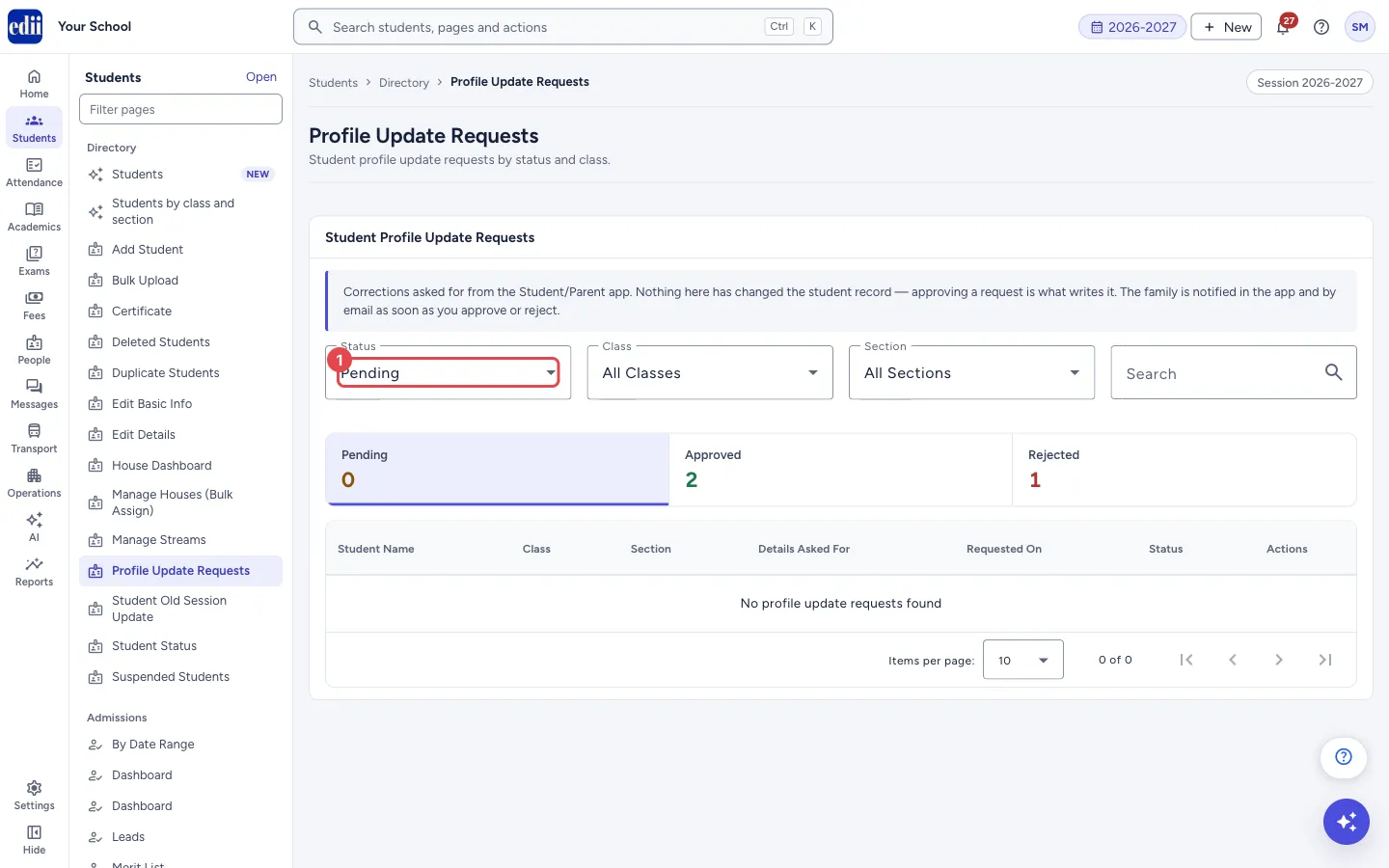
Section titled “1. Choose which requests to see”Status opens on Pending. Choose Approved, Rejected, Cancelled or All to see others. You can also select one of the three boxes Pending, Approved and Rejected; they show the totals for the whole school and filter the table when selected.
 Open a bigger pictureतस्वीर बड़ी करें
2. Narrow by class, section or name
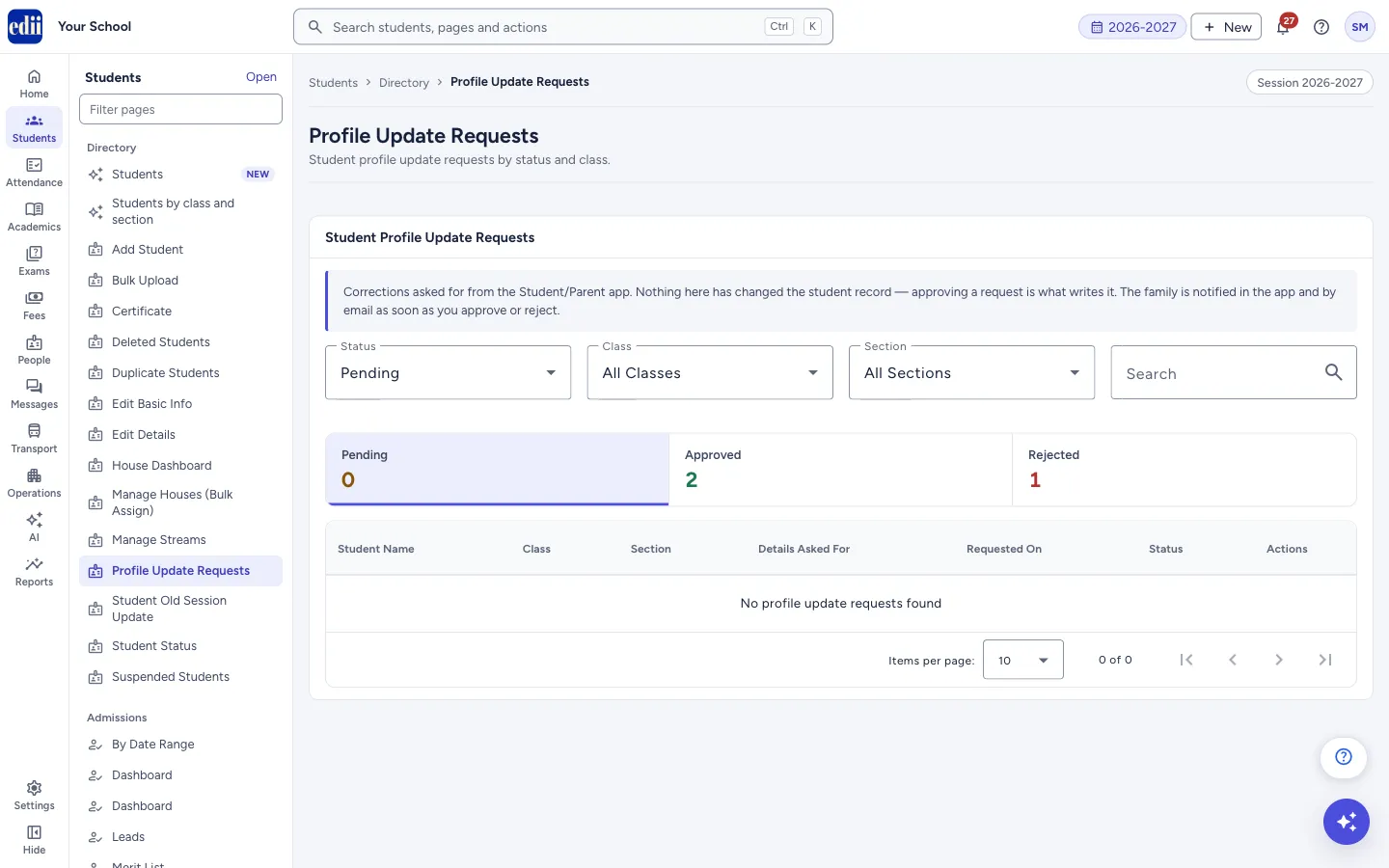
Section titled “2. Narrow by class, section or name”Use Class (All Classes), Section (All Sections) and Search (by name). The table shows 10 rows at a time; change Items per page to 25, 50 or 100.
 Open a bigger pictureतस्वीर बड़ी करें
3. Look at a request
Section titled “3. Look at a request”In the Actions column select the eye icon (View Details). A window shows the student, class and section, roll number, the date requested, the reason the family gave, and a table of each detail with what was on record and what is requested.
4. Approve a request (admin)
Section titled “4. Approve a request (admin)”On a Pending row select the tick icon (Approve). The window lists each detail with a tick box, all ticked. Untick any detail you do not want to accept; it stays as it is on the student record. Write a Note for the family (optional), which the family sees in the app. Select Approve.
If you untick everything, the button is off and the window says Select at least one detail to approve, or reject the request instead.
5. Reject a request (admin)
Section titled “5. Reject a request (admin)”Select the cross icon (Reject). Fill Reason for rejection, which tells the family why, and select Reject.
Fields and filters
Section titled “Fields and filters”| Field | What it is | Notes |
|---|---|---|
| Status | Which requests to list. | Pending, Approved, Rejected, Cancelled or All. Opens on Pending. |
| Class, Section | Narrow the list to one class or section. | All Classes, All Sections show everything. |
| Search | Finds requests in the list by what you type, such as the student’s name. | Not case sensitive. |
| Note for the family (optional) | A line shown to the family in the app when you approve. | Optional. |
| Reason for rejection | The reason the family is told when you reject. | Fill it so the family knows what to correct. |
Buttons
Section titled “Buttons”| Button | What it does | What happens next |
|---|---|---|
| View Details (eye) | Opens the full request. | A window with the changes. Select Close to leave it. |
| Approve (tick) | Writes the ticked details to the student record. Shows only on pending requests, and only for an admin. | A message from EDII, then the list refreshes. |
| Reject (cross) | Turns the request down. Shows only on pending requests, and only for an admin. | A message from EDII, then the list refreshes. |
Columns
Section titled “Columns”| Column | Meaning |
|---|---|
| Student Name | The student the request is for. |
| Class, Section | The student’s class and section. |
| Details Asked For | The details the family wants changed, for example the phone number. |
| Requested On | The date the request was sent. |
| Status | Pending, Approved, Rejected or Cancelled. |
| Actions | The eye, tick and cross icons. |
After you save
Section titled “After you save”- Approved details are written to the student record, and the family is told in the app and by email. Details you left unticked stay unchanged.
- A rejected request changes nothing on the record. The family sees your reason.
Good to know
Section titled “Good to know”- The contact number is what the Student/Parent app logs in with. When a phone number is in the request you are approving, the window warns: The contact number is what the Student/Parent app logs in with. Approving it means the app will sign in with the new number — confirm the request really came from the family.
- If the new number already logs in to other students, EDII asks you to confirm again before it goes ahead. Choose to approve only if you are sure.
- The request is applied to the session it was made in, not to the session you are viewing.
Messages you may see
Section titled “Messages you may see”| Message | What it means | What to do |
|---|---|---|
| No profile update requests found | No request matches the status, class, section or search. | Change Status to All, or clear the other filters. |
| Error loading student update requests | The list could not be loaded. | Check the internet and open the page again. |
| Error processing the update request | The approve or reject did not go through. | Check the internet and try again. |
| Request reviewed | The request was processed. | Nothing to do. |
- Call the family if a phone-number request looks odd; the app logs in with that number.
- Approve the good details and untick the doubtful ones, instead of rejecting the whole request.
Stuck? Try this
Section titled “Stuck? Try this”| Problem | Likely cause | What to do |
|---|---|---|
| I see the requests but no tick and cross icons | Your login is not an admin login. | Ask an admin to review the requests. |
| The table is empty | The Status is on Pending and nothing is pending. | Choose All to see earlier requests. |
Did this page help?क्या इस पेज से मदद मिली?
Thanks! Glad it helped.धन्यवाद! अच्छा लगा कि काम बन गया।
Sorry about that. Ask in your own words, or write to us.माफ़ कीजिए। अपने शब्दों में पूछें, या हमें लिखें।