
Screen guide · Web app
AI Test Analytics
Shows how teachers use AI-generated tests this session: tests made, questions regenerated or edited, and the questions students get wrong most often.
यह पेज अंग्रेज़ी में है। कुछ समझ न आए तो ।
AI Test Analytics has three tabs: Teacher Usage, Regeneration Rate and Failed Questions. It reads the AI tests made in the selected session and reports on them. It does not change anything.
Teacher Usage starts with four counts: Total AI Tests, Completed Tests, Total Questions and Active Teachers, then a table Usage by Teacher. Regeneration Rate shows how often teachers asked the AI to redo a question. Failed Questions shows the questions students answered wrongly most often.
All figures come from AI-written tests, so they describe how the tool is used and how students did. They are not a judgement on any teacher.
Who uses it and when
Section titled “Who uses it and when”The principal or academic head uses it to see which teachers use AI tests and which topics and subjects need the most rework.
Before you start
Section titled “Before you start”- Teachers must have made AI tests this session (see AI Exam Generator). Without them the tables say No AI test usage found for this session.
- The Failed Questions tab needs students to have attempted the tests.
Where to find it
Section titled “Where to find it”- In school.edii.in: AI › EDII AI › AI Test Analytics
- Or press Ctrl K (⌘ K on a Mac) and type AI Test Analytics.
- Address:
school.edii.in/view/ai-test-analytics - Who can see it: Staff whose role includes Exams access. Shown only when your school uses EDII’s AI and Exam in EDII. If it is missing from your menu, ask your school admin.
Step by step
Section titled “Step by step”1. Read the Teacher Usage tab
Section titled “1. Read the Teacher Usage tab”The page opens on Teacher Usage. The four counts at the top are for the whole school. In Usage by Teacher, each row is one teacher with Tests Created, Questions Regenerated, Questions Edited and the topics that teacher edited most (Most Edited Topics). A dash means no edits.
2. Open Regeneration Rate
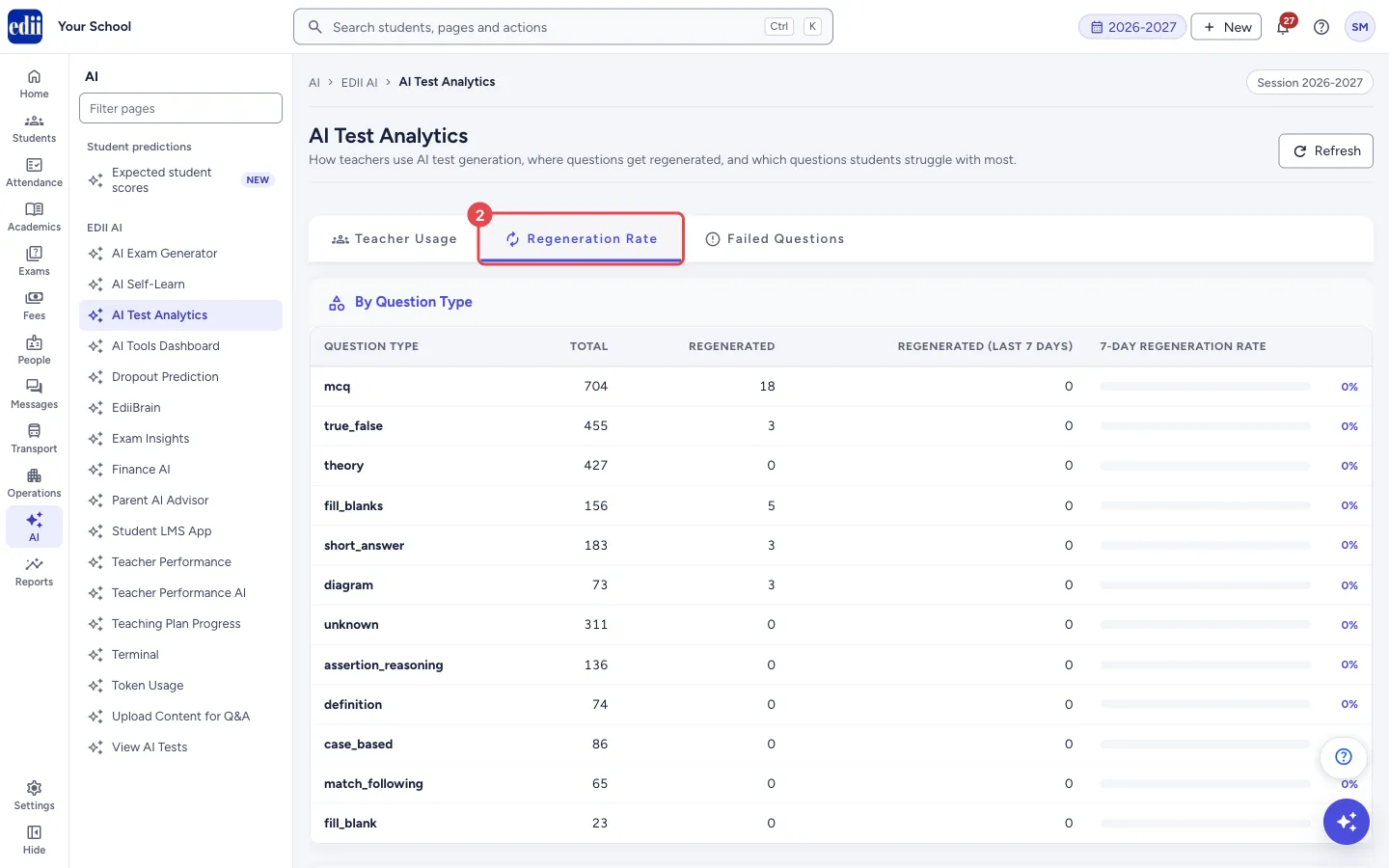
Section titled “2. Open Regeneration Rate”Select the Regeneration Rate tab. By Question Type lists each type of question with Total, Regenerated, Regenerated (last 7 days) and a bar for the 7-Day Regeneration Rate. A bar turns to a warning colour at 40% or more.
Below it a chart Questions Generated by Subject and a table By Subject show the same figures for each subject.
 Open a bigger pictureतस्वीर बड़ी करें
3. Open Failed Questions and filter
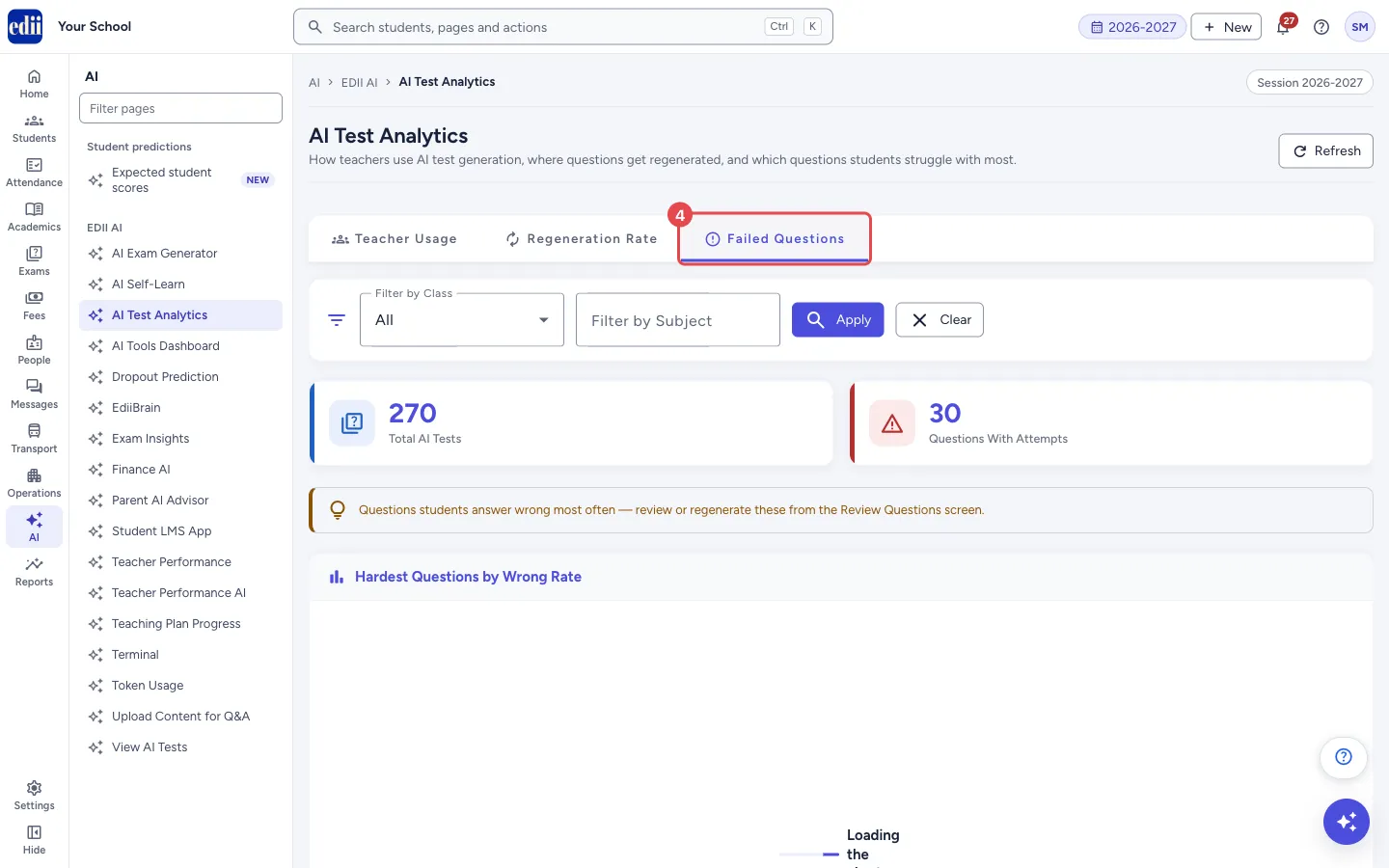
Section titled “3. Open Failed Questions and filter”Select the Failed Questions tab. Total AI Tests and Questions With Attempts show at the top. Use Filter by Class and Filter by Subject (type the subject), then select Apply. Clear removes the filters.
A chart Hardest Questions by Wrong Rate and a table Most-Failed Questions list the questions with their class, subject, test type, question number, text, Attempts, Wrong and Wrong Rate. Teachers can review or regenerate these questions from the Review Questions screen.
 Open a bigger pictureतस्वीर बड़ी करें
4. Reload the figures
Section titled “4. Reload the figures”Select Refresh at the top right to load all three tabs again.
Fields and filters
Section titled “Fields and filters”| Field | What it is | Notes |
|---|---|---|
| Filter by Class | Limits the Failed Questions tab to one class. | Starts at All. |
| Filter by Subject | Limits the Failed Questions tab to one subject. | Type the subject name and select Apply (or press Enter). |
Buttons
Section titled “Buttons”| Button | What it does | What happens next |
|---|---|---|
| Refresh | Loads all three tabs again. | The figures update. |
| Apply | Applies the class and subject filters to Failed Questions. | The counts, chart and table update. |
| Clear | Removes the class and subject filters. | All failed questions show again. |
Columns
Section titled “Columns”| Column | Meaning |
|---|---|
| Tests Created | AI tests made by the teacher. |
| Questions Regenerated | Questions the teacher asked the AI to redo. |
| Questions Edited | Questions the teacher changed by hand. |
| Most Edited Topics | Topics with the most edits by that teacher. |
| Total / Regenerated / Regenerated (last 7 days) | Questions of that type or subject, how many were redone, and how many were redone in the last 7 days. |
| 7-Day Regeneration Rate | Share of questions redone in the last 7 days. |
| Attempts / Wrong / Wrong Rate | How many times students answered the question, how many answers were wrong, and the share that were wrong. |
Good to know
Section titled “Good to know”- Figures are for the session chosen at the top of the screen.
- Question types in the Regeneration Rate table are shown by their short names, for example mcq and true_false. A row called unknown holds questions whose type was not recorded.
Messages you may see
Section titled “Messages you may see”| Message | What it means | What to do |
|---|---|---|
| No AI test usage found for this session. | No teacher has made an AI test this session. | Make a test in AI Exam Generator. |
| No data available. | There are no questions to report on in this table. | Nothing to do until tests exist. |
| No failed questions found. | No question matches the filters, or students have not attempted the tests. | Select Clear, or wait until students attempt the tests. |
| Bad/Slow Internet Connection | A tab could not load. | Check the connection and select Refresh. |
| Failed to load teacher usage | The usage data could not be loaded. | Select Refresh. |
- Use the most-edited topics to talk to teachers about where AI questions need more care.
- A subject with a high regeneration rate may need clearer topics when generating the test.
Stuck? Try this
Section titled “Stuck? Try this”| Problem | Likely cause | What to do |
|---|---|---|
| All counts are zero. | No AI tests were made in the selected session. | Change the session at the top, or make a test first. |
Did this page help?क्या इस पेज से मदद मिली?
Thanks! Glad it helped.धन्यवाद! अच्छा लगा कि काम बन गया।
Sorry about that. Ask in your own words, or write to us.माफ़ कीजिए। अपने शब्दों में पूछें, या हमें लिखें।