
Screen guide · Web app
Marks History
Look at every marks submission recorded for one student in one exam, compare any earlier point in time with the marks today, and restore marks that were lost or overwritten.
यह पेज अंग्रेज़ी में है। कुछ समझ न आए तो ।
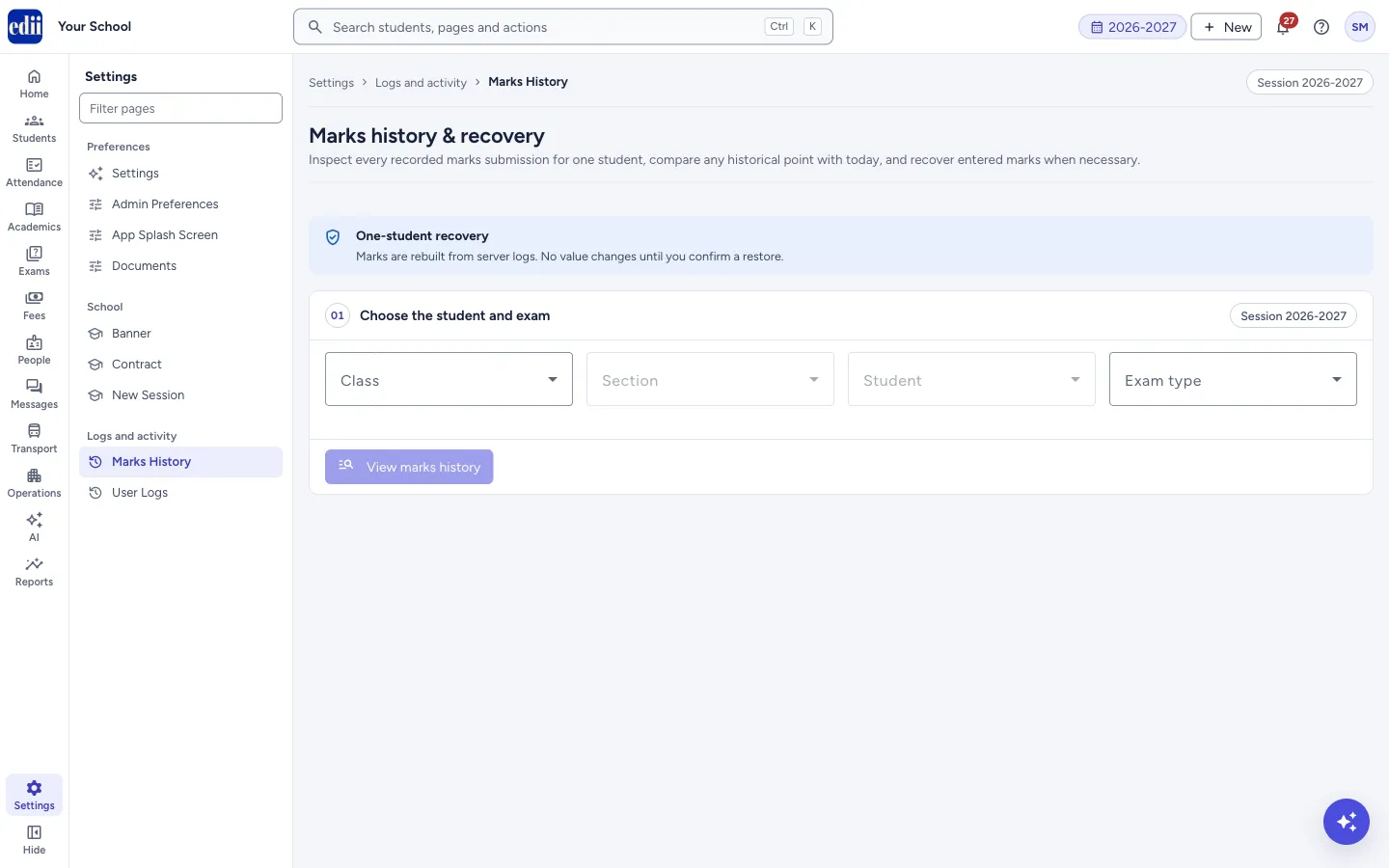
Marks History (headed Marks history & recovery) works for one student and one exam type at a time. It shows the recorded snapshots of that student’s marks, lets you compare any snapshot with the current marks, and lets you restore selected marks back to what they were.
The marks are rebuilt from the server’s logs. As the page says, no value changes until you confirm a restore. A restore only affects the chosen student and only the marks you tick.
Restoring marks changes real results. Do it only when marks were removed or overwritten by mistake, and keep a note of why.
Who uses it and when
Section titled “Who uses it and when”The principal or exam in-charge uses it when a teacher says marks have disappeared or were overwritten, or to check who changed a mark and when.
Before you start
Section titled “Before you start”- Know the class, section, student and exam type, for the session shown on the page, written like 2026-2027.
- Only administrators can open this page.
Where to find it
Section titled “Where to find it”- In school.edii.in: Settings › Logs and activity › Marks History
- Or press Ctrl K (⌘ K on a Mac) and type Marks History.
- Address:
school.edii.in/view/marks-history - Who can see it: Staff whose role includes Users or Admin pages access. Shown only when your school uses User in EDII. If it is missing from your menu, ask your school admin.
 Open a bigger pictureतस्वीर बड़ी करें
Step by step
Section titled “Step by step”1. Choose the student and exam
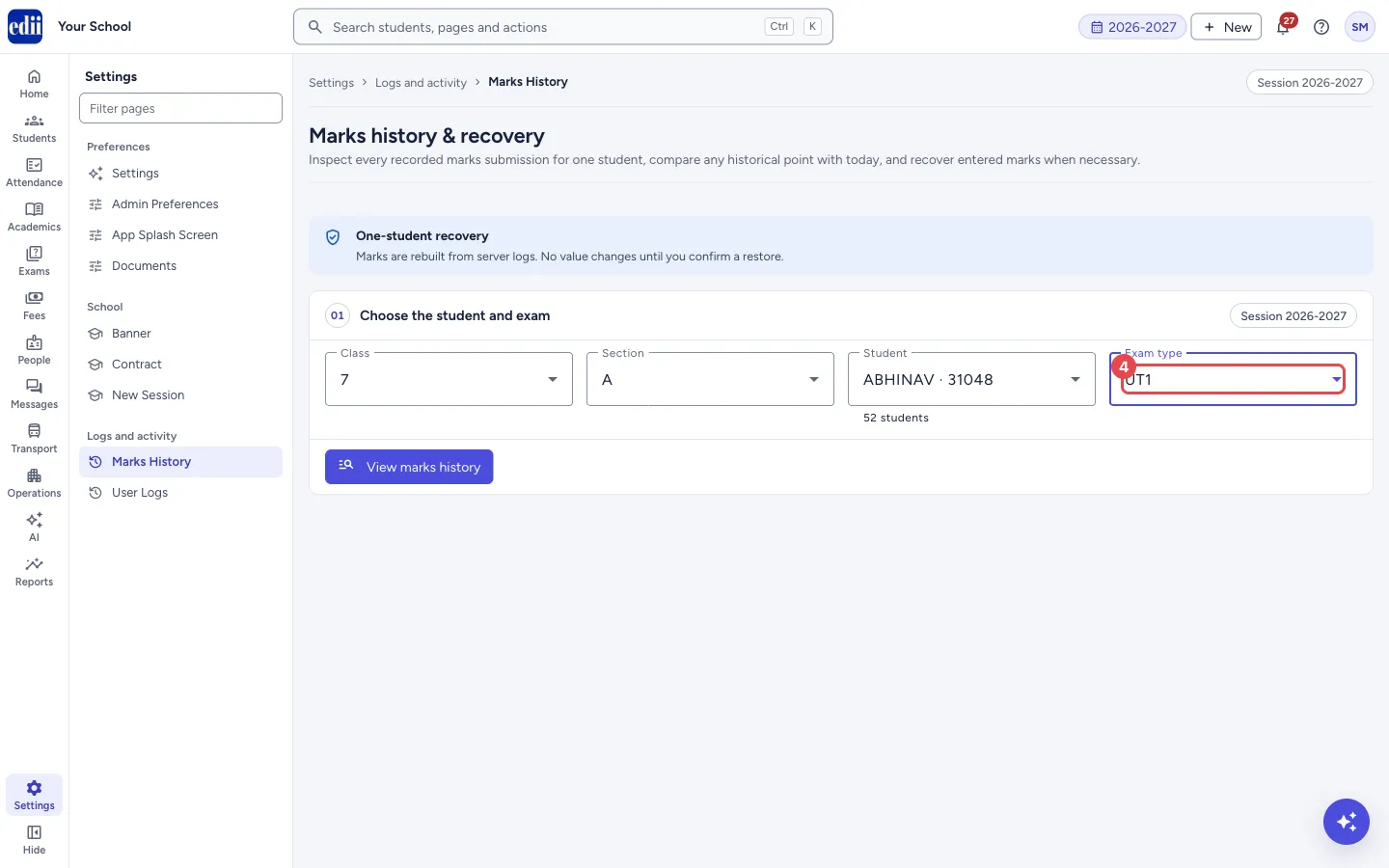
Section titled “1. Choose the student and exam”In step 01 Choose the student and exam, choose the Class, then the Section, then the Student (the list shows the name and ID, and how many students there are), then the Exam type. Select View marks history. The button stays off until the student and exam type are chosen.
 Open a bigger pictureतस्वीर बड़ी करें
2. Pick a snapshot
Section titled “2. Pick a snapshot”Step 02 Recorded snapshots lists each point in time when the student’s marks were submitted: the date, who submitted them and how many marks were entered. The newest is marked Latest change. Repeated submissions with no change in the marks are hidden here but stay in the event log. If nothing is found, the page says No entered-mark snapshot found.
3. Compare with today’s marks
Section titled “3. Compare with today’s marks”Step 03 Snapshot comparison shows, for each subject and component, the Current mark, the mark At snapshot and a Difference: Missing now (the mark is not there today), Different now (the mark has changed) or Matches now. If every mark matches, the page says Current marks already match and there is nothing to restore.
4. Restore marks
Section titled “4. Restore marks”Tick Restore next to the marks you want back, or Select all changed marks. In step 04, write the Reason for restoration (at least 5 characters; it is saved permanently in the audit), type RESTORE in the box and select Restore selected marks. The button stays off until all of these are done.
When it works you see Marks restored successfully (or the message the server returns), and the page reloads the history. The restoration is added to Previous restorations.
5. Read the event log
Section titled “5. Read the event log”Step 05 Detailed event log lists every update request for the student: When, User, Subject, Component, the mark Before, the mark Submitted and the Event. Events are First record, Entered, Changed, Cleared, Removed, Re-entered, Added blank, Preserved, Unchanged, Not included or Still absent. The latest 50 show; select Show all to see the rest.
Fields and filters
Section titled “Fields and filters”| Field | What it is | Notes |
|---|---|---|
| Class, Section, Student, Exam type | Which student’s marks, and for which exam. | All four are needed. The section list needs a class and the student list needs a section. |
| Restore (tick boxes) | The marks to put back. | Only marks that differ from today can be ticked. |
| Reason for restoration | Why you are restoring. | At least 5 characters, up to 300. Saved in the audit. |
| Type RESTORE | A safety check before restoring. | Must read RESTORE exactly. |
Buttons
Section titled “Buttons”| Button | What it does | What happens next |
|---|---|---|
| View marks history | Reads the history of the chosen student and exam. | The snapshots, comparison and event log show. |
| Select all changed marks | Ticks every mark that differs from today. | The count of selected marks updates. |
| Restore selected marks | Puts the ticked marks back to the snapshot values. | Marks restored successfully and the history reloads. |
| Show all / Show latest 50 | Shows the full or the short event log. | The log grows or shrinks. |
Columns
Section titled “Columns”| Column | Meaning |
|---|---|
| Current | The mark today. A dash means no mark. |
| At snapshot | The mark at the chosen point in time. |
| Difference | Missing now, Different now or Matches now. |
| Before, Submitted | In the event log, the mark before the update and the mark that was submitted. Not present and Omitted mean the mark was not part of the request. |
After you save
Section titled “After you save”- The restored marks show in the marks pages and reports straight away. The restoration is listed under Previous restorations with the date, the user, the reason and how many marks were restored.
Good to know
Section titled “Good to know”- Only the chosen student and the ticked marks are changed. Other students and unticked marks are never touched.
- The server re-reads the chosen snapshot when you restore.
- A reason of at least 5 characters and the word RESTORE are required.
- A page that shows no snapshot means the logs hold no entered marks for this student in this exam.
Messages you may see
Section titled “Messages you may see”| Message | What it means | What to do |
|---|---|---|
| Select class, section, student and exam type | Something is not chosen. | Choose all four. |
| Unable to load marks history | The history could not be read. | Try again. |
| No entered-mark snapshot found | The logs contain no non-blank marks for this student in this exam. | Check the exam type, or the marks may never have been entered. |
| Current marks already match | Nothing differs from the snapshot. | Nothing to restore. |
| Marks restored successfully | The marks were restored. | Check the marks page. |
| Unable to restore marks | The restore did not go through. | Check the reason and try again. |
| Bad/Slow Internet Connection | The request failed. | Check the connection and try again. |
- Open the snapshot just before the problem and compare it with today before you restore.
- Write the reason clearly, for example who reported the problem.
Stuck? Try this
Section titled “Stuck? Try this”| Problem | Likely cause | What to do |
|---|---|---|
| The Restore button is grey. | No mark is ticked, the reason is under 5 characters, or RESTORE was not typed exactly. | Tick the marks, write the reason and type RESTORE. |
Did this page help?क्या इस पेज से मदद मिली?
Thanks! Glad it helped.धन्यवाद! अच्छा लगा कि काम बन गया।
Sorry about that. Ask in your own words, or write to us.माफ़ कीजिए। अपने शब्दों में पूछें, या हमें लिखें।