
Screen guide · Web app
Follow Up
The list of students absent on a chosen day, with their parents' numbers, where you call or message the parent, record the reason for the absence, and mark the case escalated or resolved.
यह पेज अंग्रेज़ी में है। कुछ समझ न आए तो ।
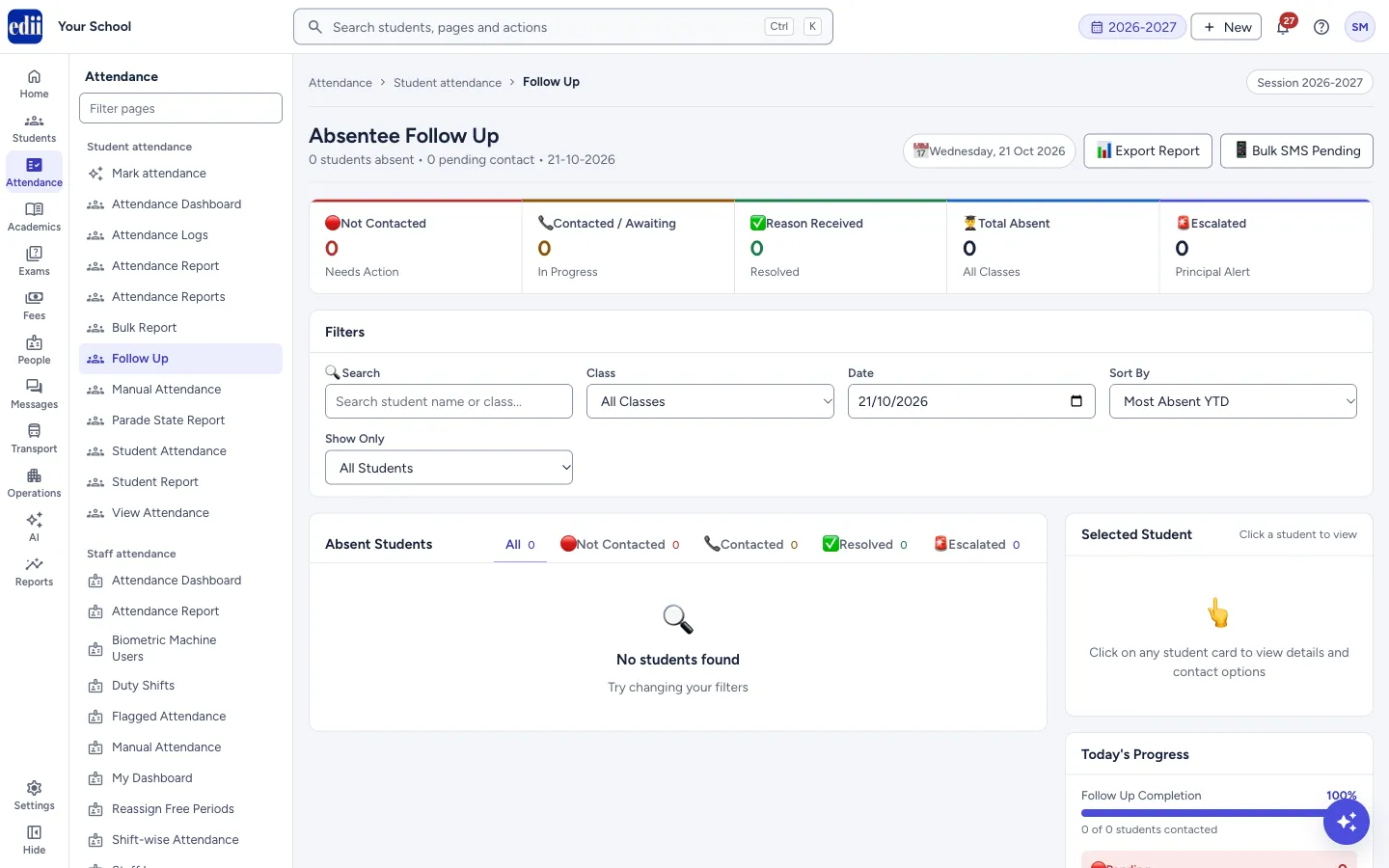
The screen is headed Absentee Follow Up. It lists the students who were marked absent on the date you choose (today when it opens). The line under the heading says how many are absent and how many are pending contact.
Every absent student is on one of four stages: Not Contacted, Contacted (awaiting an answer), Reason Received or Resolved, and Escalated when the principal should know. The stage changes as you contact the family and record the reason.
A student appears here when attendance is saved with the student marked absent on Mark attendance. Reasons given there also appear here. If Notify parents was ticked when the attendance was saved, the parent has already had the absence SMS and the card shows Already messaged today.
Who uses it and when
Section titled “Who uses it and when”The class teachers, the attendance in-charge and the office, every morning after attendance is marked.
Before you start
Section titled “Before you start”- Attendance must have been saved for the day. The parent’s phone number must be on the student’s record for calls and messages.
Where to find it
Section titled “Where to find it”- In school.edii.in: Attendance › Student attendance › Follow Up
- Or press Ctrl K (⌘ K on a Mac) and type Follow Up.
- Address:
school.edii.in/view/attendance-follow-up - Who can see it: Staff whose role includes Students or Attendance access. Shown only when your school uses Student in EDII. If it is missing from your menu, ask your school admin.
 Open a bigger pictureतस्वीर बड़ी करें
Step by step
Section titled “Step by step”1. Choose the date and filter the list
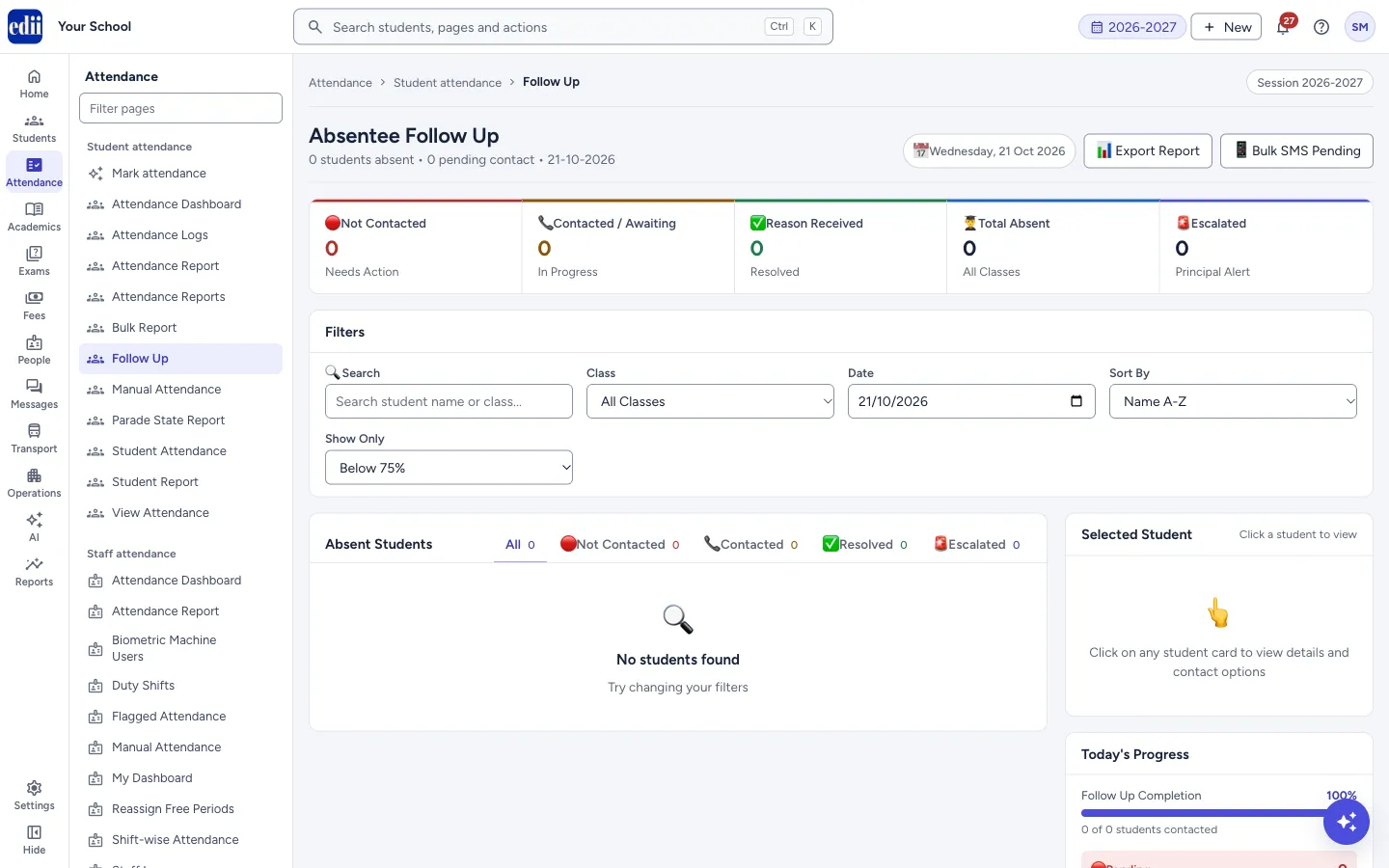
Section titled “1. Choose the date and filter the list”Date starts as today. Change it to see the absences of another day; the list reloads. The other filters work on the list that is loaded: Search (student name or class), Class, Sort By (Most Absent YTD, Name A-Z, Class, Consecutive Days) and Show Only (All Students, Below 75%, 3+ Consecutive Days, No Response Yet).
 Open a bigger pictureतस्वीर बड़ी करें
2. Look at the stages
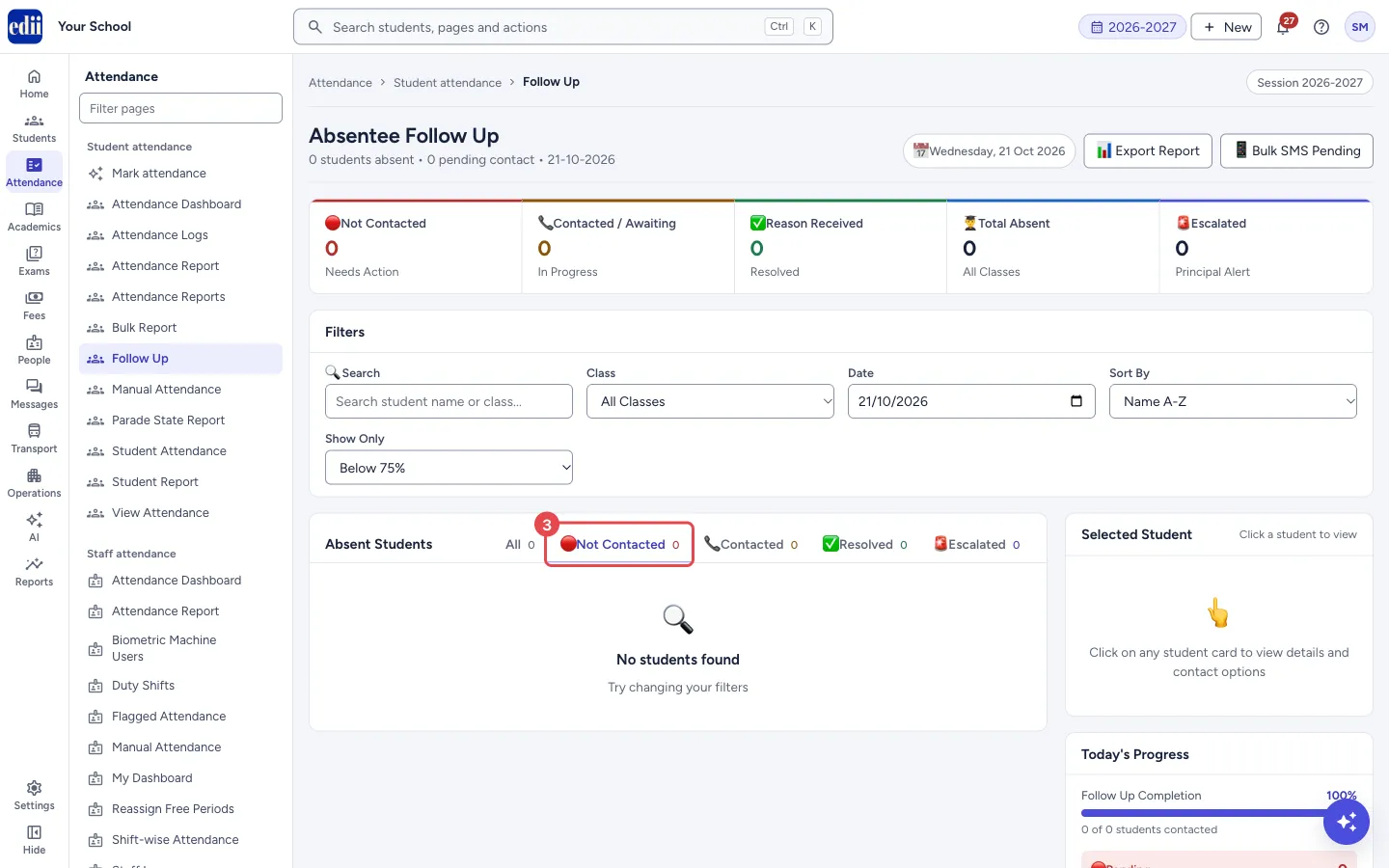
Section titled “2. Look at the stages”The five boxes at the top count Not Contacted, Contacted / Awaiting, Reason Received, Total Absent and Escalated. Select a box, or one of the tabs All, Not Contacted, Contacted, Resolved, Escalated over the list, to show only that stage. In the picture, the Not Contacted tab is outlined.
 Open a bigger pictureतस्वीर बड़ी करें
3. Read a student card
Section titled “3. Read a student card”Each card shows the student’s name and stage, class, roll number, attendance for the year (YTD), the parent’s name, relation and phone number, and tags such as Below 75%, N Days Consecutive, Already messaged today (the parent already has the absence SMS or WhatsApp for that day), N contact attempt(s) or No contact yet. Click the card to see the student in the Selected Student panel at the right, with the alternate contact number if there is one.
4. Contact the parent
Section titled “4. Contact the parent”On a card, select Call, SMS, WhatsApp or Email. Each one adds a line to the student’s contact history, and a stage of Not Contacted changes to Contacted.
Call opens your computer’s phone app with the parent’s number and logs the attempt; the history shows Call attempted. SMS and WhatsApp send the message Dear Parent, your child was marked absent on <date>. Please contact the school office. to the parent’s registered number. Email sends an email to the address on the student’s record. For SMS, WhatsApp and Email the message says sent to <parent>, or that it is queued and will go out shortly, or could not be sent (title Not sent); the history shows Sent, Queued or Not sent.
The absence SMS or WhatsApp goes to a parent only once a day. If the parent already has one for that day that did not fail, sent from Mark attendance or from this screen, SMS and WhatsApp send nothing and show SMS not sent: <parent> was already messaged today about this absence (title Already messaged today), and no line is added to the history. Call and Email are not limited.
5. Record the reason
Section titled “5. Record the reason”Select ▼ Details on a card. You see Contact History, then Record Absence Reason: choose one reason (Sick / Medical, Family Emergency, Travel / Vacation, No Response, Personal / Function, Other), add notes and an Expected Return Date, then select Save reason. The stage becomes Reason Received. Saving a reason does not message the parent. If you do not choose a reason first, you see Please select a reason first.
Escalate marks the student as escalated to the principal and Resolve marks the case resolved. Previous Absence History lists earlier absences of the student.
6. Contact many parents at once
Section titled “6. Contact many parents at once”Tick the round box at the left of several cards. A bar at the bottom shows how many are selected, with SMS All, WhatsApp All and Clear.
At the top right, Bulk SMS Pending sends the SMS to every student still Not Contacted and shows Sending SMS to N parents. When every message has been answered, one summary follows, for example SMS sent to 5 parents; 2 already messaged today, not sent again; 1 could not be sent. Parents who already have the absence SMS or WhatsApp for that day are not sent another. When nobody is pending, you see No pending parents to message. SMS All and WhatsApp All work the same way for the selected cards. There is no button that places calls for you.
7. Export
Section titled “7. Export”Export Report downloads the students now shown in the list as a CSV file named attendance-followup- with the date. It shows Nothing to export when the list is empty.
Fields and filters
Section titled “Fields and filters”| Field | What it is | Notes |
|---|---|---|
| Date | The day whose absences you want. | Starts as today. Changing it reloads the list. |
| Search, Class, Sort By, Show Only | Filters and ordering of the list on the screen. | 3+ Consecutive Days means absent three or more days in a row. No Response Yet means no contact attempt has been made yet and the student is still Not Contacted. |
| Reason | Why the student was absent. | Choose one before Save reason. |
| Notes, Expected Return Date | A note and the day the student is expected back. | Return date starts as the day after the chosen date. |
Buttons
Section titled “Buttons”| Button | What it does | What happens next |
|---|---|---|
| Export Report | Downloads the listed students as CSV. | |
| Bulk SMS Pending | Sends the absent-child SMS to every student not yet contacted, except parents already messaged that day. | Sending SMS to N parents, then a summary such as SMS sent to 5 parents; 2 already messaged today, not sent again. Each parent’s contact history then shows Sent or Not sent. |
| Call, SMS, WhatsApp, Email | Calls or messages the parent of one student and logs it. | A message such as SMS sent to <parent> (title Contact logged), … could not be sent (title Not sent), or for SMS and WhatsApp … was already messaged today about this absence (title Already messaged today), when nothing is sent. Call shows Call to <parent> on <number> logged. |
| Save reason | Saves the reason, notes and expected return date. It does not message the parent. | Reason saved for <name>. |
| Escalate | Marks the case escalated. | <name> escalated to Principal. |
| Resolve | Marks the case resolved. | <name> marked resolved. |
| SMS All, WhatsApp All, Clear | Send the SMS or WhatsApp message to the selected cards, except parents already messaged that day, or clear the selection. | A message such as Sending SMS to 3 parents, then a summary of how many were sent, already messaged today (not sent again) and could not be sent. |
Good to know
Section titled “Good to know”- Messages go to the phone number or email address saved for the parent. You cannot type another number here.
- The SMS and WhatsApp text is fixed. To send other words use the messaging screens.
- The confirmation message shows what really happened: sent, queued or could not be sent. SMS and WhatsApp that cannot be sent show Not sent; whether a message is delivered also depends on the school’s SMS or WhatsApp balance and the parent’s number.
- Call only opens your phone app and logs the attempt as Call attempted; EDII does not place the call.
- A parent gets the absence SMS or WhatsApp at most once a day for the same student, across Mark attendance and this screen: once one has gone (from either screen, by SMS or WhatsApp), neither screen sends another that day, and this screen says already messaged today. A message that could not be sent (Not sent) does not count, so you can try again.
- The list shows one date. A student who was absent on several days appears again when you choose each date.
Messages you may see
Section titled “Messages you may see”| Message | What it means | What to do |
|---|---|---|
| Please select a reason first | You selected Save reason without choosing a reason. | Choose one of the reasons. |
| SMS sent to <parent> / SMS to <parent> is queued and will go out shortly / SMS to <parent> could not be sent | What happened to the message you just sent. The same applies to WhatsApp and Email; for Email the last one adds (no email address on file?). The history line shows Sent, Queued or Not sent. | If it could not be sent, check the parent’s number or email address on the student record. |
| SMS not sent: <parent> was already messaged today about this absence | The parent already has the absence SMS or WhatsApp for that day (from Mark attendance or this screen), so nothing was sent again. The same applies to WhatsApp. For a date other than today the message says on <date> instead of today. | Nothing to do. To reach the parent again, use Call. |
| SMS sent to N parents; M already messaged today, not sent again; K could not be sent | The summary after Bulk SMS Pending, SMS All or WhatsApp All. | For those that could not be sent, check the parent’s number on the student record. |
| No pending parents to message | You selected Bulk SMS Pending, but no student is still Not Contacted. | Nothing to do. |
| Could not load follow-ups | The list could not be loaded. | Check the internet connection and open the page again. |
| Could not log contact / Could not update | The action was not saved. | Try again. |
| Nothing to export | The list is empty. | Change the filters or the date. |
- Start with Sort By › Most Absent YTD and Show Only › Below 75%: these are the students most at risk.
- Record a reason even for short absences. The Reason Breakdown chart then shows patterns such as an illness spike.
- Use Escalate only after you have tried to reach the family.
Stuck? Try this
Section titled “Stuck? Try this”| Problem | Likely cause | What to do |
|---|---|---|
| A student I marked absent is not on the list. | Attendance for that day was not saved, or another date is shown. | Save the attendance on Mark attendance, then open this page for the same date. |
| Select Call and nothing opens. | The computer has no phone or calling app. | Use the number on the card, or open the page on a phone. |
| I selected SMS or WhatsApp and the parent got nothing. | The parent was already sent the absence SMS or WhatsApp that day, from Mark attendance or this screen. You see already messaged today and the card shows Already messaged today. | Call the parent if you need to reach them again. |
Did this page help?क्या इस पेज से मदद मिली?
Thanks! Glad it helped.धन्यवाद! अच्छा लगा कि काम बन गया।
Sorry about that. Ask in your own words, or write to us.माफ़ कीजिए। अपने शब्दों में पूछें, या हमें लिखें।