
Screen guide · Web app
Add Admit Card
Create the exam schedule that is printed on admit cards: the classes, sections, exam type, dates, timings, instructions and the date of each subject.
यह पेज अंग्रेज़ी में है। कुछ समझ न आए तो ।
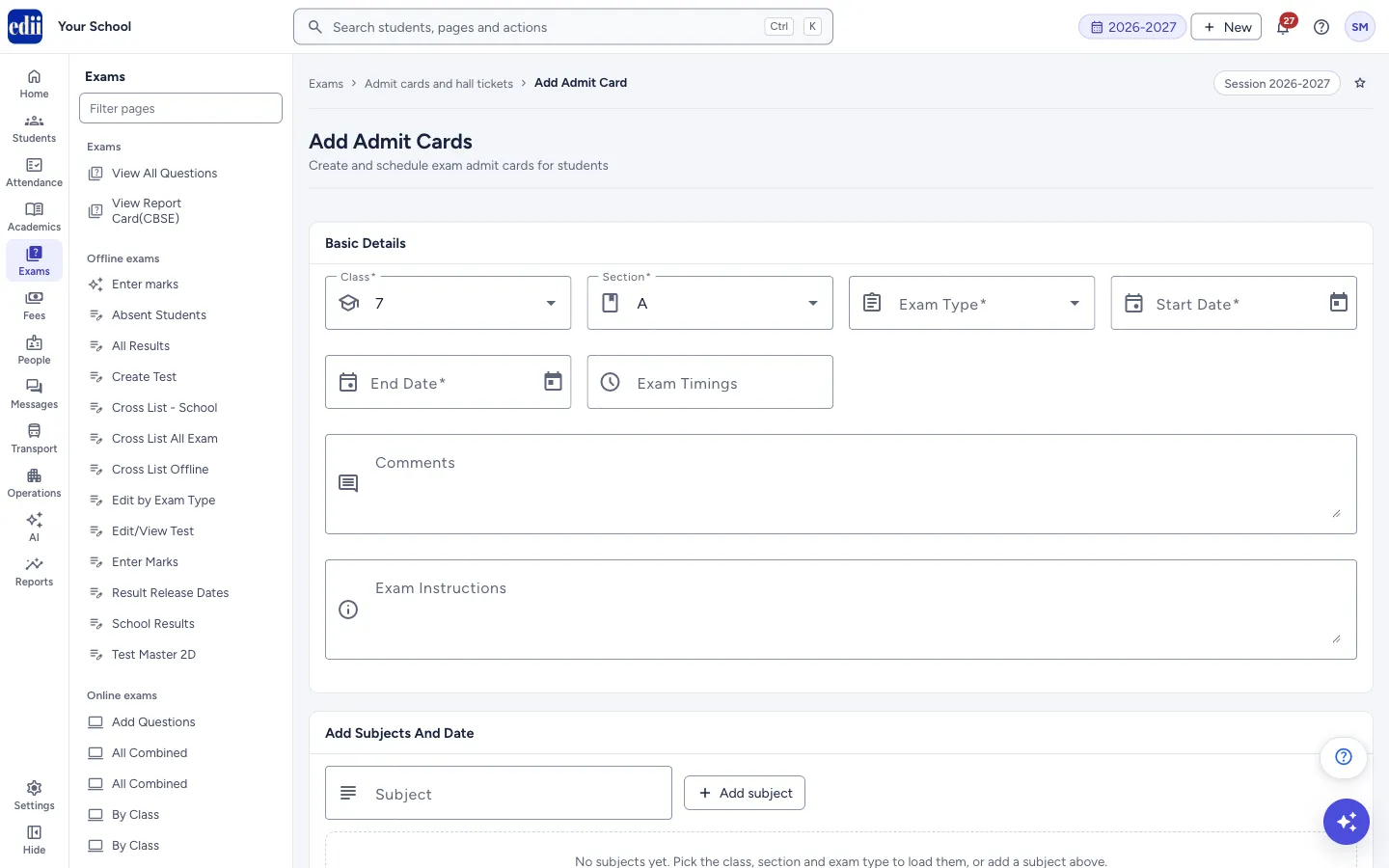
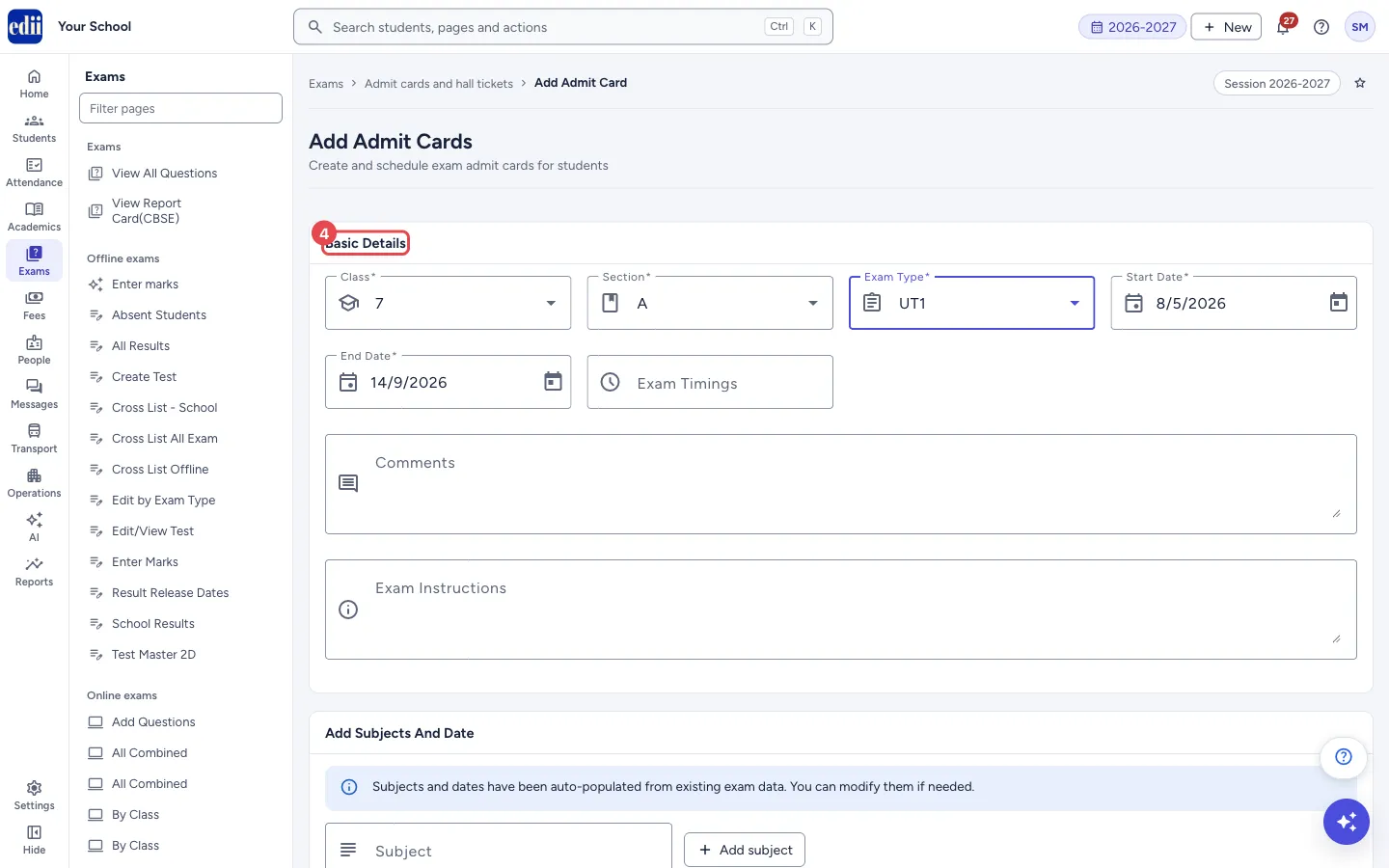
The screen is headed Add Admit Cards. In Basic Details you choose the Class, Section and Exam Type and set the Start Date, End Date, Exam Timings, Comments and Exam Instructions. In Add Subjects And Date you give each subject its Exam Date.
You can choose more than one class and more than one section in the same schedule. One schedule is then saved for all of them.
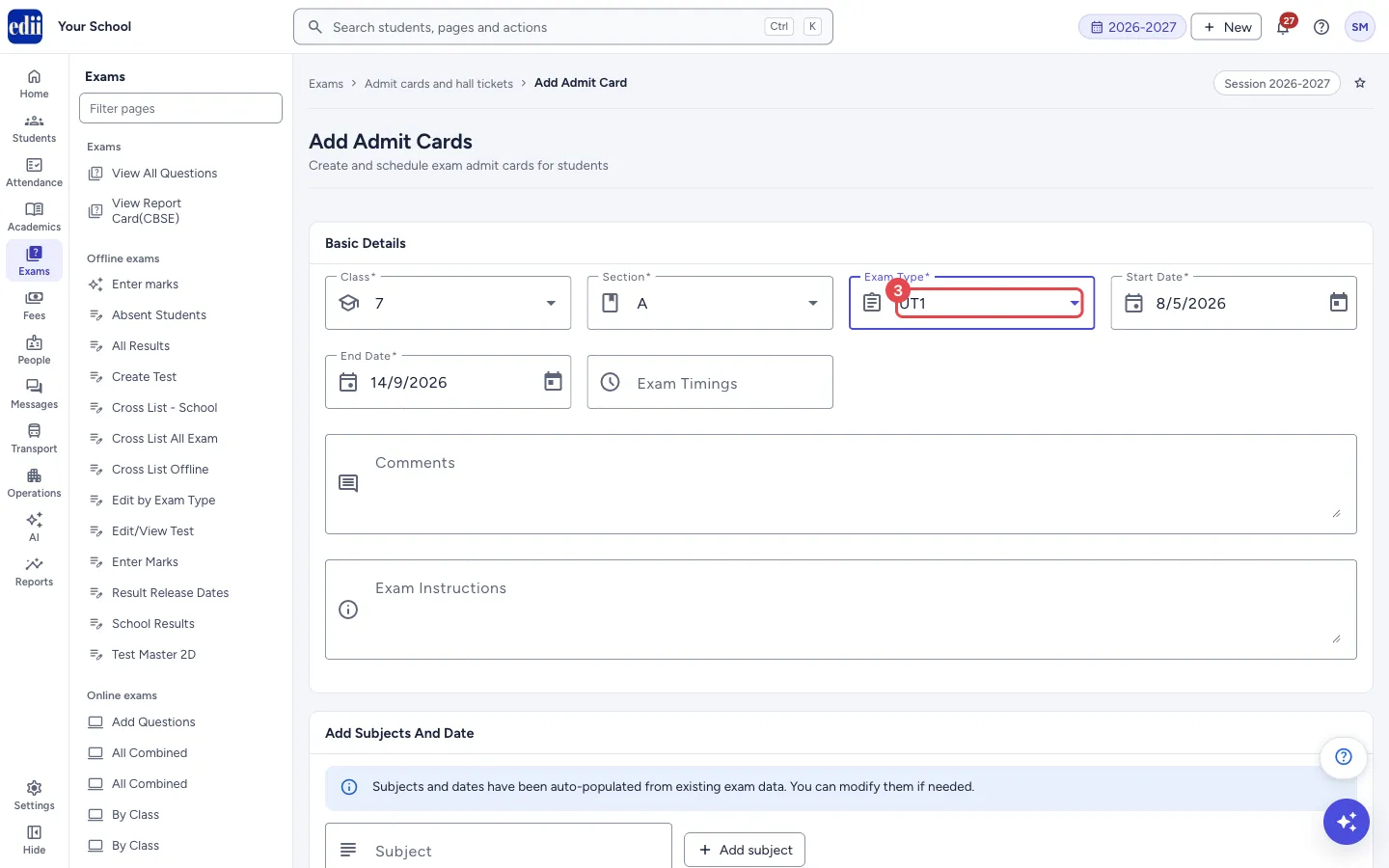
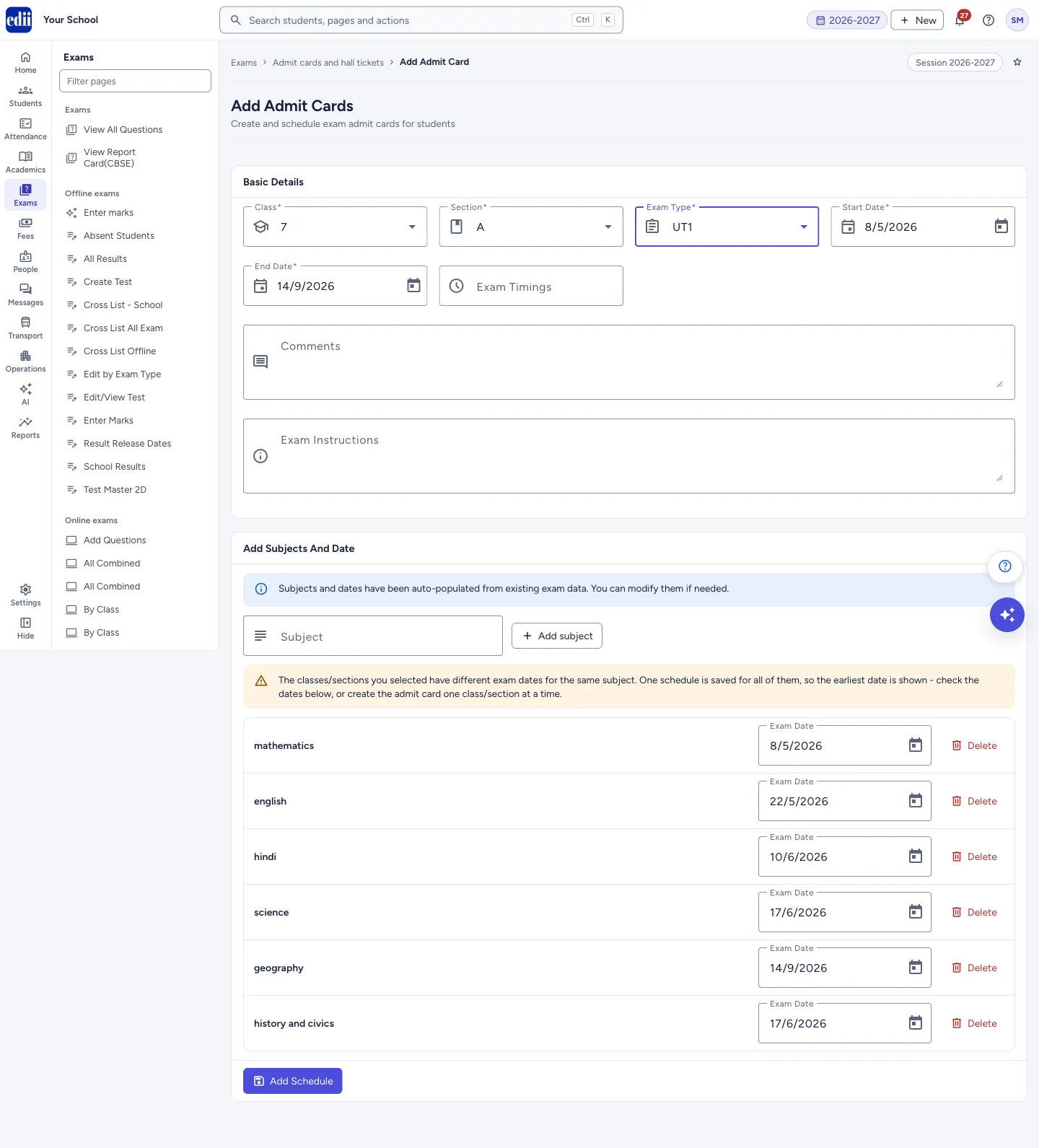
When tests already exist for the chosen classes, sections and exam type, EDII fills in the subjects and their dates for you, and also sets the Start Date and End Date from the earliest and the latest of those dates.
Who uses it and when
Section titled “Who uses it and when”The exam in-charge, before each exam cycle, so that admit cards can be printed.
Before you start
Section titled “Before you start”- Create the tests first (see Create Test). Then the subjects and dates fill in by themselves. Without tests you add each subject by hand.
Where to find it
Section titled “Where to find it”- In school.edii.in: Exams › Admit cards and hall tickets › Add Admit Card
- Or press Ctrl K (⌘ K on a Mac) and type Add Admit Card.
- Address:
school.edii.in/add/add-admit-card - Who can see it: Staff whose role includes Exams access. Shown only when your school uses Exam in EDII. If it is missing from your menu, ask your school admin.
 Open a bigger pictureतस्वीर बड़ी करें
Step by step
Section titled “Step by step”1. Choose the class
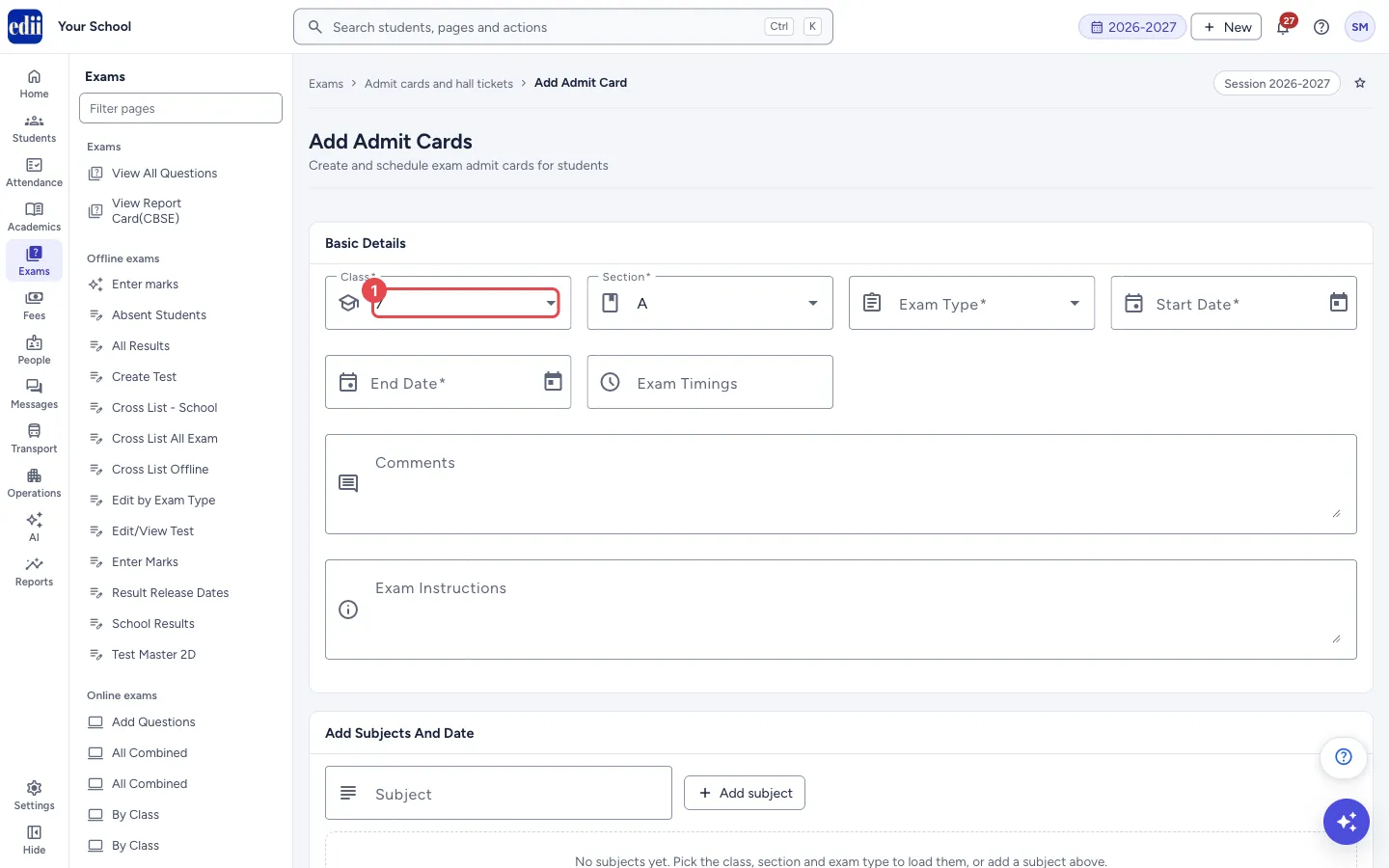
Section titled “1. Choose the class”In Class, choose one or more classes. This is required.
 Open a bigger pictureतस्वीर बड़ी करें
2. Choose the section
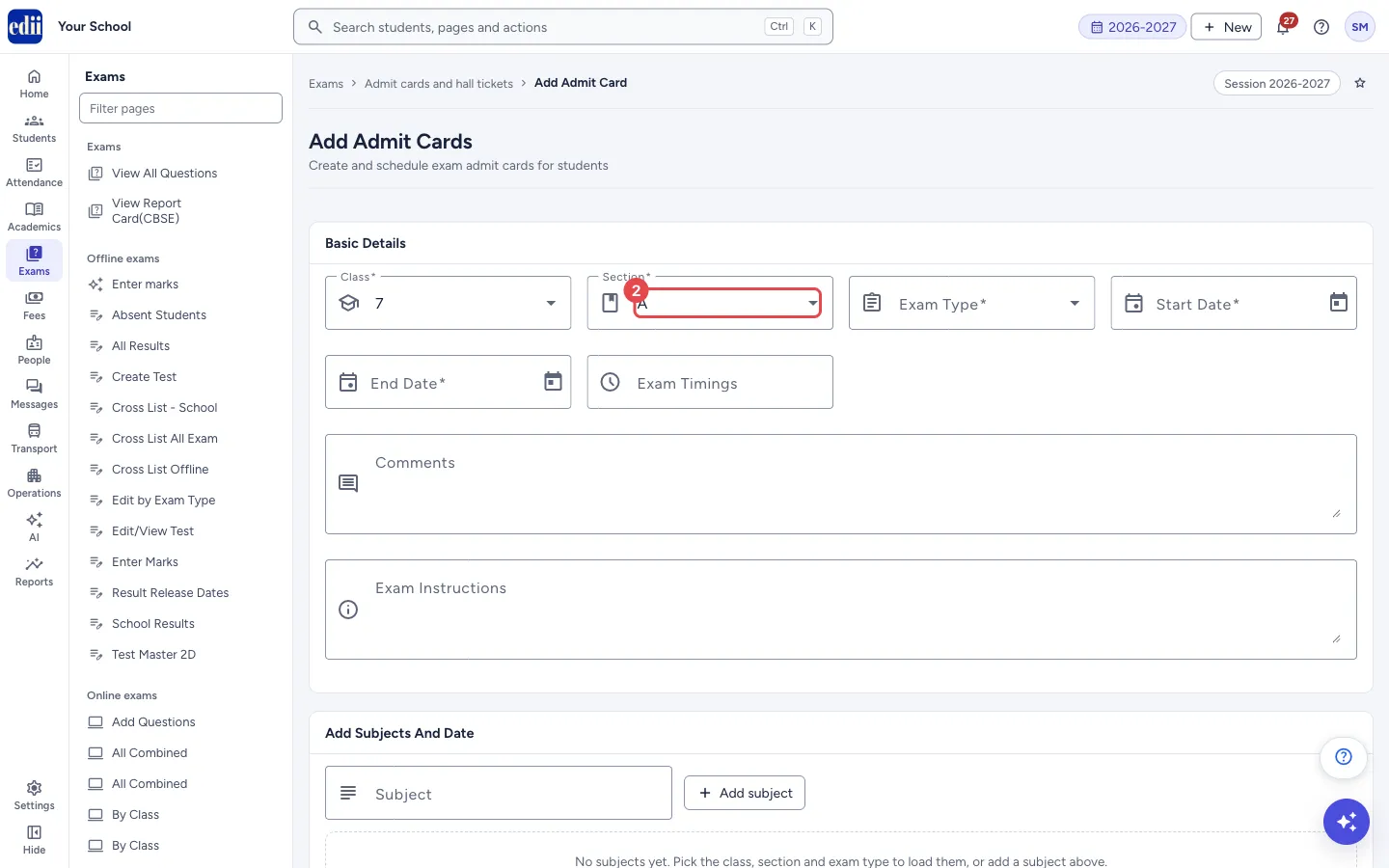
Section titled “2. Choose the section”In Section, choose one or more sections. This is required.
 Open a bigger pictureतस्वीर बड़ी करें
3. Choose the exam type
Section titled “3. Choose the exam type”In Exam Type, choose the exam, for example UT1. This is required. Once class, section and exam type are chosen, the subjects and dates of the existing tests are filled in under Add Subjects And Date, with the message Subjects and dates have been auto-populated from existing exam data. You can modify them if needed.
 Open a bigger pictureतस्वीर बड़ी करें
4. Check the dates, timings and notes
Section titled “4. Check the dates, timings and notes”Start Date and End Date are required. Pick them from the calendar if they are not right. If you change either date yourself, EDII stops changing them for you.
Type Exam Timings if you want them on the card, for example 9:00 AM - 12:00 PM. Comments and Exam Instructions are free text for the admit card, for example Bring calculator.
 Open a bigger pictureतस्वीर बड़ी करें
5. Fix the subjects and their dates
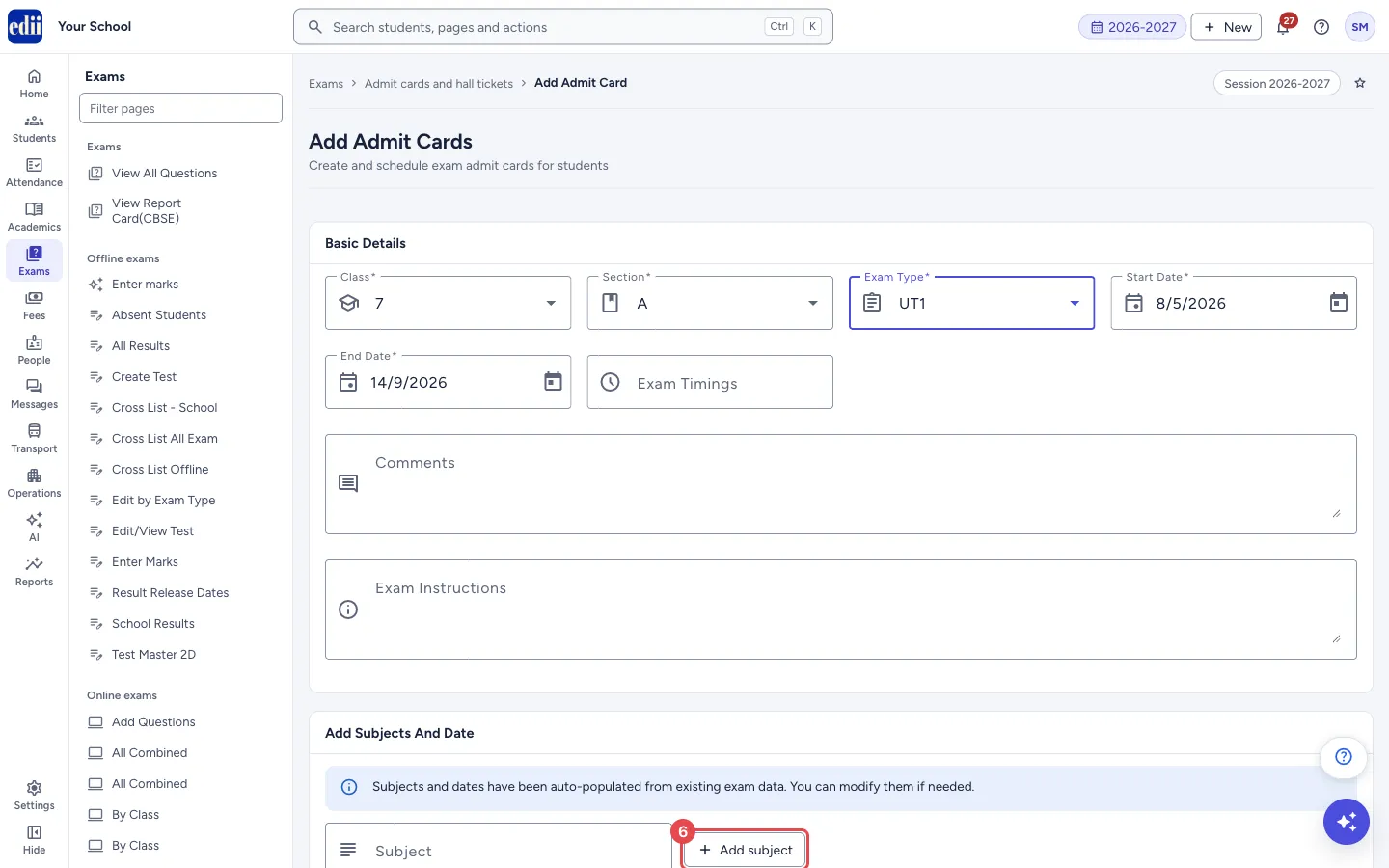
Section titled “5. Fix the subjects and their dates”Each subject has an Exam Date. Pick another date from the calendar to change it, or select Delete to remove a subject.
To add a subject, type its name in Subject and select Add subject.
 Open a bigger pictureतस्वीर बड़ी करें
6. Save the schedule
Section titled “6. Save the schedule”Select Add Schedule at the bottom. When it is saved, you see the message Admit Card Added! and the View Admit Cards list opens.
 Open a bigger pictureतस्वीर बड़ी करें
Fields and filters
Section titled “Fields and filters”| Field | What it is | Notes |
|---|---|---|
| Class | The class or classes the schedule is for. | Required. You can choose more than one. Error: Class is required. |
| Section | The section or sections the schedule is for. | Required. You can choose more than one. Error: Section is required. |
| Exam Type | The exam the schedule is for. | Required. Error: Exam Type is required. |
| Start Date, End Date | The first and last day of the exam. | Required. Pick from the calendar. Filled in from the earliest and latest subject date when tests exist. |
| Exam Timings | The exam time, for example 9:00 AM - 12:00 PM. | Optional. |
| Comments | A note for the admit card. | Optional. |
| Exam Instructions | Instructions for students, for example bring a calculator or no mobile phones. | Optional. |
| Subject | The name of a subject to add by hand. | A subject that is already in the list cannot be added again. |
| Exam Date (for each subject) | The date of that subject’s paper. | Every subject in the list needs a date. |
Buttons
Section titled “Buttons”| Button | What it does | What happens next |
|---|---|---|
| Add subject | Adds the typed subject to the list. | The subject appears with an empty Exam Date. The button is switched off while the name is already in the list. |
| Delete | Removes that subject from the schedule. | The row disappears. Nothing else is changed. |
| Add Schedule | Saves the schedule. | Admit Card Added! shows and the View Admit Cards list opens. |
After you save
Section titled “After you save”- The schedule is saved for the chosen classes, sections and exam type. It appears in View Admit Cards, and admit cards can be taken from Admit Card Details.
Good to know
Section titled “Good to know”- At least one subject is needed, and every subject needs an exam date.
- If the chosen classes and sections have different dates for the same subject, one schedule is still saved for all of them. EDII shows the earliest date and warns you; check the dates, or make the admit card for one class and section at a time.
- When you change a class, section or exam type, the subjects you typed by hand and the dates you picked yourself stay in the list.
Messages you may see
Section titled “Messages you may see”| Message | What it means | What to do |
|---|---|---|
| This field is already provided. | The subject you typed is already in the list. | Type a different subject or change the date of the one that is there. |
| Please add at least one subject before saving the schedule | The subject list is empty. | Choose the class, section and exam type to load the subjects, or add a subject. |
| Please set an exam date for: … | The named subjects have no date. | Pick a date for each subject named. |
| The classes/sections you selected have different exam dates for the same subject. One schedule is saved for all of them, so the earliest date is shown - check the dates below, or create the admit card one class/section at a time. | The tests of the chosen classes and sections do not agree on a date for at least one subject. | Check each date, or save one class and section at a time. |
| Bad/Slow Internet Connection, Please check your internet connection | The schedule could not be sent. | Check the internet and select Add Schedule again. |
- Put the reporting time in Exam Timings; it is printed with the card.
Stuck? Try this
Section titled “Stuck? Try this”| Problem | Likely cause | What to do |
|---|---|---|
| The subject list is empty after I choose the exam type | No tests exist for that class, section and exam type. | Create the tests first, or add the subjects by hand. |
Did this page help?क्या इस पेज से मदद मिली?
Thanks! Glad it helped.धन्यवाद! अच्छा लगा कि काम बन गया।
Sorry about that. Ask in your own words, or write to us.माफ़ कीजिए। अपने शब्दों में पूछें, या हमें लिखें।