
Screen guide · Web app
My Progress
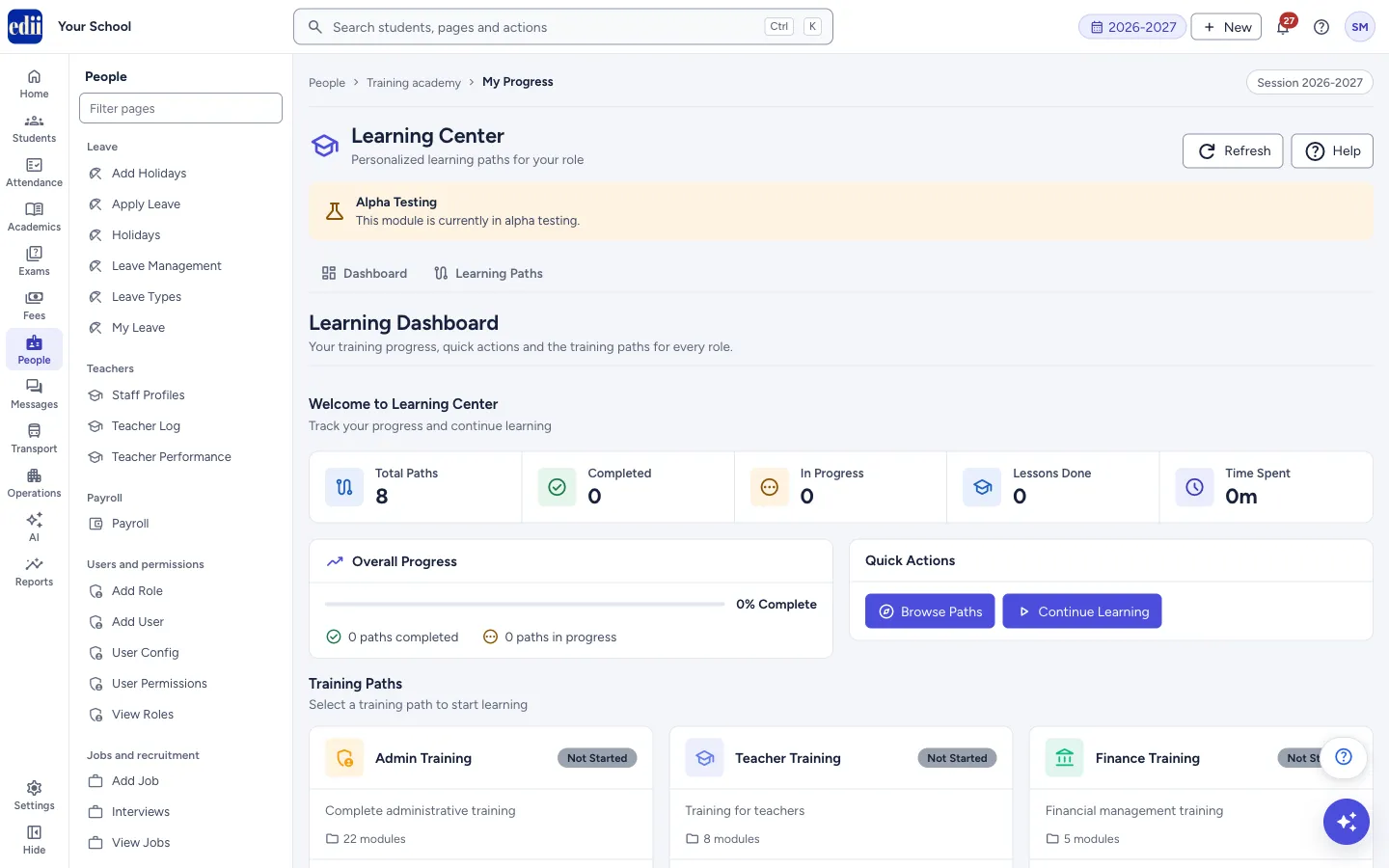
Your own progress in the Learning Center training paths. It is the same screen as the Learning Center Dashboard.
यह पेज अंग्रेज़ी में है। कुछ समझ न आए तो ।
This is the Learning Dashboard of the Learning Center, the training area of EDII. It shows how far you have got in the training paths for each role, and lets you carry on where you stopped. The Learning Center is in alpha testing, which a notice on the page says, so some things may change.
My Progress and Dashboard are two menu entries for the same screen. Use either one.
Above the dashboard, the Learning Center has two tabs, Dashboard and Learning Paths, and the buttons Refresh and Help.
Who uses it and when
Section titled “Who uses it and when”Anyone at the school who is following the training paths and wants to see how far they have got.
Where to find it
Section titled “Where to find it”- In school.edii.in: People › Training academy › My Progress
- Or press Ctrl K (⌘ K on a Mac) and type My Progress.
- Address:
school.edii.in/learning-center/my-progress - Who can see it: Shown only when your school uses Training Academy in EDII. If it is missing from your menu, ask your school admin.
 Open a bigger pictureतस्वीर बड़ी करें
Step by step
Section titled “Step by step”1. Read your progress
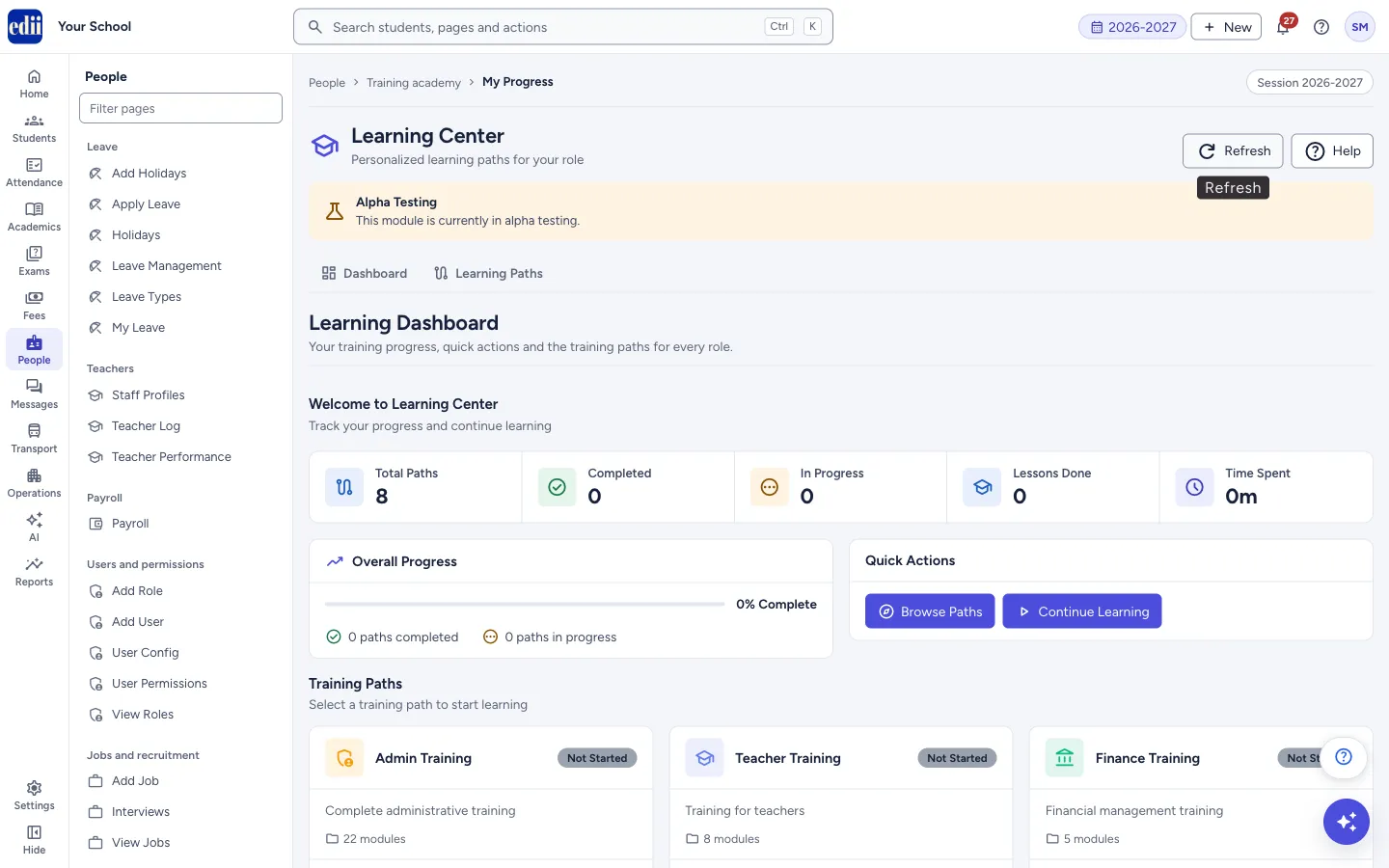
Section titled “1. Read your progress”Five counters show Total Paths, Completed, In Progress, Lessons Done and Time Spent. Select Total Paths to open Learning Paths. Overall Progress shows the percentage of paths you have completed, with the number of paths completed and in progress.
 Open a bigger pictureतस्वीर बड़ी करें
2. Carry on with your learning
Section titled “2. Carry on with your learning”Under Quick Actions, select Continue Learning to go to the first path that is In Progress. If no path is in progress, it opens Learning Paths. Select Browse Paths to see all paths.
3. Open a training path
Section titled “3. Open a training path”Under Training Paths every path is a card with its name, a status (Not Started, In Progress or Completed), a short description, the number of modules, and, once you have started, the lessons done, the time spent and a progress bar. The button on the card says Start Learning, Continue or Review. Select the card to open that path.
4. Refresh the numbers
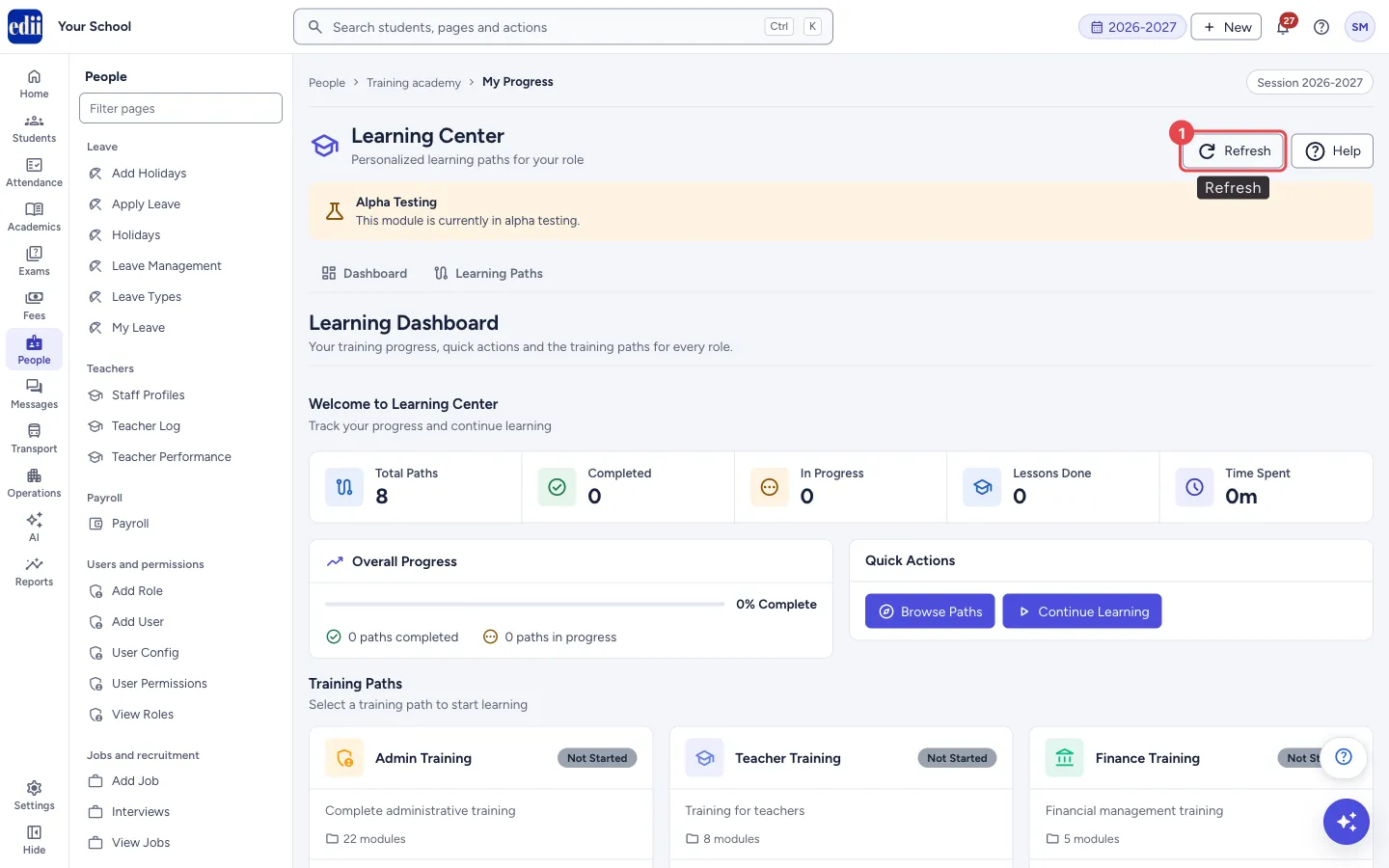
Section titled “4. Refresh the numbers”Select Refresh at the top to load your progress again. This is useful after you finish a lesson in another tab.
 Open a bigger pictureतस्वीर बड़ी करें
Buttons
Section titled “Buttons”| Button | What it does | What happens next |
|---|---|---|
| Refresh | Loads your progress again. | The numbers update. |
| Browse Paths | Opens Learning Paths. | Learning Paths opens. |
| Continue Learning | Opens the first path that is in progress, or Learning Paths if there is none. | The path page opens. |
| Start Learning / Continue / Review (on a card) | Opens that training path. | The path page opens. |
Columns
Section titled “Columns”| Column | Meaning |
|---|---|
| Total Paths | How many training paths there are. |
| Completed | Paths you have finished. |
| In Progress | Paths you have started but not finished. |
| Lessons Done | Lessons you have marked complete. |
| Time Spent | Time spent on lessons, shown as minutes or hours and minutes. |
| Overall Progress | Completed paths divided by total paths, as a percentage. |
Good to know
Section titled “Good to know”- Your progress is kept for the person who is signed in. It changes when you select Complete & Next on a lesson.
- If your progress cannot be loaded, the page shows the standard list of paths (Admin, Teacher, Finance, Accountant, Principal, Coordinator, Librarian and Receptionist) with nothing done yet.
- The Learning Center shows only for schools that have the Training Academy turned on.
Messages you may see
Section titled “Messages you may see”| Message | What it means | What to do |
|---|---|---|
| Loading dashboard… | Your progress is being loaded. | Wait a moment. |
- Start with the path made for your own role, for example Teacher Training for teachers, and then look at the others.
Stuck? Try this
Section titled “Stuck? Try this”| Problem | Likely cause | What to do |
|---|---|---|
| All counters show zero although I have finished lessons | Your progress could not be loaded, so the standard list is shown. | Select Refresh. If it stays the same, check the internet connection and reload the page. |
Did this page help?क्या इस पेज से मदद मिली?
Thanks! Glad it helped.धन्यवाद! अच्छा लगा कि काम बन गया।
Sorry about that. Ask in your own words, or write to us.माफ़ कीजिए। अपने शब्दों में पूछें, या हमें लिखें।