
Screen guide · Web app
Collect fees
फ़ीस जमा करें
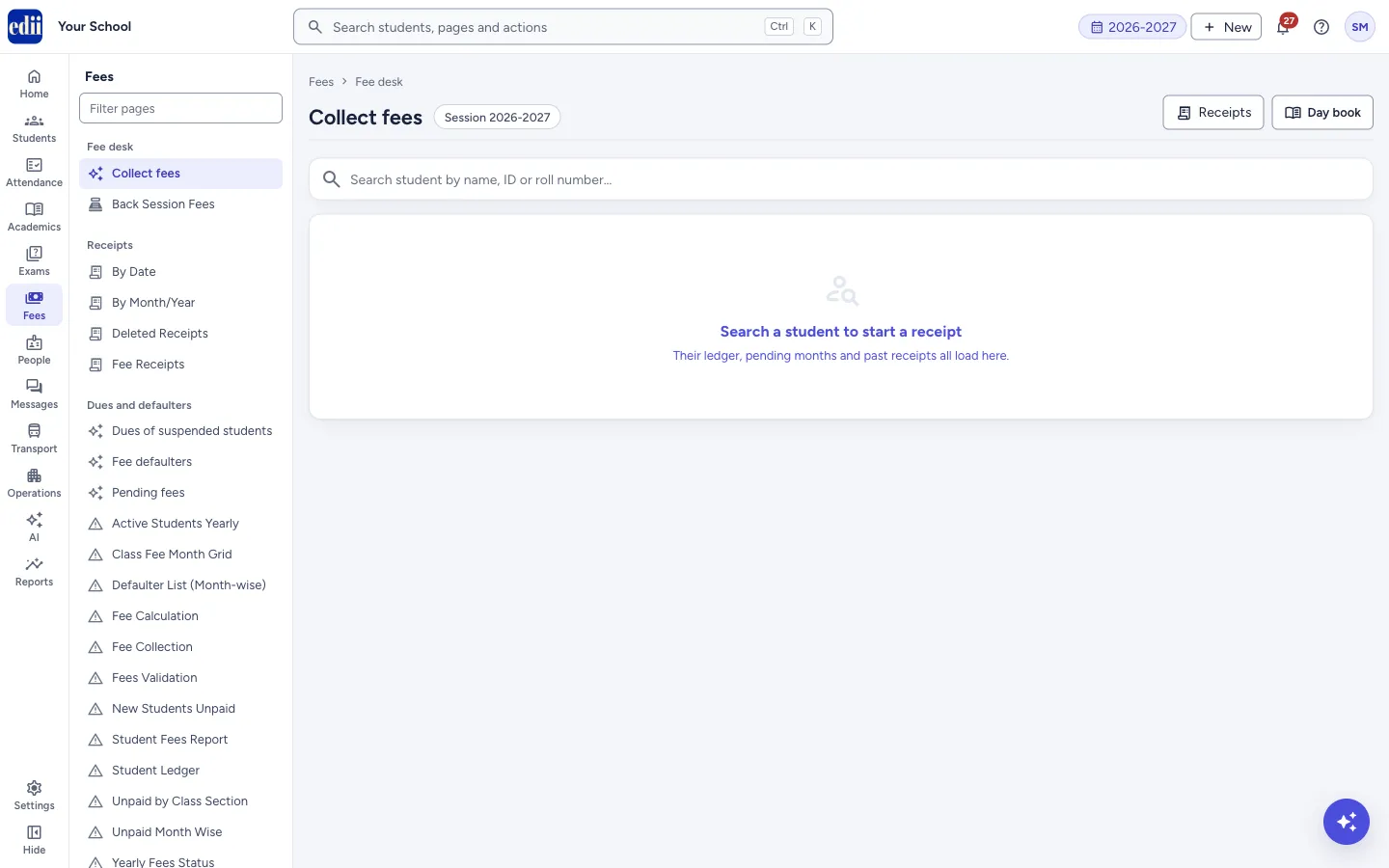
The fee counter: find a student, pick the months to pay, check the amounts, take the payment and print the receipt.
यह पेज अंग्रेज़ी में है। कुछ समझ न आए तो ।
Collect fees is the fee counter of the school. You search for a student, and the student’s fees for the session load on the same page: a student card with the session totals, a row of Months, the Charges for the months you pick, a Collect payment box on the right, and the student’s ledger, receipts and payment modes at the bottom.
Nothing is saved until you select the Collect button. When it works, EDII creates a fee receipt and opens it so you can print it.
The page header has two shortcuts: Receipts (opens Fee Receipts) and Day book. When your school shows Accessories inside Fees (Settings › Fees › Show Accessories inside Fees on, and Accessories on under Settings › Modules), a third button, Accessories, opens Sell accessories for the student on the desk.
Who uses it and when
Section titled “Who uses it and when”The accountant or office staff, at the fee counter, every day fees are taken.
Before you start
Section titled “Before you start”- Fees must be set up for the student’s class (fee heads and amounts) and the student must be active. For a suspended student EDII shows a warning that the student is in the suspended list; for any other status it says the student cannot be viewed.
- Fees are normally collected oldest month first. If your school wants to allow skipping an older month, an admin turns on Collect Fees if Old Fees is Pending in Preferences.
Where to find it
Section titled “Where to find it”- In school.edii.in: Fees › Fee desk › Collect fees
- Or press Ctrl K (⌘ K on a Mac) and type Collect fees.
- Address:
school.edii.in/fees/desk - Who can see it: Staff whose role includes Fees access. Shown only when your school uses Finance in EDII. If it is missing from your menu, ask your school admin.
 Open a bigger pictureतस्वीर बड़ी करें
Step by step
Section titled “Step by step”1. Search for the student
Section titled “1. Search for the student”Type in Search student by name, ID or roll number…. A list of up to 10 matching students drops down, each with the class and section, the numbers and the father’s name. Select the right one.
The page can also open with a student already loaded, when you come from the student’s record or from the search bar at the top of the app.
2. Read the student card and the totals
Section titled “2. Read the student card and the totals”The card shows the student’s name, Class, ID/SR and Father. A Transport chip shows when the student has transport. View full profile opens the student’s record.
Four boxes show the session: Session fees, Collected, Balance and Discount. They are the same figures as the Total row of the Master ledger at the bottom of the page.
If the student owes money from an earlier session, a card says ₹ amount due from that session, with a Pay button. Pay opens the desk for that earlier session, with a Current session button to come back.
3. Pick the months
Section titled “3. Pick the months”Under Months, tap the months being paid. Each month shows the amount and its state: ✓ paid, part, due (or picked once you tap it). A month that is fully paid cannot be tapped. Hover over a month to see what is payable, paid and balance for it.
When the student opens, the months that have fees due up to the current month are already picked. Select all due picks every month that still owes something. Clear removes all picks.
If a month is blocked by the order rule, the note under the months tells you to turn on Preferences → Finance → Collect fees if old fees is pending.
4. Check the charges
Section titled “4. Check the charges”Under Charges there is one group for each picked month. Select a month’s name to open or close it. Each fee head has a tick box, Actual (the fee), Discount and To pay. Untick a fee head to leave it out of the receipt.
Change To pay to take a part payment. Below the heads, Subtotal shows the month’s total, and a line Recorded discount lists any discount already given for that month.
In the Charges bar, All months (where the school has it) shows more months, Skip installment (shown where the school’s fees are paid in installments) turns off the installment grouping, and Transport fees opens the transport fee payment for this student.
5. Add a one-time fee (optional)
Section titled “5. Add a one-time fee (optional)”Select + Add a one-time fee (books, lab, apparatus…). Type the Fee name, choose the Month, and enter Total ₹, Discount and Collect ₹, then select Add fee. The message Additional fee added successfully appears and the fee joins the One-time fees list.
One-time fees that are already pending for the student appear in that list by themselves. For each one you can change Discount and Collect. The bin button removes a fee you added, but not one that is already part paid; that one shows part paid and you can only change the amount.
6. Fill in the Collect payment box
Section titled “6. Fill in the Collect payment box”Check Receipt date (it starts as today; some schools lock it so only an admin login can change it). Add an External invoice ID and a Remark if you want; the remark shows on the receipt.
Under them the box shows the picked months, then Charges, Discount and One-time fees. Total collecting is the amount being taken. Lowering it spreads the amount over the ticked fees, oldest month first, then over the one-time fees.
Choose how the money came: Cash, UPI, Chq/DD, Card or Split. Each shows its own boxes: UPI asks for UTR / reference no.; Chq/DD asks for Cheque no., Bank and Drawn on; Card asks for Card no., Bank and Drawn on; Split asks for Account no..
7. Collect and print the receipt
Section titled “7. Collect and print the receipt”Select Collect ₹ …. The button stays grey until a payment mode is chosen, the amount is above 0 (or 0 where discounts cover the whole fee) and there is something to pay. While EDII is saving, it cannot be pressed a second time.
When the payment is saved, a message appears (Success!) and the receipt opens in a window with a print button. Select Cancel & reset instead to clear the page and start again; nothing is saved.
8. Use the ledgers at the bottom
Section titled “8. Use the ledgers at the bottom”Master ledger lists each month with Actual, Paid, Balance, Discount and a Paid / Part / Due tag, then a Total row. Transport (only for students with transport) shows the same for the bus fee.
Receipts (only when the student has receipts) lists Receipt #, Amount and Payment date; select a row to open that receipt. Switch on Detailed to add the Transaction date-time. Payment modes shows the amount and the number of receipts for each mode.
Deleted receipts (only when the student has deleted receipts) lists Receipt ID, Amount, Deleted by and Deleted at; select a row to open it.
Fields and filters
Section titled “Fields and filters”| Field | What it is | Notes |
|---|---|---|
| Search student by name, ID or roll number… | Finds the student whose fees you want to collect. | Shows up to 10 matches. You can also search by father’s name, class, section or enrollment number, as set in the school’s search settings. |
| Discount (per fee head) | A discount for that fee head on this receipt. | Cannot be more than the amount in To pay. Some schools lock this box to admin logins. |
| To pay (per fee head) | The amount being taken for that fee head now. | Cannot be more than what is due on the head, except in a few schools that accept extra payment. |
| Receipt date | The date printed on the receipt and used in the collection reports. | Required. Starts as today. Some schools lock it to admin logins (a lock shows next to it). |
| External invoice ID | Your own reference number for this receipt. | Optional. |
| Remark | A note that shows on the receipt. | Optional. |
| Total collecting | The total amount being taken on this receipt. | It follows the fee heads you pick. If you type a lower number, EDII spreads it across the ticked heads, oldest month first, then the one-time fees. It cannot be negative or more than the heads can take. |
| Cash / UPI / Chq/DD / Card / Split | How the money was received. | Cash has no extra box. UPI: UTR / reference no. Chq/DD: Cheque no., Bank, Drawn on. Card: Card no., Bank, Drawn on. Split: Account no. The amount boxes are filled by EDII. |
| One-time fee: Fee name, Month, Total ₹, Discount, Collect ₹ | An extra charge such as books or lab fee. | Fee name, Month and Total are required, and Collect cannot be more than Total. |
Buttons
Section titled “Buttons”| Button | What it does | What happens next |
|---|---|---|
| Receipts | Opens Fee Receipts, to search and reprint receipts. | You leave this page. |
| Day book | Opens the Day book report. | You leave this page. |
| Accessories | Opens Sell accessories with the student on the desk already chosen (if no student is open, you choose one there). Shown only when Settings › Fees › Show Accessories inside Fees is on and the Accessories module is on, and not while the desk is collecting an earlier session’s balance. | You leave this page. |
| Select all due / Clear | Picks every month that still owes something, or removes all picks. | Only the picked months change. Nothing is saved. |
| Transport fees | Opens the transport fee payment for this student. | You leave this page; anything not yet collected here is lost. |
| Add fee | Adds a one-time fee line to this receipt. | Additional fee added successfully. Nothing is saved until you select Collect. |
| Collect ₹ … | Saves the payment and creates the fee receipt. | The receipt opens for print. The page is cleared ready for the next student. See the notes under After you collect. |
| Cancel & reset | Clears the student and everything you entered. | Nothing is saved and no receipt is made. |
| Pay (on a due from an earlier session card) | Opens the desk for the earlier session, to collect that old balance. | The page shows a Current session button to return. |
After you save
Section titled “After you save”- A fee receipt with its own receipt number is created and opens in a window with a print button. It can be opened again any time from Fee Receipts, from the student’s Receipts list on this page, and from the school’s collection reports.
- The student’s ledger, the defaulter lists and the collection reports use the new payment straight away. A part payment leaves the rest of that fee head due.
- The parent is told. For an amount above 0, EDII sends an app notification, a receipt email (if the student has an email on file) and a WhatsApp message (if the parent has a phone number). If the part-payment leaves a balance, the notification says how much is still to pay.
- If the fees are fully covered by a discount (receipt of ₹0), the parent gets only an app notification saying nothing is payable. No email or WhatsApp message is sent.
- The messages are not sent when the school has switched off Fee payment messages to parents in Preferences.
Good to know
Section titled “Good to know”- Fees are collected oldest month first. If the picked months skip an older unpaid month, EDII refuses unless the school has allowed it in Preferences.
- A fee head’s To pay cannot be more than what is due on it (except in a few schools that accept extra payment), and a discount cannot be more than To pay.
- Fee heads you untick are not on the receipt and are not paid or discounted.
- A one-time fee that is part paid cannot be removed, only adjusted.
- Only a student who is active can be opened for payment.
- The Receipt date is required. Some schools let only admin logins change the date and the discount boxes.
Messages you may see
Section titled “Messages you may see”| Message | What it means | What to do |
|---|---|---|
| Student not found, please search again | The student you picked could not be found. | Search again and pick the student from the list. |
| Fees Selection is Not in Sequence. If You still want to collect fees, Please click on Configuration>Preferences>Finance>Collect Fees if Old Fees is Pending as True | You picked a month while an older month is still unpaid. | Pick the older month too, or ask an admin to turn on Collect Fees if Old Fees is Pending. |
| You Cannot pay the fees without selecting the fees!/ Fees has to be Number | No fee head is ticked and no one-time fee is added, or the total is not a number. | Pick a month, or add a one-time fee, and check the amounts. |
| Fees Amount Entered is more than the Fees Amount, Please fix it. | A To pay amount is more than the actual fee. The message lists the month, fee head and amounts. | Lower the To pay amount. |
| Excess Amount entered. Fees: … Can be paid maximum of … | You typed more in To pay than the head can take. The box goes back to the largest allowed amount. | Enter an amount up to the maximum shown. |
| Excess discount entered. Discount set to 0. | The discount you typed was more than To pay. | Enter a smaller discount. |
| Total amount cannot be negative | Total collecting was below 0. It is set back to 0. | Enter 0 or more. |
| Total amount cannot exceed … | Total collecting is more than the ticked fee heads can take. It is set to the largest allowed amount. | Tick more fee heads or lower the total. |
| Please enter fee name and select month | A one-time fee was added without a name or month. | Fill both. |
| Please enter valid total amount | The one-time fee Total is empty or 0. | Enter an amount above 0. |
| Paid amount cannot exceed total amount | The one-time fee Collect amount is more than its Total. | Lower Collect. |
| Total payment + discount cannot exceed remaining balance of ₹… | On a one-time fee, Collect plus Discount is more than what is still owed. | Lower one of them. |
| Cannot remove “…” - this fee has already been partially paid. You can only adjust the payment amount. | You tried to remove a part-paid one-time fee. | Change its Collect amount instead. |
| Network Issue, Please Try Again. | The request did not reach EDII. | Before collecting again, open Receipts and check whether the first payment was saved, so you do not collect twice. |
- After a Network Issue message, check the student’s Receipts list before you select Collect again.
- Use Select all due for a parent who pays for all due months at once.
- Use Remark for the cheque date or the name of the person who paid.
Stuck? Try this
Section titled “Stuck? Try this”| Problem | Likely cause | What to do |
|---|---|---|
| A month cannot be tapped | The month is fully paid, or it has no fee due and is not in the list of months you can pick. | Pick another month. To see more months, switch on All months (where your school has it). |
| The Collect button is grey | No payment mode is chosen, the total is 0 with no discount covering it, or nothing is picked. | Pick a month, then a payment mode (Cash, UPI, Chq/DD, Card or Split). |
| Receipt date or Discount cannot be changed | The school lets only admin logins change them. | Ask an admin login. |
| The Transport, Receipts or Deleted receipts tab is missing | The student has no transport, no receipts, or no deleted receipts. | Nothing to fix. The tab shows when there is something to show. |
Did this page help?क्या इस पेज से मदद मिली?
Thanks! Glad it helped.धन्यवाद! अच्छा लगा कि काम बन गया।
Sorry about that. Ask in your own words, or write to us.माफ़ कीजिए। अपने शब्दों में पूछें, या हमें लिखें।