
Screen guide · Web app
Add Holidays
Build the holiday list of the current session: add, change or remove rows, then save the whole list in one go.
यह पेज अंग्रेज़ी में है। कुछ समझ न आए तो ।
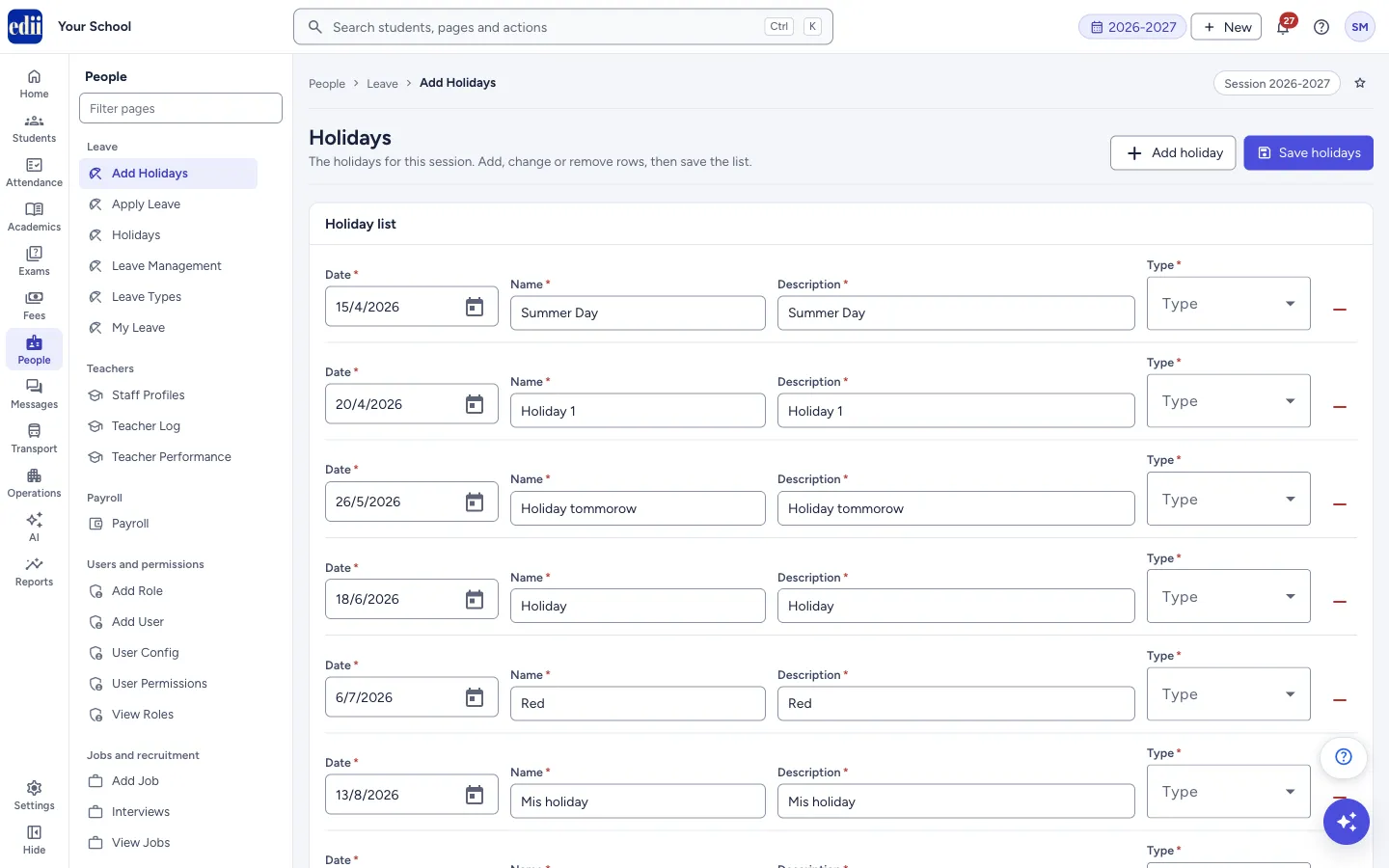
Add Holidays shows the Holiday list of the session you have selected at the top of the screen. Each holiday is one row with a Date, a Name, a Description and a Type.
When the page opens, the holidays that are already saved for the session are loaded as rows. Use Add holiday to add an empty row at the end, fill it in, and select Save holidays to save the list.
After saving, EDII opens Holidays so you can check the result.
Who uses it and when
Section titled “Who uses it and when”The office, at the start of a session and whenever a holiday is declared.
Before you start
Section titled “Before you start”- Select the right session at the top of the screen first. The list you see and save belongs to that session.
- Keep the school calendar ready with the dates and names.
Where to find it
Section titled “Where to find it”- In school.edii.in: People › Leave › Add Holidays
- Or press Ctrl K (⌘ K on a Mac) and type Add Holidays.
- Address:
school.edii.in/add/add-holidays - Who can see it: The same staff who see the other Leave pages. If it is missing from your menu, ask your school admin.
 Open a bigger pictureतस्वीर बड़ी करें
Step by step
Section titled “Step by step”1. Add a row for each new holiday
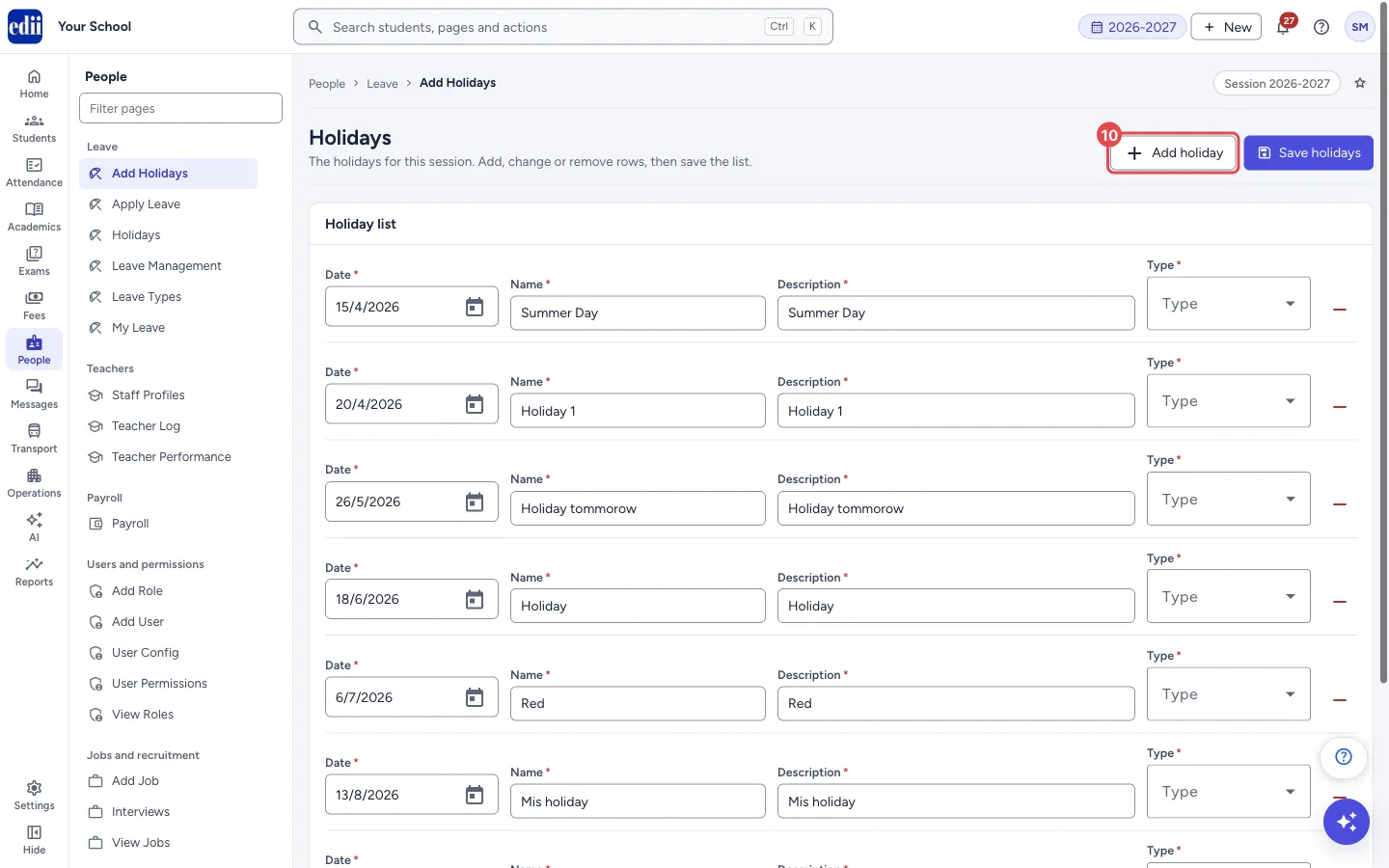
Section titled “1. Add a row for each new holiday”Select Add holiday (top right). An empty row appears at the end of the Holiday list. Select it once for every holiday you want to add.
If the list is empty, the page says No holidays yet. Press Add holiday to start the list.
 Open a bigger pictureतस्वीर बड़ी करें
2. Fill in the row
Section titled “2. Fill in the row”Date: select the box or the calendar icon and pick the day.
Name and Description: type them in. Letters, numbers, spaces and the signs - @ & . , / _ # : can be typed; other symbols are blocked as you type.
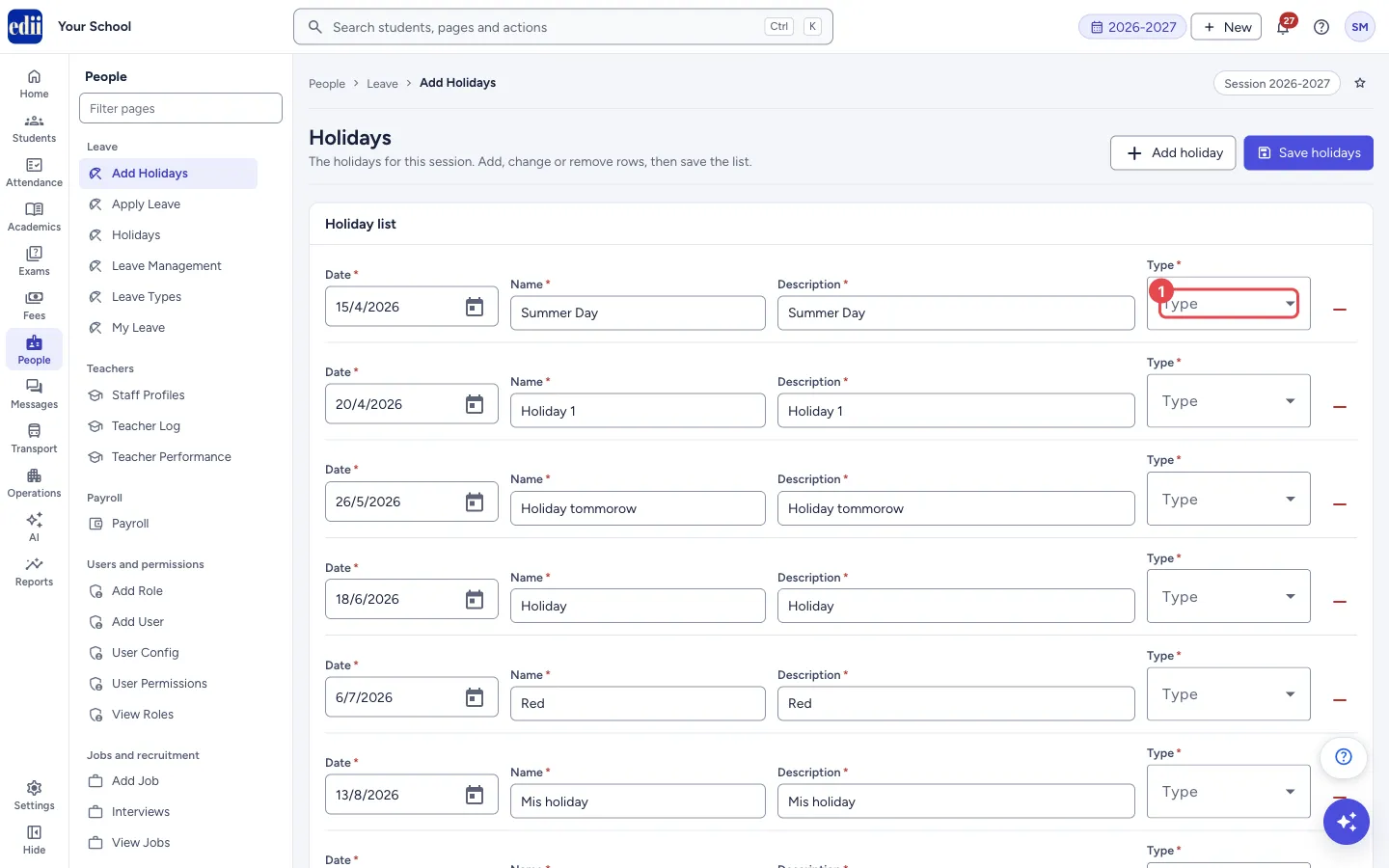
Type: open the list and choose Mandatory, Optional or National.
 Open a bigger pictureतस्वीर बड़ी करें
3. Change or remove a row
Section titled “3. Change or remove a row”Rows that were already saved can be edited in the same way. To take a row out of the list, select the minus sign at the right end of the row. The row disappears from the page at once, but nothing is saved until you select Save holidays.
4. Save the list
Section titled “4. Save the list”Select Save holidays. EDII sends the whole list shown on the page. When it is saved you see Holidays Added! with the text Holidays Successfully Added, and the Holidays page opens.
Fields and filters
Section titled “Fields and filters”| Field | What it is | Notes |
|---|---|---|
| Date | The day of the holiday. | Required. Pick it from the calendar; the box cannot be typed in. If left empty it shows Date is required. |
| Name | The name of the holiday. | Marked required. |
| Description | A short note about the holiday. | Marked required. |
| Type | The kind of holiday. | Marked required. Options: Mandatory, Optional, National. |
Buttons
Section titled “Buttons”| Button | What it does | What happens next |
|---|---|---|
| Add holiday | Adds one empty row at the end of the list. | A new row appears. Nothing is saved yet. |
| Save holidays | Saves the list of rows shown on the page for the selected session. | Holidays Successfully Added and the Holidays page opens. |
| Minus sign (end of each row) | Removes that row from the list on the page. | The row disappears. Nothing is saved until you select Save holidays. |
After you save
Section titled “After you save”- Holidays opens and shows the saved list. The same holidays are used by the school calendar.
Good to know
Section titled “Good to know”- The list on this page is sent as a whole when you save. Check the loaded rows as well as your new ones before you select Save holidays.
- Holidays are kept per session. Change the session at the top of the screen to work on another session’s list.
Messages you may see
Section titled “Messages you may see”| Message | What it means | What to do |
|---|---|---|
| Holidays Successfully Added | The list was saved. | Check it on Holidays. |
| Date is required | A row has no date. | Pick a date, or remove the row. |
| Bad/Slow Internet Connection, Please check your internet connection | The list could not be loaded or saved. | Check the connection and try again. |
- Add all the holidays of the session in one visit: add a row for each, fill them in and save once.
- To change or delete a single holiday later, use the pencil and bin icons on Holidays.
Stuck? Try this
Section titled “Stuck? Try this”| Problem | Likely cause | What to do |
|---|---|---|
| The Type box of an older holiday is empty | Holidays that were saved earlier may carry a type that is not one of Mandatory, Optional or National, so the box has nothing to show. | Choose a type for the row before you save, or edit that holiday on Holidays instead. |
Did this page help?क्या इस पेज से मदद मिली?
Thanks! Glad it helped.धन्यवाद! अच्छा लगा कि काम बन गया।
Sorry about that. Ask in your own words, or write to us.माफ़ कीजिए। अपने शब्दों में पूछें, या हमें लिखें।