
Screen guide · Web app
Student Report
The full student list for the session with every detail kept on file, many filters, a quick count by gender, category and religion, and a chart on any field you choose.
यह पेज अंग्रेज़ी में है। कुछ समझ न आए तो ।
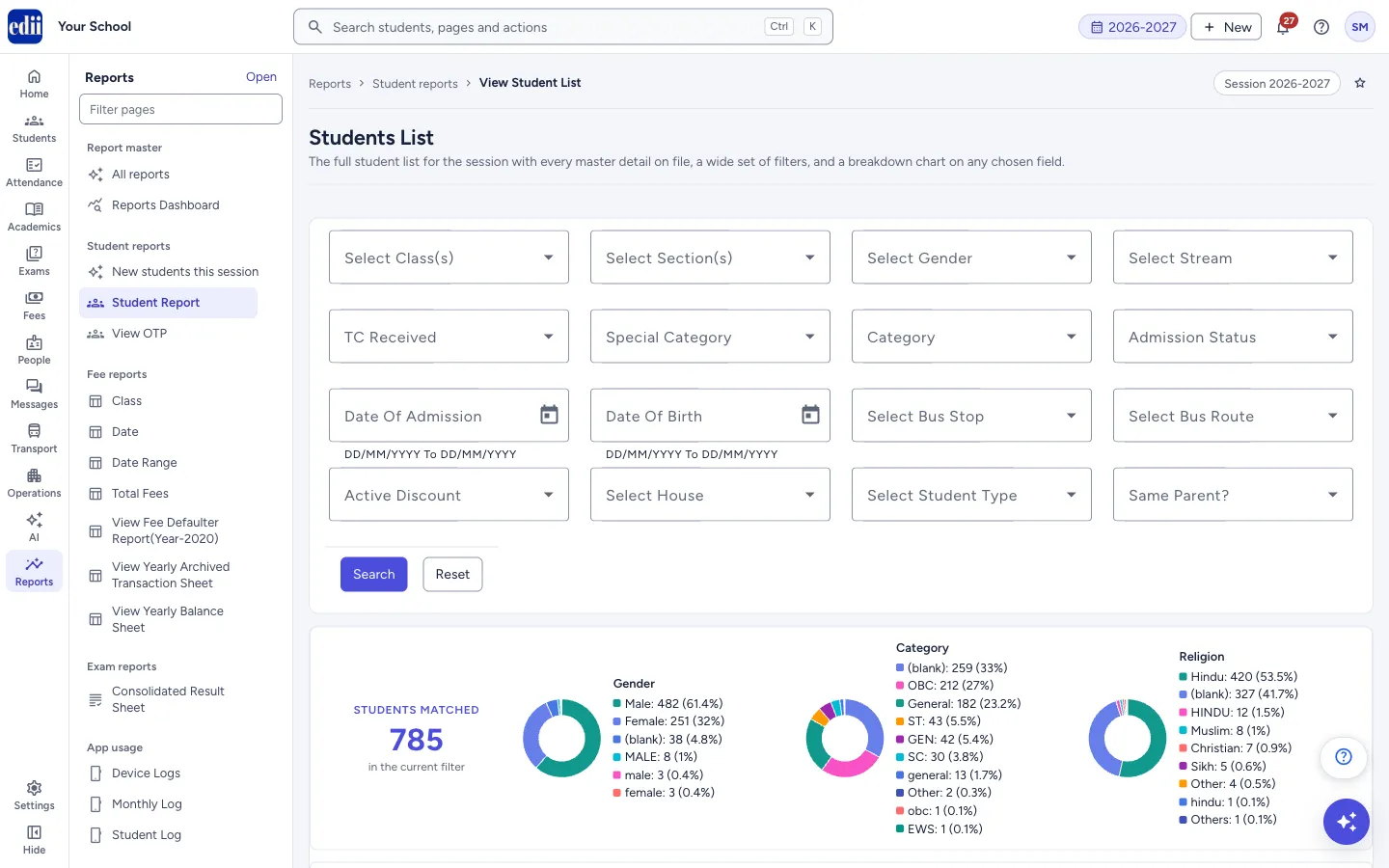
This screen is headed Students List: The full student list for the session with every master detail on file, a wide set of filters, and a breakdown chart on any chosen field. When you open it, it loads every student of the session. The filters then narrow that list on the screen at once.
Above the table, Students matched says how many students match the filters now, with small breakdowns by Gender, Category and Religion (each value with its count and percentage). Under it, Group students by counts the students for any field you choose.
The screen only reads. Nothing is changed by filtering, printing or downloading.
Who uses it and when
Section titled “Who uses it and when”The office, the principal and class teachers, whenever a list of students is needed: a class list, a list by category, a sibling list, a list of those on a bus route.
Where to find it
Section titled “Where to find it”- In school.edii.in: Reports › Student reports › Student Report
- Or press Ctrl K (⌘ K on a Mac) and type Student Report.
- Address:
school.edii.in/view/view-student-report - Who can see it: Staff whose role includes Students or Attendance or Reports access. Shown only when your school uses Student and Report in EDII. If it is missing from your menu, ask your school admin.
 Open a bigger pictureतस्वीर बड़ी करें
Step by step
Section titled “Step by step”1. Open the page
Section titled “1. Open the page”Open Reports › Student reports › Student Report. The students of the session load by themselves and the message <number> Students Fetched! shows.
2. Narrow the list with filters
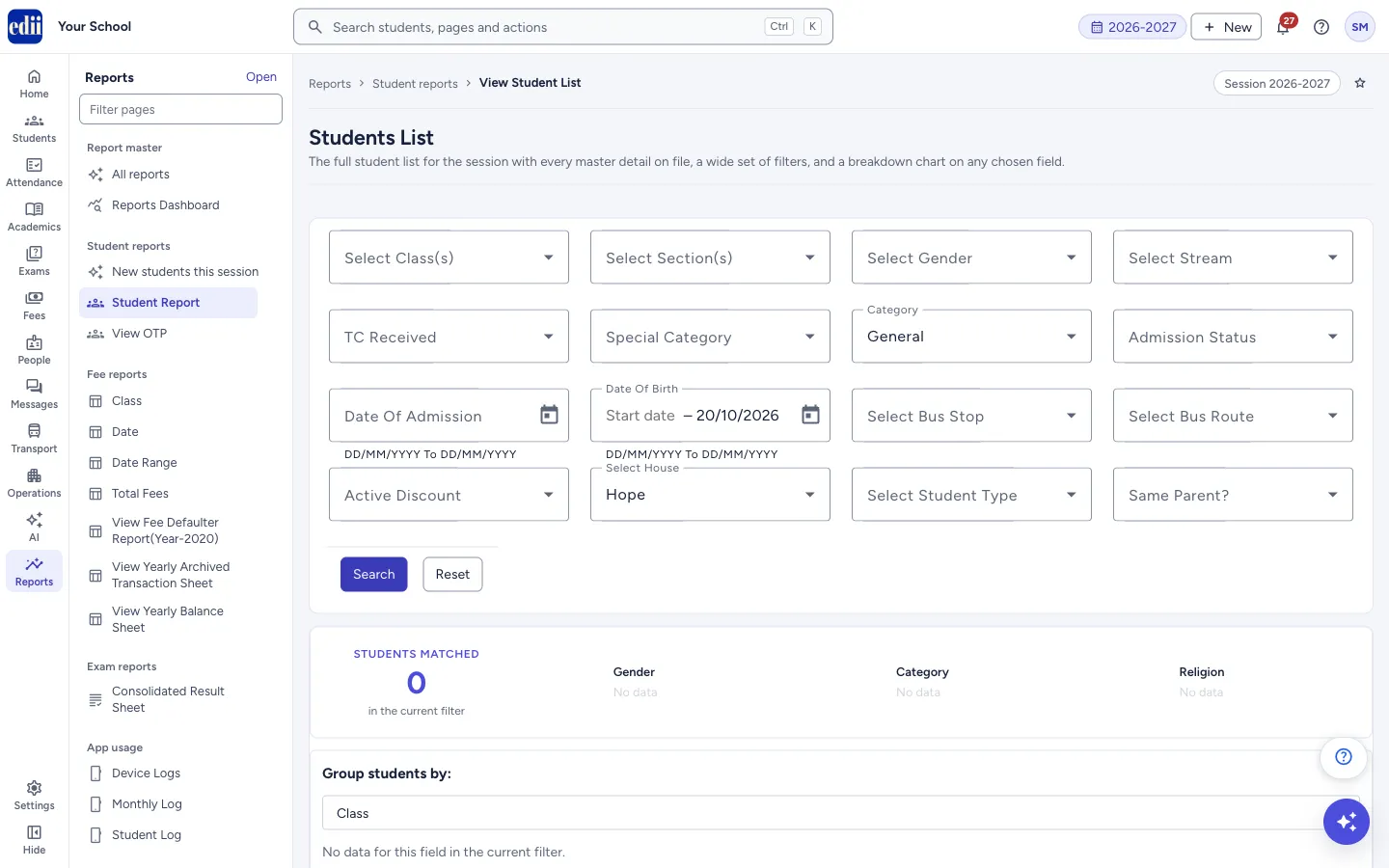
Section titled “2. Narrow the list with filters”Under the heading are many filter boxes. Tick one or more values in each, or Select All, and the table changes at once: Select Class(s), Select Section(s), Select Gender, Select Stream, TC Received, Special Category, Category, Admission Status, Select Bus Stop, Select Bus Route, Active Discount, Select House and Select Student Type.
Date Of Admission and Date Of Birth take a start and an end date (DD/MM/YYYY to DD/MM/YYYY). Same Parent? with Yes keeps only students who share the same phone number and father’s name with another student, which is how brothers and sisters are found.
 Open a bigger pictureतस्वीर बड़ी करें
3. Reload or clear
Section titled “3. Reload or clear”Select Search to load the students from the server again and apply your filters. Select Reset to clear all the filters and show every student.
4. Read the counts and the chart
Section titled “4. Read the counts and the chart”Students matched is the number of rows in the table now. Gender, Category and Religion show, for the same rows, each value with its count and percentage (for example Male: 120 (52%)), or No data.
Open Group students by and choose a field: Class, Section, Gender, Category, Religion, Blood Group, Admission Status, Student Status, Stream, Subject / Optional, Special Category, Mother’s Occupation, Father’s Occupation, Last Class, Last School, Previous Board, Old TC Provided, House or Student Type. A heading Distribution by <field> appears with a chart and a table of Value, Count and %. Use Pie or Bar to change the chart. The counts follow the filters and the search.
5. Search, choose columns, print
Section titled “5. Search, choose columns, print”Search… filters the table by any text. Columns chooses which of the columns to show. The printer button prints the table (as Student Report) or saves it as a file called StudentsList. Click a column heading to sort.
Fields and filters
Section titled “Fields and filters”| Field | What it is | Notes |
|---|---|---|
| Select Class(s), Select Section(s), Select Gender, Select Stream | Show only students of the values you tick. | Optional. |
| TC Received | Shows students by whether a transfer certificate has been received. | Optional. |
| Special Category, Category | Show only students of the categories you tick. | Optional. |
| Admission Status | Shows only the chosen admission status. | Optional. |
| Date Of Admission | Shows students admitted between two dates. | Start and end date. |
| Date Of Birth | Shows students born between two dates. | Start and end date. |
| Select Bus Stop, Select Bus Route | Show only students on that stop or route. | Optional. |
| Active Discount | Shows students who have the chosen discount active. | Optional. |
| Select House, Select Student Type | Show only the chosen houses or student types. | The house list is made from the students loaded. |
| Same Parent? | Yes shows only students who share a phone number and father’s name with another student. | Yes or No. |
| Group students by | Counts the students in the table for each value of a field. | Pick a field to see the chart and table. |
| Search… | Filters the table by any text. | Appears after the students load. |
| Columns | Chooses the columns. | Columns that are empty for every student are left out to begin with. |
Buttons
Section titled “Buttons”| Button | What it does | What happens next |
|---|---|---|
| Search | Loads the students again and applies the filters. | The table and counts refresh. |
| Reset | Clears all filters. | Every student shows. |
| Pie / Bar | Changes the chart of Group students by. | |
| Print (printer icon) | Prints the table or saves it as a file. |
Columns
Section titled “Columns”| Column | Meaning |
|---|---|
| S.No, ID, Roll No, Name, Name on document | Row number, the student’s ID number, roll number, name and the name as on documents. |
| Gender, Category, Special Category, Religion | From the student’s record. |
| Class, Section, Stream, Subject | Where the student studies. |
| Date Of Birth, Date of Admission | The two dates from the record. |
| Father Name, Mother Name, Father’s Occupation, Mother’s Occupation | The parents. |
| Phone No., Mobile no1, Mobile no2, Home No, Father’s Mobile No., Email, Address | How to reach the family. |
| Old TC Provided, Last Class, Last School, Previous details (10th Roll, 10th Year, 10th Board, 10th Registration No) | The student’s earlier school details. |
| Status, Student Status, Admission Id, Enrollment No, ID(Edii), SMID, FMID, SCH. NO., Aadhaar, Pen No, Created By | Identity and admission details kept in the record. |
| House, Student Type, Only Child, Annual Income, Blood Group, Height, Weight, Comments | Other details from the record. |
| Bus Stop, Bus Route, Active Discount | The student’s transport and any active discount. |
Good to know
Section titled “Good to know”- The filters work on the list already loaded, so they change the table at once without a new search.
- Students matched, the three small breakdowns and Group students by follow the filters and the search.
- If no student has a value in a column, that column is hidden until you choose it in Columns.
Messages you may see
Section titled “Messages you may see”| Message | What it means | What to do |
|---|---|---|
| <number> Students Fetched! | The students were loaded. | |
| Error in Fetching Student Details! | The list could not be built; the reason is shown with it. | Read the reason and select Search again. |
| Network Issue, Please Try Again. | The server could not be reached. | Check the internet connection and select Search again. |
| No data for this field in the current filter. | No student in the table has a value for the field chosen in Group students by. |
- To get a list for one class, tick the class and the section, switch on the columns you need in Columns, then download.
- Use Same Parent? with Yes to find brothers and sisters for fee concessions.
Stuck? Try this
Section titled “Stuck? Try this”| Problem | Likely cause | What to do |
|---|---|---|
| A column I want is missing | It is empty for every student, or it is switched off. | Open Columns and tick it. |
| The table shows 0 students after I picked some filters | The filters together match nobody, for example a date range or a house that has no students. | Select Reset and add the filters one at a time. |
Did this page help?क्या इस पेज से मदद मिली?
Thanks! Glad it helped.धन्यवाद! अच्छा लगा कि काम बन गया।
Sorry about that. Ask in your own words, or write to us.माफ़ कीजिए। अपने शब्दों में पूछें, या हमें लिखें।