
Screen guide · Web app
Add to Previous Session
Add current students to the roll of the previous academic session at a lower class, without changing their main profile.
यह पेज अंग्रेज़ी में है। कुछ समझ न आए तो ।
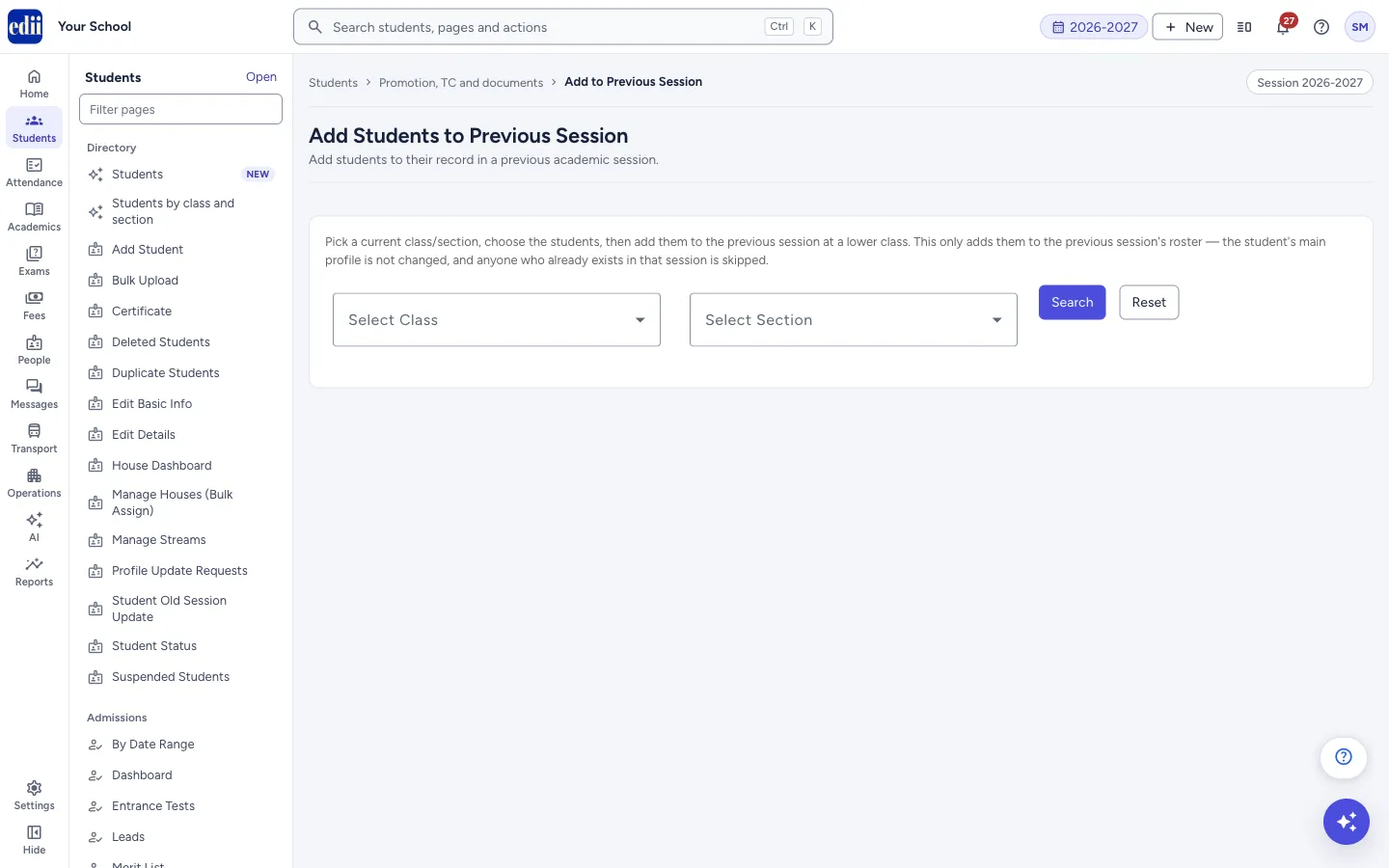
The screen is headed Add Students to Previous Session. Use it when students joined the current session and your school also needs them to exist in the session before it, for example a class 7 student who must appear in class 6 of the previous session.
It only adds each student to the previous session’s roster. The student’s main profile and current class do not change. A student who already exists in that session is skipped.
Who uses it and when
Section titled “Who uses it and when”The office, when a school starts using EDII part-way and needs students in earlier sessions, for example to record old fees or old results.
Before you start
Section titled “Before you start”- Know the students’ current class and section, and the class and section they were in during the previous session.
Where to find it
Section titled “Where to find it”- In school.edii.in: Students › Promotion, TC and documents › Add to Previous Session
- Or press Ctrl K (⌘ K on a Mac) and type Add to Previous Session.
- Address:
school.edii.in/view/student-add-previous-session - Who can see it: Staff whose role includes Students or Attendance access. Shown only when your school uses Student in EDII. If it is missing from your menu, ask your school admin.
 Open a bigger pictureतस्वीर बड़ी करें
Step by step
Section titled “Step by step”1. Choose the current class
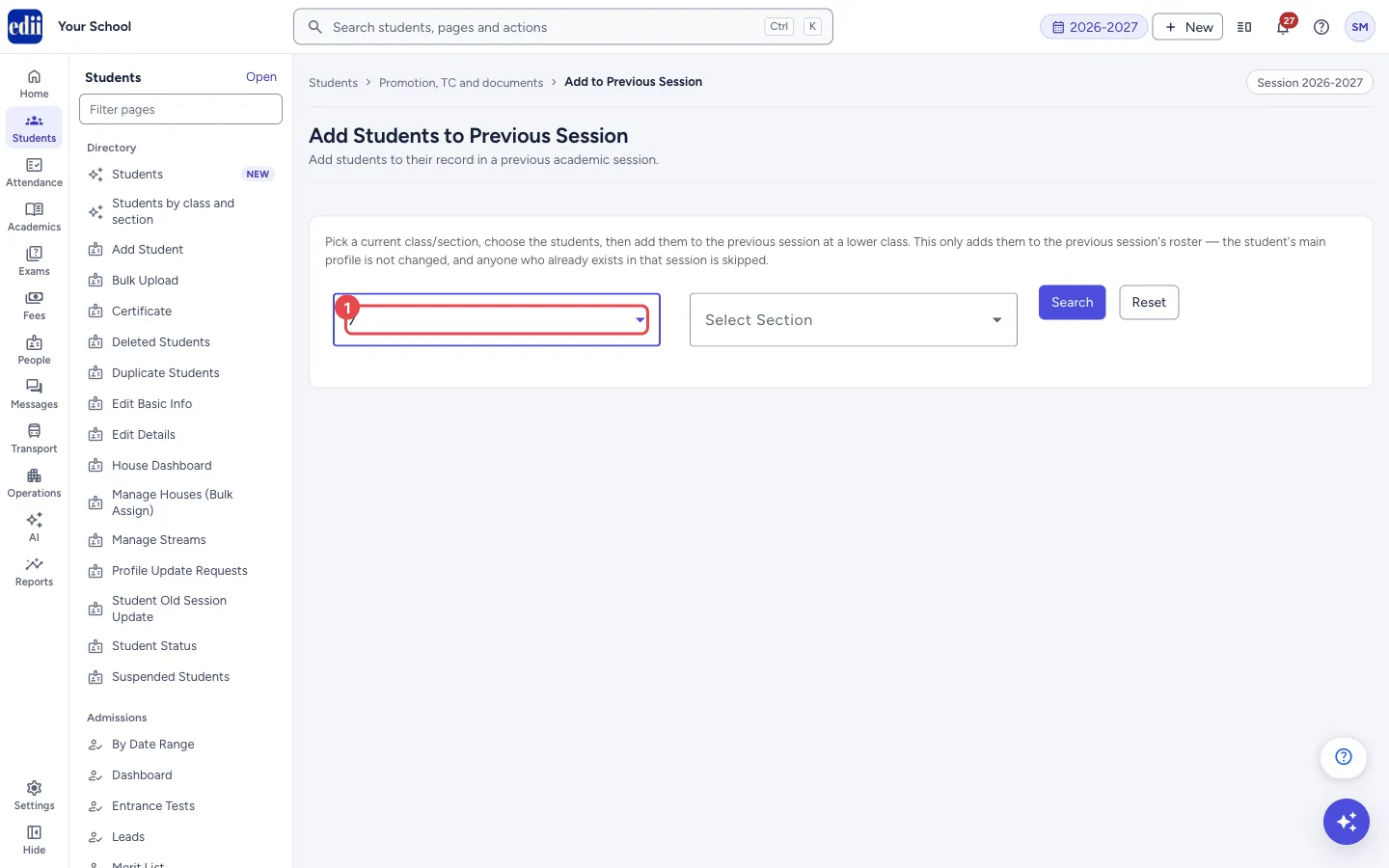
Section titled “1. Choose the current class”In Select Class, choose the class the students are in now, in the session shown at the top of the page.
 Open a bigger pictureतस्वीर बड़ी करें
2. Choose the current section
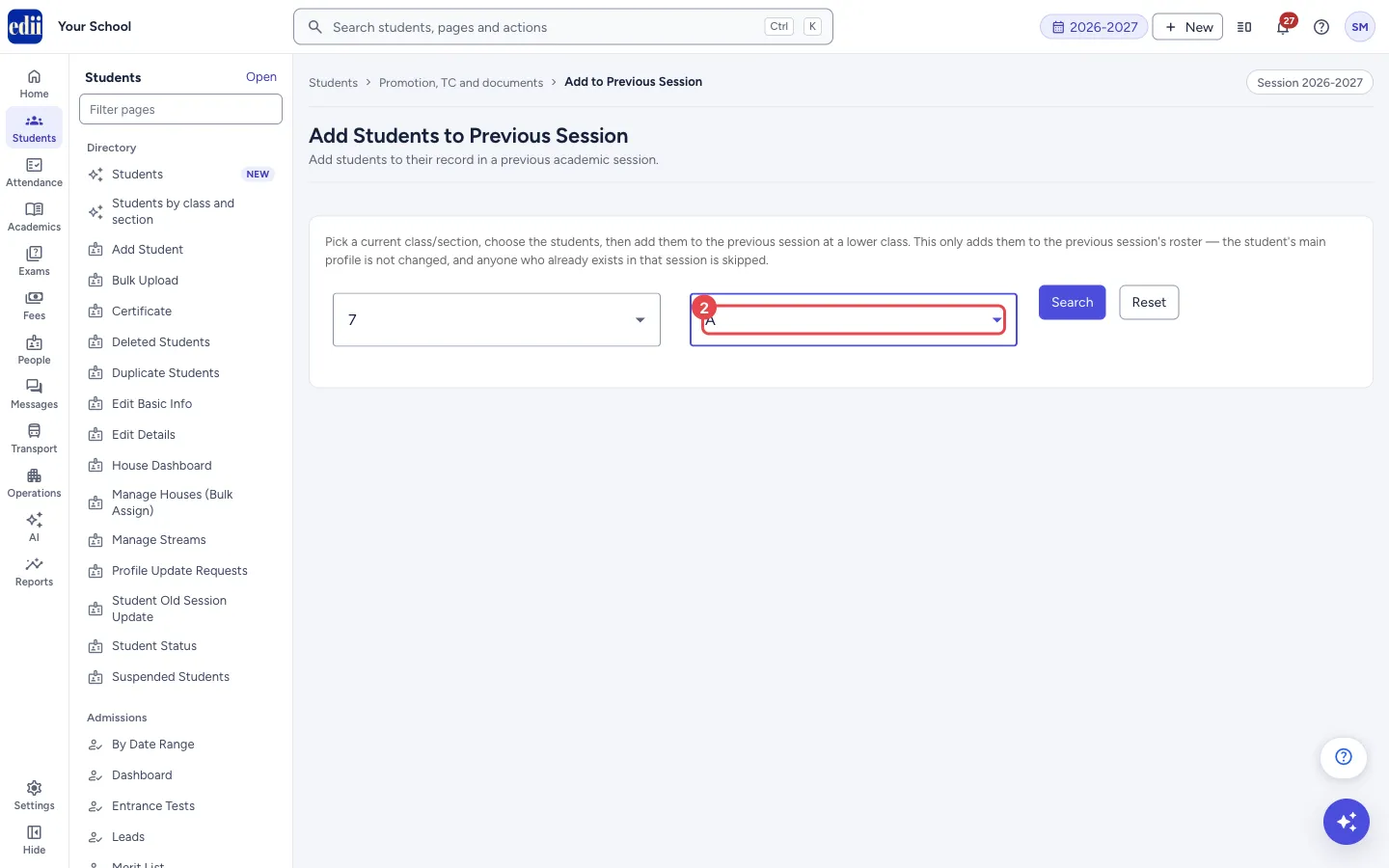
Section titled “2. Choose the current section”In Select Section, choose the section.
 Open a bigger pictureतस्वीर बड़ी करें
3. Search for the students
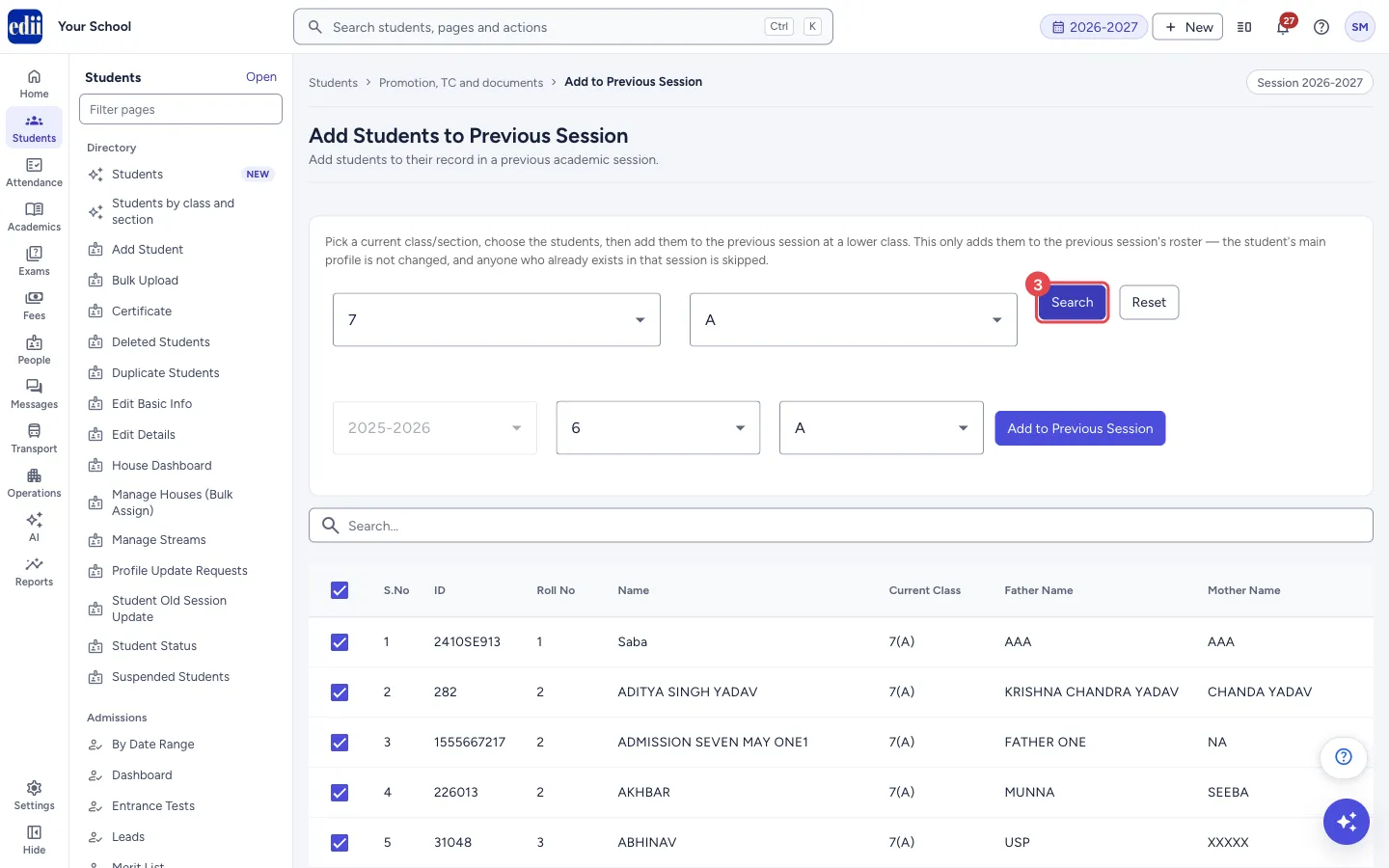
Section titled “3. Search for the students”Select Search. The students of that class and section are listed and every student is ticked at the start. Below the search box a second row appears with Previous Session, Previous Class and Section.
 Open a bigger pictureतस्वीर बड़ी करें
4. Choose the previous class and section
Section titled “4. Choose the previous class and section”Previous Session is the session just before the current one. You cannot change it. Previous Class is filled with the class below the current one when there is one, and Section with the current section. Change them if the students were in another class or section.
5. Untick students you do not want
Section titled “5. Untick students you do not want”Untick any student who should not be added. The box at the top of the first column ticks or unticks everyone. Use Search… to find a student in the list.
6. Add them
Section titled “6. Add them”Select Add to Previous Session. A box asks “Add N student(s) to session 2025-2026 as 6 - A?”. It repeats that only the previous session’s roster changes and that students who already exist in that session are skipped.
Select Add to go on, or Cancel to stop. After adding, a message tells you how many were added, how many already existed and how many failed, and the list is cleared.
Fields and filters
Section titled “Fields and filters”| Field | What it is | Notes |
|---|---|---|
| Select Class | The current class of the students. | Required. |
| Select Section | The current section of the students. | Required. |
| Previous Session | The session before the current one. | Fixed. Shown only after you search. |
| Previous Class | The class the students were in during the previous session. | Required. Suggested as one class lower when the current class is a number. |
| Section (previous) | The section they were in during the previous session. | Required. Starts as the current section. |
| Search… | Filters the list of students on the screen. | Does not change who is ticked. |
Buttons
Section titled “Buttons”| Button | What it does | What happens next |
|---|---|---|
| Search | Lists the students of the chosen class and section. | All students are ticked and the previous-session choices appear. |
| Reset | Clears the list and the ticks. | You can search again. |
| Add to Previous Session | Adds the ticked students to the previous session’s roster. | A confirmation box opens. Nothing is added until you select Add. |
Columns
Section titled “Columns”| Column | Meaning |
|---|---|
| S.No | Row number. |
| ID | The student’s ID number. |
| Roll No | Roll number in the current class. |
| Name | Student’s name. |
| Current Class | Class and section now, for example 7(A). |
| Father Name | Father’s name. |
| Mother Name | Mother’s name. |
After you save
Section titled “After you save”- The students are on the roll of the previous session in the class and section you chose. Their main profile and their current class do not change.
- The message shows, for example, “3 added, 1 already existed (skipped).” If any failed, the count of failed students is added to the message.
Good to know
Section titled “Good to know”- This adds students to the previous session only. It does not move, promote or remove anyone in the current session.
- A student who is already on that session’s roll is skipped and is not changed.
- Only the roll entry is added. Fees, marks or attendance for that session are not created.
- The page asks for confirmation before it adds anyone.
Messages you may see
Section titled “Messages you may see”| Message | What it means | What to do |
|---|---|---|
| Please select Class and Section | You selected Search without a class or a section. | Choose both and search again. |
| Select at least one student | No student is ticked. | Tick the students to add. |
| Please choose the previous-session Class and Section | Previous Class or Section is empty. | Choose them. |
| 3 added, 1 already existed (skipped). | The result after adding. The numbers change each time. The title is Done. | Nothing to do. Skipped students were already in that session. |
| Network Issue, Please Try Again. | The request did not reach the server. | Check the internet and try again. |
- Untick students you do not need. The list starts with everyone ticked.
Stuck? Try this
Section titled “Stuck? Try this”| Problem | Likely cause | What to do |
|---|---|---|
| Previous Class is empty after Search | The class is not a number, or the class below it is not in your school’s class list. | Choose the class yourself. |
Did this page help?क्या इस पेज से मदद मिली?
Thanks! Glad it helped.धन्यवाद! अच्छा लगा कि काम बन गया।
Sorry about that. Ask in your own words, or write to us.माफ़ कीजिए। अपने शब्दों में पूछें, या हमें लिखें।