
Screen guide · Web app
AI Tools Dashboard
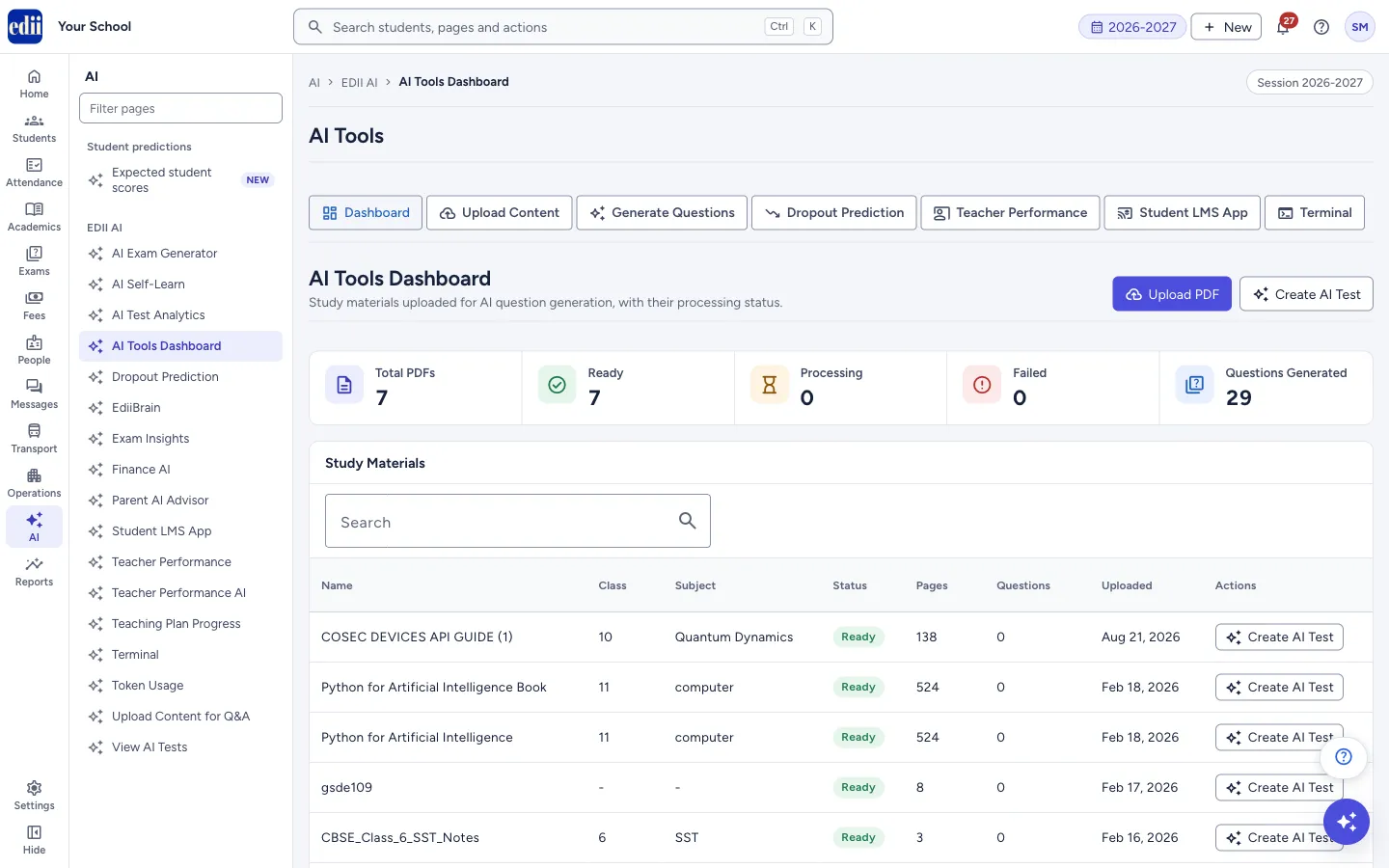
Lists the study material (PDFs) your school has uploaded for AI questions, with the processing status of each and the number of questions made.
यह पेज अंग्रेज़ी में है। कुछ समझ न आए तो ।
AI Tools Dashboard is the first page of AI Tools. A row of buttons across the top moves between the AI Tools pages: Dashboard, Upload Content, Generate Questions, Dropout Prediction, Teacher Performance, Student LMS App and Terminal.
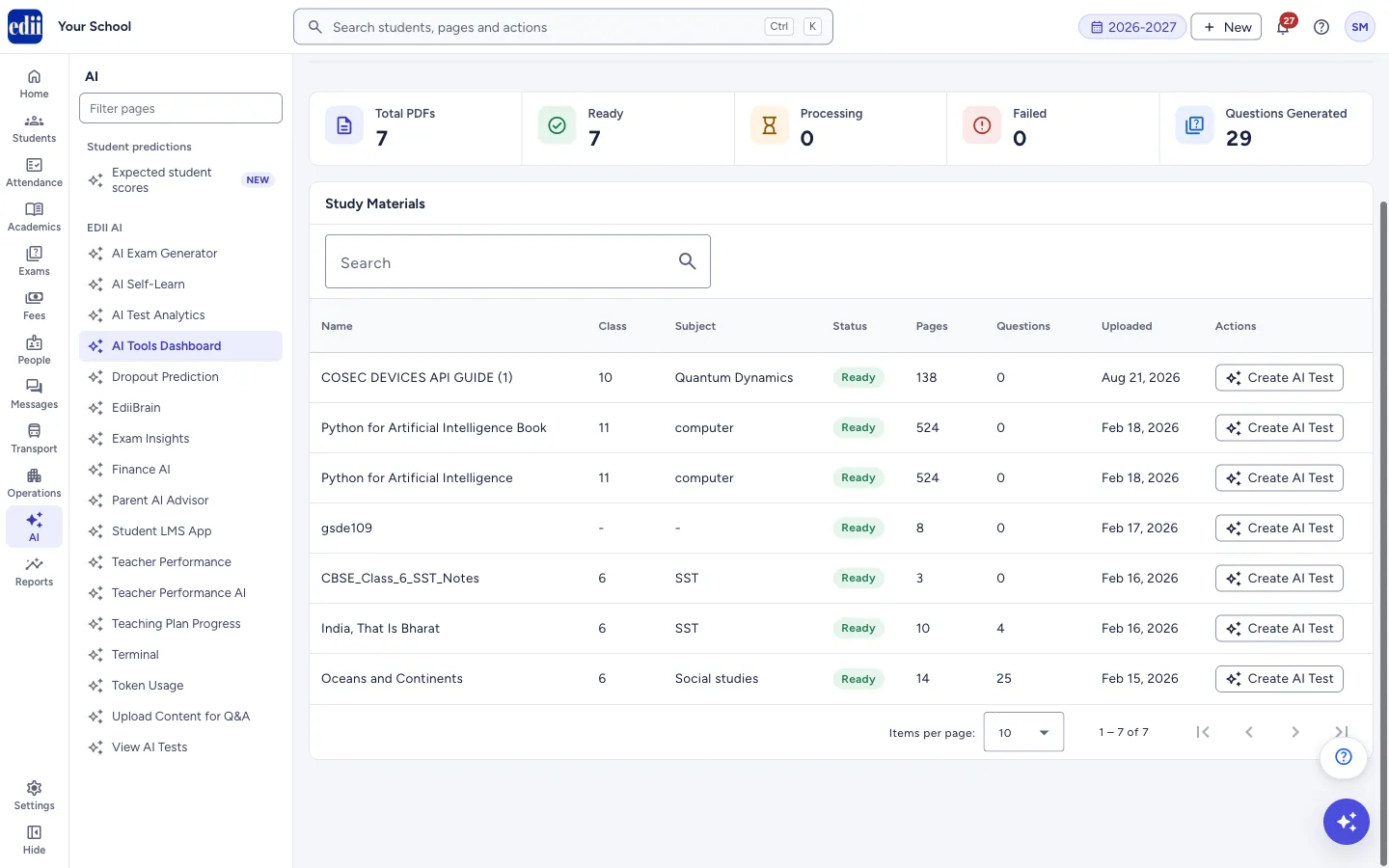
Five counts show Total PDFs, Ready, Processing, Failed and Questions Generated. Under them, Study Materials lists every uploaded PDF with its class, subject, status, pages, questions and upload date.
Who uses it and when
Section titled “Who uses it and when”Teachers and the exam in-charge use it to check that an uploaded PDF has finished processing before making an AI test from it.
Before you start
Section titled “Before you start”- Upload a PDF first with Upload PDF (the Upload Content for Q&A page). Until you do, the table says No study materials found. Upload a PDF to get started.
Where to find it
Section titled “Where to find it”- In school.edii.in: AI › EDII AI › AI Tools Dashboard
- Or press Ctrl K (⌘ K on a Mac) and type AI Tools Dashboard.
- Address:
school.edii.in/ai-tools/dashboard - Who can see it: Shown only when your school uses EDII’s AI in EDII. If it is missing from your menu, ask your school admin.
 Open a bigger pictureतस्वीर बड़ी करें
Step by step
Section titled “Step by step”1. Check the counts
Section titled “1. Check the counts”Ready counts PDFs that finished processing. Processing counts PDFs that are still uploading, processing or being indexed. Failed counts PDFs that could not be processed. Questions Generated adds up the questions made from all the PDFs.
 Open a bigger pictureतस्वीर बड़ी करें
2. Find a PDF
Section titled “2. Find a PDF”Type in Search to filter by name, class or subject. Select a column heading to sort by it. The table shows 10 rows at a time; use Items per page (10, 25 or 50) and the arrows at the bottom to move through the list.
3. Create a test
Section titled “3. Create a test”In a row whose status is Ready, select Create AI Test. This opens AI Exam Generator. The button is off for a PDF that is not ready.
The generator does not pick the PDF for you. In it, switch on Generate from Uploaded PDF and choose the study material.
4. Upload another PDF
Section titled “4. Upload another PDF”Select Upload PDF at the top to open Upload Content for Q&A.
Buttons
Section titled “Buttons”| Button | What it does | What happens next |
|---|---|---|
| Upload PDF | Opens the page for uploading study material. | Upload Content for Q&A opens. |
| Create AI Test | Opens AI Exam Generator (top button, and one on each Ready row). | AI Exam Generator opens. |
Columns
Section titled “Columns”| Column | Meaning |
|---|---|
| Name | The display name given when the PDF was uploaded. |
| Class, Subject | The class and subject chosen at upload. A dash means none was given. |
| Status | Uploaded, Processing or Indexing (still being prepared), Ready (can be used) or Failed. |
| Pages | Number of pages found in the PDF. |
| Questions | Questions made from this PDF so far. |
| Uploaded | The date the PDF was uploaded. |
Good to know
Section titled “Good to know”- Only PDFs with status Ready can be used to make a test.
- This page only lists materials; it does not delete or change them.
Messages you may see
Section titled “Messages you may see”| Message | What it means | What to do |
|---|---|---|
| No study materials found. Upload a PDF to get started. | Nothing has been uploaded, or no row matches your search. | Upload a PDF, or clear the search. |
| Error loading dashboard data | The list could not be loaded. | Reload the page. |
Stuck? Try this
Section titled “Stuck? Try this”| Problem | Likely cause | What to do |
|---|---|---|
| A PDF stays on Processing. | Large PDFs take time to prepare. | Wait and reload the page. If it shows Failed, upload it again. |
Did this page help?क्या इस पेज से मदद मिली?
Thanks! Glad it helped.धन्यवाद! अच्छा लगा कि काम बन गया।
Sorry about that. Ask in your own words, or write to us.माफ़ कीजिए। अपने शब्दों में पूछें, या हमें लिखें।