
Screen guide · Web app
By Date (archive sheet)
The fee receipts of one day, one row per receipt with the fee heads, receipt number and cashier. This is the Archive Transaction Detail Sheet (Date); the Transaction Detail Sheet (Date) is a separate By Date page.
यह पेज अंग्रेज़ी में है। कुछ समझ न आए तो ।
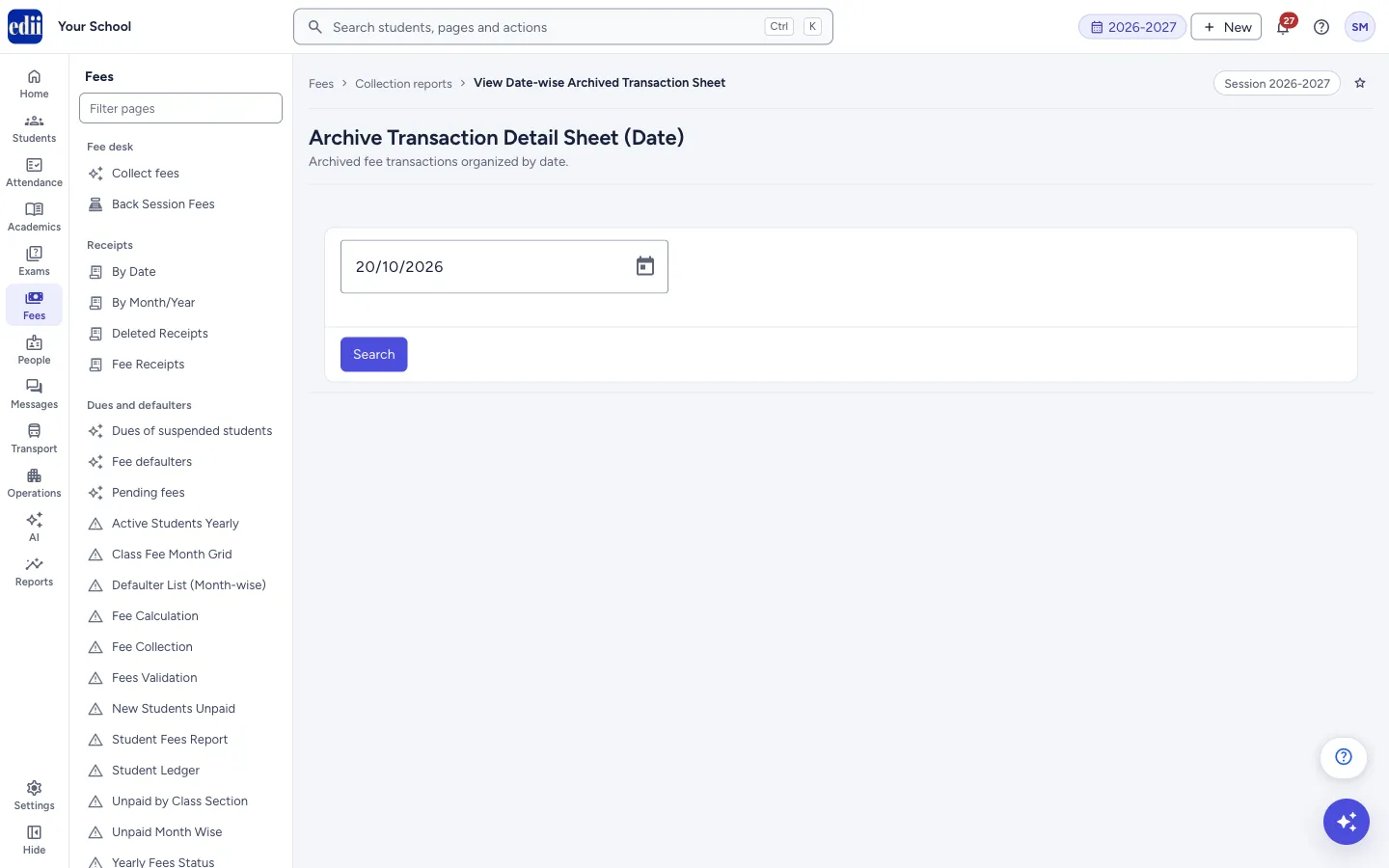
The screen is headed Archive Transaction Detail Sheet (Date). You choose a date and select Search. The sheet shows a FEES REPORT FOR heading with the session and the date, then a table with one row for each receipt, with the receipt number, mode, cashier, student and a column for each fee head.
Under the table the sheet shows the collection by payment mode and signature lines for the Accountant, Director and Principal, so the sheet can be printed and signed.
The page runs once by itself when you open it, for today’s date. Each time it runs, a yellow box warns Warning: This report will be phased out soon. and says Click here to view the Master Transaction Report. The Master Transaction Report is the report to move to.
Who uses it and when
Section titled “Who uses it and when”The accountant, when a signed daily sheet with every receipt is needed.
Before you start
Section titled “Before you start”- Payments must already be entered through the fee desk.
Where to find it
Section titled “Where to find it”- In school.edii.in: Fees › Collection reports › By Date
- Or press Ctrl K (⌘ K on a Mac) and type By Date.
- Address:
school.edii.in/view/archive-transaction-date-wise - Who can see it: Staff whose role includes Fees or Reports access. Shown only when your school uses Finance and Report in EDII. If it is missing from your menu, ask your school admin.
 Open a bigger pictureतस्वीर बड़ी करें
Step by step
Section titled “Step by step”1. Open the page
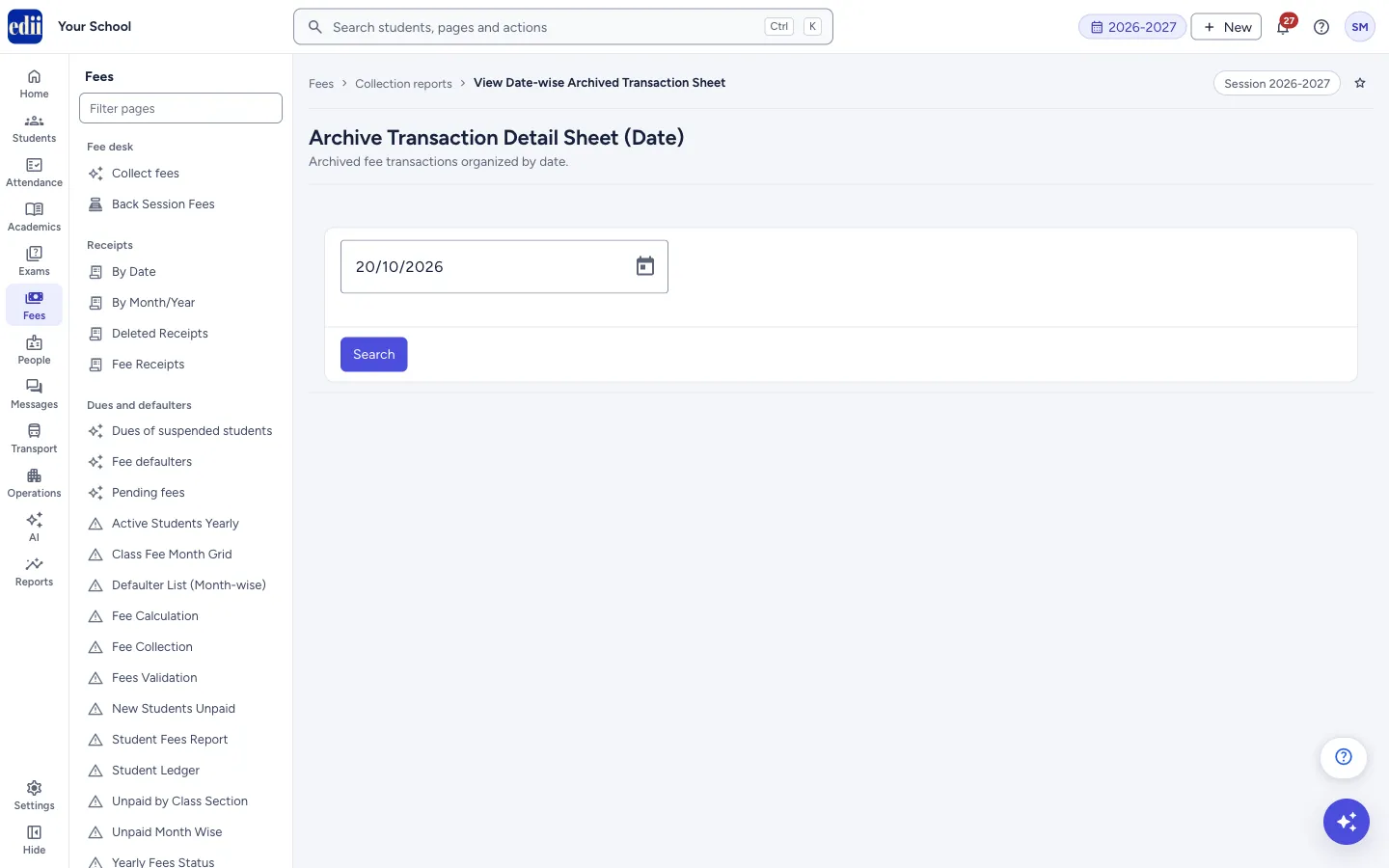
Section titled “1. Open the page”Open Fees › Collection reports › By Date and choose the page headed Archive Transaction Detail Sheet (Date). The date box starts with today’s date and the sheet runs for it.
 Open a bigger pictureतस्वीर बड़ी करें
2. Choose the date and search
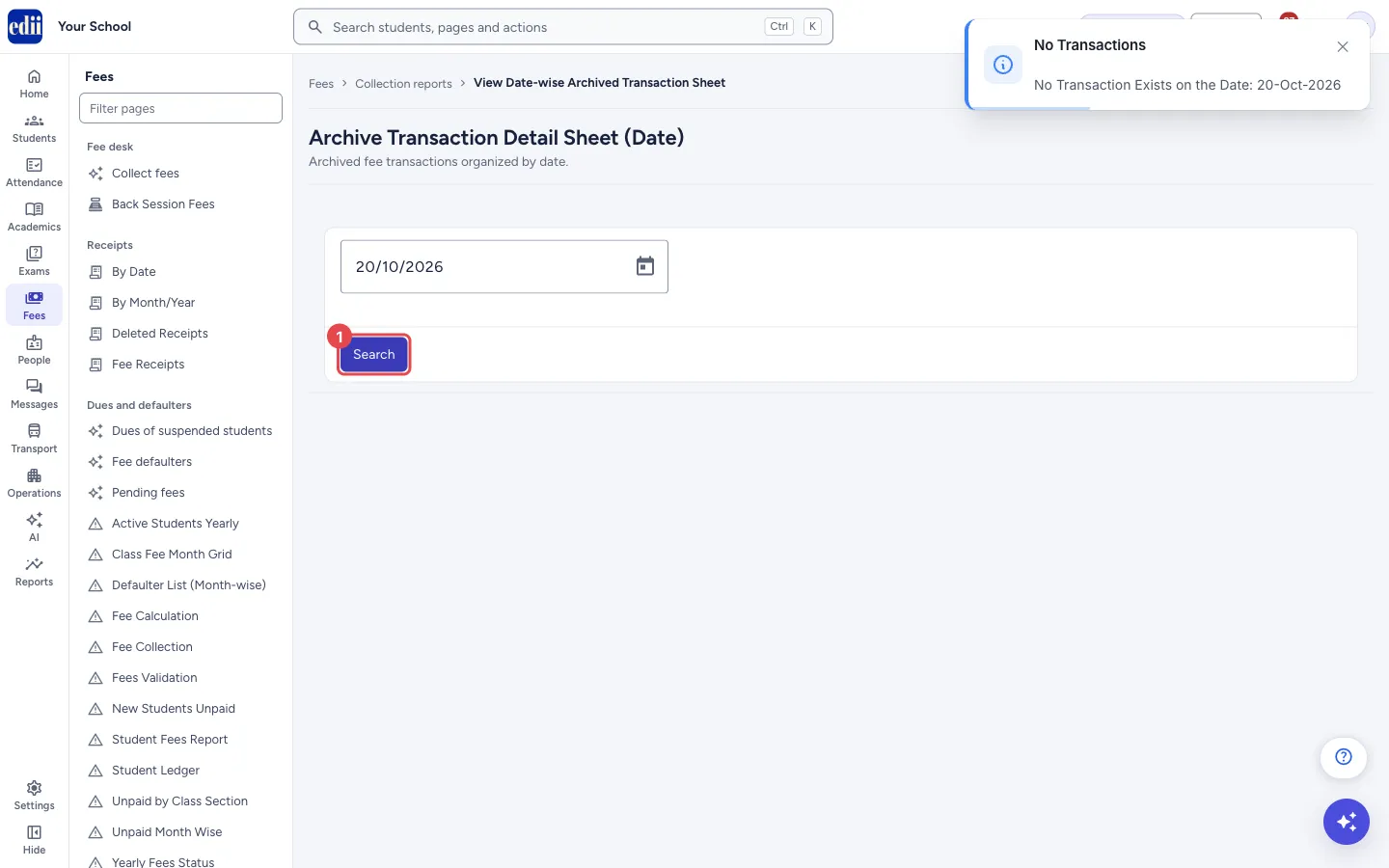
Section titled “2. Choose the date and search”Pick another day in the date box if you need it, then select Search. If there are no receipts for the day, a box titled No Transactions shows No Transaction Exists on the Date: with the date, and no sheet is shown.
 Open a bigger pictureतस्वीर बड़ी करें
3. Choose the columns
Section titled “3. Choose the columns”After the sheet has loaded, Select Fields appears next to the date. Tick Select All or the columns you want.
4. Open a receipt
Section titled “4. Open a receipt”Select a cell in a row. The box FeeReceipt Fetched shows, and the receipt opens in a window. Tick all columns in Select Fields before you do this.
5. Print
Section titled “5. Print”Select the printer icon, then Print. The printout carries the school name and Report Generated On, and follows the paper size, orientation and font size set in the school’s print settings.
Fields and filters
Section titled “Fields and filters”| Field | What it is | Notes |
|---|---|---|
| Date | The day to report on. | Required. Starts as today’s date. Pick it from the calendar; it cannot be typed. |
| Select Fields | Chooses which columns of the sheet to show. | Appears after the sheet has loaded. All columns start ticked. |
Buttons
Section titled “Buttons”| Button | What it does | What happens next |
|---|---|---|
| Search | Loads the sheet for the date in the box. | The warning about the phase-out shows, then the sheet or a message. |
| Print (printer icon) | Opens a menu with Print. | The print window opens. The icon shows only after a sheet has loaded. |
Columns
Section titled “Columns”| Column | Meaning |
|---|---|
| Rcpt | The receipt number. |
| Mode | How it was paid, for example CASH or WALLET. |
| Transaction Date, Payment Date | Two dates on the receipt. They are usually the same day. A receipt can show different dates, for example when it was entered a day after the money was paid. |
| Cashier | The user who made the receipt. |
| TxID | The transaction ID of the receipt. |
| Name, Class/Section, ID | The student, the class and section, and the student’s ID. |
| One column for each fee head | The amount of that fee head on the receipt. |
| Total | The receipt total. |
| Month | The fee months the receipt pays for, for example MAY-26 TO MAY-26 or APR-26 TO OCT-26. |
| Disc | The discount on the receipt. |
| Collection by mode (below the table) | Online Amount, Cash Amount, Debit/Credit Amount, Cheque Amount and Wallet for the day, then Collection. |
After you save
Section titled “After you save”- This page only shows figures. Nothing is saved or changed.
Good to know
Section titled “Good to know”- The sheet is for the session shown at the top of the page.
- The Month column shows the fee months each receipt pays for.
- EDII shows a warning on every run that this report will be phased out soon.
Messages you may see
Section titled “Messages you may see”| Message | What it means | What to do |
|---|---|---|
| Warning: This report will be phased out soon. Click here to view the Master Transaction Report. | A warning shown every time the sheet runs. | Use the Master Transaction Report page for daily and monthly collection. |
| No Transaction Exists on the Date: <date> | There is no receipt for that date in this session. | Choose another date. |
| FeeReceipt Fetched | The receipt you selected was found and is opening. | Nothing to do. |
| Bad/Slow Internet Connection, Please check your internet connection | The receipt could not be loaded. | Check the internet connection and try again. |
| Network Issue, Please Try Again. | The sheet could not be loaded. | Check the internet connection and select Search again. |
- Use the Master Transaction Report when you need to filter by class, section, cashier or payment mode.
Stuck? Try this
Section titled “Stuck? Try this”| Problem | Likely cause | What to do |
|---|---|---|
| A receipt does not open when I select a row | Some columns are hidden in Select Fields. | Tick Select All in Select Fields, then select the row again. |
Did this page help?क्या इस पेज से मदद मिली?
Thanks! Glad it helped.धन्यवाद! अच्छा लगा कि काम बन गया।
Sorry about that. Ask in your own words, or write to us.माफ़ कीजिए। अपने शब्दों में पूछें, या हमें लिखें।