
Screen guide · Web app
Interviews
All interviews planned for job applicants, grouped by day, with a way to record the outcome, reschedule or cancel each one.
यह पेज अंग्रेज़ी में है। कुछ समझ न आए तो ।
Interviews lists the interviews of all your jobs. They are grouped by day, with the earliest day first and the times in order inside each day. Each line shows the start and end time, the candidate’s name, the round, the mode (video, phone or in person), the candidate’s email, and a status badge.
Interviews are not created on this page. You schedule one from an applicant’s card; this page then lists it, and is where you follow up.
Who uses it and when
Section titled “Who uses it and when”The person who handles recruitment, to see what is planned today and to record how each interview went.
Where to find it
Section titled “Where to find it”- In school.edii.in: People › Jobs and recruitment › Interviews
- Or press Ctrl K (⌘ K on a Mac) and type Interviews.
- Address:
school.edii.in/view/view-careers-interviews - Who can see it: Staff whose role includes Messages or Leave or Meetings access. Shown only when your school uses HR and Calendar in EDII. If it is missing from your menu, ask your school admin.
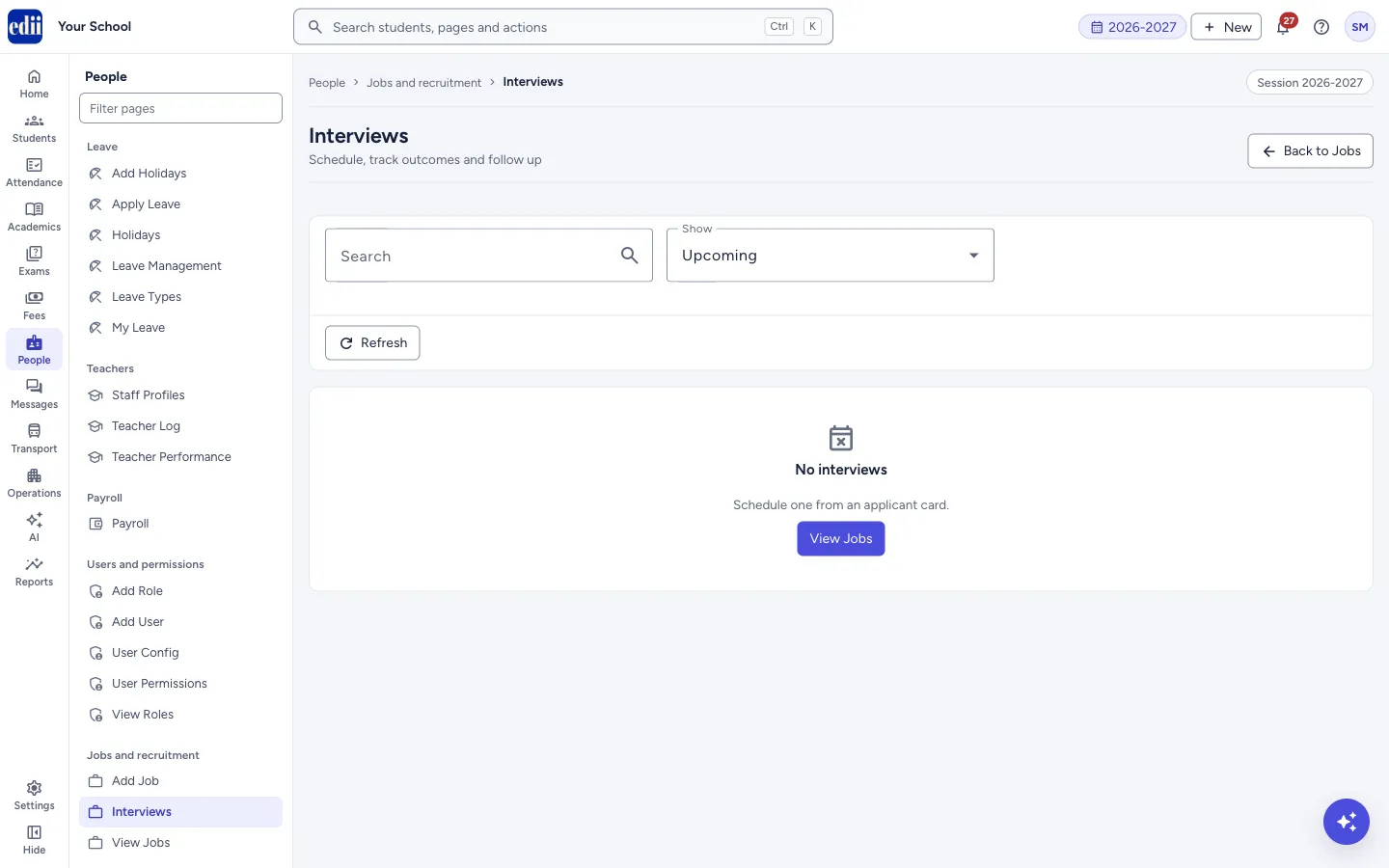 Open a bigger pictureतस्वीर बड़ी करें
Step by step
Section titled “Step by step”1. Choose which interviews to see
Section titled “1. Choose which interviews to see”Show has three choices: Upcoming (interviews that start after now; this is the starting choice), Past and All. Type in Search to find a candidate by name or email.
Select Refresh to load the list again.
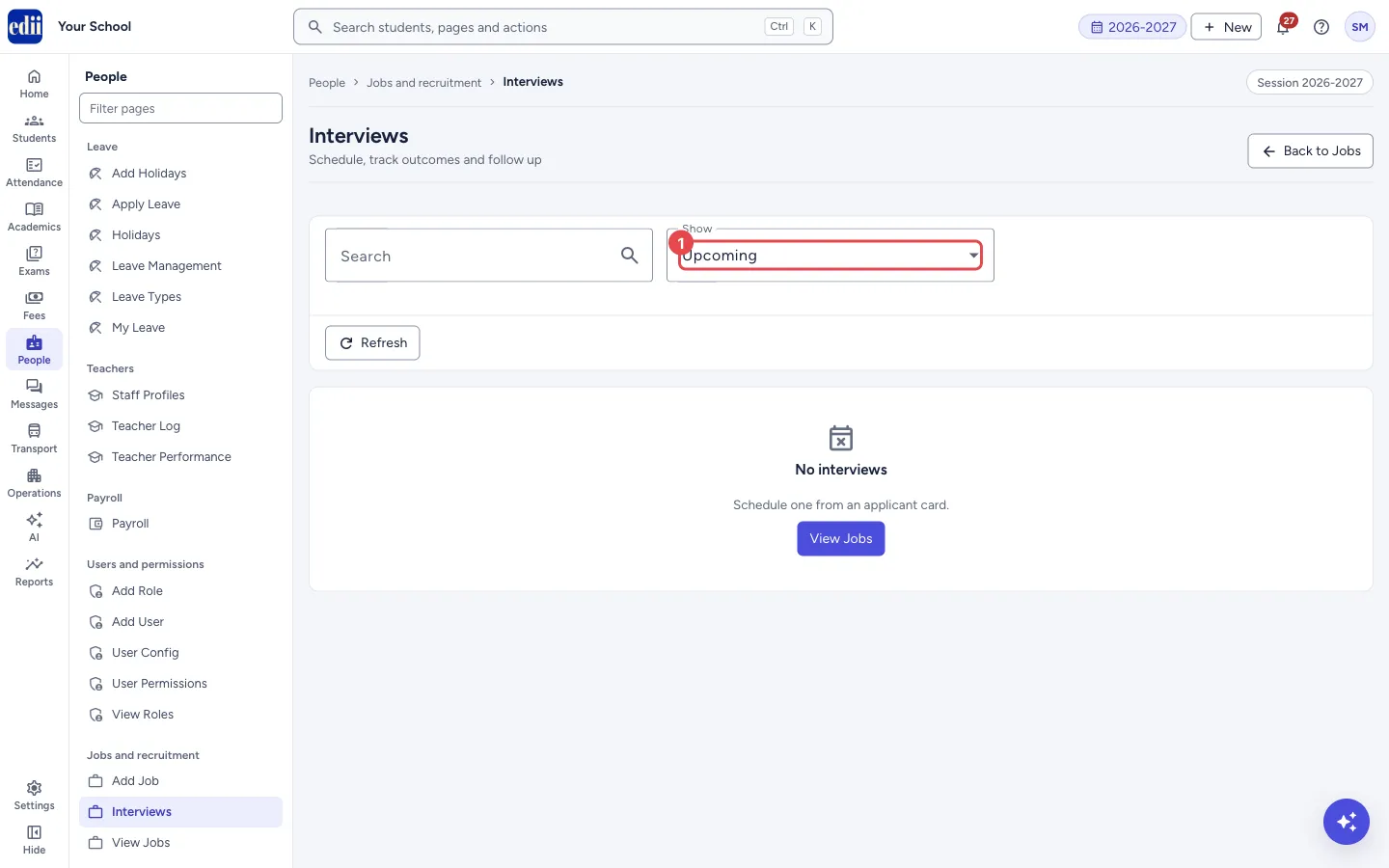 Open a bigger pictureतस्वीर बड़ी करें
2. Join an online interview
Section titled “2. Join an online interview”When the interview has a meeting link, a Join button opens it in a new tab.
3. Record the outcome
Section titled “3. Record the outcome”Select Outcome. In the Record outcome window choose the Status: Completed, Rescheduled, No-show or Cancelled.
For Completed, you can also choose a Result: Strong Hire, Hire, Hold, No Hire or Strong No Hire.
For Rescheduled, fill the New start and New end; the button then says Reschedule. The interview moves to the new time and goes back to the status Scheduled, and a note of the old and new time is added to the internal notes.
Comments (visible to candidate) is shown to the candidate. Internal notes stay with the school. Select Save (or Reschedule). You see Saved or Interview rescheduled.
4. Open the applicant
Section titled “4. Open the applicant”Select Applicant (or the candidate’s name) to open the applicants page of that job.
5. Cancel an interview
Section titled “5. Cancel an interview”Select Cancel. A window asks Cancel this interview? Select Cancel Interview to confirm, or Keep to leave it as it is. You see Interview cancelled and the list refreshes.
Buttons
Section titled “Buttons”| Button | What it does | What happens next |
|---|---|---|
| Back to Jobs | Returns to View Jobs. | View Jobs opens. |
| Refresh | Loads the interviews again. | The list is updated. |
| Join | Opens the meeting link of an online interview. | A new browser tab opens. |
| Outcome | Opens the window to record how the interview went, or to move it to a new time. | The list refreshes when you save. |
| Applicant | Opens the applicants page of the job. | The applicants page opens. |
| Cancel | Cancels that interview after you confirm. | Interview cancelled. |
Good to know
Section titled “Good to know”- An interview whose start time has passed shows under Past, not under Upcoming, even if it was not marked completed.
- The interview list is not tied to the session you picked at the top of the screen.
Messages you may see
Section titled “Messages you may see”| Message | What it means | What to do |
|---|---|---|
| No interviews | No interview matches the choice in Show and the search (Schedule one from an applicant card.). | Change Show to All, or schedule an interview from an applicant of a job. |
| Interview cancelled | The interview was cancelled. | Nothing to do. |
| Interview rescheduled | The interview moved to the new time. | Nothing to do. |
| Network error | The request did not reach EDII. | Check the internet and try again. |
Did this page help?क्या इस पेज से मदद मिली?
Thanks! Glad it helped.धन्यवाद! अच्छा लगा कि काम बन गया।
Sorry about that. Ask in your own words, or write to us.माफ़ कीजिए। अपने शब्दों में पूछें, या हमें लिखें।