
Screen guide · Web app
Parent AI Advisor
Look up a student and read AI-written weekly insights on attendance, marks and homework, a 12-week trend, and a summary you can edit for a parent-teacher meeting.
यह पेज अंग्रेज़ी में है। कुछ समझ न आए तो ।
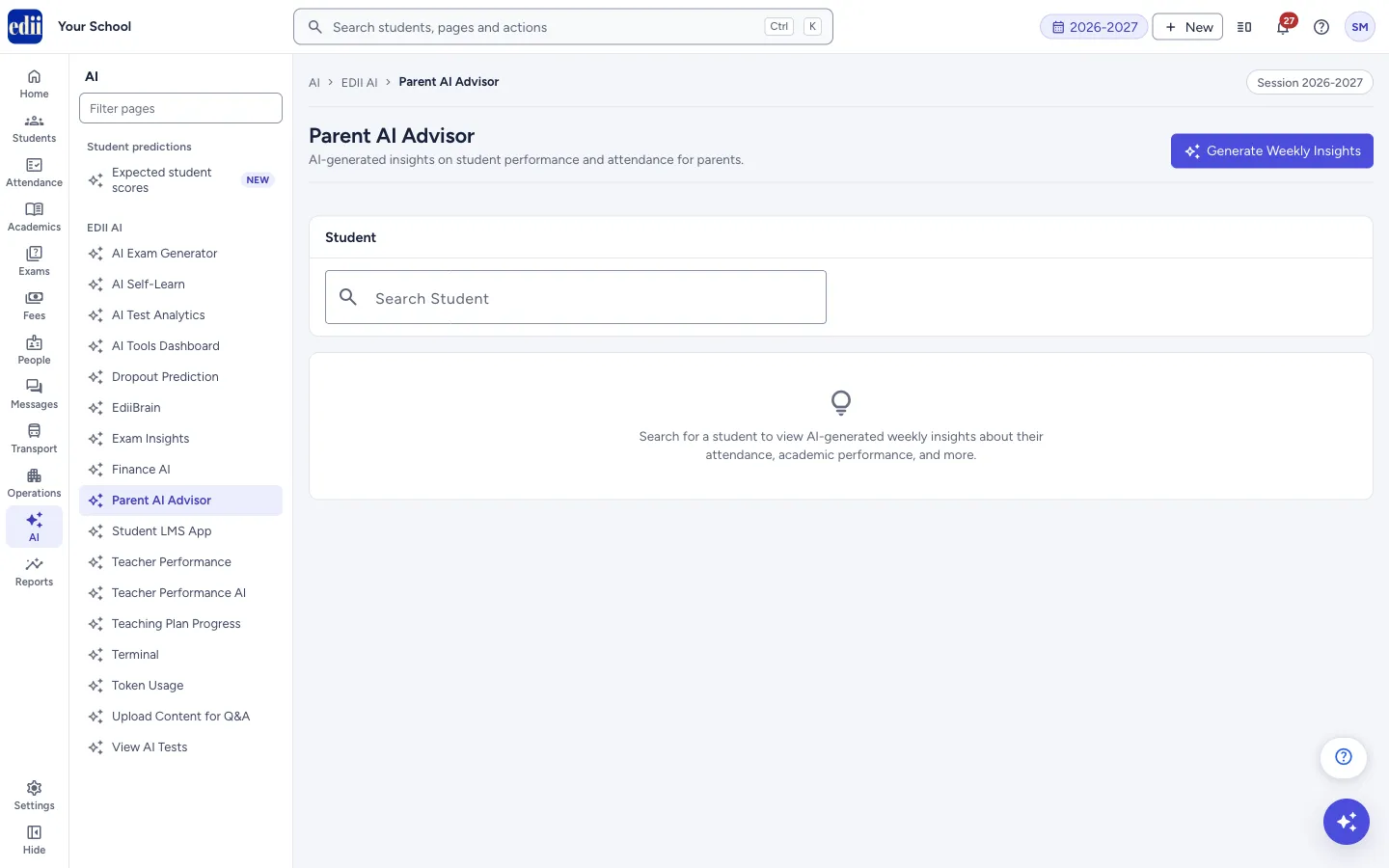
Parent AI Advisor prepares what to tell parents about a child. Search for a student and the page has four tabs: Latest Insight, History, Trends and PTM Summary.
Generate Weekly Insights at the top right makes the weekly insights for all students of the school in one go. It can take a while. The weekly insights and the PTM summary are written by AI from the student’s records. They can be wrong or miss context, so a teacher should read them before sharing anything with a parent.
Who uses it and when
Section titled “Who uses it and when”Class teachers and the principal use it before parent-teacher meetings and when talking to parents about a child’s week.
Before you start
Section titled “Before you start”- The insights are made from the student’s attendance, marks and homework. Make sure they are up to date.
- A student has insights only after Generate Weekly Insights has been run.
Where to find it
Section titled “Where to find it”- In school.edii.in: AI › EDII AI › Parent AI Advisor
- Or press Ctrl K (⌘ K on a Mac) and type Parent AI Advisor.
- Address:
school.edii.in/view/parent-insights - Who can see it: Shown only when your school uses EDII’s AI in EDII. If it is missing from your menu, ask your school admin.
 Open a bigger pictureतस्वीर बड़ी करें
Step by step
Section titled “Step by step”1. Generate the weekly insights
Section titled “1. Generate the weekly insights”Select Generate Weekly Insights. The button shows Generating… and a message says Generating insights for all students… This may take a moment. When done, you see Insights generated for N/M students. If it takes too long you see Generation timed out or failed. If data exists, it will still show.
2. Find the student
Section titled “2. Find the student”In Search Student type a name, ID or class and choose the student from the list. The student’s name, class and section show next to the box and the four tabs appear.
3. Read the Latest Insight
Section titled “3. Read the Latest Insight”The tab shows the week (Week of …) with a short summary, then four figures: Attendance (7d), Avg Score (Recent), Days Present and Homework Rate. Below are insight cards, each with a title, a priority, a message and a suggestion.
If there are none yet, the screen says No insights available yet for this student. Click “Generate Weekly Insights” to create them.
4. Check History and Trends
Section titled “4. Check History and Trends”History lists earlier weeks, each with its summary and the titles of its insights. Trends shows a table for the last 12 weeks with Attendance % and Avg Score %. Attendance is green at 90% and above, amber from 75%, otherwise red. Score is green at 80% and above, amber from 50%, otherwise red.
5. Prepare a PTM summary
Section titled “5. Prepare a PTM summary”Open PTM Summary and select Generate PTM Summary. The page shows a written report for the student with the date it was made. Select Edit to change the text, then Save (PTM Summary updated) or Cancel. The text cannot be empty. After you change it the page shows an Edited tag with your name.
Delete removes the summary after you confirm (Are you sure you want to delete this PTM summary?). PTM Summary History lists the summaries of each session with AI Generated or Edited; View opens one.
Fields and filters
Section titled “Fields and filters”| Field | What it is | Notes |
|---|---|---|
| Search Student | Finds a student by name, ID or class. | Choose the student from the list that appears. |
| Edit PTM Narrative | The text of the PTM summary. | Cannot be empty. |
Buttons
Section titled “Buttons”| Button | What it does | What happens next |
|---|---|---|
| Generate Weekly Insights | Makes the weekly insights for all students. | Insights generated for N/M students. |
| Generate PTM Summary | Writes a summary for the chosen student. | PTM Summary generated. |
| Edit / Save / Cancel | Changes the PTM summary text. | PTM Summary updated. |
| Delete | Removes the PTM summary. | PTM Summary deleted. |
| View | Opens a PTM summary from an earlier session. | A window opens with the text. |
Columns
Section titled “Columns”| Column | Meaning |
|---|---|
| Attendance (7d) | Attendance rate for the week. |
| Avg Score (Recent) | Average score percentage of recent tests. |
| Days Present | Days present out of the days counted. |
| Homework Rate | Share of homework the student submitted. |
Good to know
Section titled “Good to know”- Insights and PTM summaries are AI-written. A teacher should read and correct them before they are shared with a parent.
- An edited PTM summary shows who edited it.
Messages you may see
Section titled “Messages you may see”| Message | What it means | What to do |
|---|---|---|
| Please select a student | No student is chosen. | Search and choose a student. |
| No insights available yet for this student | No weekly insights exist for the student. | Select Generate Weekly Insights. |
| No trend data available yet. Generate insights for multiple weeks to see trends. | There are too few weeks of insights. | Generate insights each week. |
| Narrative cannot be empty | The PTM text is blank. | Write the summary before saving. |
| Error fetching insights | The insights could not be loaded. | Choose the student again. |
| Error generating PTM summary | The summary could not be made. | Try again. |
- Generate the weekly insights once a week, so that History and Trends fill up.
- Print or copy the PTM summary only after you have read it.
Stuck? Try this
Section titled “Stuck? Try this”| Problem | Likely cause | What to do |
|---|---|---|
| Trends is empty for a student. | Insights have been made for fewer than two weeks. | Generate the weekly insights in the following weeks. |
Did this page help?क्या इस पेज से मदद मिली?
Thanks! Glad it helped.धन्यवाद! अच्छा लगा कि काम बन गया।
Sorry about that. Ask in your own words, or write to us.माफ़ कीजिए। अपने शब्दों में पूछें, या हमें लिखें।