
Screen guide · Web app
Fees Validation
A check of the school's fee data. It lists students whose fee heads look duplicated, and students who have paid more than a fee head or a month asks for.
यह पेज अंग्रेज़ी में है। कुछ समझ न आए तो ।
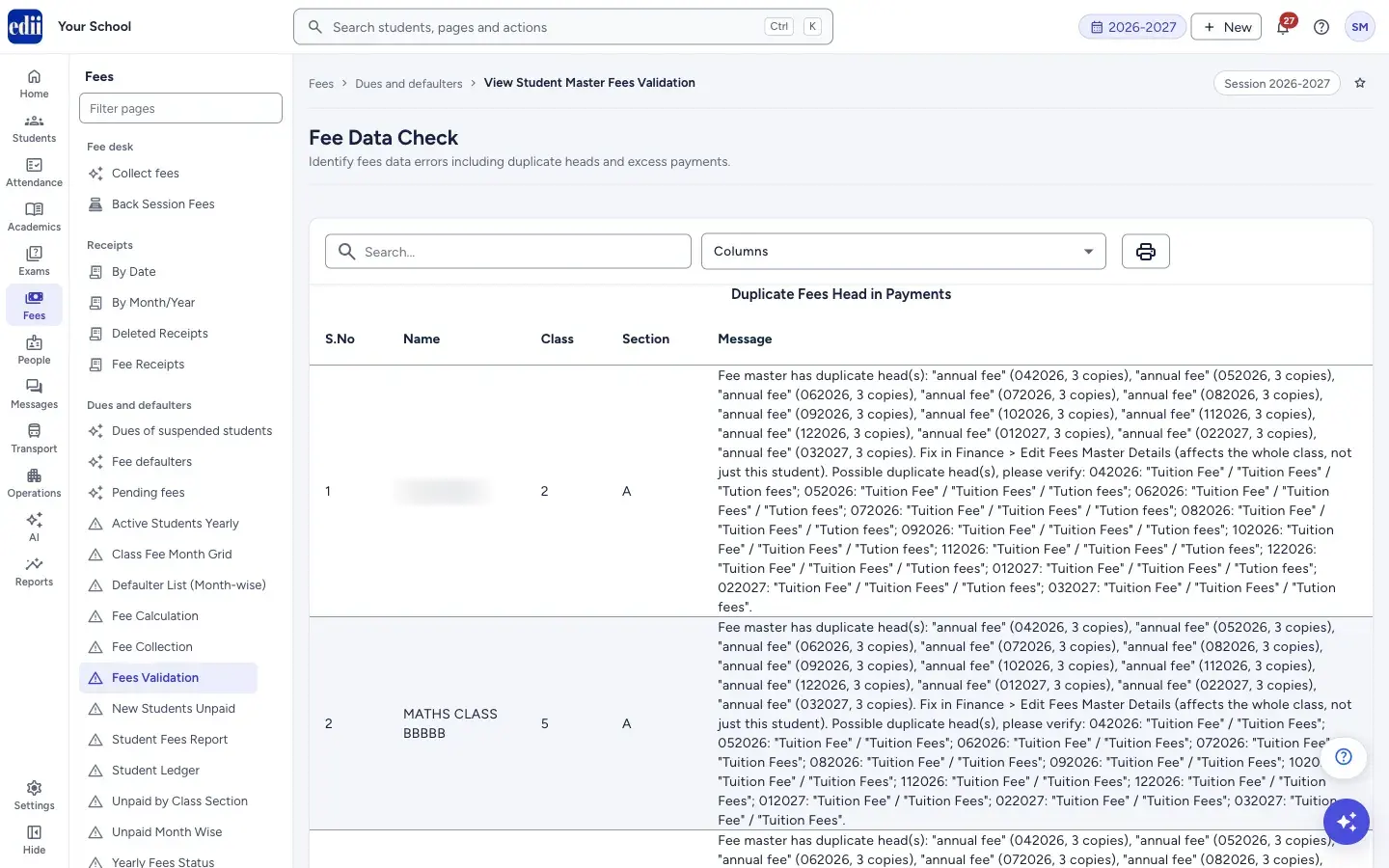
Fees Validation (the page is headed Fee Data Check) looks through the fees of all students and lists the problems it finds. It has no filters and no Search button: the three lists fill in when the page opens.
The three lists are Duplicate Fees Head in Payments, Excess Fees Monthly Paid and Excess Fees Paid on Per Fees Head. Each has the columns S.No, Name, Class, Section and Message. A list with no rows means the check found no problem of that kind.
The report only reads data. It does not change any fee and does not send anything to parents.
Who uses it and when
Section titled “Who uses it and when”The accountant or the person who sets up fees, when totals look wrong, after changing the fee structure, and at the start of a session.
Where to find it
Section titled “Where to find it”- In school.edii.in: Fees › Dues and defaulters › Fees Validation
- Or press Ctrl K (⌘ K on a Mac) and type Fees Validation.
- Address:
school.edii.in/view/student-master-fees-validation - Who can see it: Staff whose role includes Fees or Reports access. Shown only when your school uses Finance and Report in EDII. If it is missing from your menu, ask your school admin.
 Open a bigger pictureतस्वीर बड़ी करें
Step by step
Section titled “Step by step”1. Open the page
Section titled “1. Open the page”The check runs at once. Wait for the three lists to fill in. A list that stays empty means the check found nothing to report there.
EDII may show the copy of this check it saved the day before, so a fee you corrected today can still appear until the next copy is made.
2. Read Duplicate Fees Head in Payments
Section titled “2. Read Duplicate Fees Head in Payments”A student is listed here when the fee master has the same fee head more than once for the student’s class, or fee heads whose names look alike.
The Message starts with Fee master has duplicate head(s): and the names of the heads, for a real duplicate. It starts with Possible duplicate head(s), please verify: and the month and the names, for heads that may be the same. Check these by hand.
3. Read Excess Fees Monthly Paid
Section titled “3. Read Excess Fees Monthly Paid”A student is listed here when, for a month, what was paid and discounted is more than the total of the fee heads of that month. The Message gives the month, the Total Amount, the Total Paid and the Discount.
4. Read Excess Fees Paid on Per Fees Head
Section titled “4. Read Excess Fees Paid on Per Fees Head”A student is listed here when, for a single fee head in a month, what was paid and discounted is more than the fee head’s amount. The Message gives the fee head, its Total Amount, the Total Paid and the Discount.
5. Search, change columns, print or download
Section titled “5. Search, change columns, print or download”Type in Search… to filter the rows. Columns shows or hides columns (Select All shows all of them). The printer button has Print, Download Excel File, Download Text File and Download CSV File. At the bottom, Items per page changes how many rows show (100, 200, 300, 400, 500 or 1000).
Fields and filters
Section titled “Fields and filters”| Field | What it is | Notes |
|---|---|---|
| Search… | Filters the rows on screen by what you type. | Only filters. |
| Columns | Chooses the columns that show. | S. No, Name, Class, Section, Message. |
| Items per page | How many rows show on a page. | 100, 200, 300, 400, 500 or 1000. |
Buttons
Section titled “Buttons”| Button | What it does | What happens next |
|---|---|---|
| Printer button | Menu to print the lists or download them as Excel, text or CSV. | Print opens the print window. The printout carries the school name, logo and Report Generated On. |
Columns
Section titled “Columns”| Column | Meaning |
|---|---|
| S.No | Row number. |
| Name, Class, Section | The student. |
| Message | What the check found for that student, in words. |
After you save
Section titled “After you save”- This screen only reads data. It does not change any fee and nothing is sent to parents.
Good to know
Section titled “Good to know”- A fee head counts as paid too much when what was paid plus the discount is more than the amount of the head for that month.
- A month counts as paid too much when what was paid plus the discount is more than the total of all its fee heads.
- A duplicate fee head affects the whole class, not only the student named. It has to be corrected in Fees Master under Fee setup.
Messages you may see
Section titled “Messages you may see”| Message | What it means | What to do |
|---|---|---|
| Fee master has duplicate head(s): … | The same fee head is in the fee master more than once for the student’s class. | Open Fees Master, find the repeated head for that class and remove the extra one. The message itself calls this page Finance > Edit Fees Master Details. |
| Possible duplicate head(s), please verify: … | Two fee heads in the same month have names that look alike. They may or may not be the same fee. | Check the heads in Fees Master and keep both if they are different fees. |
| Month (…) , Total Amount is … , Total Paid is: … , Discount: … | More was paid and discounted for the month than the month’s fees add up to. | Open the student’s ledger and receipts and find the extra payment. |
| Fees (…) , Total Amount is … , Total Paid is: … , Discount: … | More was paid and discounted for a fee head than its amount. | Open the student’s ledger and receipts and find the extra payment. |
| Network Issue, Please Try Again. | The check could not be loaded. | Check the internet and open the page again. |
- Run this check after you change the fees of a class.
Stuck? Try this
Section titled “Stuck? Try this”| Problem | Likely cause | What to do |
|---|---|---|
| All three lists are empty | The check found no duplicate heads and no extra payments. | Nothing to fix. |
Did this page help?क्या इस पेज से मदद मिली?
Thanks! Glad it helped.धन्यवाद! अच्छा लगा कि काम बन गया।
Sorry about that. Ask in your own words, or write to us.माफ़ कीजिए। अपने शब्दों में पूछें, या हमें लिखें।