
Screen guide · Web app
Student App Report
Shows, for every student, whether the family has the student app, which version they run and when they last opened it, with counts and a chart by class.
यह पेज अंग्रेज़ी में है। कुछ समझ न आए तो ।
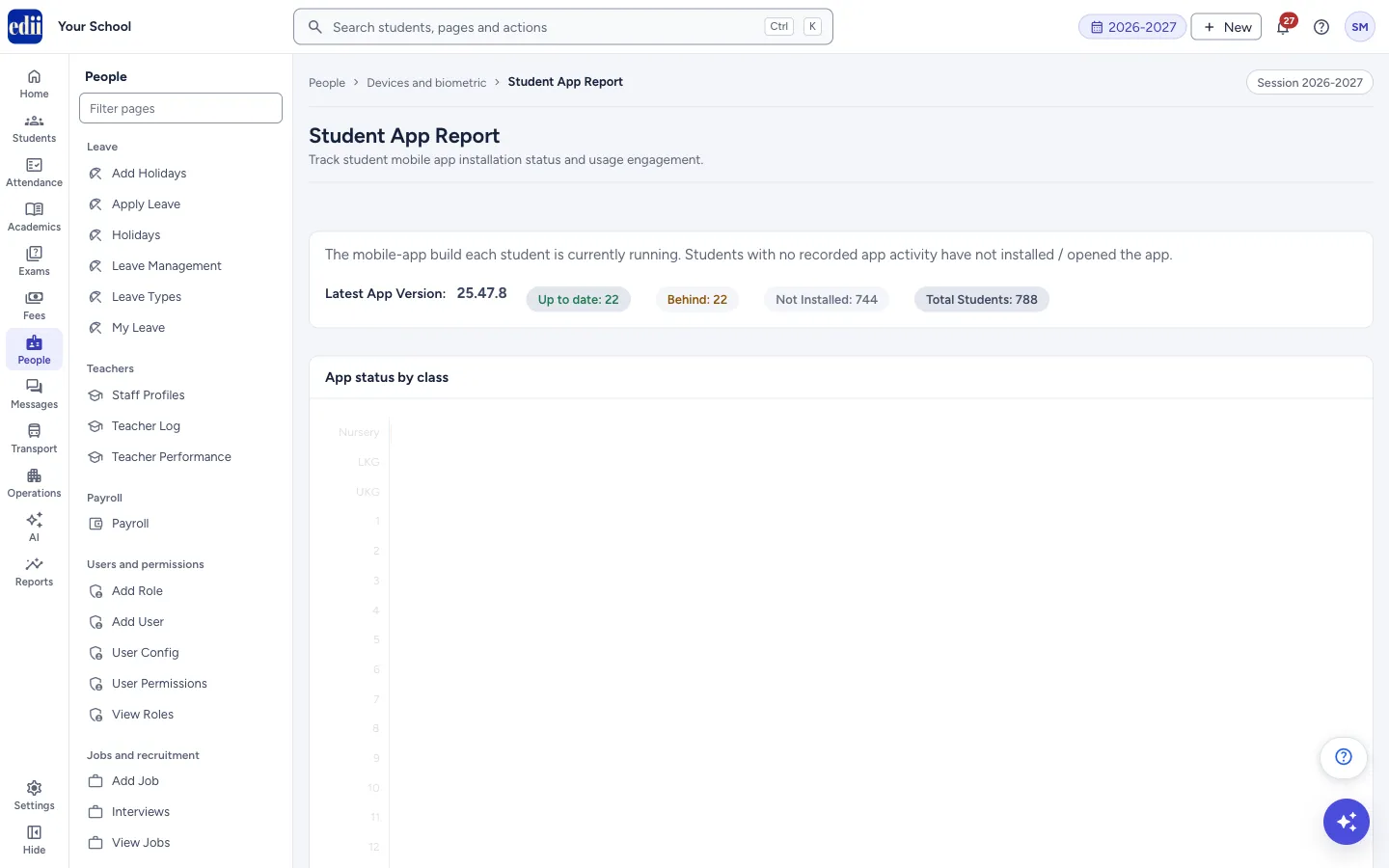
Student App Report lists every student of the selected session with the app build they are running. At the top it shows the Latest App Version and four counts: Up to date, Behind, Not Installed and Total Students. A chart, App status by class, shows the same three groups for each class.
Below is the table. The page only reads information. While it loads, a full-screen message Loading Student App Report… is shown.
Who uses it and when
Section titled “Who uses it and when”The office or the principal, to see which families use the app and which need to update it.
Where to find it
Section titled “Where to find it”- In school.edii.in: People › Devices and biometric › Student App Report
- Or press Ctrl K (⌘ K on a Mac) and type Student App Report.
- Address:
school.edii.in/view/student-app-report - Who can see it: Staff whose role includes Users or Admin pages or Reports access. Shown only when your school uses User and Report in EDII. If it is missing from your menu, ask your school admin.
 Open a bigger pictureतस्वीर बड़ी करें
Step by step
Section titled “Step by step”1. Read the counts
Section titled “1. Read the counts”Up to date counts students on the latest version or newer. Behind counts students on an older version. Not Installed counts students with no app version recorded: students with no recorded app activity have not installed or opened the app. Total Students is everyone in the report.
2. Look at the chart
Section titled “2. Look at the chart”App status by class has a bar for each class, split into Up to date, Behind and Not installed. It appears when the table has students.
3. Search and sort the table
Section titled “3. Search and sort the table”Type in Search student / version / status… to find a student, a version number or a status such as Behind. Click a heading (Name, Class, Section, Roll No, App Installed, App Version, Last Opened, Status) to sort. Last Opened sorts by the real date and time. The table shows 100 rows per page; choose 200, 300, 400, 500 or 1000 at the bottom.
4. Download
Section titled “4. Download”Select the download button next to the search box (Download Excel) to save the table as an Excel file named Student App Report.
Columns
Section titled “Columns”| Column | Meaning |
|---|---|
| S.No | Row number. |
| Name, Class, Section, Roll No | The student. |
| App Installed | Yes or No. |
| App Version | The app version the family last used. A dash means none is recorded. |
| Last Opened | The date and time the app was last seen. A dash means none is recorded. |
| Status | Up to date, Behind or Not Installed, worked out by comparing the student’s version with the latest version. |
Good to know
Section titled “Good to know”- A student with no app version recorded is counted as Not Installed.
- A student whose version is lower than the Latest App Version is counted as Behind; otherwise Up to date.
- The page only reads data.
- If no students are returned, the table says No students found.
Messages you may see
Section titled “Messages you may see”| Message | What it means | What to do |
|---|---|---|
| No students found. | The report has no students. | Check that students exist for the selected session. |
| Unable to load the Student App Report | The report could not be loaded. | Reload the page. |
| Network Issue, Please Try Again. | The request did not reach EDII. | Check the internet and reload. |
- Send a message to the families marked Behind asking them to update the app.
- Use the class chart to see which classes need a reminder first.
Did this page help?क्या इस पेज से मदद मिली?
Thanks! Glad it helped.धन्यवाद! अच्छा लगा कि काम बन गया।
Sorry about that. Ask in your own words, or write to us.माफ़ कीजिए। अपने शब्दों में पूछें, या हमें लिखें।