
Screen guide · Web app
View Alumni Student
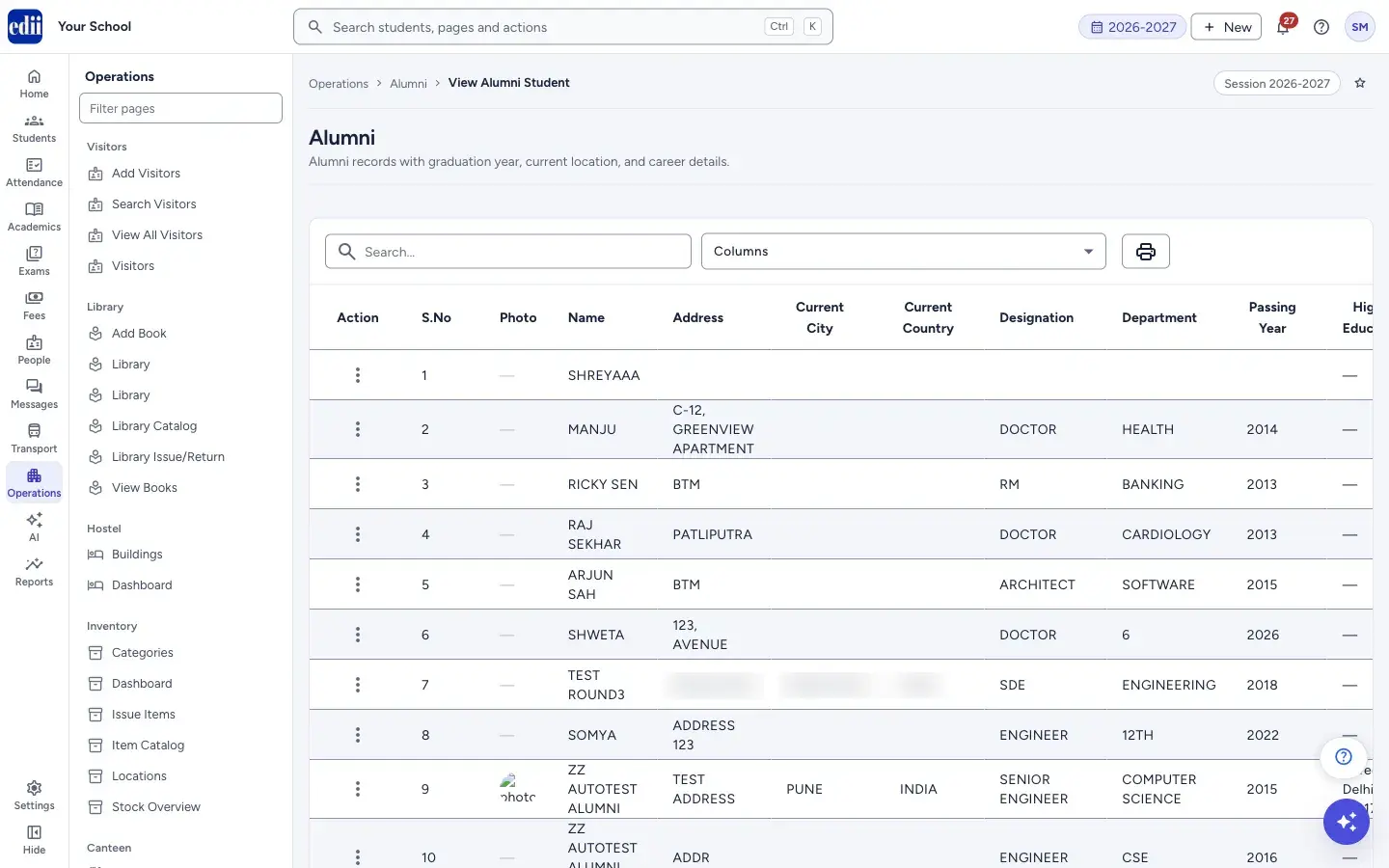
The full table of alumni with career, location, photo and availability, with filters, a choice of columns, print and download, and Edit or Delete for each row.
यह पेज अंग्रेज़ी में है। कुछ समझ न आए तो ।
View Alumni Student shows every alumnus saved for the school in one table. The page heading on screen is Alumni. Each row has the photo, name, address, current city and country, designation, department, passing year, higher education, whether the person is willing to mentor or speak, whether they agreed to be featured, email and two contact numbers.
Use the search box at the top for any word in a row. Use the filters at the bottom of the page for Graduation Year, Current City, Current Country, Profession (designation / department) and Willing to Mentor. The list changes as you type or choose.
To add a new alumnus, select the + button under the table. To change or remove one, open the three-dot menu in the Action column of that row.
Who uses it and when
Section titled “Who uses it and when”The alumni coordinator, when preparing a contact list or looking for alumni to invite as mentors or speakers.
Where to find it
Section titled “Where to find it”- In school.edii.in: Operations › Alumni › View Alumni Student
- Or press Ctrl K (⌘ K on a Mac) and type View Alumni Student.
- Address:
school.edii.in/view/view-alumni - Who can see it: The same staff who see the other Alumni pages. If it is missing from your menu, ask your school admin.
 Open a bigger pictureतस्वीर बड़ी करें
Step by step
Section titled “Step by step”1. Open the page and wait for the list
Section titled “1. Open the page and wait for the list”The list loads by itself. EDII shows All Alumni Details Fetched! when it is ready. Names, addresses and most other text are shown in capital letters.
 Open a bigger pictureतस्वीर बड़ी करें
2. Choose the columns to show
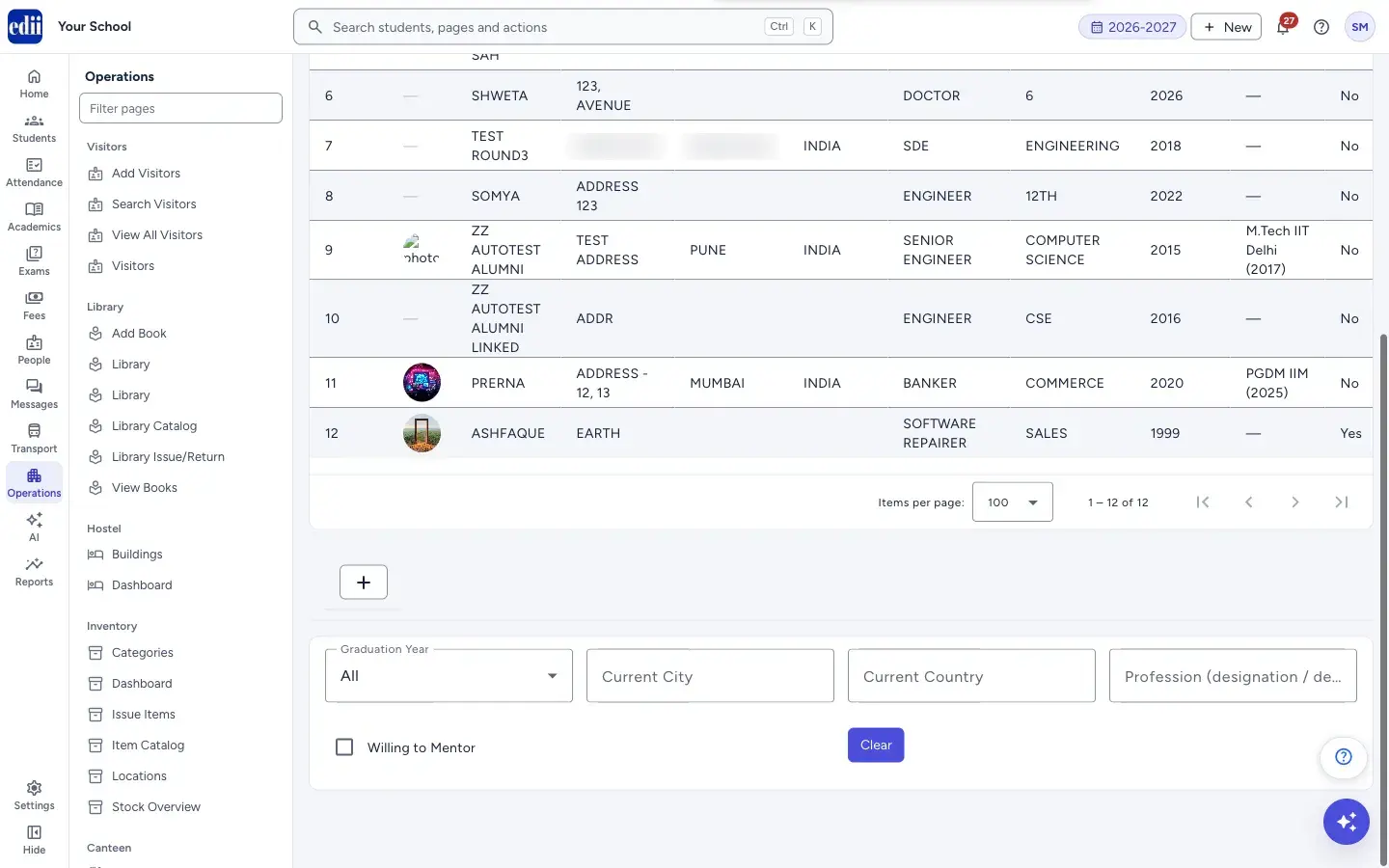
Section titled “2. Choose the columns to show”Open the Columns box and tick or untick the columns you want. Select All ticks every column. The list has Action, S. No, Photo, Name, Address, Current City, Current Country, Designation, Department, Passing Year, Higher Education, Willing to Mentor, Willing to Speak, Consent to Feature, Email, Contact 1 and Contact 2.
Your choice is kept while you use the app, and it is used for print and download as well.
 Open a bigger pictureतस्वीर बड़ी करें
3. Set how many rows you see
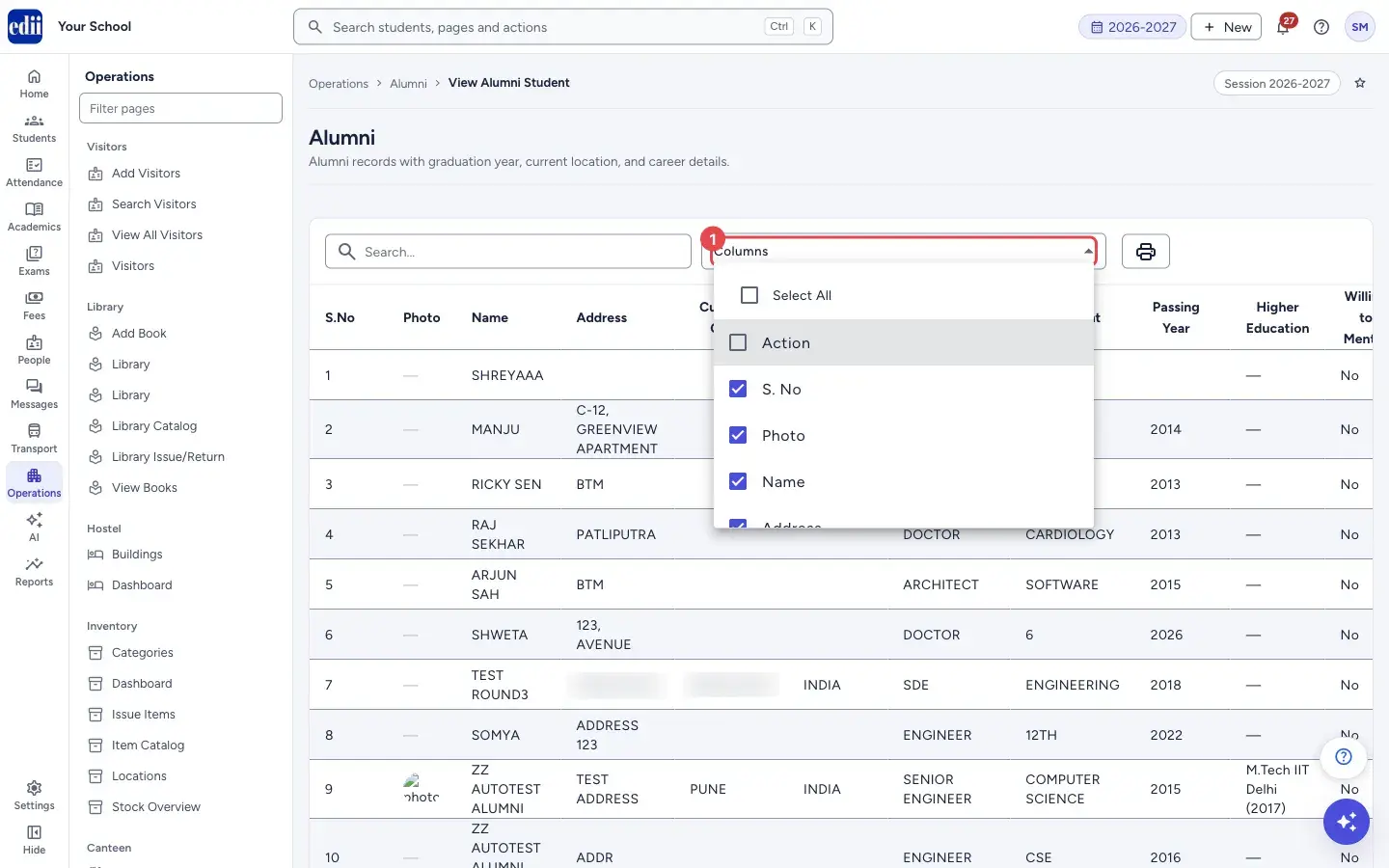
Section titled “3. Set how many rows you see”At the foot of the table, Items per page can be 100, 200, 300, 400, 500 or 1000. Use the arrows to move between pages.
 Open a bigger pictureतस्वीर बड़ी करें
4. Filter the list
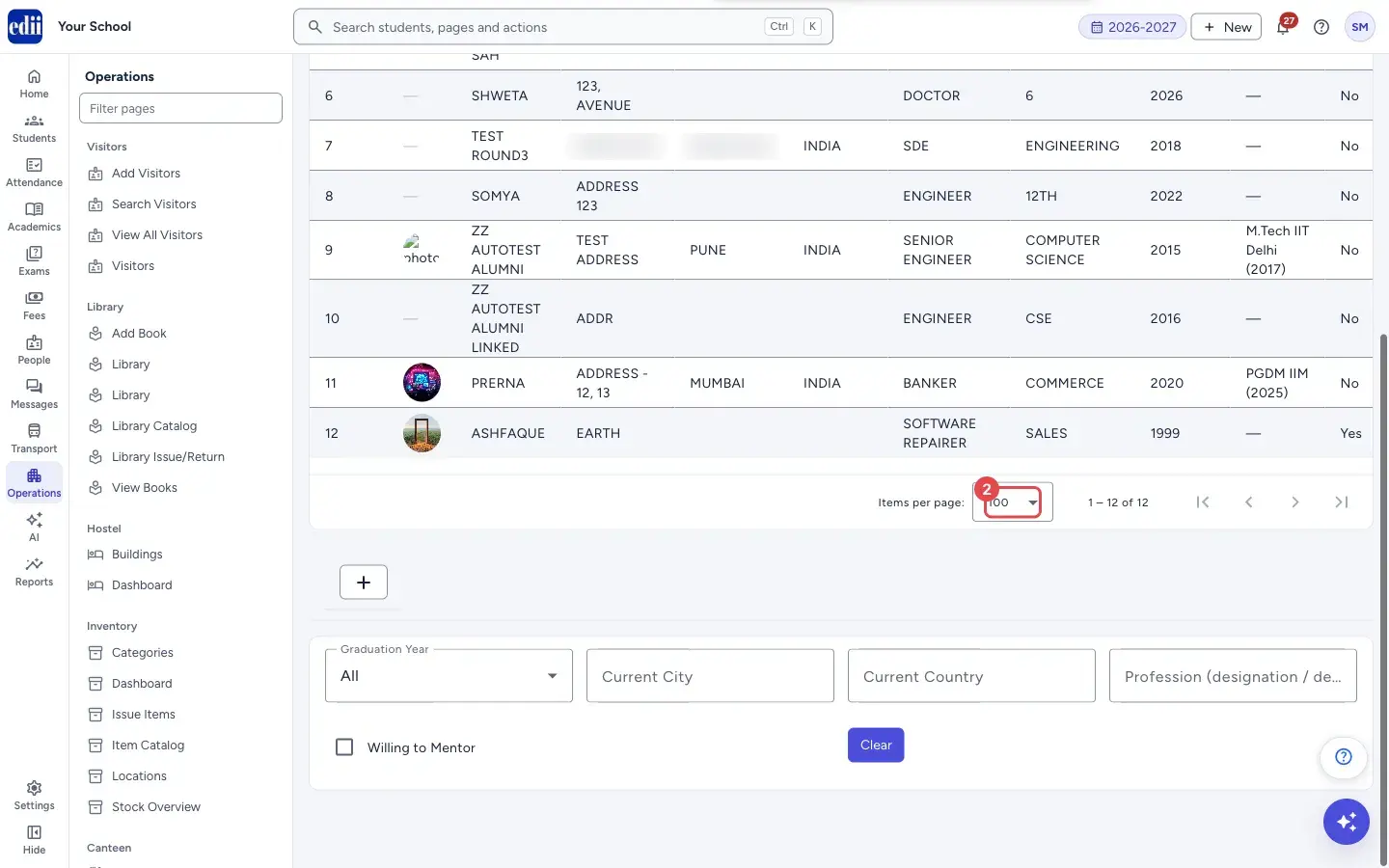
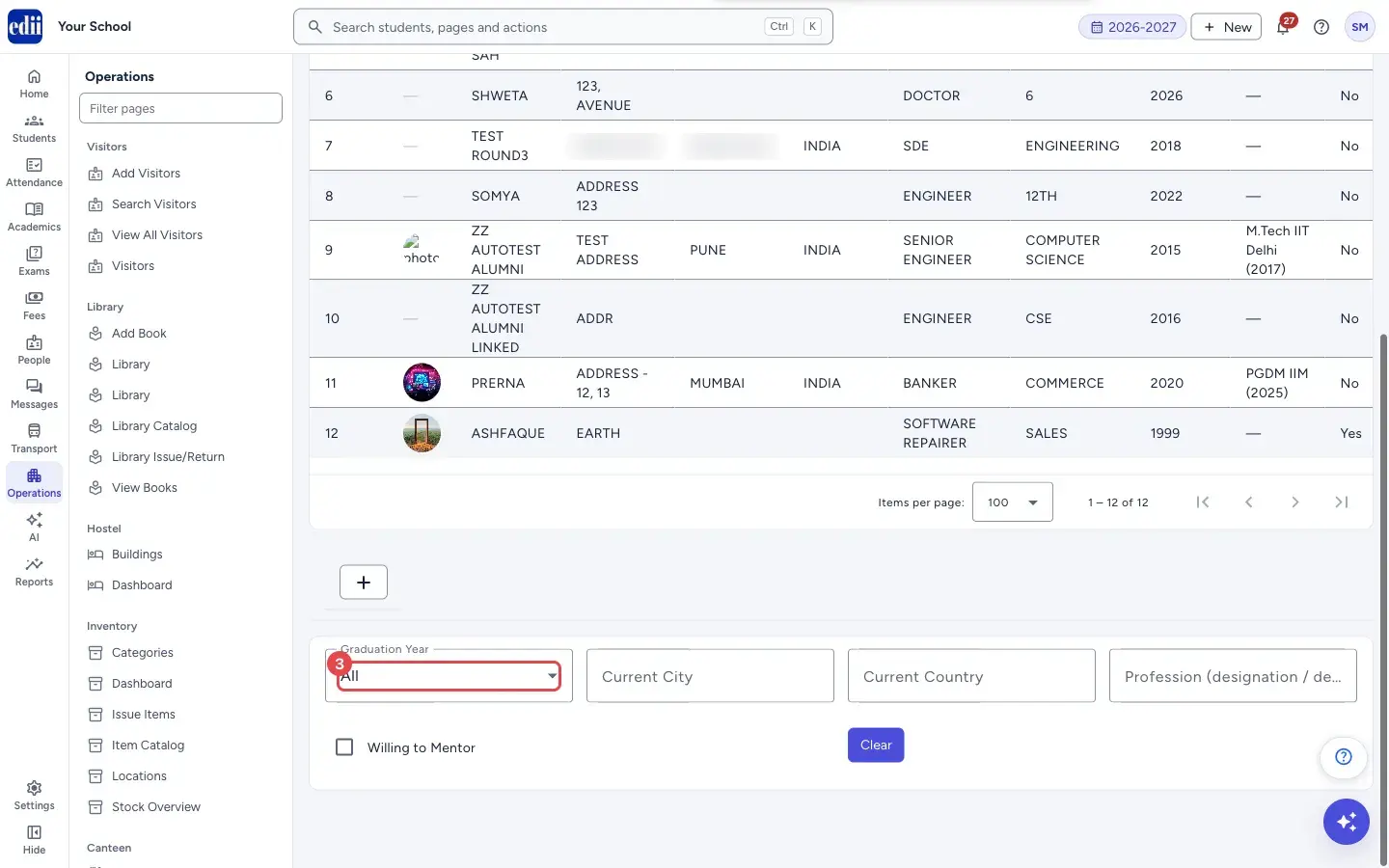
Section titled “4. Filter the list”Below the table, choose a Graduation Year (the list holds only the years that exist in your alumni), type a Current City, Current Country or Profession (designation / department), or tick Willing to Mentor to see only those who are. Select Clear to remove all filters.
 Open a bigger pictureतस्वीर बड़ी करें
5. Edit, delete, print or download
Section titled “5. Edit, delete, print or download”In the Action column, open the three-dot menu and select Edit or Delete. Edit opens Edit Alumni Profile with the person’s details. Delete asks Delete alumni? and says This alumni record will be permanently deleted. This action cannot be undone. Select Delete to confirm; EDII shows Alumni Detail Deleted!.
The printer button at the top has Print, Download Excel File, Download Text File and Download CSV File.
Fields and filters
Section titled “Fields and filters”| Field | What it is | Notes |
|---|---|---|
| Search… | Finds rows that contain what you type, in any column. | Letters, numbers, spaces and - @ & . , / _ # : only. |
| Columns | Chooses which columns are shown. | Select All ticks all. |
| Graduation Year | Shows only alumni who passed out in that year. | All shows everyone. |
| Current City | Shows rows whose city contains the text. | Optional. |
| Current Country | Shows rows whose country contains the text. | Optional. |
| Profession (designation / department) | Shows rows where the designation or department contains the text. | Optional. |
| Willing to Mentor | Tick to show only alumni who are willing to mentor current students. | Optional. |
Buttons
Section titled “Buttons”| Button | What it does | What happens next |
|---|---|---|
| + (add) | Opens Add Alumni Student. | The add form opens. |
| Clear | Removes the Graduation Year, city, country, profession and mentor filters. | The full list comes back. The search box at the top is not cleared. |
| Prints the table with the school logo and name and the date it was made. | The print window opens. | |
| Download Excel File / Download Text File / Download CSV File | Saves the table in that format. | A file is saved. |
| Edit | In the three-dot menu of a row. Opens the form to change the alumnus. | Edit Alumni Profile opens. |
| Delete | In the three-dot menu of a row. Removes the alumnus after you confirm. | Alumni Detail Deleted! and the list is loaded again. |
Columns
Section titled “Columns”| Column | Meaning |
|---|---|
| S.No | Row number in the list on screen. |
| Photo | The profile photo. A dash means no photo was added. |
| Name, Address | Who the person is and where they live. Long text is shortened; hover to see all of the address. |
| Current City, Current Country | Where the alumnus lives now. |
| Designation, Department | Job title and department or field. |
| Passing Year | The year the person left the school. |
| Higher Education | Degree, institute and year for each entry, separated by a semicolon. A dash means none. |
| Willing to Mentor, Willing to Speak, Consent to Feature | Yes or No, as ticked in the form. |
| Email, Contact 1, Contact 2 | How to reach the person. |
Good to know
Section titled “Good to know”- Delete removes the alumnus for good. It cannot be undone.
- Filters and the search box work together: a row must pass all of them to be shown.
Messages you may see
Section titled “Messages you may see”| Message | What it means | What to do |
|---|---|---|
| All Alumni Details Fetched! | The list loaded. | Nothing to do. |
| Alumni Detail Deleted! | The alumnus was removed. | Nothing to do. |
| Network Issue, Please Try Again. | The list could not be loaded. | Check the internet and open the page again. |
- Tick Willing to Mentor and download the CSV to get a ready list of mentors.
- If a table is too wide for the paper, untick columns such as Address and Contact 2 before you print.
Stuck? Try this
Section titled “Stuck? Try this”| Problem | Likely cause | What to do |
|---|---|---|
| I cannot see Edit and Delete | The Action column is not ticked in Columns. | Open Columns and tick Action. |
| A photo shows as a broken picture | The photo file could not be opened. | Open Edit, remove the photo and add it again. |
Did this page help?क्या इस पेज से मदद मिली?
Thanks! Glad it helped.धन्यवाद! अच्छा लगा कि काम बन गया।
Sorry about that. Ask in your own words, or write to us.माफ़ कीजिए। अपने शब्दों में पूछें, या हमें लिखें।