
Screen guide · Web app
Reassign Free Periods
When a teacher is absent, shows each of their periods for the day and lets you give each one to a substitute teacher, by hand or with Auto-assign.
यह पेज अंग्रेज़ी में है। कुछ समझ न आए तो ।
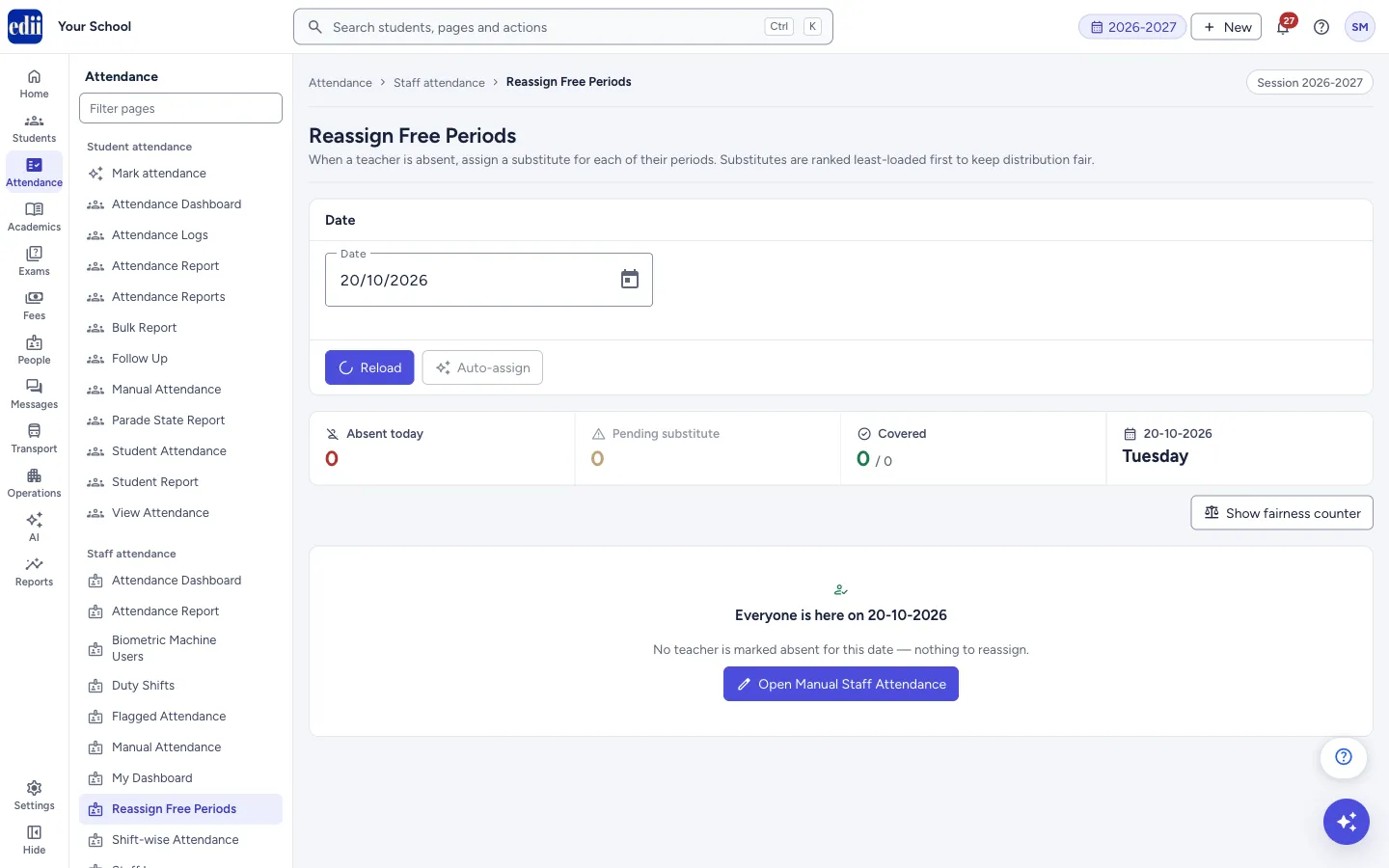
Choose a date. Reassign Free Periods lists the teachers marked absent on that date, with their timetable for the day, so that every period has a teacher. A period with no substitute shows Needs substitute; a covered one shows Covered by and the substitute’s name.
Four boxes summarise the day: Absent today, Pending substitute, Covered (for example 3 / 5) and the date with the day of the week.
When a substitute is picked, teachers who are free in that period are offered first, with the number of free periods each has covered so far this session (least-loaded first). Teachers who are teaching another class in that period come after them.
Who uses it and when
Section titled “Who uses it and when”The timetable in-charge or the office, every morning when teachers are absent.
Before you start
Section titled “Before you start”- The absent teacher’s attendance must be saved for the date, on Manual Attendance (staff), by the biometric machine or the app.
- The teacher’s timetable for that weekday must be saved on Timetable. Without it there are no periods to reassign.
Where to find it
Section titled “Where to find it”- In school.edii.in: Attendance › Staff attendance › Reassign Free Periods
- Or press Ctrl K (⌘ K on a Mac) and type Reassign Free Periods.
- Address:
school.edii.in/view/reassign-free-periods - Who can see it: Staff whose role includes Messages or Leave or Meetings access. Shown only when your school uses HR and Calendar in EDII. If it is missing from your menu, ask your school admin.
 Open a bigger pictureतस्वीर बड़ी करें
Step by step
Section titled “Step by step”1. Choose the date
Section titled “1. Choose the date”Date starts as today. Pick another date and the list changes; Reload loads it again. If no teacher is absent the page says Everyone is here on <date>. No teacher is marked absent for this date — nothing to reassign. with a button Open Manual Staff Attendance.
2. Read the teacher cards
Section titled “2. Read the teacher cards”Each absent teacher has a card with the tag absent today and a count such as 1 / 4 covered. Under it is the teacher’s timetable for the day in time order: class and section, period number, time, subject and the substitute.
A card with no periods says why: the staff record could not be found, the person has a non-teaching role, or they are not scheduled to teach on that weekday in any active timetable.
3. Assign a substitute
Section titled “3. Assign a substitute”On a period select Assign (or Change when there is already a substitute). A list of teachers opens. A teacher marked Free shows how many periods they have covered so far; a teacher marked Teaching <class>-<section> is busy in that period. Click a name to assign.
If you pick a busy teacher, a window Pull teacher off another class? warns that the other class will be left without a teacher unless you also reassign it. Select Assign anyway to continue or Cancel. The message <name> assigned to <class>/<section> P<n> shows.
Clear removes the substitute from a period (Assignment removed).
4. Use Auto-assign
Section titled “4. Use Auto-assign”Select Auto-assign to fill every period that still needs a substitute. A window Auto-assign substitutes shows the plan first, with any period that cannot be covered. Select Apply N assignments to save it, or Cancel. Afterwards a message such as 4 substitutes assigned, 1 could not be covered shows. The button is greyed out when nothing is pending.
5. Check the fairness counter
Section titled “5. Check the fairness counter”Show fairness counter opens Free periods covered this session, a chart of how many free periods each teacher has covered, most loaded first. It also says how many teachers have not covered any. Show all N teachers includes those with none.
Fields and filters
Section titled “Fields and filters”| Field | What it is | Notes |
|---|---|---|
| Date | The day to reassign periods for. | Starts as today. Changing it loads that day. |
Buttons
Section titled “Buttons”| Button | What it does | What happens next |
|---|---|---|
| Reload | Loads the absent teachers and their periods again. | The boxes and the cards update. |
| Auto-assign | Plans and then applies substitutes for all pending periods. | A preview window first; nothing is saved until you apply. |
| Show fairness counter / Hide fairness counter | Shows or hides the chart of free periods covered by each teacher. | |
| Assign / Change / Cancel | Opens or closes the list of substitutes for a period. | |
| Clear | Removes the substitute of a period. | Assignment removed. |
| Open Manual Staff Attendance | Opens Manual Attendance for staff. | Shown when nobody is absent. |
Messages you may see
Section titled “Messages you may see”| Message | What it means | What to do |
|---|---|---|
| No teacher is on the staff list for <time> on <day>. | The substitute list is empty for that period. | Check the staff list and the timetable. |
| Every period already has a substitute | Nothing is pending, so Auto-assign has nothing to do. | |
| Could not load absent teachers / Network error while fetching absent teachers | The data could not be loaded. | Check the internet connection and select Reload. |
| Network error while saving assignment | The assignment was not saved. | Check the internet connection and assign again. |
- Use Auto-assign first, read the plan, then adjust single periods by hand.
- Look at the fairness counter before picking by hand, so that the same teachers do not cover every time.
Stuck? Try this
Section titled “Stuck? Try this”| Problem | Likely cause | What to do |
|---|---|---|
| A teacher is absent but has no periods on the card. | Their timetable for that weekday has not been saved, or they have a non-teaching role. | Check the Timetable for that teacher and weekday. |
Did this page help?क्या इस पेज से मदद मिली?
Thanks! Glad it helped.धन्यवाद! अच्छा लगा कि काम बन गया।
Sorry about that. Ask in your own words, or write to us.माफ़ कीजिए। अपने शब्दों में पूछें, या हमें लिखें।