
Screen guide · Web app
Add Book
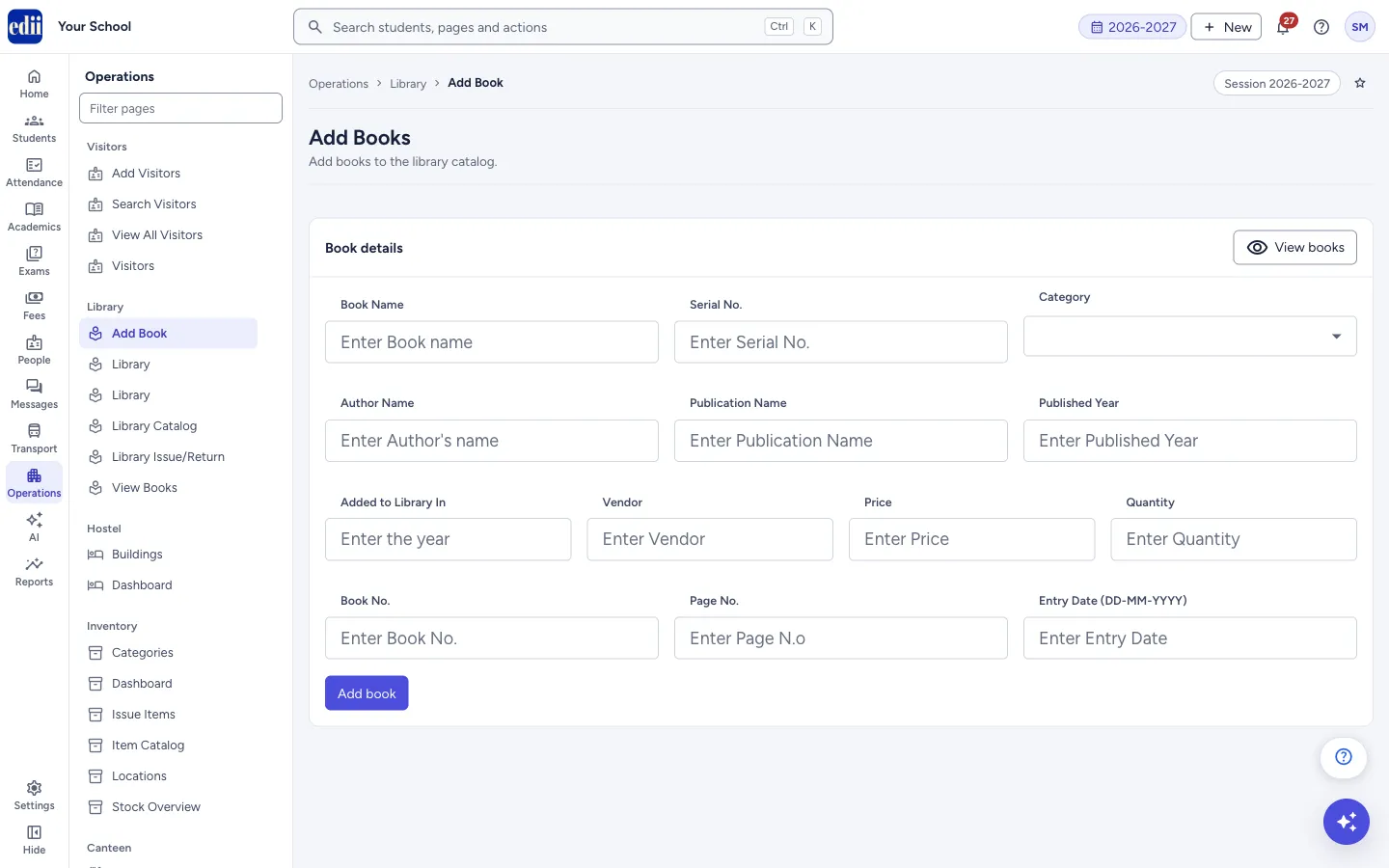
A form to add one book, with its category, author, price and quantity, to the school library.
यह पेज अंग्रेज़ी में है। कुछ समझ न आए तो ।
Add Book records a new book in the library. The page heading on screen is Add Books. Fill in the Book details and select Add book.
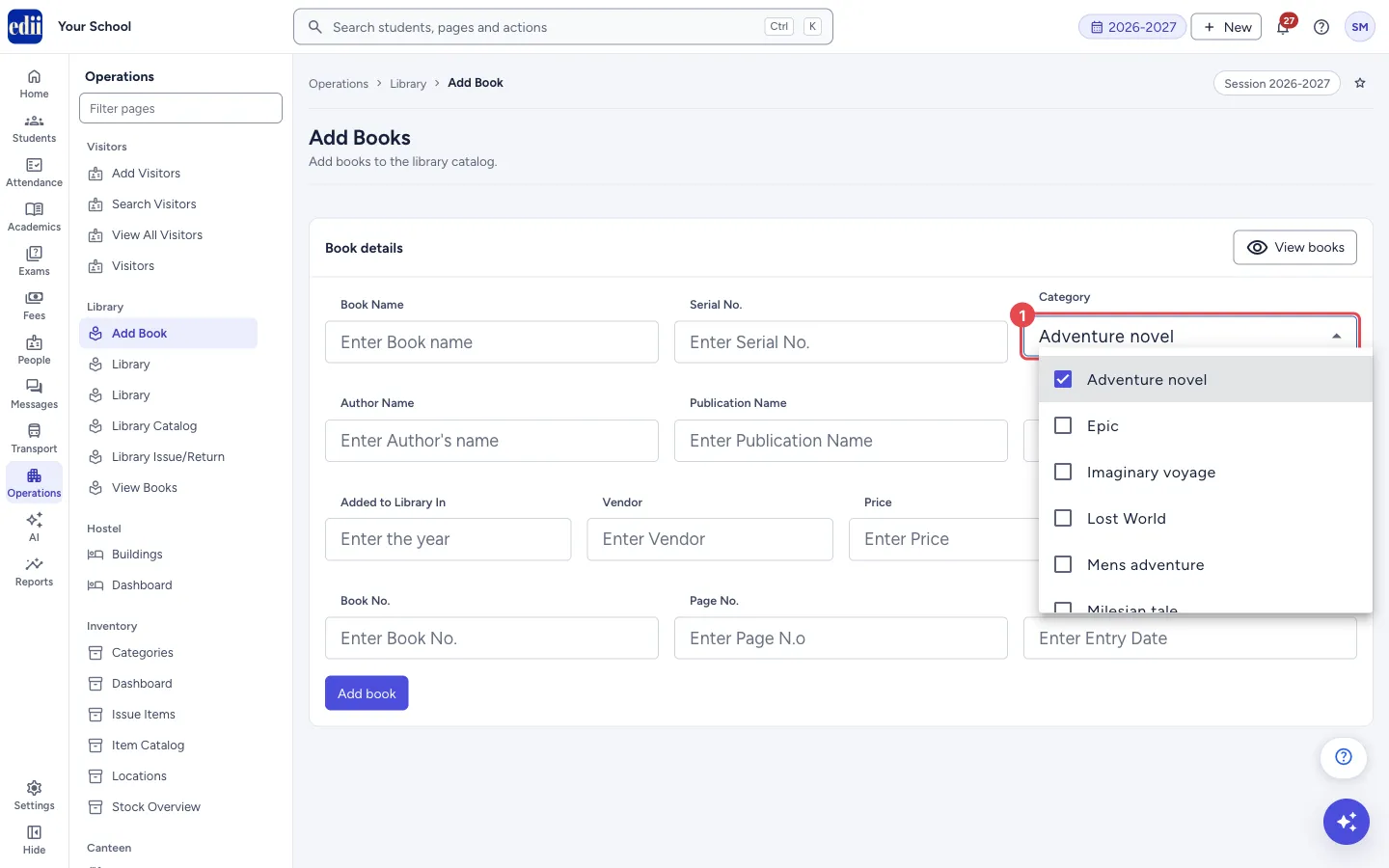
A book can have more than one Category: the box is a list with tick boxes, so you can tick several. The Quantity is the number of copies you are adding.
The button View books at the top of the box takes you to the View Books list.
Who uses it and when
Section titled “Who uses it and when”The librarian, each time a new book or a new lot of copies is bought or donated.
Before you start
Section titled “Before you start”- Keep the book’s serial number, author, publication name, price and the number of copies ready.
Where to find it
Section titled “Where to find it”- In school.edii.in: Operations › Library › Add Book
- Or press Ctrl K (⌘ K on a Mac) and type Add Book.
- Address:
school.edii.in/add/add-book - Who can see it: The same staff who see the other Library pages. If it is missing from your menu, ask your school admin.
 Open a bigger pictureतस्वीर बड़ी करें
Step by step
Section titled “Step by step”1. Fill the book’s name and serial number
Section titled “1. Fill the book’s name and serial number”Type the Book Name and the Serial No.. Both are required.
2. Choose the category
Section titled “2. Choose the category”Open Category and tick one or more categories. The list is long, so scroll to find the one you want.
 Open a bigger pictureतस्वीर बड़ी करें
3. Fill the author and publication
Section titled “3. Fill the author and publication”Type the Author Name and Publication Name (both required). Published Year is optional.
4. Fill the library details
Section titled “4. Fill the library details”Fill Added to Library In (the year), Vendor, Price and Quantity. Price and Quantity are required. Fill Book No. and Page No. if your register has them.
Type the Entry Date (DD-MM-YYYY), for example 05-07-2026. It is required.
5. Save the book
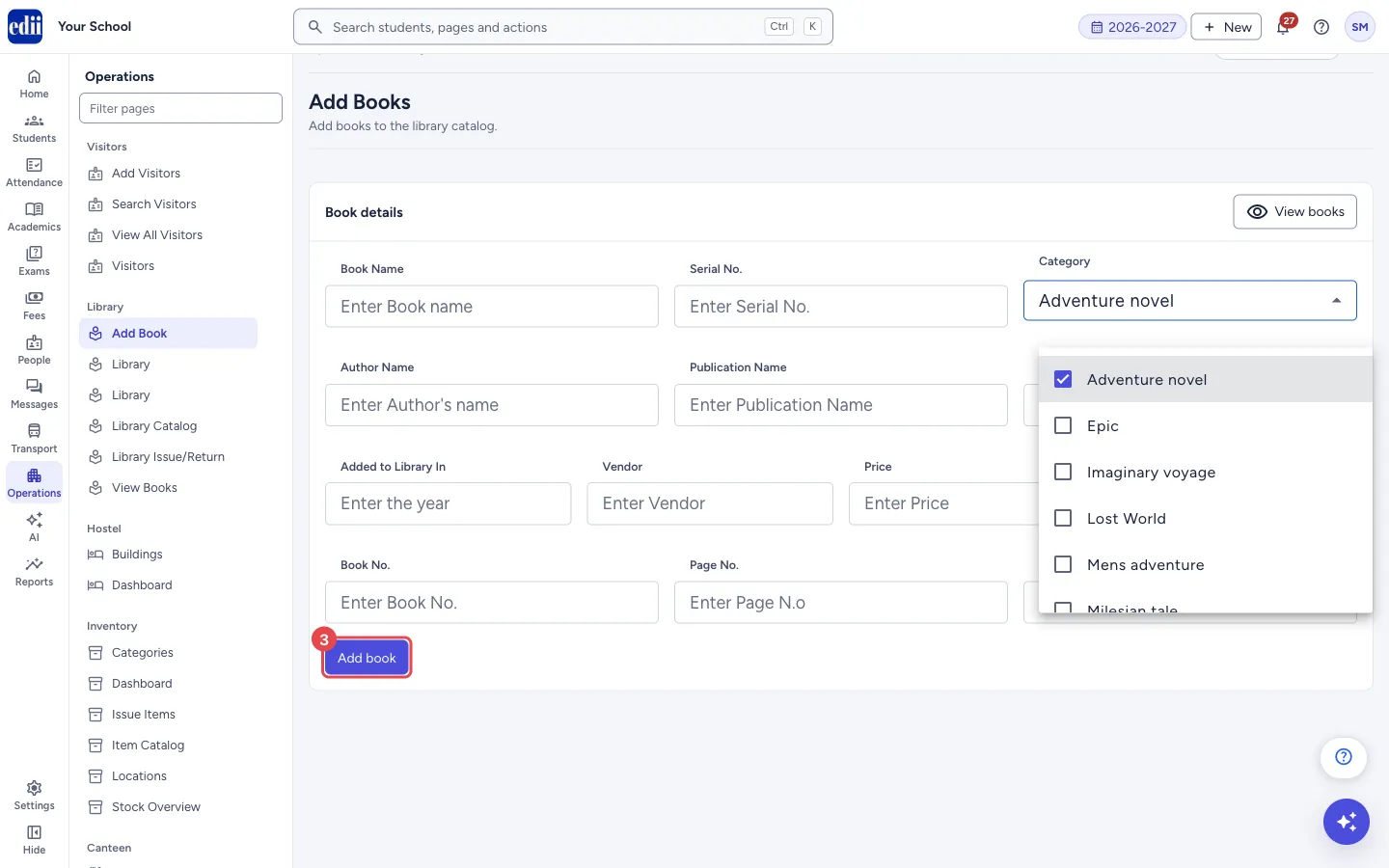
Section titled “5. Save the book”Select Add book. If a required box is empty, a red message shows under it and the book is not saved. When the book is saved, the form is emptied so you can add the next one.
 Open a bigger pictureतस्वीर बड़ी करें
Fields and filters
Section titled “Fields and filters”| Field | What it is | Notes |
|---|---|---|
| Book Name | The title of the book. | Required. Message: Book Name is required. |
| Serial No. | The serial number you give the book in your register. | Required. Message: Serial number is required. |
| Category | One or more categories (genres) of the book. | Optional. You can tick several. |
| Author Name | The author. | Required. Message: Author Name is required. |
| Publication Name | The publisher. | Required. Message: Publication Name is required. |
| Published Year | The year the book was published. | Optional. |
| Added to Library In | The year the book came to your library. | Optional. |
| Vendor | Who supplied the book. | Optional. |
| Price | Price of the book. | Required. Message: Price is required. |
| Quantity | Number of copies. | Required. Message: Quantity is required. |
| Book No. | The book number in your register. | Optional. |
| Page No. | The register page number. | Optional. |
| Entry Date (DD-MM-YYYY) | The date the book was entered. | Required. Message: Entry Date is required. |
Buttons
Section titled “Buttons”| Button | What it does | What happens next |
|---|---|---|
| Add book | Saves the book. | A green message appears and the form is emptied. |
| View books | Opens the View Books list. | The list of all books. |
After you save
Section titled “After you save”- The book is in the library catalog. Find it in View Books or Library Catalog.
Good to know
Section titled “Good to know”- In the text boxes you can type letters, numbers, spaces and these signs only: - @ & . , / _ # :
- Book Name, Serial No., Author Name, Publication Name, Price, Quantity and Entry Date must be filled before the book can be saved.
Messages you may see
Section titled “Messages you may see”| Message | What it means | What to do |
|---|---|---|
| Book: <book name> Successfully Added | The book was saved. The green message shows the name of the book you added (title Book Added!). | Check the book in View Books. |
| Bad/Slow Internet Connection, Please check your internet connection | The request did not finish, or the list of categories could not be loaded. | Check the internet and try again. |
Stuck? Try this
Section titled “Stuck? Try this”| Problem | Likely cause | What to do |
|---|---|---|
| Add book does nothing | A required box is empty. | Look for the red message under the boxes and fill them. |
| I cannot type a bracket, quote or other sign in a box | The boxes accept only letters, numbers, spaces and - @ & . , / _ # : | Type the name without the other signs. |
Did this page help?क्या इस पेज से मदद मिली?
Thanks! Glad it helped.धन्यवाद! अच्छा लगा कि काम बन गया।
Sorry about that. Ask in your own words, or write to us.माफ़ कीजिए। अपने शब्दों में पूछें, या हमें लिखें।