
Screen guide · Web app
House Dashboard
Create and delete the school's houses, and open a house to manage its details, roles and members.
यह पेज अंग्रेज़ी में है। कुछ समझ न आए तो ।
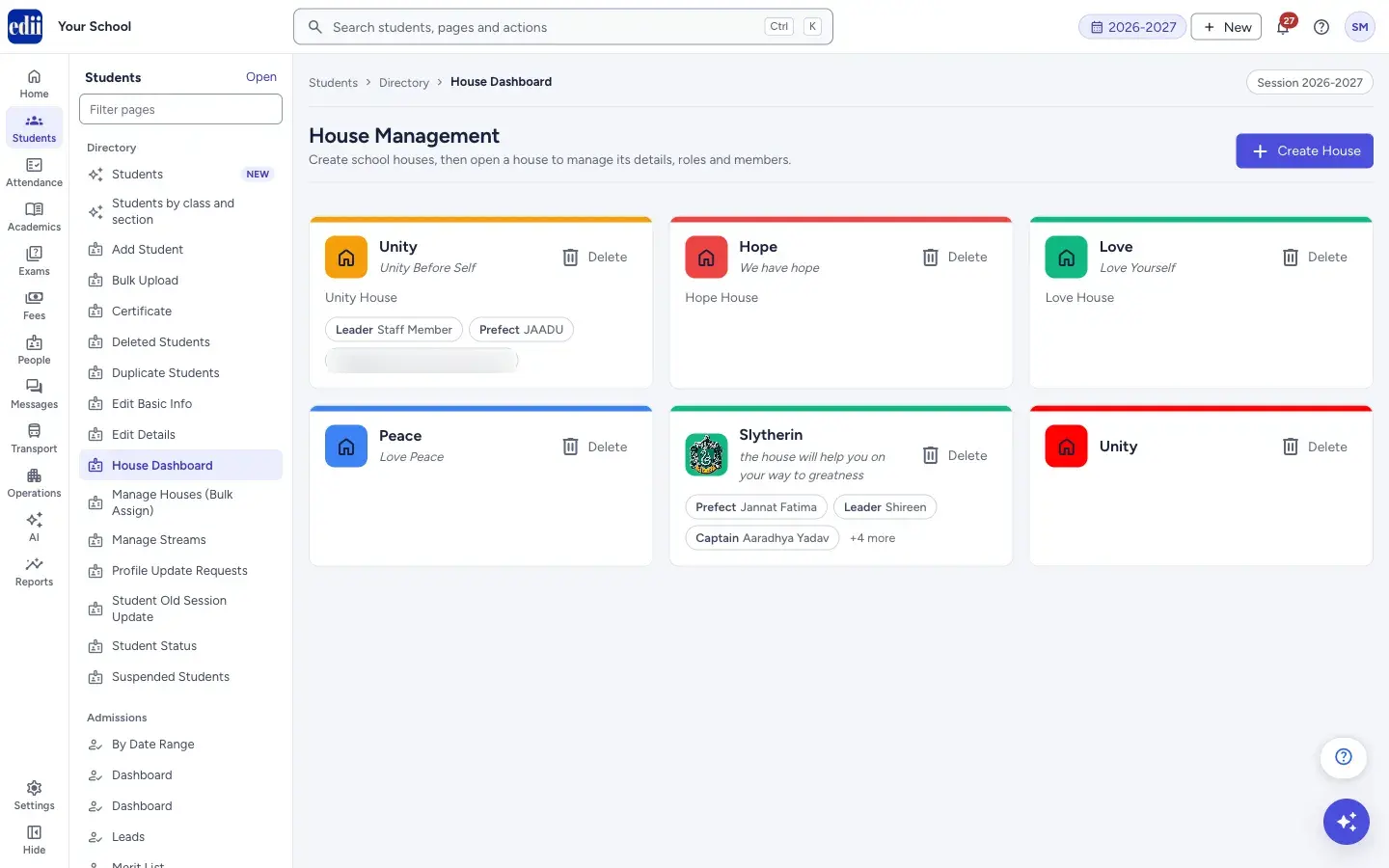
House Dashboard (the page is headed House Management) shows one card for each house of the school. A card shows the house colour, its logo or a house icon, its name, its motto, a short description and the first three roles (for example a captain, a prefect or a leader with the person’s name; more roles show as +n more).
Use Create House to add a house. Click a card to open the house and manage its details, roles and members. Houses created here are the houses you can give to students in Add Student, Edit Basic Info and Manage Houses (Bulk Assign).
Who uses it and when
Section titled “Who uses it and when”The school office or the sports and activities in-charge sets up houses once, at the start of the session or when the school begins to use houses.
Before you start
Section titled “Before you start”- Decide the house names, colours and mottos.
- To give a role to a student or teacher, that person must already be in EDII.
Where to find it
Section titled “Where to find it”- In school.edii.in: Students › Directory › House Dashboard
- Or press Ctrl K (⌘ K on a Mac) and type House Dashboard.
- Address:
school.edii.in/house-management/dashboard - Who can see it: Staff whose role includes Students or Attendance access. Shown only when your school uses Student and House in EDII. If it is missing from your menu, ask your school admin.
 Open a bigger pictureतस्वीर बड़ी करें
Step by step
Section titled “Step by step”1. Open Create House
Section titled “1. Open Create House”Select Create House at the top right. A box called Create New House opens. The button now says Cancel.
2. Fill in the house
Section titled “2. Fill in the house”Type the House Name (required) and, if you like, the Motto. Choose a House Color by selecting one of the ten colours, or the colour box at the end to pick any colour. Add a Logo URL (a web address of a picture) and a Description if you want.
3. Create the house
Section titled “3. Create the house”Select Create House at the bottom of the box. You see House created successfully and the new card appears. If the name is empty you see Please enter house name.
4. Open a house
Section titled “4. Open a house”Click a house card. The House Details page opens. There you can select Edit to change the name, motto, colour, logo and description, and use Roles & Members to add a role: choose the Role, the Type (student or teacher), search for the person and select Add Role.
5. Delete a house
Section titled “5. Delete a house”Select Delete on the card. A box asks Delete house? with the house name. Select Delete to confirm. You see House deleted.
Fields and filters
Section titled “Fields and filters”| Field | What it is | Notes |
|---|---|---|
| House Name | The name of the house. | Required. |
| Motto | A short saying for the house. | Optional. |
| House Color | The colour of the card bar and icon. | Ten ready colours or any colour of your own. |
| Logo URL | The web address of the house logo picture. | Optional. Without it a house icon is shown. |
| Description | A line about the house. | Optional. |
Buttons
Section titled “Buttons”| Button | What it does | What happens next |
|---|---|---|
| Create House | Opens the form to add a new house, and saves it from inside the form. | House created successfully and a new card. |
| Cancel | Closes the form and clears what you typed. | The cards show again. |
| Delete | Deletes the house after a confirmation. | House deleted. |
After you save
Section titled “After you save”- The new house is listed on the dashboard and can be chosen for students.
Good to know
Section titled “Good to know”- Clicking anywhere on a card opens the house. The Delete button does not open it.
- The page does not stop you from creating two houses with the same name, so check the cards before you create one.
- When no house exists the page says No Houses Created and Create houses for your school to organize students into groups.
Messages you may see
Section titled “Messages you may see”| Message | What it means | What to do |
|---|---|---|
| Please enter house name | The House Name is empty. | Type the name and create again. |
| House created successfully | The house was saved. | Nothing to do. |
| Error creating house | The house could not be saved. | Try again. |
| Delete house? | The confirmation box before a delete. It names the house. | Select Delete to continue, or close the box. |
| House deleted | The house was deleted. | Nothing to do. |
| Error deleting house | The house could not be deleted. | Try again. |
- Create all houses first, then give students their houses in bulk with Manage Houses (Bulk Assign).
- Pick clearly different colours so the houses are easy to tell apart on the cards.
Stuck? Try this
Section titled “Stuck? Try this”| Problem | Likely cause | What to do |
|---|---|---|
| The House box is missing in Add Student | The school has no houses yet. | Create houses here first. |
| The same house shows twice | It was created twice. | Delete the extra card. |
Did this page help?क्या इस पेज से मदद मिली?
Thanks! Glad it helped.धन्यवाद! अच्छा लगा कि काम बन गया।
Sorry about that. Ask in your own words, or write to us.माफ़ कीजिए। अपने शब्दों में पूछें, या हमें लिखें।