
Screen guide · Web app
Locations
Set up the places where inventory is kept, such as buildings, rooms, store rooms and cabinets, with their capacity.
यह पेज अंग्रेज़ी में है। कुछ समझ न आए तो ।
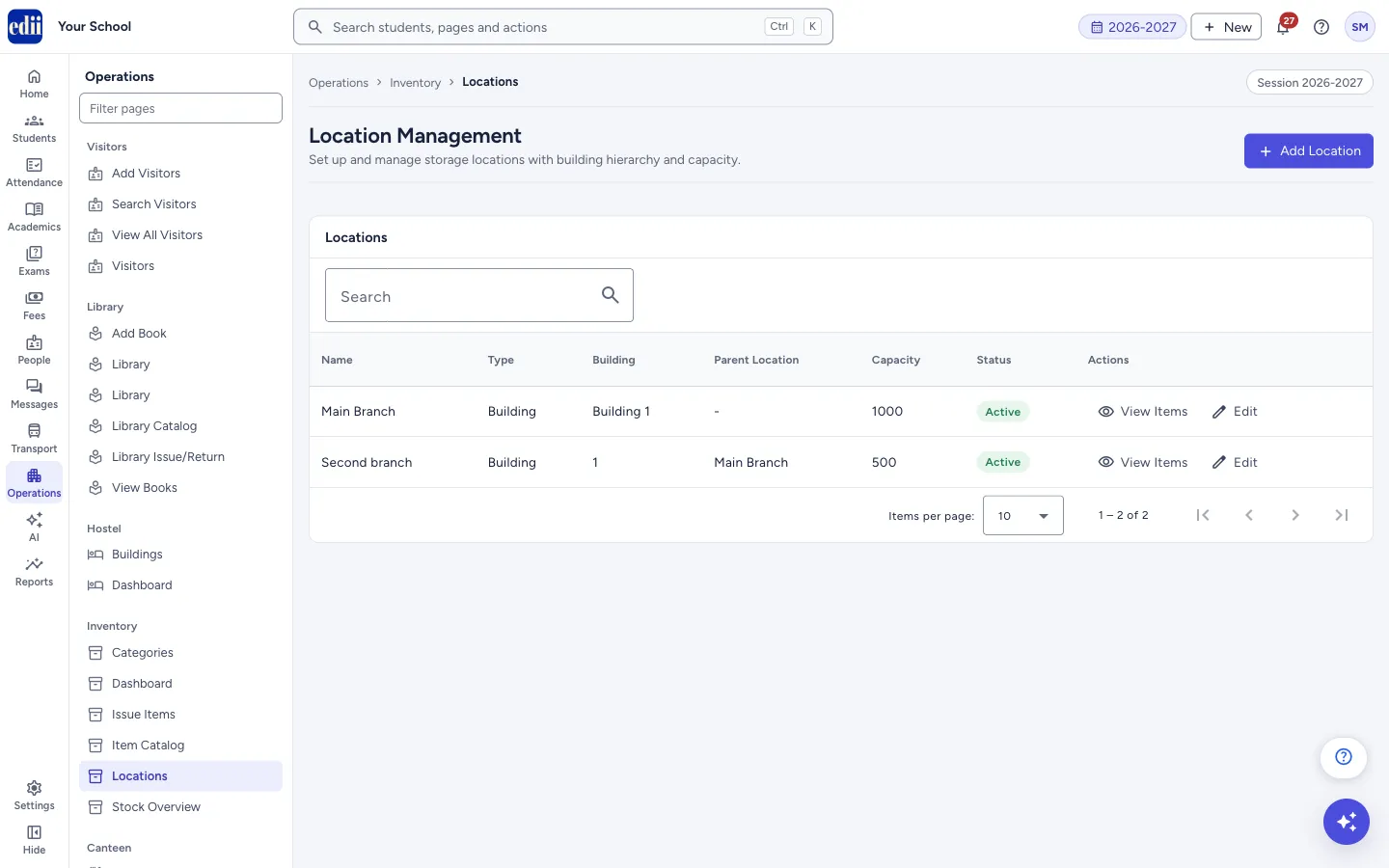
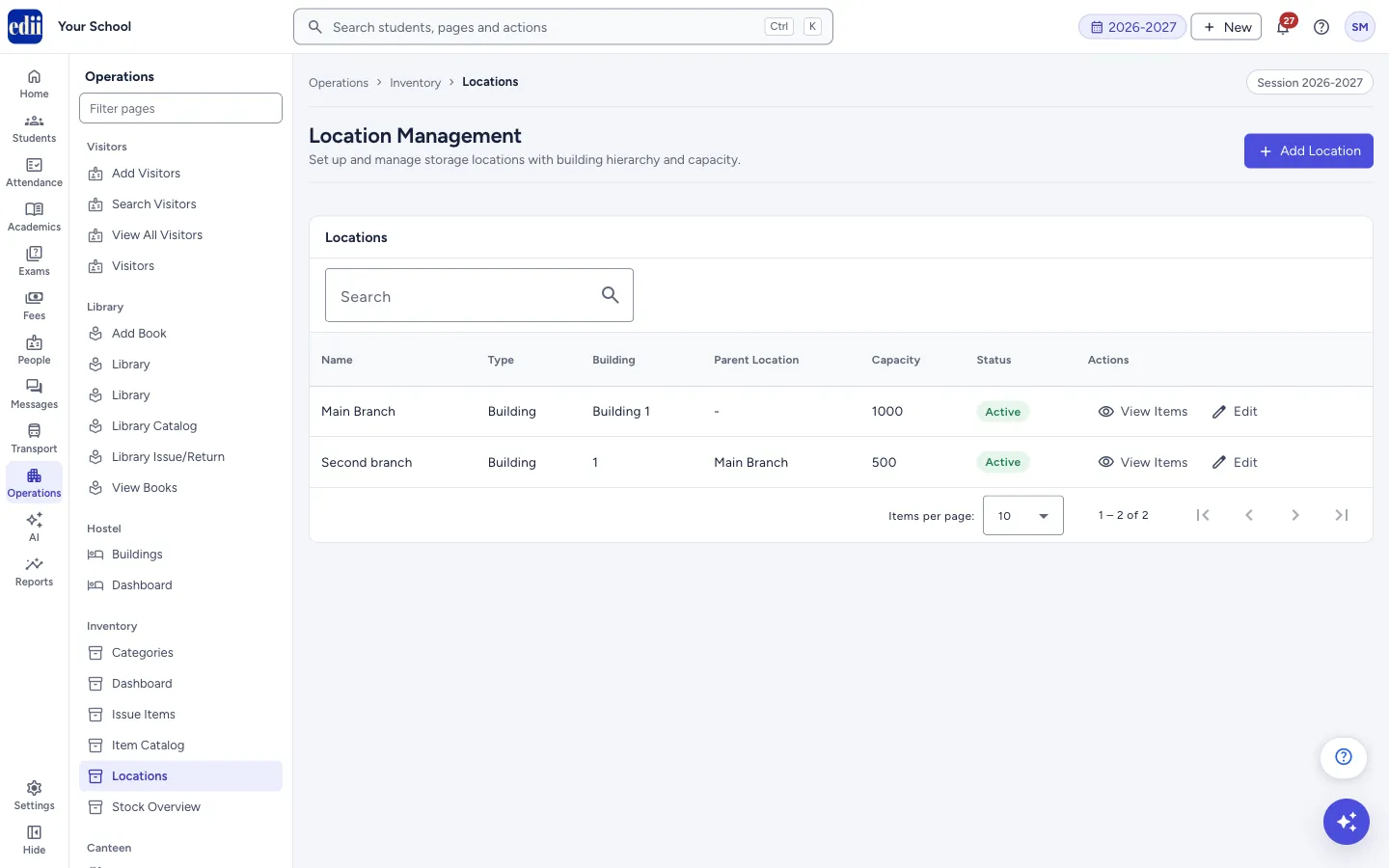
Location Management lists each storage location with its Name, Type, Building, Parent Location, Capacity and Status. Use Add Location to create one and Edit to change one.
A location can sit inside another one. For example, a cabinet can have a store room as its Parent Location. Only locations of type Building, Floor or Warehouse can be chosen as a parent.
Who uses it and when
Section titled “Who uses it and when”The store keeper or office staff set up locations once and add a new one when a new store room or cabinet is used.
Before you start
Section titled “Before you start”- These pages appear in the Operations menu only when your school uses the Inventory module.
Where to find it
Section titled “Where to find it”- In school.edii.in: Operations › Inventory › Locations
- Or press Ctrl K (⌘ K on a Mac) and type Locations.
- Address:
school.edii.in/inventory/locations - Who can see it: Shown only when your school uses Hostel and Inventory and Canteen and Health Records and Tracking in EDII. If it is missing from your menu, ask your school admin.
 Open a bigger pictureतस्वीर बड़ी करें
Step by step
Section titled “Step by step”1. Look at the list
Section titled “1. Look at the list”The table shows every location. Type in Search to find one. Select Name, Type or Building in the heading to sort. Use Items per page to show 10, 25 or 50 rows.
 Open a bigger pictureतस्वीर बड़ी करें
2. Add a location
Section titled “2. Add a location”Select Add Location. Type the Location Name and choose a Location Type: Building, Floor, Room, Store Room, Laboratory, Warehouse, Cabinet/Shelf or Other. A new location starts as Room.
Fill Building, Floor, Capacity and Description if you want to. Choose a Parent Location (Optional) if this place is inside another one. Keep Active on.
3. Save
Section titled “3. Save”Select Save Location. The message Location added successfully appears and the list opens again.
4. Change a location
Section titled “4. Change a location”Select Edit on the row, change the form and select Update Location. The message Location updated successfully appears.
5. Open the item catalog from a location
Section titled “5. Open the item catalog from a location”View Items on a row opens Item Catalog. The catalog shows all items. It is not narrowed down to that location.
Fields and filters
Section titled “Fields and filters”| Field | What it is | Notes |
|---|---|---|
| Location Name | The name of the place. | Required. Error: Location name is required. |
| Location Type | What kind of place it is. | Required. Building, Floor, Room, Store Room, Laboratory, Warehouse, Cabinet/Shelf or Other. |
| Parent Location (Optional) | The bigger place this one is inside. | Optional. Shown as name and type. Only Building, Floor and Warehouse locations are offered. |
| Building | The building name, typed as text. | Optional. |
| Floor | The floor, typed as text. | Optional. |
| Capacity | How much the place can hold. | A number. Starts at 0, which the list shows as a dash. |
| Description | A note about the place. | Optional. |
| Active | Whether the location is in use. | On by default. |
Buttons
Section titled “Buttons”| Button | What it does | What happens next |
|---|---|---|
| Add Location | Opens the form for a new location. | The Add New Location form opens. |
| Save Location / Update Location | Saves the form. | A message appears and the list opens again. |
| View Items | Goes to the item catalog. | Item Catalog opens. |
| Edit | Opens the location in the form. | The Edit Location form opens. |
| Cancel | Closes the form without saving. | You are back at the list. |
Columns
Section titled “Columns”| Column | Meaning |
|---|---|
| Name | The location name. |
| Type | The location type. |
| Building | The building text. A dash means none was entered. |
| Parent Location | The place it is inside. A dash means it is a top-level location. |
| Capacity | The capacity entered. A dash means none. |
| Status | Active or Inactive. |
Good to know
Section titled “Good to know”- There is no Delete button here. To stop using a location, switch Active off in Edit.
- If the list is empty the page says No locations found.
Messages you may see
Section titled “Messages you may see”| Message | What it means | What to do |
|---|---|---|
| Please fill all required fields | The name or type is empty. | Fill Location Name and Location Type. |
| Location added successfully | The location is saved. | None needed. |
| Location updated successfully | Your change is saved. | None needed. |
| Error adding location | The location could not be saved. | Check your internet connection and try again. |
| Error updating location | The change could not be saved. | Check your internet connection and try again. |
Stuck? Try this
Section titled “Stuck? Try this”| Problem | Likely cause | What to do |
|---|---|---|
| I selected View Items but I see all items, not only that location’s items. | The Item Catalog does not filter by location. | Use Search in Item Catalog to find the items you want. |
| My room is not in the Parent Location list. | Only Building, Floor and Warehouse locations can be parents. | Choose a Building, Floor or Warehouse as the parent, or add one first. |
Did this page help?क्या इस पेज से मदद मिली?
Thanks! Glad it helped.धन्यवाद! अच्छा लगा कि काम बन गया।
Sorry about that. Ask in your own words, or write to us.माफ़ कीजिए। अपने शब्दों में पूछें, या हमें लिखें।