
Screen guide · Web app
Copy Check
Mark which students' copies (notebooks) were checked for a class, section, subject and date, with optional remarks.
यह पेज अंग्रेज़ी में है। कुछ समझ न आए तो ।
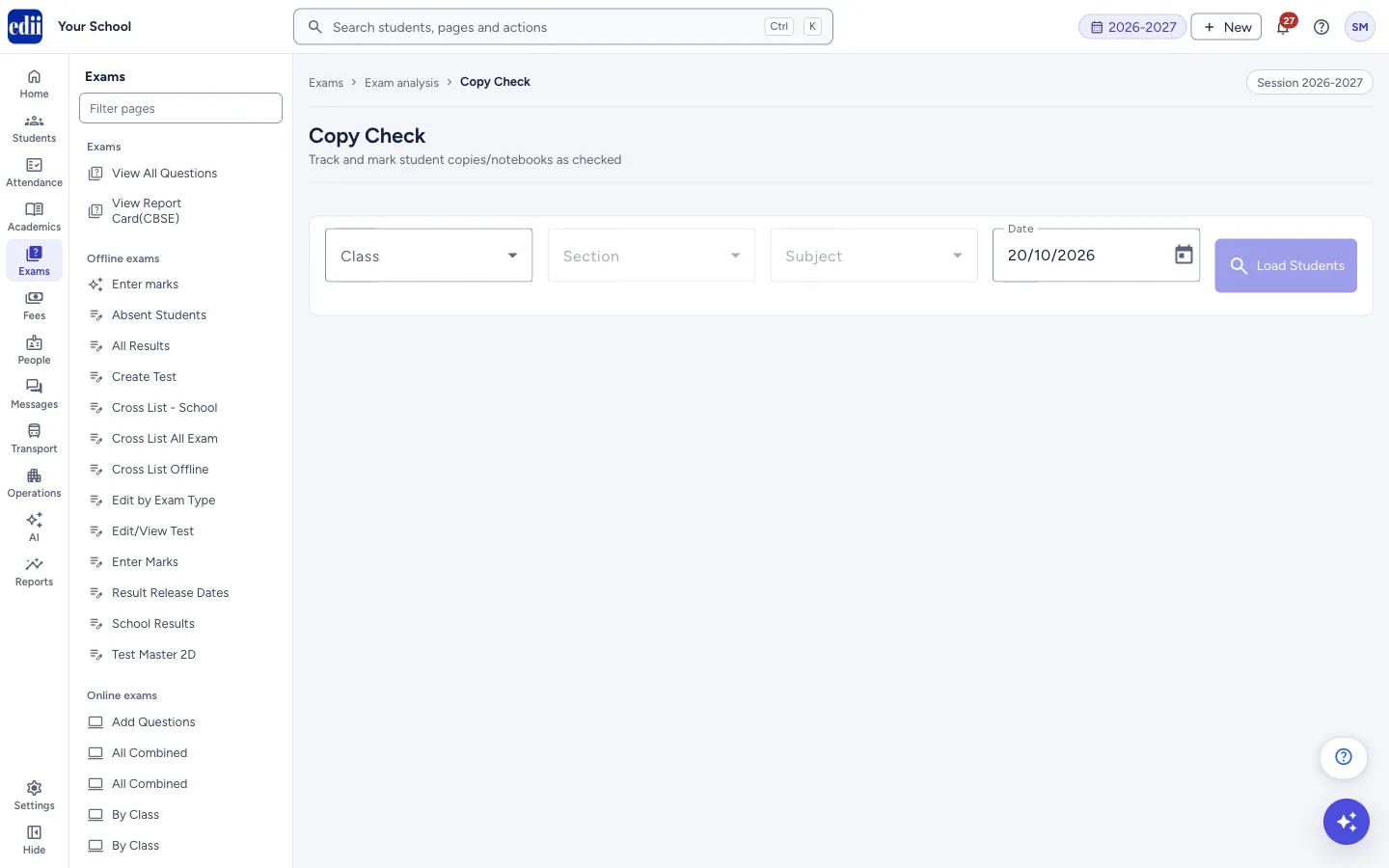
The screen is headed Copy Check and is described as Track and mark student copies/notebooks as checked. You choose the Class, Section, Subject and Date and select Load Students. Every student of the class and section is listed with a tick box. Tick the students whose copies you have checked, add remarks if you want, and select Save.
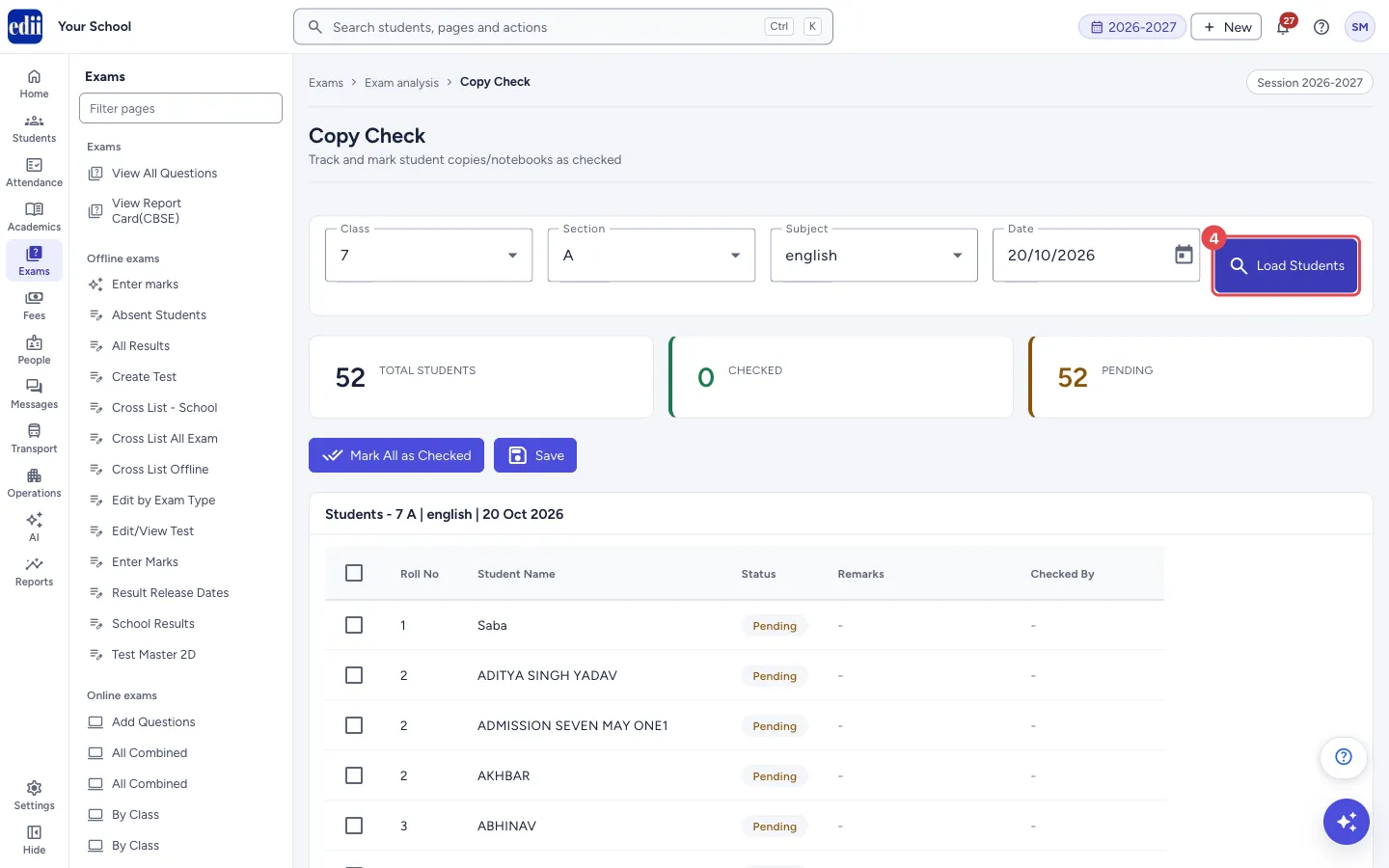
Above the list, three boxes count the Total Students, the number Checked and the number Pending. They change as you tick.
Who uses it and when
Section titled “Who uses it and when”Teachers and coordinators, to record which notebooks were checked on a day.
Where to find it
Section titled “Where to find it”- In school.edii.in: Exams › Exam analysis › Copy Check
- Or press Ctrl K (⌘ K on a Mac) and type Copy Check.
- Address:
school.edii.in/view/copy-check - Who can see it: Staff whose role includes Exams or Messages access. Shown only when your school uses Exam in EDII. If it is missing from your menu, ask your school admin.
 Open a bigger pictureतस्वीर बड़ी करें
Step by step
Section titled “Step by step”1. Choose the class
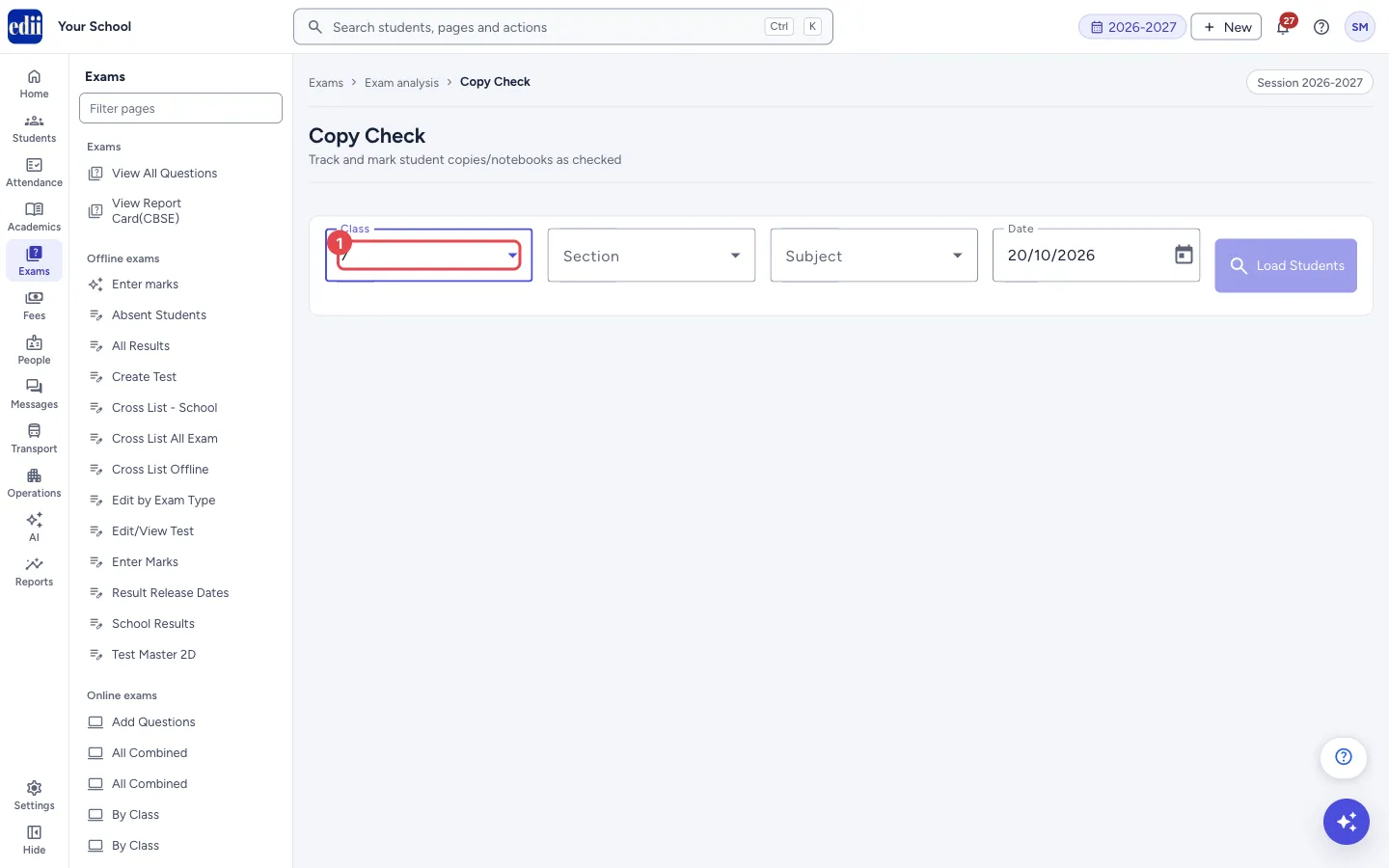
Section titled “1. Choose the class”In Class, choose the class. The Subject list is then filled with the subjects of that class. Section and Subject stay switched off until a class is chosen.
 Open a bigger pictureतस्वीर बड़ी करें
2. Choose the section, subject and date
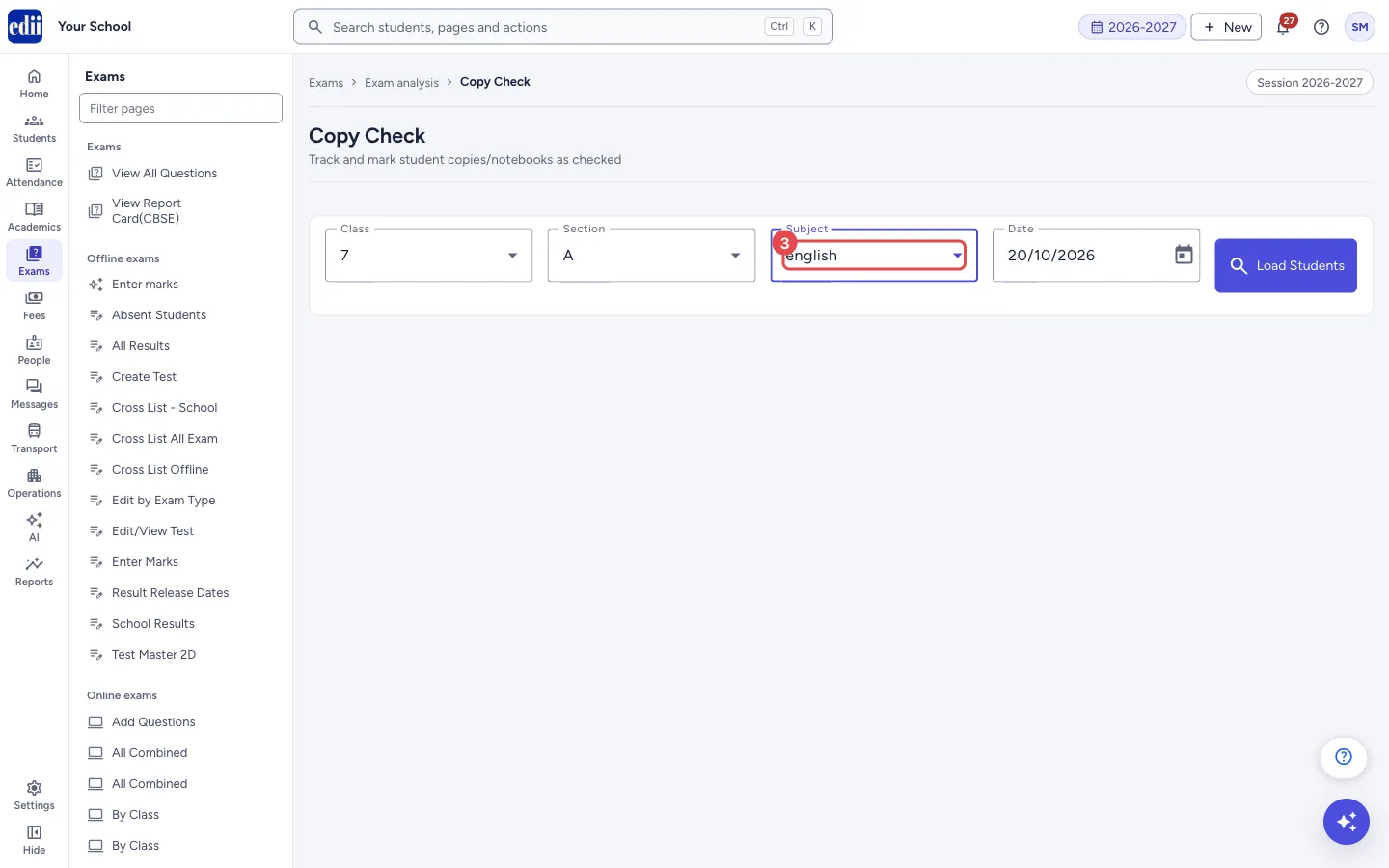
Section titled “2. Choose the section, subject and date”Choose the Section and the Subject. Date starts as today; pick another day if needed. Changing any of the four boxes clears the list, so select Load Students again.
 Open a bigger pictureतस्वीर बड़ी करें
3. Load the students
Section titled “3. Load the students”Select Load Students. It stays switched off until class, section and subject are chosen. The list appears under the title Students - with the class, section, subject and date. Students already saved for that date show as Checked.
 Open a bigger pictureतस्वीर बड़ी करें
4. Tick the checked copies
Section titled “4. Tick the checked copies”Tick the box at the start of a student’s row to mark the copy Checked. A Remarks box then appears for that student; type a note if you want. Untick to put the student back to Pending, which also clears the remarks. The box in the heading ticks or unticks every student. Mark All as Checked ticks every student at once.
5. Save
Section titled “5. Save”Select Save. EDII shows Copy check saved successfully. Nothing is kept until you save.
Fields and filters
Section titled “Fields and filters”| Field | What it is | Notes |
|---|---|---|
| Class | The class. | Required. |
| Section | The section. | Required. |
| Subject | The subject whose copies were checked. | Required. |
| Date | The day of the check. | Starts as today. |
| Remarks | A note about a student’s copy. | Shown only for students who are Checked. |
Buttons
Section titled “Buttons”| Button | What it does | What happens next |
|---|---|---|
| Load Students | Loads the students and any check already saved for that date. | The counts, the buttons and the list appear. |
| Mark All as Checked | Marks every student as Checked. | The counts change. Select Save to keep it. |
| Save | Saves the status and remarks of every student in the list. | Copy check saved successfully. |
Columns
Section titled “Columns”| Column | Meaning |
|---|---|
| Roll No | The roll number. |
| Student Name | The student’s name. |
| Status | Checked or Pending. |
| Remarks | Your note. A dash for Pending students. |
| Checked By | The name of the person who saved the check and the date and time, for example 20 Oct, 10:15. A dash when none is recorded. |
Good to know
Section titled “Good to know”- The check is kept for one subject on one date. A different date is a separate record.
- The screen warns you if you select Save with no students: No students to save.
Messages you may see
Section titled “Messages you may see”| Message | What it means | What to do |
|---|---|---|
| Copy check saved successfully | The statuses and remarks were saved. | Nothing to do. |
| Please select class, section, and subject | You tried to load without all three. | Choose class, section and subject. |
| No students found for the selected criteria | The class and section have no students to show. | Check the class and section. |
| Subjects Unavailable For The Class Selected | The class has no subjects set up. | Set up the subjects first. |
| Error saving copy check | The save did not go through. | Try Save again. |
Did this page help?क्या इस पेज से मदद मिली?
Thanks! Glad it helped.धन्यवाद! अच्छा लगा कि काम बन गया।
Sorry about that. Ask in your own words, or write to us.माफ़ कीजिए। अपने शब्दों में पूछें, या हमें लिखें।