
Screen guide · Web app
Leads
The school's own enquiry list: record each family that enquires, follow them up by call or WhatsApp, log what happened and move them from New to Converted. It is separate from the Admissions pipeline and shows when the Leads module is on for the school and your role has Lead access.
यह पेज अंग्रेज़ी में है। कुछ समझ न आए तो ।
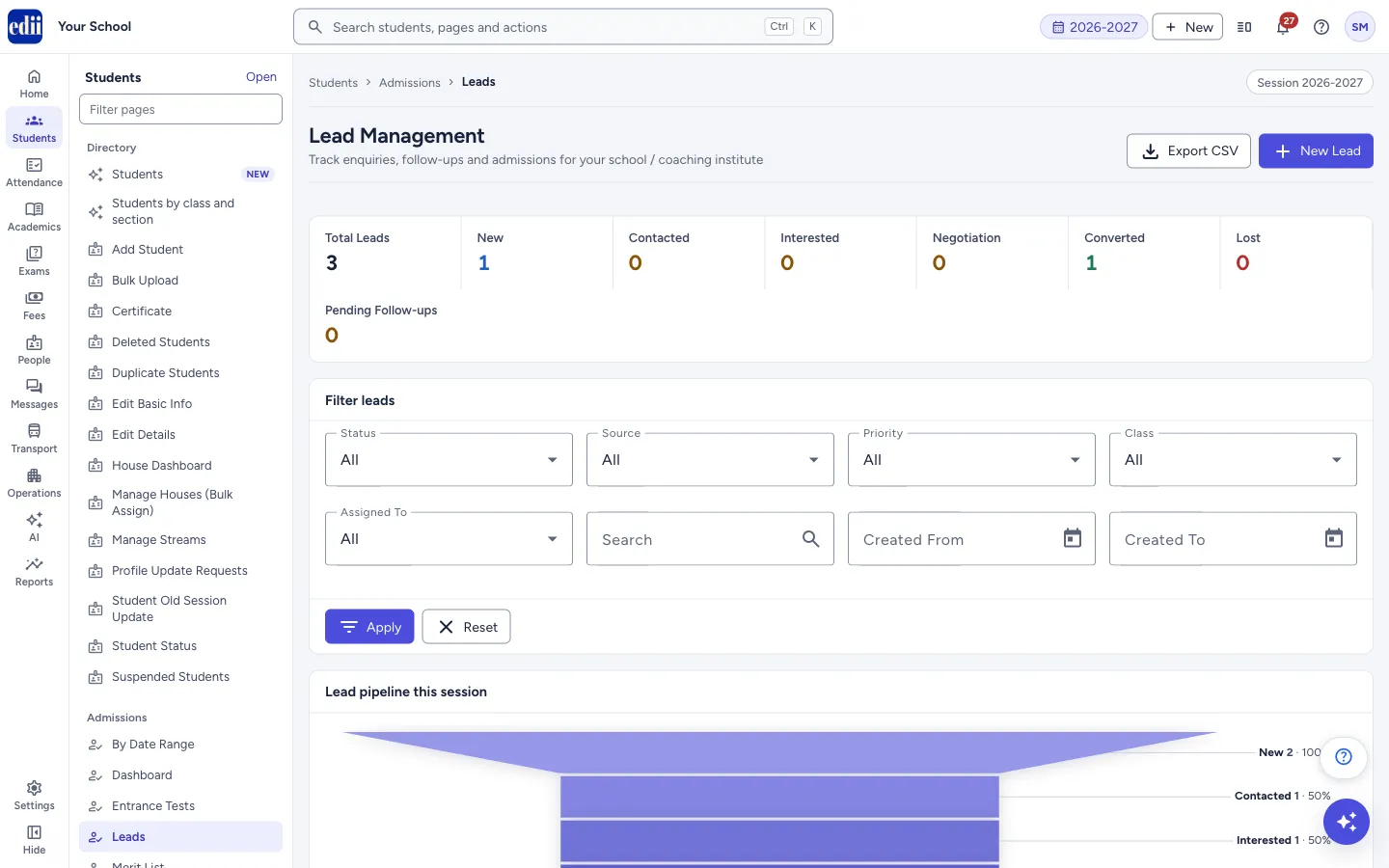
Leads (the page heading reads Lead Management) is where the office keeps track of people who have enquired about admission: who they are, which class they want, how they heard of the school, how serious they are and when to call back next.
The top of the page shows counts by status: Total Leads, New, Contacted, Interested, Negotiation, Converted, Lost and Pending Follow-ups. Click a status count to show only those leads; click Total Leads to clear the filters.
Below are the filters, the chart Lead pipeline this session, a chart Leads by source (shown when there are more than two sources), and the Leads table with the actions for each lead.
Who uses it and when
Section titled “Who uses it and when”The admission desk and counsellors use it every day to call back enquiries, log conversations and see who is due a follow-up.
Where to find it
Section titled “Where to find it”- In school.edii.in: Students › Admissions › Leads
- Or press Ctrl K (⌘ K on a Mac) and type Leads.
- Address:
school.edii.in/view/lead-management - Who can see it: Needs the Leads module switched on for the school, and Lead access for your role. If it is missing from your menu, ask your school admin.
 Open a bigger pictureतस्वीर बड़ी करें
Step by step
Section titled “Step by step”1. Add a lead
Section titled “1. Add a lead”Press New Lead. Fill in Lead Name and Phone (both required) and whatever else you know, such as Class Interested, Source, Priority, Assigned To and Next Follow-up Date. Press Create Lead.
New leads start with Source Walk-in, Status New and Priority Warm.
2. Filter the list
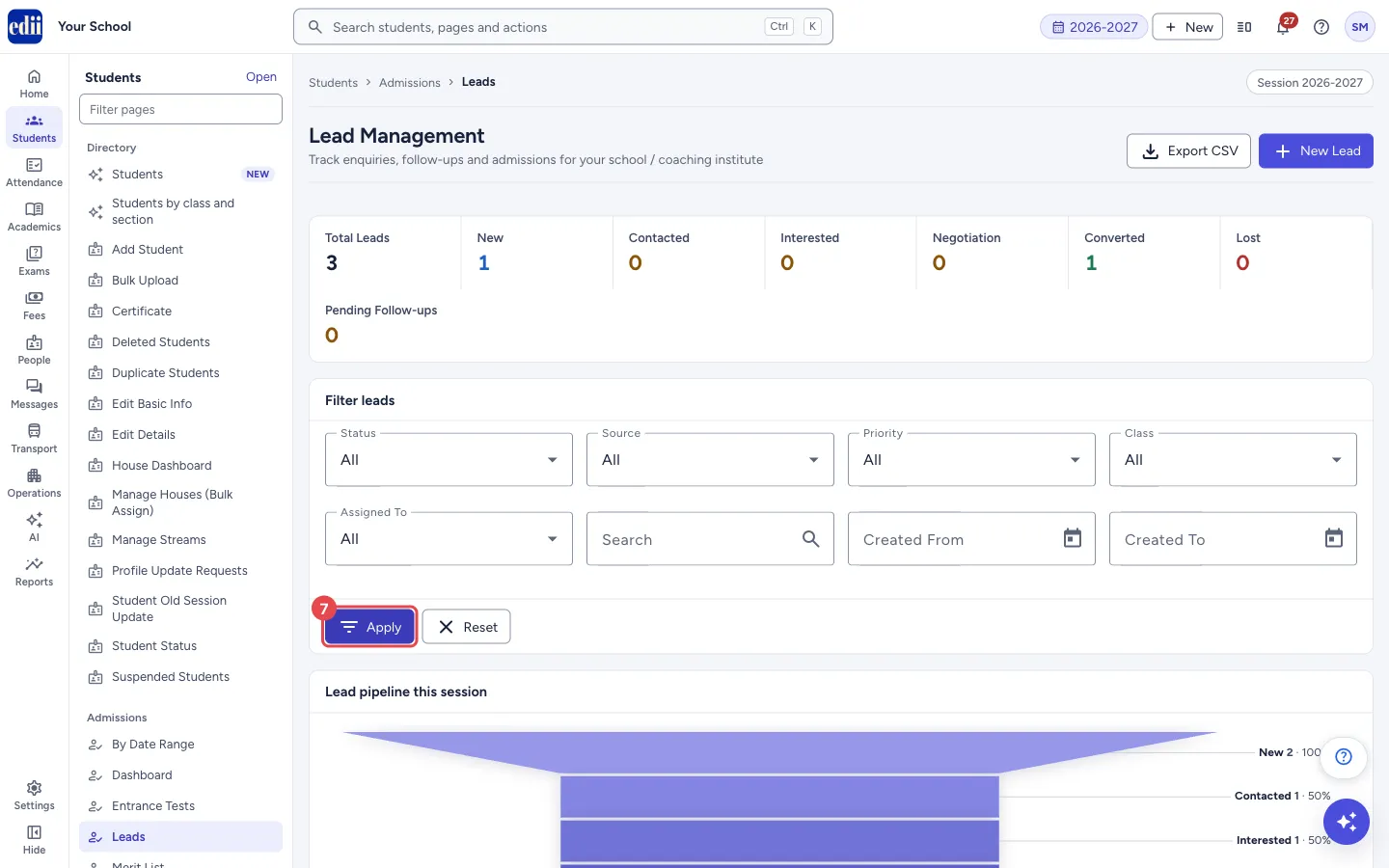
Section titled “2. Filter the list”In Filter leads choose the Status, Source, Priority, Class and Assigned To, type a name, phone, email or lead ID in Search, or set Created From and Created To. Each list starts at All.
Press Apply. Reset clears all filters.
 Open a bigger pictureतस्वीर बड़ी करें
3. Call or message the family
Section titled “3. Call or message the family”In the Contact column press Call to dial the number, or WhatsApp to open a WhatsApp chat in a new tab. A 10-digit number gets 91 added in front.
4. Log what happened
Section titled “4. Log what happened”Press Log on the lead’s row. Choose the Type (call, whatsapp, sms, email, visit, note or follow-up), write a Note, set the Next Follow-up date if there is one, and press Log. Press Close to hide the panel.
5. Change status, edit or delete
Section titled “5. Change status, edit or delete”Press More on the row. Edit reopens the form with the lead’s details. The status names (New, Contacted, Interested, Visited, Negotiation, Converted, Lost, Dropped) change the status in one click. Delete asks Delete lead? and cannot be undone.
6. Download the list
Section titled “6. Download the list”Press Export CSV to save the leads now in the table as a file named leads-and-the-date. If the table is empty you get the message No leads to export.
Fields and filters
Section titled “Fields and filters”| Field | What it is | Notes |
|---|---|---|
| Lead Name | The child’s or the enquirer’s name. | Required. |
| Phone | Mobile number. | Required; 10 to 15 digits, numbers only. |
| Alt Phone | A second number. | Optional; 10 to 15 digits. |
| Email address. | Optional; must be valid. | |
| Parent / Guardian Name, City, Address | Family details. | Optional. |
| Class Interested | The class the family wants. | Choose from your school’s classes, or None. |
| Stream | For example Science, Commerce or Arts. | Optional text. |
| Course (Coaching) | For coaching batches, for example JEE or NEET. | Optional text. |
| Expected Joining | The date the child may join. | Optional date. |
| Source | How the family reached the school. | Walk-in, Phone, Website, Referral, Social Media, Advertisement or Other. |
| Status | Where the lead stands. | New, Contacted, Interested, Visited, Negotiation, Converted, Lost or Dropped. |
| Priority | How likely the lead is. | Hot, Warm or Cold. |
| Assigned To | The staff member who follows the lead. | Optional; or Unassigned. |
| Next Follow-up Date | When to call back. | Optional. Past dates show in red in the table. |
| Lost Reason | Why the lead was lost. | Shown only when the status is Lost or Dropped. |
| Notes | Anything else worth remembering. | Optional. |
Buttons
Section titled “Buttons”| Button | What it does | What happens next |
|---|---|---|
| Export CSV | Saves the leads shown in the table as a CSV file. | A file named leads-<date>.csv downloads. |
| New Lead | Opens the form to add a lead; shows Cancel while the form is open. | The Add New Lead form appears above the filters. |
| Create Lead / Update Lead | Saves the form. | A message says Lead created or Lead updated, and the list and counts refresh. |
| Apply | Shows only the leads matching the filters. | The table updates. |
| Reset | Clears the filters. | All leads show again. |
| Call / WhatsApp | Dials the number or opens WhatsApp for it. | Your phone app or a WhatsApp tab opens. |
| Log | Opens the panel to record a call, visit or note against the lead. | Activity logged shows after you save. |
| More | Menu with Edit, a status list and Delete. | The chosen action runs. |
Columns
Section titled “Columns”| Column | Meaning |
|---|---|
| Name | The lead’s name with its lead ID below. |
| Contact | Phone, email, and the Call and WhatsApp links. |
| Interested In | Class, stream or course asked for; a dash when none is given. |
| Source | How the family reached the school. |
| Priority | Hot, Warm or Cold. |
| Status | The lead’s status. |
| Assigned | The staff member following the lead. |
| Follow-up | Next follow-up date; red when it has passed. |
| Created | The day the lead was added. |
After you save
Section titled “After you save”- The new or changed lead appears in the table and the counts at the top update.
Good to know
Section titled “Good to know”- The counts and Lead pipeline this session belong to the school’s current session. Pending Follow-ups counts follow-ups that are due.
- In Lead pipeline this session each lead counts at every stage up to its current one, from New to Converted. Lost and Dropped leads are not counted.
- Leads by source follows the filters you applied.
- There is no card for the status Dropped, but you can filter by it and set it.
- The table shows 10 rows at a time; change Items per page to 25, 50 or 100.
Messages you may see
Section titled “Messages you may see”| Message | What it means | What to do |
|---|---|---|
| Lead name is required | The name box is empty. | Type the lead’s name. |
| Phone number is required | The phone box is empty. | Enter a number. |
| Phone must be 10–15 digits, numbers only | The number has letters or the wrong length. | Type only digits, 10 to 15 of them. |
| Email is not valid | The email is not in the usual form. | Correct it or leave it blank. |
| Lead created | The lead was saved. | No action needed. |
| Lead updated | The changes were saved. | No action needed. |
| Status updated to <status> | The lead’s status changed. | No action needed. |
| Lead deleted | The lead was removed. | No action needed. |
| Activity logged | The note was added to the lead. | No action needed. |
| Please pick an activity type | No type is chosen in the log panel. | Choose a Type, then press Log. |
| No leads to export | The table is empty, so there is nothing to download. | Reset the filters and try again. |
| No leads found. Try resetting filters or add the first lead. | No lead matches the filters, or none has been added. | Press Reset, or add a lead. |
| Error loading leads | The list could not be loaded. | Check the internet and refresh the page. |
- Click a status count to see just those leads, then click Total Leads to go back.
- Set the Next Follow-up Date every time you log a call so that Pending Follow-ups stays correct.
Stuck? Try this
Section titled “Stuck? Try this”| Problem | Likely cause | What to do |
|---|---|---|
| Leads is not in the menu | The Leads module is off for the school, or your role does not have Lead access. | Ask your school administrator to switch the module on or to give your role Lead access. |
| A lead I added is not in the table | A filter is still applied. | Press Reset. |
Did this page help?क्या इस पेज से मदद मिली?
Thanks! Glad it helped.धन्यवाद! अच्छा लगा कि काम बन गया।
Sorry about that. Ask in your own words, or write to us.माफ़ कीजिए। अपने शब्दों में पूछें, या हमें लिखें।