
Screen guide · Web app
Leave Management
The administrator's list of all staff leave requests for the session, where each pending request is approved or rejected.
यह पेज अंग्रेज़ी में है। कुछ समझ न आए तो ।
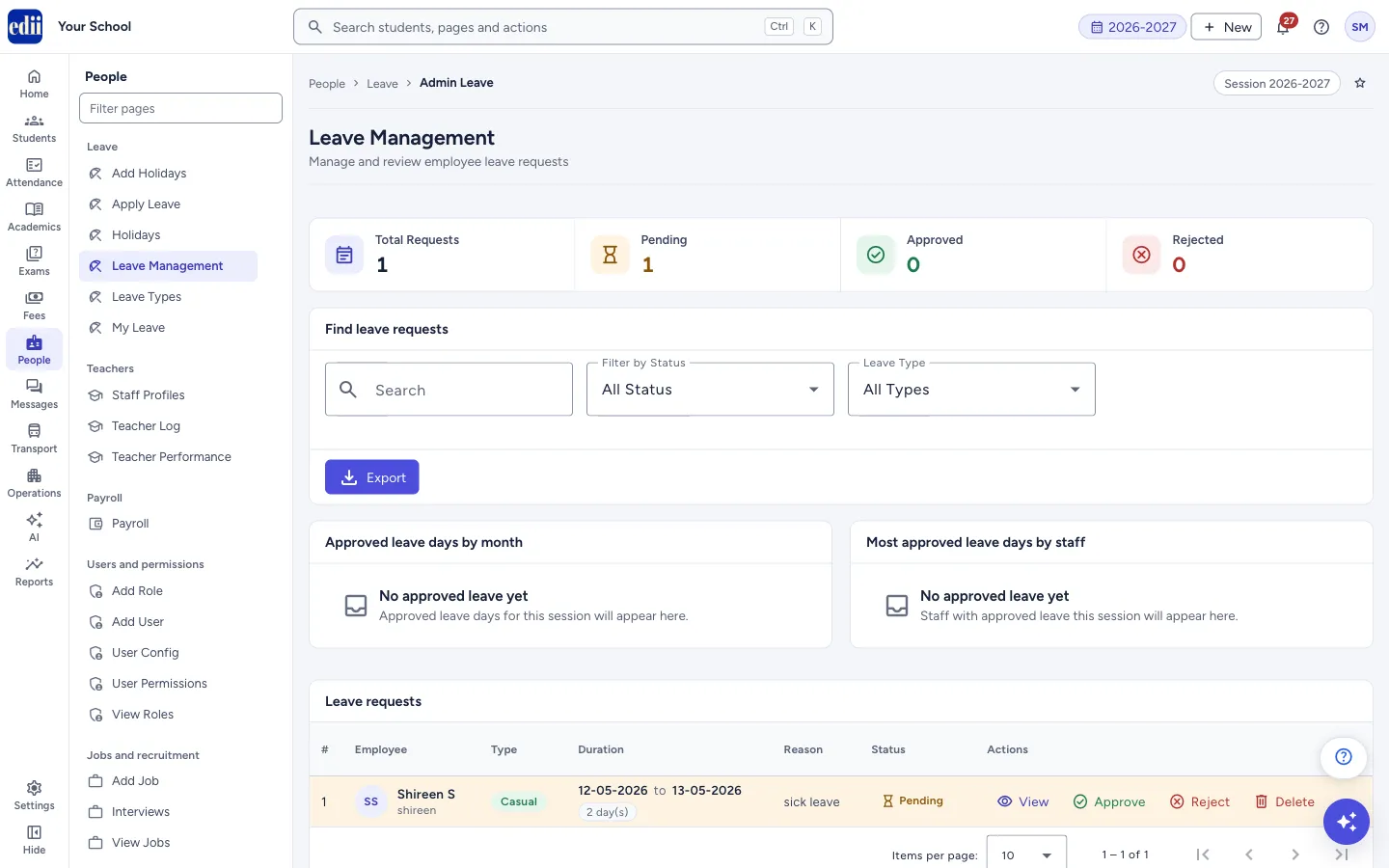
Leave Management shows every staff leave request of the session selected at the top of the screen. Counters at the top show how many are Pending, Approved and Rejected. Two charts show the approved leave days: Approved leave days by month and Most approved leave days by staff (the top 10 staff).
Under Leave requests each row has the Employee, Type, Duration, Reason, Status and Actions. Pending requests are highlighted. From Actions you can view a request, approve it, reject it, or delete it.
Who uses it and when
Section titled “Who uses it and when”The principal or the person who looks after staff leave, whenever requests come in.
Before you start
Section titled “Before you start”- Your login must have leave access. Without it, the page shows You do not have permission to access this page and takes you back to Home.
Where to find it
Section titled “Where to find it”- In school.edii.in: People › Leave › Leave Management
- Or press Ctrl K (⌘ K on a Mac) and type Leave Management.
- Address:
school.edii.in/view/view-leave-admin - Who can see it: Staff whose role includes Messages or Leave or Meetings access. Shown only when your school uses HR and Calendar in EDII. If it is missing from your menu, ask your school admin.
 Open a bigger pictureतस्वीर बड़ी करें
Step by step
Section titled “Step by step”1. Find the requests that need a decision
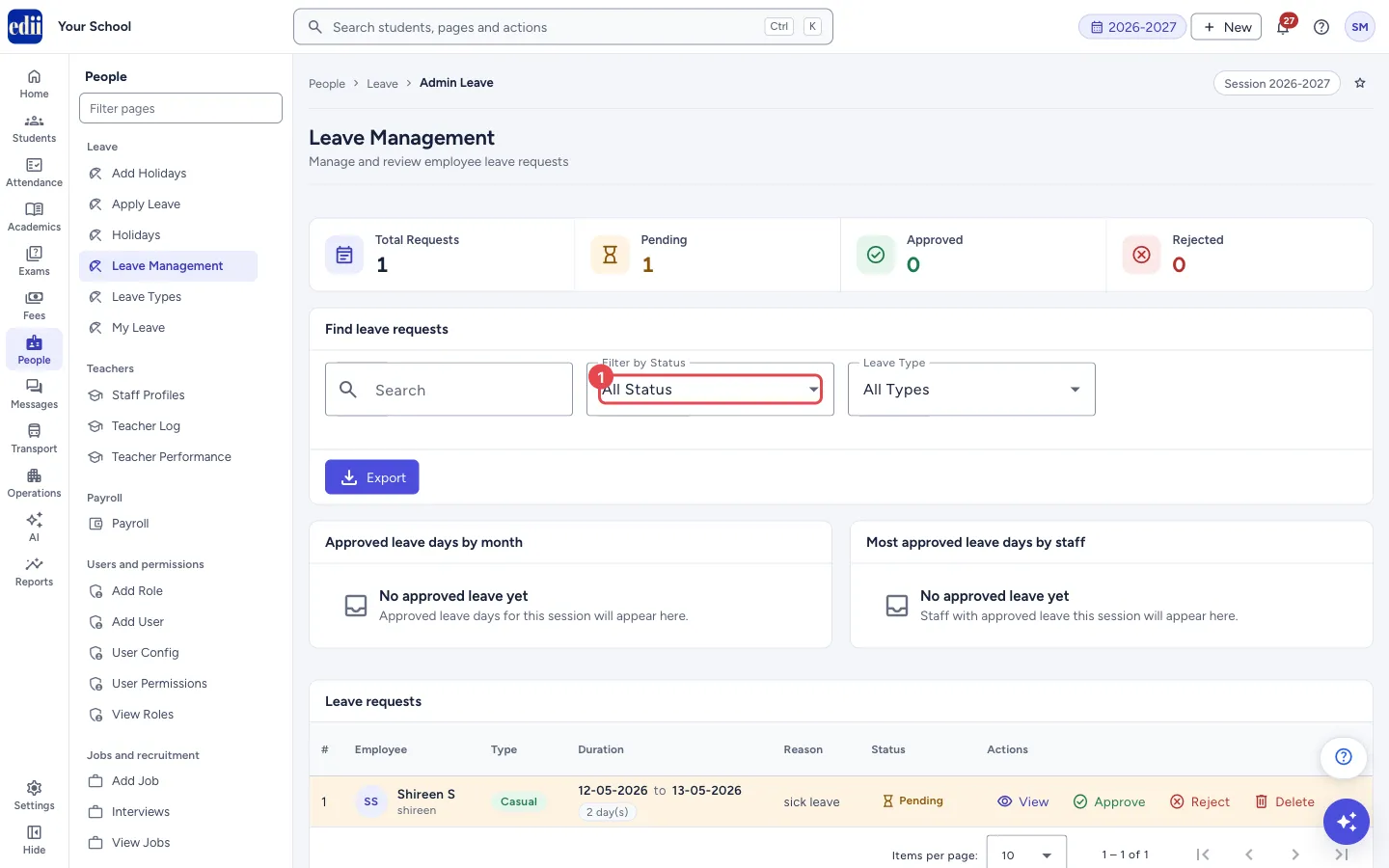
Section titled “1. Find the requests that need a decision”Select Pending at the top, or set Filter by Status to Pending. You can also search by employee name, ID or reason, and filter Leave Type (Paid Leave, Unpaid Leave, Sick Leave, Casual Leave). Maternity and paternity requests show under All Types only.
 Open a bigger pictureतस्वीर बड़ी करें
2. Read the request
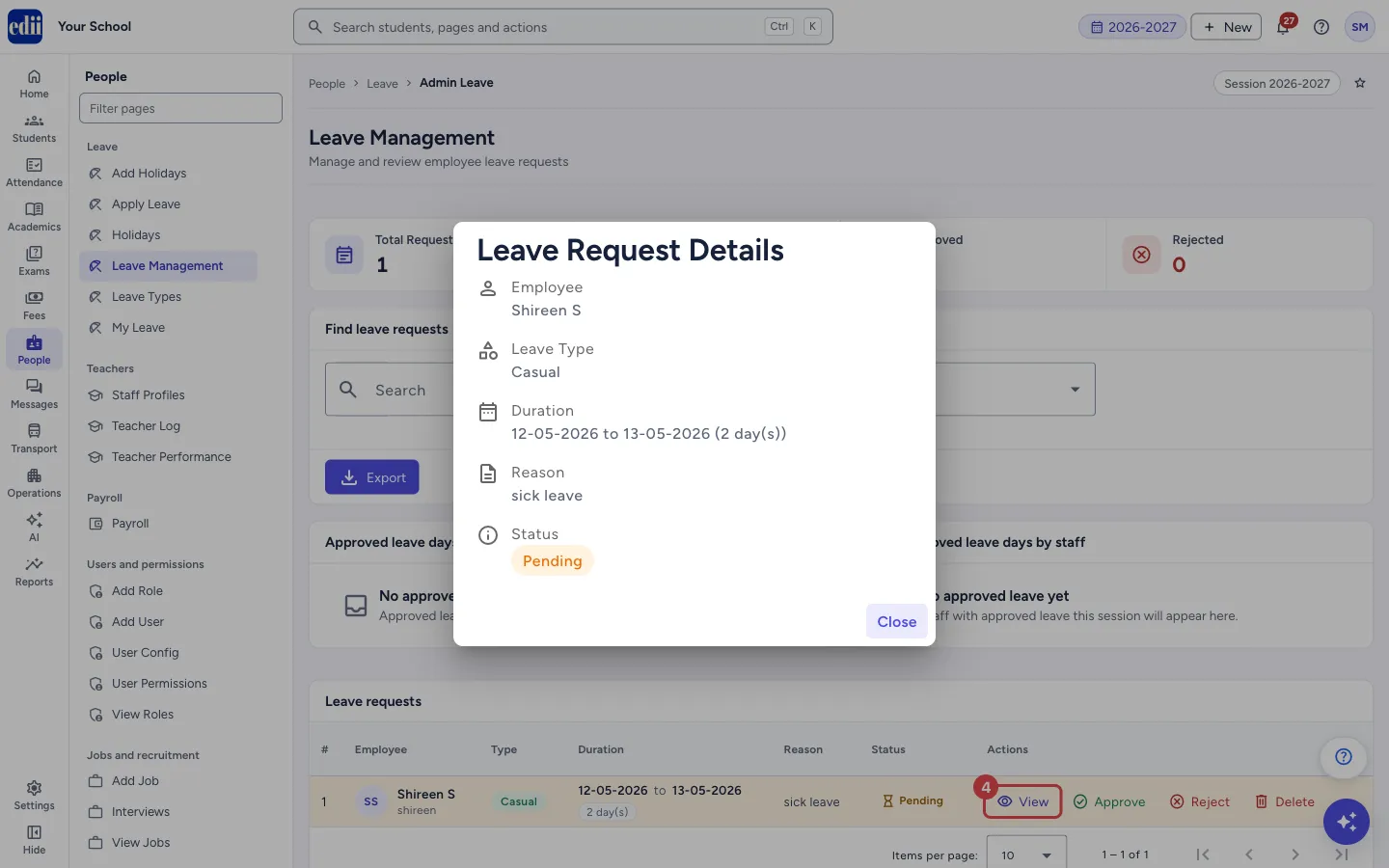
Section titled “2. Read the request”Select View. Leave Request Details shows the Employee, Leave Type, Duration with the number of days, Reason and Status. When a decision was made, any Comments are shown too. Select Close to return.
 Open a bigger pictureतस्वीर बड़ी करें
3. Approve a request
Section titled “3. Approve a request”Select Approve. A window Approve leave? asks for Comments (optional). Select Approve to confirm. You see Leave approved successfully! and the status becomes Approved. Closing the window without confirming changes nothing.
4. Reject a request
Section titled “4. Reject a request”Select Reject. A window Reject leave? asks for Reason / comments; the comment is not compulsory but it is a good idea to write one. Select Reject to confirm. You see Leave rejected successfully! and the status becomes Rejected.
5. Delete a request
Section titled “5. Delete a request”Select Delete. The window Delete leave? says This leave record will be permanently deleted. This action cannot be undone. Select Delete to confirm; you see Leave deleted. Delete is offered for requests of every status.
Buttons
Section titled “Buttons”| Button | What it does | What happens next |
|---|---|---|
| View | Opens the request details. Changes nothing. | Leave Request Details opens. |
| Approve | Marks the request Approved with your name and today’s date, and saves your comment. For a leave type that has a yearly quota, the days move from Pending to Used in the staff member’s leave balance. | Leave approved successfully! |
| Reject | Marks the request Rejected with your name and today’s date, and saves your comment. For a leave type that has a yearly quota, the days held for it are released back to the staff member’s balance. | Leave rejected successfully! |
| Delete | Removes the request from the list after you confirm. A Pending request releases the days it held; an Approved request gives its used days back to the balance; a Rejected request has no effect on the balance. | Leave deleted and the list refreshes. |
| Export | Downloads the filtered list as a spreadsheet file (CSV), or prints it. | A file named Leave_Report with today’s date is downloaded, or the print window opens. |
Columns
Section titled “Columns”| Column | Meaning |
|---|---|
| # | Row number. |
| Employee | The staff member’s name and ID. |
| Type | The leave type the staff member chose. |
| Duration | From and to dates, with the number of days counted from the first to the last day. |
| Reason | The reason given. Long reasons are cut short. |
| Status | Pending, Approved or Rejected. |
| Actions | View always; Approve and Reject only while Pending; Delete always. |
Good to know
Section titled “Good to know”- Only a Pending request can be approved or rejected. If someone else has already decided it, you see a message like This leave has already been approved (or rejected), and the list does not change.
- Approve and Reject cannot be undone from this page. To reverse an approved leave, delete it, which gives the days back to the balance, and ask the staff member to apply again.
- The charts count only Approved requests.
- Quota days are tracked only for leave types that your school has set up on Leave Types.
- The table shows 10 requests per page; you can change it to 25, 50 or 100.
Messages you may see
Section titled “Messages you may see”| Message | What it means | What to do |
|---|---|---|
| You do not have permission to access this page | Your login has no leave access. | Ask the school administrator to give you leave access. |
| Leave approved successfully! | The request is now Approved. | Nothing to do. |
| Leave rejected successfully! | The request is now Rejected. | Nothing to do. |
| Leave deleted | The request was removed. | Nothing to do. |
| No Leave Requests | No request matches the filters (There are no leave requests matching your filters.). | Set the filters back to All Status and All Types. |
| Connection error | The decision did not reach EDII. | Check the internet and try again; check the status before repeating. |
- Before approving, look at the Leave Balances tab on Leave Types to see how many days the person has left.
- Write a short comment when rejecting, so the staff member knows why.
Stuck? Try this
Section titled “Stuck? Try this”| Problem | Likely cause | What to do |
|---|---|---|
| The charts say No approved leave yet | No request of this session has been approved yet. | They fill in as you approve requests. |
Did this page help?क्या इस पेज से मदद मिली?
Thanks! Glad it helped.धन्यवाद! अच्छा लगा कि काम बन गया।
Sorry about that. Ask in your own words, or write to us.माफ़ कीजिए। अपने शब्दों में पूछें, या हमें लिखें।