
Screen guide · Web app
Add Questions
Adds a multiple-choice question, with its options and correct answers, to the question bank of the classes, sections and subject you choose.
यह पेज अंग्रेज़ी में है। कुछ समझ न आए तो ।
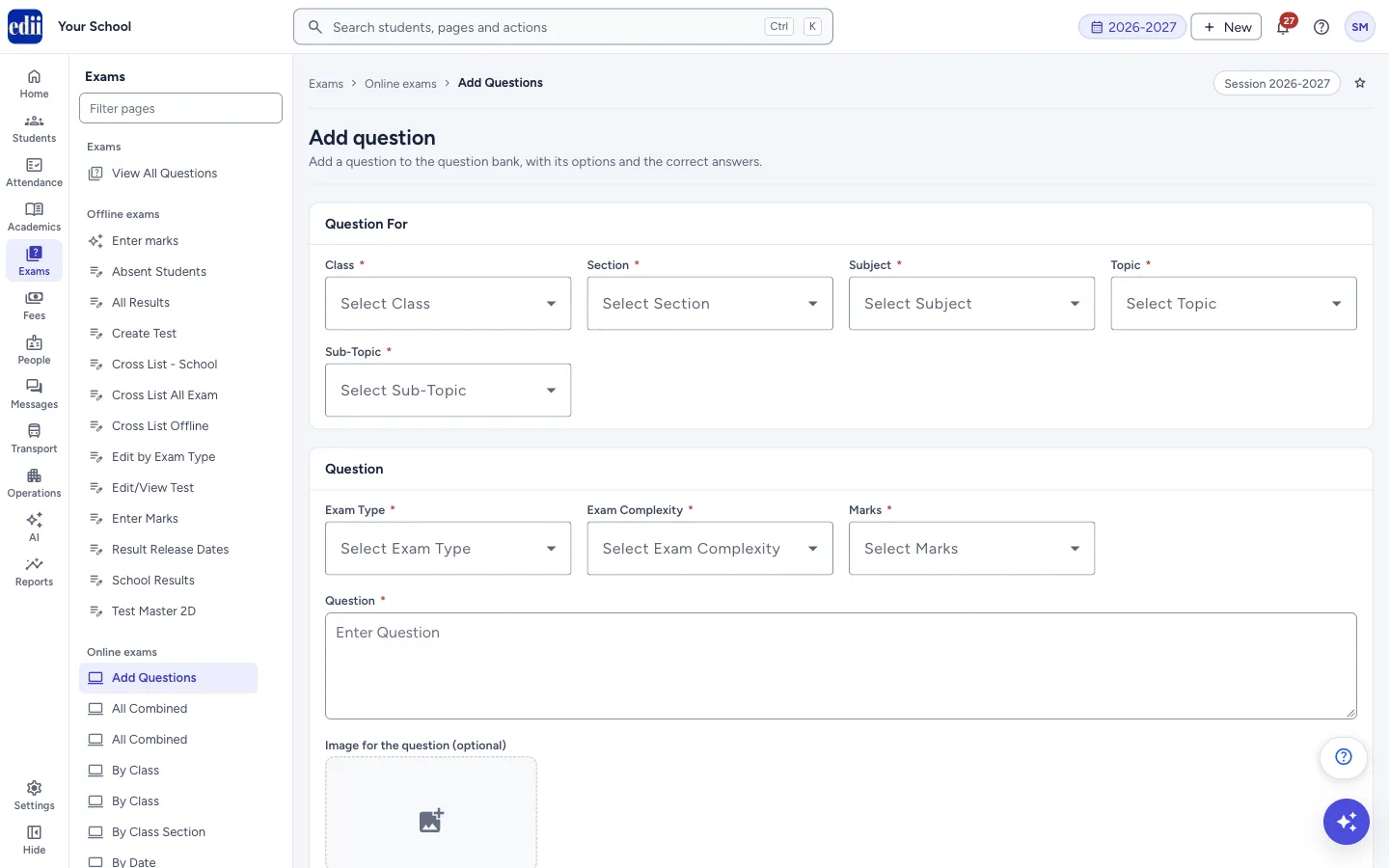
Add question puts one multiple-choice question into the school’s question bank. The form has three boxes: Question For (where the question belongs), Question (the question itself) and Options (the answers, and which ones are correct). Add Question at the bottom saves it.
You can add the same question to several classes and sections in one go. Online tests take their questions from this bank.
Who uses it and when
Section titled “Who uses it and when”Teachers and the exam in-charge, while preparing online tests.
Before you start
Section titled “Before you start”- The subject, topic and sub-topic must exist. Add them in Subjects, Topics and Subtopics. Where a class has no topics, the lists offer general.
Where to find it
Section titled “Where to find it”- In school.edii.in: Exams › Online exams › Add Questions
- Or press Ctrl K (⌘ K on a Mac) and type Add Questions.
- Address:
school.edii.in/add/add-questions - Who can see it: Staff whose role includes Exams access. Shown only when your school uses Exam in EDII. If it is missing from your menu, ask your school admin.
 Open a bigger pictureतस्वीर बड़ी करें
Step by step
Section titled “Step by step”1. Choose the class and the section
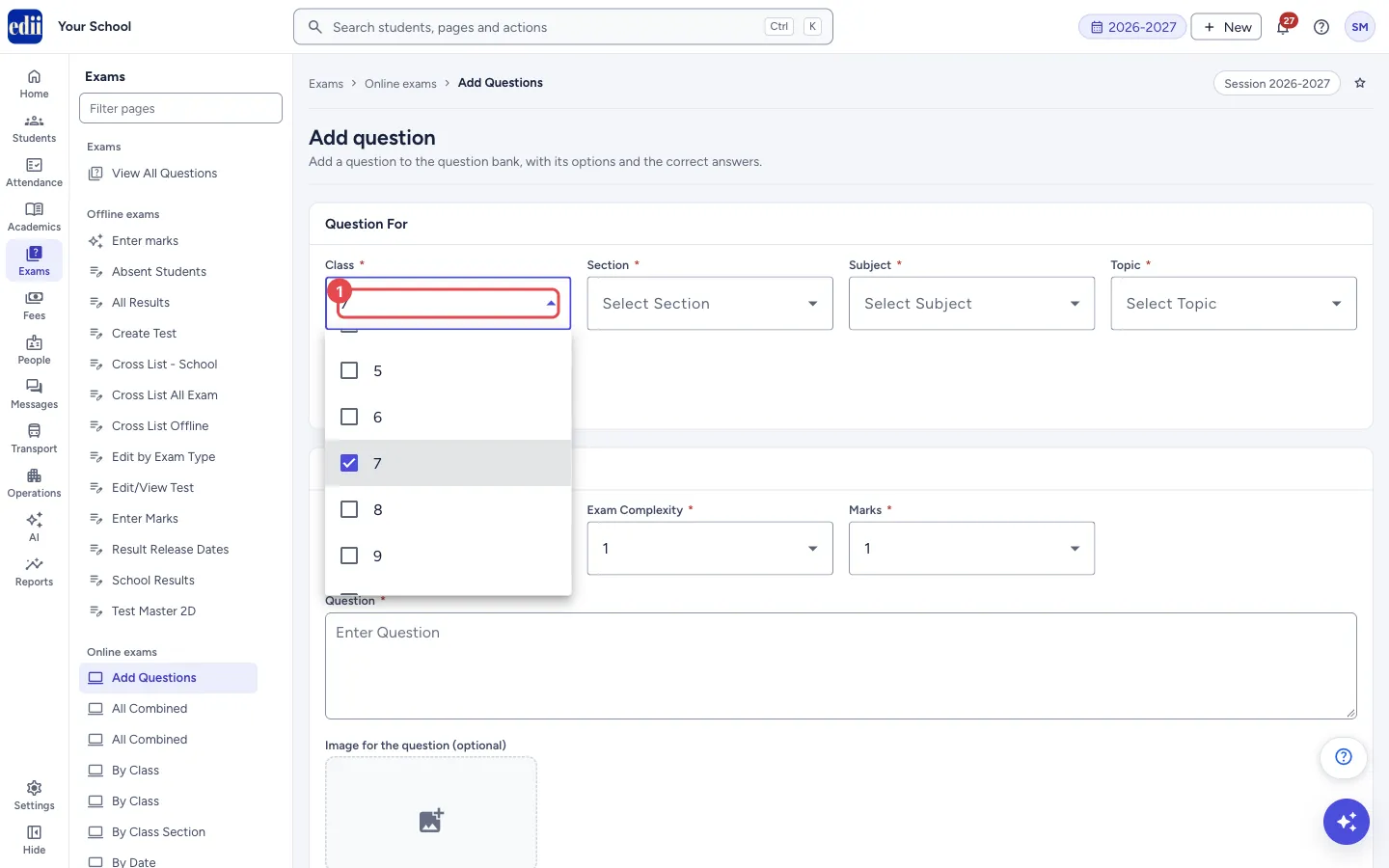
Section titled “1. Choose the class and the section”In Class, choose one or more classes, or tick Select All. In Section, choose the sections, or tick Select All. As soon as a class is chosen, EDII loads its subjects, topics and sub-topics, and sets the question to exam type Single, complexity 1 and marks 1. The picture shows the Class list open with class 7 ticked.
 Open a bigger pictureतस्वीर बड़ी करें
2. Choose the subject, topic and sub-topic
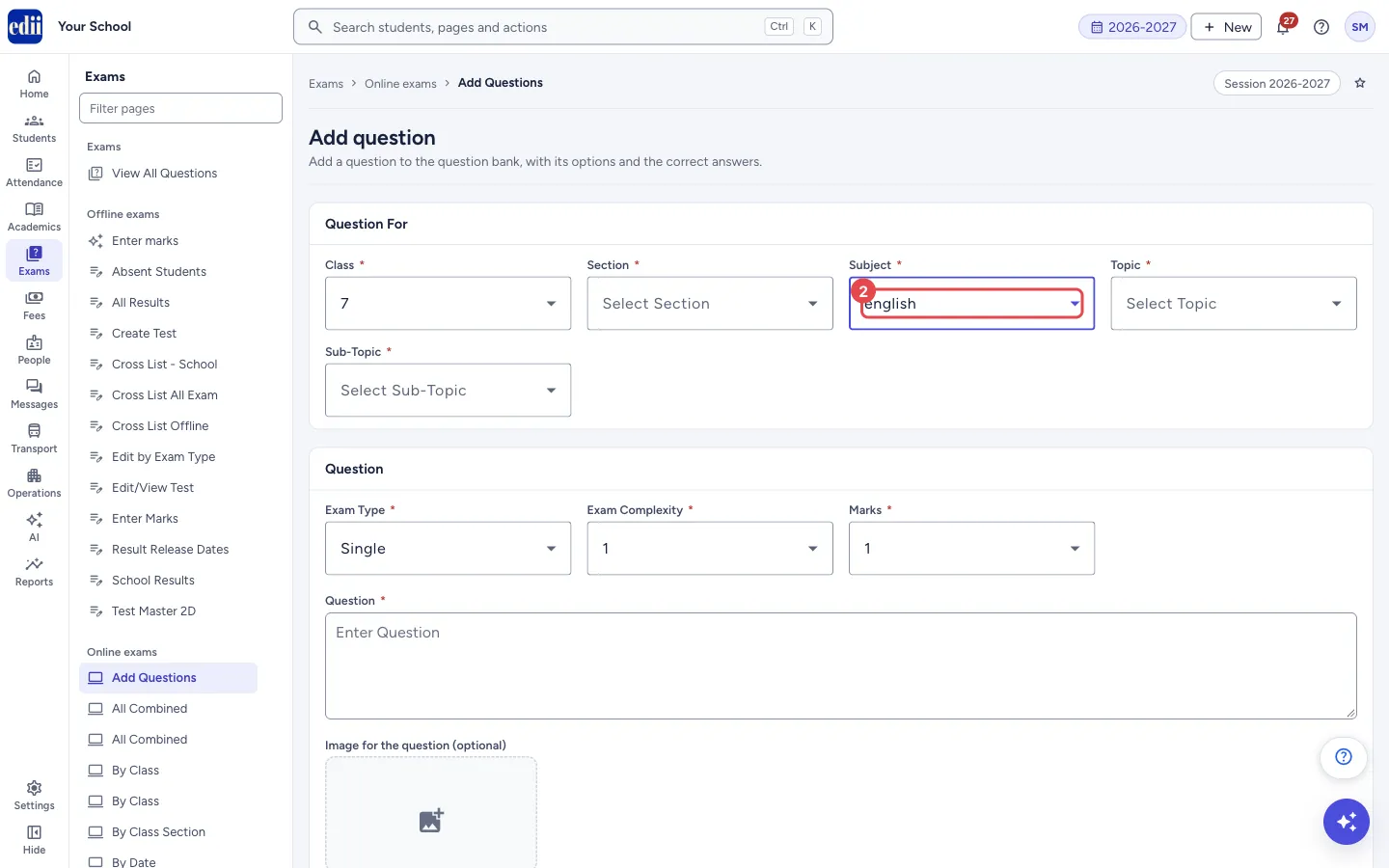
Section titled “2. Choose the subject, topic and sub-topic”Open Subject, then Topic, then Sub-Topic, and choose from the lists. In the picture, class 7 and the subject english are chosen and the topic comes next.
 Open a bigger pictureतस्वीर बड़ी करें
3. Set exam type, complexity and marks, and write the question
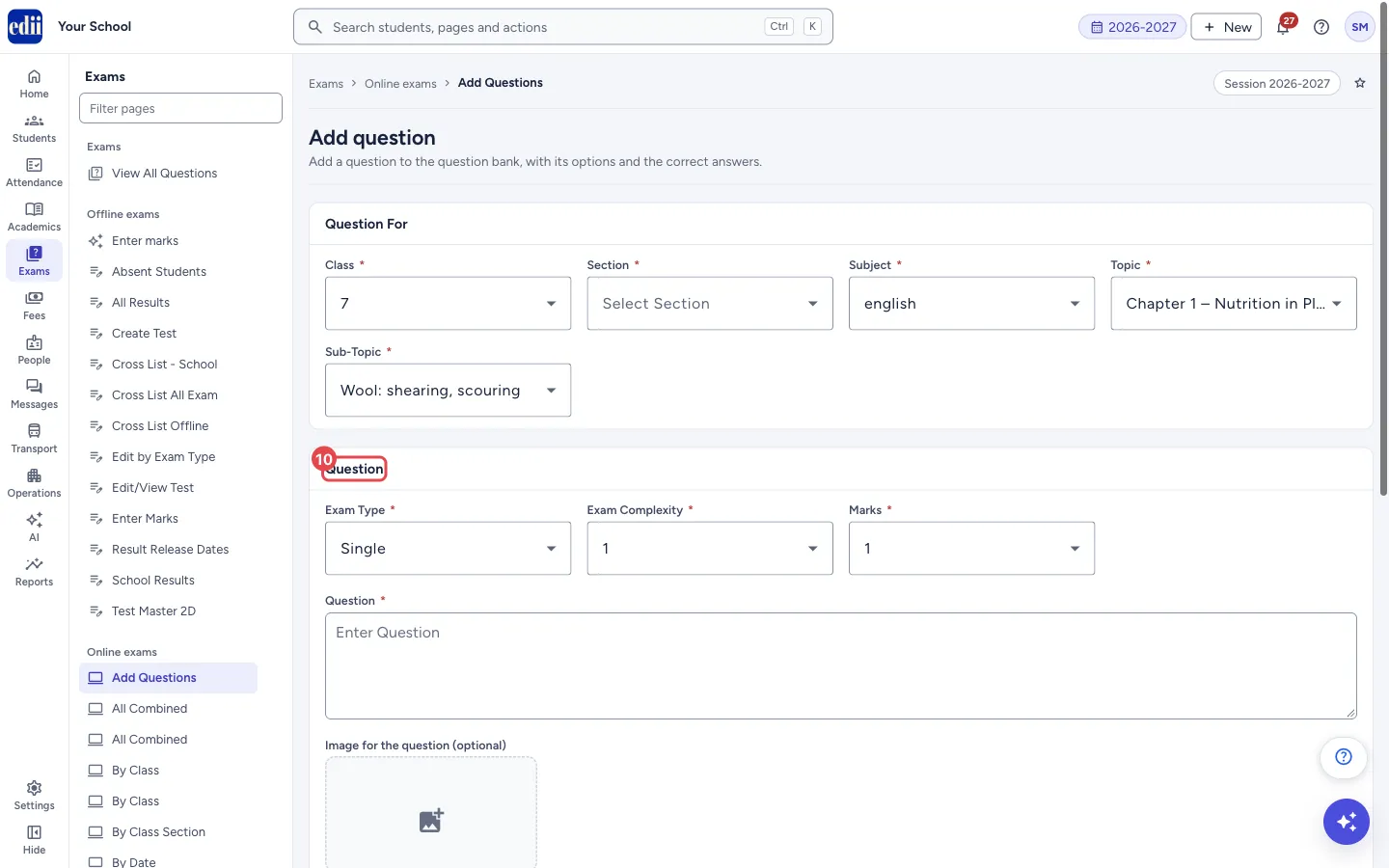
Section titled “3. Set exam type, complexity and marks, and write the question”Exam Type offers only Single. Choose Exam Complexity and Marks. Type the question in Question. The picture shows the form with these boxes at their starting values.
 Open a bigger pictureतस्वीर बड़ी करें
4. Add a picture to the question (optional)
Section titled “4. Add a picture to the question (optional)”Under Image for the question (optional) choose a picture file of up to 1 MB. EDII then fills Question with Please Refer to the Image and resets the options to Option: 1 to Option: 4, so choose the picture before you type the options.
5. Write the options
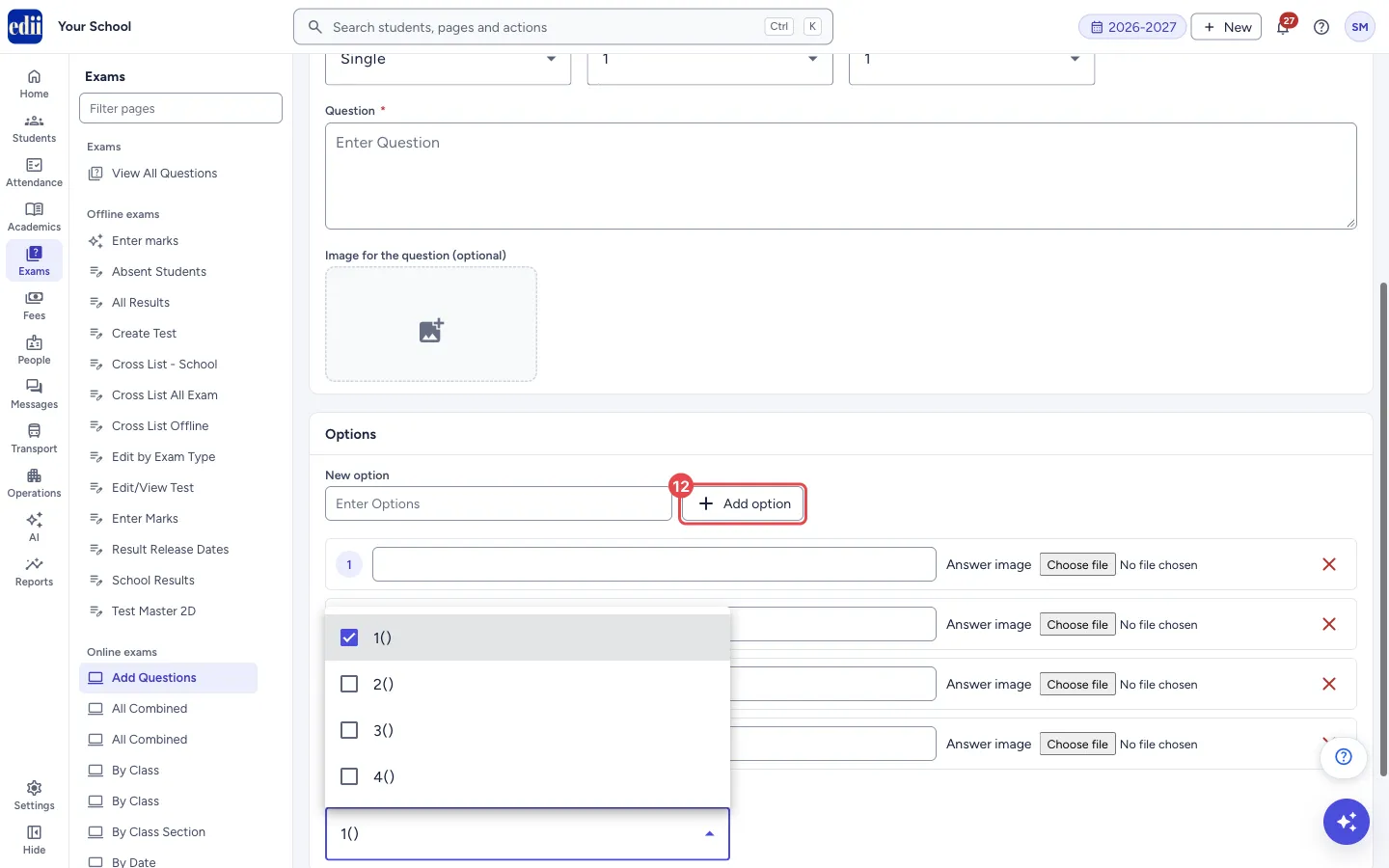
Section titled “5. Write the options”Four numbered option boxes, 1 to 4, are ready. Type the text of each answer. To add another option, type its number in New option and select Add option. Use the X at the end of a row to remove an option. Each option can also have an Answer image of up to 10 MB. In the picture, Add option is outlined and the option rows are below it.
 Open a bigger pictureतस्वीर बड़ी करें
6. Choose the correct answers
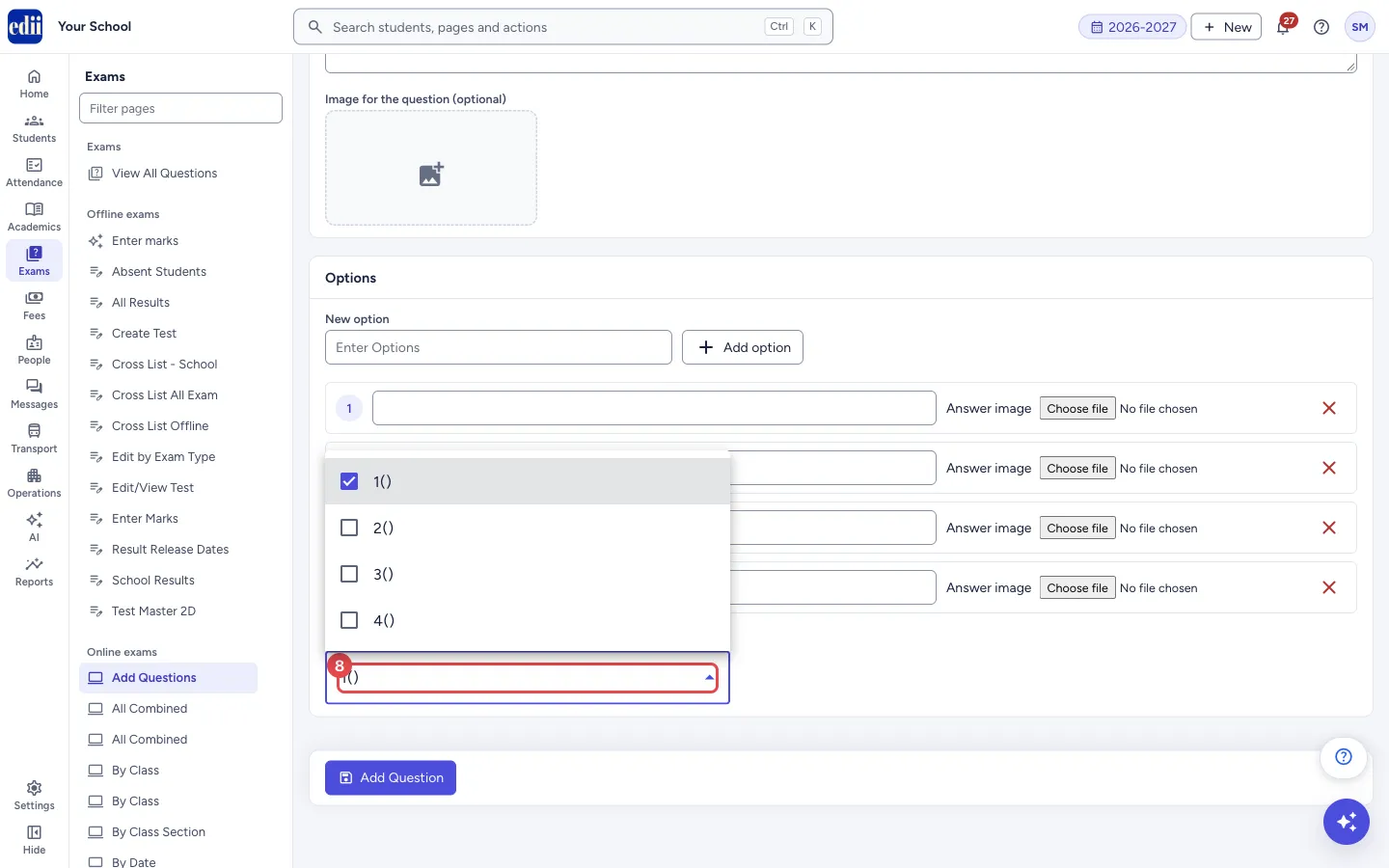
Section titled “6. Choose the correct answers”Open Correct answers and tick every correct option. Each choice shows as the option number and its text, for example 1(text).
 Open a bigger pictureतस्वीर बड़ी करें
7. Select Add Question
Section titled “7. Select Add Question”Select Add Question. EDII shows Question Successfully Added. The question, class, section, subject, topic and sub-topic are emptied and the options go back to four empty rows, ready for the next question.
Fields and filters
Section titled “Fields and filters”| Field | What it is | Notes |
|---|---|---|
| Class | The classes the question is for. | Required. One or more, or Select All. |
| Section | The sections the question is for. | Required. One or more, or Select All. The question is saved for the sections you pick. |
| Subject | The subject of the question. | Required. The list loads after you choose a class. |
| Topic | The topic of the question. | Required. general when the class has no topics. |
| Sub-Topic | The sub-topic of the question. | Required. general when the class has no sub-topics. |
| Exam Type | How the question is answered. | Required. Only Single is offered. |
| Exam Complexity | How hard the question is. | Required. 1 to 10. |
| Marks | The marks the question carries. | Required. 1 to 10. |
| Question | The text of the question. | Required. |
| Image for the question (optional) | A picture for the question. | A picture file up to 1 MB. |
| New option | The number of an extra option to add. | Must be a number not already used. |
| Option text (rows 1, 2, 3 …) | The text of each answer. | Fill every option you keep. |
| Answer image | A picture for one option. | Optional. Up to 10 MB. |
| Correct answers | The option or options that are right. | Required. One or more. |
Buttons
Section titled “Buttons”| Button | What it does | What happens next |
|---|---|---|
| Add option | Adds a new numbered option, using the number in New option. | A new row appears. If the number is already used, Warning! Option already Exists. shows and nothing is added. |
| X (on an option row) | Removes that option. | The row disappears. |
| Eye icon (on an option row) | Shows the picture attached to the option. It appears after an answer image is uploaded. | The picture opens. |
| Add Question | Saves the question in the question bank. | EDII shows Question Successfully Added and the form is emptied for the next question. |
After you save
Section titled “After you save”- The question is saved in the bank for each class and section you chose, under the subject, topic and sub-topic. Online tests can use it.
- Exam type, complexity and marks keep their values, so you can add the next question quickly.
Good to know
Section titled “Good to know”- Changing the class or the section loads the subject, topic and sub-topic lists again and puts the options back to four empty rows.
- Option numbers must be unique. Typing a number that already exists shows Warning! Option already Exists.
- The question picture can be up to 1 MB. An answer picture can be up to 10 MB.
- A red hint appears under a box that is empty (Class is required, Section is required, Subject is required, Topic is required, Sub-Topic is required, Exam Type is required, Exam Complexity is required, Marks is required, Question is required).
Messages you may see
Section titled “Messages you may see”| Message | What it means | What to do |
|---|---|---|
| Question Successfully Added | The question was saved. | Nothing to do. |
| Please send the Question / Type / Section / Answer / ClassOfStudent / Session / Option / Complexity /Subject / Topic / marks | Something needed is empty, often the section or the correct answer. | Fill every box, choose the section and the correct answers, and select Add Question again. |
| Max File Size is 1 MB | The question picture is larger than 1 MB. The choice is cleared. | Choose a smaller picture. |
| Max File Size is 10 MB, If you need to upload a Big file contact us | An answer picture is larger than 10 MB. | Choose a smaller picture. |
| Option image uploaded | An answer picture was uploaded. | Nothing to do. |
| No Picture uploaded for this question | You selected the eye icon on an option with no picture. | Nothing to do. |
| Warning! Option already Exists. | The number in New option is already used. | Type a different number. |
| Network Issue, Please Try Again. | A request did not reach EDII. | Check the internet connection and try again. |
- Choose the question picture first, then write the options: choosing a picture resets the options.
- Tick every correct option in Correct answers; a question can have more than one.
Stuck? Try this
Section titled “Stuck? Try this”| Problem | Likely cause | What to do |
|---|---|---|
| The Subject list is empty | Subjects load only after a class is chosen. | Choose a class. |
Did this page help?क्या इस पेज से मदद मिली?
Thanks! Glad it helped.धन्यवाद! अच्छा लगा कि काम बन गया।
Sorry about that. Ask in your own words, or write to us.माफ़ कीजिए। अपने शब्दों में पूछें, या हमें लिखें।