
Screen guide · Web app
Feature Request
Ask the EDII team for a new feature, and follow your earlier requests with their status and comments.
यह पेज अंग्रेज़ी में है। कुछ समझ न आए तो ।
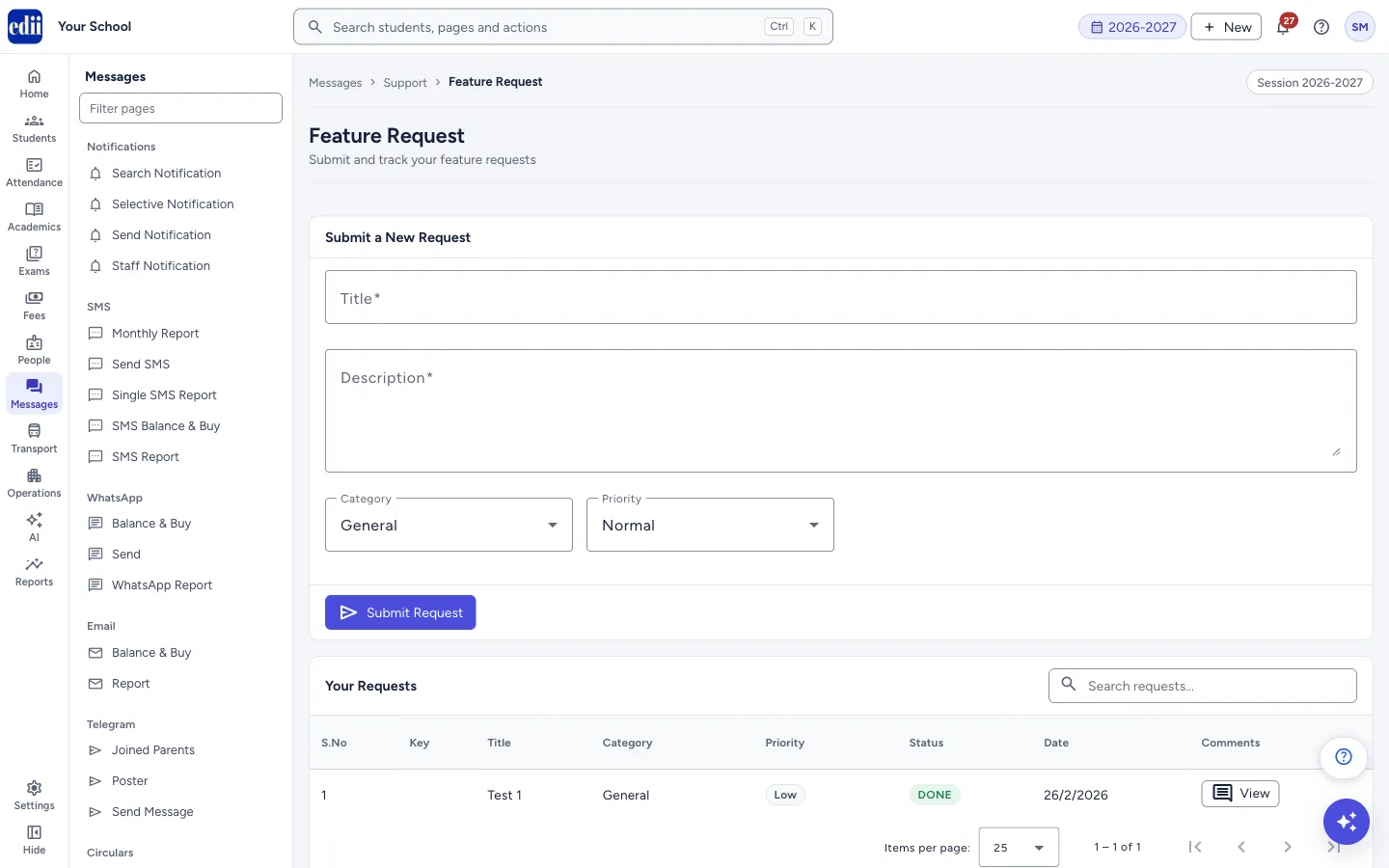
Feature Request has two parts. Submit a New Request is a short form with Title, Description, Category and Priority. Your Requests lists the requests your school has already sent, with their status, and lets you read the details and the comments.
Use it to suggest something new. If something is not working, raise a ticket on Tickets instead.
Who uses it and when
Section titled “Who uses it and when”The school administrator or the office, whenever there is an idea for a feature that would help the school.
Where to find it
Section titled “Where to find it”- In school.edii.in: Messages › Support › Feature Request
- Or press Ctrl K (⌘ K on a Mac) and type Feature Request.
- Address:
school.edii.in/view/feature-request - Who can see it: Staff whose role includes Support access. Shown only when your school uses Support in EDII. If it is missing from your menu, ask your school admin.
 Open a bigger pictureतस्वीर बड़ी करें
Step by step
Section titled “Step by step”1. Write the title and description
Section titled “1. Write the title and description”In Title, write a short name for the feature. In Description, explain what you would like to see and why. Both are required.
2. Choose the category and priority
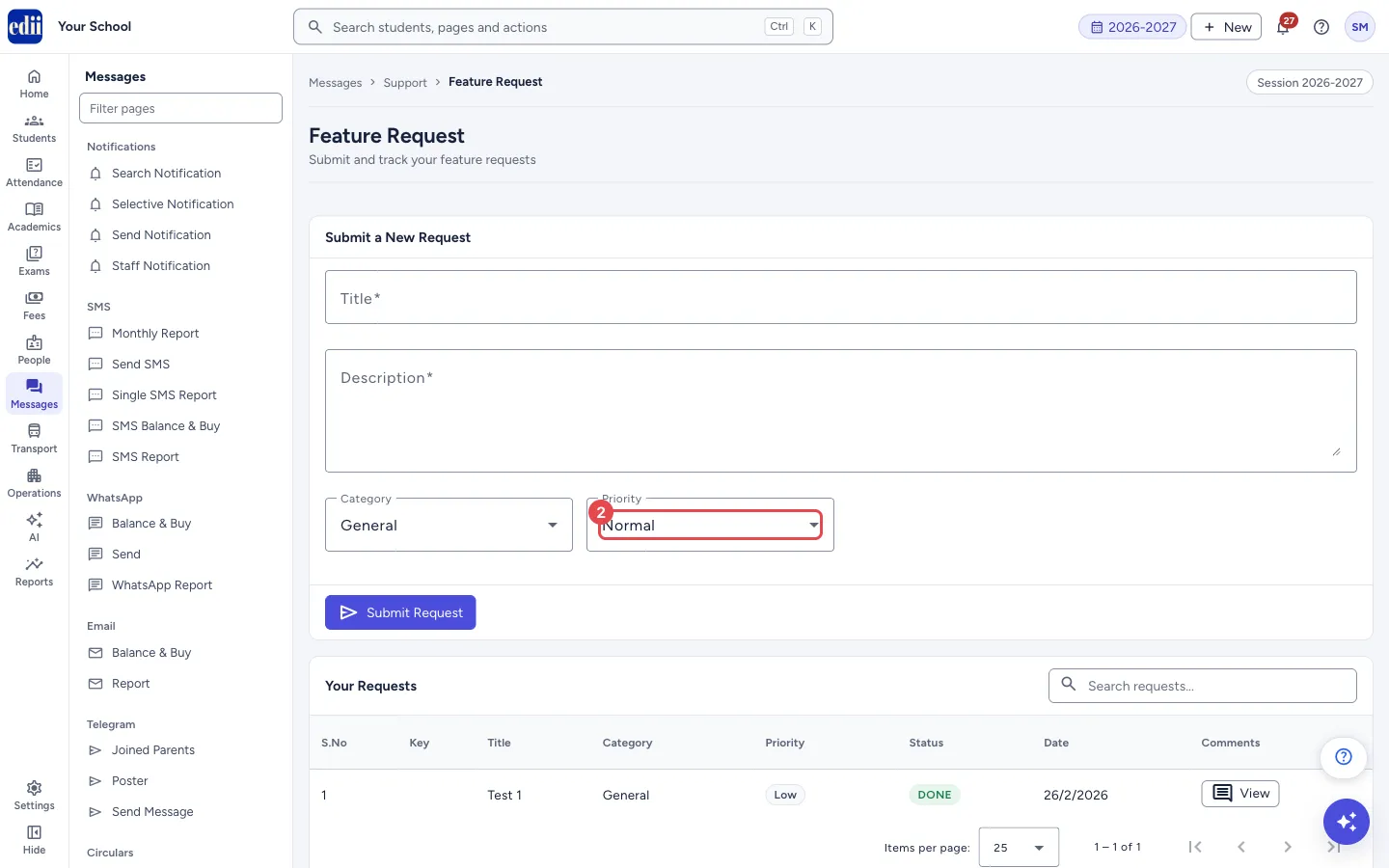
Section titled “2. Choose the category and priority”Category starts as General; the other choices are UI, Reports, Finance, Exams, Attendance and Other. Priority starts as Normal; the other choices are Low and High.
 Open a bigger pictureतस्वीर बड़ी करें
3. Submit
Section titled “3. Submit”Select Submit Request. EDII shows Feature Request submitted successfully! and clears the form. About three seconds later the list under Your Requests loads again, so the new request appears.
4. Follow your requests
Section titled “4. Follow your requests”Your Requests shows S.No, Key, Title, Category, Priority, Status, Date and Comments. Use Search requests… to narrow the list. Select the key or the title of a request to open its details: its status, category, priority, date and description.
5. Read or add comments
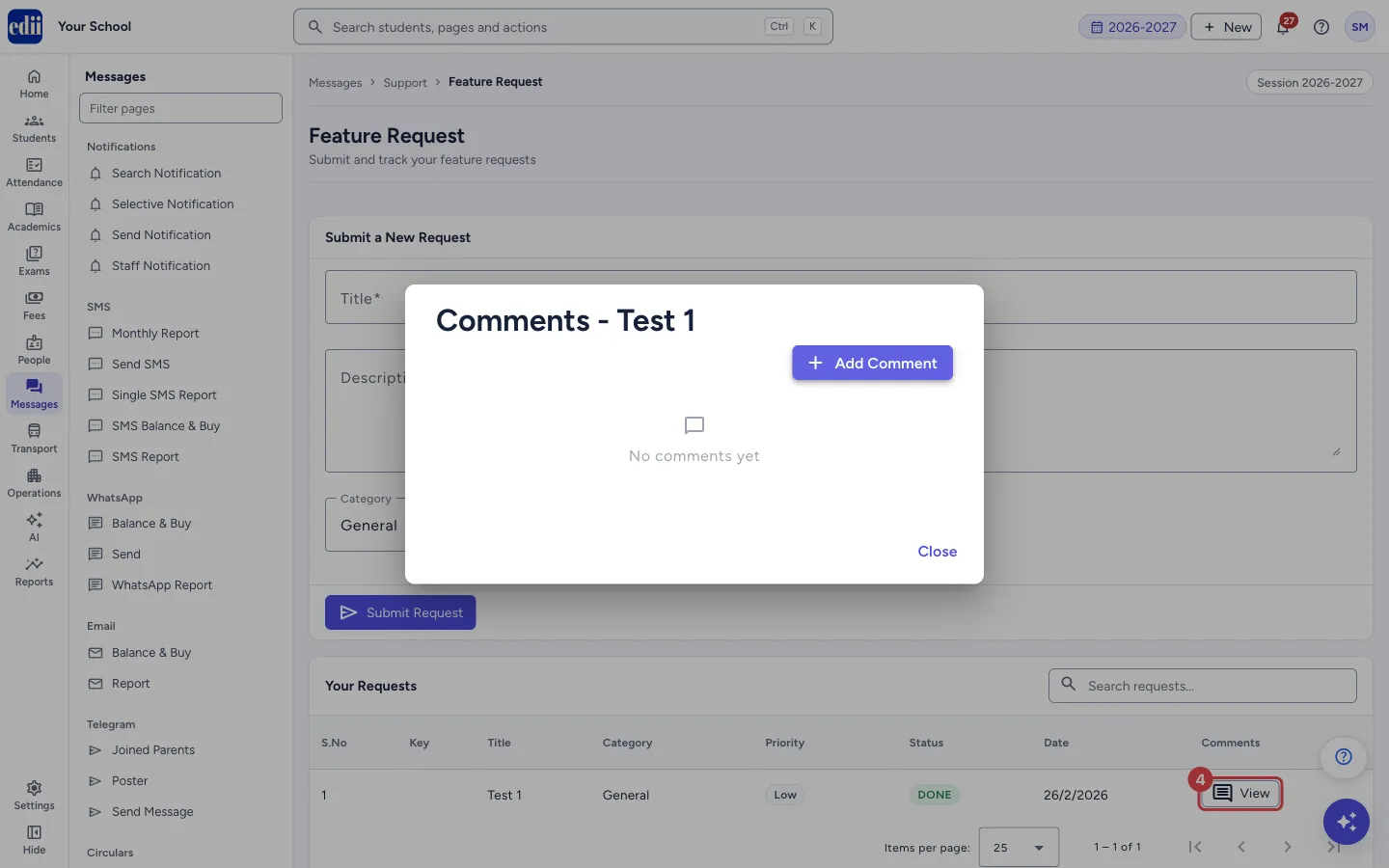
Section titled “5. Read or add comments”Select View in the Comments column. A window headed Comments - and the request’s title opens. It lists the comments with the time, or says No comments yet. Select Add Comment, type in Comment and select Add. EDII shows Comment Added.
 Open a bigger pictureतस्वीर बड़ी करें
Fields and filters
Section titled “Fields and filters”| Field | What it is | Notes |
|---|---|---|
| Title | A short name for the feature. | Required. Error: Please enter a title. |
| Description | What you would like to see and why. | Required. Error: Please enter a description. |
| Category | The area the feature belongs to. | General, UI, Reports, Finance, Exams, Attendance or Other. Starts as General. |
| Priority | How important it is to you. | Low, Normal or High. Starts as Normal. |
| Search requests… | Narrows the list to matching requests. | Optional. |
| Items per page | How many requests show on one page. | 25, 50 or 100. Starts at 25. |
Buttons
Section titled “Buttons”| Button | What it does | What happens next |
|---|---|---|
| Submit Request | Sends the request. | Feature Request submitted successfully! shows and the form is cleared. |
| View | Opens the comments of a request. | A window lists the comments and lets you add one. |
| Add Comment | Opens a box to write a comment. | Type the comment and select Add, or Cancel. |
Columns
Section titled “Columns”| Column | Meaning |
|---|---|
| S.No | The row number. |
| Key | The reference of the request. Select it to read the details. |
| Title | The title you gave. Select it to read the details. |
| Category | The category you chose. |
| Priority | Low, Normal or High. |
| Status | Where the request stands, for example PENDING, IN PROGRESS, DONE or REJECTED. |
| Date | The day the request was sent. |
| Comments | A View button for the comments. |
Messages you may see
Section titled “Messages you may see”| Message | What it means | What to do |
|---|---|---|
| Feature Request submitted successfully! | Your request was sent. | Wait a few seconds; it appears in Your Requests. |
| Feature Requests fetched. | The list was loaded. | Nothing to do. |
| Comment Added | Your comment was saved. | Nothing to do. |
| Network Issue, Please Try Again. | A request did not go through. | Check the internet and try again. |
- Above the form, a note points to these help guides: most questions are answered here before you ask for something new.
- Describe the problem you want solved, not only the feature. It helps the EDII team to understand it.
- Send one idea in each request.
Stuck? Try this
Section titled “Stuck? Try this”| Problem | Likely cause | What to do |
|---|---|---|
| The list says No feature requests yet. Submit one above! | Your school has not sent a request yet. | Fill the form above and select Submit Request. |
| My new request is not in the list. | The list is loaded a few seconds after you submit. | Wait a moment, or open the page again. |
Did this page help?क्या इस पेज से मदद मिली?
Thanks! Glad it helped.धन्यवाद! अच्छा लगा कि काम बन गया।
Sorry about that. Ask in your own words, or write to us.माफ़ कीजिए। अपने शब्दों में पूछें, या हमें लिखें।